

Visual Effects
Highlights
Highlights dim everything outside a region of your video so the area you’ve chosen stays at full brightness — useful for calling out a button, a form field, a setting, or any part of a busy interface viewers might miss. The dim happens on playback only; your source recording is untouched.
A highlight isn’t limited to how long that moment lasted in your recording. You pick the words that should be spoken while it’s on, and the video pauses for as long as the narration needs.
Opening Highlight
Section titled “Opening Highlight”Move the playhead to the moment you want to highlight, then click Highlight in the toolbar above the video preview.
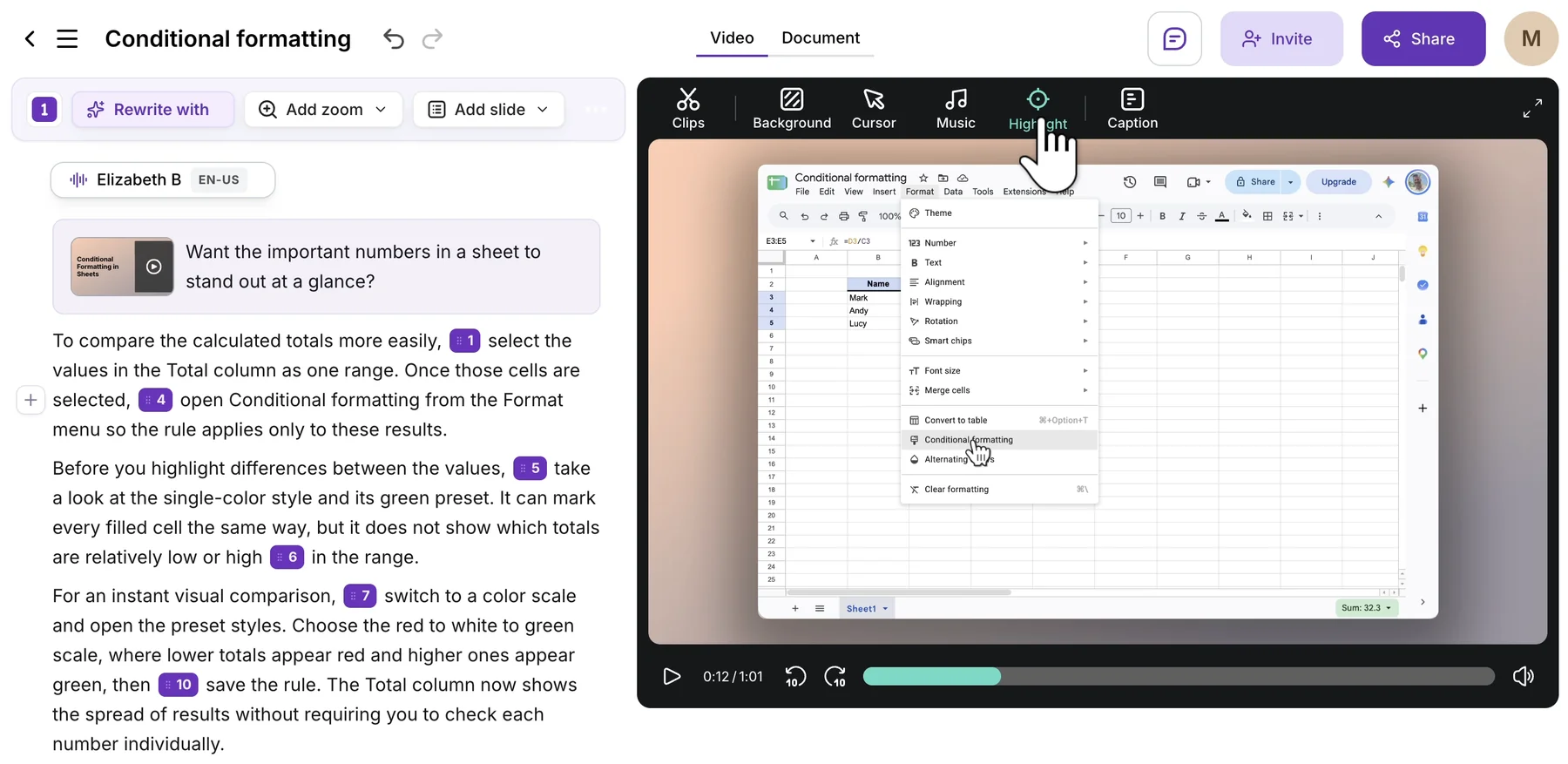
Drawing the area and setting its frames
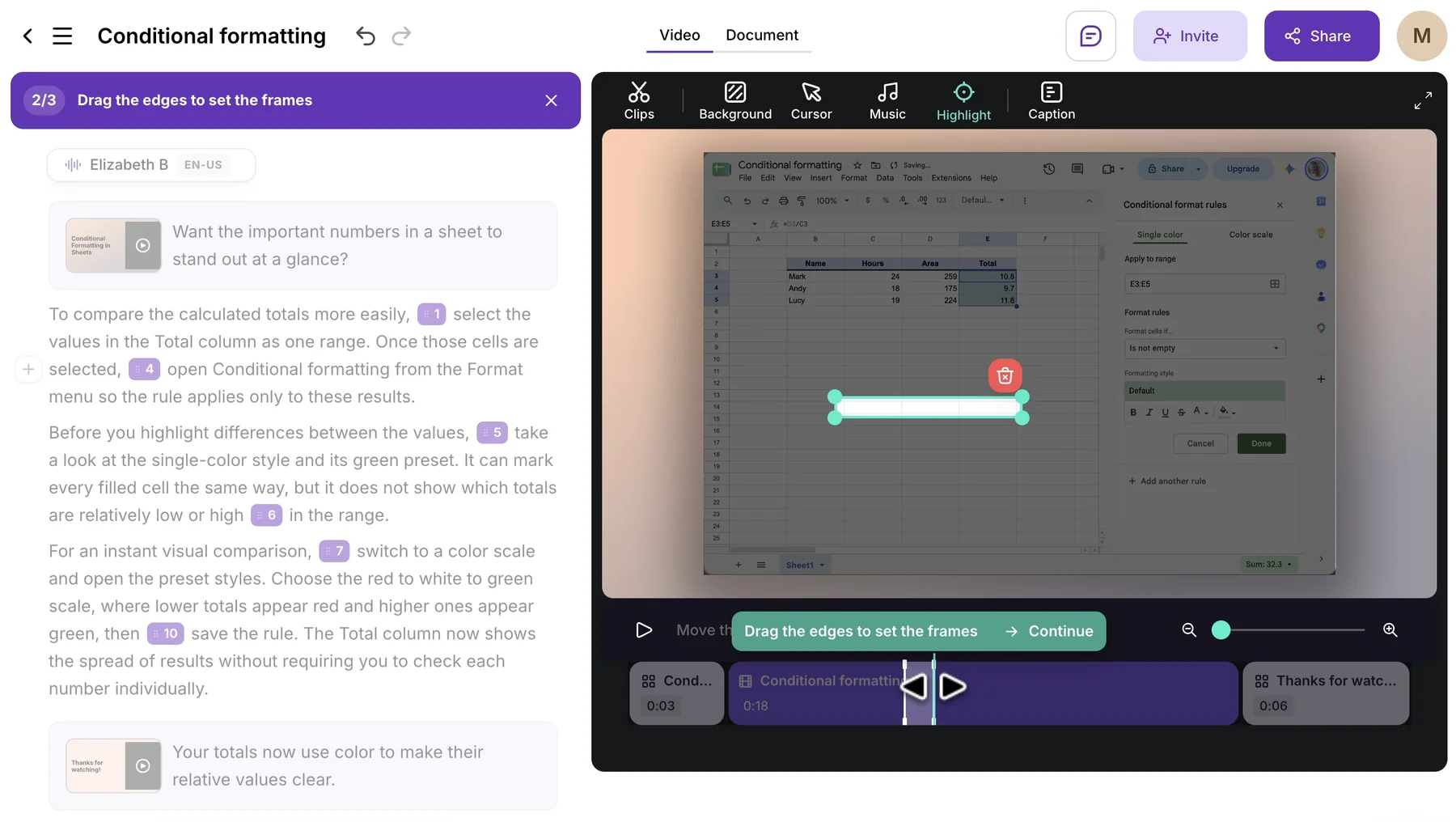
Section titled “Drawing the area and setting its frames”Drag on the preview to draw the region you want to keep bright, then drag the corner handles to fine-tune it.
The step bar then reads Drag the edges to set the frames. Drag the start and end edges on the timeline to choose which part of the recording the highlight covers, then click Continue. Pinch on your trackpad or use the zoom slider for finer positioning.
Choosing the words spoken over it
Section titled “Choosing the words spoken over it”The step bar now reads Select the words spoken over it. In the script, select the words that should play while the highlight is on, then click Done.
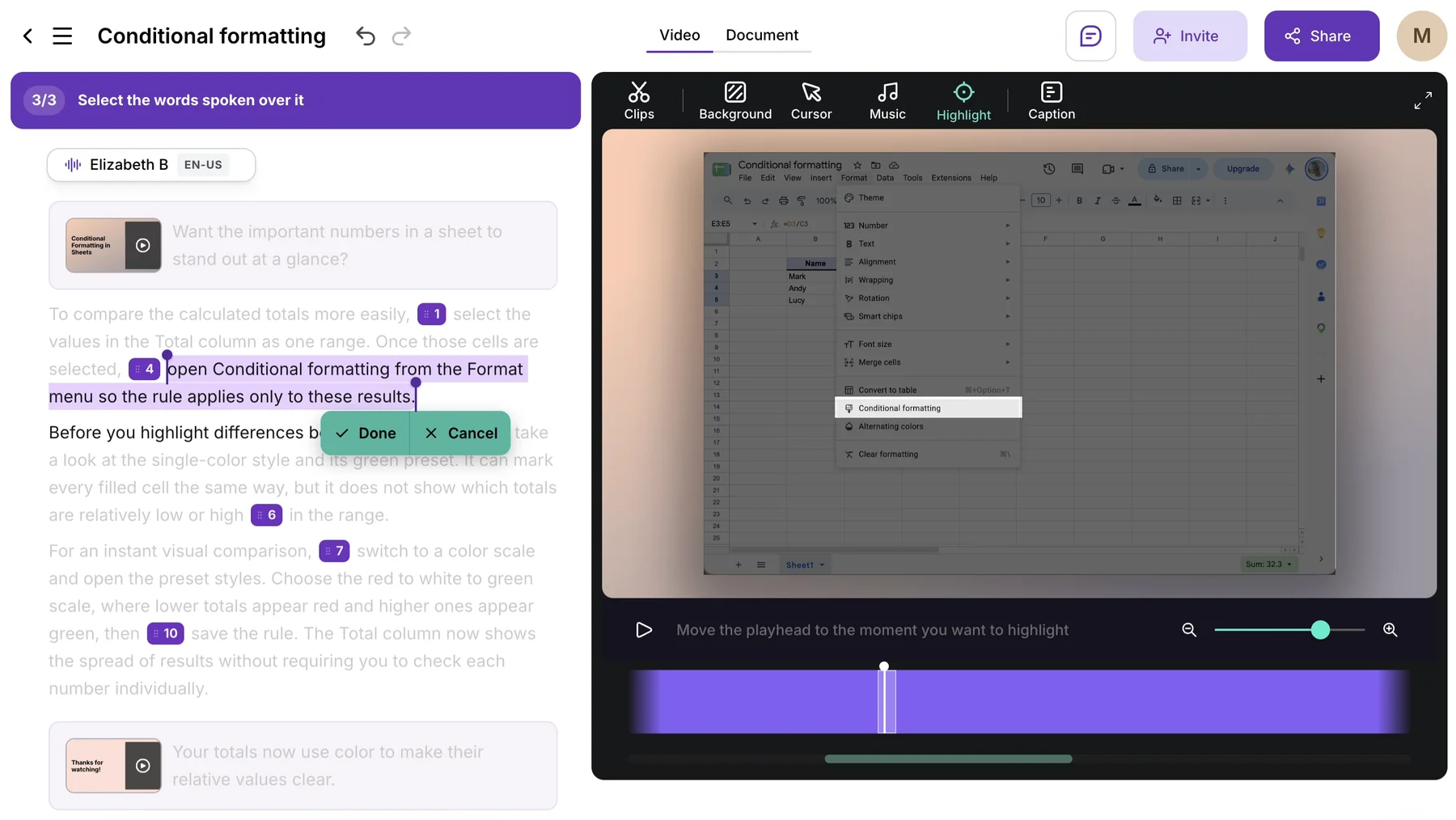
The video holds on the highlighted area until those words finish. To review, move the playhead a few seconds before the highlight and press play.
How highlights work with auto-zoom
Section titled “How highlights work with auto-zoom”When the video is zoomed in — either from an automatic zoom or a Zoom marker — the camera moves to frame the highlight automatically, even if the cursor in the original recording is somewhere else. You can call out something you never clicked during the recording: a section header, an inactive menu item, a piece of explanatory text.
- Select only the words that talk about the highlighted area. A long selection keeps the video paused for longer.
- Pair a highlight with Zoom when the area you want to call out is small — zoom enlarges it, the highlight dims everything around it.
- To mask sensitive data instead of emphasizing something, use Blur — it covers the region rather than dimming the surroundings.