

Getting Started
Video Basics
Every Tutorial AI video starts with a screen recording and ends with a polished, narrated tutorial. This guide covers the full workflow and how Sync Markers keep the video in step with your script.
The video creation flow
Section titled “The video creation flow”-
Record — Capture your screen with the Desktop App, the Chrome Extension, or on mobile — or upload an existing video
-
Script — The AI Script Writer analyzes your recording and generates a narration script. If you spoke while recording, AI transcribes and refines your words.
-
Voice — AI narrates the script with a natural-sounding voice in your chosen language
-
Effects — Smart zoom on key moments and cursor smoothing are applied automatically
-
Review — Edit the script (the video updates to match), adjust effects, and add slides. Open Clips to cut out mistakes, combine several recordings into one video, or replace a section of a recording.
The editor
Section titled “The editor”The editor uses a script-based approach — you edit text, not a timeline. When you change a word in the script, the voiceover and video timing update automatically. That’s why subject-matter experts, not video specialists, can create professional tutorials: the script is the single source of truth.
For a tour of every area of the editor, see Editor Overview.
Sync Markers
Section titled “Sync Markers”Sync Markers are timestamps linking specific words in your script to specific frames in your video. They’re generated automatically by the Desktop App when you click on screen elements.
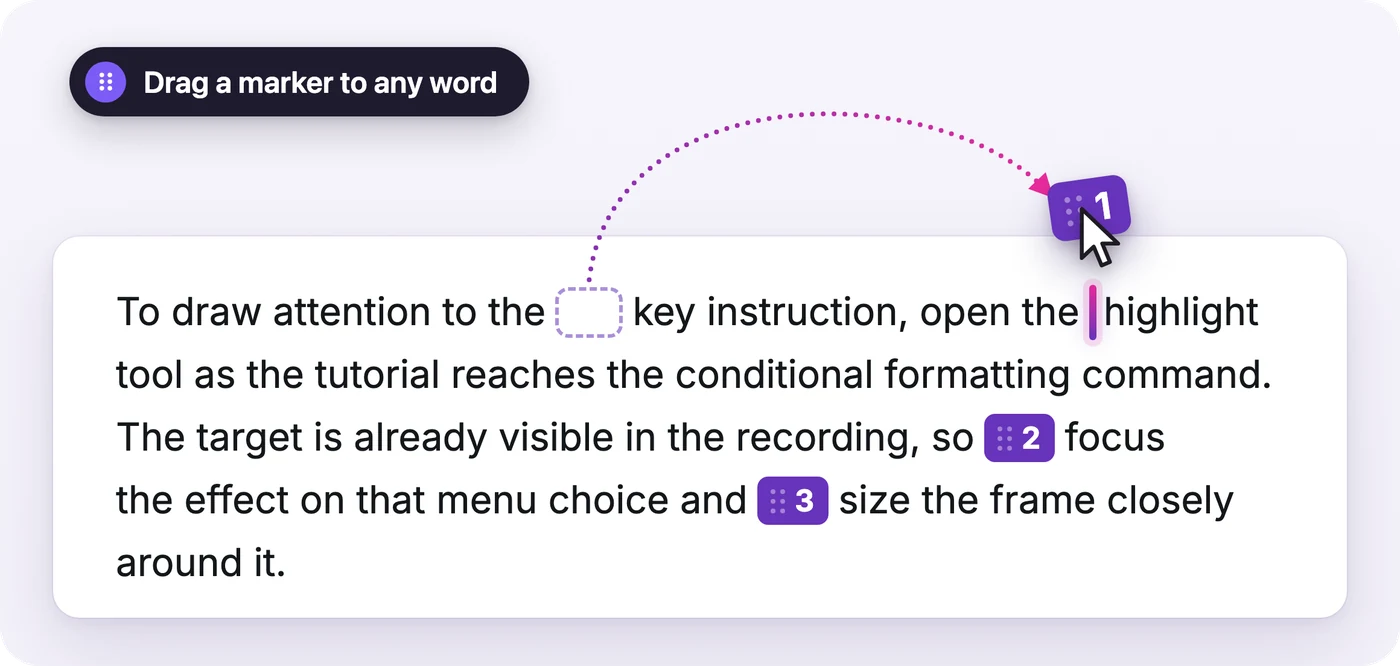
Each marker sits in the script as a numbered chip. Drag a marker to a different word to change when its frame appears — the video automatically pauses or speeds up to keep narration and visuals aligned.
If a marker is missing from the script — for example, you deleted it — click the spine on the left edge of the script to open the Sync Marker Rail. It lists every marker in order with a thumbnail of its frame. Drag the marker from the rail onto the word where its frame should appear. While you drag, the parts of the script where it can’t go are greyed out, because markers always stay in order.
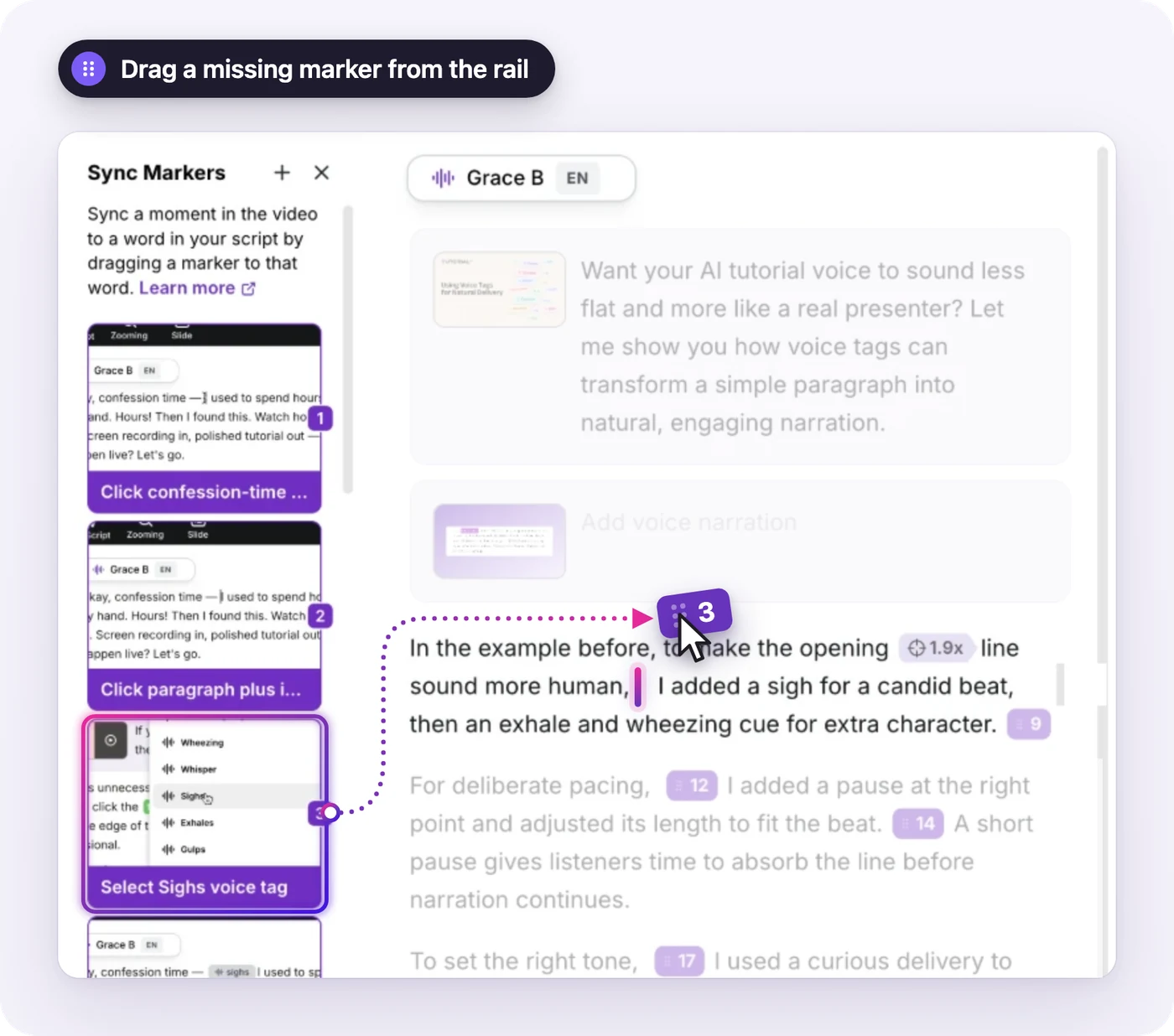
You can also click + in the rail to add a custom marker at the current video frame. Learn more in Script Editing.
Navigating your video
Section titled “Navigating your video”Tutorial AI offers three ways to navigate through your video:
- Click in the script — Jump directly to the video segment corresponding to that text
- Click a thumbnail — Click a marker in the Sync Marker Rail to jump the video to that frame
- Use the progress bar — Scrub through the video for quick review