

Visual Effects
Backgrounds
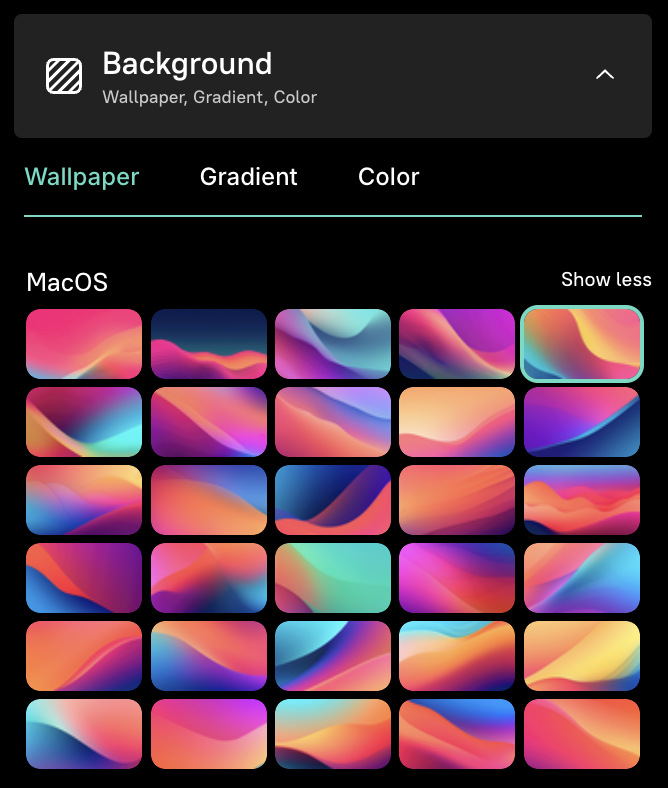
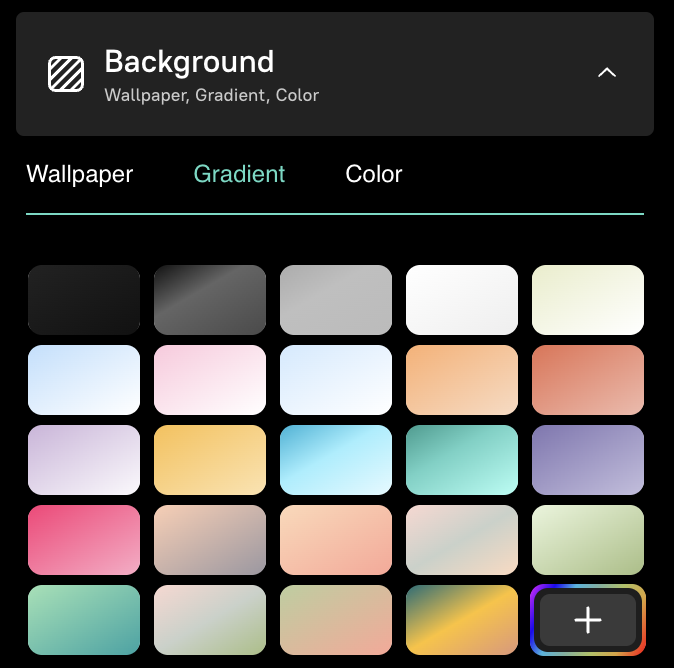
The Background tool lets you wrap your screen recording in a polished visual frame — wallpaper images, gradient backgrounds, or solid colors — plus control padding, rounded corners, and shadow for a professional look.
Wallpapers, gradients, solid colors
Section titled “Wallpapers, gradients, solid colors”Click the Background icon in the Video Toolbar to access background options.
Wallpapers
Section titled “Wallpapers”Choose from a library of stunning wallpaper images to add behind your recording.
Gradients and solid colors
Section titled “Gradients and solid colors”Switch to the Gradient tab for vibrant multi-stop gradient backgrounds, or the Color tab for simple solid colors.
Padding, rounded corners, shadow
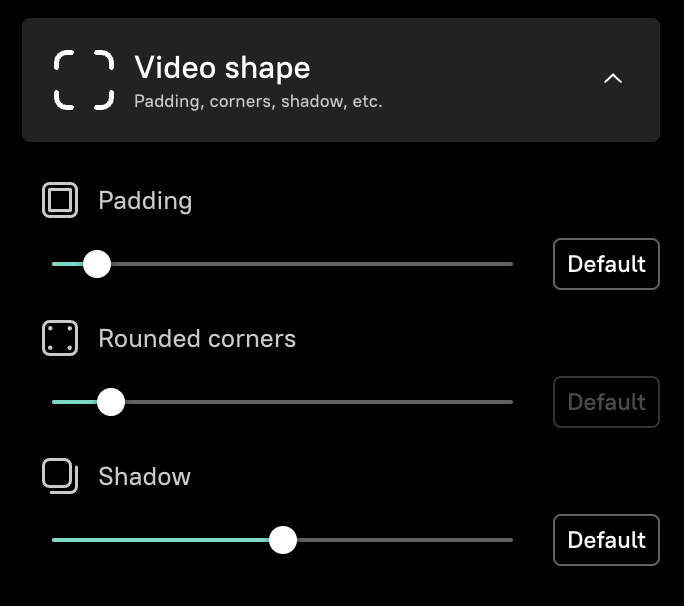
Section titled “Padding, rounded corners, shadow”Use the sliders in the Video Shape section to fine-tune:
- Padding — control the space between your recording and the background edge
- Rounded corners — adjust the corner radius for a softer or sharper look
- Shadow — control the shadow strength around your recording for depth
- Dark backgrounds make UI recordings pop — especially for light-themed apps
- Brand colors keep your tutorials consistent with your company identity
- Subtle shadows add depth without distraction
- Larger padding gives the recording room to breathe and feels more polished
- Minimal rounded corners (4–8px) look clean and modern
Next steps
Section titled “Next steps” Brand Kits Apply your brand colors and gradients automatically
Cursor Effects Customize the cursor on top of your background
Zooming Add zoom effects that complement your background