

Recording
Uploading Videos
Most uploads are screen recordings — files from an OS-native recorder, a phone, or another tool that you want Tutorial AI to turn into a tutorial. Upload one to start a new project, or upload several and combine them into a single video with Clips.
A second, less common kind of upload is a decorative video — an animation, intro clip, or B-roll placed on a slide. Those go to the Asset Library and are covered at the end of this page.
Uploading a screen recording
Section titled “Uploading a screen recording”Open the Screen Recordings section from the sidebar, then click the Upload screen recording button in the top-right of the header.
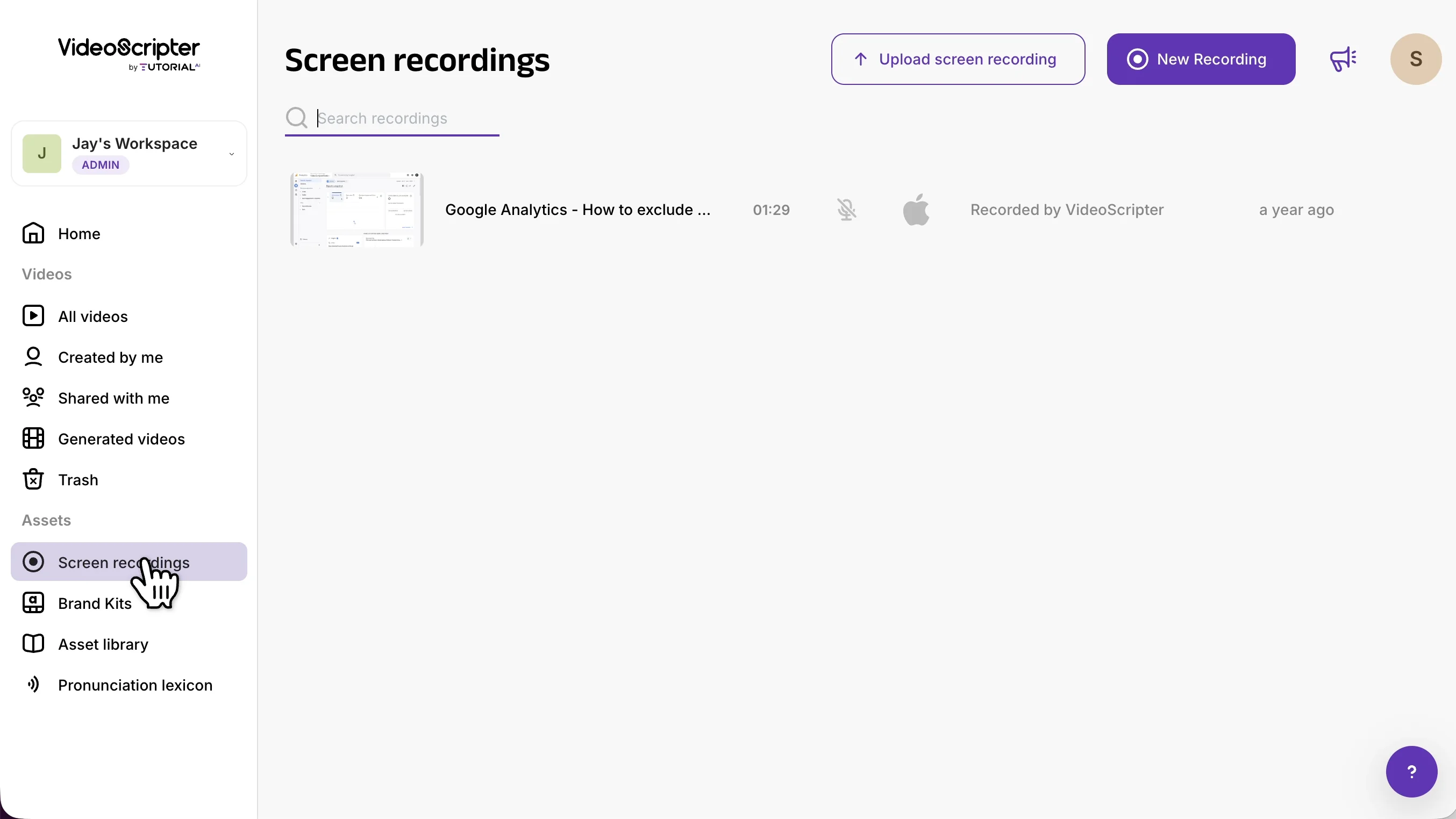
A modal opens with two file-type options: Desktop Recording (computer screen capture) or Mobile Recording (iOS or Android device).
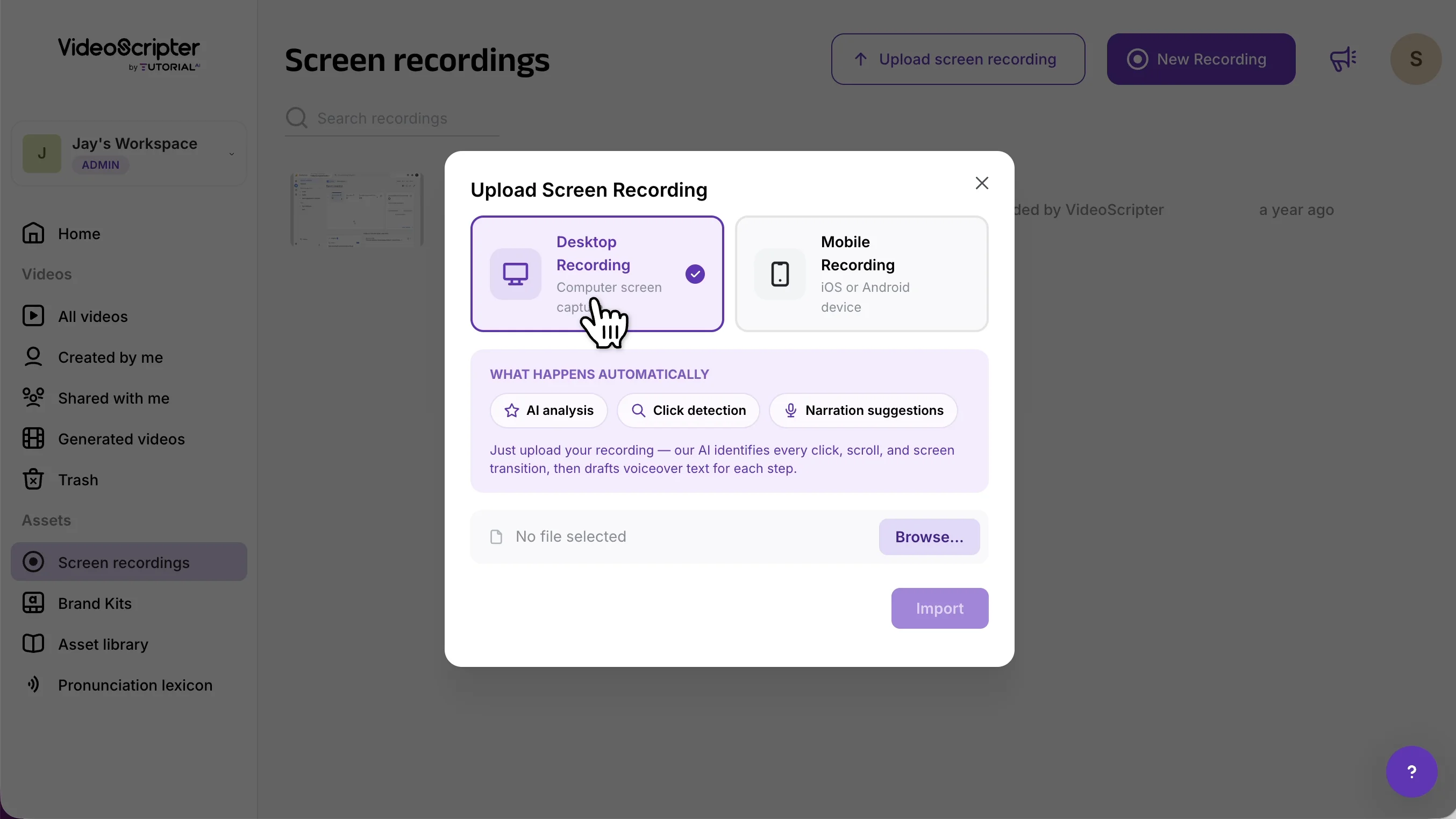
When you import a desktop recording, Tutorial AI runs three automatic passes on the file:
- AI analysis — every click, scroll, and screen transition is detected and turned into a Sync Marker
- Click detection — interaction spots are identified so post-recording effects (zooms, cursor emphasis) have targets to lock onto
- Narration suggestions — if the recording has narration audio, the script is transcribed from it; if it’s silent, the script is drafted from the visual content
Processing can take a few minutes for longer videos. You can leave the tab open or close it — Tutorial AI emails you when the project is ready.
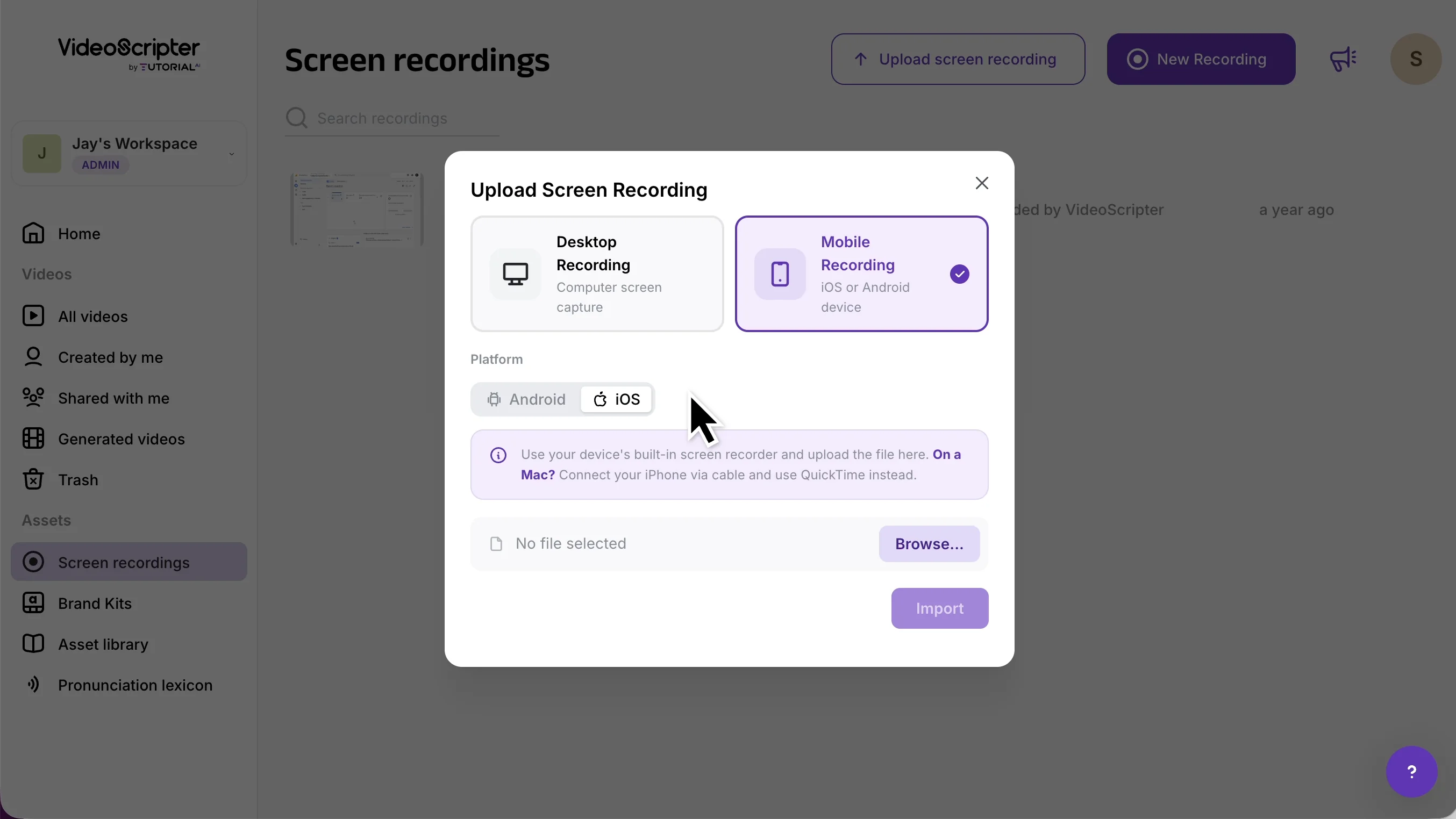
Select Mobile Recording, then pick the platform — Android or iOS. Any .mp4 or .mov captured with a device’s built-in screen recorder is accepted.
Combining several recordings into one video
Section titled “Combining several recordings into one video”Every recording you upload is listed in Screen Recordings, so you can add it to any project — to join a second take to your first, or to add a part you recorded separately.
-
Open the project and click Clips.
-
Hover over the timeline and click the + where the recording should go.
-
Choose Screen recording, pick the uploaded recording, and confirm with Insert video & open script.
The recording becomes its own clip, and AI writes narration for it. See Combine Videos for every option, and Update or Replace Footage to swap out an outdated section.
Uploading decorative videos for slides
Section titled “Uploading decorative videos for slides”Decorative videos don’t belong in the Screen Recordings tab — they live in the Asset Library and can be dropped onto any slide. Examples: an animated rocket background, a looped product shot, a personal intro clip recorded on a phone.
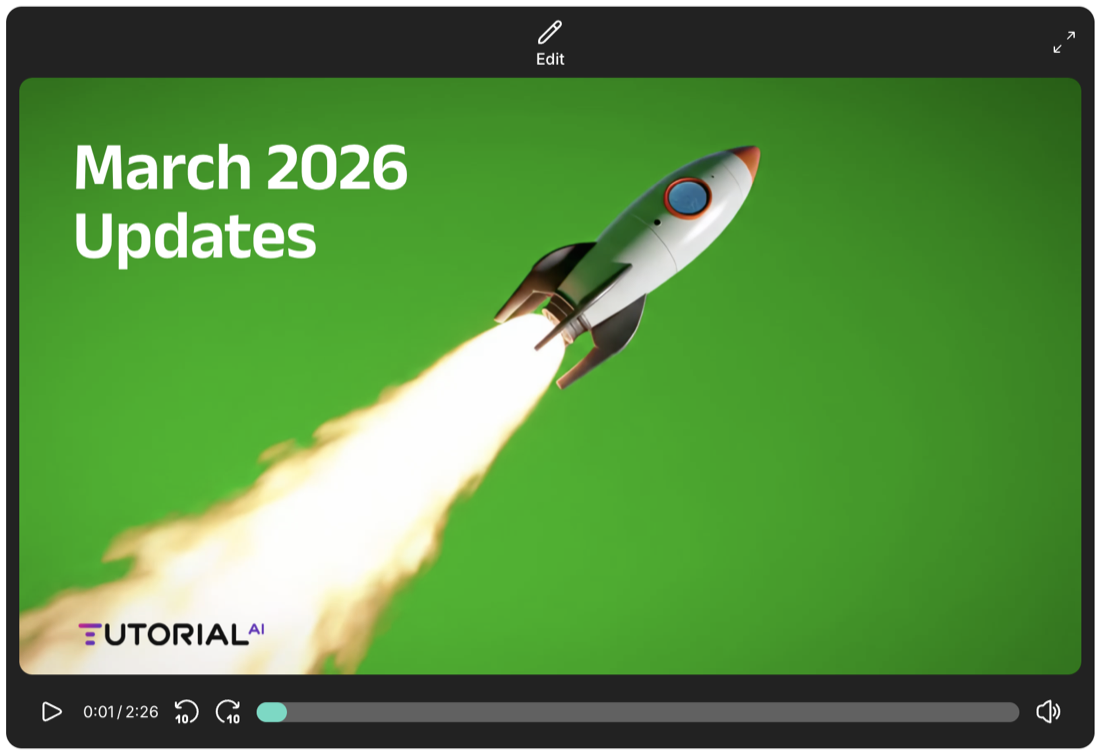
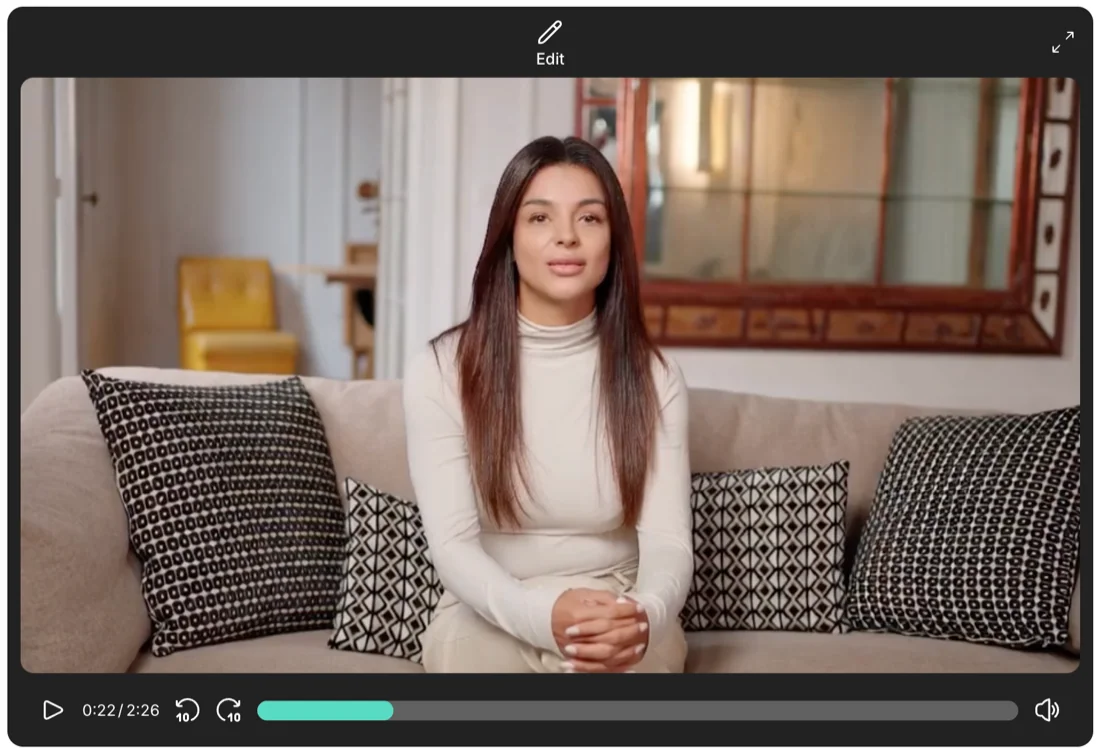
There are two ways to upload one:
- From the dashboard’s left navigation, open Asset Library → Upload media
- While editing a slide, click the video button in the top toolbar → Upload media
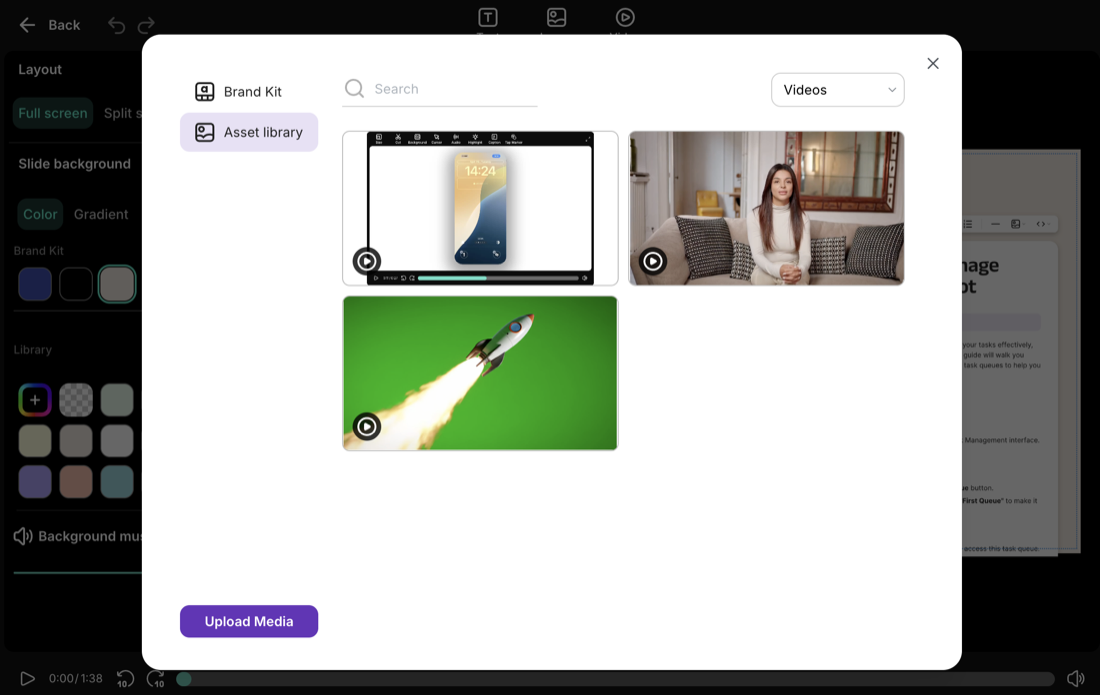
Uploaded videos become available across all your projects and can be placed onto any slide. See Slides for how to position video content on a slide.