

Clips
Combine Videos
A project isn’t limited to one recording. In Clips, you can add more screen recordings — a second take, a part you recorded separately, a step you forgot — or reuse clips you’ve already made in another project. Each one arrives with its own section of the script.
Opening the Insert menu
Section titled “Opening the Insert menu”In Clips, hover over the timeline. A + appears at the start, at the end, and between every clip and slide, labelled Insert here. Click it where the new footage should go.
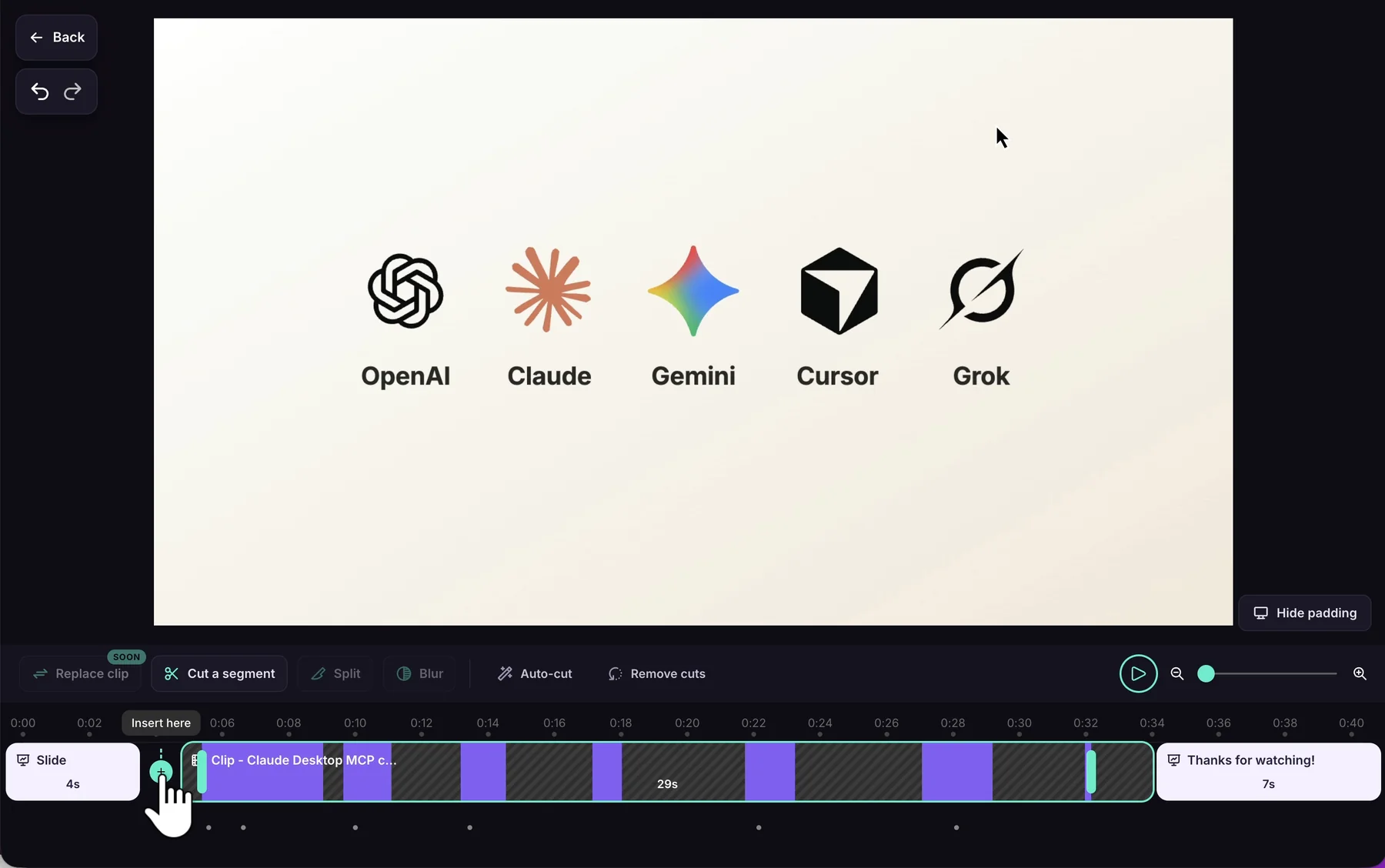
To add footage in the middle of a clip, split the clip first — the split creates a new + at that point.
Choosing what to add
Section titled “Choosing what to add”The Insert window asks what you’d like to add to your video:
- Screen recording — pick from your earlier screen recordings, including ones you’ve uploaded.
- From another project — reuse clips you’ve already made.
- Library — insert an uploaded image or video. Coming soon.
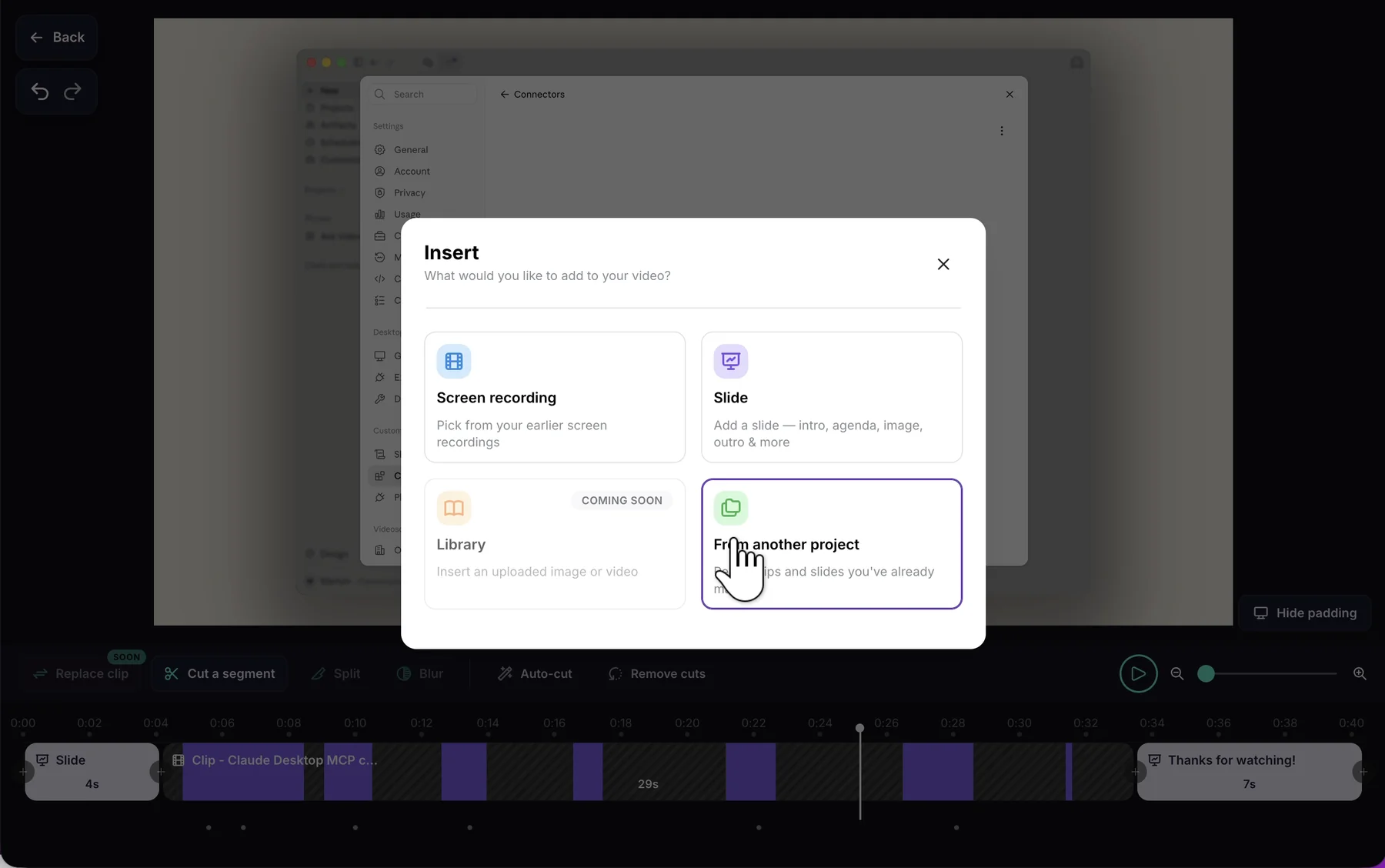
The same window also adds slides — see Add Slides.
Adding a screen recording
Section titled “Adding a screen recording”Search or scroll to the recording you want and select it. Once you confirm the insert, the script opens at the new clip and AI writes its narration — this doesn’t use AI credits. You’ll see Writing narration… in the script while it works; you can keep editing elsewhere in the meantime.
If Smart Auto-Cut is on, idle moments in the new clip are cut automatically.
If writing the narration fails, the recording stays inserted. Click Retry, or Continue without script to write it yourself.
Reusing clips from another project
Section titled “Reusing clips from another project”Pick a project from your workspace, then the clip you want. Use the search box, or the folder path at the bottom, to find it.
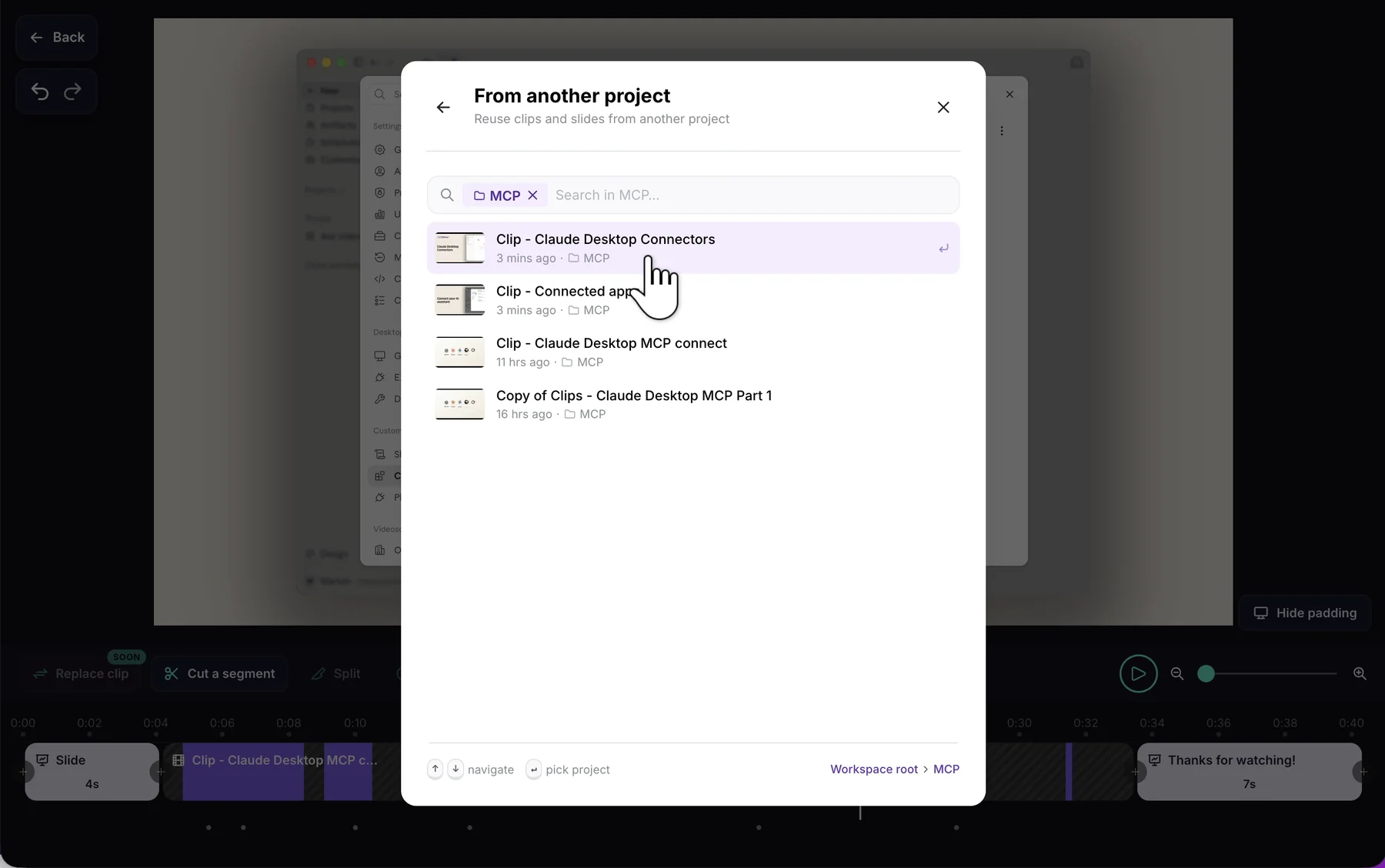
A copied clip brings its footage together with its narration, sync markers, zooms, cuts, blurs, and highlights — so the timing and emphasis you already created come with it. No AI narration runs; the narration is copied as it is. The project’s slides are listed separately, so pick them on their own.
Confirming the insert
Section titled “Confirming the insert”The new clip appears on the timeline as a preview first, and the step bar reads Placed … — confirm on the clip. Play it to see how it fits.

- Click Insert video & open script to keep it.
- Click × to discard it. The timeline returns exactly to how it was.
After you confirm, the script opens at the new section, marked Just inserted.

Then pick how the new clip joins its neighbours — a Direct Cut or a Fade — on its heading in the script. See choosing a transition.
- One task at a time. Finish the current edit or narration generation before adding another clip.
- Undo works as usual. The insert is one undo step; the AI-written narration for an inserted recording is a separate one.
- Changing an existing section? See Update or Replace Footage for step-by-step recipes.