The screen was redesigned
One refreshed view invalidates every video that shows it, even when the workflow behind it never changed.
September 2026 release
The new Clips Editor lets you replace just the section that changed, and reuse footage you have already recorded — narration, sync markers and zooms included. Highlights now hold on screen for as long as you need to explain something. Both are part of the September 2026 release.
A button moves. A screen gets redesigned. A step disappears. The tutorial that was accurate last quarter now teaches something that is not there any more — and until now, the fix was to record the whole thing again, script and all.
One refreshed view invalidates every video that shows it, even when the workflow behind it never changed.
A single new dialog turns an accurate five-minute walkthrough into a misleading one, and viewers notice the wrong part first.
Re-recording, re-narrating and re-syncing a whole tutorial for one changed screen costs more than most teams can justify. So the video stays stale.
The Clips Editor replaces the Cut Editor. Your recording is now a row of named clips you can split, reorder, remove and add to — while the script stays exactly where it was.
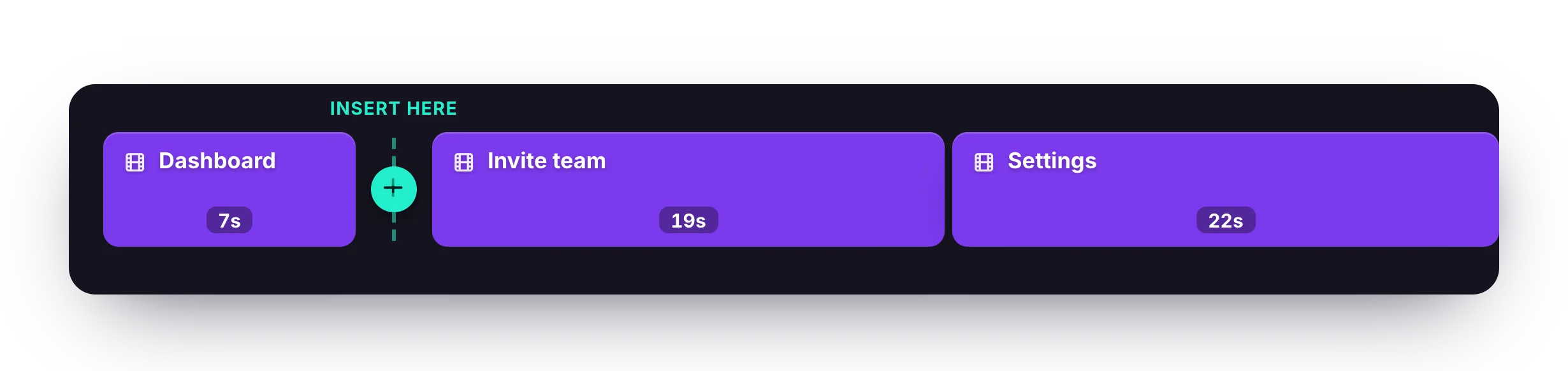
Split the recording where the change begins, remove that clip and drop in fresh footage. Everything on either side stays as it was. When you remove a clip you choose what goes with it: drop the footage and keep the narration, or remove both.
Insert a clip from another recording — or from a project you have already generated, taking either its slide or its screen recording. The insert brings its narration, sync markers and zooms with it, so a polished intro stays polished in its new home.
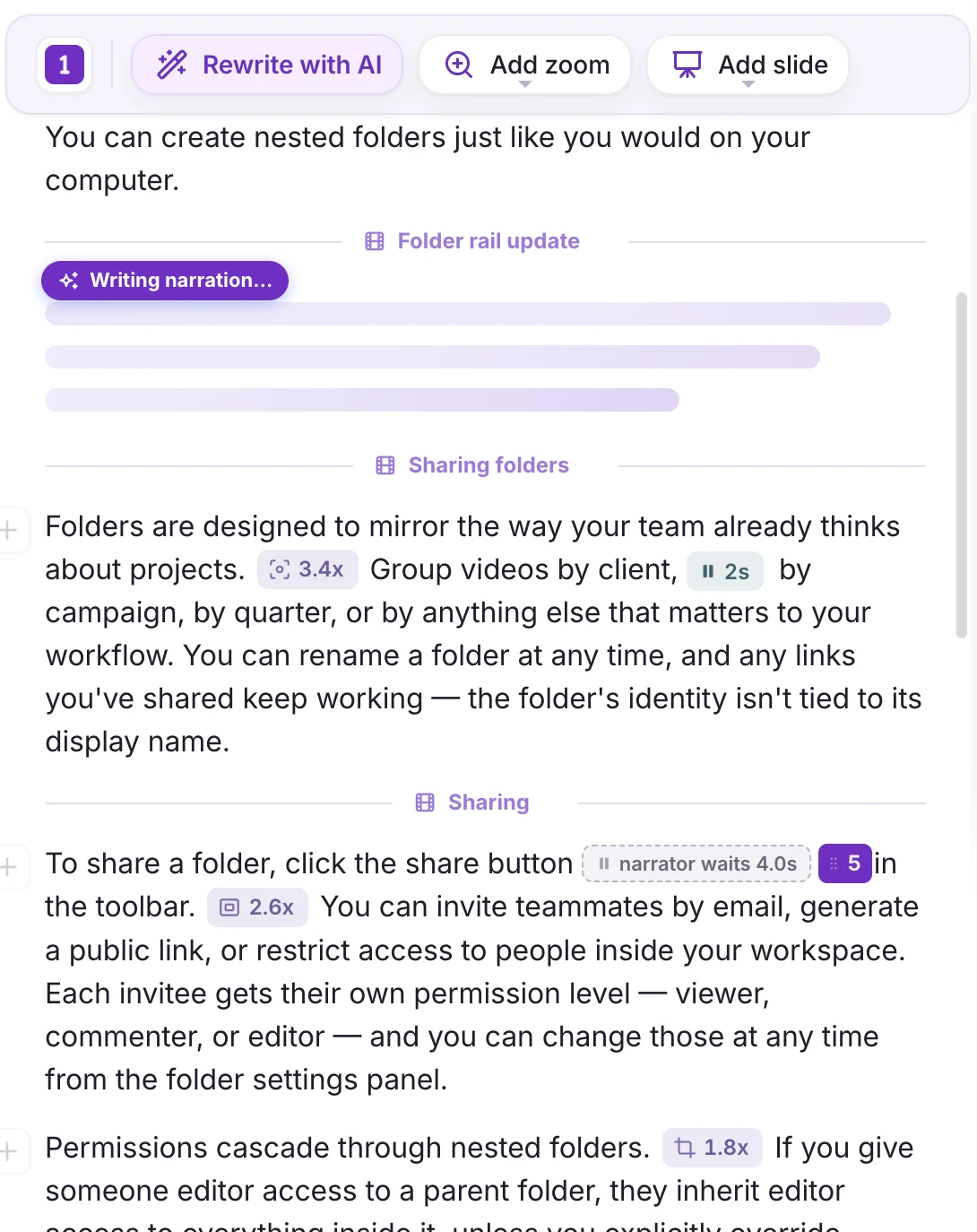
Record in the order that suits you, in as many takes as you need, then assemble them into a single project. Each clip gets its own section heading in the script, so name them clearly and the video stays navigable months later.
Appending a recording does not hand you a timeline. Each clip becomes a titled section in the same script you were already editing, and the narration runs straight through the seam. Zooms, pauses and the points where the narrator waits stay inline with the words that trigger them — so a video assembled from four takes reads as one document.
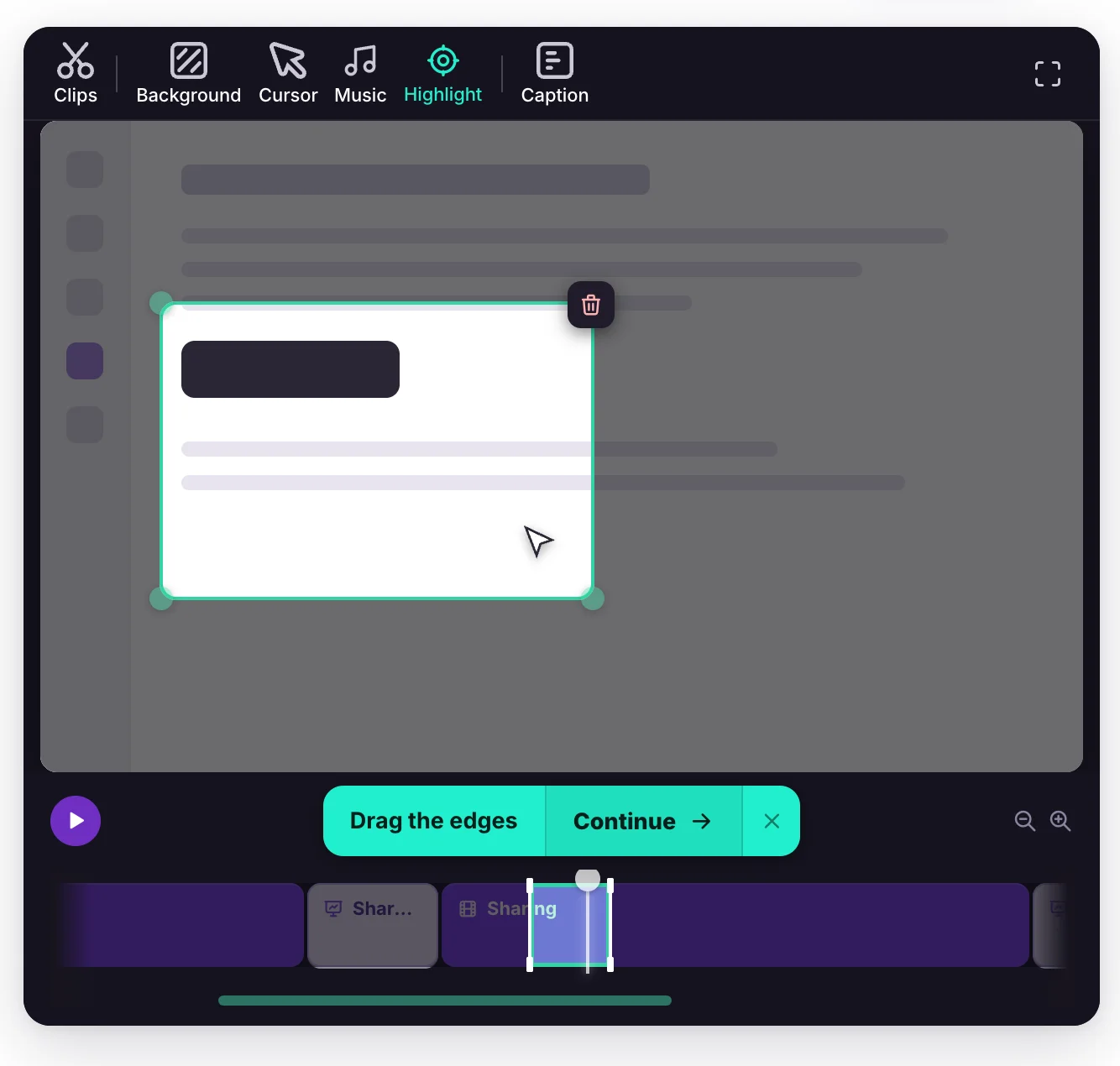
Draw the area you want viewers to focus on and set where it starts and ends, as before. What is new is that you can choose the words spoken while the highlight is on screen, and the video holds it for exactly as long as that narration takes.
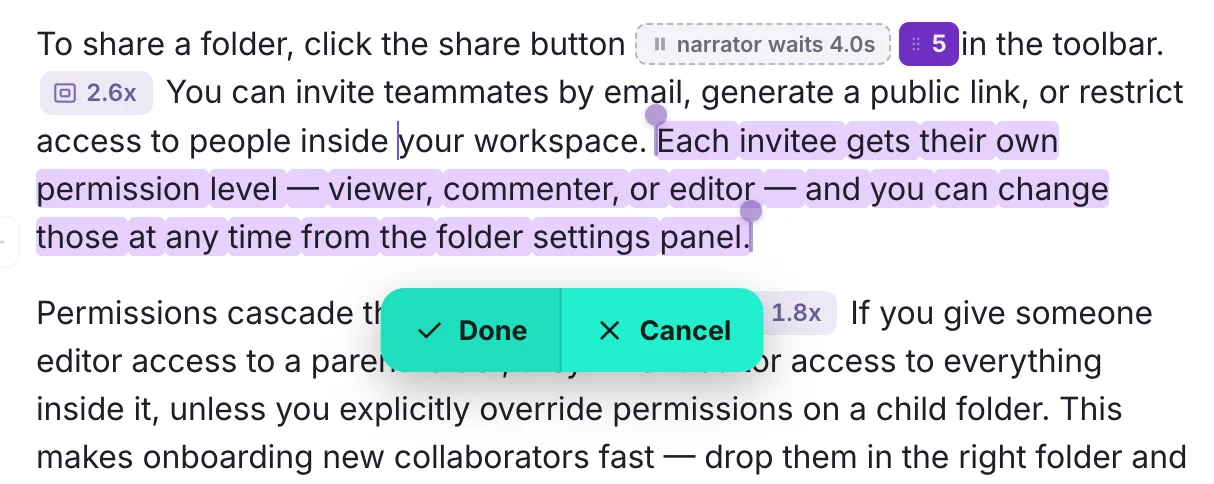
So you can explain something the recording never showed — a caveat, a prerequisite, a detail that changed since you recorded — without trimming anything or going back for another take. It happens in the script editor you already use, with no timeline to assemble.
No trimming. No re-recording. Just the time to say what matters.
A full walkthrough of the Clips Editor and the new Highlights — made in Tutorial AI.
Bring an out-of-date tutorial back into line without starting it over.
Start free trialRelated: edit tutorials like a document, add AI voiceover, or see what else shipped.