Record
Capture a real software workflow with your voice, or record silently and add narration later.
Record a software workflow once and turn it into a tutorial video and written documentation. Tutorial AI helps you generate the script and AI voice, edit the video as text, capture screenshots, translate, and publish from one workspace.
Tutorial AI starts with a real screen recording. From that recording you can create a polished tutorial video, AI narration and step-by-step documentation with screenshots, then edit, translate and publish the content from the same project.
Capture a real software workflow with your voice, or record silently and add narration later.
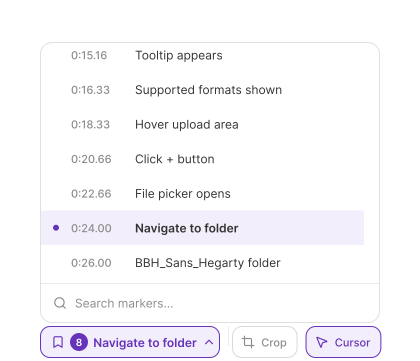
Turn the recording into an editable script, a useful first draft and a narration structure based on what happened on screen.
Fix the tutorial by editing text, removing mistakes and refining zooms, cursor movement and visual style—without a traditional timeline.
Choose an AI voice, language, accent and delivery style. If a line changes, edit the words instead of recording it again.
Generate a written guide with structured steps and screenshots captured at the moments that matter.
Share a link, embed the tutorial, export video or documentation, and move the result into the tools your team already uses.
Instead of moving between a screen recorder, a script document, a voiceover tool, a video editor, a manual screenshot workflow and a documentation editor, teams can handle those steps inside one Tutorial AI project.
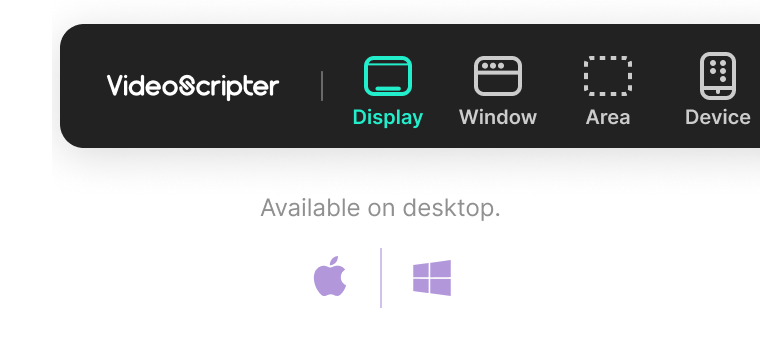
Record your screen seamlessly and turn it into a ready-to-edit video with AI narration.
Transform simple text into natural, studio-quality narration. Generate engaging scripts and lifelike AI voices in seconds.

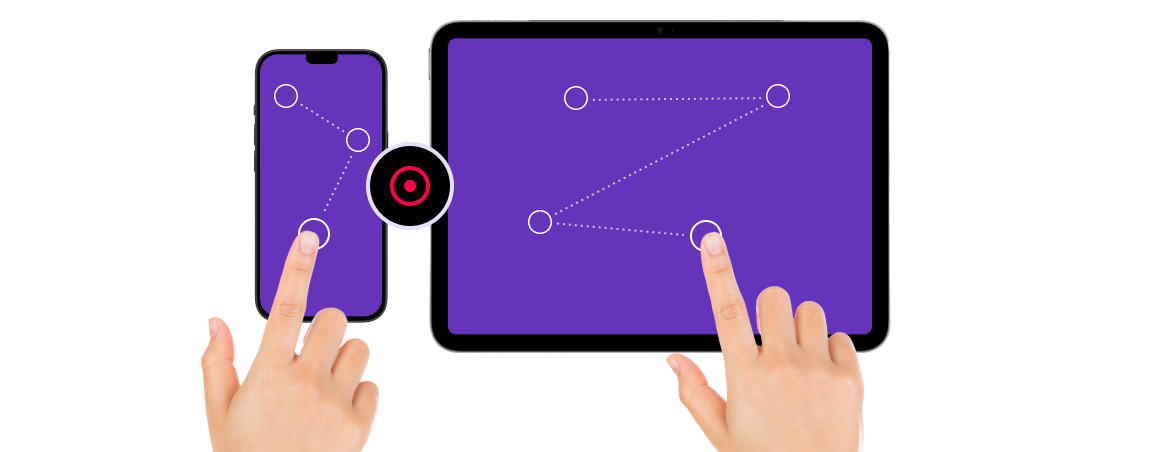
Capture iOS and Android workflows from your iPhone or iPad with instant desktop sync.
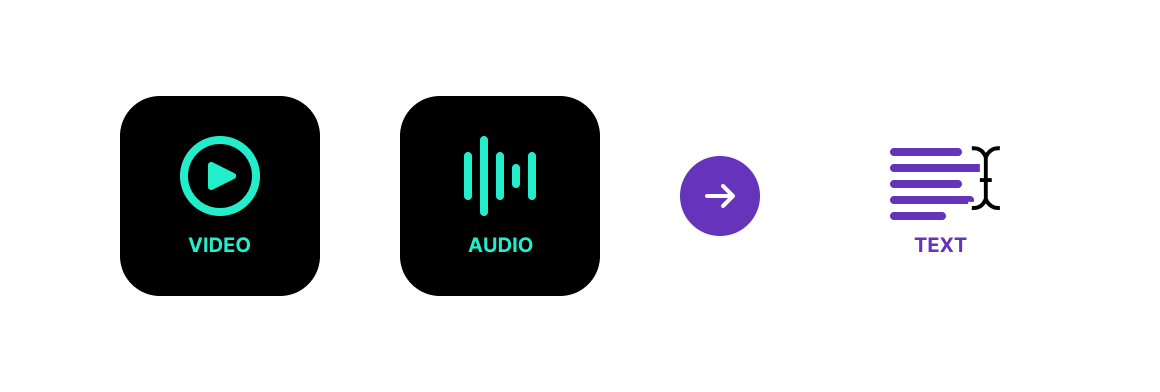
Automatically turn your video or audio into editable text. Perfect for subtitles, documentation, or repurposing content.
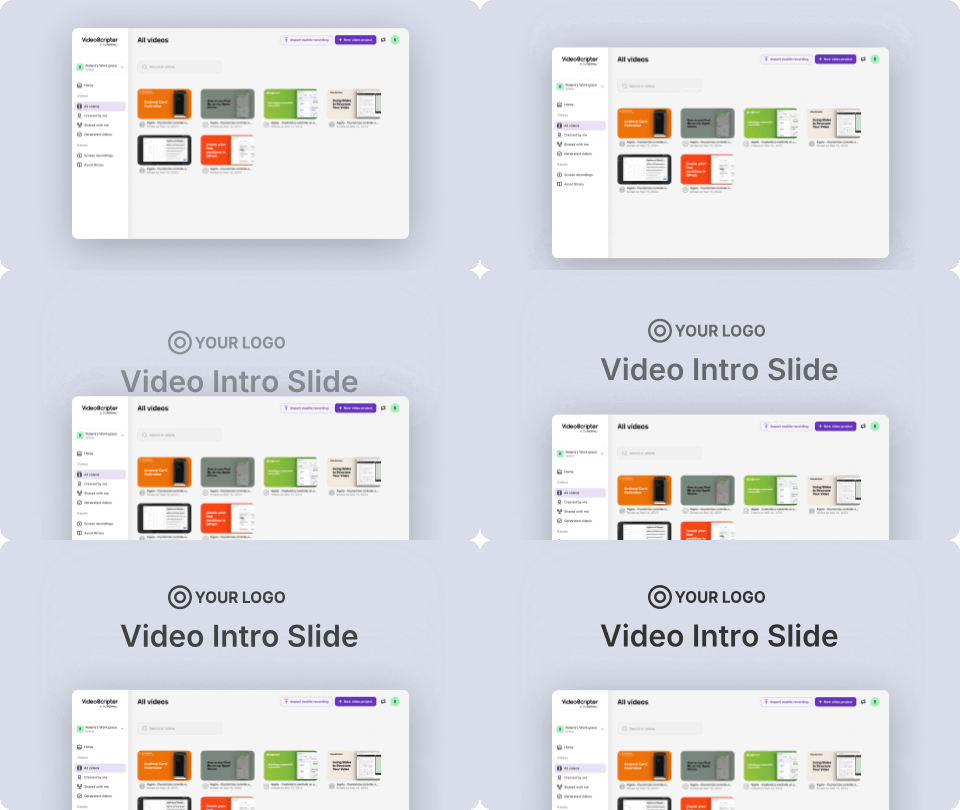
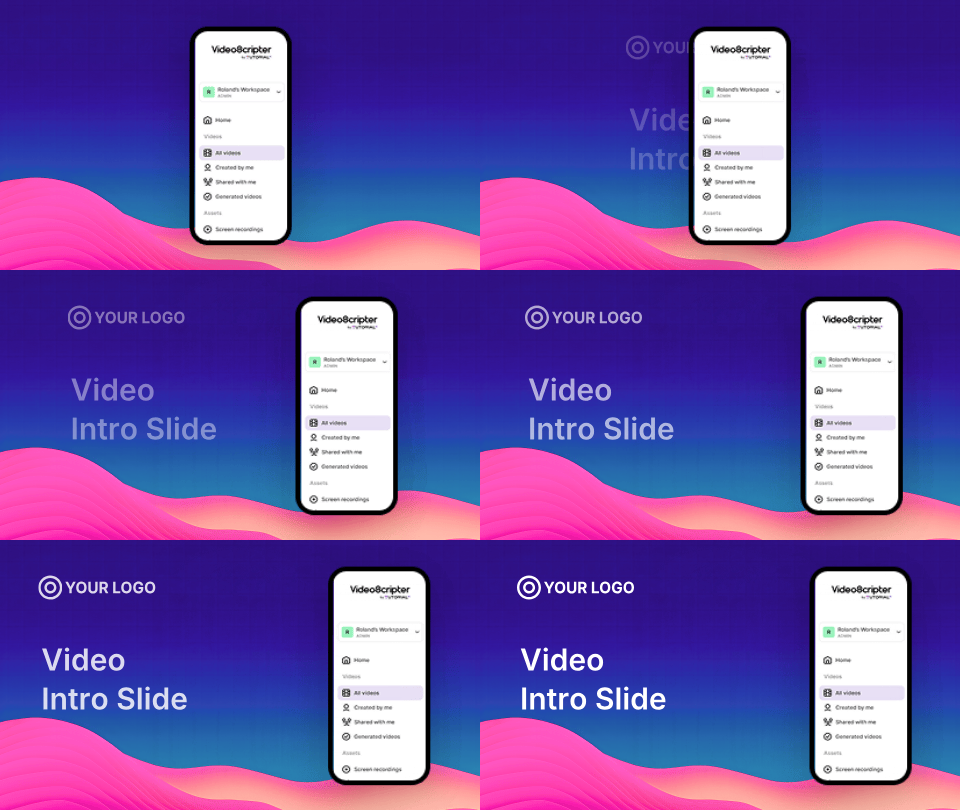
Add intro and agenda slides to frame and separate content. Edit your narration as easily as editing text.
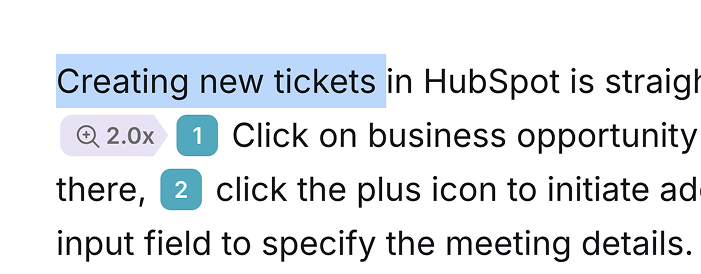
Highlight key content and emphasize important areas with smart auto-zoom effects.

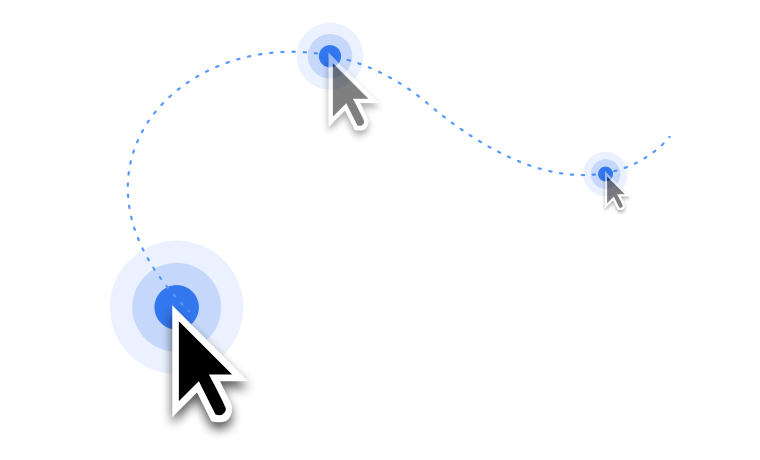
Professional cursor polish effects for a studio-quality finish. Enlarge and smooth cursor paths automatically.
Generate perfectly synced captions with one click, and export them in multiple formats.

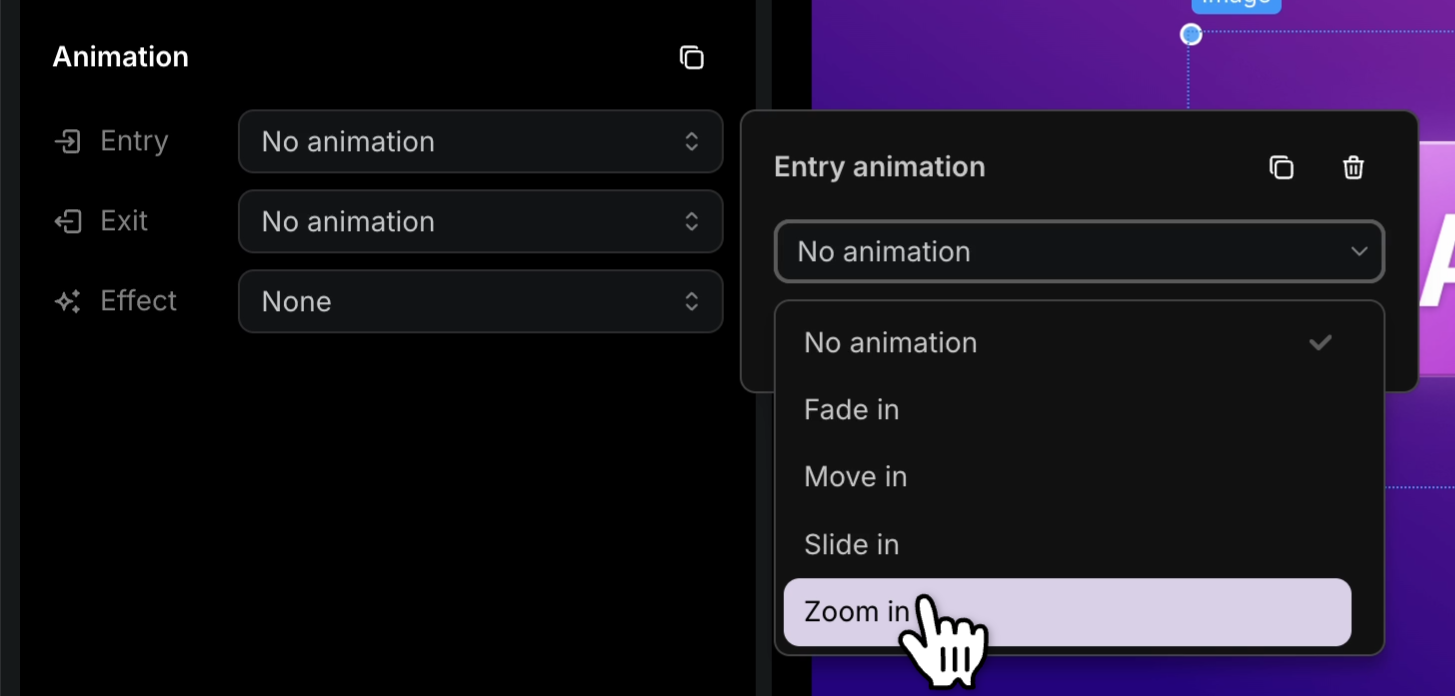
Slide elements animate by default for a polished look out of the box — customize each text box and image's entrance, exit, motion, and timing whenever you want full creative control.
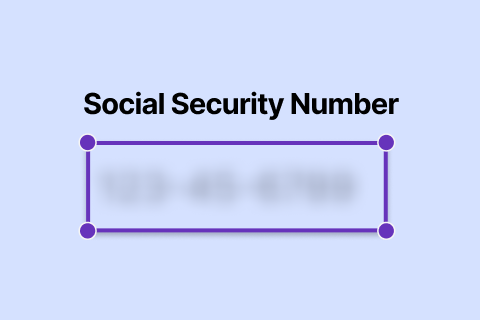
Hide sensitive information with a single click. Protect passwords, emails, and personal data.
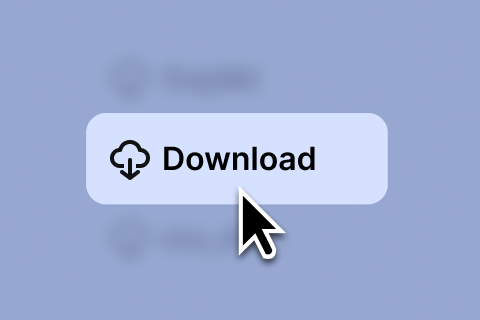
Draw attention to actions, text, or UI elements. Guide your viewer's eye to what matters.
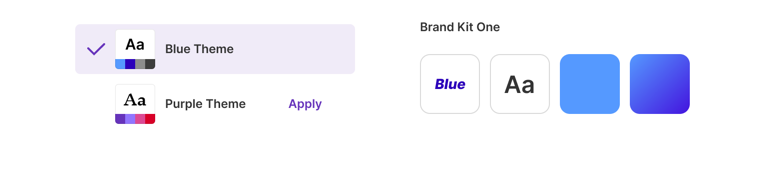
Easily add your logo, set your colors, and define your style. Tutorial AI keeps every video on-brand.
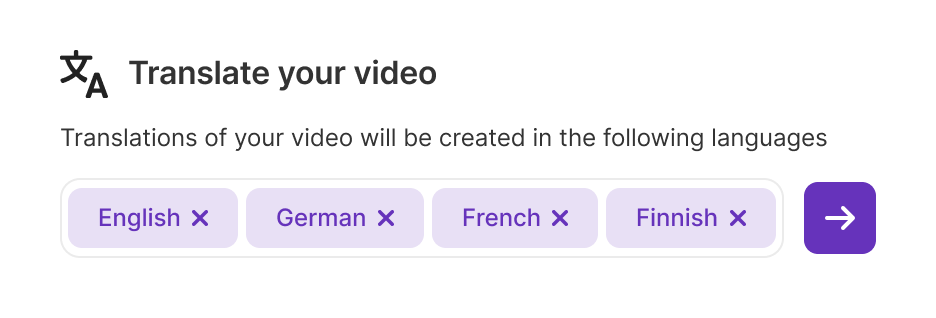
Instantly translate and retime your narration into multiple languages. Video timing adapts automatically.
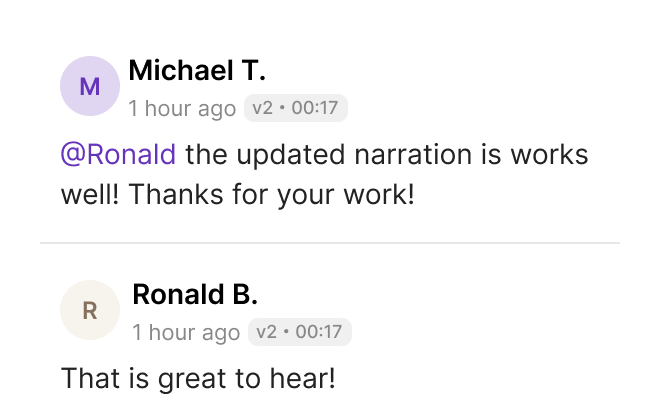
Share projects with guest users for instant viewing and commenting. Work together seamlessly.

Add time-stamped feedback and notes directly on videos. Streamline your review process.
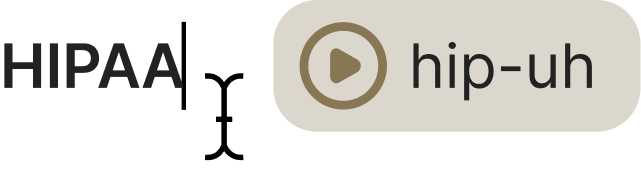
Define custom pronunciations by mapping special words to their correct phonetic representations.
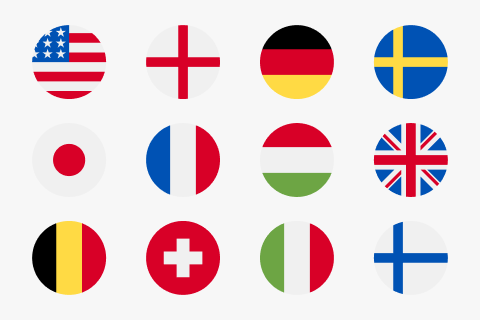
High-quality multilingual AI narration across 74 languages with natural-sounding accents.
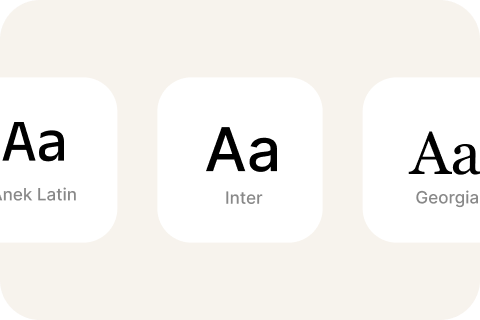
Add custom fonts to your workspace for use across any video. Stay on-brand everywhere.
Turn your screen recordings into AI-generated documentation you can publish to your CMS, knowledge base, or website - for SEO and LLM visibility.
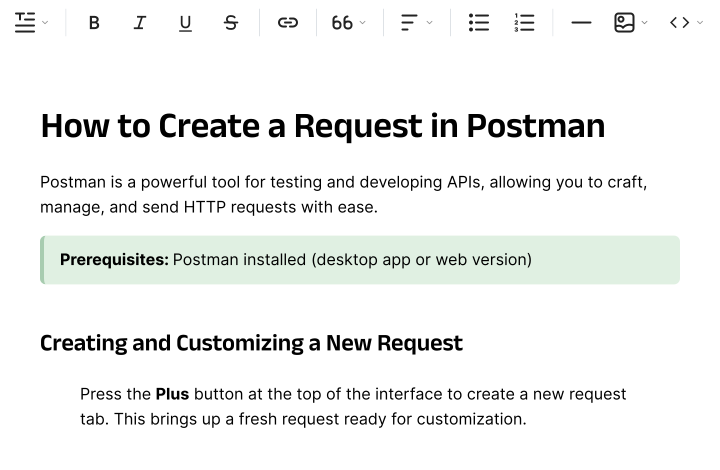
Stop taking screenshots. Use key moments from your video instead.
Copy your documentation into any tool with support for RTF, Markdown, and HTML.


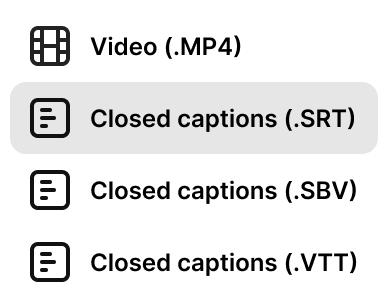
Export your videos in MP4 and caption files, ensuring seamless platform compatibility.
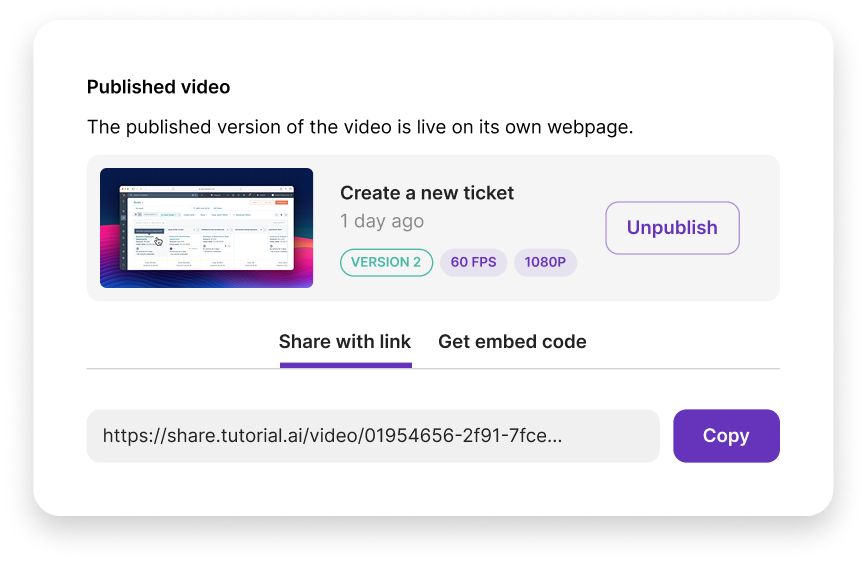
Publish your video to its own webpage and instantly share it with a link or embed code.
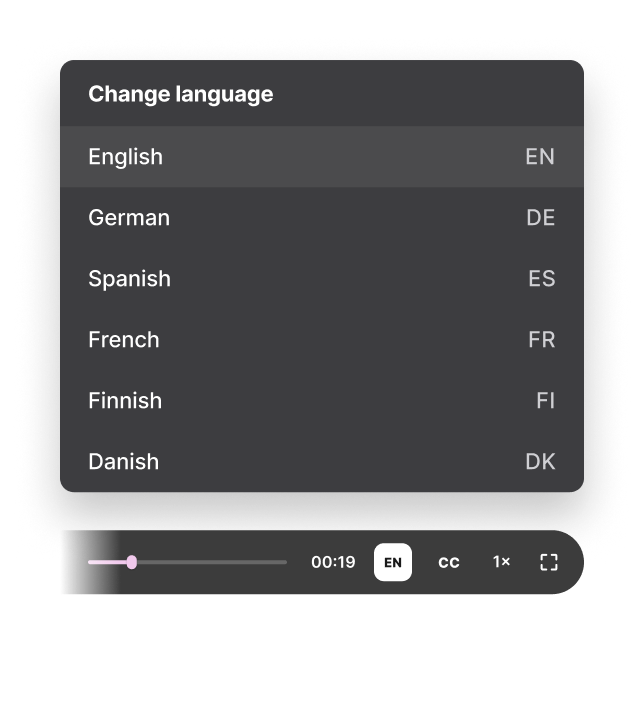
Embed one player with all your translated languages. Viewers switch language directly in the player controls — no separate embeds per locale.
Export your video as a SCORM 1.2 or 2004 package for delivery through your LMS, with completion and progress tracking per learner.





Embed into authoring tools, LMS, CMS, CRM, and more.







An AI tutorial creation platform turns a recorded software workflow into reusable training content. Tutorial AI can create a script, narration, edited video and step-by-step documentation from the same recording.
Yes. Tutorial AI can turn a screen recording into structured written instructions and capture screenshots for the important steps, so you do not have to rebuild the guide manually.
Yes. Record the workflow silently, then generate a script and choose an AI voice for the narration.
Yes. Edit the narration as text, remove mistakes and refine zooms, cursor effects, captions and visual styling after the recording is complete.
Yes. One project can produce a video tutorial and step-by-step written documentation, keeping both formats grounded in the same workflow.
Yes. Tutorial AI supports translation and AI narration in 74 languages, so teams can localize the same tutorial without recording every version again.
Record a software workflow and turn it into a video tutorial plus written documentation from the same project.