You know the product. You can explain the workflow in a meeting. Then you hit record and the gap shows up immediately.
The raw take has all the familiar problems. You click around looking for the right menu. You restart a sentence halfway through. There’s a long pause while a page loads. The final recording is accurate, but it doesn’t feel publishable. Turning it into a clean tutorial usually means opening Camtasia or Adobe Premiere Pro, trimming every stumble by hand, adding zooms, fixing audio, and writing a matching help article afterward.
That’s the core context for what is ai video in business use. For many businesses, it isn’t about generating a fantasy clip from a prompt. It’s about taking real recordings, real narration, and real product knowledge, then using software to do more of the production work automatically. If your job is customer education, enablement, support, or internal training, that distinction matters more than the hype.
The Hidden Work Behind Every Tutorial Video
A subject-matter expert rarely struggles with knowing what to teach. The struggle is packaging that knowledge into a video that another person can follow without friction.
A simple feature walkthrough often becomes longer than it should be. The presenter knows the product too well, so they move too quickly in some places and too slowly in others. They leave in side comments that make sense live but not on replay. Even when the substance is strong, the final video can feel rough.
Where the time really goes
The recording itself usually isn’t the expensive part. The expensive part is everything after:
- Trimming dead space: waiting for pages to load, skipping repeated takes, removing rambling intros
- Cleaning the audio: reducing background noise, balancing spoken narration, making the voice easier to follow
- Directing attention: adding zooms, highlights, cursor emphasis, and blur effects where sensitive data appears
- Publishing twice: exporting the video, then rewriting the same content into a support article or SOP
That’s why teams looking into AI video often aren’t asking for cinematic generation. They’re asking for help with the production bottlenecks around tutorials, onboarding videos, and internal documentation.
Raw screen recordings are usually informative before they’re watchable.
Audio is a good example. A screen capture with weak sound instantly feels less credible, even when the information is correct. If you’re fixing recordings that already exist, a practical resource on using AI audio separation for videos can help clean narration before you tackle the visual edit.
AI video is a broad label
The term gets messy. People use “AI video” to describe at least two very different things:
- Video generation, where software creates new footage from text or other inputs
- AI-assisted production, where software helps edit and package footage you already recorded
For documentation and training, the second category is usually the one that matters. Viewers need to see the actual UI, the precise sequence of clicks, and the exact workflow they’ll repeat themselves.
Generative vs AI-Assisted Video Production
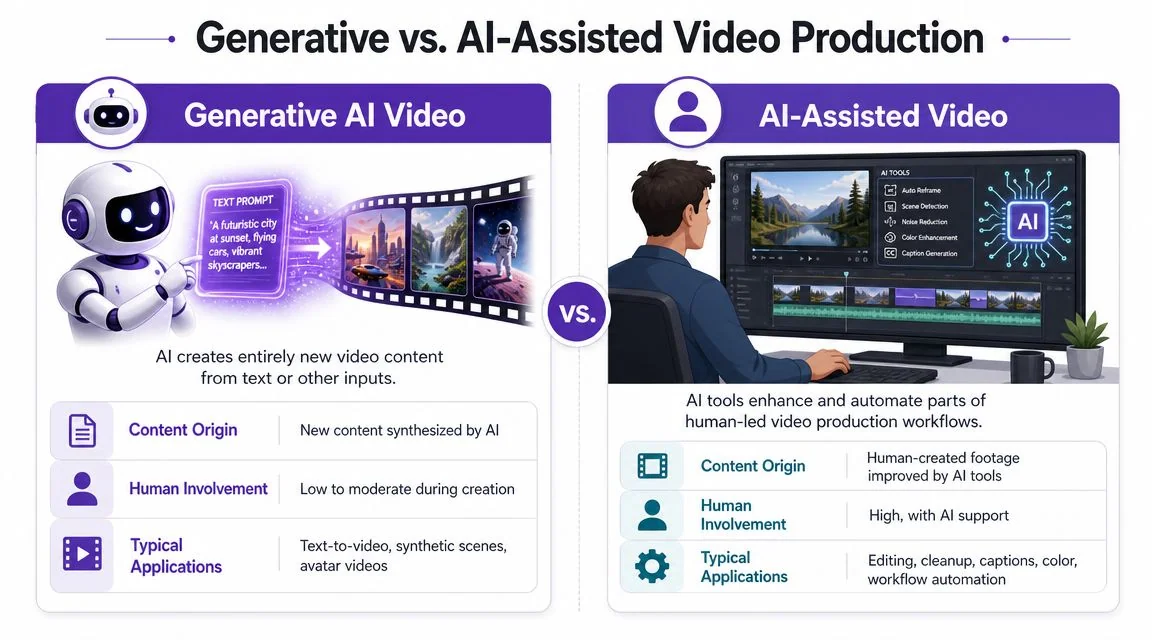
The clearest way to understand AI video is to separate generation from assistance. They solve different jobs.
Generative AI video
Generative video tools create new content from prompts, images, or scripts. That category includes text-to-video systems and avatar products that render a synthetic presenter reading prepared lines.
A major milestone came with Meta’s Make-A-Video in September 2022, one of the early high-profile systems for converting text prompts into short video clips. The same source notes broader enterprise momentum around AI, reporting that 77% of companies are using or exploring AI technologies. You can see that historical context in this overview of Make-A-Video and enterprise AI adoption.
This category is useful when you need:
- Concept visuals: early marketing ideas, storyboards, mood pieces
- Synthetic presenters: talking-head explainers for announcements or broad training topics
- Non-literal footage: scenes that don’t need to match a real interface or real environment
If you’re comparing avatar-first tools, this breakdown of HeyGen vs Synthesia is useful because it frames them as presenter tools, not tutorial editing tools.
AI-assisted video production
AI-assisted production starts with footage you captured yourself. That could be a screen recording, a product demo, a customer onboarding call turned into a training asset, or an internal SOP walkthrough. The software then automates parts of the editing workflow.
That’s the more practical model for documentation because the source material is real. You’re not asking the tool to invent a product interface. You’re asking it to tighten pacing, generate captions, improve framing, clean up delivery, and help package the result for publication.
A simple comparison makes the distinction easier:
| Category | Source material | Best fit | Weak fit |
|---|---|---|---|
| Generative video | Prompt, script, images | Marketing concepts, stylized content, avatar explainers | Step-by-step UI training |
| AI-assisted video | Real screen or camera footage | Demos, SOPs, onboarding, support content | Fully invented scenes |
If the viewer needs to trust that what they see matches the product, start with real footage.
That’s also why Loom, Camtasia, and Adobe Premiere Pro sit in different places on the spectrum. Loom is fast but casual. Premiere Pro is powerful but assumes editing skill. AI-assisted tools sit between them, with more polish than a raw recorder and less manual labor than a full timeline editor.
How AI Technology Powers Modern Video Workflows
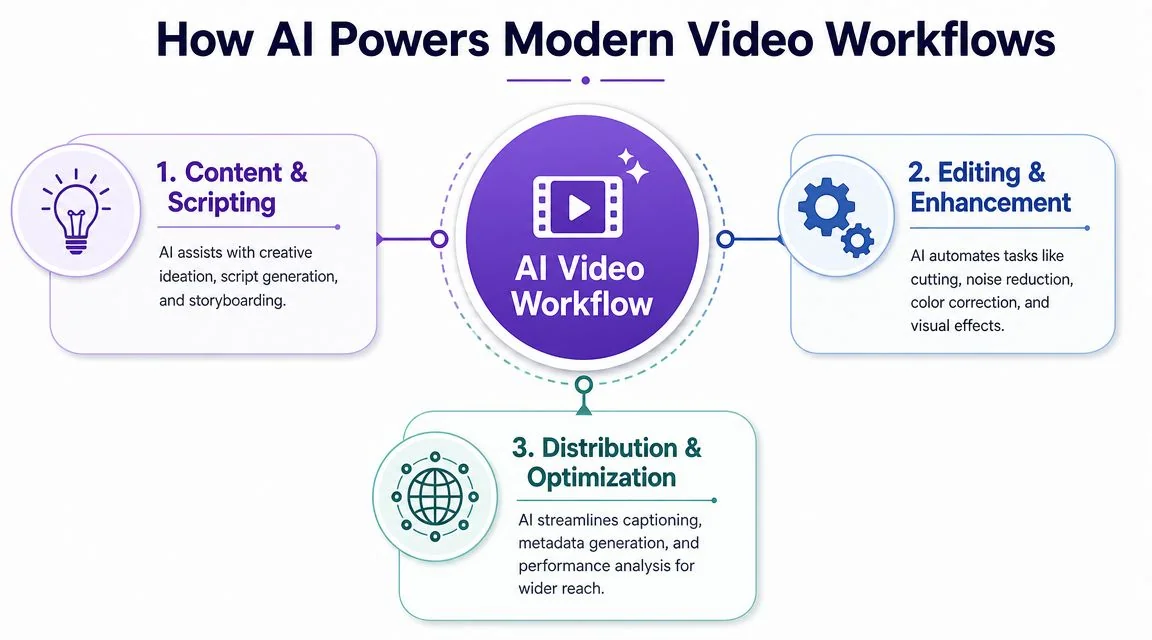
Most business users don’t need the research paper version. They need to know what the software is doing and why it helps.
Computer vision for screen understanding
In production systems, AI video analytics combines computer vision to extract objects from frames and machine learning to classify patterns. In tutorial workflows, that means software can analyze a screen recording, identify where the user is clicking, and automatically apply zooms or highlights to keep the viewer’s attention in the right place. That practical explanation is covered in this guide to computer vision and machine learning in video analytics.
For screen-based videos, this matters more than people expect. Manual zoom work is slow. It also tends to be inconsistent when different people edit the same type of content.
Common uses include:
- Cursor tracking: keeping focus on the click path
- Smart zooms: enlarging the relevant interface area at the right moment
- Sensitive-data handling: blurring names, emails, or account details
- Scene awareness: distinguishing between a static explanation and an action-heavy step
If you’re surveying the category, this round-up of AI video creation tools helps separate broad creative tools from products that work better for tutorials.
Language technologies for editing and localization
The second layer is language. Speech recognition turns narration into editable text. That makes text-based editing possible. Instead of trimming clips on a timeline, you revise the transcript and let the video update around it.
Speech synthesis adds another layer. A corrected script can become a fresh voiceover without asking the original presenter to re-record every fix. In multilingual teams, that same script can also support translated narration and captions.
Consistency matters more than novelty
A lot of public discussion about AI video focuses on whether a model can generate an impressive clip. For training and documentation, the harder question is consistency.
A product demo needs the same screen context, the same terminology, and the same object relationships from one step to the next. Buyers have also started paying closer attention to how AI edits existing footage, not just how it generates new scenes. Product coverage has highlighted in-context editing approaches that can change framing, remove objects, relight footage, or continue a shot from real footage rather than starting from zero. That shift is described in this look at video-to-video reframing and camera-angle changes.
Good tutorial video tools don’t just make content look polished. They preserve instructional logic.
Practical AI Video Use Cases for Business Teams
The useful test for AI video is simple. Does it help a team ship training or documentation faster without lowering clarity?
This isn’t a niche category anymore. The global AI video market was valued at USD 3.86 billion in 2024 and is projected to reach USD 42.29 billion by 2033, while cloud-based platforms held the largest revenue share. That makes sense for teams publishing tutorials at scale, because browser and cloud workflows are easier to standardize across functions and regions. The market view is summarized in this AI video market report from Grand View Research.
Teams at organizations such as Bosch, Deutsche Bahn, Microsoft, Intesa Sanpaolo, and UNICEF use this kind of workflow because the business cases are concrete, not abstract.
Product demos and release videos
Product marketing and product education teams often need the same source recording in multiple formats. One version becomes a short release video. Another becomes a fuller walkthrough for the help center. A third becomes enablement material for sales and support.
Without assistance, that usually means duplicate work. With AI-assisted editing, the presenter can focus on showing the feature clearly once, then create different outputs from the same base material.
Help-center videos and support articles
Support teams get the most value when video and written documentation stay aligned. If the video says one thing and the article says another, tickets increase instead of dropping.
That’s why feature adoption teams often pair training video with in-product guidance. A resource like StepsKit for feature adoption is useful context here because it shows how training content fits into broader product education, not as a standalone asset.
A practical pattern looks like this:
- Before: record a walkthrough, hand it to an editor, then write a separate article later
- After: record once, tighten the video, then generate a matching written piece from the same material
Internal SOPs and onboarding
Internal training rarely needs cinematic production. It needs speed, clarity, and consistency. IT operations teams, enablement leaders, and L&D managers often care more about reliable updates than about fancy intros.
Here’s a useful example of the format in action:
For SOPs, the strongest use of AI is often boring in a good way. It shortens the cleanup process, standardizes captions and branding, and makes updates less painful when a workflow changes.
A Modern Workflow with an AI Screen Recorder
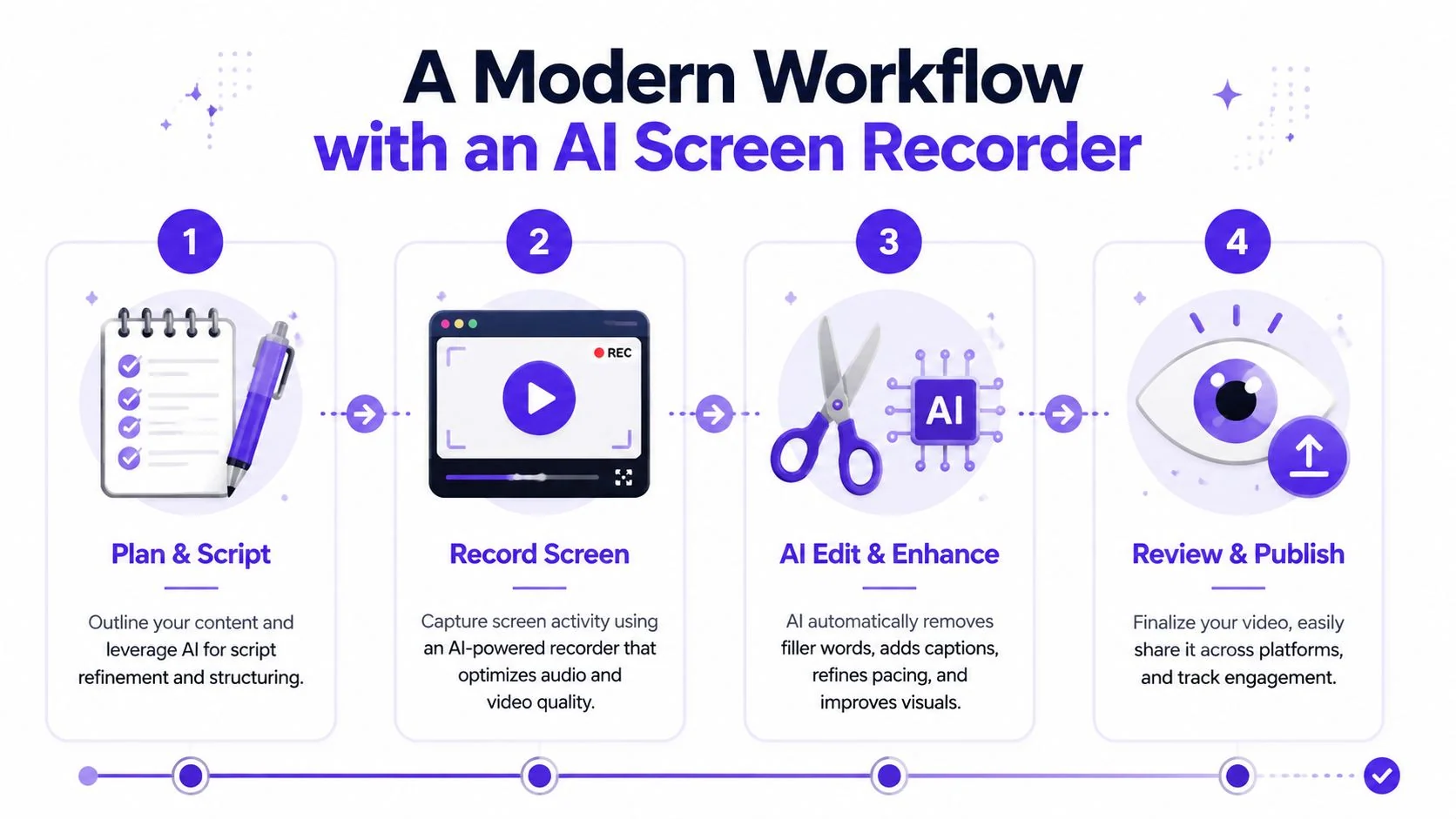
The most effective workflow starts earlier than editing. It starts by changing what you optimize for during recording.
Record for accuracy, not perfection
The old workflow treats recording like a performance. That pushes people into endless retakes.
A better workflow treats recording like capture. Get the process right. Say the important thing. If you pause, backtrack, or rephrase, keep going. Modern tools can often clean that up later.
For teams creating repeatable walkthroughs, these guidelines for screen recording for tutorials are more useful than generic video advice because they focus on instructional clarity.
Let the software handle first-pass cleanup
Once the recording is uploaded, the first automation pass should address pacing and structure.
That usually includes:
- Transcription: turning narration into text you can inspect
- Timing cleanup: reducing long pauses, retakes, and filler
- Caption generation: producing readable on-screen text
- Visual focus: applying zooms, cursor emphasis, and other cues
The capabilities of products differ sharply. Some only transcribe. Some create rough summaries. The stronger workflow tools change the edit based on the transcript and screen activity.
Practical rule: If a tool still forces you back into timeline editing for every meaningful change, it isn’t saving much time.
Edit the script, not the timeline
For tutorial work, text-based editing is one of the most useful changes in the category. You review the transcript like a document, delete weak lines, rewrite confusing phrasing, and let the system update the voiceover, captions, and timing.
That approach is especially useful for subject-matter experts who don’t want to learn a video editor. In that category, Tutorial AI is one example of a tool designed around real screen recordings, editable scripts, automatic pacing cleanup, multilingual narration in 74 languages, Brand Kits, and generating a matching written article from the same recording. That’s very different from avatar products, because the output centers on the actual product UI and the presenter’s workflow rather than a synthetic spokesperson.
Add polish and publish across formats
The final stage is where business teams usually lose consistency. One person exports a clean video. Another manually rebuilds the same content for the help center. A third tries to localize it later.
A modern workflow closes that gap:
- Brand control: logos, fonts, colors, and reusable visual settings stay consistent
- Localization: translated narration and captions can be generated from the same source workflow
- Distribution: one link can support broader internal or external sharing
- Documentation output: the same recording can become a written article with screenshots and steps
This is also where enterprise requirements become real. Teams often need SSO or SAML access controls, workspace collaboration, and compliance features such as SOC 2 and GDPR support before video creation can become part of a standard documentation process.
Understanding the Benefits and Limitations
AI video is useful when it compresses repetitive production work. It isn’t useful when teams expect it to replace judgment.
Where it helps most
The biggest benefit is speed in the middle of the workflow. Recording still takes subject-matter expertise. Review still takes judgment. But a lot of the in-between work can be automated.
That usually shows up as:
- Less manual trimming: fewer timeline edits for pauses, filler, and repeated lines
- Better access for non-editors: product experts can produce cleaner videos without becoming video specialists
- More consistent outputs: shared templates and brand settings reduce variation across teams
- Broader reach: multilingual narration and captions make one recording usable in more regions
For enterprise teams, trust also depends on operational details. Security review matters. Access controls matter. Auditability matters. Those requirements don’t make the demo prettier, but they often determine whether a workflow gets adopted.
Where human review still matters
The limits are just as important. AI can tighten pacing, but it can’t decide whether you explained the concept in the right order. It can regenerate narration, but it can’t reliably catch every product nuance, policy edge case, or compliance sensitivity on its own.
There’s also a market distinction that buyers should look at carefully. Many tools still emphasize generation, while documentation teams usually need software that edits existing footage. Modern AI editors have moved toward text-based editing, automatic reframing, and object removal on real recordings, which is a much more practical fit for tutorials than generating a video from scratch.
A simple buyer checklist helps:
| Ask this question | Why it matters |
|---|---|
| Does it work on real footage? | Tutorials need the actual UI, not an invented approximation |
| Can I edit through text? | That’s the difference between quick revision and timeline labor |
| Does it support review? | Automation without approval controls creates publishing risk |
| Can it localize cleanly? | Translation is only useful if pacing, captions, and delivery stay coherent |
The strongest teams use AI as a production layer, not as a substitute for subject-matter ownership.
How to Get Started with AI Video
Start with a low-risk project. An internal SOP, onboarding walkthrough, or support article video is a better first test than a flagship launch asset. The goal is to learn the workflow, not to prove a grand strategy.
A practical starting sequence works well:
- Choose one recurring use case: feature demo, help-center walkthrough, or internal process training
- Record one clean pass: focus on correctness and clear narration, not perfect delivery
- Standardize early: set brand rules, caption preferences, and review ownership before volume grows
- Measure usefulness qualitatively: did the team publish faster, update more easily, or create a matching article with less duplication?
Tool choice should follow the job. If you need synthetic presenters or prompt-generated scenes, look at generative and avatar tools. If you need to show an actual product and produce documentation from real recordings, look at AI-assisted editors.
It also helps to stay grounded about verification and trust. As generated content becomes more common, teams should understand the strengths and weaknesses of detection claims before building policy around them. This overview of understanding AI detection accuracy is a useful companion read.
The short answer to what is ai video is this: it’s not one thing. For business teams, the most valuable version is usually the one that helps experts turn accurate raw recordings into clear, scalable training content.
If your team creates product demos, onboarding videos, SOPs, or support content, Tutorial AI is built for that workflow. It records real screen activity, automates much of the cleanup and polish, and can generate a matching written article from the same source material so video and documentation stay aligned.