You know the product. You can explain it on a call, in a ticket reply, or during onboarding without notes. Then someone asks you to turn that knowledge into a polished video, and the trouble starts.
A quick screen recording is easy to make and hard to ship. It includes throat-clearing, retries, dead air, cursor wandering, and the sentence you only figure out halfway through saying it. A professional edit fixes that, but now you need Adobe Premiere Pro, Camtasia, or a teammate who knows how to use them well.
That gap is why interest in text video software keeps rising. The text-to-video AI market was valued at USD 122.5 million in 2022 and is projected to grow at a 35% CAGR from 2023 to 2032, reaching about USD 2 billion by 2032, according to Global Market Insights’ text-to-video AI market analysis. The category is growing because teams don’t want a video department for every product update, help article, or internal walkthrough. They want a workflow a subject-matter expert can use.
The Challenge of Creating Great How-To Videos
A support manager records a feature walkthrough after lunch. The raw material is useful, but not publishable. The first minute is setup. The middle includes three retakes. The ending trails off because a Slack message popped up and broke the flow.
That’s normal. Subject-matter experts are usually good at explaining, not at performing a clean one-take narration while driving the product live on screen. Casual screen recorders capture everything, including hesitation. Traditional editors can remove the mess, but they ask the expert to either learn editing or hand off context to someone else who wasn’t in the original conversation.
Where the workflow breaks
Many teams hit one of these dead ends:
- Quick recording, weak final output. The video is accurate, but it’s too long, repetitive, and rough for a help center or customer training library.
- Professional edit, slow turnaround. An editor can fix pacing, zooms, titles, and captions, but every product change creates another round of revision.
- Written docs and video get produced separately. The same person explains the same workflow twice, once on video and again in an article.
A cleaner microphone and better lighting still matter. If you want to enhance your video production, that kind of setup work pays off before any software touches the file. But better gear doesn’t solve the core bottleneck, which is editing spoken explanation into something concise and repeatable.
Practical rule: If the expert has to become a part-time video editor to publish one training clip, the workflow won’t scale.
What teams actually need
They need software that treats speech and script as editable production inputs, not as fixed footage. That’s especially important for product demos, onboarding, release videos, SOPs, and support walkthroughs where the value comes from showing the interface clearly.
For teams building customer education, a practical starting point is to study how a structured training video workflow is supposed to move from recording to final asset. The key shift is simple. Instead of editing a timeline frame by frame, you edit the explanation itself.
That’s the promise behind text video software when it’s used well. Not magic. Not one-click cinema. Just a better production model for people whose real job isn’t video editing.
Two Types of Text Video Software Explained
A support manager needs a new walkthrough for a feature that shipped this morning. A demand gen team needs three short promo clips from the same launch message by Friday. Both teams may search for “text video software.” They should not buy the same product.
That term covers two different workflows. One creates video from a script. The other edits a real recording through its transcript. The distinction matters because the output, revision process, and failure modes are different.
Text-to-video generation
Text-to-video generators start with words, not footage. You provide a prompt, outline, or script, then the tool builds scenes from generated visuals, stock-style assets, avatars, voiceover, and motion templates.
That model works well when the message matters more than showing an exact interface. Brand teams use it for launch teasers, internal comms, social clips, and simple explainers where speed and consistency matter more than product fidelity. It is also useful when there is no source footage to edit.
The trade-off is control over accuracy. If the video needs to show a real dashboard, a specific click path, or a subtle UI state change, generated scenes often look polished while saying the wrong thing visually. That is acceptable for broad messaging. It is a problem for training and product education.
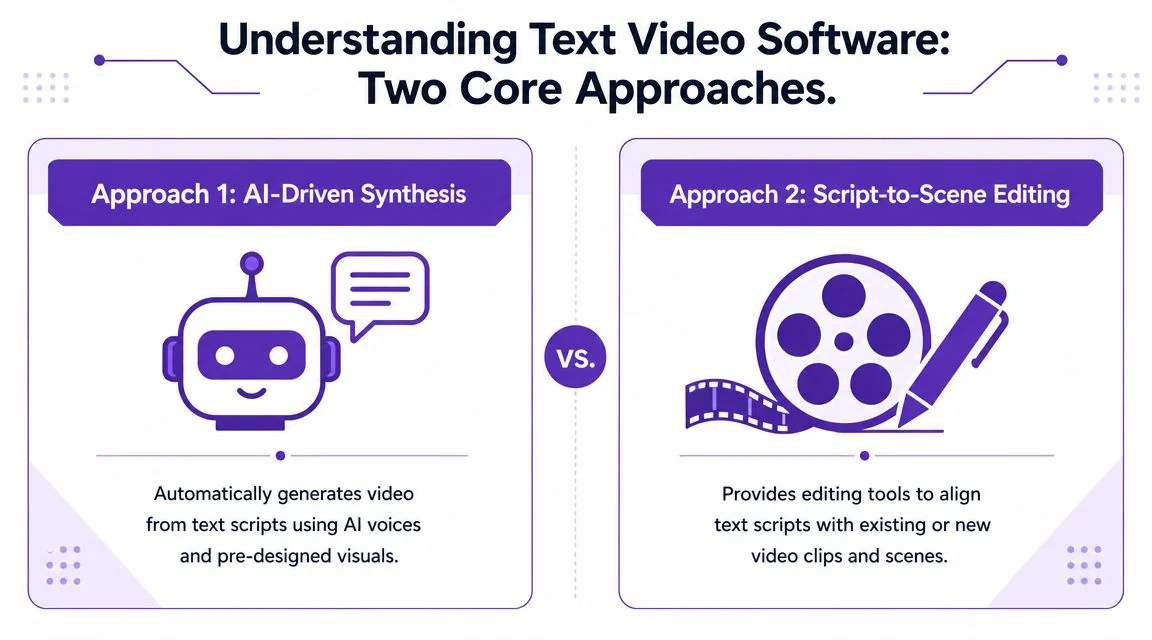
Text-based video editing
Text-based editors start with a real recording, usually a screen capture with narration. The software transcribes the spoken track, aligns the transcript with the footage, and lets the editor cut, retime, and revise by working from text instead of trimming every moment on a timeline.
This is the better fit for demos, onboarding, support, implementation guides, and sales engineering walkthroughs. In those jobs, viewers are not looking for a representative scene. They need the actual product, the actual sequence, and wording that matches what they will do on screen.
The trade-off here is different. You need clean source material. If the recording is disorganized, the transcript-driven editor will save time in revision, but it will not invent a clear workflow out of a messy demo. These tools improve editing efficiency. They do not replace product judgment.
A fast way to choose
Use the source of truth test. If the source of truth is a script and brand message, start with generation. If the source of truth is a real product workflow, start with text-based editing.
| Your project need | Better fit |
|---|---|
| No source footage, need a presentable video from script alone | Text-to-video generation |
| Need to show a real product workflow, screen, or live demo | Text-based video editing |
| Marketing-style explainer with an avatar presenter | Text-to-video generation |
| Help-center article video tied to real UI steps | Text-based video editing |
This is why vendor comparisons can mislead buyers. An avatar tool and a screen-recording editor may both accept text input, but they solve different production problems. If you’re evaluating avatar-first products, this HeyGen vs Synthesia comparison for AI presenter workflows is useful, but it will not answer the editing needs of a team publishing UI walkthroughs.
A practical buying rule helps. If success depends on visual truth, use a text-based editor built around real footage. If success depends on speed from script to publishable clip, use a generator. Teams waste time when they expect one category to cover both jobs equally well.
Key Capabilities and How They Work
The most practical text video workflows split the job into separate layers. First, the system captures or ingests script and narration. Then it aligns speech to scenes. After that, it handles rendering, pacing, captions, and export.
That separation matters because it changes what you can edit later without rebuilding the entire project.
Script first, timing second
Operational tools increasingly treat text as a production blueprint rather than a final locked asset. For example, LTX Studio accepts text prompts of up to 12,000 words and then lets users fine-tune cast, lighting, and motion in a dedicated editor before export, as described on LTX Studio’s text-to-video platform page. The practical lesson is that long-form input isn’t the hard part. Scene structure and motion control are.
For tutorial teams, that means the script should be segmented around real user actions:
- One task per scene. “Create a report” and “share the report” should be separate beats.
- One spoken intent per UI change. If the narrator introduces three ideas while the cursor moves somewhere else, retiming gets messy.
- One revision source. If the script changes, the video should update from that change, not from a second hand-edited caption file.
Editing like a document
Text-based editors work because the transcript becomes an interface. Delete filler words, rewrite a sentence, or tighten an explanation, and the system updates the associated media.
That’s much easier for a product specialist than trimming clips by hand. It also makes review simpler. A support lead can say “cut this sentence” instead of “shorten the pause between 00:42 and 00:46 and shift the caption.”
One example in this category is Tutorial AI’s script-led video workflow, which turns a screen recording into an editable transcript, then regenerates voiceover, timing, and written documentation from the same source material. That approach is especially useful when the same how-to needs to become both a video and an article.
Why automatic retiming matters
Script edits create a chain reaction. Captions drift. Scene cuts feel early or late. Localized narration runs longer in one language and shorter in another.
That’s why enterprise demand is strong for features that solve post-production problems such as automatically re-timing captions, narration, and cuts after a script edit, especially for translated versions where voiceover length differs by language, according to Avasant’s analysis of text-to-video trends and challenges.
Without retiming, multilingual publishing turns into manual timeline repair. With it, the workflow becomes manageable enough for training teams and documentation owners to maintain a library instead of a handful of hero assets.
If a script change forces you to rebuild captions, cuts, and voice timing by hand, the tool is helping with creation but not with maintenance.
Languages and narration quality
Narration isn’t just a voice feature. It affects pacing, emphasis, and localization workload. Tools that support 74 languages can help teams publish the same walkthrough to regional audiences without recording every version from scratch, but the operational value depends on whether scenes and captions stay synchronized after translation.
That’s the hidden difference between a demo-ready workflow and a one-off novelty. Creation is only half the job. Updates are the other half.
Common Use Cases for Teams
Some teams buy text video software thinking they need “more video.” What they usually need is a faster path from expertise to usable training assets.
The strongest use cases aren’t broad. They’re tied to recurring operational work where the same kind of explanation gets published over and over.
Support and documentation
A help-center team often starts with the same raw input every week: a product expert showing how to complete a task in the app. The useful outcome isn’t just a video. It’s a video plus an article, screenshots, and a version that can be updated when the UI changes.
That’s why support teams at organizations such as Microsoft and UNICEF can benefit from workflows that turn one recording into multiple outputs. The win isn’t flashy production. It’s reducing duplicate effort between video creation and written documentation.

A common pattern looks like this:
- Record once. A support manager walks through the actual UI and explains the steps.
- Publish in two formats. The same source becomes a tutorial video and a support article.
- Revise from the script. When the product changes, the team edits the explanation rather than re-editing from scratch.
Internal training and SOPs
Internal enablement work needs consistency more than cinematic polish. IT, operations, and L&D teams publish repeatable process training. New hires need the approved method, not a charismatic presenter improvising through a workflow.
For companies such as Bosch and Deutsche Bahn, standardized outputs matter because training content often has to travel across departments, geographies, and reviewers. For these reasons, shared workspaces, versioning, and enterprise controls like SSO/SAML, SOC 2, and GDPR become part of the buying decision, not side notes.
Sales enablement and product walkthroughs
Sales engineers and presales teams sit in an awkward spot. They need polished walkthroughs, but they usually don’t have time to open a full editing suite for every feature update or competitive demo variation.
Text video software helps when the underlying workflow is:
| Team | Typical asset | What the tool needs to do well |
|---|---|---|
| Support | Help-center video | Keep steps clear and editable after release |
| L&D | SOP or onboarding module | Standardize format across many contributors |
| Sales enablement | Demo walkthrough | Tighten narration and pacing without losing authenticity |
| Product marketing | Feature release clip | Publish quickly after launch with brand consistency |
The through line is simple. These teams already have the knowledge. The software has to convert that knowledge into a clean asset without introducing a specialist bottleneck.
Essential Features and Evaluation Criteria
A text video tool can look impressive in a demo and still fail in production. The right way to evaluate it is to ignore the homepage language and inspect how it behaves after the first draft.
The first question is not “Can it generate a video?” The first question is “Can my team maintain a library of accurate videos after scripts, products, and regions change?”
What to test in a real trial
Use one of your own tutorial recordings. Don’t use the vendor’s sample.
Check these points:
- Transcript-driven editing. Can you remove filler, rewrite a sentence, and update the video without manual timeline surgery?
- Revision tolerance. If a product manager changes wording after approval, can the project absorb that change cleanly?
- Export flexibility. Does it support the formats your LMS, CMS, help center, or CRM expects? If your team needs crisp product UI, verify whether export up to 4K is available.
- Brand controls. Brand Kits, custom fonts, reusable layouts, and player styling matter when multiple teams publish under one company name.
- Collaboration and governance. Versioning, comments, guest review, role controls, and enterprise identity requirements become important fast in larger orgs.
Accessibility is not just captions
Many evaluations remain too superficial. For software tutorials, especially text-heavy or lightly narrated ones, accessibility is more than turning on auto-captions.
For text-heavy videos common in tutorials, accessibility requires more than auto-captions; it involves aligning on-screen text with captions and providing separate transcripts for screen-reader users, which is a workflow gap in many tools, according to Power Learning Solutions’ guidance on making text-only videos accessible.
That matters because many support and training videos include silent steps, highlighted settings, or UI text that never gets spoken aloud.
A tutorial can be visually clear and still be inaccessible if the information exists only on the screen.
Ask vendors how they handle:
- On-screen text alignment. If the narrator is quiet while the screen displays key instructions, can that text be captured in captions?
- Separate transcript output. Can you produce a readable text version for users who rely on screen readers?
- Multi-format publishing. Can the same source support captions, transcripts, and other accessibility needs in one workflow?
Features that sound good but matter less
Some nice-looking features don’t predict success nearly as well as maintainability does. Default templates are fine. Flashy motion is fine. Avatar presenters may even be useful in the right category.
But for training, demos, and support, the winning feature is usually the one that prevents rework after the first release.
A practical buyer’s checklist is short: editable transcript, reliable retiming, strong review workflow, accessible outputs, and enterprise controls that match how your team already works.
Common Pitfalls and Best Practices
The biggest mistake is expecting every kind of text video software to behave like a skilled editor with unlimited compute. That’s not how these systems work.
Text-to-video models are computationally heavy, which often restricts output quality and video length, and those constraints are part of why many tools focus on shorter clips or more controlled scenes, as summarized in the Wikipedia overview of text-to-video models. In practice, the longer and more complex your request gets, the more cost, latency, and inconsistency you invite.
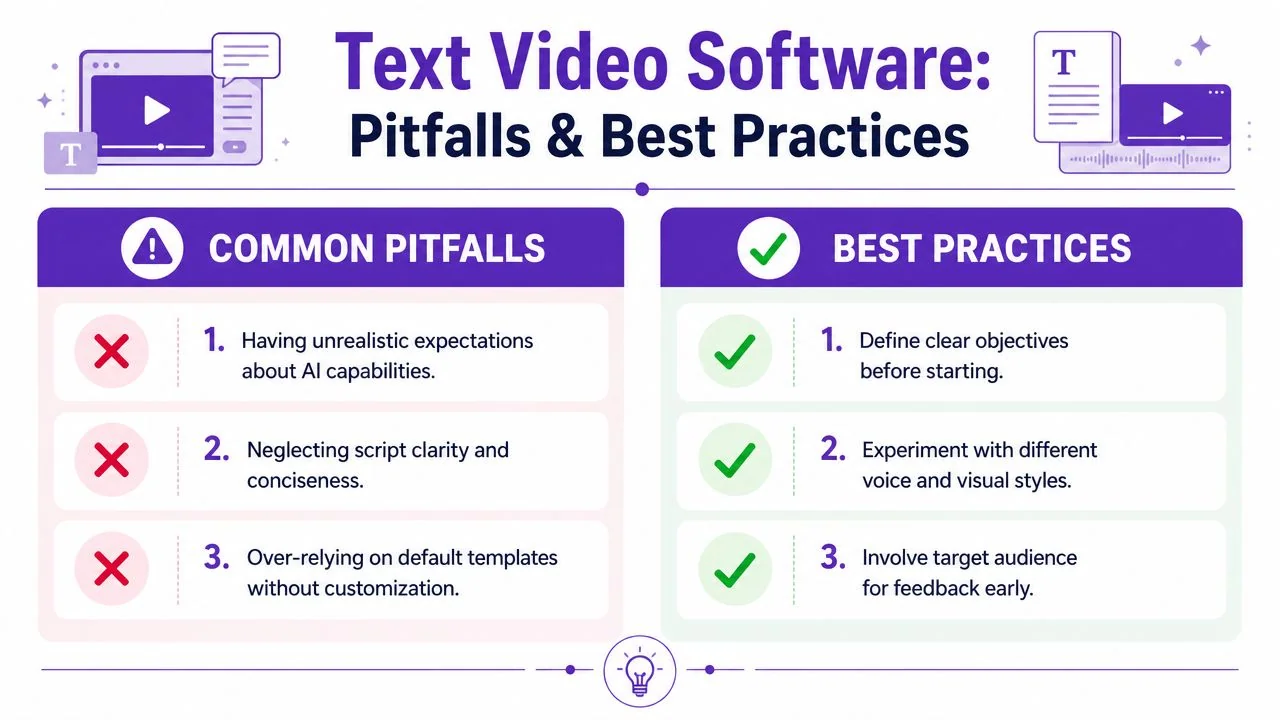
Pitfalls that show up quickly
Teams usually run into one of these:
- Using generation tools for UI-dependent tutorials. If viewers need to see the actual product, synthetic scenes won’t carry the lesson.
- Recording without structure. A rambling narration creates a messy transcript and weak scene boundaries.
- Treating defaults as final output. Auto-generated pacing, captions, and visuals often need review to match your audience and brand.
Practices that make the workflow work
Good results usually come from simple discipline before recording and careful editing after.
- Write for speech, not for prose
Short sentences perform better than dense paragraphs. If a sentence is hard to say cleanly, it will probably be hard to understand on first listen. - Record the task in a clean sequence
Close extra tabs, reduce notifications, and walk through the product in the order the viewer should follow. The software can tighten pacing. It can’t fix a confused process. - Edit for comprehension, not just brevity
Cutting every pause can make a tutorial feel rushed. Remove dead space and repeated phrases, but leave enough room for the eye to follow the screen.
Keep clips scoped to one job. “How to export a report” works better than “everything about reporting.”
- Review localized versions as products, not translations
If you publish in multiple languages, check timing around scene changes, labels, and CTA screens. Retiming helps, but final review still matters.
The best teams don’t assume automation replaces judgment. They use automation to remove repetitive editing work so experts can spend their time on clarity and accuracy.
Making the Right Choice for Your Project
The right tool depends less on budget than on the asset you need to publish.
If you have no footage and want a video assembled from script, voice, avatars, or generated visuals, use a text-to-video generation tool. That workflow is a good fit for lightweight explainers and concept-driven content where exact UI fidelity isn’t the point.
If you need to show the real product experience, choose text-based editing built around screen capture and transcript editing. That’s the better fit for demos, customer onboarding, support walkthroughs, sales enablement, and internal training. Authentic screen action matters more than synthetic presentation in those cases.
Where traditional editors still win
It’s also worth being honest about where Adobe Premiere Pro, Final Cut, and Camtasia remain the better choice. The broader video editing software market was valued at $3.2 billion in 2025 and is projected to reach $5.2 billion by 2034 at a 5.6% CAGR, with North America accounting for 38.4% of revenue in 2025, according to DataIntelo’s video editing software market report. Those platforms still anchor complex production.
Use them when you need:
- Advanced motion graphics
- Detailed timeline control
- Cinematic compositing
- An experienced editor already in the workflow
For many SaaS teams, though, that isn’t the daily job. The daily job is shipping accurate instructional content without waiting on a production queue.
A simple decision filter
Choose based on source material and audience need:
| If your project requires | Choose |
|---|---|
| Synthetic presenter or generated scenes from script alone | Text-to-video generation |
| Real UI, real workflow, real screen activity | Text-based editing |
| Fine-grained visual effects and professional post-production | Traditional editor |
That’s the practical way to think about text video software. Don’t ask which category is better in the abstract. Ask which one matches the asset your team has to ship this week.
If your team creates product demos, onboarding videos, support walkthroughs, or internal training from real screen recordings, Tutorial AI is worth a look. It’s built for transcript-based editing, multilingual narration, automatic retiming, and generating a matching written article from the same recording, which fits teams that need to publish and maintain instructional content without turning subject-matter experts into full-time video editors.