Think of an AI video script generator as your personal video production assistant. It takes your raw, unscripted screen recordings and automatically cleans them up into a polished, professional script. This is the bridge between a quick, informal screen capture and the world of complex, time-consuming video editing.
The whole point is to empower subject matter experts—the people who actually know the product—to create amazing, on-brand videos without needing to become professional editors.
Leave Awkward Pauses and Endless Retakes Behind
We’ve all been there. You hit record to capture a quick software tutorial, and what comes out is a jumble of great insights, long pauses, and way too many ‘ums’ and ‘ahs’. With simple tools like Loom, it’s common for these recordings to end up 50-100% longer than they need to be.
The old-school fix? Hours spent painstakingly editing in software like Camtasia or Adobe Premiere Pro. These tools are incredibly powerful, but they require a ton of expert video editing knowledge and time to snip out every mistake and perfect the timing. For busy teams, this is a serious bottleneck.
That’s where Tutorial AI’s tools really shine. They let you speak freely without any practice, and your video will still look professional, as if it was edited in Adobe Premiere Pro. It allows the subject matter expert to create on-brand videos extremely efficiently.
The Modern Workflow for Efficient Video Creation
An AI video script generator completely flips the script. You just record your screen and talk naturally, and the AI handles the rest. It transcribes your audio, refines your narration, and polishes it into a tight, professional script. Your rambling, unpracticed recording transforms into a studio-quality video that’s ready to go.
This is perfect for generating video tutorials based on screen recordings, such as:
- Demos and explainer videos that get straight to the point.
- Onboarding videos for new hires or customers.
- Feature release videos that are clear and easy to follow.
- Knowledge base videos that help cut down on support tickets.
- Support article videos to visually enhance documentation.
You can see how a platform like Tutorial AI lays out this workflow to make it incredibly simple.
This method lets the person who knows the subject best create high-quality videos without the usual production headaches. If you want to dive deeper into the recording process itself, check out our detailed guide on effective screen recording for tutorials.
This isn’t just a niche idea; it’s a massive trend. The AI video generator market is absolutely exploding. It’s projected to grow from USD 716.8 million in 2025 to USD 3,350 million by 2034, all because businesses are desperate for tools that eliminate tedious manual work. You can read the full research on the AI video generator market growth from Fortune Business Insights.
Turning Raw Recordings Into Polished First Drafts
This is where the real work begins—or rather, where the AI takes over the heavy lifting. The first step couldn’t be simpler: just hit record on your screen and talk through your process. Don’t worry about sounding perfect or scripted. The goal is to capture your genuine expertise as you demo a product, explain a workflow, or teach a concept.
I always tell people to think of it like recording a quick Loom video for a teammate. These off-the-cuff recordings are almost always 50-100% longer than they need to be, full of pauses, “ums,” and tangents. And that’s totally okay. The AI is built to handle that messy first take and clean it up beautifully.
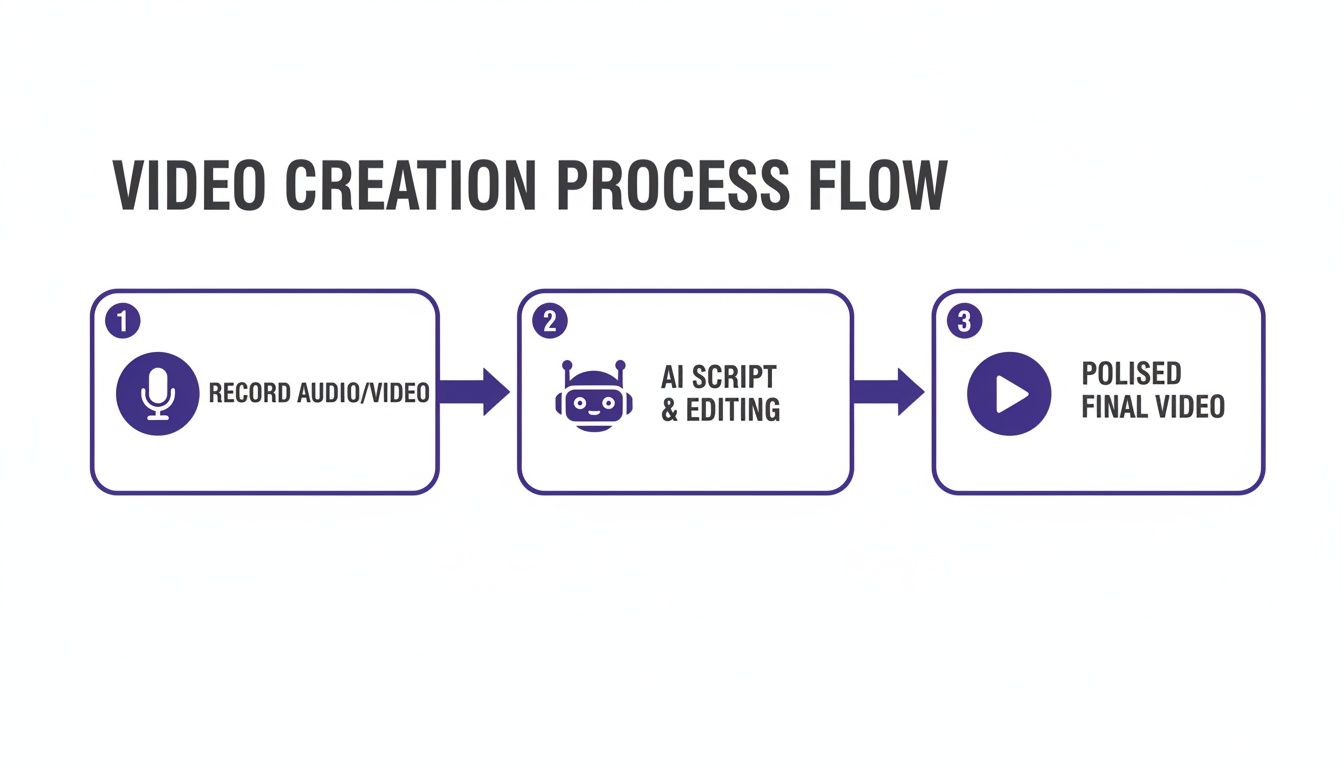
From Messy Narration to a Clean Script
Once your recording is done, the platform immediately gets to work. First, it transcribes everything you said. Then, its AI script generator starts refining that text, making the kinds of smart edits a seasoned video producer would, but in a fraction of the time.
The AI is trained to spot and eliminate all the verbal clutter that makes raw recordings feel unprofessional.
- Filler Words: It catches and removes all the “ums,” “ahs,” “you knows,” and “likes” that sneak into natural speech.
- Long Pauses: Those awkward dead-air moments are automatically snipped out, giving your video a much tighter, more engaging pace.
- Awkward Phrasing: It can even rephrase clunky sentences for better flow and clarity, making you sound more polished and articulate than you might have felt during the recording.
What you get back is a clean, concise, and professional first-draft script. This is the kind of output that would typically take ages to achieve by manually editing audio tracks in tools like Camtasia or require deep expertise in something like Adobe Premiere Pro.
The whole idea is to let your subject matter experts do what they do best: share their knowledge. The AI takes on the role of the producer, making sure every video is on-brand and easy to create, no matter who’s making it. The transformation from a rambling recording to a tight, professional script can be dramatic. To give you a clearer picture, here’s a before-and-after look at how the AI refines raw narration.
From Unscripted Recording to AI-Polished Script
This table illustrates the transformation of a raw, unscripted narration into a professional script using Tutorial AI’s features.
| Original Narration (What you said) | AI Refinement Action | Polished Script (What AI generates) |
|---|---|---|
| "Okay, so... um... what you're gonna want to do first is, like, click over here on the... on the dashboard." | Removes filler words ("um," "like," "so") and repetition ("on the"). Tightens phrasing. | "First, click here on the dashboard." |
| "And then you'll see this... uh... this big list. It's... it's got all the projects you're working on. (long pause)" | Cuts the filler ("uh"), removes the false start ("it's... it's got"), and eliminates the long pause. | "You'll see a list of all the projects you're working on." |
| "We built this to make it, you know, way easier for you guys to kind of see everything at once." | Replaces conversational phrasing ("you know," "you guys," "kind of") with more professional language. | "We designed this feature to provide a clear, at-a-glance overview of your work." |
As you can see, the AI doesn’t just transcribe; it interprets your intent and elevates the language, turning casual speech into a clear and effective script.
Edit Your Video by Editing Text
Here’s the biggest mindset shift: you no longer edit video by scrubbing through a timeline. Instead, you edit your video by simply editing the text script. It’s a true “edit like a doc” experience.
When you delete a sentence from the script, the AI automatically removes the corresponding video and audio clips. If you rewrite a paragraph to be clearer, the video scenes intelligently re-sync to match the updated narration. This workflow is an absolute game-changer for creating content quickly. It’s particularly powerful for:
- Onboarding Videos: Create and update new-hire training materials in minutes.
- Explainer Videos: Break down complex ideas into simple, digestible guides.
- Feature Release Videos: Announce new product updates with slick, professional demos.
- Knowledge Base Videos: Build a comprehensive library of visual support content.
- Support Article Videos: Enhance your written documentation with helpful visual walkthroughs.
This approach effectively demolishes the barrier to entry for video creation. You don’t need to be a video editor anymore; if you can edit a document, you can produce a high-quality instructional video.
Fine-Tuning Your Script and Generating New Voiceover
Once the AI video script generator hands over that first draft, it’s your turn to step in. The AI is brilliant at doing the heavy lifting—like cutting out all the “ums” and “ahs” and tightening up the structure—but your expertise is what will really make the script shine. This is where you bring your unique perspective and brand voice into the mix.
Think of it as the final polish. Now you can easily scan the script and make those crucial tweaks. Maybe a technical term needs a simpler explanation, or you want to drop in a specific company phrase the AI wouldn’t know. You can reorder paragraphs, add a missing step, or just make sure every sentence sounds like you.
This is absolutely essential for certain types of videos:
- Knowledge base videos: You need to be sure every step is crystal clear and technically perfect for a user who might be stuck.
- Feature release videos: This is your chance to really emphasize the value propositions that will get customers excited.
- Onboarding videos: The tone has to be just right—welcoming, encouraging, and perfectly aligned with your company culture.
Instantly Regenerate Your Voiceover
Here’s where things get really good. In the old way of doing things, changing a single word meant a trip back to the recording booth. You’d have to fire up the mic, re-record the line, and then try to splice the new audio into the timeline without it sounding Frankenstein’d. It’s a pain.
With a tool like Tutorial AI, that entire headache is gone. As you edit the text of the script, the voiceover just… updates. Automatically.
Being able to regenerate a studio-quality voiceover just by editing text is a massive time-saver. You can update a tutorial in minutes to reflect a new UI change or tweak a sales demo based on team feedback, all without ever touching a microphone. This completely separates the person who knows the content from the person who has the “radio voice.” Your product expert can create the entire video from start to finish without worrying about their delivery or recording setup.
Go Global with Multilingual Voice Generation
This power goes way beyond simple edits. It’s your key to creating content for a global audience without the usual friction. Let’s say you’ve just perfected an onboarding video in English. Great. But now your company is expanding into new markets in Europe and Asia.
Instead of the logistical nightmare of hiring voice actors and studios for every single language, you can just translate your script and generate a new voiceover in seconds. You can pick from dozens of lifelike AI voices in more than 30 languages. The platform instantly creates a new, perfectly synced audio track for your existing video.
If you’re curious about how this all works, check out our complete guide on using an AI voice generator for videos.
This makes localization both scalable and affordable. A single subject matter expert can now create on-brand, high-quality training videos for every market you operate in. The final product will have the professional polish of something edited in Adobe Premiere Pro, but the process was as simple as editing a document.
Making Your Visuals Pop
You’ve nailed the script and the voiceover sounds fantastic. But what about what’s actually happening on screen? If your visuals don’t keep up, even the best narration will fall flat. After using an ai video script generator to get your story just right, it’s time to make sure your on-screen actions are just as sharp and professional. This is where we go beyond basic narration and really start guiding the viewer’s eye.
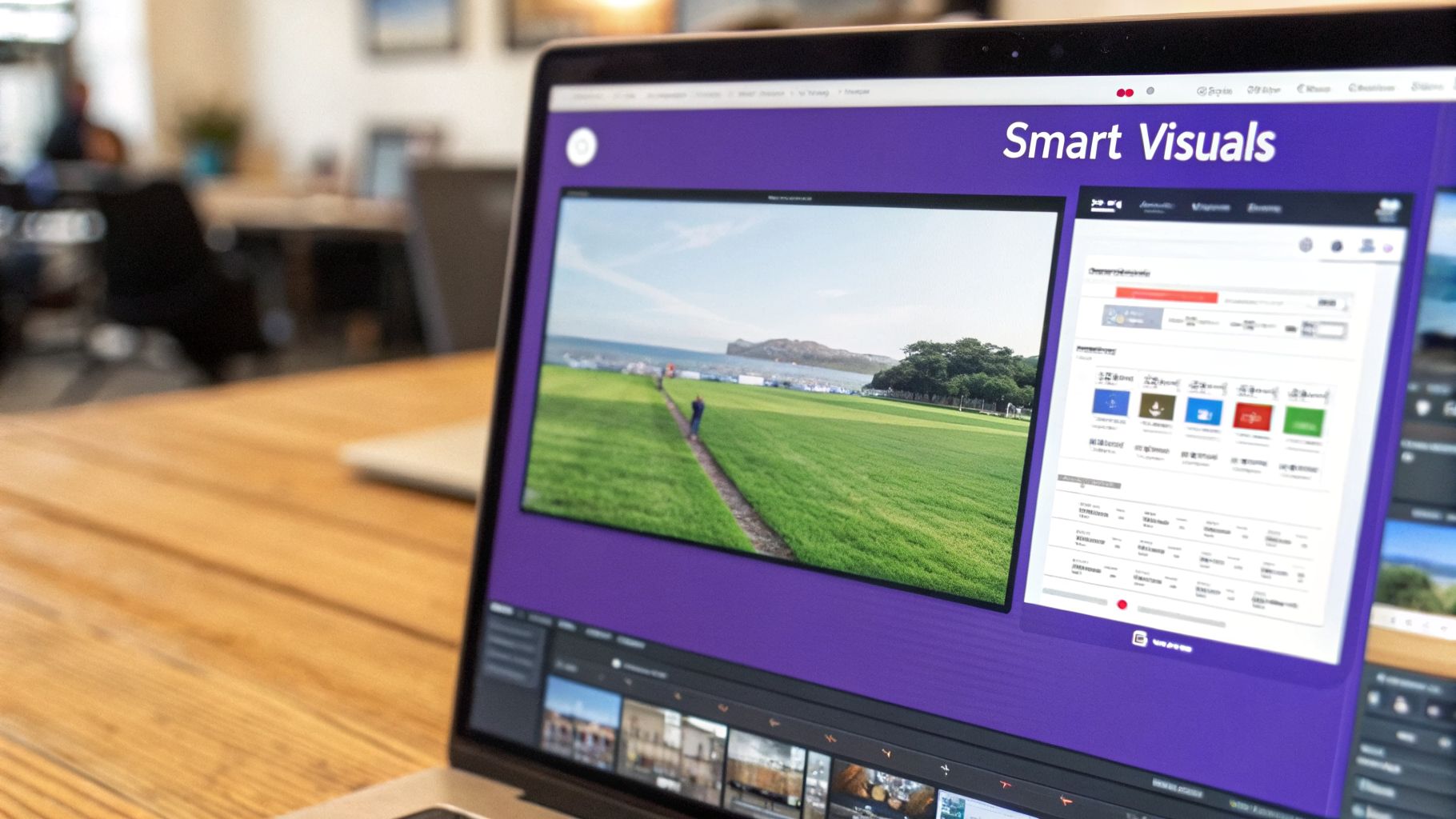
The good news? You don’t need to be a video editing wizard who lives in Adobe Premiere Pro or Camtasia to do this. Many modern video platforms now link visual effects directly to your script. This is a game-changer. It means every zoom, highlight, and transition stays perfectly locked to your voiceover, even if you decide to tweak a sentence or translate the whole video later on.
Automatically Directing Attention Where It Matters
In any screen recording, the cursor is the hero. It’s the visual guide that shows people precisely where to look and what to do next. Smart editing tools can take your raw cursor movements and automatically add a layer of professional polish.
- Smart Zooms: The tool can automatically pan and zoom to follow your cursor as it moves across the screen. No more painstakingly setting manual keyframes to track the action. It just works.
- Cursor Effects: Want to make a click really stand out? Add a highlight, a spotlight effect, or a subtle animation to the cursor. It’s a simple way to draw the eye to critical steps.
- Blur for Privacy: If your demo shows sensitive information like customer names or internal data, you can easily select and blur those areas to keep things confidential.
Because these effects are synced to your script’s timeline, they adjust automatically. If you re-record a line and the timing changes by a few seconds, the corresponding zoom moves right along with it. The end result is a smooth, professional-looking video that feels like it was edited by hand.
A subject matter expert can record freely, without practicing, and still produce a final video that looks like it was meticulously edited by a professional. This efficiency is what makes scaling video production possible.
Adding That Final Branded Polish
A raw screen recording, even one with slick zooms, can still feel a little naked. The final touch is to wrap your content in your company’s branding. This step elevates a simple tutorial into a polished, official piece of content that looks right at home in your knowledge base or sales materials.
Even without a design background, you can add these professional touches in minutes:
- Intro and Outro Slides: Bookend your video with branded slides. A title card up front and a call-to-action at the end gives it a clean, structured feel.
- Custom Backgrounds: Drop your screen recording onto a clean, on-brand background instead of showing a cluttered desktop. It instantly looks more professional.
- Logos and Watermarks: Add your company logo as a subtle watermark to reinforce your brand from start to finish.
By combining these automated visual effects with easy branding, you empower anyone on your team to create great-looking videos. The expert can now own the entire workflow—from a quick, unscripted recording to a fully polished final video—and do it all incredibly fast.
Scaling Video Production for Teams and Global Audiences
Using an AI video script generator isn’t just about knocking out one great video. The real win is building a system that lets you scale content creation across your entire company. Imagine your sales, support, and marketing teams all creating top-notch, on-brand videos quickly. That’s how you build a seriously powerful communication engine.
This approach tears down the old walls where video was a specialized, siloed task. Instead, you put the power to create directly into the hands of your subject matter experts.
Overcome the Localization Bottleneck
Taking video content global has always been a massive headache. You’re usually looking at pricey agencies and tangled production schedules. Translating the script itself is simple enough, but the real nightmare is re-editing the entire video so the timing matches the new voiceover.
This is where AI features like AutoRetime are an absolute game-changer. Let’s say you translate a script from English to German. German often takes longer to say the same thing, so the voiceover will be longer. The platform automatically adjusts the timing of every single scene, zoom, and caption to match. A job that used to take hours of tedious manual labor is now done in a flash. You can dive deeper into this technology in our guide to the best AI video dubbing tools.
AutoRetime solves one of the biggest bottlenecks in traditional video localization. It allows a single subject matter expert to efficiently produce perfectly timed, on-brand videos for a global audience without any video editing knowledge.
Unify Your Team’s Video Creation
As more people across your organization start making video tutorials, keeping everything consistent can feel like herding cats. An AI-powered platform can serve as your central hub, making sure every demo, support video, and feature announcement looks and feels like it came from the same company.
Here’s how it helps pull everyone together:
- Shared Workspaces: Your sales, marketing, and support teams can all jump into the same space to work on video projects together.
- Versioning: It’s easy to track changes, roll back to an older version if needed, and make sure everyone is working from the latest script.
- Guest Sharing: Need feedback from a stakeholder? Just send them a link. They can drop comments right on the script, which makes the review process way simpler than sending files back and forth.
This kind of unified setup means that whether a sales engineer is whipping up a custom demo or a support specialist is updating a help article, the final video is always polished and consistent. To really grow your video efforts, you need the right tech in your corner. Check out this great guide on the top video tools for creators to see what other options can complement your workflow.
Common Questions About AI Script Generators
If you’re thinking about bringing an AI video script generator into your workflow, you probably have a few practical questions. It’s a powerful new way to create content, but getting the details right is what makes it work for creating great demos, tutorials, and support videos.
Let’s dive into some of the things people often ask.
Can I Still Use My Own Voice?
This is a big one. While the lifelike AI voices are a huge plus, you’re not locked into them. Most platforms let you use your own original audio from your recording.
When you do this, the AI still does the heavy lifting by transcribing your speech. You can then edit that text, and the platform turns it into perfectly timed captions for your video. For teams that want ultimate brand consistency, some enterprise plans even offer custom voice cloning, creating a digital replica of your own voice.
How Does It Handle Technical Jargon?
What happens when the AI runs into highly specialized language, acronyms, or company-specific terms? This is a common and valid concern.
The process is actually pretty simple. After the AI transcribes your raw recording, you can jump in and edit the script just like a Word doc. This “human-in-the-loop” step is crucial. It lets you correct any mistakes and fine-tune the terminology before the final voiceover is created, giving you the best of both worlds: AI speed and your expert oversight.
You’d be surprised how fast this all is. The initial script and transcription usually pop up in just a few minutes. I’ve seen a rambling, 5-minute recording full of “ums” and retakes—the kind that would take hours to fix manually—get turned into a tight, 2-3 minute tutorial in less than 30 minutes. The real time-saver is skipping all that tedious timeline editing.
Is This a Good Fit for Knowledge Base Videos?
Absolutely. In fact, it’s one of the best use cases out there for creating and maintaining support content.
- Empower Your Experts: Subject matter experts can record a quick walkthrough and let the AI handle the rest, producing a clear, on-brand video without needing any video editing skills.
- Keep Content Fresh: When a UI changes or a new feature ships, you don’t have to re-record the whole video. Just edit a few lines in the script, and the video updates automatically.
- Reach a Global Audience: Many tools have multi-language support built-in. This means you can take a single screen recording and quickly generate localized versions for your help center.
When you’re thinking about scaling video for different teams and languages, it’s interesting to see the parallels between this and other content challenges. For instance, the debate over AI vs. human expertise in document translation tackles similar issues of speed, accuracy, and nuance that are just as relevant to video script generation. This approach really turns video production from a bottleneck into a quick, flexible way to communicate.
Ready to stop wasting time on manual video editing? See how Tutorial AI can turn your raw screen recordings into professional, on-brand tutorials in minutes. Start creating for free today