A customer reaches the wrong screen, misses a required setting, and opens a support ticket even though the answer is technically visible in the training video. The recording looked fine during capture, but the task was too broad, the demo account exposed distracting data, and the narration never explained how to confirm success.
That outcome usually isn’t an editing problem. A customer-training recording is a learning artifact, so preparation has to define what the learner will accomplish, what they’ll see, and how they’ll know the task is complete. The recorder is only one part of that system.
What a Well-Prepared Training Recording Actually Delivers
Preparing a screen recording means designing a small, testable learning task before opening the capture tool. Every customer-facing recording should begin with four inputs:
- One user goal, such as enabling a newly released approval setting.
- One starting state, such as an account where the administrator is already signed in and has the required permission.
- One sequence of actions, limited to the clicks, entries, and decisions needed for that task.
- One observable completion state, such as a confirmation message, changed status, or visible setting.
These inputs prevent the most common failure, a broad product tour presented as training. A new customer doesn’t need to see every menu. They need to know how to complete a specific job without guessing what matters.
Practical rule: If the learner can’t describe the starting state and success state, the recording isn’t ready to capture.
For example, an onboarding recording might teach a workspace administrator how to invite a teammate. The starting state is a signed-in workspace with administrator access. The actions are opening the people area, selecting the invitation control, entering a fictional address, assigning the correct role, and submitting the form. The completion state is the new teammate appearing with the expected pending status.
This task-centered approach also reflects research on software documentation usability, which finds that effective documentation helps users complete work quickly and focuses on concrete steps tied to the user’s task. A recording should therefore create more than moving pixels. It should produce a usable written companion with numbered actions, screenshots, warnings, and prerequisites. See research on adult learning styles when deciding how much explanation a customer needs alongside the demonstration.
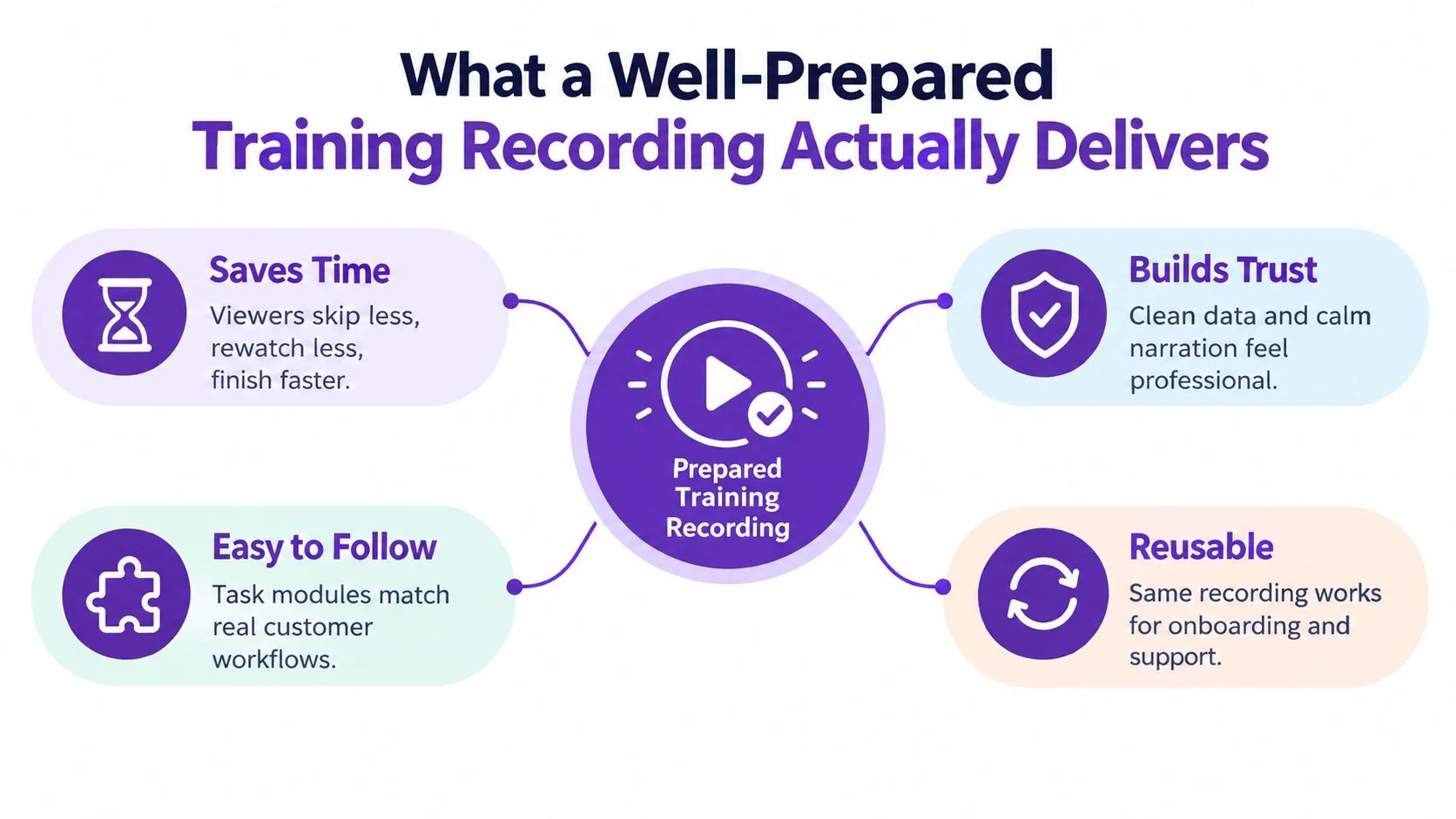
A well-prepared recording reduces ambiguity, protects trust, supports accessibility, and remains easier to update. Short, task-focused recordings can also be revised one feature at a time when the interface changes, instead of forcing the team to rebuild an entire course. Preparation is design work because the script, narration, captions, screenshots, and future updates all depend on those four initial decisions.
Setting Up the Recording Environment Before You Press Record
A reliable capture environment should look boring. The account is predictable, the screen is quiet, the audio is understandable, and nothing unexpected competes with the workflow.
Start with a sanitized demo tenant that resembles the customer’s view. Use fictional names, addresses, files, and account values. Create a test account with the same permissions the audience will have, because an administrator’s screen can make a workflow appear simpler than it is for a standard user.
Before capture, run a short environment check:
- Close distractions: Quit unrelated applications, close extra browser tabs, remove desktop clutter, and disconnect or hide a second monitor if it won’t appear in the lesson.
- Silence interruptions: Disable operating-system notifications, chat alerts, calendar banners, email previews, and application pop-ups. Turn off automatic updates that could restart the software or change the interface mid-take.
- Set the capture area: Choose the full application, a specific window, or a selected region. Use a readable resolution and keep the controls large enough to identify without forcing the viewer to pause constantly.
- Check microphone audio: Microphone audio records the presenter’s voice. System audio records sounds produced by the computer, such as an application alert or a video embedded in the workflow. Select only what the lesson needs, then make a short test recording and listen with headphones.
- Prepare the account: Sign in, confirm permissions, load the starting page, and reset the workflow so the first click begins from a known state.
If the recording setup depends on a laptop camera or conferencing hardware, a practical troubleshooting guide such as help from Finchum Fixes IT can help isolate device issues before the training session. For voice-led tutorials, review guidance on choosing the best microphone for recording, then prioritize clean speech over expensive equipment.
The final check should be repeatable. A trainer should be able to confirm the account, screen, notifications, audio, and first action in a few minutes every time. That consistency prevents a polished lesson from being built on a broken permission, an unreadable interface, or an accidental notification.
Writing the Script and Structuring the Recording Into Task Modules
A useful script tells the presenter what to say and tells the editor what the learner must see. It shouldn’t read like a product brochure. Each line should move the customer toward the stated outcome.
A compact one-task script can follow this pattern:
- Outcome: “By the end, you’ll have enabled approval notifications for your workspace.”
- Prerequisite: “You need workspace administrator access.”
- Starting state: “Open Settings and select Notifications.”
- Action: “Choose Approval requests, turn on email alerts, and select Save.”
- Verification: “The status now shows Enabled.”
- Recovery: “If Save is unavailable, check that the required notification address is present.”
Use short sentences that can work as narration, captions, and transcript text. Say the control name before selecting it, describe meaningful visual changes, and avoid filler such as “as you can see” when the screen already supplies no useful context.
Split the journey into meaningful modules
A software-training series works better when each clip has a clear job. A peer-reviewed study of software-training tutorials found that each task video was capped at 3 minutes, while the complete sequence lasted 12–20 minutes when watched in full. Average coverage was approximately 70%, but previews exceeded 90%, first demonstrations were about 70%, reviews fell to 42%, and second demonstrations fell to 27%. These results support concise previews, one workflow per chapter, and fewer repeated explanations. (Peer-reviewed software-training study)
A separate controlled study of 214 distance learners found that dividing educational video into 11 meaningful parts reduced cognitive load, increased engagement and satisfaction, and improved average academic achievement compared with one long presentation. (Study of segmented educational video) The practical implication for customer education is clear. Separate setup, navigation, the main workflow, exception handling, and verification when each can stand alone.
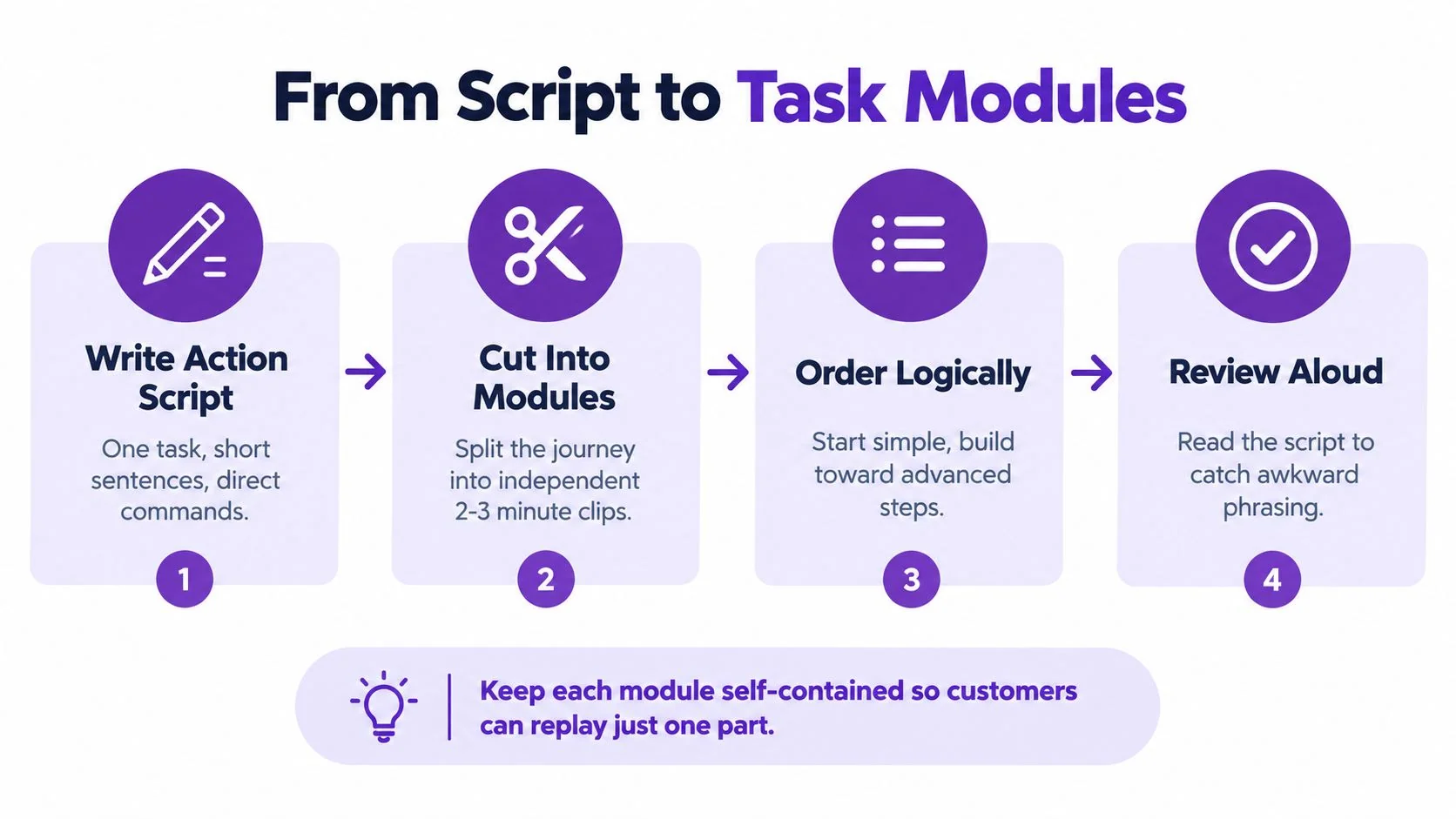
Before recording, apply this module test:
- Searchable: Can a customer find the clip using the task name?
- Self-contained: Does the clip identify its starting state and prerequisites?
- Observable: Does it show a visible success signal?
- Updatable: Can one interface change be corrected without rebuilding unrelated lessons?
- Testable: Can a representative customer complete the task without assistance?
Read the script aloud before capture. Awkward sentences become more obvious in speech, and overly long explanations usually reveal that the module contains more than one task. A video script template can provide a starting structure, but the product workflow still needs to supply the exact controls, inputs, and completion signal.
Privacy and Sensitive Data Preparation for Customer-Facing Recordings
Blur isn’t a privacy strategy. It can hide an obvious name in a stable screenshot, but it may miss a customer identifier that appears briefly in a pop-up, browser suggestion, toast message, transition, or spoken example. It can also fail when a presenter switches applications or scrolls through a populated table.
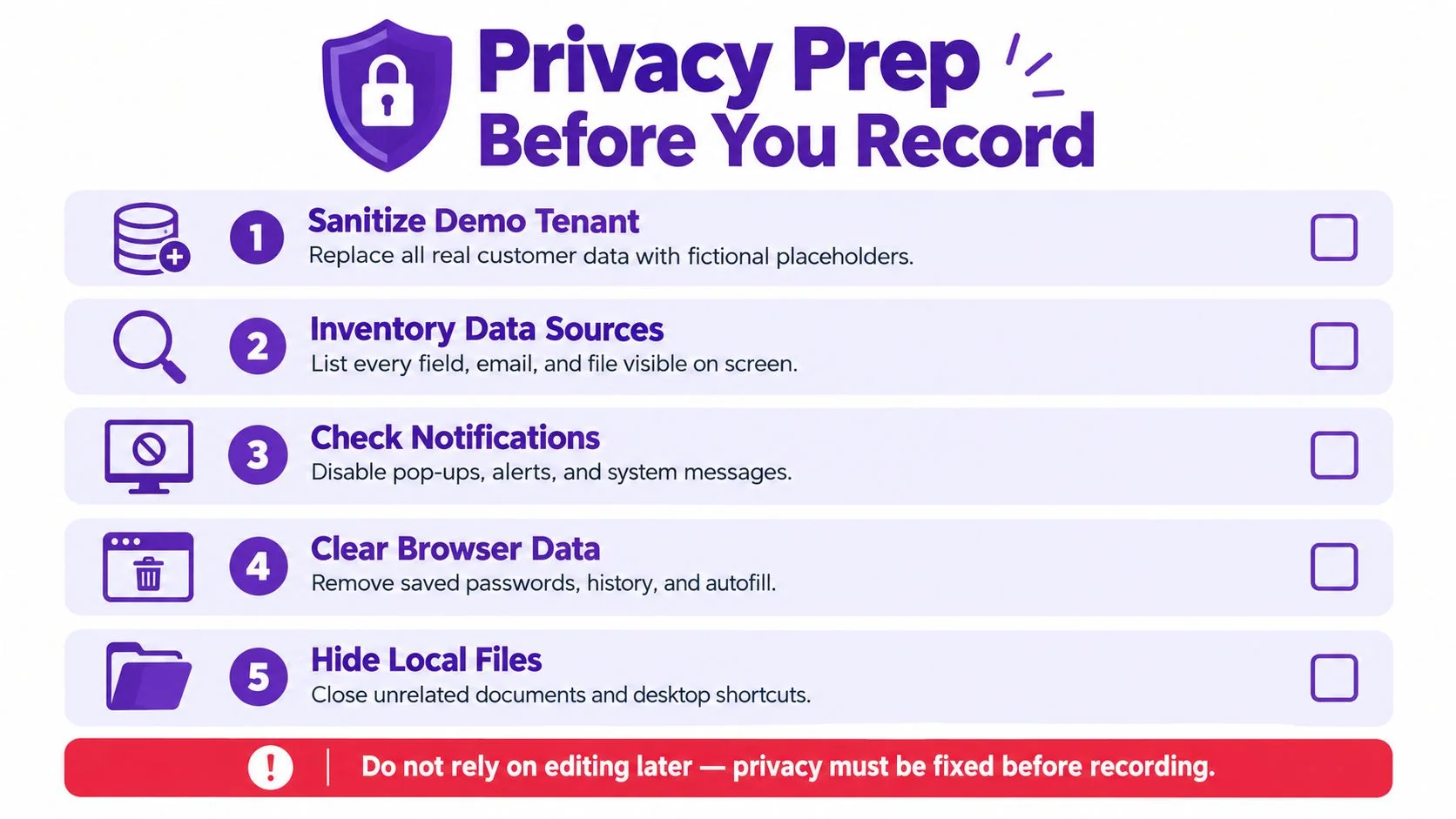
Privacy needs to be designed into the capture environment before recording. A sanitized tenant is more reliable than trying to repair sensitive footage after the fact, although the finished recording still needs a complete human review.
Build a preflight checklist
The data inventory should include anything that may appear visually or verbally:
- Customer identity: Names, email addresses, company names, profile images, and support references.
- Security material: Tokens, passwords, recovery codes, private URLs, and authentication prompts.
- Business records: Invoices, tickets, contracts, uploaded files, usage details, and internal notes.
- Transient content: Notifications, browser autofill, clipboard suggestions, chat previews, and system alerts.
- Spoken identifiers: Names or addresses included in narration, examples, regenerated audio, captions, or translated versions.
Use fictional placeholders consistently. Don’t type a real address just because it is faster during rehearsal. Disable notifications, close unrelated applications, clear saved passwords and autofill, and inspect the desktop, browser, application switcher, and taskbar before capture.
The same discipline applies to credentials. Teams should secure your CMS login credentials before preparing a capture environment, and no production password should ever be typed into a customer-training demonstration.
Add approval before publication
Keep the restricted raw source separate from the release copy. Then record the approval details:
| Approval item | Decision to record |
|---|---|
| Audience | Customer, prospect, partner, or internal team |
| Reviewer | Named person responsible for privacy sign-off |
| Data scope | What the demo account contains and excludes |
| Distribution | Help center, onboarding flow, support reply, or private link |
| Retention | Where source and release files remain, and when they are removed |
| Localization | Who checks translated captions and regenerated narration |
The reviewer should inspect the entire recording, not only expected data timestamps. Each audience version needs its own check because a translated or regenerated narration can introduce a spoken identifier even when the original audio was clean. Preventing exposure is the primary control. Post-production review is the safety net.
Running the Capture Session Without Losing the Take
The capture session should be deliberate, not improvised. A dry run exposes permission problems, slow loading, unclear cursor movement, and places where the presenter naturally talks too much.
Start from the defined starting state and perform the workflow without narration. Note every hesitation, correction, loading delay, and unexpected branch. Reset the account, then record the clean take. If a mistake occurs, pause briefly and restart from the nearest logical sentence or module instead of continuing through confused instructions.
Keep the pointer purposeful. Move it to the control before naming the action, select the field, enter the fictional value, and wait long enough for the visual result to register. Cursor highlights, callouts, and zooms can help later, but they shouldn’t compensate for a presenter who sweeps the pointer across unrelated menus.
Capture discipline: Record a restricted raw source, then create a release copy. Never overwrite the source while trimming mistakes or applying privacy effects.
Monitor the microphone for clipping, room noise, and inconsistent distance. Speak at a pace that leaves room for the viewer to locate the control. System audio should remain muted unless it explains the workflow, because notification sounds and unrelated application audio make customer training feel uncontrolled.
The clean take should remove typing corrections, dead air, repeated clicks, and accidental navigation. It should preserve meaningful recovery when failure handling is part of the learning objective. A customer who needs to resolve an error benefits from seeing the error path, while a customer learning a straightforward setting doesn’t need to watch the presenter recover from a misclick.
Capture annotations only when they clarify a decision. A short label such as “Select workspace role” is useful. A collection of arrows, boxes, and animated effects competing for attention is not. The recording’s job is to make the next correct action obvious.
Post-Recording Quality Assurance and the Written Companion
The recorder stopping is the beginning of quality assurance. A usable training asset must work for someone who wasn’t present during capture, may watch without sound, and may need to search for one step months later.
Review the release copy once at normal speed and again at 1.5x speed, as recommended in the accessibility preparation guidance from the Web Content Accessibility Guidelines. Normal speed reveals confusing pauses and visual timing. Faster playback exposes captions that lag behind speech, abrupt cuts, cursor jumps, and explanations that depend on a moment the viewer has already missed.
Check what the learner can perceive
Use a structured QA pass:
- Caption accuracy: Compare automated text against the audio. Correct product names, field labels, keyboard shortcuts, commands, and acronyms.
- Caption timing: Confirm that captions appear with the relevant speech and don’t cover the control being demonstrated.
- Muted experience: Watch with sound off. The screen and captions should still communicate the action, result, and important warnings.
- Visual clarity: Check cursor visibility, contrast, zoom level, keyboard focus, and whether status changes remain on screen long enough to understand.
- Audio quality: Listen for peaks, missing words, room noise, and system sounds that obscure narration.
- Task completion: Verify that the final screen visibly proves success and matches the script.
WCAG 2.2 requires captions for prerecorded audio in synchronized media unless the video is an alternative for equivalent text. Section 508 guidance also recommends planning caption workflows in advance and synchronizing captions with speech. For software demonstrations, narration should identify visually important actions, such as opening a dialog or confirming a status, so the instruction remains meaningful without sight of the cursor.
Turn the same source into a written guide
The transcript should become a practical companion, not a copy of every spoken hesitation. Write a short purpose statement, list prerequisites, number the actions, add screenshots at decision points, and include warnings for permissions, irreversible changes, or common errors. The written guide can serve a help center, knowledge base, support response, search result, translation source, or internal review document.
Keep the script, transcript, source capture, release copy, screenshots, and revision history together. When the interface changes, the team can identify the affected module and update the video and article without guessing which version customers are using.
Turning Preparation Into a Repeatable Training Workflow
A release-ready training workflow connects the task definition to the published asset:
- Select a real customer task. Start with a recurring onboarding question, support issue, new feature, or workflow that customers need to complete.
- Prepare the environment. Use a sanitized tenant, representative permissions, controlled notifications, tested audio, and a defined starting screen.
- Record the modular demonstration. Follow the action script, show meaningful controls, narrate visual changes, and retain the restricted raw source.
- Generate the content package. A platform such as Tutorial AI can turn a screen recording into a tutorial video and written guide with screenshots. Teams can review and edit the generated script, narration, steps, and visuals before sharing the result.
- Run human QA. Check privacy, captions, terminology, keyboard focus, cursor visibility, audio, completion state, and the written companion.
- Publish by task. Place the video and guide where customers already look, then record which workflow the asset supports and when it should be reviewed again.
This approach treats AI as a bridge between a well-prepared demonstration and reusable training content, not as a substitute for product knowledge. The person who understands the workflow still has to choose the right task, sanitize the data, verify the result, and approve the customer-facing version.
A practical starting point is one customer question from the current support queue. Define its four inputs, create the demo state, record one focused module, produce the written companion, and ask a representative customer to complete the task without assistance. Their hesitation will reveal more than another round of visual polish.
Tutorial AI turns a prepared screen recording into a polished tutorial video and written guide with screenshots, while allowing teams to review and edit the generated script, narration, steps, and visuals. For customer software training, Tutorial AI gives the team a practical recording-to-tutorial workflow to try on one real onboarding or support task.