Think of a solid video script template as more than just a document—it’s a strategic tool. It’s what separates a chaotic, rambling video from a polished, professional one that actually gets results. This is the secret weapon I’ve seen countless teams use to turn jumbled ideas into high-performing content.
Why a Great Video Script Is Your Content Secret Weapon
We’ve all been there: staring at a blank page, trying to figure out where to start. It’s the quickest way for a video project to go off the rails. You end up winging it, which often means missing key points or, worse, creating something that just doesn’t land with your audience. A well-structured script template is the answer, acting as your project’s North Star from the initial concept to the final cut.
Whether you’re making product demos, technical tutorials, or slick marketing videos, having a framework is non-negotiable. It forces you to untangle complex ideas and organize them into a clear narrative before you even think about hitting the record button.
Organize Thoughts and Focus Your Narrative
Most good templates start with a simple two-column layout: one for what viewers will see (visuals) and one for what they’ll hear (audio). This might sound basic, but it’s an incredibly effective way to start visualizing the final product.
I always recommend starting with the audio column. Nail down your core message and make sure the narration flows logically. Once that’s solid, you can map specific visuals—like screen recordings, B-roll clips, or on-screen text—to each line of your script. This simple process ensures every single second of screen time has a clear purpose.
A reusable template empowers subject matter experts—not just video pros—to create compelling stories efficiently, ensuring you grab and hold viewer attention from the critical first few seconds. This approach is especially vital for tutorials and explainer videos. It helps you break down complex steps into a sequence that’s easy for anyone to follow, which means your viewers will actually understand and remember what you’re teaching them.
Maintain Brand Consistency and Save Time
When everyone on your team uses the same video script template, every video you produce will share a consistent tone, style, and structure. That kind of consistency builds brand recognition and, more importantly, trust with your audience. They’ll know what to expect from your content and will be more likely to come back for more.
The time savings are also a huge benefit. Instead of reinventing the wheel for every new project, your team can start with a proven foundation. This frees you up to produce more content without letting quality slip—a must for any modern content strategy. It turns video creation from a daunting chore into a predictable, repeatable process that delivers real return on your investment.
Downloading and Using Your Video Script Template
Alright, enough theory. Let’s get your hands on the tool that will make scripting so much easier. We’ve built a video script template specifically for the kinds of videos SaaS teams create all the time—tutorials, demos, and marketing content.
This is the exact framework we use internally. It’s not just a document; it’s a battle-tested blueprint for planning your video from start to finish. Grab your copy below, and I’ll walk you through how to put it to work.
[Download Your Free Video Script Template Here]
Once you open the template, you’ll see it’s not just a wall of text. It’s organized into a few key columns. This structure is the secret to making sure what you say and what you show are perfectly in sync.
Breaking Down the Script Template
This multi-column format is a standard in professional video production for a good reason. It forces you to think like an editor before you even hit record, connecting your visuals and narration from the very beginning. This simple step prevents so many headaches down the line.
Here’s a quick look at the core columns in our template and why each one is critical for a smooth production process.
Core Components of the Video Script Template
This table breaks down the essential columns in our video script template, explaining the purpose of each to ensure a clear and organized production process.
| Column Name | Purpose | Example Entry |
|---|---|---|
| Scene # | Organizes your video into sequential shots or segments for clear production flow. | 3 |
| On-Screen Visuals | Details exactly what the audience will see, from screen recordings to animations. | Screen recording: User clicks on the 'New Project' button in the main dashboard. |
| Dialogue / Narration | Contains the spoken words for the scene, whether it's a voiceover or on-camera dialogue. | (Friendly, upbeat) "To get started, simply click on the 'New Project' button." |
| Production Notes | Captures important details like sound effects, on-screen text, or specific editing cues. | SFX: soft click sound. Highlight the button with a yellow circle. Zoom in slightly. |
By filling this out, you’re creating a complete shot-by-shot plan. The ‘On-Screen Visuals’ column is for mapping out every click and screen change, while the ‘Dialogue’ column holds your narration. And don’t sleep on the ‘Production Notes’ column—it’s perfect for calling out those little details like text overlays, sound effects, or zooms that really elevate the final cut. Our template even includes a filled-out sample to show you how it looks.
If you want to see another complete example, check out our guide with a full sample script outline.
From Raw Recording to Polished Video
Think about this common scenario: you ask a product expert to record a quick onboarding video. They fire up a tool like Loom, record their screen, and talk through the process off the cuff.
The result? A video that’s 50-100% longer than it needs to be, packed with “ums,” long pauses, and repeated steps. It conveys the information, sure, but it feels unpolished and can be a drag for the viewer to watch.
The alternative used to be shipping that recording off to a video editor who would spend hours in a complex tool like Camtasia or Adobe Premiere Pro. This creates a huge bottleneck, pulling your experts away from their real jobs just to get a simple tutorial made.
This is the exact gap we built Tutorial AI to fill. It lets your expert do what they do best: speak naturally while recording their screen. That raw, messy first take is all you need. From there, our tools let you edit the video just by editing the text transcript. You get a video that looks like it was cut by a professional editor, but without needing any of the technical skills.
This workflow empowers anyone on your team to create stunning, on-brand tutorials and demos in a fraction of the time.
Adapting Your Script for Different Video Scenarios
Let’s be honest: a one-size-fits-all video script is a myth. The snappy, high-energy script you’d create for a marketing video would feel completely out of place in a detailed tutorial. The real skill is knowing how to take a solid video script template and mold it for the specific job at hand.
Think of your template as the foundation. It provides the core structure, but the content—the tone, the pacing, even the calls-to-action—has to change depending on your audience and what you want them to do. It’s like being a chef; the recipe gives you the steps, but you’re the one picking the ingredients for who you’re cooking for.
Tailoring Scripts for Product Marketing
When you’re making a marketing video, you’re telling a story. Your goal is to hook the viewer immediately, build up some intrigue, and position your product as the hero that saves the day. This isn’t the time for a granular, click-by-click walkthrough.
Your script needs to focus on a few key things:
- A Relatable Problem: Kick things off by hitting on a pain point your audience knows all too well. Make them nod in agreement.
- The “Aha!” Moment: This is where you introduce your product as the game-changing solution they’ve been waiting for.
- Benefit-Driven Language: Don’t just list features. No one cares about features. They care about how those features make their life easier, better, or more profitable.
- A Strong Call-to-Action (CTA): Always end with a clear, direct next step. Think “Start Your Free Trial” or “Book a Demo Today.”
The tone should be energetic and persuasive. You want to use short, powerful sentences that build momentum right up to that final CTA. Every visual, every shot, needs to drive home that core marketing message.
Crafting Scripts for Sales Enablement and Demos
With sales videos and demos, it’s all about personalization. A generic demo just won’t cut it when you’re talking to a prospect with very specific business challenges. Your script has to speak directly to their pain points and show exactly how your solution delivers value for them.
The focus shifts from a wide net to a sharp spear. Instead of saying something generic like, “Our tool saves you time,” your script should be specific. Try something like, “For a team your size, this feature typically cuts report generation down from four hours to just ten minutes.” See the difference?
The goal of a sales demo script is to make the prospect feel seen and understood. It’s a conversation, not a monologue. Your script should have moments baked in to pause, ask questions, and adjust the story based on their feedback. Your visuals need to be just as targeted. Don’t show a blank demo account. Populate it with data that’s relevant to the prospect’s industry. This makes the benefits feel real and helps them picture themselves actually using your product.
Building Scripts for Support and Training Videos
For support videos, training materials, and knowledge base content, clarity is everything. Your audience is there for one reason: to solve a problem or learn how to do something. All the marketing fluff has to go. They just want answers.
This is where your script needs to be incredibly meticulous. You have to anticipate where users might get stuck. Break down complex processes into small, digestible chunks. Use precise language, calling out button names and menu items exactly as they appear on the screen. An AI video script generator can be a huge help here, especially for creating consistent and standardized instructional scripts.
The tone should be patient and helpful. You’re a guide, not a salesperson. The idea is to walk them through the process without making them feel rushed, ensuring the video not only fixes their problem but also makes them feel more confident using your product.
Bringing Your Script to Life with Tutorial AI
So you’ve filled out your video script template. Now comes the hard part: turning those words on the page into a professional video. This is where Tutorial AI comes in, by generating polished video tutorials based on simple screen recordings. It’s ideal for creating demos, onboarding videos, explainer videos, feature releases, and turning support articles into knowledge base videos.
We’ve all been there. You fire up a screen recorder like Loom for a “quick” take, only to end up with a video that’s 50-100% longer than it needs to be. It’s full of ums, ahs, long pauses, and restarts.
The alternative is a huge bottleneck. Sending it off to a video pro with a fancy software suite like Camtasia or Adobe Premiere Pro is slow and requires expert video editing knowledge your subject matter experts just don’t have.
Bridge the Gap Between Your Script and the Final Cut
This is exactly the problem Tutorial AI was built to solve. Tutorial AI’s tools let you speak freely without any practice, and your video will still look professional, as if it was edited in Adobe Premiere Pro. It allows the subject matter expert to create on-brand videos extremely efficiently.
The process is surprisingly straightforward.
First, you just hit record and capture your screen. You can narrate as you go or even record silently if you prefer. Don’t stress about mistakes, stumbles, or pauses. Just get it done.
Tutorial AI then instantly transcribes everything you said, turning your raw audio into an editable text document. Here’s where the magic happens: to edit your video, you just edit the text.
Delete a word from the script, and it vanishes from the video’s audio and timeline. If you rewrite a sentence for clarity, the narration is automatically updated to match. This text-based editing approach completely changes the game, putting the power back in the hands of the person who knows the content best—your subject matter expert.
From a Raw Screen Recording to a Flawless Tutorial
Let’s imagine a product manager needs to create a video announcing a new feature. Instead of spending hours rehearsing a script, she can simply record her screen while giving a natural walkthrough of the update.
As she edits the transcribed script, Tutorial AI regenerates the narration with a lifelike AI voice. At the same time, it automatically re-times the video scenes to sync perfectly with the new, polished voiceover. What was once a rough take is now a clean, professional video.
This means you can create high-quality knowledge base videos, support guides, onboarding demos, and explainers without ever touching a complex video timeline.
This workflow shows how different teams can take a core script and adapt it for their own unique needs, from a high-level marketing announcement to a detailed support tutorial.
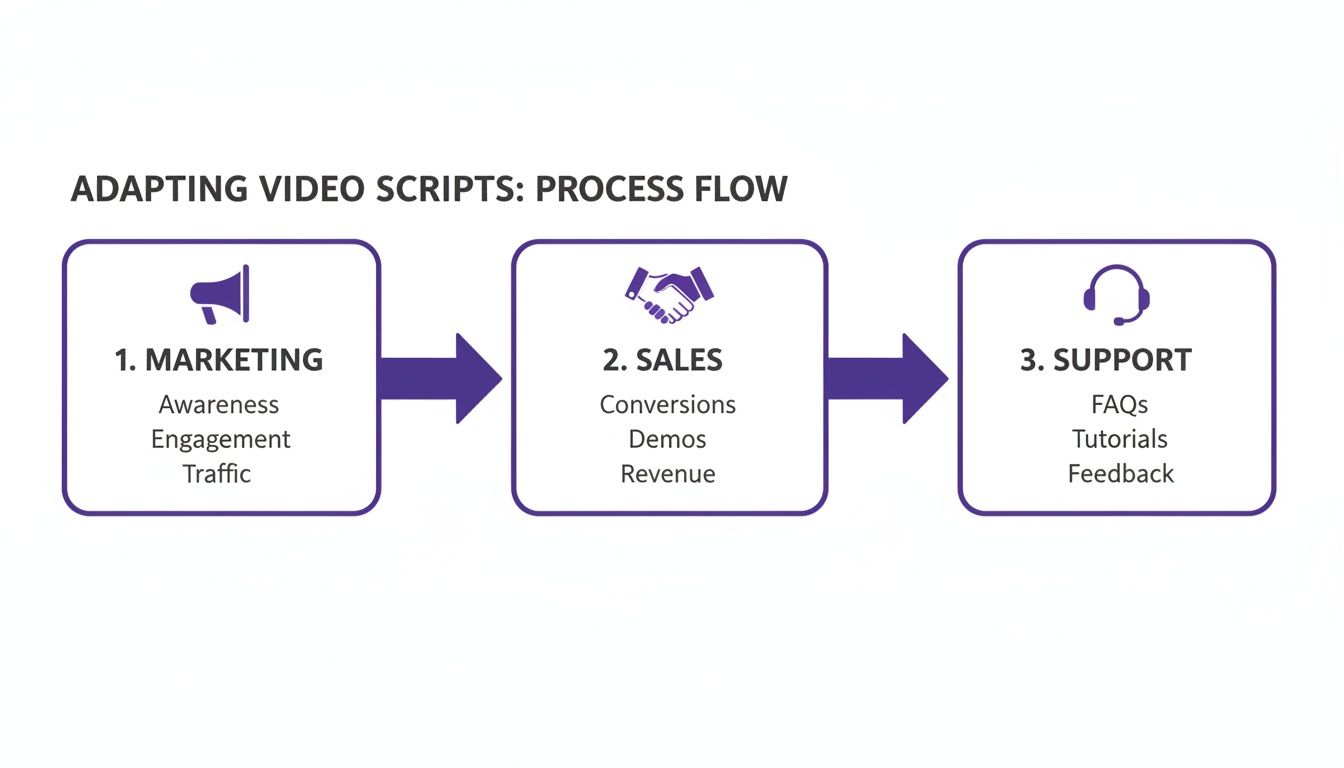
The real takeaway here is that a single core idea can be efficiently spun into assets for marketing, sales, and support. The script acts as the single source of truth that guides each version. To really make your content pop, consider looking into specialized Viggle AI prompts to supercharge your content.
For a more detailed look at what our platform can do, check out our quick reference guide.
With Tutorial AI, you don’t need to be a video editor to produce studio-quality content. Your expertise is the only requirement. Speak freely, and let our tools handle the professional polish.
Writing Scripts That Genuinely Connect with Your Audience

A good video script is more than a simple document; it’s the DNA of the final product. But turning a good script into a great one comes down to one crucial shift in mindset: you have to write for the ear, not the eye.
Think about it—nobody reads your script on screen. They listen. This means your writing has to sound like a real person talking, not a formal essay. Use contractions (“you’ll” instead of “you will”) and don’t be afraid to ask your audience questions to pull them in.
My best advice? Read every single line out loud. If you stumble over a phrase or it just feels stuffy and unnatural to say, it’s a clear signal to rewrite it.
Of course, knowing how to talk to your audience first requires knowing who they are. Before you write a single word, you need to identify your target audience on YouTube. This single step shapes everything from your tone and humor to the specific examples you use.
Mastering Pacing and Timing
Once you have the words down, the next layer is rhythm. A script where every sentence is the same length will sound flat and monotonous, no matter how good the content is. You can inject life and energy into your videos simply by varying your sentence structure.
Here’s how to think about it:
- Short, punchy sentences are perfect for creating urgency or making a key point stick.
- Longer, more descriptive sentences give you room to explain complex ideas and add context.
- Strategic pauses, which you should literally write into your script as
(pause), give your viewers a second to breathe and absorb important information.
This isn’t just about the words; it’s about directing the energy of the final video. This simple technique is one of the easiest ways to make your narration sound polished and professional.
A script isn’t just about what’s said, but how it’s said. The pacing and pauses you write into the document are just as important as the dialogue itself for creating a cohesive and engaging viewing experience.
Weaving in Visual Cues and Captions
A common mistake I see is people writing their narration in a total vacuum, completely separate from the visuals. Your video script template needs to be a two-column document: one for what’s being said, and one for what’s being seen.
For every line of narration, ask yourself: what is the viewer looking at right now? Syncing these two elements is what tells a cohesive story.
Finally, write your captions as you write your script. Don’t leave accessibility as an afterthought. A surprising number of people watch videos with the sound off, and accurate captions make your content available to everyone. When you realize your script is your caption file, it changes how you approach the entire process.
Common Video Scripting Questions Answered
Even with a great video script template in hand, you’re bound to hit a few snags. It happens to everyone. Let’s walk through some of the most common questions I hear and get you past those sticking points.
If you’re staring at a blank page thinking, “But I’m not a writer!”, you’re not alone. The secret is to stop trying to write a script. Seriously.
Just open a document and bullet-point the main ideas you need to cover. Think of it as a simple to-do list for your video. Once you have that basic skeleton, you can use your template to flesh out each point, one small piece at a time. It turns a daunting task into a series of manageable steps.
How Do I Make My Video Script Sound Natural?
Nothing makes a viewer click away faster than a script that sounds like it was written by a robot. The fix is simple: write like you actually talk.
Use contractions (“it’s,” “you’ll,” “can’t”). We use them constantly in real conversation. Ask your audience questions to keep them engaged. Most importantly, read every single line out loud. If a sentence feels clunky or you stumble over your words, rewrite it. If you wouldn’t say it to a friend, don’t say it in your video.
A great trick I’ve used for years is to just hit record on my phone and talk about the topic for a minute or two, no script. Transcribing that quick, informal recording shows you your natural cadence and word choices. It’s the perfect blueprint for a conversational script.
What’s the Best Way to Create Tutorial Videos?
For tutorials, you’ve always faced a frustrating trade-off. You could quickly record your screen with a tool like Loom, but those raw recordings are often 50-100% longer than they need to be, full of “ums,” pauses, and redos. Or, you could aim for a polished final cut with pro software like Camtasia or Adobe Premiere Pro, but that requires a ton of editing skill and time.
This is where a new workflow completely changes the game, especially for creating:
- Product demos and onboarding flows
- Explainer videos
- Feature release announcements
- Video versions of knowledge base or support articles
With Tutorial AI, you just record your screen while talking through the steps naturally. The platform instantly generates a transcript. From there, you edit the video simply by editing the text—deleting a word or sentence removes it from the video.
This approach gives you the best of both worlds. The subject matter expert can create a video without any practice or pressure, and the final output looks professionally edited. You get brand-compliant, high-quality videos without the traditional editing bottleneck.
Ready to skip the tedious editing and create polished tutorials in minutes? Tutorial AI turns your raw screen recordings into studio-quality videos effortlessly. Try Tutorial AI for free today.