You need a tutorial video for a new feature by the end of the day. You open a screen recorder, walk through the flow, talk over the UI, miss a step, restart, ramble, click the wrong menu, and end up with a recording that technically exists but still isn’t usable. The recording part took minutes. The cleanup now threatens the rest of your afternoon.
That gap is why picking the best screen recorder for Windows is rarely about capture alone. In real business work, the recorder is only one piece of the job. You also need trimming, sharing, annotations, voice cleanup, captions, and in many teams, a written help article that matches the video.
Windows makes this even more interesting because the built-in options have shifted over time. Many tutorials still point people to Xbox Game Bar with Windows key + G, while newer Windows workflows now include Snipping Tool with Shift + Windows + R and Clipchamp’s “Record and create” path, which shows how tightly integrated recorders matter inside the Windows ecosystem, not just feature depth in a standalone app, as noted in Microsoft’s Windows 11 community discussion.
If you just need to grab a clip, several free options are good enough. If you need training, support videos, onboarding, product demos, or documentation that people will watch, “good enough” usually breaks down after the recording stops.
1. Tutorial AI
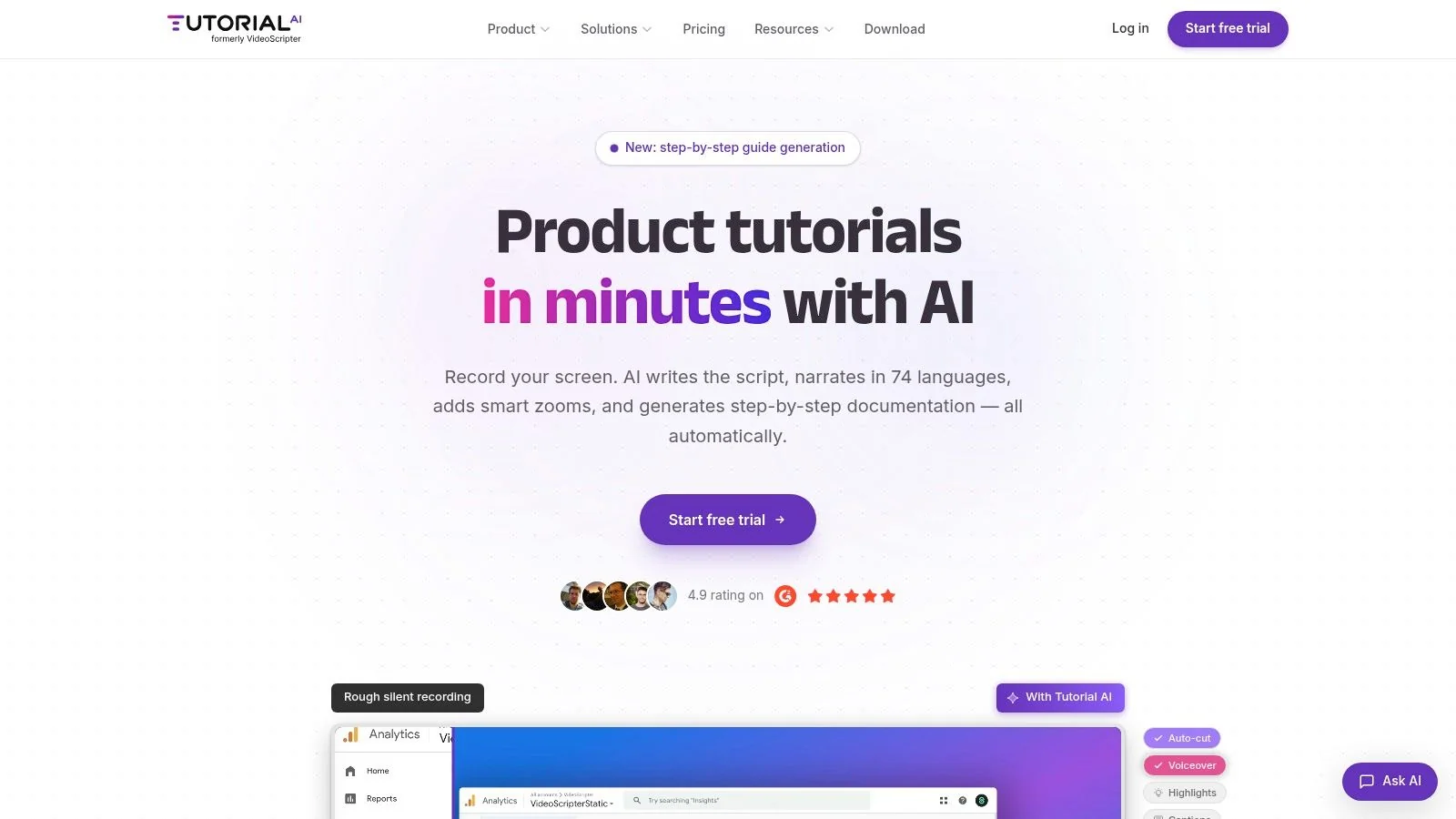
Tutorial AI is the tool I’d pick when the core job isn’t “record my screen.” It’s “ship a polished tutorial, demo, or help article without burning hours in an editor.” That distinction matters. Teams often don’t struggle with hitting record. They struggle with everything that happens after.
Its strongest advantage is post-recording workflow. You record once, then work from the script instead of fighting a timeline. If narration needs to change, you edit the words and the voiceover, timing, and captions update with it. That’s a very different experience from trimming clips manually in a traditional editor.
Best for knowledge bases, onboarding, and repeatable training
Tutorial AI distinguishes itself from Loom-style quick capture and from heavier editors like Camtasia or Adobe Premiere Pro. Subject-matter experts can record the actual UI with their own voice, then tighten the result into something that feels edited instead of raw. For product demos, release walkthroughs, support article videos, SOPs, and internal training, that saves more time than adding another recorder with more buttons.
It also goes beyond video. Tutorial AI generates a matching written article from the same recording, which is useful when support and documentation teams need both formats from one pass. If your process today is “record a video, then rewrite the same thing as a help-center article,” this is the rare tool that addresses both outputs directly.
Practical rule: If your bottleneck is editing, not recording, choose the platform that reduces rework after capture.
A few capabilities are especially relevant for Windows teams working across regions or departments:
- Editable script workflow: Change narration at the text level instead of rebuilding scenes by hand.
- Localization support: Tutorial AI supports narration in 74 languages, which is useful when one product demo needs to serve several markets.
- Documentation output: One recording can become a tutorial video and a written article.
- Brand consistency: Brand Kits, custom fonts, and reusable visual styling help larger teams avoid mismatched outputs.
- Enterprise fit: SSO/SAML, SOC 2, and GDPR matter if training and product content move through regulated environments.
It’s also a strong fit when your audience needs to see the actual product interface. AI avatar tools have their place, but they’re not a replacement for a real software walkthrough.
One relevant angle from recent Windows coverage is that buyers are paying more attention to what happens after recording, not just whether a tool can capture the screen. Mainstream guidance now mentions built-in editing-adjacent features like AI subtitles, text-to-speech, noise suppression, silence removal, and record-to-editor workflows in Clipchamp, which reflects a shift toward post-recording polish rather than pure capture alone, as discussed in this Windows screen recording walkthrough video.
If you want to create studio-quality AI videos, Tutorial AI is the most complete option on this list for business teams that need polished output, not just raw footage.
2. OBS Studio
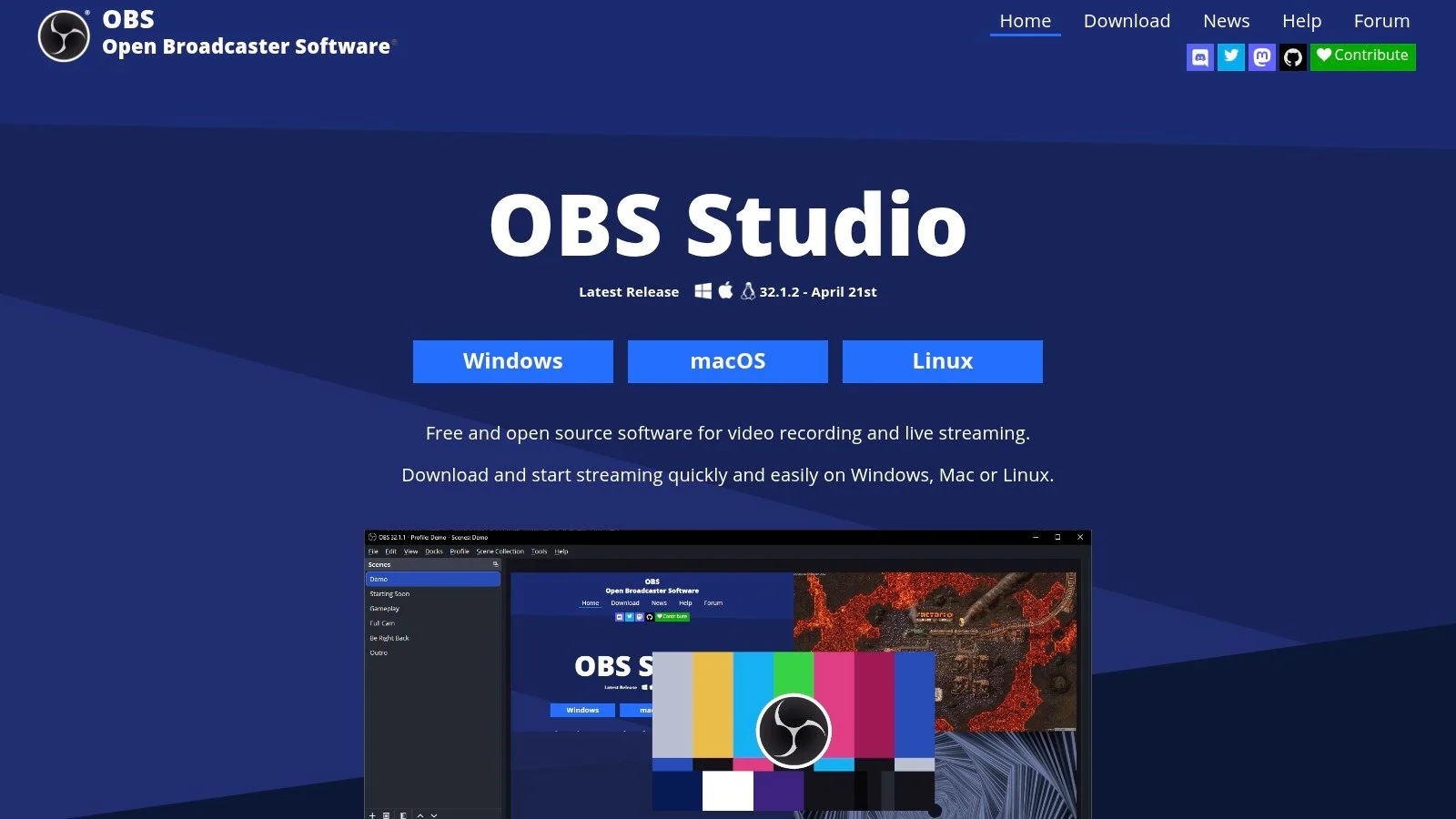
OBS Studio is still the best screen recorder for Windows if your priority is control. Not simplicity. Not polished sharing. Control.
It’s a full recording and streaming studio, and it behaves like one. You can build scenes, layer sources, route audio, tune encoding settings, and create a recording environment that matches exactly how you work. If that sounds appealing, OBS is excellent. If that sounds like setup overhead, it probably is.
Where OBS wins
OBS is the recorder I recommend to technical teams, trainers with repeat recording setups, and creators who need dependable local capture with no watermark baggage. It’s especially strong when you want to capture multiple inputs consistently, such as screen, webcam, and audio sources that need separate handling.
The plugin ecosystem helps too. Over time, you can shape OBS into a serious production tool instead of a basic recorder.
- Best use case: Product walkthroughs, webinars, live demos, and recording setups that need repeatable scene control.
- What works well: High-quality local capture, multiple scenes, hardware encoding, and source-level audio control.
- What doesn’t: Fast sharing, lightweight editing, and low-friction collaboration.
OBS is excellent when one person owns the recording workflow. It’s weaker when a whole team needs to capture and publish without training.
For many Windows users, OBS is what they graduate to after hitting the limits of built-in tools. But if you’re comparing it against simpler workflows, remember that you’re trading speed for flexibility. A support lead trying to produce ten short help videos a week usually won’t get the best outcome from a tool this open-ended.
If you need a simpler capture guide before moving up to OBS, this walkthrough on how to record screen on Windows is a more practical starting point than diving into scene collections on day one.
3. Xbox Game Bar
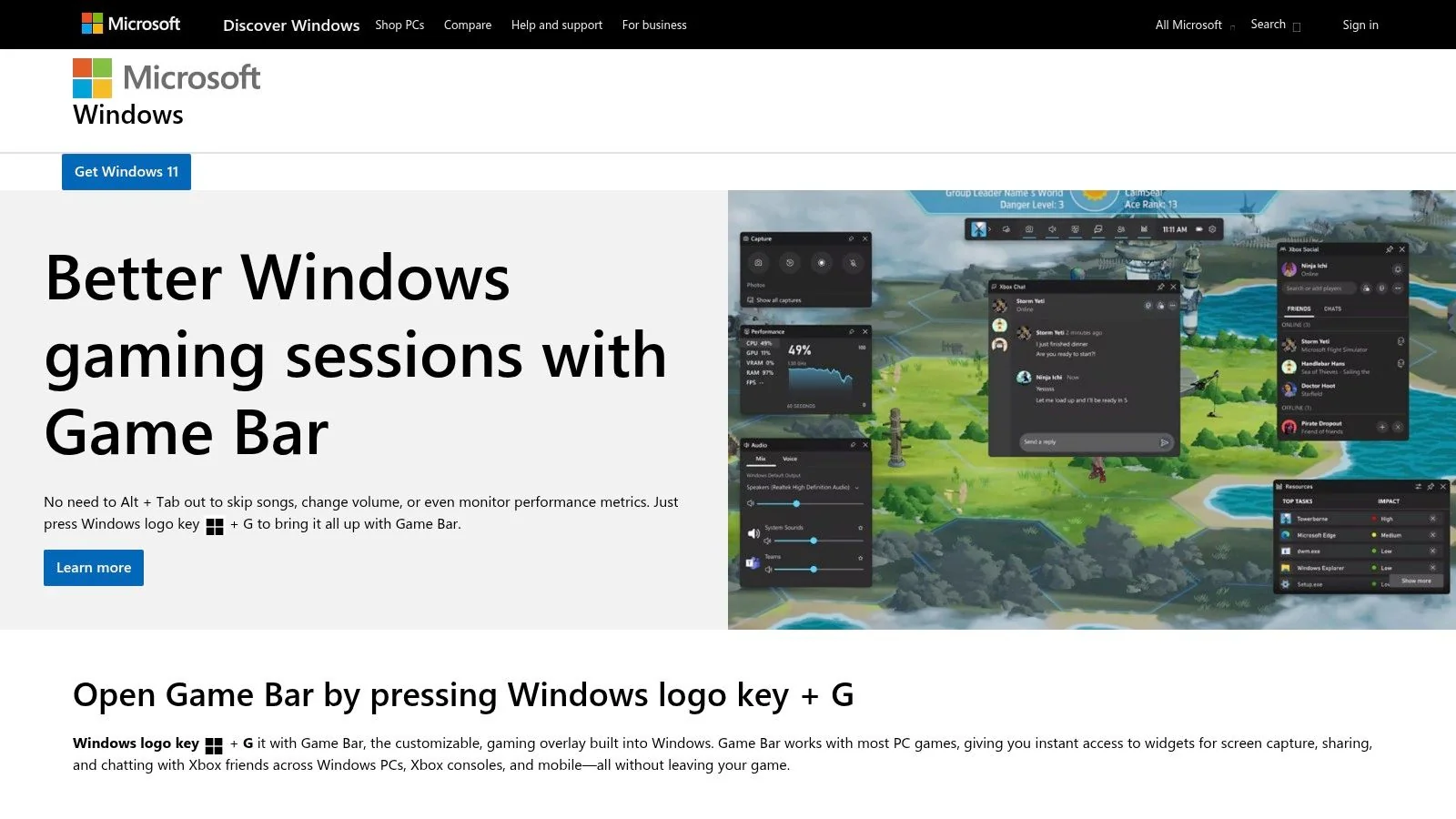
Xbox Game Bar is the default answer for “I need a screen recording right now and I don’t want to install anything.” For that job, it’s good.
A lot of older Windows tutorials still teach the Windows key + G shortcut because that’s how many people first learned built-in recording on Windows. That advice still points to a real workflow. It’s just no longer the only built-in path.
Best for quick internal clips and bug repros
Game Bar works well for short app captures, quick walkthroughs, and reproducing issues for product or engineering teams. If a customer success manager needs to show a bug, or a trainer needs a fast clip for internal review, it gets the job done with almost no setup.
Its limits show up the moment your recording needs polish. Desktop-wide scenarios can be restrictive, and it isn’t the tool you want for multi-step instructional content that needs annotations, retakes, or cleanup afterward.
Windows users now have several native capture routes. According to ScreenRec’s overview of free screen recording options, Windows-native tools including Game Bar, Snipping Tool, and Clipchamp are commonly highlighted as built-in ways to record screens, system audio, and sometimes microphone input without installing separate software. That’s useful context because Game Bar isn’t competing only with downloaded apps anymore. It’s part of a broader built-in toolkit.
- Use it for: Fast clips, app walkthroughs, bug reporting, one-off captures.
- Skip it for: Knowledge-base production, multi-video training libraries, or anything that needs serious editing.
- Main trade-off: Zero setup, limited flexibility.
If your standard for “best screen recorder for Windows” is speed and convenience, Game Bar deserves a place near the top. If your standard is publish-ready output, it’s only the first step.
4. ShareX
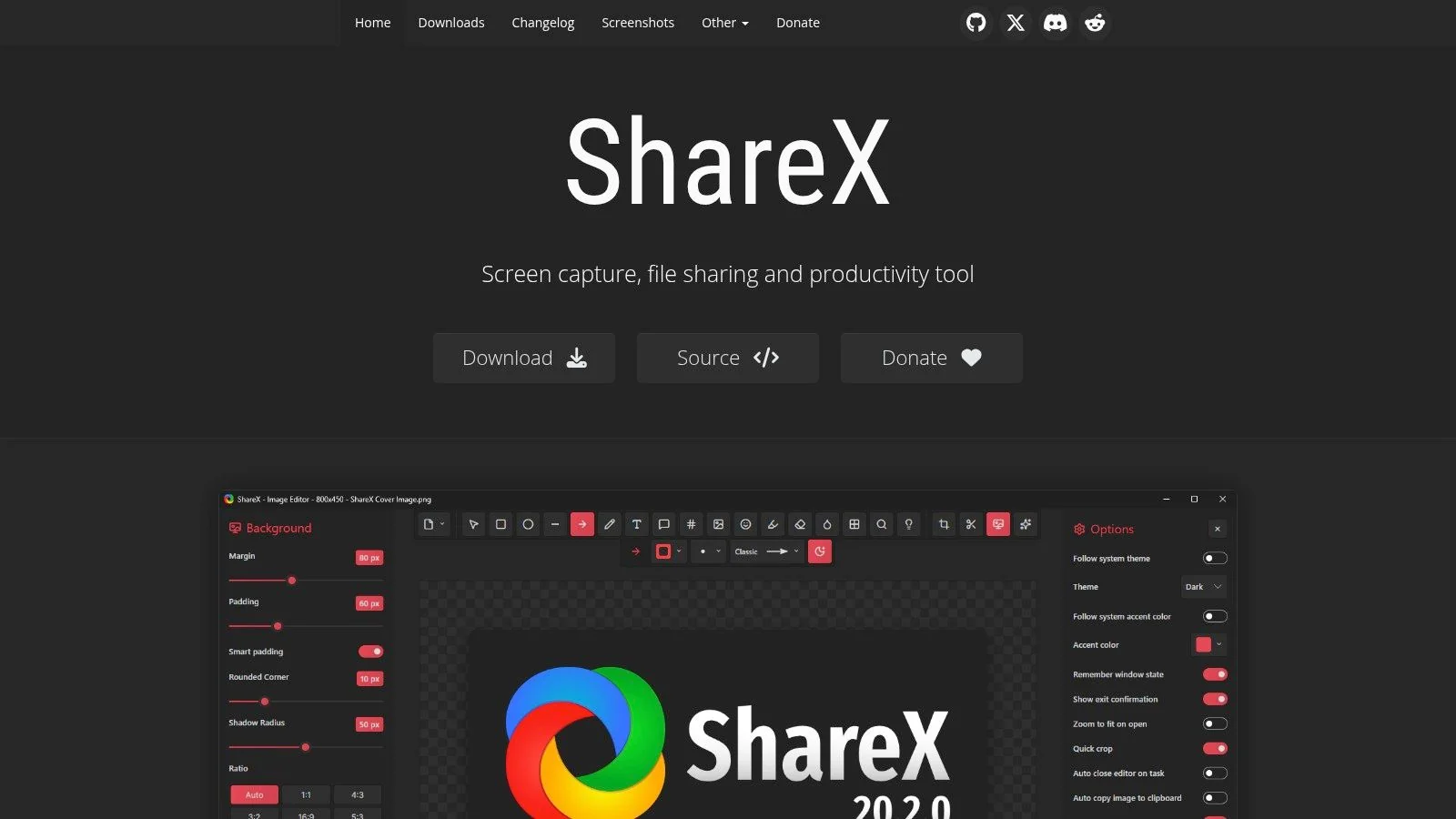
ShareX is what I’d hand to a power user on a documentation team. Not because it’s pretty. Because it’s efficient once you know what you’re doing.
It combines screen capture, recording, annotation, upload automation, and workflow rules in a way that feels more like a utility belt than a polished app. That’s exactly why some teams love it. It removes friction from repetitive documentation work.
Best for documentation-heavy workflows
If your work involves screenshots, redactions, blur effects, quick GIFs, short recordings, and sending assets to a specific destination fast, ShareX is hard to beat. It shines when the output is part of a process, not a standalone video project.
You can build post-capture routines that save, rename, annotate, and upload files without much manual handling. For support teams and technical writers, that matters more than a cinematic editing timeline.
- Strongest fit: Help-center visuals, bug reports, internal docs, annotated support responses.
- Less ideal for: Presenter-led training videos and polished external demos.
- Biggest compromise: Incredible flexibility, uneven learning curve.
The catch is that ShareX assumes the user wants options. Lots of them. New users often open it and immediately feel like they’ve walked into someone else’s control panel.
Field note: ShareX is a workflow tool first and a video product second.
If your team builds software tutorials and article assets side by side, this guide on creating software tutorials is a useful complement because it focuses on the publishing workflow, not just the capture step.
5. Camtasia
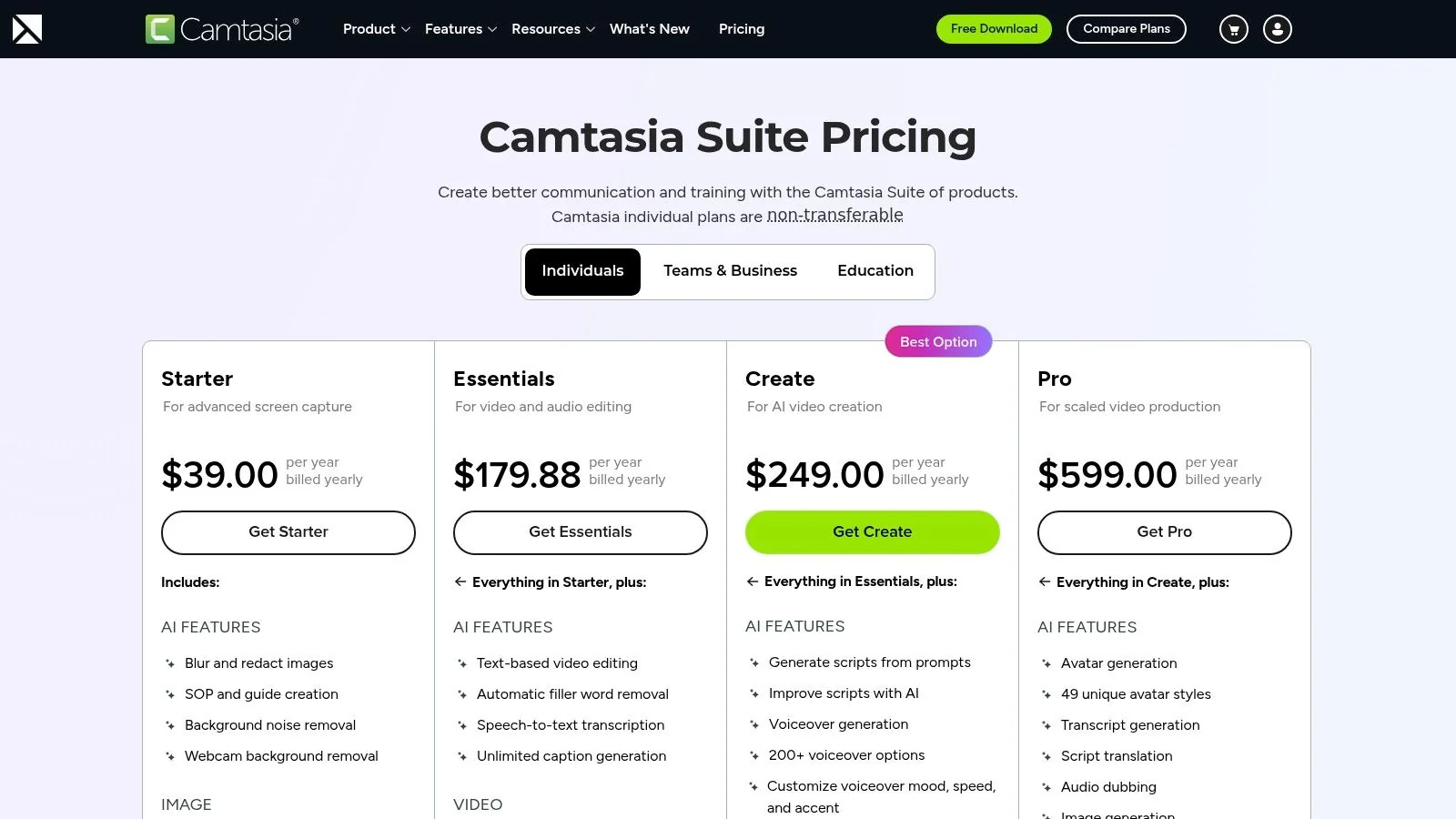
Camtasia is the tool I think of when a team says, “We need training videos that look finished.” It sits between lightweight recorders and full video editing suites. That middle ground is why it has stayed relevant for so long.
For Windows users who want more than OBS but less production overhead than Adobe Premiere Pro, Camtasia is still one of the most common recommendations for business teams. In broader Windows software roundups, it’s regularly positioned as the choice when integrated editing matters as much as recording, including in iSpring’s screen recorder roundup.
Best for training teams that need editing built in
Camtasia’s value isn’t just that it records your screen. It’s that it gives non-specialists a real editing environment for instructional content. Cursor effects, annotations, timeline editing, assets, and training-friendly exports make it practical for onboarding videos, LMS content, and walkthroughs that need more than basic trimming.
Camtasia often proves superior to simpler recorders. If the team knows the content but not professional editing software, Camtasia is usually learnable enough to bridge the gap.
- Use it for: Internal training, course content, SOPs, structured customer education.
- Expect good results from: Cursor emphasis, callouts, multitrack edits, reusable templates.
- Watch out for: More time in editing than cloud-first tools, and a heavier desktop workflow.
The downside is exactly what makes it powerful. You still need someone to edit. Camtasia is easier than a pro NLE, but it doesn’t remove the editing stage. For many teams, that’s the deciding factor.
If you want a simpler route than a full timeline editor, this article on easy video editing software is worth a look before you commit to a heavier production workflow.
6. Snagit
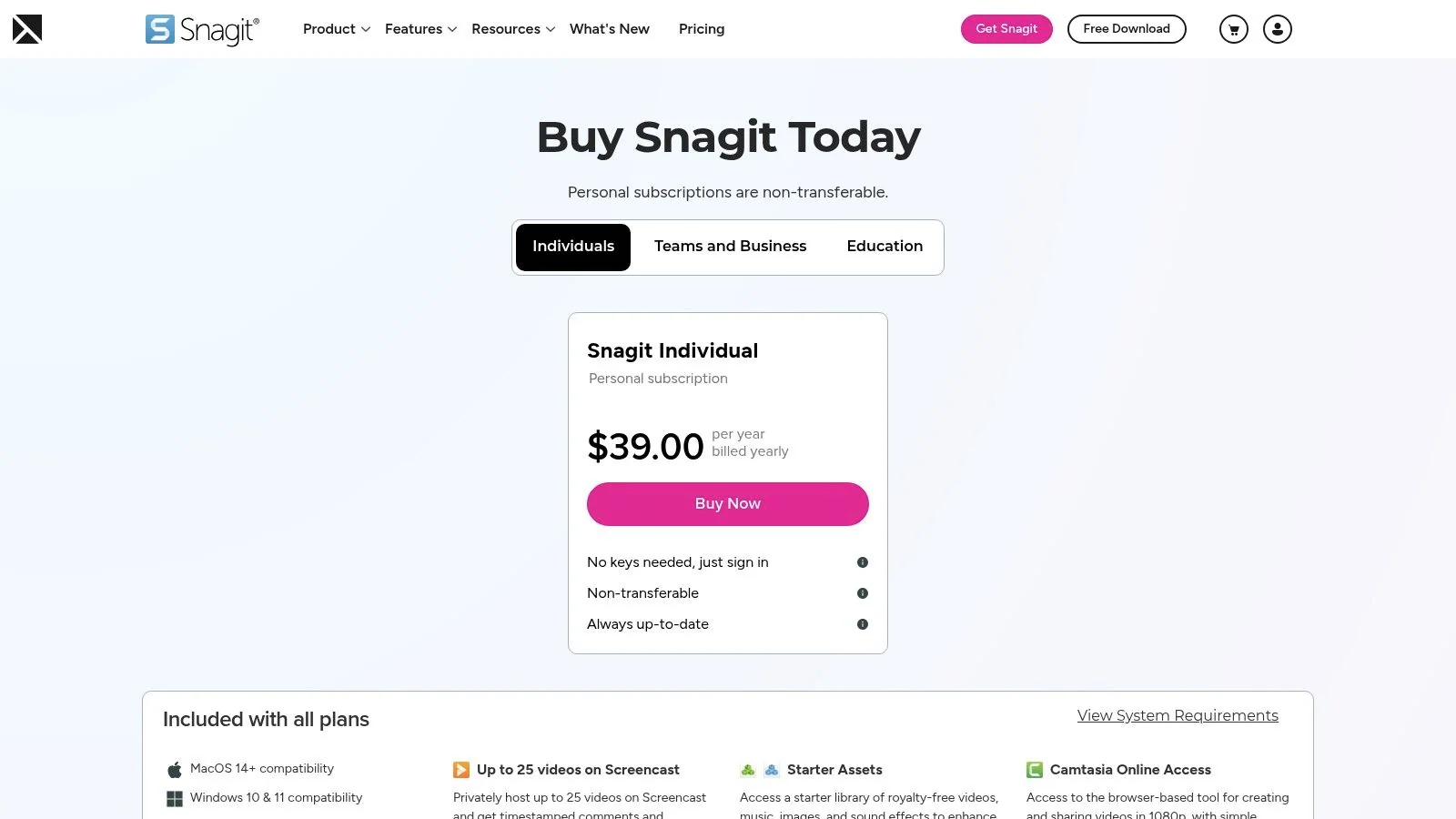
Snagit is often underestimated because people file it under “screenshots.” That misses the point. For documentation teams, screenshots are usually the main event, and short video clips are there to support them.
That’s where Snagit earns its place. It’s one of the fastest ways to move from capture to annotated explanation without opening a full editor.
Best for help articles and visual SOPs
If your deliverables are knowledge-base articles, internal process docs, release notes, or support instructions, Snagit is usually more practical than a heavier recorder. Scroll capture, markup tools, redaction, and quick video capture are what documentation teams use every day.
The shortcoming is obvious too. Once you need layered video edits, narrative pacing, or a more polished training experience, Snagit runs out of room.
A simple way to think about it:
- Choose Snagit when screenshots and annotations carry most of the explanation.
- Choose something else when the video itself is the product.
- Keep it in the stack when your team publishes lots of mixed media docs.
For many support and ops teams, that’s enough. They don’t need a mini film studio. They need accurate captures, clear markup, and a fast path to publishing.
7. Loom
Loom is the easiest recommendation on this list when the use case is async communication. Not training production. Not deep editing. Communication.
That distinction matters because teams often buy Loom hoping it will cover everything from sales demos to onboarding to help-center video. It covers the first part well. It starts to stretch on the second.
Best for quick async messaging and sales enablement
Loom is built around low-friction capture and fast sharing. Record your screen, add camera if you want it, send the link, move on. That works for internal updates, support replies, account handoffs, early-stage demos, and sales follow-up.
For Windows users who want a lower-friction workflow than OBS, Loom remains one of the most commonly recommended choices for business teams because recording and sharing live in the same flow. That pattern also reflects a broader split in the market between lightweight collaboration-first tools like Loom and more production-oriented tools like Camtasia.
Loom is strongest when speed beats polish.
What doesn’t work as well is long-term tutorial maintenance. Once you need tighter pacing, cleaner narration, reusable branding, or localization, cloud messaging tools start to feel thin. They’re great for “watch this and reply.” They’re less great for “this should live in the help center for a year.”
- Best use case: Quick demos, customer explanations, sales walkthroughs, internal updates.
- Weakest use case: Durable training assets that need more post-production and control.
- Main trade-off: Fast adoption, lighter finish.
That doesn’t make Loom a lesser tool. It makes it a specific one.
8. ScreenPal
ScreenPal is the practical budget pick. If a team wants more than a free recorder but doesn’t want to invest in a heavier workflow right away, ScreenPal usually lands in the shortlist.
It covers the basics well: recording, editing, hosting, and a reasonable path from individual use to team use. That makes it attractive for schools, small businesses, and departments that need to produce usable videos without much setup.
Best for budget-conscious teams with simple production needs
ScreenPal is good when “good enough and affordable” is the right answer. Short tutorials, training snippets, narrated walkthroughs, and hosted videos all fit comfortably here. It’s also easier to learn than tools that lean harder into editing or customization.
Its limits are mostly about ceiling. If your content operation matures, you may outgrow the editor and effects fairly quickly. The recordings can be perfectly serviceable. They just won’t feel as refined without more manual effort.
A few realistic expectations help:
- What it does well: Low-cost recording, light editing, simple hosting and sharing.
- Where it starts to strain: Larger brand-driven content libraries and more polished instructional video.
- Who should consider it: Small teams that need volume and simplicity more than advanced control.
If budget is driving the decision, ScreenPal makes sense. Just be honest about whether you’re buying for today’s needs or next year’s workflow.
9. Bandicam
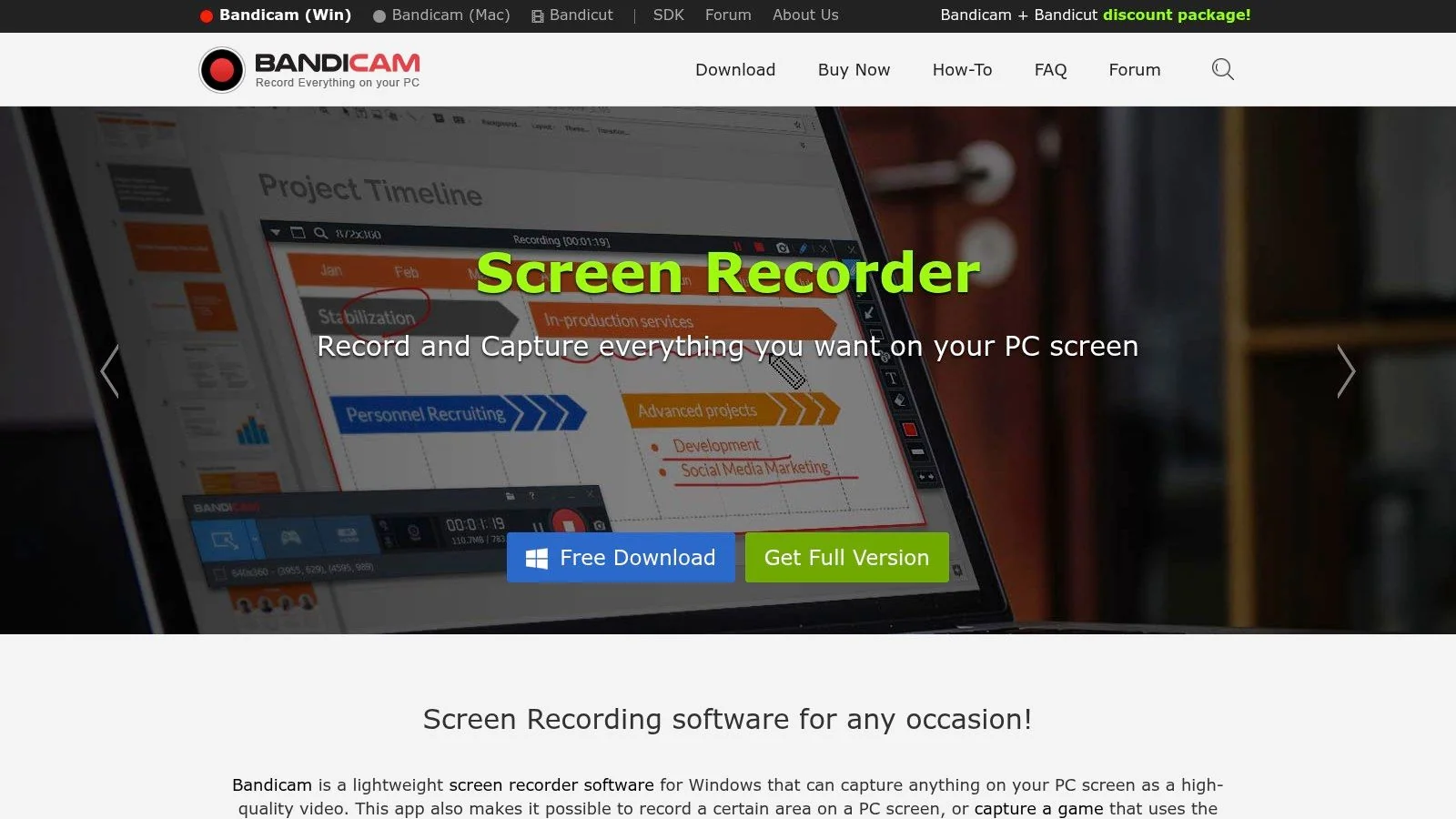
Bandicam is a specialist. That’s its strength.
It’s known for lightweight Windows capture, strong game recording, and device capture options that matter to creators recording from external sources. If your main concern is performance and efficient local recording, Bandicam is worth considering.
Best for performance-focused recording
Bandicam fits creators who care about overhead, frame stability, and straightforward recording modes. It’s also useful when your workflow includes HDMI or USB capture devices, scheduled recordings, or footage that will be edited elsewhere.
For business teams, though, its niche is narrower. It records well, but it doesn’t solve much beyond recording. If your team needs review links, collaborative editing, article generation, or training-friendly enhancements, you’ll need other tools around it.
- Strong choice for: Game capture, hardware-device recording, local files, creator workflows.
- Less compelling for: Support content, onboarding libraries, and documentation teams.
- Core trade-off: Lean performance, limited downstream workflow help.
Bandicam is easy to respect. It just isn’t the all-around answer for most business use cases.
10. Movavi Screen Recorder
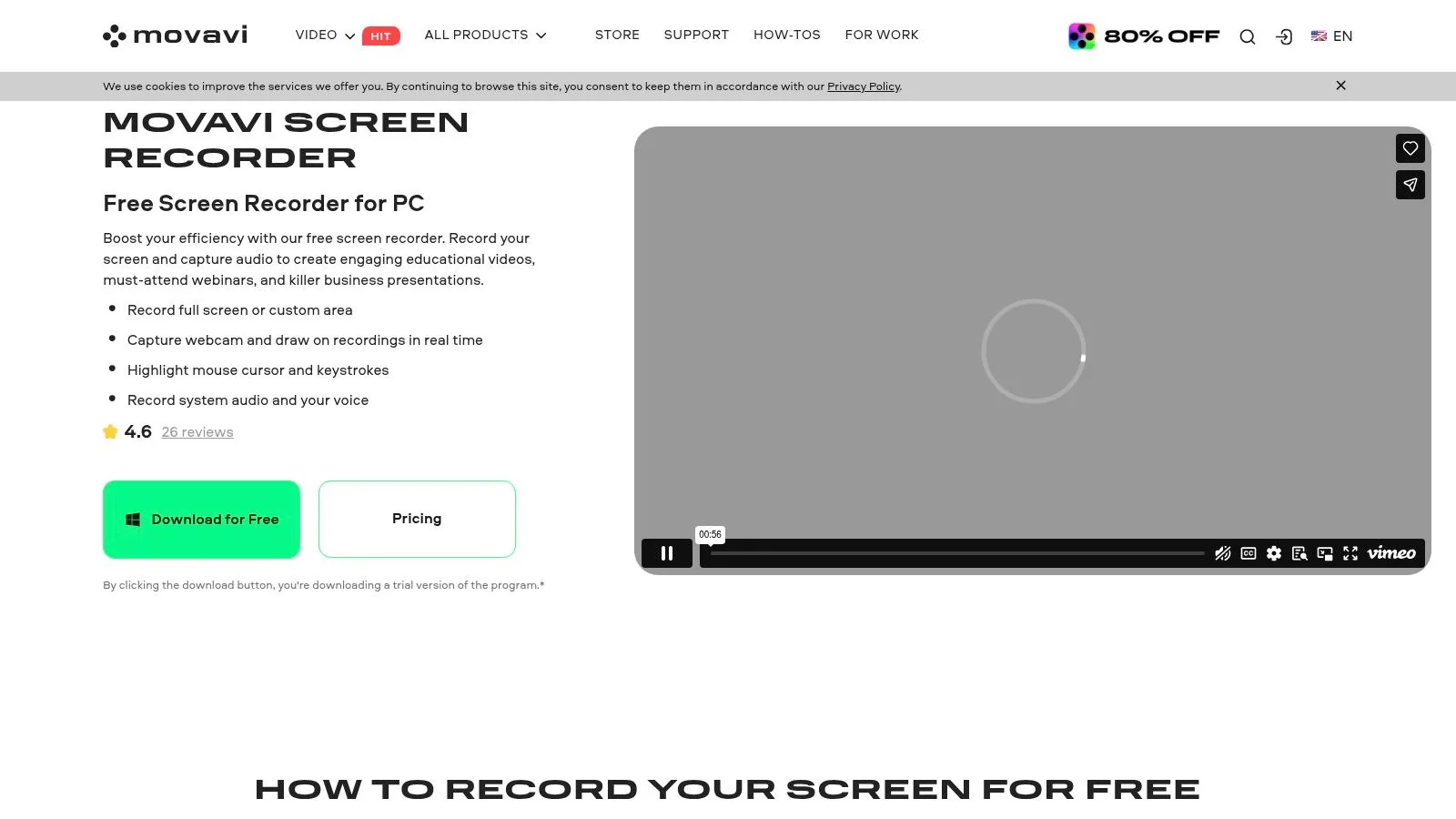
Movavi Screen Recorder is one of the friendliest options for solo users who want presentable results quickly. It doesn’t ask much from the user, and that’s a valid selling point.
A lot of people searching for the best screen recorder for Windows don’t need studio controls or enterprise workflows. They need something they can install, understand fast, and use for app demos, calls, or lightweight tutorials.
Best for solo creators and general office use
Movavi works best when ease of use is the priority. Recording a region, adding webcam, capturing system audio, highlighting keystrokes, and exporting fast are all straightforward. It’s a comfortable fit for freelancers, small teams, and general business users who don’t want a steep learning curve.
Its limitations are familiar. Trial restrictions can get in the way, and once you compare it with more specialized training or editing tools, the ceiling shows.
Still, there’s value in software that stays approachable:
- Good fit: Short tutorials, webinars, call capture, simple walkthroughs.
- Not ideal for: Advanced training production or larger team publishing workflows.
- Why people choose it: Low intimidation factor and fast output.
Movavi won’t be the top pick for every use case. It might be the one more people will use consistently.
Top 10 Windows Screen Recorder Comparison
| Product | Core features | Experience & Rating | Price / Value | Target audience | Unique selling points |
|---|---|---|---|---|---|
| Tutorial AI 🏆 | AI transcript & voice regen; edit‑like‑doc; AutoRetime™; cursor effects; doc export; 4K | Studio-quality, fast build time; ★★★★★ (4.9) | Free → Enterprise; advanced AI & custom voices on paid tiers; 💰 | 👥 Knowledge bases, customer ed, sales enablement, L&D, product & docs teams | ✨ AutoRetime™ multilingual re-timing; edit-by-text updates voice/captions; 74 languages; doc + video from one recording; SOC2/ISO |
| OBS Studio | Unlimited scenes/sources; hardware encoders; plugin ecosystem | Pro-level capture/control; steeper learning curve; ★★★★ | Free, open-source; no watermarks; 💰0 | 👥 Streamers, creators, power users | ✨ Modular scenes, extensive plugins, cross‑platform |
| Xbox Game Bar | Win+G overlay; quick app/game capture; audio widgets | Fast, reliable for quick clips; minimal setup; ★★★★ | Included with Windows; 💰0 | 👥 Casual users, quick bug repros, gamers | ✨ Zero install, instant capture for Windows apps |
| ShareX | Region/fullscreen capture, GIF/video, OCR; upload automation | Extremely customizable; can overwhelm new users; ★★★★ | Free, open-source; extensive uploader support; 💰0 | 👥 Documentation engineers, power users | ✨ Automation chains, custom uploaders (S3/R2), built-in editor & OCR |
| TechSmith Camtasia | Multitrack recorder + timeline editor; quizzes; SCORM export | Mature editor for training; robust but heavier; ★★★★☆ | Paid (premium); enterprise licensing; 💰⬆️ | 👥 Training teams, educators, enterprise L&D | ✨ Built-for-learning features, SCORM/quizzes, large asset libraries |
| TechSmith Snagit | Annotated screenshots, quick video/GIF capture, markup tools | Fast, easy for docs; limited timeline editing; ★★★★ | Paid (mid); one-time/sub options; 💰mid | 👥 Documentation teams, support writers | ✨ Step capture, smart redact, fast annotation workflow |
| Loom | Cloud-first recorder; edit-by-transcript; instant share links & comments | Frictionless sharing & review; good async UX; ★★★★ | Freemium → Business; workspace controls; 💰 | 👥 Async teams, sales, customer success | ✨ Instant links/comments, AI summaries/chapters, team analytics |
| ScreenPal (Screencast‑O‑Matic) | Desktop recorder + editor, hosting, quizzes, AI captions (Max+) | Simple editor; education-friendly; ★★★ | Budget plans; free tier limits; 💰budget | 👥 Education, small businesses, creators on budget | ✨ Hosting pages, quizzes, optional AI TTS/captions in higher tiers |
| Bandicam | Game/screen/device (HDMI) capture; high FPS; device recording | High performance with low overhead; ★★★★ | Paid with trial watermark; 💰mid | 👥 Gamers, creators needing high-FPS capture | ✨ Low-latency, scheduled recording, capture cards/webcam devices |
| Movavi Screen Recorder | Full/region capture, webcam, presets, quick exports | User-friendly; fast results; ★★★ | Paid with trial watermark; bundles available; 💰low‑mid | 👥 Consumers, casual creators, quick tutorial makers | ✨ Quick export presets, keystroke/cursor highlights, Movavi suite integration |
Making the Final Cut
The best screen recorder for Windows depends less on raw feature count and more on where your team loses time. That’s the lens I’d use before anything else. Not “Which app has the longest list of capabilities?” but “Which part of our workflow keeps slowing us down?”
If you need zero-cost, zero-setup capture, Xbox Game Bar is still the fastest answer. It’s already there, it works for quick app recordings, and it’s ideal when the recording is mainly for review, bug reporting, or internal communication. If your needs are simple, there’s no reason to overbuy.
If you need maximum control, OBS Studio remains the strongest free option. It’s flexible, powerful, and capable of serious production-quality local capture. The trade-off is time. Someone has to own the setup, understand scenes and sources, and manage the workflow after the recording ends.
That’s where many teams hit the wall. The recording itself is easy. Editing, cleaning up narration, updating captions, localizing content, and turning a video into useful documentation is where the true cost shows up. For support teams, customer education, onboarding, internal training, and sales enablement, that’s often the difference between “we should make more videos” and “we can consistently publish them.”
Camtasia is still a strong middle path if you want a mature recorder-plus-editor built for training. Snagit is a smart choice for documentation-heavy teams that rely more on screenshots and short clips than long-form video. Loom is the easiest way to get quick async explanations into people’s hands. ShareX is excellent for power users who care about automation and fast documentation workflows. ScreenPal, Bandicam, and Movavi each make sense when budget, performance, or ease of use is the main constraint.
My practical advice is simple. Audit your last five screen recordings. If they mostly stayed raw and were shared immediately, choose a lightweight recorder. If they turned into editing projects, choose the tool that reduces post-production effort. If they should also have become articles, SOPs, or multilingual help content, prioritize the platform that handles that downstream work, not just the capture.
That’s why teams producing polished tutorials at scale often get more value from a workflow-first platform than from a recorder-first one. The recorder gets the screen. The workflow gets the content published.
If you’re comparing options and want a simpler path from raw footage to polished output, this guide to easy video editing software is a useful next read.
If your team needs more than raw capture, try Tutorial AI. It’s built for the part most recorders leave to you: tightening narration, updating captions, generating polished tutorials, and turning one recording into both a video and a written help article. For knowledge bases, onboarding, product demos, and internal training, it’s one of the few tools designed around the full job, not just the moment you press record.