If you want to create software tutorials that actually help people, you need to think beyond just hitting “record” on your screen. The goal is to produce polished, genuinely engaging content. This means ditching the rambling, unedited screencasts for a structured approach that respects your user’s time, guides their attention, and ultimately gets them to love using your product.
The secret is to stop treating tutorials as an afterthought and start seeing them as a vital part of the user experience.
Why Your Software Tutorials Aren’t Working
Let’s be blunt: most software tutorials are failing. And they aren’t just ineffective—they’re actively hurting your business by creating confusion where there should be clarity. When a user looks for a tutorial, they need a fast solution, not another problem to solve.
Bad instructional videos are a direct line to higher support costs. Every support ticket for a question that a good tutorial could have answered is a preventable drain on your team’s time and your company’s money. This isn’t a small problem; it snowballs, pulling your support experts away from tough issues to answer the same basic questions over and over.
It goes beyond just the immediate costs, too. Subpar tutorials completely derail user onboarding and kill product adoption before it even starts. Those first few moments a new user spends with your software are make-or-break. A confusing or boring video doesn’t just waste their time; it shatters their confidence and plants a seed of doubt. The “aha!” moment you were hoping for turns into a serious churn risk.
Shifting from Cost Center to Growth Engine
It’s time for a mental shift. High-quality tutorials aren’t just an expense line item; they are a powerful engine for growth. Think of them as your best salesperson working 24/7, a customer retention machine, and a tool for building unshakeable user confidence from day one.
The demand for good digital learning isn’t just a hunch; the numbers back it up. The global education technology market was valued at a staggering USD 163.49 billion in 2024 and is expected to more than double to USD 348.41 billion by 2030. This explosive growth shows a fundamental change in how we all learn. You can read the full research about this expanding market to see just how big the opportunity is.
When done right, tutorials directly boost the metrics that matter most:
- Reduced Churn: When users feel competent and successful on their own, they stick around.
- Increased Adoption: Clear, concise guides encourage people to explore more of what your product can do, getting them hooked on advanced features.
- Lower Support Load: Great tutorials answer questions before they’re ever asked, freeing up your support team for the really tricky problems.
The single biggest mistake is underestimating the business impact of a confusing tutorial. A user who feels lost doesn’t just abandon the video; they start questioning the usability of the entire product.
The Business Impact of Effective vs Ineffective Tutorials
Understanding the business case is the first step toward creating tutorials that succeed. The gap between a high-quality production and a poor one isn’t just about aesthetics; it’s a chasm that shows up directly on your balance sheet. The table below breaks down the tangible outcomes.
| Business Metric | Impact of High-Quality Tutorials | Impact of Poor-Quality Tutorials |
|---|---|---|
| User Onboarding | Smooth, successful first-time experiences; rapid time-to-value. | High drop-off rates; users abandon the product before "aha!" moment. |
| Customer Support Costs | Significant reduction in repetitive tickets; support team focuses on complex issues. | Inflated support ticket volume; high cost-to-serve for basic questions. |
| Product Adoption | Users confidently explore and adopt advanced features, increasing stickiness. | Users stick to basic features, missing out on the product's full value. |
| Customer Churn | Lower churn rates as empowered users are more invested in the platform. | Increased churn due to frustration and a perceived lack of usability. |
| Brand Perception | Seen as a helpful, user-centric company that invests in customer success. | Brand is perceived as unhelpful, cheap, or having a difficult product. |
Investing in a polished, user-centric tutorial strategy is one of the highest-leverage activities you can undertake. It improves the entire customer journey, turning curious trial users into your biggest, long-term advocates.
Blueprint Your Tutorial Before You Hit Record
A great tutorial never starts with hitting the record button. It starts with a plan. I’ve seen it time and time again: jumping straight into recording is a surefire way to create a rambling, confusing video that wastes everyone’s time—yours included. This upfront planning, or pre-production, is where you lay the groundwork for a clear and effective final product.
Think of it as building a foundation. This is your chance to nail down exactly what you want your audience to be able to do after watching. Without that laser-focused goal, it’s all too easy to get sidetracked by trivial features or, even worse, skip over a critical step. A little bit of thought here makes the entire creation process worlds smoother.
The difference between a planned and an unplanned tutorial isn’t just about quality; it directly impacts your business.
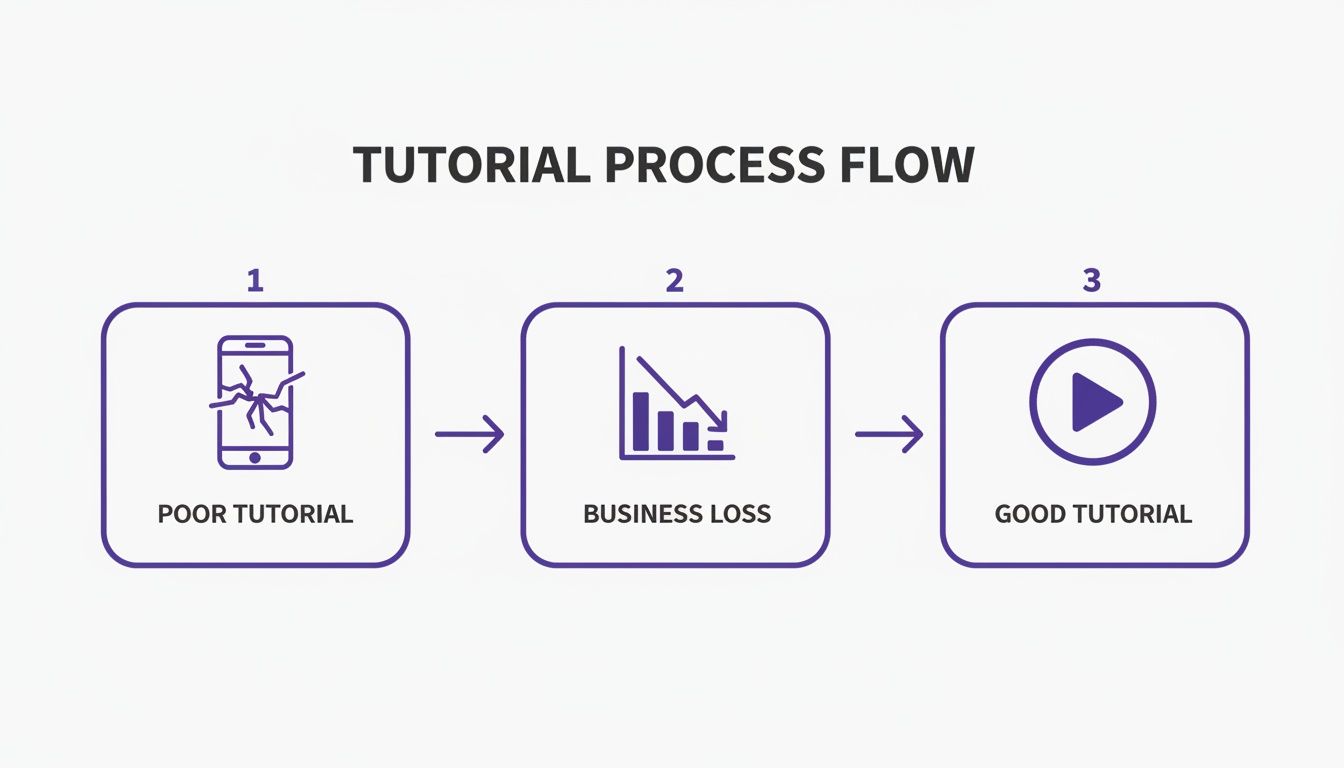
As you can see, a bad tutorial doesn’t just sit there—it actively pushes users away and creates support tickets. A great one, on the other hand, is a serious engine for growth.
Define One Crystal-Clear Learning Objective
Before you even think about scripts or screen captures, ask yourself this simple question: “After watching this video, what is the one specific task my user will be able to complete?”
Your answer is the learning objective. It’s the North Star for your entire project. I can’t stress this enough: resist the temptation to cram multiple goals into one video. A tutorial that tries to teach everything ends up teaching nothing.
- Weak Objective: “Show users how to use the dashboard.” This is way too broad. It’s not a measurable outcome.
- Strong Objective: “Show users how to create and save their first project report using the dashboard.” Now we’re talking. This is specific, actionable, and totally focused.
A precise objective keeps your content tight. Every click, every sentence, every single second of footage should serve that one goal.
Get Inside Your Audience’s Head
This tutorial isn’t for you. It’s for them. And to make something that actually helps, you have to know who “they” are. Take a moment to think about their technical skill level, how familiar they are with your software, and—most importantly—what problem they’re trying to solve right now.
For example, imagine you’re showing off an advanced data export feature. A brand-new user is going to need a completely different approach than a power user who has been with you for years. The power user might just need to know where the new button is. The novice, on the other hand, will need more context, definitions, and a careful walkthrough. Getting this right is everything. You can dive deeper into this by exploring some core instructional design best practices.
Map Out Your Tutorial’s Flow
Alright, you have your objective and your audience in mind. Now it’s time to sketch out a simple outline. This doesn’t have to be a polished, word-for-word script. Just think of it as a road map for the journey you’re taking the viewer on.
A simple, effective structure looks something like this:
- The Hook: Start by stating the problem you’re solving. (e.g., “In the next 90 seconds, you’ll learn how to export your monthly sales data into a clean CSV file.”)
- The Steps: List the key actions in sequential order. Make a note of any spots where people might get confused or stuck.
- The Payoff: End by showing the successful outcome. Reinforce the value of what they just accomplished.
Outlining the flow turns a potentially chaotic recording session into a focused, efficient one. This simple step will save you a massive amount of editing headaches later and ensures the final video is logical and easy to follow. As you’re blueprinting, don’t be afraid to get a little help. For instance, you can leverage a ChatGPT prompts database to quickly brainstorm ideas or generate a rough script. This kind of preparation is what separates tutorials that feel professional and effortless from those that don’t.
The Modern Way to Record and Narrate Your Screen
If you’ve ever tried to create a software tutorial, you’ve probably run into a classic, frustrating dilemma. For years, the process has basically forced you to pick your poison.
On one hand, you have the super simple recording tools like Loom. They’re great for a quick, informal video message. But for polished, instructional content? They just don’t cut it. You press record, start talking, and what you end up with is often a meandering video that’s 50-100% longer than it needs to be. It’s inevitably peppered with “ums” and “ahs,” awkward pauses, and little mistakes you either have to live with or start the whole thing over.
The other option is to dive into the deep end with professional video editing software. Think tools like Camtasia or the industry beast, Adobe Premiere Pro. These programs are incredibly powerful, but they also demand serious video editing chops. Suddenly, your subject matter expert—the one person who actually knows the software inside and out—is expected to become a pro video editor, sinking hours into wrestling with timelines and audio tracks.
This old way of doing things is just fundamentally broken. It’s inefficient, stressful, and rarely gets you the kind of high-quality result your users actually deserve. Thankfully, a much better workflow has emerged that completely changes the game.
From Raw Recording to Polished Narration with AI
Let’s imagine a completely different approach. You need to whip up a tutorial, so you just open your screen recorder and start walking through the feature. No script, no pressure to be perfect. You just talk through what you’re doing as it comes to mind, mistakes and all.
That rough-and-tumble recording then becomes the foundation for a flawless final video. This is where a tool like Tutorial AI comes in, taking that casual screen capture and making it look and sound like it was produced in a professional studio.
Here’s a look at how this modern workflow gets you there:
- Automatic Transcription: The second you stop recording, the AI gets to work transcribing all your audio into a text script.
- Text-Based Editing: Now, you can edit your narration just like a Google Doc. Delete filler words, fix any misspoken terms, and tighten up your sentences for clarity. It’s incredibly intuitive.
- Flawless Voice Generation: The AI then regenerates a brand new, studio-quality voiceover from your edited text. All the errors, pauses, and stumbles are just… gone.
This workflow lets your subject matter expert be exactly that—an expert. The anxiety of having to perform a perfect take vanishes.
The core benefit here is a massive boost in efficiency. Your experts don’t need to be performers or video editors anymore. They can focus 100% on the content, trusting the technology to handle the polish and create on-brand videos in a fraction of the time. This method is a perfect fit for any kind of instructional content where you need to be clear and professional. It means a single person can now produce an entire library of high-quality videos without needing a whole production team behind them.
Versatile Video Creation for Every Need
This AI-powered workflow isn’t a one-trick pony, either. It’s a flexible solution that helps teams create all sorts of software tutorials for critical parts of the business, all while keeping everything looking and sounding consistent and professional.
Think about the different types of videos you can now produce with incredible speed:
- Demos and Explainer Videos: Quickly create compelling product demos for sales prospects or clear, concise explainer videos for your website’s homepage.
- Onboarding Videos: Build a series of polished, easy-to-follow tutorials that guide new users through your software’s most important features.
- Feature Release Videos: When you ship something new, you can announce it with a professional video that shows users exactly how to use it, driving adoption from day one.
- Knowledge Base and Support Article Videos: Beef up your help docs with visual guides that answer common questions, which can seriously cut down on your support ticket volume.
Because the process is so much faster, you can simply create more content. A product expert can record a quick walkthrough of a new feature in the morning and have a polished, publish-ready video by the afternoon. This kind of speed lets you be far more responsive to your users and keep your training content perfectly in sync with your product.
Ultimately, this modern workflow tears down the technical barriers that have made creating great software tutorials so painful for so long. It truly democratizes video production, allowing the people with the deepest knowledge to become your best teachers—without forcing them to learn a complex new skill.
Editing Your Tutorial Like a Pro, Without the Headaches
Post-production is where the real magic happens. This is the stage where you transform a raw, unscripted screen recording into a polished, professional tutorial that’s genuinely helpful for your audience. For years, this meant grappling with a steep learning curve and complex software, turning what should be a simple task into a project that could drag on for days.
Thankfully, those days are over. Modern tools have completely changed the game, making it possible to produce slick, high-quality software tutorials without needing a film degree.
The old dilemma was a real pain. You could use a simple recording tool like Loom, which was fast but often resulted in a video that was 50-100% longer than it needed to be, full of “ums,” “ahs,” and mistakes. The alternative was diving into professional-grade software like Camtasia or Adobe Premiere Pro, which are incredibly powerful but demand a ton of expertise. This created a huge bottleneck, forcing subject matter experts to become amateur video editors just to get a decent tutorial made.
Now, you can just hit record and speak freely, without a script or the pressure to be perfect on the first take, and still end up with a video that looks like it came from a high-end production studio.
Guiding the Viewer with Smart Visual Cues
A great tutorial does more than just show the screen; it actively directs the viewer’s attention. If you don’t offer clear guidance, it’s all too easy for someone to get lost, especially on a cluttered interface. This is where smart visual effects become your best friend, turning a passive viewing experience into an active learning one.
Here are a few effects that make a huge difference:
- Smart Zooms: These automatically zoom in on the most important parts of the screen right when you mention them. This cuts out all the visual noise and makes it immediately obvious where the viewer should be looking.
- Cursor Effects: You can transform the cursor from a simple pointer into a helpful guide. Add a highlight, increase its size, or smooth out jerky motions to draw the eye to specific buttons, menus, or fields.
- Blurring Sensitive Information: Need to demonstrate a workflow but have sensitive customer data or internal info on screen? A simple blur effect lets you protect privacy without breaking the tutorial’s flow.
These aren’t just fancy bells and whistles; they are fundamental tools for improving clarity and comprehension. They ensure your user is never left squinting at the screen, wondering, “Wait, where did they just click?”
By focusing the viewer’s attention with deliberate visual cues, you dramatically reduce their cognitive load. This makes the information easier to absorb and the entire tutorial more effective at teaching the intended skill.
The Power of Editing Like a Document
Let’s be honest, the single biggest headache in traditional video editing is the timeline. Trying to sync your audio, video, and on-screen actions is a tedious, painstaking process. Make one small change, and you can set off a chain reaction of timing issues that takes forever to fix.
A modern, AI-powered approach does away with this problem entirely. Imagine editing your video by simply editing a text document.
That’s the new reality. When you delete a word or rephrase a sentence in the automatically generated transcript, the AI doesn’t just change the voiceover—it intelligently retimes the video to match. Awkward pauses vanish, and the on-screen actions sync up perfectly with your updated narration. This workflow allows the subject matter expert to stay in their zone of genius while still creating on-brand videos with incredible efficiency.
This method is perfect for all kinds of content:
- Demos and Onboarding Videos: Give every new user a crisp, clear introduction to your product.
- Explainer and Feature Release Videos: Announce new functionality with polished, easy-to-follow guides.
- Knowledge Base and Support Article Videos: Supercharge your documentation with visual aids that solve user problems faster.
This approach neatly bridges the gap between dead-simple screen recorders and overly complex professional editors. If you’re looking into different options, our guide on the best video editing software for beginners offers a good overview of the tools out there.
Maintaining a Consistent Brand Identity
Finally, remember that your tutorials are an extension of your brand. They should look and feel like they belong to your company. A disjointed, off-brand video can erode trust and make your entire product feel less professional.
Fortunately, adding these branding elements is no longer a job for a graphic designer with complex motion graphics software.
You can now easily bake on-brand elements into your videos to maintain a consistent feel across all your content. Think about adding an animated intro with your logo, using your company’s custom fonts for on-screen text, or applying a consistent color palette. This level of polish elevates your tutorials from simple screen recordings to valuable brand assets that build user confidence and reinforce your professional image.
Scale Your Tutorials for a Global Audience
You’ve just poured a ton of time and expertise into creating a great software tutorial. So, why let it sit in just one language or on a single platform? With a little planning, that one tutorial can serve users all over the world, turning a helpful video into a serious asset for your business.
The old way of doing this was a nightmare. You’d hire separate translation agencies and video editors for every single language, a process that could drag on for weeks and cost a small fortune. Thankfully, we don’t live in that world anymore. AI-powered tools have completely flipped the script, making it possible for anyone to reach a global audience.
Fast and Accurate AI-Powered Localization
Imagine taking your finished English tutorial and having it ready to go in Spanish, German, and Japanese in minutes, not days. That’s what modern AI localization can do. These tools don’t just translate your script; they manage the entire video production workflow for each new language.
When you push your tutorial through an AI translator, it can automatically:
- Create a brand new voiceover in the target language with a clear, natural-sounding voice.
- Re-align all the scenes and cuts to match the timing and rhythm of the new narration.
- Retranslate and re-sync any on-screen text, like captions and callouts, so they appear at the right moment.
This isn’t just a simple translation; it’s a complete re-production that ensures every localized version feels like it was made specifically for that audience. When you really want to ‘Scale Your Tutorials for a Global Audience,’ it helps to think through your options, like choosing the right document translation services to balance AI efficiency with human expertise for cultural nuances.
A Branded Distribution Strategy Beyond YouTube
Once your tutorials are ready in multiple languages, just throwing them all on YouTube sells your hard work short. YouTube is fantastic for getting discovered, but you give up all control over the viewing experience. The ads, the “watch next” suggestions—they all pull your users away.
A much better approach is to embed your videos exactly where your users need them, using a video player that matches your own branding.
Think about it. You could embed tutorials with your company’s logo and colors directly into:
- Your knowledge base or help center articles.
- LMS platforms as part of a formal training course.
- Specific support docs to proactively answer common questions.
This simple change puts the right information directly into your user’s hands, right when they need it, which makes for a much smoother experience. You can even generate secure, shareable links for your sales team to send to prospects, letting them demo a feature without sending someone to a distracting public platform.
The hunger for high-quality digital learning is absolutely massive. The online tutoring market alone is projected to grow by USD 427.6 billion between 2025 and 2029. This shows just how much people want accessible, interactive educational content. Accessibility is another huge piece of this puzzle. Adding accurate subtitles isn’t just about compliance; it’s about making your content understandable for everyone. This includes non-native speakers trying to follow along and people watching in a loud office. If you’re new to this, we have a complete guide on how to add captions to videos that can walk you through it.
By pairing rapid localization with a smart, branded distribution plan, you can get a much bigger return on every single tutorial you create.
Don’t Just Publish—Measure and Improve
You’ve poured a ton of time and expertise into creating a library of software tutorials. But hitting “publish” isn’t the finish line. If you want to turn that content into a real asset for your business, you have to close the loop by measuring its impact. Without that feedback, you’re just creating content in a vacuum.
The goal here is to get past vanity metrics like view counts. Sure, it’s nice to see that people are watching, but that number doesn’t tell you if your tutorials are actually working. An effective strategy zeroes in on KPIs that show you how people are interacting with your content and, most importantly, if it’s solving their problems.
Pinpointing What’s Working (and What Isn’t)
To get a clear picture of your tutorial’s performance, you need to track metrics that point to real comprehension and engagement. This is where you find the clues to refine your work.
Keep a close eye on these patterns:
- Engagement & Completion Rates: What percentage of people actually finish the video? A huge drop-off in the first minute probably means your intro is boring or the first step is confusing.
- Specific Drop-Off Points: Most video platforms will show you the exact moment where viewers bail. These are red flags. Is it a bug in your software? A step you explained poorly? A confusing bit of UI?
- Re-watch Spikes: On the flip side, are people constantly rewinding to re-watch a specific section? That’s a giant flashing sign that a concept isn’t clear enough and needs a simpler explanation.
By connecting what’s happening in your videos to your actual business goals, your tutorial library stops being a simple content archive. It becomes a living, breathing tool that gets better as your product and users evolve.
Connecting Your Data to Business Wins
The real magic happens when you link your tutorial analytics to tangible business outcomes. For instance, if you publish a tutorial explaining a tricky feature, do you see a drop in support tickets about that exact topic? That’s a direct, measurable win.
This data-driven approach is more important than ever. The global tutoring software market was valued at USD 2.5 billion in 2023 and is on track to hit USD 9.3 billion by 2032—a massive 272% jump. This growth underscores just how valuable effective educational content is, and you can dig into more market insights on dataintelo.com.
Ultimately, measuring what matters gives you actionable feedback. Don’t just rely on the numbers, either. Use surveys, read the comments, and have real conversations with users to understand the why behind the data. That mix of quantitative data and qualitative feedback is the secret to creating software tutorials that people don’t just watch, but actually learn from.
Common Questions About Creating Software Tutorials
Even with a great process in place, a few common questions always come up when you start creating software tutorials. Let’s tackle some of the biggest hurdles I see people face and offer some practical advice to get you over them.
How Can I Make My Videos Look More Professional?
This is a big one. So many creators feel trapped between two less-than-ideal options. On one side, you have simple screen recorders like Loom, which are incredibly easy to use but often lead to demos that are 50-100% longer than they need to be, full of “ums,” “ahs,” and restarts. On the other side, you have powerful tools like Camtasia or Adobe Premiere Pro, which can produce amazing results but demand serious video editing skills for even basic improvements.
This is where AI-powered video editors are completely changing the game.
With a tool like Tutorial AI, you can just hit record and talk through your process naturally. You don’t need to practice or worry about mistakes. The platform does the heavy lifting, making your final video look like it was painstakingly edited by a pro. It lets the actual subject matter expert create polished, on-brand videos without the huge time sink. This modern workflow is perfect for all kinds of how-to content:
- Onboarding and Demo Videos: Give new users a crystal-clear path to getting started.
- Feature Release and Explainer Videos: Announce what’s new with content that looks sharp and professional.
- Knowledge Base and Support Videos: Beef up your help docs and cut down on support tickets.
How Long Should a Software Tutorial Be?
Keep it short and focused. The sweet spot for most software tutorials is between two and seven minutes.
Your aim should be to teach one specific task or explain one feature from start to finish. If you have a more complex workflow to show, don’t try to cram it all into one epic video. Instead, break it down into a playlist of shorter, bite-sized tutorials. This micro-learning approach respects your viewer’s time and makes it way easier for them to find the exact answer they’re looking for without scrubbing through a 20-minute video. Trust me, the engagement analytics don’t lie—you’ll see a massive drop-off after the 10-minute mark.
Should I Use a Full Script for My Tutorials?
Reading directly from a script is a surefire way to sound stiff and unnatural. A much better approach is to work from a simple bullet-point outline of your key talking points. This keeps you on track but gives you the freedom to sound more conversational and authentic.
Honestly, though, the best modern workflow makes scripts an afterthought. You can just record your screen, narrating what you’re doing as you go. AI tools can then take your rough recording and generate a perfectly transcribed and edited script from your natural speech. It’s the best of both worlds: a natural, off-the-cuff delivery with a flawless, perfectly-timed final narration.
Ready to create polished, on-brand software tutorials in minutes, not days? With Tutorial AI, you can turn raw screen recordings into studio-quality videos without any editing expertise. Start creating for free today!