When you’re looking for easy video editing software, what you’re really after is a tool that can give you professional-looking results without the notoriously steep learning curve. The best options out there take complex editing tasks and turn them into simple, almost intuitive steps. This opens up high-quality video creation to everyone, not just the pros.
What Does “Easy Video Editing Software” Actually Mean?
Forget the old days of wrestling with confusing timelines and getting lost in technical jargon. The very idea of “easy video editing software” has completely changed. Think of it like the jump from coding a website by hand to building one with Squarespace—you still get a powerful result, but all the frustrating, technical roadblocks have been cleared away.
The focus now is on a great user experience. This empowers subject matter experts—the people who actually know the content—to create polished videos without needing to become professional editors on the side. This isn’t about “dumbing down” the software; it’s about making powerful tools genuinely accessible. To get a feel for what’s out there, it’s worth checking out the best video editing software for beginners that really nail this user-friendly approach.
This shift toward simplicity is also a massive market driver. The video editing software market is expected to hit $2.68 billion in 2026 and keep climbing to $3.41 billion by 2030. A lot of that growth comes from smart AI features like auto-transcription and one-click branding, which can cut production time from hours down to minutes. For product marketers or L&D teams, this is huge—it can boost engagement in training content by up to 80%. You can discover in-depth market research about video editing software to see just how much this space is evolving.
From Complicated Timelines to Simple Text
The old way of editing meant painstakingly scrubbing through a visual timeline, making tiny, precise cuts, and manually syncing up all your audio. It was tedious work. Now, a new wave of easy-to-use platforms is flipping that entire model on its head with text-based editing.
The core idea is simple but brilliant: if you can edit a document, you can edit a video. These tools automatically transcribe your audio, letting you shape the final video simply by editing the text script. Delete a sentence in the transcript, and the tool instantly removes the corresponding video and audio clip. This approach is a total game-changer, especially for content like:
- Product demos and explainer videos
- Employee onboarding and training materials
- Video-based knowledge base articles
- Software feature release announcements
For instance, you can see below how editing the text on the left directly fine-tunes the video on the right. The whole process just flows.
This method pretty much eliminates the technical barrier, letting you focus completely on your message instead of getting bogged down in the mechanics of editing.
The Problem with Traditional Workflows
Here’s a common scenario. Many teams use simple screen recorders like Loom for quick demos. While great for informal chats, these raw recordings are often 50-100% longer than they need to be, full of “ums,” “ahs,” long pauses, and mistakes.
To turn that rough cut into something polished, you’d traditionally have to hand it off to a professional editor who uses complex tools like Adobe Premiere Pro or Camtasia. That means time, money, and someone who has specialized skills.
This is exactly the gap that tools like Tutorial AI are built to fill. They let a subject matter expert just hit record, speak freely without a script or practice runs, and still end up with a video that looks like a pro edited it. The AI does the heavy lifting, transforming a casual screen recording into a sharp, on-brand tutorial with stunning efficiency.
Must-Have Features for Effortless Tutorial Creation
When you’re trying to create tutorials, “easy” isn’t just a nice-to-have—it’s everything. For teams in sales, training, and product marketing, the right tools can be the difference between spending days on a single video and knocking out several in an afternoon. So, what features actually deliver on that promise of effortless creation?
It all starts with a simple, integrated screen recorder. You absolutely need a tool that lets you capture your screen, webcam, and microphone with a single click. Fumbling with separate apps just to get started is a non-starter; it adds friction right where you don’t need it.
The Bridge Between Raw Recordings and Polished Videos
But getting that recording is just the first step. The real challenge I see teams face is turning a quick, unscripted screen share into a professional, client-ready tutorial. Raw recordings made with tools like Loom are often 50-100% longer than they need to be, full of “ums,” long pauses, and repeated sentences.
Historically, cleaning this up meant passing the video to an editor who knew their way around complex software like Adobe Premiere Pro or Camtasia. That created a huge bottleneck.
This is where a new generation of smart editing tools completely changes the game. Instead of forcing you to become a video editor, they let you work in a way that feels completely natural.
Tutorial AI is built on this idea. You can speak freely during your recording—no script, no practice runs—just like you’re on a casual call. The AI then refines your video so it looks like it was meticulously edited in a pro suite, empowering subject matter experts to create polished, on-brand videos with incredible speed. The goal here isn’t to add another complicated skill to your to-do list. It’s to take your authentic, expert knowledge and turn it into a polished asset, fast.
Core Features That Power Efficiency
To get that kind of speed, you need to look for a specific set of automated and AI-driven features. These are the tools that do all the heavy lifting for you.
- Automated Transcription and Text-Based Editing: This is the absolute game-changer. The software should automatically create a transcript of everything you say, letting you edit your video just by editing the text. When you delete a word or sentence from the script, the corresponding video and audio are instantly cut. It makes editing feel as easy as proofreading a document.
- Smart Camera Movements: Manually adding zooms and pans to highlight what’s happening on your screen is incredibly tedious. A smart system that automatically detects your clicks and cursor movements—and adds smooth, professional camera motion for you—is a massive time-saver that keeps your viewers focused.
- Built-in Brand Kits: Nothing says “professional” like brand consistency. A good tool will let you set up your company’s logos, colors, and fonts one time. From then on, every video you create will automatically have the right branding, ensuring all your tutorials, demos, and knowledge base articles look perfect without any extra work.
- Automated Captions: With so many videos being watched on mute, you can’t afford to skip captions. The software should automatically generate and sync them from your transcript. For a closer look at why this is so critical, check out our guide on how to add captions to videos.
These features aren’t just bells and whistles; they work together to eliminate the time-consuming tasks that once required a specialist. This is what allows your team to focus on what they do best: creating valuable content like product demos, onboarding flows, and support articles at a scale you could never reach with a traditional video workflow.
How AI Makes Video Creation Genuinely Simpler
The latest video editing tools are getting easier to use, but it’s not just about cleaner menus and bigger buttons. The real shift is happening under the hood, where artificial intelligence is stepping in to do the heavy lifting. Think of it as having a junior editor working alongside you, handling all the tedious, time-consuming tasks that used to take hours of manual effort. This lets you, the expert, focus on what you’re saying, not on the technical hoops you have to jump through.
These AI-powered tools are a direct answer to a real-world need: creating great-looking video content consistently, especially for things like software tutorials, product demos, and internal training. What used to be a highly specialized skill is quickly becoming something anyone can master, all because the demand for video has exploded.
And the numbers back this up. The market for AI video editing is expected to jump from $2.52 billion in 2025 to $3.41 billion by 2030. A lot of this growth is driven by things like cloud-based editing and real-time collaboration, which became non-negotiable after online video consumption shot up by 80% during the 2020 lockdowns. For any organization, tools that can cut editing time by as much as 70% offer a pretty compelling return. If you’re curious, you can see more statistics on the video editing software market to get the full picture.
The Trouble with Raw Screen Recordings
If you’ve ever made a quick software demo, you know the routine. You hit record on a tool like Loom, start explaining things, and hope for the best. While it’s quick, the final video is often 50-100% longer than it needs to be, packed with “ums” and “ahs,” long pauses, and moments where you have to correct yourself. It’s authentic, sure, but it’s far from polished.
The old way to fix this was to export that raw footage into a complicated program like Camtasia or Adobe Premiere Pro. This is where the bottleneck always happened. It required someone with actual video editing skills to meticulously chop up the timeline, cut out every mistake, and make the whole thing look presentable. The person with the knowledge was completely separated from the final, professional video.
Tutorial AI was built to solve this exact problem. It lets you just talk and record freely, without a script, and still end up with a video that looks like a pro spent hours on it in Premiere Pro. This gives the power back to the subject matter expert. You can turn a rambling screen recording into a tight, on-brand tutorial in a fraction of the time. For a deeper look at the options out there, check out our guide to the best AI video editing software.
From Unscripted to On-Brand in Minutes
So how does AI actually pull this off? It’s not a single magic trick but a suite of smart features working in concert. These tools are designed to tackle the most common headaches that come with creating instructional videos.
Here’s a glimpse into the AI workflow that turns raw recordings into polished assets:
- Automatic Silence & Filler Word Removal: The AI listens to your audio and instantly snips out all the “ums,” “ahs,” and awkward dead air. This single feature makes your delivery sound much more confident and professional without you touching a thing.
- Generative AI Voices: Say you recorded your narration but later realize you need to update a sentence or fix a mistake. Instead of re-recording, the AI can generate the new audio in a perfectly matched, natural-sounding voice. It’s also a game-changer for translating content.
- Smart Visuals: Rather than manually adding zooms and callouts to draw attention to parts of your screen, the AI watches your cursor and activity. It then automatically suggests visual cues, like zooming in on a button you clicked or blurring out sensitive information, guiding your viewer’s eye for you.
The screenshot below gives you an idea of how Tutorial AI presents these powerful features in a simple, text-based editor.
By bringing screen recording, transcription, and AI editing together into one platform, you can churn out everything from demos and onboarding videos to feature announcements and knowledge base articles with surprising speed.
Creating a Flawless Tutorial with Tutorial AI
Alright, let’s put this into practice. Theory is one thing, but how does this actually work when you need to create a polished video today? I’m going to walk you through how easy video editing software like Tutorial AI can take a simple screen recording and turn it into a professional-grade asset, no film school required.
The whole process is designed around one thing: speed. It lets the expert on the content—that’s you—create fantastic videos without getting tangled up in technical editing.
It all starts with something we all do: recording our screen. For many, this first step is the most intimidating. There’s this pressure to nail it in one take. With a tool like Tutorial AI, you can throw that idea out the window. Just hit record and explain your topic naturally, as if you were talking a colleague through it on a quick call. No script, no stress.
Think about those quick Loom videos you record to get an idea across. They’re incredibly useful, but they’re also often 50-100% longer than they need to be, packed with ums, ahs, long pauses, and moments where you backtrack to correct yourself. That’s not a problem; in fact, it’s the perfect starting material for this workflow.
The Problem with the Old Way
In a traditional editing setup, that raw recording is just the beginning of a long and expensive headache. You’d send the file to a professional editor who fires up a complex program like Adobe Premiere Pro or Camtasia. They would then spend hours meticulously snipping out your mistakes, trimming dead air, and trying to stitch together a coherent story from your unscripted thoughts.
This creates a massive bottleneck. The subject matter expert—the person who actually knows the material—is completely cut off from the final creative process. It’s slow, it’s expensive, and it makes it impossible to create video content at the scale most teams need today.
This is the exact bottleneck Tutorial AI was built to break. It empowers you, the expert, to record freely and still end up with a video that looks like a pro editor spent a day on it. You can create on-brand, high-quality videos with an efficiency that was previously unimaginable. Suddenly, creating professional video isn’t limited to people with a background in editing.
From Raw Recording to Polished Video
Once you’ve captured that messy, authentic recording, Tutorial AI’s tools take the wheel. The AI is what makes this a genuinely easy video editing software experience by handling the most tedious parts of the job for you. AI is completely changing post-production, allowing us to automate video editing tasks that used to take hours of manual labor.
Here’s where the magic happens:
- Automatic Transcription: The first thing the software does is transcribe your audio, turning everything you said into a text document. This transcript is now your editing timeline.
- Text-Based Editing: Instead of hunting and pecking through a complex visual timeline, you just edit the text. See a sentence you stumbled on? Delete it from the transcript. The corresponding video and audio are instantly cut. It’s as simple and intuitive as editing a Google Doc.
- AI Voice Polishing: After you’ve cleaned up the script, you can replace your original narration with a perfectly clear, studio-quality AI voice. This guarantees flawless delivery and makes it incredibly easy to update the video later without having to re-record a thing.
This AI-powered journey from a rough recording to a finished video is a simple, clear process.
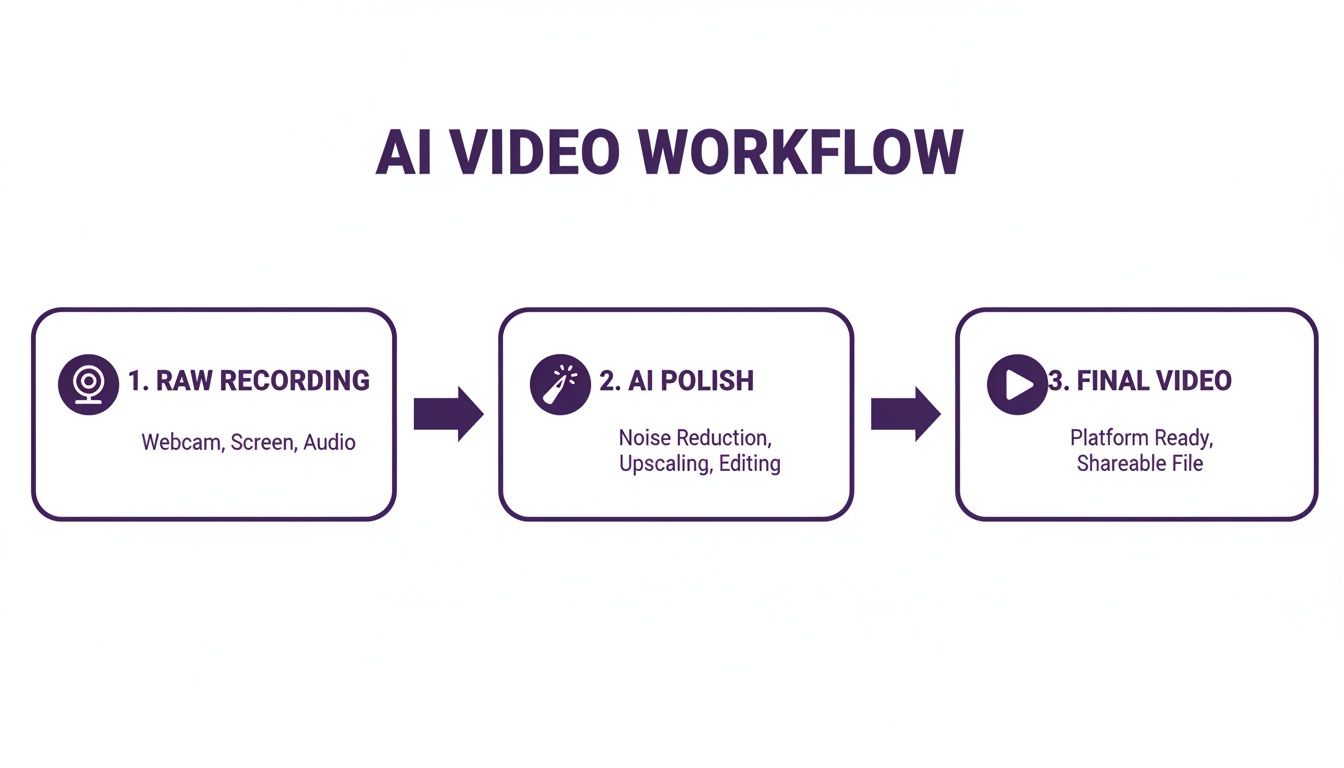
As you can see, a simple screen capture is fed into an automated AI process, which then outputs a professional video, completely sidestepping the complexity of traditional editing.
Adding the Professional Finishing Touches
With your core message locked in, the final step is adding that visual polish that separates amateur content from professional work. This is another area where modern, easy video editing software excels by automating tasks that used to be a huge time-sink.
- Smart Camera Movements: Tutorial AI actually watches your screen activity. It sees where you click and type, then automatically adds smooth zooms and pans to direct the viewer’s eye. This creates a dynamic, engaging video without you ever touching a single keyframe.
- Applying Brand Elements: You can set up your brand kit once—with your logo, colors, and fonts—and the software will automatically apply it to every video. This ensures all your content looks consistent, on-brand, and totally professional.
This entire workflow is a game-changer for anyone making instructional videos. If you want a deeper dive on that first step, check out our guide on effective screen recording for tutorials.
By pairing a dead-simple recording process with powerful AI automation, anyone can create the kind of high-quality tutorials that once took an entire production team. This is what you should expect from easy video editing software today, and it’s perfect for creating:
- Software Demos: Clearly showcasing new products and features.
- Onboarding Videos: Getting new customers or employees up to speed fast.
- Explainer Videos: Breaking down complex ideas into simple, visual steps.
- Knowledge Base Videos: Building a library of helpful, on-demand support.
- Support Article Videos: Adding visual walkthroughs to written documentation.
The result is a system that lets you focus on what you know best—your expertise—not the technical details of video production. You can create more content, faster, without ever compromising on quality.
Choosing Your Platform Desktop or Mobile
Not too long ago, the choice between desktop and mobile video editing was a no-brainer. You used a desktop for serious power and mobile for quick, on-the-go clips. That clean line has gotten pretty fuzzy lately. While heavy-duty desktop software is still king for massive projects, mobile editing has grown up—it’s now a serious option for creating polished, professional content from anywhere.
The numbers tell an interesting story. Desktop editors still make up the majority of the market at 54.40%, thanks to their raw horsepower for things like complex timelines and GPU-accelerated rendering. But the real action is happening on our phones. The mobile editing market is growing at a staggering 8.62% CAGR, driven by powerful new chips that can handle demanding tasks like H.265 encoding and HDR playback right on your device.
This isn’t just a niche trend. The global market is projected to reach $3.75 billion in 2026 and a massive $4.99 billion by 2031, with much of that growth happening in mobile-first regions. You can read the full research about the video editing market to dig deeper into these shifts.
For sales teams, educators, and creators who are constantly on the move, this is a game-changer. Think of a sales rep cutting together a quick software demo right after a client meeting, or a teacher capturing and editing an explainer video during a field trip. Mobile makes content creation immediate.
The Best of Both Worlds: A Hybrid Workflow
So, which one should you choose? Honestly, that’s the wrong question. The smartest approach today isn’t picking one over the other but blending them into a hybrid workflow. This gives modern teams the agility to create content no matter the situation.
For example, a subject matter expert can quickly record a screen capture on their iPhone. That raw footage can then be sent to a shared cloud workspace, where another team member polishes it into a final, branded video on their desktop.
This kind of setup has some clear advantages:
- Speed: You can capture ideas and footage the moment inspiration strikes, without having to wait until you’re back at your desk.
- Flexibility: Team members can work with the tools they know and love, whether that’s a laptop, tablet, or their phone.
- Efficiency: The process is seamless. Raw footage shot in the field can be instantly handed off to an editor, cutting down production time significantly.
How Tutorial AI Bridges the Divide
A truly easy video editing software shouldn’t force you into a box; it should adapt to how your team already works. This is exactly where a tool like Tutorial AI comes in. It was built from the ground up to connect the power of the desktop with the flexibility of mobile, creating one seamless system for everyone.
With dedicated apps for Mac, Windows, Chrome, and even mobile recording on iPhone and iPad, Tutorial AI provides a flexible system that adapts to your workflow. You get the same powerful, AI-driven editing experience no matter where you start. This means your whole team gets a consistent, simple experience on every device. A salesperson can record a personalized demo on their phone, a training manager can build a detailed module on their Windows PC, and a marketer can add the final branding from their Mac.
Everything flows into a shared workspace, so you’re all on the same page. This cross-platform approach gets rid of the friction and empowers everyone on your team to create great content, no matter their location or device. It’s a workflow designed for how modern teams actually get things done: fast, flexibly, and together.
Finding the Right Plan for Your Team’s Needs
Alright, so you’re sold on how much an easy-to-use video editor can change the game for your team. The next question is always the same: which plan do you actually need? Pricing tiers can look confusing, but they’re really just different toolkits designed for different jobs. The goal is to get the tools you need without paying for extras you won’t touch.
Let’s use the plans from a tool like Tutorial AI as a practical example. Seeing how they structure their pricing helps you map your own team’s needs to the right solution and get the most bang for your buck.
Aligning Your Goals with the Right Tier
Most modern software tools give you a few different levels to choose from, almost always starting with a free option. Don’t skip this step—it’s your chance to kick the tires before you commit.
- Free Plan: Think of this as your test drive. It’s built for you to get a real feel for the core workflow. You can try out the basic screen recording and text-based editing to see if it clicks. It’s a completely risk-free way to find out if the software solves your core problem.
- Solo Plan: This one’s for the one-person show. If you’re a freelancer, a consultant, or the go-to expert in your department making all the content yourself, this is your sweet spot. It usually removes watermarks, bumps up your export quality, and unlocks more powerful features.
Choosing the right plan is all about the return on your investment. A sales team creating personalized demos faster can see a direct lift in revenue. A support team might measure success by a drop in ticket volume because their new video guides are so clear. As your team starts to grow and you find yourself making more and more video content, you’ll naturally start looking for plans that help everyone work together.
Scaling Up for Teams and Organizations
Once video creation becomes a team effort, you suddenly need features that support collaboration and keep your brand looking consistent.
- Growth Plan: This tier is built for teams. You’ll find essentials like a shared workspace where multiple people can jump into projects together. It also usually includes a brand kit, which is huge for making sure every video has the company’s official logos, fonts, and colors baked right in. This is perfect for growing marketing, sales, or training teams.
- Enterprise Plan: This is for large companies with heavy-duty requirements. An enterprise plan is less about the editing features and more about security, control, and integration. It brings things like single sign-on (SSO), advanced security protocols, and a dedicated support contact to the table. This is the only choice for organizations where security and fitting into an existing tech ecosystem are non-negotiable.
By taking a moment to match what you’re trying to do—whether it’s building a knowledge base, enabling sales, or creating marketing demos—to the right set of features, you can pick a plan with confidence, knowing it will pay off from day one.
Common Questions Answered
Still have a few things on your mind before jumping into a new video editor? Let’s tackle some of the most common questions people have.
Is This Kind of Software Genuinely for Beginners?
That’s exactly who these tools are built for. They’re made for people who are experts in their field, not in video production. If you feel comfortable writing an email or putting together a presentation, you already have all the skills you need to get started with a platform like Tutorial AI.
The whole point is to make the process feel natural. Many now use text-based editing, which is a lot like editing a document instead of fiddling with a complicated timeline.
What’s the Real Difference Between Free and Paid Plans?
Think of the free plan as a test drive. It’s the best way to get a feel for the workflow and see if the core features are a good fit for you. Usually, free versions include limitations like watermarks on your videos, lower export quality, or access to only a handful of the AI features.
Upgrading to a paid plan is where you get the full toolset. This typically includes:
- Higher resolution exports, often up to 4K.
- No watermarks, so your videos look completely professional.
- Full access to premium AI voices and other smart features.
- Team features like shared brand kits and collaborative workspaces.
Can These Tools Make Videos That Actually Look Professional?
Yes, and this is one of the biggest reasons people make the switch. Screen recordings from easy-to-use tools like Loom are great, but often 50-100% longer than necessary. Professional video editing software like Camtasia or Adobe Premiere Pro requires expert video editing knowledge to turn that raw footage into a polished final product.
Tutorial AI is designed to solve this by generating video tutorials from screen recordings. Its tools let you speak freely without any practice and still produce a video that looks professional, as if it was edited in Adobe Premiere Pro. It allows the subject matter expert to efficiently create on-brand demos, onboarding videos, explainer videos, feature release videos, knowledge base videos, and support article videos. By taking care of all the tedious editing work for you, these tools make sure the final video is sharp, to the point, and ready for your audience.
Ready to see how fast you can turn a simple screen recording into a polished tutorial? Give Tutorial AI a try and experience just how simple modern video creation can be. You can get started for free right here.