A support lead records a walkthrough of a new billing feature, plays the confirmation sound, and explains what customers should expect. The video looks fine, but playback is silent. The recorder captured the screen, not the app’s audio, and selecting the Mac’s microphone didn’t solve the underlying problem.
Microphone audio is sound entering an input device, including spoken narration and room noise. Internal audio is playback generated by software, such as a browser, training application, or product notification. Apple’s built-in recording workflow historically emphasized microphone input, so the available controls depend on the installed macOS version and recording tool, as Apple’s screen-recording documentation explains.
The best screen recorder for Mac with internal audio is the one that captures the required sound reliably and leaves the team with the right deliverable:
- Tutorial production: Choose a recording-to-tutorial workflow when the output needs narration and written documentation.
- Quick support clips: Consider CleanShot X or Loom.
- Detailed training edits: Shortlist ScreenFlow or Camtasia.
- Capture control: Consider OBS Studio when configuring sources matters more than immediate editing.
The biggest difference isn’t the feature count. It’s the setup cost: permissions, audio drivers, paid-plan requirements, and the work needed after recording. The ranking below prioritizes software-training fit rather than treating every recorder as interchangeable.
1. Tutorial AI
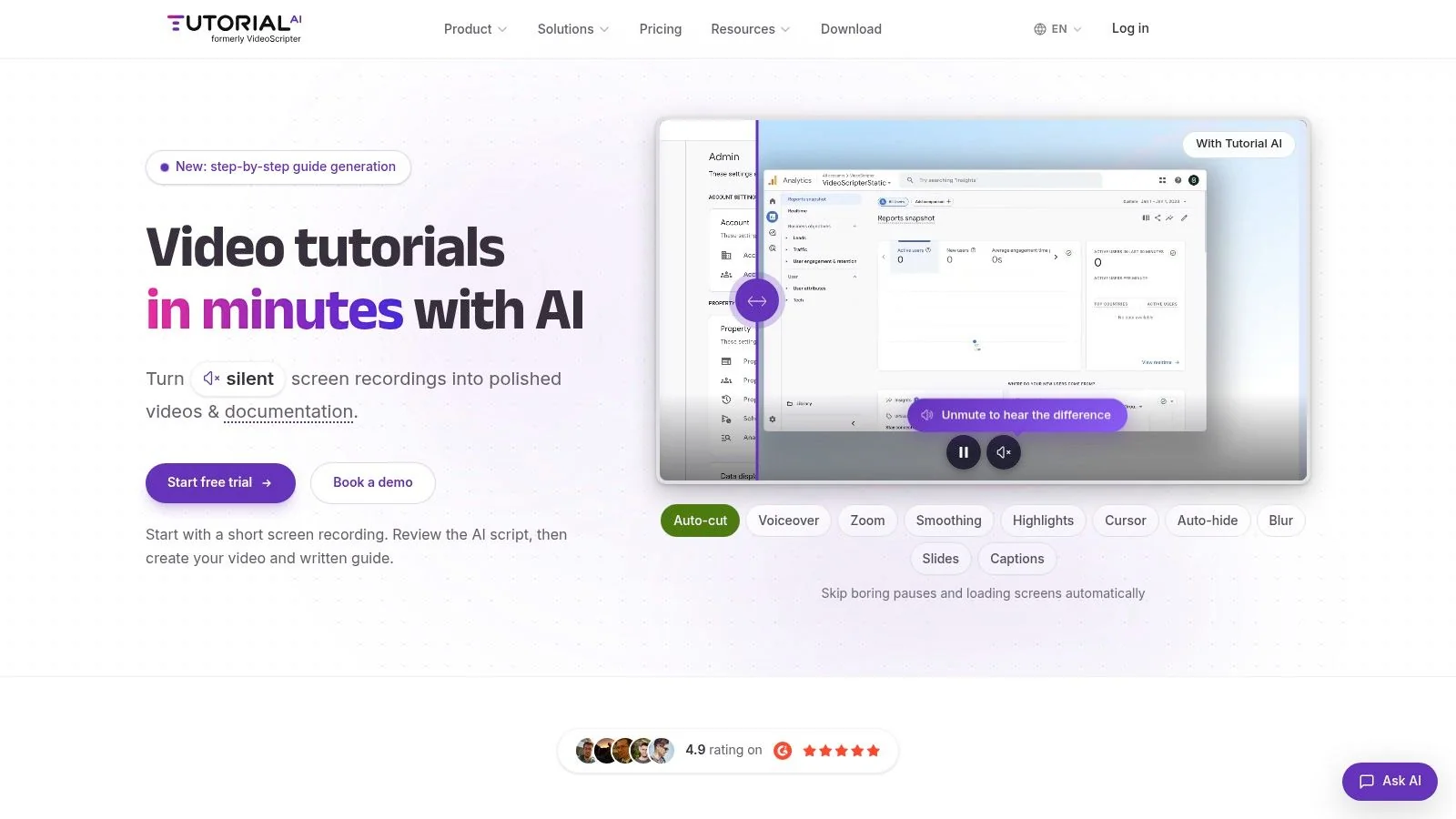
Best fit for teams that need a tutorial video and a screenshot-based written guide from the same demonstration. The desktop recorder captures system audio and supports macOS 13.1 or later. That makes internal audio part of the recording workflow rather than something the author must reconstruct afterward.
The larger advantage comes after capture. An author can demonstrate a process and generate a matching narration script, or record spoken explanations and turn the transcription into editable narration. The same recording can also produce help articles with screenshots.
Where it fits the production workflow
For a billing-feature walkthrough, the author demonstrates the actual interface, reviews the generated explanation, and checks that each screenshot shows the correct state. Script and narration editing then help turn the demonstration into reusable training material.
- Strength: Combines screen capture, tutorial creation, and documentation rather than stopping at a video file.
- Trade-off: Generated scripts, narration, and screenshots still need review against the current product interface.
- Setup consideration: System-audio capture is supported, but that shouldn’t be expanded into an unsupported promise about driver-free installation on every managed Mac.
This is a stronger fit for customer education and process documentation than for someone who only needs an unedited clip. A dedicated capture tool can be the simpler choice when no script, narration, or written guide is required.
2. CleanShot X
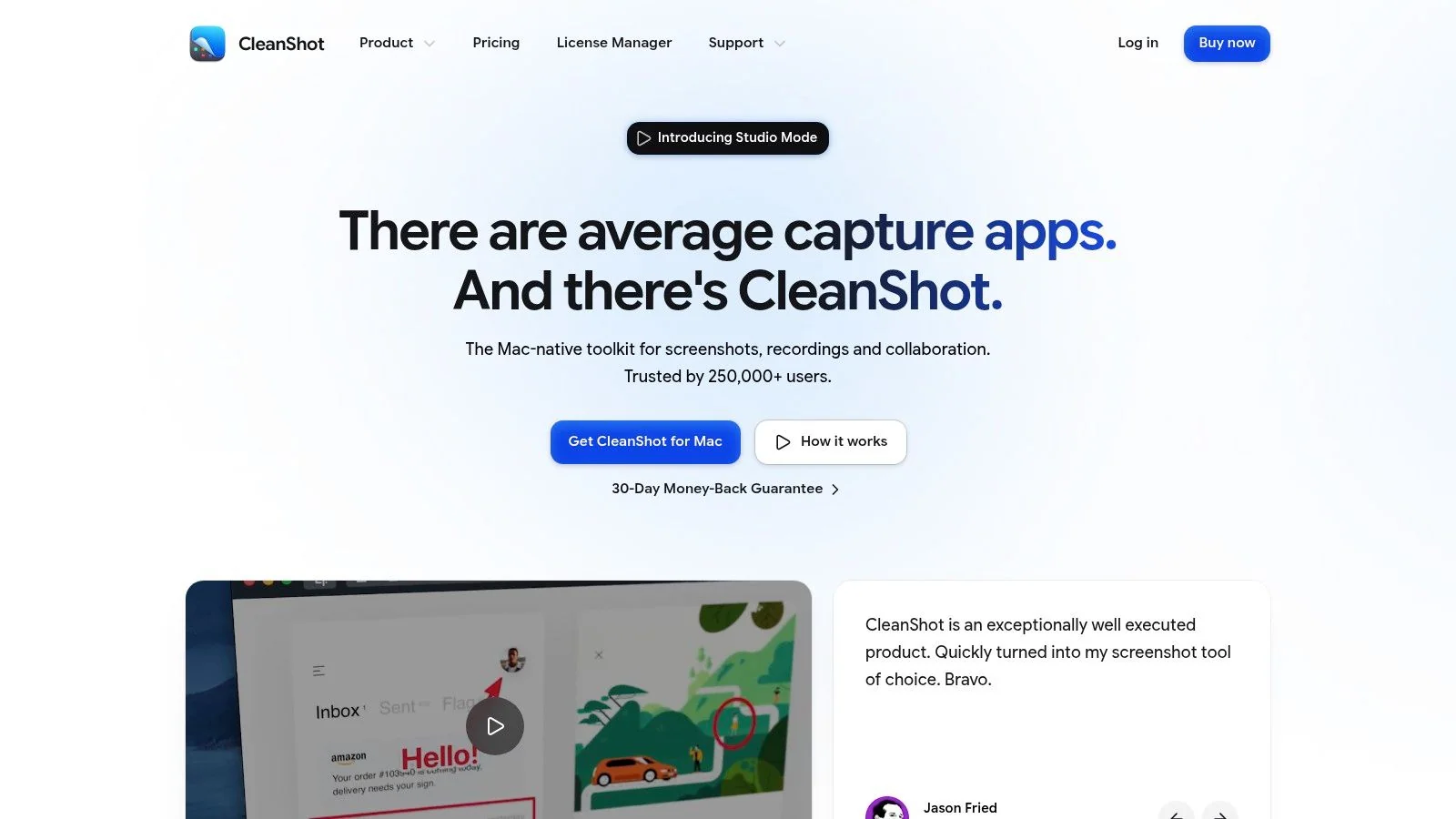
A support specialist answering a narrowly scoped question usually doesn’t need a full editing suite. CleanShot X fits that job with Mac-focused capture, system-audio recording, and finishing tools for making a short demonstration easier to follow.
Its recording workflow combines system sound with options such as microphone and camera input. Studio Mode adds trimming, animated zooms, and cursor effects, which can help direct attention to a small control without rebuilding the recording in a separate editor.
Practical rule: A quick support clip should make the next action obvious, not demonstrate every available editing effect.
The trade-off is editing depth. CleanShot X is more appropriate for a concise explanation than for a training module that needs extensive restructuring and independent media adjustments.
- Capture check: Confirm that system audio and microphone narration are both enabled when the explanation needs both.
- Sharing check: Review the current cloud-storage and team provisions before standardizing the upload workflow.
- Purchase check: Separate the app’s capture capabilities from optional cloud services when comparing total cost.
For frequent Mac support recordings, the appeal is keeping capture and useful finishing close together. Teams producing formal courses should evaluate a deeper editor alongside it.
3. ScreenFlow
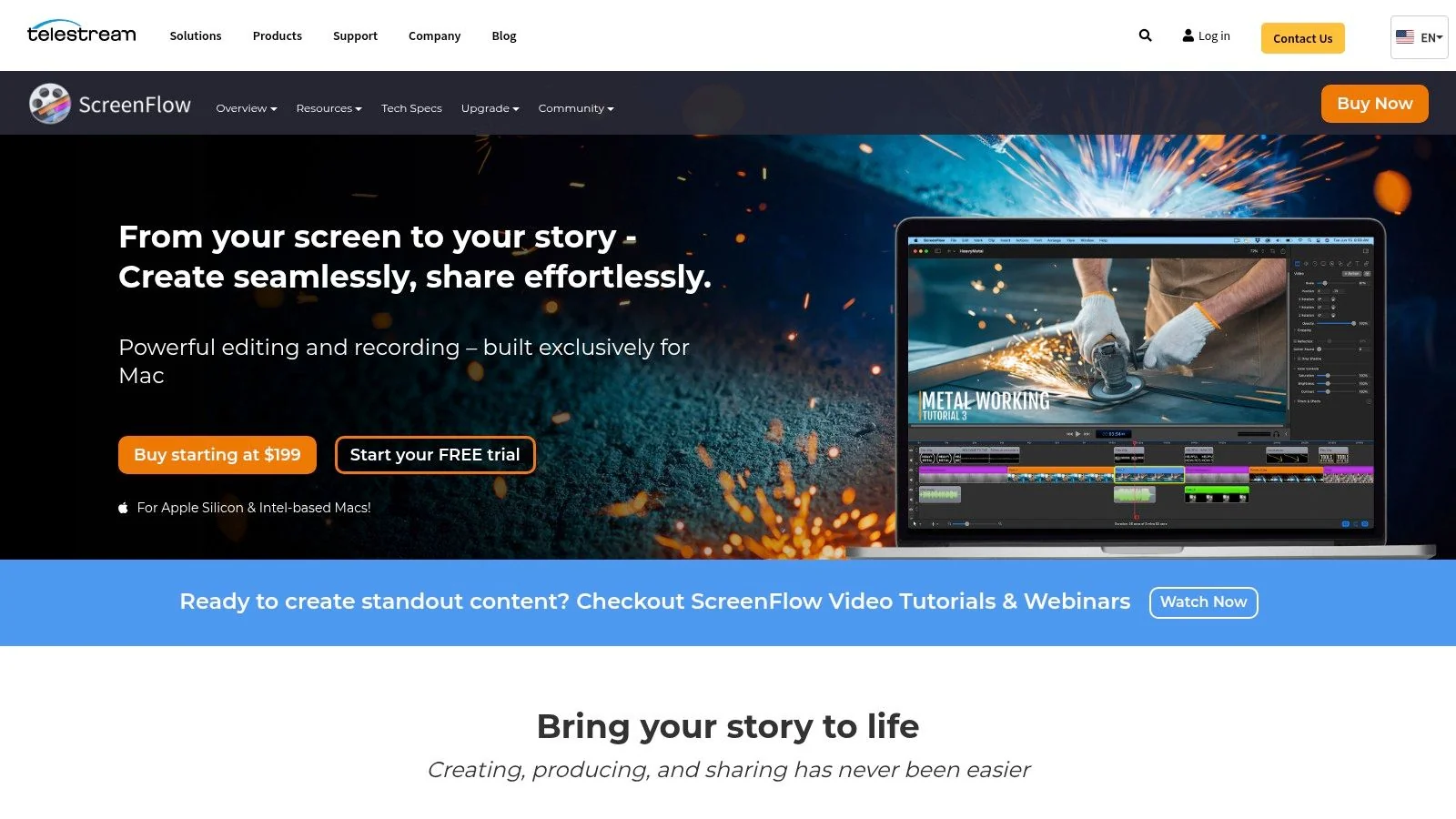
Choose ScreenFlow when the edit matters as much as the recording. Telestream’s ScreenFlow combines Mac screen capture with a multitrack timeline for tutorials, presentations, and training content.
Computer-audio capture uses a Telestream audio driver that may require installation and authorization. That’s an important distinction on a company-managed Mac: an author might have permission to run the application but not permission to install its audio component.
The driver is part of the buying decision
Confirm installation approval before scheduling a recording session. Then record screen activity, computer sound, and narration together, and check that the resulting media can be adjusted as the lesson requires.
- Strength: Suitable for longer demonstrations that need cuts, effects, and deliberate pacing.
- Trade-off: More editing involvement than a capture-and-share application.
- Procurement detail: Check the purchase channel because direct and Mac App Store editions can differ in features and upgrade arrangements.
A team choosing between lightweight capture and timeline production can use this Mac video-recording software guide to frame the broader workflow decision. ScreenFlow makes sense when authors expect to spend time shaping the lesson after capture, not just trimming its beginning and end.
4. Camtasia
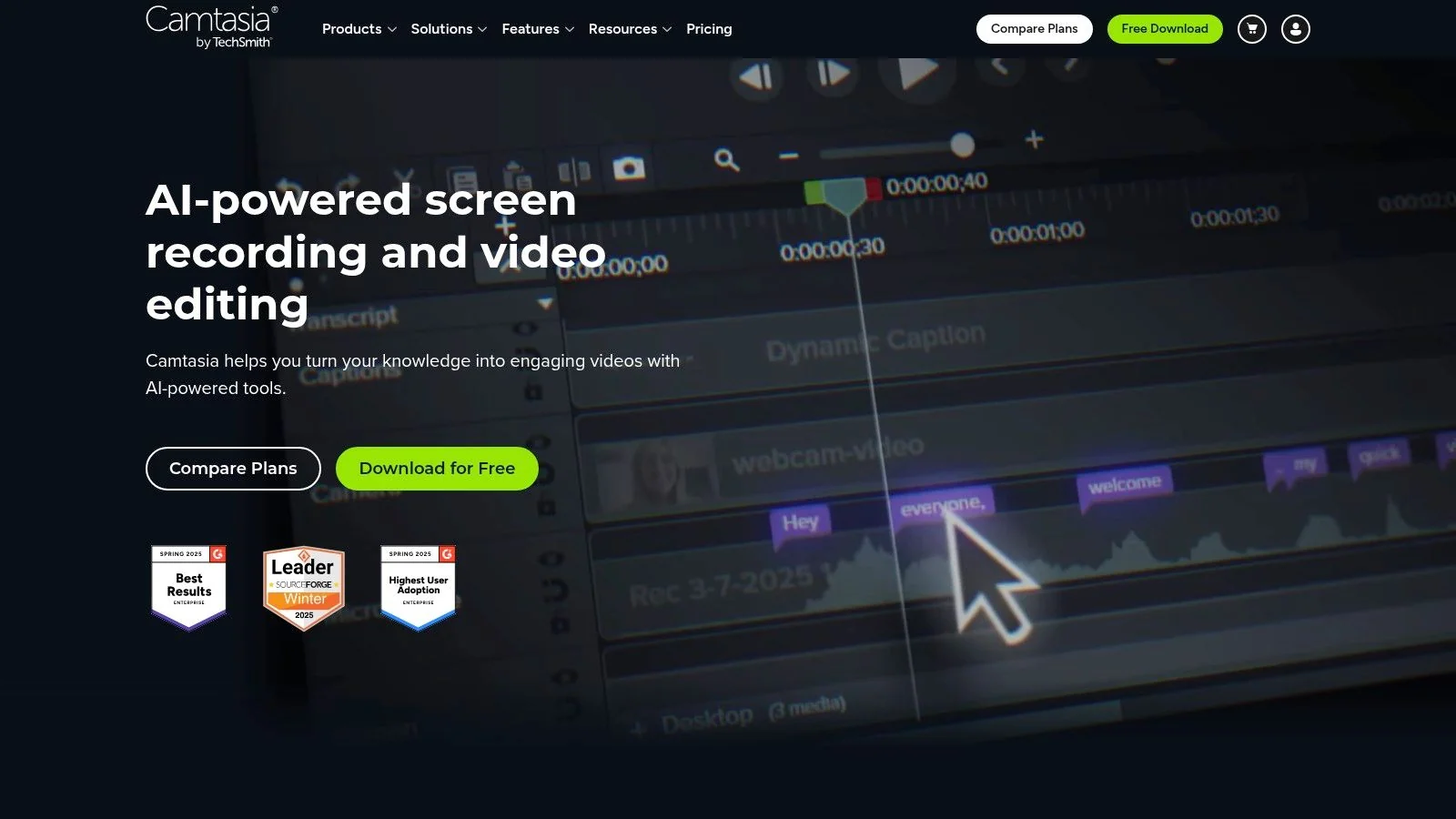
Mixed-device training teams should consider Camtasia. Its Mac and Windows applications support a recording-and-editing workflow centered on instructional content rather than live production.
Screen, microphone, system audio, and webcam capture provide the raw material. Separate recording elements and editing tools help an author revise pacing, add explanations, and make the sequence understandable after the demonstration is complete.
The practical advantage is control after recording. For a process with waiting periods, mistaken clicks, or sections that need annotation, that control can matter more than having the fewest recording settings.
- Best use: Structured training and product education that justify an editing pass.
- Main compromise: More software and production work than a simple support response requires.
- Plan consideration: Capture, editing, and AI provisions vary, so the relevant tier must be checked before purchase.
The Mac evaluation should include the actual installation and permission experience, not just the editor’s feature list. A team should also test the same representative lesson on its supported devices before adopting a shared production process.
Camtasia belongs on the shortlist when authors need a conventional editor and the organization doesn’t operate exclusively on Macs.
5. OBS Studio
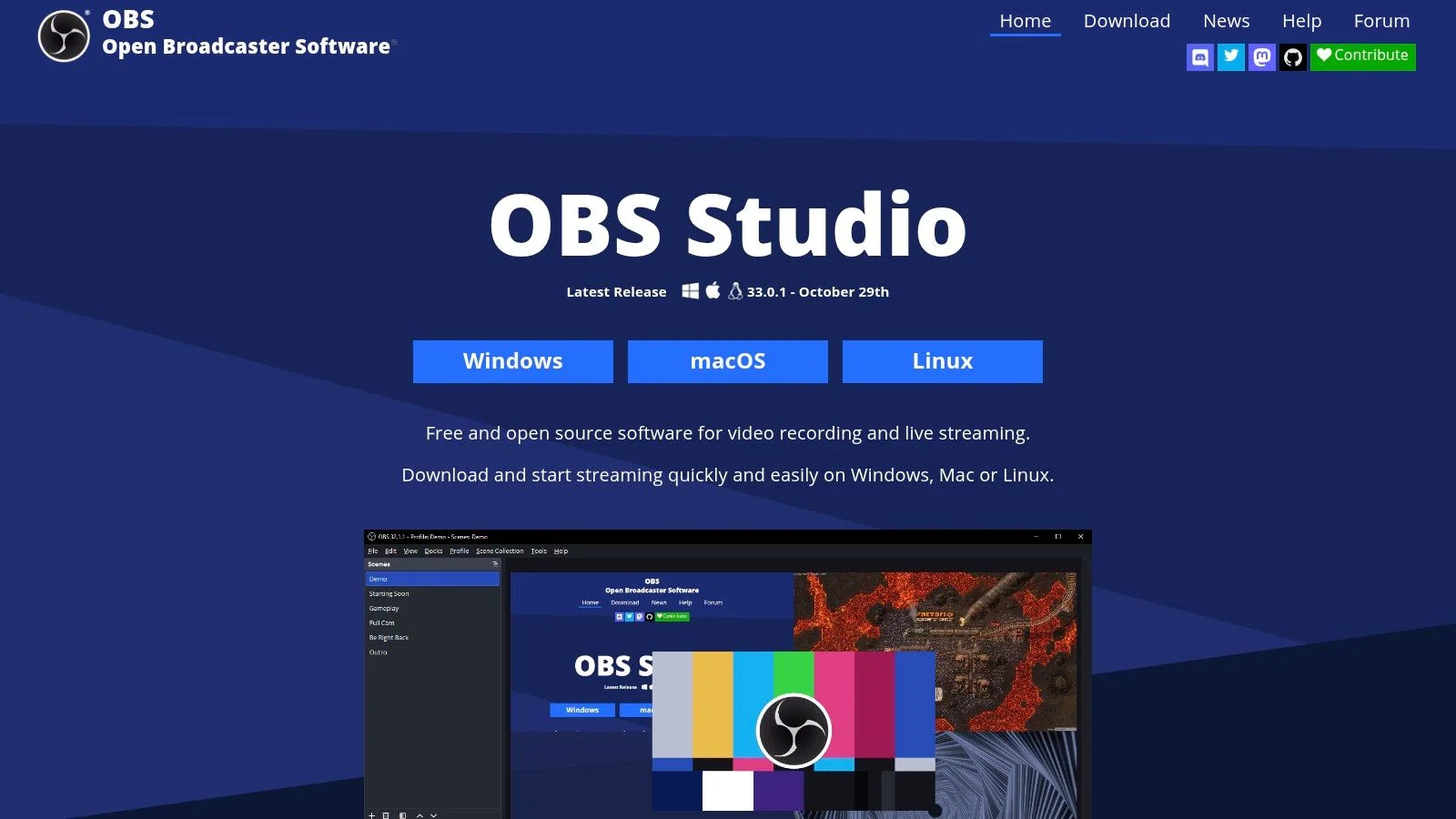
OBS Studio is the capture-control choice. Its open-source recording and streaming workflow provides scenes, sources, and an audio mixer rather than a guided tutorial-production experience.
On compatible Mac configurations, system or application audio can be captured through the available macOS audio sources. Compatibility should be confirmed for the installed OBS and macOS versions before assuming that an older virtual-audio-routing tutorial is still necessary.
A recorder can offer excellent source control and still be the wrong choice for an author who needs immediate editing and sharing.
For software training, build a restrained scene with the required screen source and audio inputs. Extra sources create more opportunities to capture an unintended window or duplicate an audio signal.
- Strength: Flexible control over what enters the recording.
- Setup cost: Source configuration, mixer checks, and a less guided interface.
- Production gap: Editing the lesson and publishing supporting documentation require additional work.
OBS suits technically comfortable authors, particularly when a demonstration needs several visual or audio sources. It’s less compelling for a support team whose main requirement is recording a concise answer and sending it without a separate production stage.
6. Loom
The strongest reason to choose Loom is what happens after recording: the author can share a video page and receive comments without designing a separate publishing workflow. That makes it relevant to customer explanations, internal updates, and asynchronous feedback.
System-audio capture is part of the recording feature set, but the team should test the particular Mac application or browser workflow it intends to use. A successful desktop test doesn’t establish that every browser sharing mode captures the same sound.
Communication before detailed production
Loom is a better fit for explaining a task to a colleague than for building a heavily edited training module. Transcripts and shared video pages help recipients follow and discuss the explanation, while deeper instructional editing may call for another tool.
- Strength: A direct recording-to-sharing workflow.
- Limitation: Less suited to detailed timeline editing and complex lesson restructuring.
- Plan cost: Recording allowances, quality settings, branding, and advanced editing provisions need checking on the current plan.
For a customer-support team, the key evaluation is whether the recipient can hear the product behavior, see the required action, and access the clip appropriately. A convenient share link doesn’t compensate for a silent demonstration.
7. ScreenPal
ScreenPal requires a plan-and-installation check before it becomes an internal-audio recommendation. ScreenPal combines recording with editing and hosting, but system-audio capture is associated with paid plans, and Mac setup may require a capture filter.
That combination matters for trainers working on restricted devices. Buying the relevant plan won’t resolve an installation restriction, and installing the capture component won’t add a feature excluded from the account’s plan.
- Confirm entitlement: Check that the chosen plan includes computer-audio recording.
- Confirm installation: Establish whether the Mac capture filter requires administrator approval.
- Confirm playback: Test the saved recording rather than relying only on what the author hears while recording.
The attraction is a connected capture, editing, and hosting workflow without adopting a large production suite. The compromise is that feature availability varies substantially across plans.
ScreenPal is worth considering for educational and internal-training content when the organization wants those functions together. It’s a weaker choice if the immediate requirement is internal audio with no purchasing or installation decisions, because those prerequisites should be settled before the first full take.
8. Descript
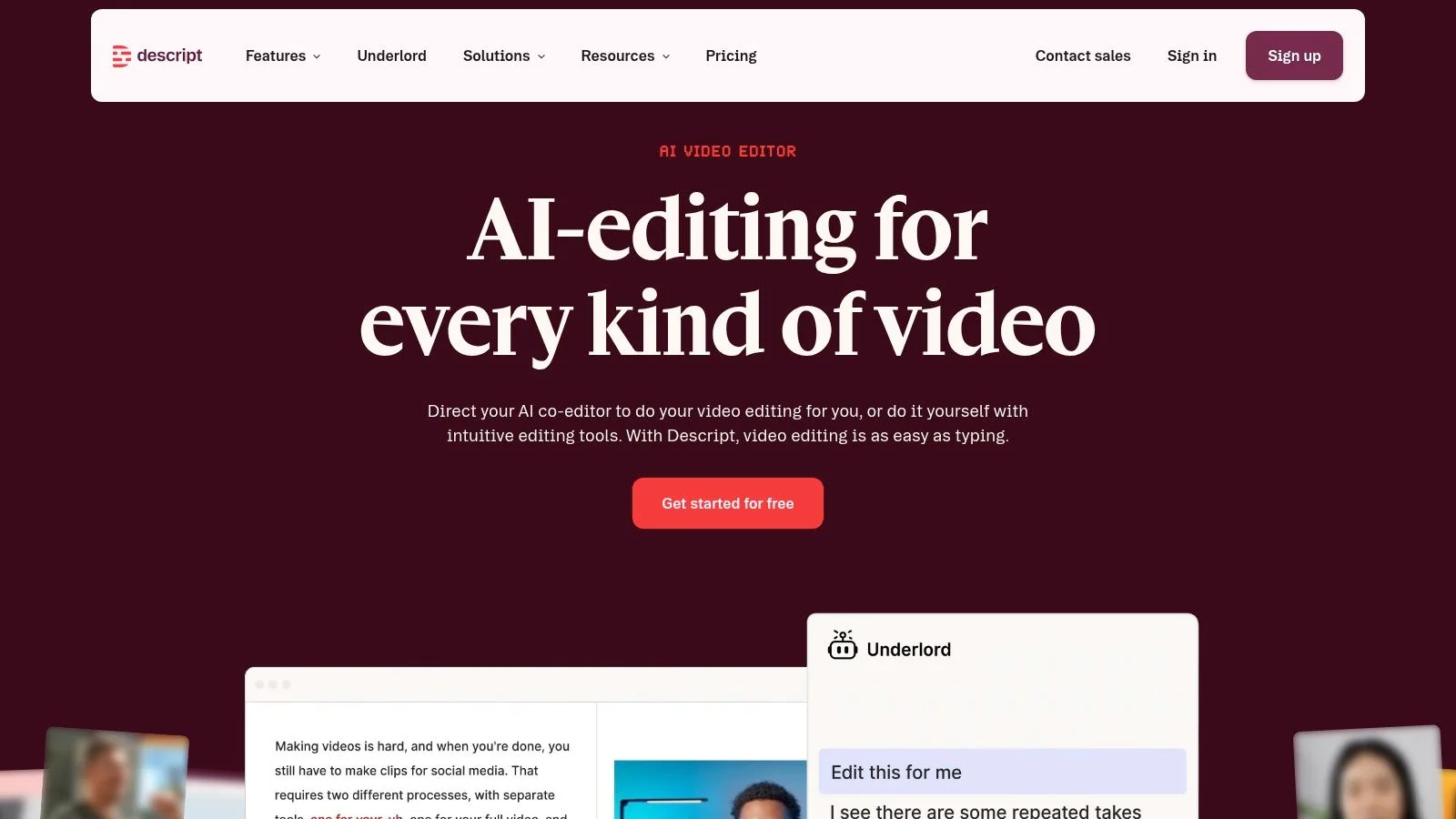
A narrated walkthrough often needs verbal corrections more than visual effects. Descript addresses that workflow through transcript-based editing, alongside screen recording that can include system audio, microphone audio, or both.
For an explanation-heavy training video, editing spoken material through text can make revisions easier to organize. The author still needs to watch the edited result because removing a sentence can leave the visible interface action without enough explanation.
Keep application sound distinct from narration
System audio may demonstrate an alert or playback behavior, while narration explains its meaning. Those serve different instructional purposes, so the author should decide which sounds belong in the final lesson before capture.
- Strength: Useful for narrated explainers that need substantial spoken-content revision.
- Trade-off: A broader editing environment than a silent capture requires.
- Plan consideration: Included editing and AI allowances vary and should be checked against the intended workload.
Descript makes sense when spoken explanation carries the lesson. A lightweight recorder is more proportionate for a short visual answer, while a documentation-centered workflow is more suitable when the same demonstration must also become a maintained written procedure.
9. Bandicam for Mac
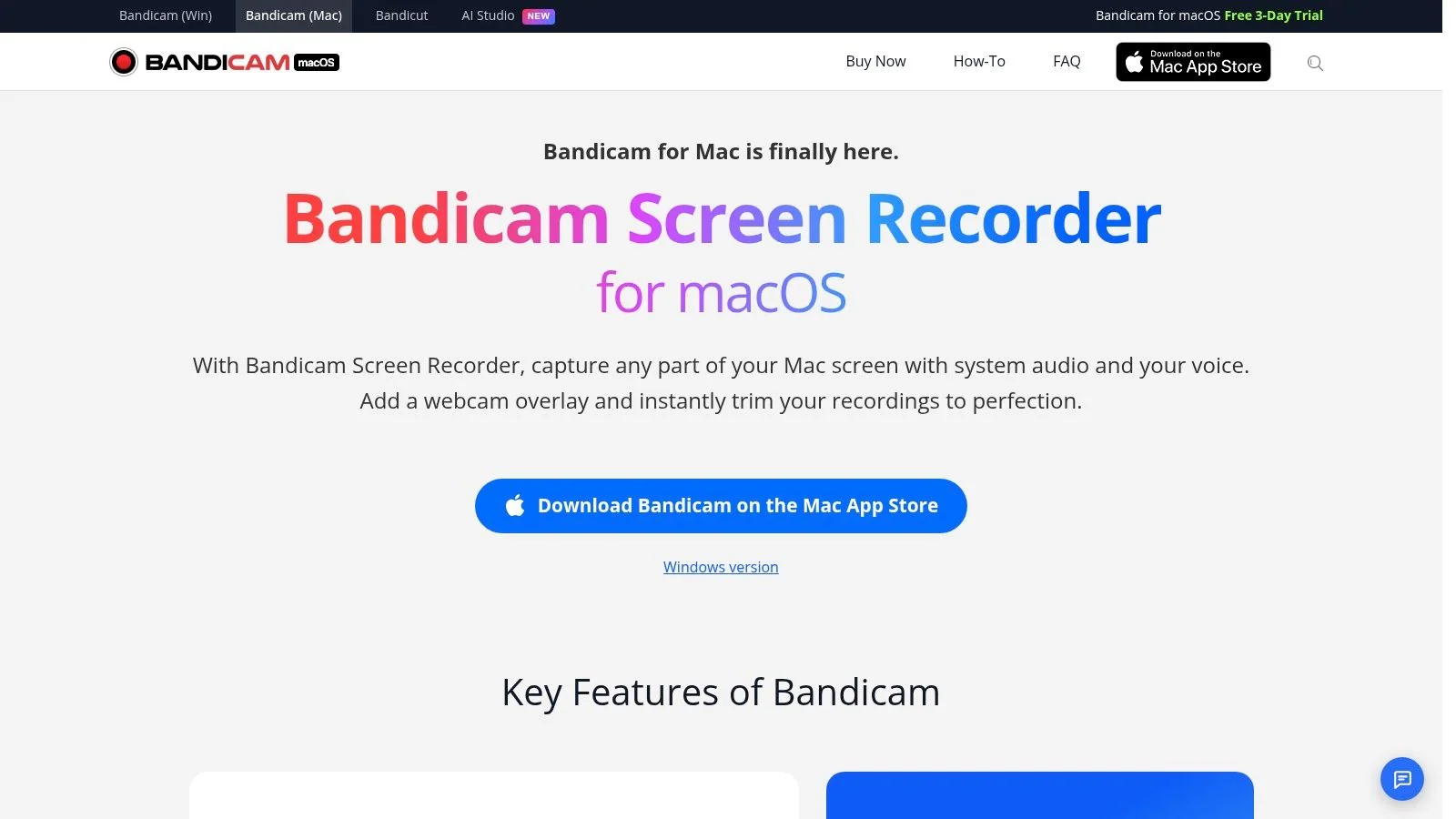
Bandicam for Mac presents a capture-first option with system audio, microphone, and camera recording. Its screen, region, and window choices are relevant when the author needs to keep unrelated desktop material outside a demonstration.
The vendor describes internal-audio capture without a separate virtual audio driver. That’s a useful claim to validate during evaluation, especially when avoiding additional audio components is the main reason for considering the app.
Buying caution: A familiar product name doesn’t establish that its Mac edition has the same capabilities or licensing as another edition.
Built-in trimming fits a straightforward demonstration that only needs cleanup at its boundaries. It shouldn’t be mistaken for the extensive restructuring available in a full editor.
- Best use: Capture-first walkthroughs with modest finishing requirements.
- Setup question: Confirm current macOS support and successful internal-audio capture on the actual device.
- Trial question: Inspect current recording restrictions before using the evaluation version for a complete lesson.
For support teams, readable interface text and correctly captured application sound matter more than headline resolution claims. Those are the qualities the evaluation recording should establish.
10. QuickRecorder
QuickRecorder belongs on the shortlist for authors who want a lightweight Mac capture workflow rather than a production environment. Its stated role is straightforward screen or application recording with system audio.
That narrow scope can be an advantage. A technical writer collecting source footage may prefer a simple recorder and handle the explanation, screenshots, and publishing elsewhere.
Evaluate the capture, not the name
Before installation, confirm the current distribution listing and supported macOS versions. Then verify that the app captures the intended application sound, not merely an available microphone input.
- Strength: Basic screen-plus-system-audio capture without committing to a large editor.
- Trade-off: Fewer editing, collaboration, and publishing functions than broader suites.
- Purchase check: Review current in-app purchases and recording restrictions rather than assuming that lightweight means unrestricted.
QuickRecorder is most appropriate when the required deliverable is source footage or a simple clip. It’s less suitable when the team expects the recorder itself to manage narrated training, customer-facing publishing, and written documentation.
The deciding test is deliberately ordinary: record the software, reproduce its relevant sound, and inspect the saved result. A successful recording of an unrelated desktop activity proves little about the intended tutorial workflow.
11. How to Capture Internal Audio on macOS
Prerequisites: Use a test account, prepare the exact process, and identify the sound the viewer must hear. Permission must be granted to the application that is recording: Apple’s authorization guidance explains that access is managed per app or website.
- Authorize capture. Open System Settings > Privacy & Security > Screen & System Audio Recording and enable the recorder, following Apple’s permission instructions.
- Enable the correct source. Select system audio inside the recorder. Authorize microphone access separately when spoken narration is required.
- Complete tool-specific setup. Install and authorize ScreenFlow’s audio driver or ScreenPal’s capture filter when required. In OBS, select the compatible macOS audio source.
- Record and inspect. Play the saved file and check sound, cursor visibility, and readable interface text.
Example of a billing-feature walkthrough
Record opening billing settings, changing a test preference, and showing the confirmation state. Convert the recording into narrated video and a written guide with screenshots, then review the script, steps, and visuals against the live interface before sharing.
Silent-recording recovery: Check the selected source, recheck permissions after system changes, and temporarily switch from Bluetooth to a wired or built-in output. The Mac computer-audio recording guide provides additional workflow guidance.
If separately captured tracks need repair, guidance on how to sync audio and video streams can help. Fixing capture at the source is preferable to repeatedly repairing exports.
12. From Raw Recording to Finished Tutorial
Choose the deliverable before choosing the recorder. A support reply, a reusable onboarding lesson, and a written SOP need different amounts of work after capture.
- Quick support clips: CleanShot X and Loom fit short explanations where capture and sharing are the main requirements.
- Detailed training: ScreenFlow and Camtasia suit lessons that need timeline editing and careful restructuring.
- Narrated explainers: Descript fits transcript-centered revision; Tutorial AI fits a workflow connecting demonstration, generated narration, and written documentation.
- Source footage: OBS Studio and lightweight capture tools suit authors who already have a separate production process.
Apple’s ScreenCaptureKit documentation describes a framework for capturing video and audio together. That technical foundation matters, but it doesn’t determine whether an application can produce the finished training asset the team needs.
A recording of an employee’s process still needs context: what access the learner requires, why each action matters, and what successful completion looks like. The screen-recording editing guide can help structure that finishing pass.
Current pricing, plan allowances, trial restrictions, and installation requirements should be confirmed before purchase. An inexpensive capture app can still create substantial downstream editing work.
Mac Screen Recorders with Internal Audio at a Glance
The table compares internal-audio capture, editing workload, pricing information supported in this section, and the kind of tutorial each tool suits. Audio capture can depend on macOS version, app settings, or a capture filter, so check the setup requirements before choosing.
| Item | Internal Audio on macOS | Editing Depth | Pricing Model | Best For |
|---|---|---|---|---|
| Tutorial AI | Captures system audio on macOS 13.1 or later | AI script and voice generation, transcription, and tutorial editing | Free and paid plans; check current prices | Turning recordings into polished tutorials and written guides |
| CleanShot X | Captures system audio | Light; trimming, zooms, and cursor effects | Free plan and paid tiers; check current prices | Quick Mac recordings and support clips |
| ScreenFlow | Captures system audio with an audio driver | Deep; multitrack timeline and effects | Paid versions; pricing and features vary by purchase channel | Long-form tutorials and training videos |
| Camtasia | Captures system audio | Deep; layers, editing, and annotations | Subscription; features vary by plan | Structured instructional videos across Mac and Windows |
| OBS Studio | Supports system-audio capture on macOS 13 or later with OBS 30 or later | Flexible production controls; limited quick-editing focus | Free and open source | Custom recording, multi-source capture, and streaming |
| Loom | Captures system audio | Light; focused on recording and sharing | Free tier with limits; paid plans available | Asynchronous team updates and shareable clips |
| ScreenPal | System-audio capture is available on paid plans and may require a capture filter | Basic to moderate; editing, captions, and hosting | Free and paid plans; check current prices | Educators and teams needing recording plus hosting |
| Descript | Captures system and microphone audio | Moderate to deep; transcript-based editing and AI tools | Free and paid plans; check current prices | Narrated walkthroughs and videos needing script revisions |
| Bandicam for Mac | Vendor advertises internal-audio capture | Light; built-in trimming | Free and paid options; check current prices | Straightforward screen capture with quick trims |
| QuickRecorder | Captures system audio | Limited | Mac App Store; check current pricing and limits | Basic screen-and-audio recording on Mac |
Pick Your Recorder, Then Run One Real Test
A software update can play a confirmation sound while a tutorial author explains the next step. Test that real task before choosing a recorder: include the application audio the learner needs, representative cursor movement, and narration if the finished lesson will have it. Check the saved recording from beginning to end, not just the preview.
Check the finished asset
Confirm that the recording works as a lesson, not merely that it contains an audio track:
- Audio: Required sounds are audible, narration is clear, and neither is duplicated.
- Visuals: Text is readable, the cursor is visible, and the completed task appears on screen.
- Timing: Actions and sound remain aligned throughout.
- Production: Editing and sharing the result do not require an impractical chain of extra tools.
Apple’s ScreenCaptureKit performance session discusses configurable capture and performance considerations. A moving interface, scrolling page, and simultaneous narration provide a more useful test than a static desktop.
Include privacy in the test. Apple’s guidance on screen and system-audio recording permissions explains that authorized applications and websites may collect screen and audio information under their own terms. Disable notifications, use sample records without sensitive information, and decide who can access the finished recording before publishing it.
For recurring tutorial production, assess the workflow beyond capture. Tutorial AI can turn a screen recording into a narrated tutorial and screenshot-based documentation, with an editing and review pass before sharing. A simpler recorder is a better fit when the only deliverable is a short clip.
Choose the tool that captures the required audio on the organization’s Mac within its permission and purchasing constraints. The test should produce a usable recording and a clear path to the finished lesson.
Turn a Mac screen recording into a tutorial video and written guide with screenshots, then review the narration, steps, and visuals before sharing. Visit Tutorial AI to start on a free plan and try the recording-to-tutorial workflow with a real software process.