You record a screen walkthrough for a new feature. The product knowledge is solid, but the raw clip isn’t. There are pauses while you find the right menu, a restart after one misclick, and a few sentences you’d rewrite if you had time. That’s normal for support leads, product marketers, sales engineers, and trainers. The problem is what happens next.
If you open Adobe Premiere Pro or Camtasia, you can absolutely polish the video. But now you’ve turned a subject-matter expert into an editor. If you send the recording through a lightweight screen recorder, you usually get speed at the cost of finish. The result often looks like what it is: a rough capture, not a clean tutorial.
That production gap is why the category matters. Online AI video editors sit between casual recording and full post-production. They’re designed for people who know the product, not for people who want to spend the afternoon trimming silences frame by frame.
The Growing Need for Faster Video Workflows
Business teams now produce far more video than they used to. Support teams need help-center clips. Sales teams need repeatable demos. L&D teams need internal walkthroughs, SOPs, and onboarding material that stays current as the product changes.
That creates a practical bottleneck. The person who knows the workflow best is usually not a trained editor. They can explain the feature, narrate the use case, and show the right path through the UI. But they often can’t justify opening a professional editor every time a release note turns into a tutorial.
Where the old options break down
Desktop editors still matter. If you need deep timeline control, layered motion graphics, or detailed audio cleanup, Adobe Premiere Pro and Final Cut remain strong choices. But they assume editing skill, local machine setup, and time to work through the timeline.
On the other side, quick recorders make capture easy but leave a lot of cleanup unfinished. The recording is usually longer than it should be. Mistakes stay in. Captions may exist, but pacing, structure, and polish still need manual work.
Practical rule: Most business teams don’t need cinematic editing. They need dependable cleanup, faster publishing, and output that looks intentional.
Online AI video editors exist because that middle ground became large enough to support its own platform category. The market data supports that shift. The global AI-in-video-editing market was valued at about US$0.9 billion in 2023 and is projected to reach US$4.4 billion by 2033, with cloud deployment accounting for 72.8% of the market, according to ElectroIQ’s video editing statistics overview.
Why cloud delivery matters
That cloud share matters more than it might seem. Browser-based editing, automated transcription, captioning, rendering, and asset generation all benefit when compute runs centrally instead of on each employee’s laptop. A support manager on a MacBook, a trainer on Windows, and a marketer working from Chrome can use the same workflow without recreating the environment.
For many, that’s the promise of an AI video editor online. Not novelty. Repeatable production without building a mini post-production department.
What Exactly Is an Online AI Video Editor
An online AI video editor isn’t just a standard timeline editor with a few automation buttons added on top. The better tools are built around a different assumption: the user wants to turn raw material into a publishable asset with as little manual editing friction as possible.
That changes the product design. Instead of starting from tracks, clips, and nested sequences, these tools often start from speech, script, scenes, prompts, and reusable templates. They still edit video, but they prioritize automation over manual precision.
What it is not
It helps to separate this category from three adjacent tool types.
- Not a full desktop editor first: Camtasia, Adobe Premiere Pro, and Final Cut are editing environments. They can be efficient in expert hands, but they’re still built around timeline control.
- Not just a recorder: Loom-style tools are strong for quick communication, async updates, and low-friction capture. They usually don’t solve the full polish problem.
- Not an avatar generator: Tools like Synthesia, HeyGen, and Vyond are useful when you want synthetic presenters or animated explainer content. They are less useful when the viewer needs to see the actual product UI and actual interactions.
What it is built to do
The category has matured enough that a large share of editors are expected to use it. Glean’s review of video content creation tools says approximately 40% of video editors are expected to utilize AI-driven tools by 2025. The same overview describes a progression from basic content-generation tools to platforms that embed AI into broader editing workflows.
That tracks with how teams now evaluate these products. They’re no longer asking only, “Can it add subtitles?” They’re asking:
- Can it tighten a spoken walkthrough without manual slicing?
- Can it turn a rough screen share into something suitable for customers?
- Can a non-editor reuse the workflow every week?
An online AI video editor is best understood as a production system for recurring business content, not as a flashy demo of generative features.
The best fit for this category
This category is especially well suited for work that begins with real screen capture plus narration. That includes product demos, release walkthroughs, support videos, onboarding sequences, and internal process training. In those cases, authenticity matters. The viewer needs to see the actual clicks, the actual navigation, and the actual flow of the product.
That’s why the strongest products in this category don’t try to replace the recording step. They automate the editing and packaging work that usually happens after the recording is done.
Core Features That Automate Video Production
The useful question isn’t whether a tool has AI. Almost every vendor now says that. The useful question is which parts of production it automates well enough to remove real editing work.
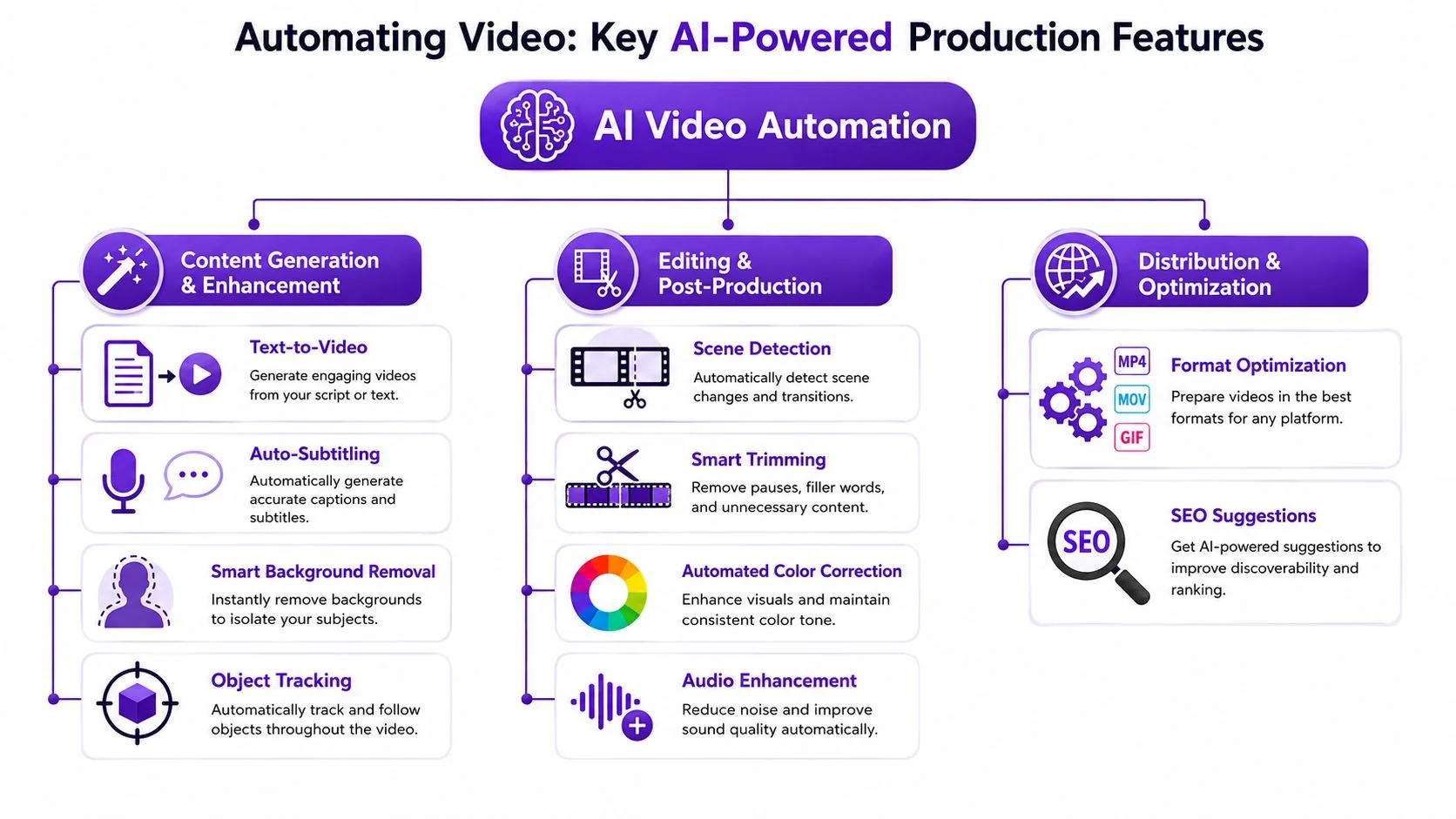
The strongest online editors tend to cluster around a few capabilities that directly affect business workflows: transcript-based editing, pacing cleanup, visual emphasis, and distribution support.
Transcript-first editing
This is one of the clearest dividing lines in the category. Many AI video editors use a transcript-first architecture, which means the system converts speech into timed text and then lets the editor modify the transcript as a proxy for editing the media. Software Reviews’ category analysis of AI video generation and editing describes how this approach supports tasks like automated captions, translation, and text-driven editing.
In practice, that means you can:
- Delete filler words by removing them from the transcript instead of hunting through waveforms
- Reorder sections as text blocks while keeping timing aligned
- Tighten the narration without manually syncing captions after every change
This is a major improvement for tutorials and demos because the spoken script usually drives the structure of the whole video.
Automatic pacing and cleanup
A lot of raw business video is bad for predictable reasons. People pause while thinking. They repeat a sentence. They backtrack after opening the wrong panel. They leave dead air before the next point.
A good system should detect and tighten those moments automatically. Some platforms do this through silence trimming, filler-word cleanup, or pacing controls. Others go further and re-time the video after a script edit so the cut still feels deliberate. Tutorial AI, for example, exposes this idea through AutoRetime, which is useful when the pacing of the finished piece matters more than preserving every second of the original capture.
If your recordings are consistently longer than the final message requires, automation around pacing often matters more than any generative visual effect.
Smart visual emphasis
Tutorials fail when the viewer can’t tell where to look. The best online editors solve that with post-recording enhancements such as cursor tracking, zooms, focus regions, blurs, and background treatments.
These effects are useful when they support comprehension. They are distracting when they fire too often or feel disconnected from the narration. That’s the trade-off. Automation can improve attention guidance, but only if the defaults are restrained.
Voice, translation, and versioning
Many buyers now expect captioning and translation. The more valuable capability is whether the editor can help produce usable variants without forcing a full rebuild. That matters when one tutorial needs to exist in several regions or teams.
If you’re comparing products in this space, a broader overview like Shortimize’s list of top AI video creation tools is useful for understanding how vendors differ in generation, editing, and workflow emphasis.
Browser-based production stacks
Some products now combine generative assembly, browser editing, and export in one place. Adobe, Canva, and Renderforest all point toward that model, where users can upload assets, generate material, assemble scenes, and refine output in-browser. The promise is simple: faster first cuts, less local setup, and fewer handoffs.
The limit is also simple. Automation helps most when your content follows a repeatable format. For one-off, highly stylized storytelling, manual editors still give more control.
Common Use Cases for Business Teams
The value of an AI video editor online becomes obvious when you stop thinking like a creator and start thinking like an operating team. Most companies aren’t trying to make entertainment. They’re trying to answer recurring questions, explain product changes, and train people without rebuilding the workflow every time.
Support and documentation
Support teams often have the clearest use case. A single product issue can require a help-center article, a short screen walkthrough, a version for customer success, and an internal reference for the support queue. Recording once and producing multiple assets from the same source is usually more valuable than adding decorative effects.
Video and documentation begin to merge. Some workflows can turn a screen recording into both a polished walkthrough and a written article, which is much more practical than maintaining those separately. If you’re comparing products focused on that kind of pipeline, this guide to automatic video editing software is a useful starting point.
A common pattern looks like this:
- Knowledge-base updates: Record the fix once, then publish a video plus written steps for the article.
- Support article embeds: Add short UI walkthroughs directly inside help content so the customer can watch instead of reading every instruction.
- Release-change explanations: Reuse the same recording to show what changed and where existing users should click now.
Sales enablement and presales
Sales teams need demos, but not every demo should be live. Reps often need short, polished walkthroughs that explain one feature, one use case, or one objection-handling scenario. The content has to feel credible, which usually means showing the actual product rather than a synthetic presenter.
Microsoft and Bosch are among the organizations named by the publisher in this category, and those examples fit the broader pattern: large teams need ways to keep walkthrough content consistent even when many different people create or share it.
Sales enablement videos work best when they are narrow, reusable, and easy to refresh after a product update.
If your team also manages high-volume campaign content, it can help to study adjacent process design. Mallary.ai’s article on automation workflows for social media AI is useful because it shows how teams think about repeatable production systems, not just one-off content output.
Training, onboarding, and internal SOPs
L&D and operations teams usually care less about visual novelty and more about consistency. An onboarding video should sound clear, move briskly, and stay aligned with the current process. Internal SOP videos have the same requirement. They need to be easy to revise when the workflow changes.
That makes transcript-based editors appealing because the content owner can update the script without performing detailed timeline surgery. The workflow starts to resemble document maintenance, which is a better fit for trainers and technical writers.
Localization and regional publishing
Localization is where many teams hit the next level of complexity. Subtitle translation alone doesn’t solve the operational problem. A localized tutorial often needs the scene timing, voiceover pacing, and caption breaks to fit the target language.
Kaping’s AI video product coverage highlights the importance of operational localization, especially when teams need scenes, captions, and cuts to stay aligned across languages. That matters for onboarding, customer education, and product marketing where brand consistency has to survive adaptation, not just translation.
How to Choose the Right AI Video Editor
The best product in this category isn’t the one with the longest feature list. It’s the one that matches the way your team already works and removes the most friction from that workflow.
That sounds obvious, but buyers still get distracted by feature demos. A prompt-based clip generator can be impressive and still be the wrong choice for a support team that needs real UI walkthroughs. An advanced timeline editor can be powerful and still be the wrong choice for a trainer who just wants to clean up narration and publish updates quickly.
Start with the workflow, not the demo reel
The most useful evaluation question is this: What kind of source material are you producing?
If the answer is real screen recordings with spoken explanation, prioritize transcript editing, pacing cleanup, captions, localization support, and article generation. If the answer is synthetic explainer content, then avatar and scene-generation features matter more.
Users still report friction around the basics. A productivity-focused overview cited in the brief notes that “technical issues” and “learning new software” remain major video-editing pain points, highlighting why workflow fit and reliability matter more than novelty for many buyers. The referenced source is this video editing pain points discussion on YouTube.
AI Video Editor Evaluation Checklist
| Criterion | What to Look For | Why It Matters |
|---|---|---|
| Workflow fit | Support for real screen recordings, demos, tutorials, or avatar-style generation depending on your use case | A mismatch here makes every other feature less useful |
| Editing model | Transcript-first editing or a lighter AI-assisted timeline | Determines whether non-editors can maintain content themselves |
| Output types | Video only, or video plus written documentation and screenshots | Teams often need more than a single export |
| Localization | Translation, multilingual playback, and re-timing support | Important when one tutorial serves multiple regions |
| Brand control | Brand Kits, templates, fonts, intros, and consistent visual defaults | Keeps content usable across teams |
| Collaboration | Shared workspaces, comments, versioning, and guest sharing | Reduces bottlenecks when several stakeholders review content |
| Security | SOC 2, GDPR support, SSO, and SAML for enterprise teams | Often required before rollout across larger organizations |
| Export and publishing | Share links, embeds, LMS or CMS compatibility, and quality options | Publishing friction can cancel out editing gains |
| Learning curve | Clean interface, sensible defaults, and minimal setup | Teams adopt tools they can use without specialist help |
A comparison resource can help frame the broader context. For education and training-heavy workflows, MEDIAL’s video editing app guide is worth reviewing because it looks at tools through an instructional lens rather than a creator-only lens.
What mature teams usually prioritize
In practice, mature buyers tend to prioritize four things over flashy demos:
- Reliability first: The editor has to work consistently across devices and browsers.
- Low-friction updates: Content owners need to revise videos after product changes without starting over.
- Security and admin controls: Enterprise rollout usually depends on SSO, SAML, and compliance readiness.
- Scalable standards: Templates and branding matter once multiple departments publish content.
If you’re surveying the space more broadly, this roundup of AI video creation tools is a practical reference point for comparing categories and use cases.
A Quick Workflow for Creating a Tutorial Video
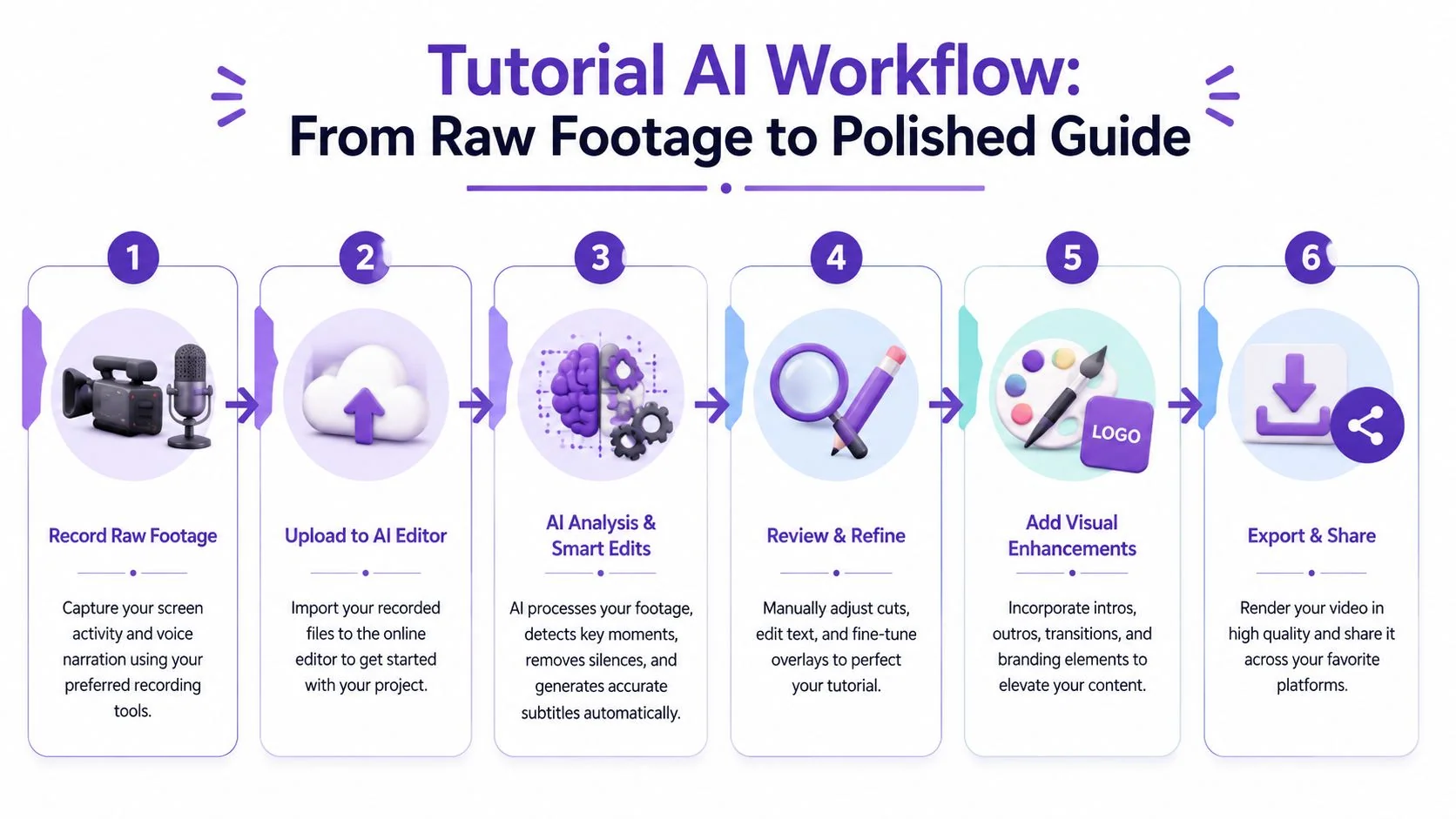
A good workflow should feel closer to editing a document than to building a film project. That’s the standard business teams should expect now.
Step 1 through Step 3
Start with the raw capture. Record the screen and explain the task in a natural way. Don’t worry too much about small mistakes during capture. The better modern workflows assume the first pass will be imperfect.
Then upload the file or record directly in the browser. The system transcribes the narration, identifies the spoken structure, and creates a draft edit. That’s where transcript-first workflows immediately feel different from desktop editing.
A script-oriented workflow becomes easier to understand when you see it in action:
Step 4 through Step 6
Once the transcript appears, tighten the message by rewriting the parts you wouldn’t keep. Remove filler, collapse repeated explanations, and fix awkward phrasing directly in text. In stronger systems, those edits update timing, captions, and narration alignment automatically.
After that, apply the visual polish. This usually includes smart cuts, zooms, cursor emphasis, background treatments, and simple brand controls. The right level of polish is the one that makes the tutorial easier to follow, not the one that adds the most motion.
A practical sequence often looks like this:
- Capture the task clearly: Show the practical workflow and narrate the intent behind each action.
- Edit the transcript, not the timeline: Rewrite for clarity and brevity.
- Let the system tighten pacing: Remove silence and awkward pauses.
- Add visual guidance: Use highlights and zooms only where attention needs direction.
- Apply brand standards: Keep fonts, colors, and framing consistent across outputs.
- Publish more than one asset: Export the video and generate companion documentation from the same source.
Good tutorial production starts before export. If the spoken explanation is clear, the automation has something solid to shape.
For teams working from a prepared outline, an AI video script generator can also help structure the narration before recording, which reduces cleanup later.
Frequently Asked Questions
Is an online AI video editor only useful for marketers
No. Some of the strongest use cases are in support, onboarding, internal training, implementation, and presales. Any team that repeatedly explains a product or process can benefit if the tool reduces editing overhead and keeps output consistent.
Can these tools replace Adobe Premiere Pro or Camtasia
Sometimes, but not in every scenario. If your team produces recurring tutorials, demos, and documentation videos, an AI-first online workflow may be the better fit because it removes a lot of manual cleanup. If you need deep timeline control, complex motion graphics, or intricate audio work, desktop editors still have an important role.
Do online AI video editors work for real product walkthroughs
Yes, and that’s one of the most practical use cases. This matters when the viewer needs to see the actual interface, real navigation, and real voice guidance instead of an avatar or synthetic scene.
What should I look for in pricing
Most vendors offer a spread from free or entry-level plans to business and enterprise options. The right pricing model depends on how often your team publishes, how many people need access, and whether you need advanced voices, branding controls, collaboration features, or enterprise administration. It’s better to evaluate pricing against workflow volume and review needs than against a feature checklist alone.
How important are branding and customization
Very important once more than one team uses the tool. Brand Kits, templates, reusable layouts, and voice controls help content stay consistent across support, sales, and training. Without those controls, every video tends to look slightly different.
What about security and enterprise rollout
Security usually becomes decisive before broad adoption. If your company handles customer training, internal process documentation, or regulated workflows, check for SOC 2 readiness, GDPR support, SSO, and SAML. Those capabilities often matter more to rollout success than a long list of editing effects.
If your team needs to turn raw screen recordings into polished tutorials, demos, and help articles without relying on expert editors, Tutorial AI is built for that workflow. It helps teams record once, clean up the script, auto-tighten pacing, localize across languages, and publish both video and documentation from the same source.