You’ve already done the hard part. You recorded a useful product demo, a support walkthrough, or an internal training video with real substance. The problem starts when someone says, “Can we turn this into a TikTok?”
For most B2B teams, that request creates a backlog instantly. A fifteen-minute screen recording becomes a manual editing project. Someone has to trim dead air, rewrite the opening, crop the interface into a vertical frame, add captions, clean up branding, and then figure out whether the final clip still feels native enough for TikTok to earn attention.
That’s where an AI video editor for TikTok becomes practical. Not because it replaces thinking, and not because every demo should become short-form content, but because it handles the repetitive conversion work between “useful raw material” and “publishable vertical video.” When the source is a real screen recording with real narration, you also keep the one thing B2B tutorial content usually needs most: proof. The viewer can see the product.
Why Turn Your Demos into TikToks
A product manager records a feature walkthrough for a release note. A customer education lead records a help-center tutorial. A sales engineer captures a short competitive explanation for enablement. In each case, the recording is valuable, but it isn’t packaged for distribution.
TikTok is where that gap becomes obvious. The platform doesn’t reward “we uploaded the webinar clip” thinking. TikTok’s own data says 71% of users notice ads as “part of a trend,” and 58% feel brands on TikTok are creating content that is different from other platforms in TikTok Creative Studio. That matters even for B2B teams because the editing style has to feel native to the feed, even when the content is a product demo or training moment.
Where B2B teams get stuck
Most experts don’t need help with knowledge. They need help with packaging.
A strong raw recording usually contains all the right ingredients:
- Real product context instead of scripted marketing copy
- Useful UI detail that answers an actual buyer or user question
- Natural narration that sounds credible because the speaker knows the workflow
- Reusable moments hidden inside a longer recording
What it usually doesn’t contain is pace. Raw screen recordings run long, include hesitations, and assume the viewer will stay patient while the speaker gets to the point.
A good TikTok tutorial often isn’t new content. It’s a tighter version of content you already recorded.
That’s why short-form distribution is useful beyond top-of-funnel marketing. Teams can turn demos into:
- Feature teasers for product marketing
- Quick onboarding clips for customer success
- Support explainers for recurring tickets
- Internal SOP refreshers for operations and training
For teams building a repeatable workflow, this is also where marketing video production habits start to matter. The best source material is usually one clear recording with one clear objective, not a stitched-together pile of half-finished clips.
Why real screen and real voice still matter
AI avatar tools can generate polished presenter-style videos, but they’re a poor fit when the viewer needs to verify how a real interface behaves. If you’re showing a dashboard, a setup flow, a support fix, or a release walkthrough, synthetic talking heads don’t solve the main problem. The audience wants to see the product.
An AI video editor for TikTok works better in this context when it shortens and reshapes authentic recordings instead of replacing them. The job is to preserve the signal, then remove the drag.
From Raw Recording to Polished Script
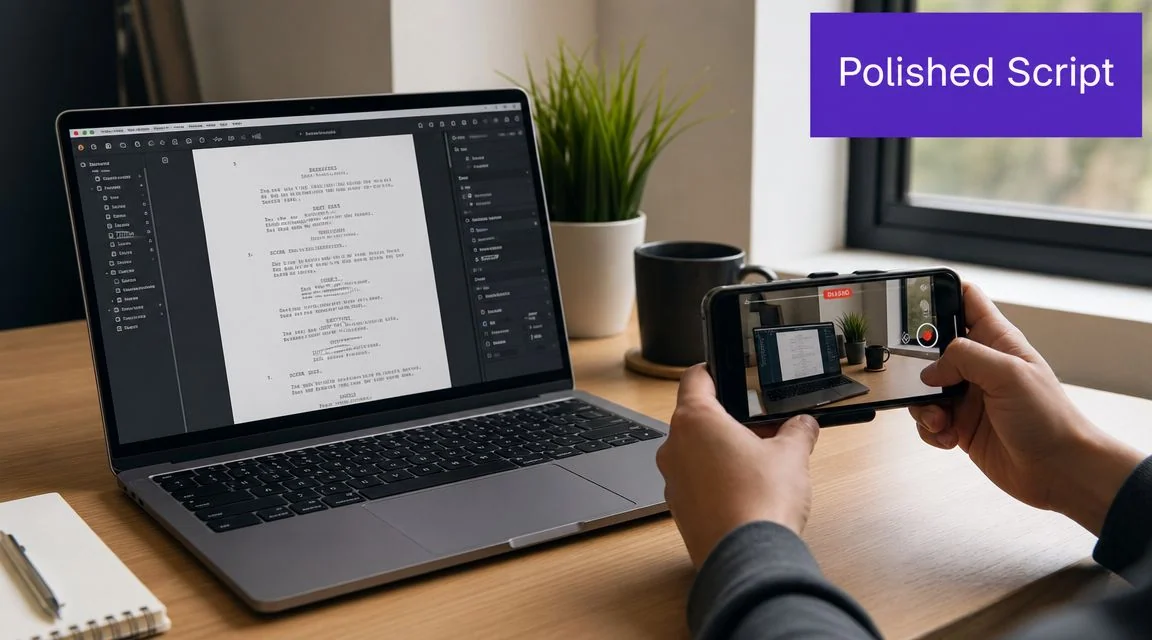
The fastest way to improve a screen-recorded TikTok isn’t visual. It’s textual. If the narration rambles, the final video will feel slow no matter how many cuts, zooms, or captions you add later.
By 2025, major AI video tools had moved beyond basic trimming and were automating much more of the short-form pipeline, with tools like InVideo AI and TikTok’s Symphony studio generating scripts, voiceovers, and subtitles from prompts or raw footage in minutes, as described on InVideo’s TikTok video editor page. That shift matters because the transcript is now the practical control layer for editing, not just a byproduct.
Start with the spoken track
Import the raw screen recording first. Don’t start by dragging clips around a timeline.
Once the narration is transcribed, you can treat that transcript as the source of truth. This is the key mindset change. Instead of trimming around waveforms and guessing where the cleanest cut should land, you edit the spoken story itself.
For a demo-based TikTok, I’d usually tighten the script in this order:
- Delete the warm-up
Cut the “Hey everyone, today I wanted to quickly show…” opening. TikTok needs the useful moment earlier. - Remove duplicate explanations
Product experts often explain the same feature twice, once cautiously and once clearly. Keep the clearer version. - Collapse setup steps
If the setup isn’t the point of the clip, summarize it in one line and move on. - Keep one idea per clip
A strong TikTok tutorial usually answers one question. If the recording covers five, split it into five assets.
Why script-first editing beats timeline-first editing
Traditional editors like Adobe Premiere Pro and Camtasia give you deep control, but they expect editing skill and time. For subject-matter experts, the bottleneck usually isn’t access to features. It’s the overhead of using them well.
A transcript-based workflow is more forgiving. When you delete a sentence from the script, the corresponding video and audio disappear with it. That means fewer re-records for small mistakes and less timeline cleanup after every pause or retake.
One practical example: a support lead records a seven-minute troubleshooting walkthrough. The useful TikTok version may only need the opening problem statement, the one setting the user missed, and the final confirmation screen. Script editing makes that obvious much earlier than visual editing does.
Practical rule: If a sentence doesn’t change what the viewer does next, cut it.
This is also where an AI video script generator workflow becomes useful. Even when the source starts as a rough recording, the cleaned script gives your team something reusable for captions, voiceover, docs, and approvals.
When to generate from text and when not to
There’s a separate class of tools built around prompt-to-video creation. Those can help for concepting, intros, or lightweight promotional content. If you want a broader look at that category, this overview of AI video generator text to video is useful context.
For product demos and help content, though, text-to-video has limits. It can generate visual polish, but it can’t substitute for showing the actual interface when the viewer needs instructional confidence. For B2B TikToks, I’d use generated elements as support material, not as the core proof.
Mastering the Vertical Canvas and Pacing
Most repurposed demo videos fail before the first cut. They fail at the frame.
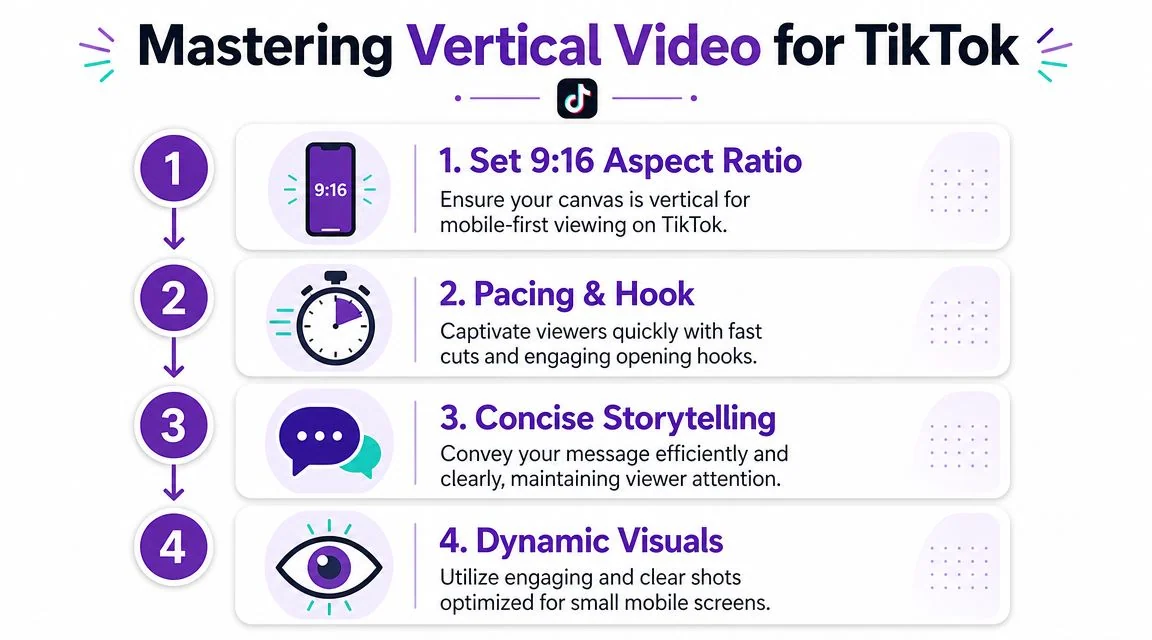
A standard AI editing workflow for TikTok-ready repurposing includes uploading the source, running clip detection, forcing the output into 9:16, and adding subtitles. Vizard’s workflow notes that skipping the aspect-ratio step is a common mistake because the result looks less native in-feed on its TikTok video editor page.
Why 9 by 16 changes the edit itself
A horizontal screen recording can contain too much information. Menus, sidebars, status indicators, and dense interface detail all compete inside a much narrower mobile frame. Converting to vertical isn’t just a crop. It’s a prioritization step.
For software tutorials, that usually means deciding what deserves center placement:
- The active panel the user needs to click
- The cursor path that guides the action
- The result state that proves the step worked
- The text cue that helps viewers follow without sound
If you shrink the full desktop view into a vertical canvas, the interface becomes unreadable. The viewer sees “a screen recording” but not the lesson.
A good vertical edit isolates the decision point. If the user only needs to see one modal and one confirmation state, frame for those and let everything else drop away.
Pacing is a retention tool, not decoration
Once the frame is right, pacing becomes the next bottleneck. Raw demos include waiting. Waiting for pages to load, for speakers to think, for the cursor to find the right place, for the explanation to circle back.
That dead space is manageable in a help-center video. It’s expensive on TikTok.
Auto-retiming, silence removal, and script-led cuts matter. A tool that tightens pauses between spoken lines can make a clip feel intentional without making the speaker sound robotic. Fast pacing works when every cut helps the viewer stay oriented.
A useful benchmark is simple: every few seconds, the viewer should either hear a new point, see a meaningful UI change, or get a text cue that reframes the action.
For teams refining distribution strategy, this article on TikTok strategy for social media managers is a useful companion because it pushes the conversation beyond “make it shorter” and into “make it more watchable.”
Here’s a quick visual example of vertical-first thinking in practice:
What to do with busy interfaces
Some interfaces resist vertical editing because they’re wide by nature. Dashboards, analytics tools, admin consoles, and enterprise settings pages often spread critical information across the screen.
In those cases, don’t try to show everything at once. Use a sequence like this:
- Open on the outcome so the viewer knows what they’re learning
- Zoom into the exact control that creates that outcome
- Use cursor emphasis to remove search effort
- Cut back to the result immediately after the action
If your team needs a technical primer on sizing and layout choices, this guide to video aspect ratio decisions is worth keeping in the workflow.
Adding Engagement Layers Like Captions and Branding
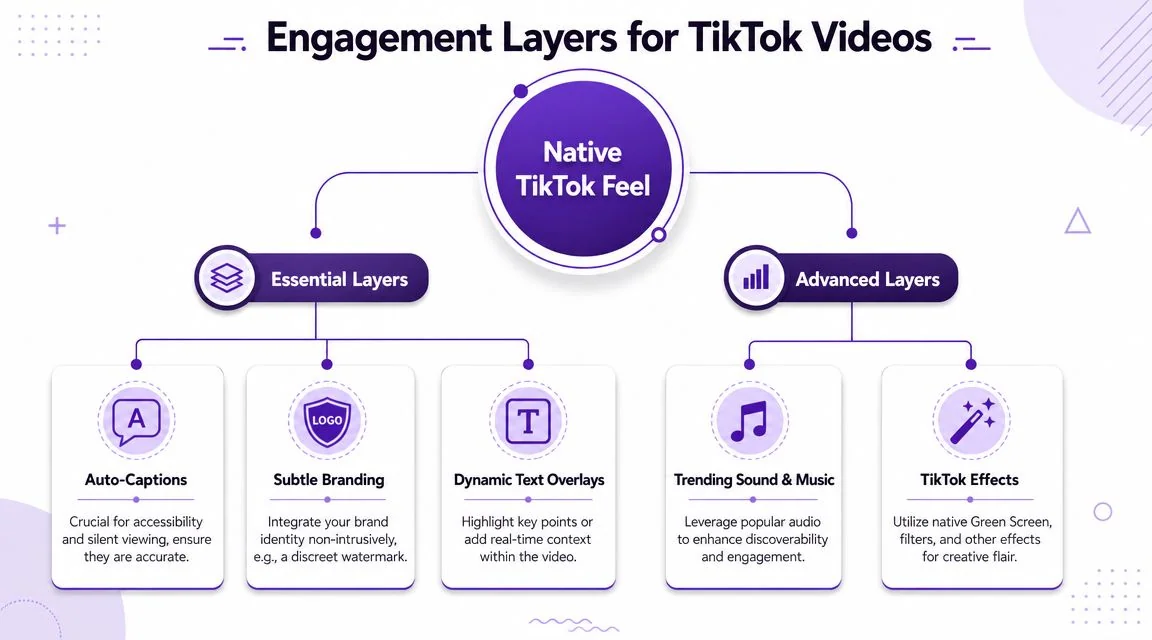
A clean cut still won’t feel complete on TikTok if it lands as a bare screen recording. Captions, text overlays, music, and branding aren’t garnish. They’re part of how the viewer parses the clip.
TikTok’s own advertising editor uses generative AI trained on top-performing ads and includes digital avatars, narration with auto-captions, one-click translation, and AI-generated soundtracks, according to TikTok’s announcement about its in-browser video editor. The useful takeaway isn’t “copy ads.” It’s that these layers matter enough for TikTok to build them directly into creative workflows.
Captions do more than improve accessibility
A lot of teams still treat captions like a compliance checkbox. On TikTok, they also carry pacing, emphasis, and structure.
For B2B demos, captions help in three ways:
- They anchor terminology when product names or settings are unfamiliar
- They preserve meaning when the speaker moves quickly through a process
- They support silent viewing in work environments where sound isn’t practical
The biggest mistake is generating captions and never reviewing them. Product names, acronyms, and interface labels often need correction. One wrong caption on a feature name can make a polished video feel sloppy.
Captions should match the viewer’s reading speed, not just the speaker’s transcript.
That means breaking long spoken lines into readable chunks. If a sentence is technically accurate but too dense on screen, rewrite it. The edit should serve comprehension first.
Branding should be present, not loud
For software clips, aggressive branding often hurts more than it helps. A giant logo, heavy intro, or corporate title card can make a useful tutorial feel like an ad before the viewer has received value.
A lighter approach works better:
- Use brand colors in caption styling
- Apply a subtle watermark or logo
- Keep typography consistent across clips
- Standardize background treatment and overlays
Template-based workflows help teams scale. Tutorial AI, for example, can apply Brand Kits, transcript-based caption updates, and screen-focused polish from the same recording workflow, which is useful when one team needs to turn demos, support videos, and help articles into consistent assets without timeline-heavy editing.
Named organizations like Bosch, Deutsche Bahn, Intesa Sanpaolo, Microsoft, and UNICEF show the kind of teams that need this consistency across markets and departments. The operational need is familiar: the content has to look like it came from the same company, even when different experts recorded it.
Use music carefully in B2B clips
Music can help a TikTok feel more native, but it shouldn’t overpower instructional content. In demos, the voice and interface action still carry the message.
If your team is testing background audio options, this guide to explore AI music generation for TikTok is useful for understanding where generated soundtracks fit and where they may need review. The practical rule is simple. If the music competes with the explanation, lower it or remove it.
Exporting and Repurposing for Global Reach
A polished TikTok edit isn’t the finish line. For most B2B teams, it’s the master asset from which several other assets should follow.
That’s why export choices matter. If the first export is compressed poorly, framed loosely, or saved in the wrong format, every downstream use gets weaker. It also becomes harder to localize, remix, or publish the same source video across TikTok, Reels, Shorts, internal LMS portals, and help centers.
Recommended TikTok export settings
Below is a practical baseline for teams exporting tutorial-style short-form clips.
| Setting | Recommendation |
|---|---|
| Format | MP4 |
| Aspect ratio | 9:16 vertical |
| Resolution | 1080 x 1920 |
| Frame composition | Keep the active UI element centered and readable |
| Captions | Burn in if platform consistency matters, or keep editable when your workflow supports revisions |
| Audio mix | Prioritize narration clarity over music |
| File review | Watch once on a phone before publishing |
| Thumbnail frame | Choose a screen state that clearly shows the task or result |
These aren’t magic settings. They’re the stable defaults that prevent preventable quality loss.
Localization is where many workflows break
Multilingual TikTok production sounds easy on product pages. In practice, timing is the primary challenge.
The hard question isn’t whether a tool can translate text. It’s whether the translated version still fits TikTok’s pace and layout without forcing a manual re-edit for every market. That gap is exactly what many teams run into, and it’s why localization quality depends on timing as much as language, as discussed in this video about multilingual AI editing challenges.
Here’s what usually goes wrong:
- Translated captions overflow the available screen space
- Voiceover timing drifts beyond the original visual sequence
- On-screen labels and overlays collide with the new language length
- Scene changes happen too early or too late for the localized narration
For global organizations, that’s the difference between “we can translate this” and “we can ship this at scale.”
Think in master assets, not one-off edits
The strongest workflow is to produce one clean master from the original screen recording, then localize from that source instead of rebuilding each market version manually.
That’s especially effective for:
- Customer onboarding clips
- Support explainers
- Internal training modules
- Sales enablement walkthroughs
- Knowledge-base videos with matching written docs
This is also where tools with multilingual narration and automatic retiming become more useful than generic subtitle translation. If the voice track changes length, the cut often has to change with it. Otherwise, the result feels rushed in one language and sluggish in another.
For teams operating across regions, the broader point is simple. A TikTok tutorial can also be a reusable documentation asset if you plan the workflow around reuse from the start.
Best Practices and Avoiding Common Pitfalls
The common assumption is that once you’ve found an AI video editor for TikTok, the main challenge is editing faster. For B2B teams, that’s only half the problem.
The bigger challenge is building a short-form workflow that stays useful, compliant, and repeatable. Most tutorials emphasize clipping and captions. They spend less time on repurposing risk, ownership, and governance. That’s a meaningful gap for teams working with product demos, webinars, and support recordings, as noted in this discussion of legal and operational risk in TikTok editing workflows.
What works for B2B TikToks
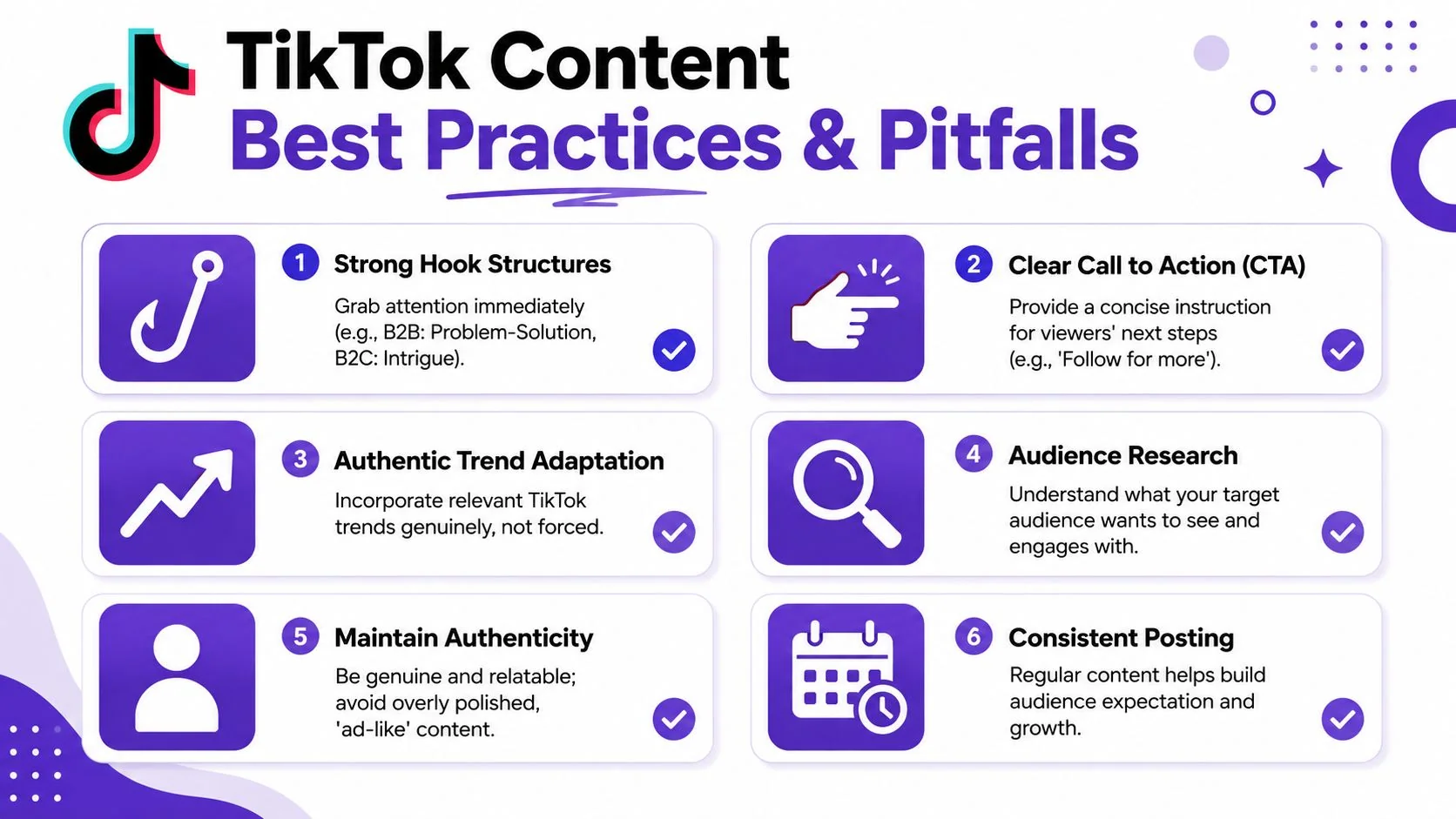
A useful B2B TikTok usually opens with a problem, not an introduction. The viewer needs to know quickly why the clip matters.
Three hook structures work especially well for product and training content:
- Problem to solve
“Users keep missing this setting. Here’s where it is.” - Outcome first
“This is how to generate the report in fewer steps.” - Mistake correction
“If your onboarding flow stalls here, this is usually why.”
These openings work because they respect intent. The viewer didn’t come for brand theater. They came for a shortcut, a fix, or clarity.
Field note: The most effective short tutorial clips usually answer one narrow question completely instead of summarizing an entire feature area.
That also means your CTA should stay narrow. Ask for the next relevant action. Follow for more setup tips. Read the full guide. Watch the longer walkthrough. Share with your admin team. Generic “learn more” language is weaker because it doesn’t match the job the clip just performed.
What often fails
Some mistakes are editorial. Others are operational.
Here are the failure patterns I see most often:
- Forced trend-chasing
If a support clip borrows a trend format that fights the substance, it feels synthetic. Native doesn’t mean unserious. - UI overload
Trying to show an entire platform inside one short clip usually creates confusion, not authority. - Unreviewed AI output
Captions, translated voiceover, and auto-cut suggestions still need a human pass. Product names and workflow details can’t be left to chance. - Third-party content reuse
Repurposing someone else’s webinar excerpt, customer clip, or licensed audio without clear rights can create avoidable risk.
The safest scalable workflow
For professional teams, the safest approach is to create from owned recordings. Record your own demos, your own training walkthroughs, your own support explanations, and your own narrated SOPs. That gives your team a brand-safe asset library from the start.
A simple governance checklist helps:
- Confirm the recording is owned by your team
- Check that no sensitive data appears on screen
- Review music and audio rights before publishing
- Approve product terminology and captions
- Store the master source for future localization and article reuse
That final point matters more than many realize. The short TikTok is rarely the only output. The same source can support a help article, a release note visual, a support macro, or an internal training asset if your workflow preserves structure.
When the process is built well, short-form stops being a side project and becomes a distribution format for knowledge your team already has.
If your team is turning screen recordings into TikToks, help-center clips, and written documentation, Tutorial AI is one option built for that workflow. It records real screen and voice, lets teams edit through the transcript, generates a matching article from the same recording, and supports multilingual narration and retimed versions for broader distribution.