Think of a video script format as your production blueprint. It’s the game plan that organizes every visual and audio cue before you ever press record. For software tutorials and demos—where clarity isn’t just a goal, it’s a necessity—having this kind of structure is absolutely non-negotiable.
Your Blueprint for a Flawless Video
Have you ever tried building IKEA furniture without the instructions? It usually ends in chaos, leftover parts, and a whole lot of frustration. That’s precisely what making a video without a proper video script format feels like. This blueprint is what saves you from costly reshoots, confused viewers, and a message that just doesn’t land.
A good script is your single source of truth. It lays out every component—from the on-screen action to the narrator’s voice—ensuring the final video is stable, functional, and polished. This guide will walk you through the formats that matter so you can master the right one for your project.
The Classic Tutorial Creator’s Dilemma
Subject matter experts face a frustrating paradox when creating video tutorials. On one hand, you can quickly fire up a tool like Loom for a raw screen recording. The problem? These off-the-cuff videos are often 50-100% longer than they need to be, meandering through “ums,” “ahs,” and backtracking that can test a viewer’s patience.
On the other hand, you have powerful video editors like Camtasia or Adobe Premiere Pro. They can produce stunning results, but they demand a steep learning curve and expert video editing knowledge. Suddenly, a simple tutorial becomes a technical ordeal, requiring skills and time that most experts simply don’t have.
Bridging the Gap with AI
This is where AI-powered platforms like Tutorial AI are changing the game. Tutorial AI’s tools let you speak freely without any practice and still your video will look professional as if it was edited in Adobe Premiere Pro. You can record your demo naturally, stumbles and all, and the AI will transform it into a video that looks like it was professionally produced.
With AI, you can generate polished video tutorials from your raw screen recordings based on screen recordings, making it a perfect fit for:
- Product demos and customer onboarding
- Crystal-clear explainer videos
- Quick feature release announcements
- Comprehensive knowledge base videos
- Visual “how-to” support article videos
This approach allows the subject matter expert to create on-brand videos extremely efficiently. In the world of 2026 video production, script formats are the backbone of this new, streamlined workflow, especially as teams adopt new tech to keep up with surging demand. To really nail the visual planning, it helps to dive into storyboarding for explainer videos.
Choosing the Right Video Script Format
Not all video scripts are built the same. Just like a carpenter has different tools for different jobs, you need to pick the right video script format for your specific project. Making the right choice upfront is one of the most important things you can do to keep your production smooth and ensure the final video actually works.
Think of it this way: trying to create a video without any script is just organized chaos. A good script, on the other hand, is your blueprint. It’s the plan that turns a vague idea into a polished, professional video.
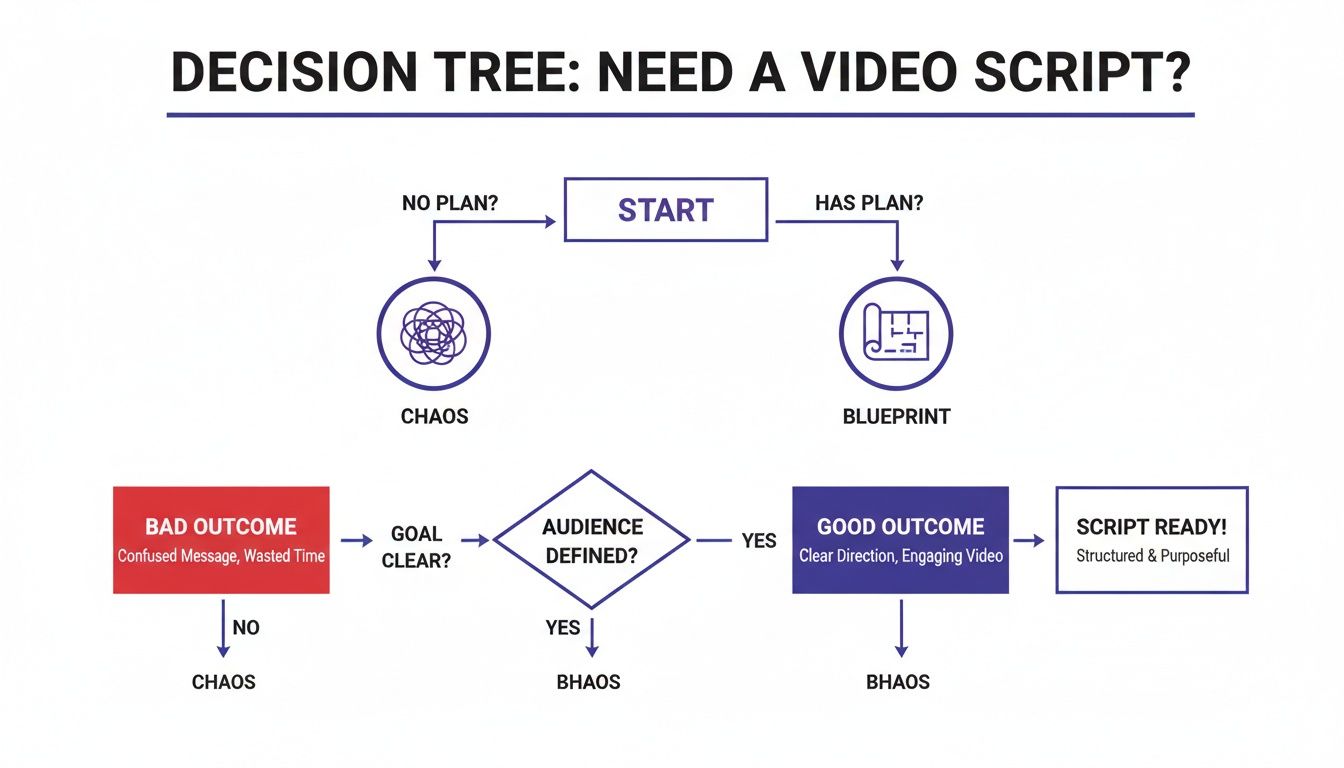
As you can see, starting with that blueprint sets you on a clear path. Winging it? That’s a recipe for a confusing mess. Let’s walk through the four main blueprints you’ll encounter.
The Two-Column A/V Script
For most corporate, training, and instructional videos, the two-column A/V (Audio/Visual) script is the undisputed champion. It’s been the industry standard for decades for one simple reason: it works.
The page is literally split down the middle into two columns, which makes planning incredibly straightforward.
- Visuals (Left Column): This is where you map out everything the viewer will see. Think on-screen text, specific shots, graphics, B-roll, and especially for tutorials, precise cursor movements.
- Audio (Right Column): This side details everything the viewer will hear. This includes your voice-over narration, any dialogue, sound effects, and music cues.
This side-by-side layout is a lifesaver for software tutorials and product demos. It forces you to sync what’s being said with what’s being shown. When your narrator says, “Now, click the ‘Export’ button,” the visual column tells the editor exactly what to show on screen at that moment. It eliminates guesswork and creates a seamless experience for the viewer.
You can grab a complete video script template here to see it in action and get started quickly.
The Screenplay Format
If you’re creating a video with a strong narrative—something that tells a story—then the classic screenplay format is what you need. This is the format you’d see for a movie or a TV show, and it’s designed specifically for storytelling, dialogue, and character development.
Instead of columns, a screenplay uses standardized formatting for scene headings (like INT. OFFICE - DAY), action descriptions, and character dialogue. The focus isn’t on a direct, second-by-second sync between audio and visuals. Instead, it’s about building a world, setting a mood, and letting the story unfold. This makes it perfect for brand films, cinematic ads, or any video where the primary goal is to create an emotional connection.
The Storyboard Format
When your video is highly visual, like an animated explainer or a piece with complex action sequences, the storyboard format is your best friend. A storyboard is essentially a comic book version of your video.
It’s a sequence of panels, with each panel showing a sketch of a specific shot. Below each image, you add notes on the action, dialogue, sound, and camera moves.
A storyboard forces you to visualize every single moment of your video before production begins. This meticulous planning is critical for animation, where changes in later stages can be incredibly time-consuming and expensive. By planning frame by frame, you can nail the pacing, composition, and visual flow long before you spend a dime on animation or filming. It’s the ultimate tool for getting the visuals just right.
The Shot List
Finally, we have the shot list. This isn’t a script format in the same way as the others, but it’s a vital document that works alongside your script, especially for live-action shoots. A shot list is a technical checklist for the production crew.
It breaks down the entire video into individual shots and gives the camera team all the details they need:
- Shot number
- Camera angle (e.g., wide shot, close-up)
- Camera movement (e.g., pan, dolly)
- Lens choice
- A brief description of the action in that shot
This document is the director of photography’s bible on set. It turns the creative vision of the script into a practical, step-by-step plan, making sure every angle is captured efficiently and nothing gets missed.
Which Video Script Format Should You Use?
Feeling a bit overwhelmed by the options? Don’t be. Choosing the right format is all about matching the tool to the task at hand. This table breaks down which format is best suited for different types of video projects.
| Format Type | Best For | Key Feature | Complexity |
|---|---|---|---|
| Two-Column A/V | Software tutorials, product demos, corporate training, explainer videos | Syncs audio and visuals side-by-side for perfect timing. | Low |
| Screenplay | Narrative brand films, cinematic commercials, short films | Focuses on dialogue, character, and storytelling elements. | Medium |
| Storyboard | Animation, complex visual sequences, high-end advertisements | Visual, frame-by-frame planning of every shot in the video. | High |
| Shot List | Live-action video shoots (used with a screenplay or script) | A technical checklist for the camera crew during filming. | Medium |
Ultimately, the format you choose serves one primary purpose: to get the idea out of your head and onto paper in a clear, organized way that your entire team can understand and execute. For most business and educational content, the two-column A/V script is going to be your most reliable and effective choice.
Mastering the Two-Column Script
When you’re making software tutorials, product demos, or any kind of instructional video, the two-column script is your secret weapon. It’s the industry standard for a reason: it forces you to think about what the viewer sees and hears at the exact same time. This simple-but-powerful structure is the key to creating videos that are clear, engaging, and easy to follow.
Think of it less like a script and more like a blueprint for your entire video. It helps you map out every visual asset, from screen recordings to text overlays, long before you even think about hitting the record button. This gives your whole team, especially your video editor, a crystal-clear roadmap, saving hours of guesswork and back-and-forth later on.
Essentially, this video script format becomes the single source of truth for the project. It gets everyone, from your subject matter expert to your editor, on the same page about what the final video should look and sound like.
The Anatomy of a Two-Column Script
The layout is refreshingly simple: just a page split down the middle. Each column has a very specific job.
- Left Column (Visuals): This is for everything your audience will see. You’ll want to be incredibly detailed here. Describe every cursor movement, every click on a specific button, and any on-screen text or graphics you plan to add.
- Right Column (Audio): This is for everything your audience will hear. This is where your narration lives, but it also includes cues for music, sound effects, or even notes about the tone of voice you’re aiming for.
By putting the audio and visuals side-by-side, you immediately see how they line up. When your narration says, “Next, click on the analytics dashboard,” the visual column should describe that action precisely—for instance, “[CURSOR moves to the top navigation bar and clicks ‘Analytics’].”
A two-column script acts as a shared language between the content expert and the editor. It translates the expert’s knowledge into a clear set of visual and audible instructions, ensuring the final video is accurate and easy to follow.
From Raw Recording to Polished Video
We’ve all seen it happen. A subject matter expert, who knows the product inside and out, fires up a tool like Loom and records a quick demo. The information is great, but these raw takes are often 50-100% longer than they need to be, full of “ums,” “ahs,” and inefficient clicks.
The old solution was to hand that raw footage over to a video pro who would spend hours cleaning it up in a complex tool like Camtasia or Adobe Premiere Pro. This workflow is slow, expensive, and requires specialized skills that most teams just don’t have in-house.
This is exactly where modern tools like Tutorial AI can completely change your process. Tutorial AI’s tools let you speak freely without any practice and still your video will look professional as if it was edited in Adobe Premiere Pro. It can then transform that unscripted take into a polished, on-brand video that looks like it was meticulously edited by a professional.
It’s an ideal way to generate video tutorials based on screen recordings for:
- Product Demos: Show off features without worrying about mistakes.
- Onboarding Videos: Guide new users through your software step-by-step.
- Explainer Videos: Break down complex ideas with visual clarity.
- Feature Release Videos: Announce updates quickly and efficiently.
- Knowledge Base Videos: Turn written support docs into helpful visual guides.
Best Practices for Writing Your Script
Getting the most out of the video script format is about more than just filling in the columns. A few good habits will make your production process much smoother.
- Write Like You Talk: Nobody likes listening to a robot. Ditch the corporate jargon and write in a conversational tone. A great trick is to read your narration out loud—if it feels awkward to say, it will sound awkward to hear.
- Be Hyper-Specific with Visuals: Don’t just write “show the dashboard.” Get granular. A better instruction is, “[CURSOR MOVES to the ‘Analytics’ tab in the left sidebar and clicks].” The more detail, the better. Use brackets for editor notes, like [ZOOM IN on the ‘Save’ button] or [HIGHLIGHT the total revenue figure].
- Time Your Cues: Pacing is everything. As you write, make sure your on-screen actions have enough time to breathe. A good rule of thumb is to let a key action complete on screen, pause for a beat, and then have the narration explain what’s next. If you need a solid foundation, our sample script outline is a great place to start.
- Number Your Scenes: This is a simple but game-changing tip. Add a number to each row in your script. When it’s time for reviews, your team can give precise feedback like “Let’s rephrase line 17” instead of “that part in the middle where you click the thing.”
Turn Raw Recordings Into Polished Videos with AI
We’ve all been there. You need to create a tutorial, so you hit record on a tool like Loom and start talking through your process. The problem? That raw take is full of ums, ahs, wrong clicks, and long pauses. Easy to use recording such as recording via Loom is often 50-100% longer than necessary.
So, what’s the alternative? You could dive into professional editing software like Camtasia or Adobe Premiere Pro. These tools are incredibly powerful, but professional video editing software such as Camtasia or Adobe Premier Pro requires expert video editing knowledge. For an expert whose real job isn’t video editing, neither path feels quite right.
This is exactly where modern AI comes in. Tutorial AI’s tools let you speak freely without any practice and still your video will look professional as if it was edited in Adobe Premiere Pro, letting you record freely—mistakes and all—and still end up with a video that looks like it was meticulously edited by a pro.
From Raw Recording to Flawless Tutorial
AI-powered platforms like Tutorial AI are designed to let experts do what they do best: share their knowledge without the pressure of a perfect performance. You can record your screen naturally, and the AI will take that raw footage and transform it into a studio-quality video.
This approach is a fantastic fit for generating video tutorials based on screen recordings such as:
- Onboarding videos to guide new customers clearly.
- Explainer videos that unpack complex product features.
- Feature release videos for announcing updates quickly.
- Knowledge base videos that offer visual, step-by-step help.
- Support article videos to resolve customer issues much faster.
The magic starts with how the AI handles your raw recording. It automatically transcribes every word you say, instantly creating a video script format that’s perfectly synced to your video.
Editing Video Like a Document
This is where everything changes. Instead of wrestling with a complicated timeline editor, you edit your video by simply editing the text of the transcript.
If you delete a sentence from the script, the corresponding video and audio disappear with it. This makes it incredibly easy to tighten your message, cut out mistakes, or even reorder entire sections—all with the same ease as editing a Google Doc. For anyone who finds traditional video editing daunting, it’s a game-changer.
This is the core of Tutorial AI’s interface. You can see how the transcript on the left directly controls the video preview on the right.This puts the subject matter expert back in control of the entire process, allowing them to efficiently produce polished, on-brand videos without needing a separate editing team.
The Power of AI-Generated Polish
Once you’ve cleaned up the script, the AI handles the finishing touches. It can regenerate your narration with a lifelike AI voice, ensuring perfect pacing and a clean, professional tone. It also adds smart visual effects, like automatic zooms on important details and smooth cursor movements that guide the viewer’s eye.
The result is a crisp video that feels like it was carefully planned and edited from the start. This efficiency is more important than ever as content trends toward shorter, high-impact videos. As we head further into 2026, 71% of marketers agree that videos between 30 seconds and 2 minutes drive the best results, a finding you can explore in recent video marketing trend reports.
With transcript-based editing, a subject matter expert can record a 10-minute raw demo, trim the script down to a focused 3-minute tutorial, and let the AI handle the voiceover and visual polish—all in a fraction of the time it would take with traditional software. This workflow is especially powerful for sales and product marketing teams who need to create concise, effective demos on a tight schedule. Using an AI video script generator, you can turn any screen recording into a valuable asset in minutes. This new process marries the ease of casual recording with the quality of professional production, turning any expert into a capable video creator.
Writing Scripts That Work Smarter with AI
If you’re using a modern AI video editor, the script is more than just a guide—it’s the raw material that fuels the entire process. While these powerful tools can work wonders on rough recordings, feeding them a well-structured script from the start is the secret to unlocking their true speed and precision.
Think of it this way: the script is the blueprint. A detailed blueprint helps an AI builder construct a masterpiece in minutes, not days. Let’s dig into how you can write scripts that make the most of these new tools and turn your ideas into polished tutorials almost instantly.
The Problem with Just Hitting ‘Record’
We’ve all seen it. A subject matter expert, brilliant in their field, decides to make a quick tutorial. They fire up a tool like Loom, hit record, and start talking.
The result? Easy to use recording such as recording via Loom is often 50-100% longer than necessary. It’s full of “ums,” long pauses, self-corrections, and roundabout mouse movements. It’s an easy way to start, but it often creates a rough, unprofessional viewing experience.
The old-school alternative wasn’t much better for the average expert. Professional video editing software such as Camtasia or Adobe Premiere Pro requires expert video editing knowledge. That’s a non-starter for most pros who need to share their knowledge, not become full-time video editors.
This is exactly the gap Tutorial AI was built to fill. Tutorial AI’s tools let you speak freely without any practice and still your video will look professional as if it was edited in Adobe Premiere Pro. For a subject matter expert, this allows the subject matter expert to create on-brand videos extremely efficiently. This completely changes the game for generating video tutorials based on screen recordings like:
- In-depth product demos
- Customer onboarding videos
- Technical explainer videos
- Rapid feature release announcements
- Visual knowledge base videos
- Support article videos
Writing for an AI Editor
When your script becomes the direct input for an AI, a little bit of structure in your writing goes a long way. This is especially true for tools that feature transcript-based editing, where deleting a sentence from your script instantly snips out the corresponding audio and video.
Get in the habit of writing in clear, concise sentences. This isn’t just good for your audience; it’s great for your editing workflow. A single, self-contained sentence is easy to delete or move. A long, rambling sentence with multiple ideas becomes a nightmare to edit cleanly.
The entire industry is moving in this direction. As you can see in this report about key video production trends, the market for corporate video is projected to surpass $30+ billion, with over 85% of creative teams expected to use AI for scripting and editing by 2026. Tools like Tutorial AI are at the forefront, letting creators edit a script like a simple document and watch the visuals and voiceover regenerate instantly.
Adding ‘Stage Directions’ for the AI
You can even bake visual cues right into your script. Think of them as director’s notes for your AI editor. By adding simple commands in brackets, you can tell the AI exactly how to handle the visuals at any given moment.
Here are a few practical examples you can drop directly into your script:
- [ZOOM: Settings Menu] tells the AI to create a smooth camera pan and zoom into that specific area.
- [HIGHLIGHT: New Feature Button] instructs the AI to add a spotlight or other visual callout.
- [BLUR: API Key] automatically obscures any sensitive data you don’t want viewers to see.
This simple technique allows you to choreograph the entire visual experience from your text document, giving you precise control over what the viewer sees and when they see it.
Finally, remember that when you’re working with AI-generated voices, punctuation is your best friend for controlling delivery. Commas create small hesitations, and periods create full stops. Using them deliberately helps the AI deliver a narration that sounds natural and engaging, turning your smart script into a tutorial that’s ready for a global audience.
Your Path to Smarter Video Creation
So, after everything we’ve covered, what’s the big takeaway? It all comes down to this: a solid video script format is the single most important tool you have for creating professional-grade tutorials and training videos. Think of it as your blueprint—it’s what separates a clear, effective plan from just a vague idea.
For instructional content, the two-column A/V script is your best friend. By mapping out your visuals and narration side-by-side, you make sure every on-screen action has a clear explanation. This synchronization is everything when you’re trying to guide someone through a piece of software or a tricky workflow.
The Problem with Unscripted Demos
You’ve probably felt this pain yourself. You need to record a quick software demo, and you’re stuck between two bad options.
On one hand, you can hit record with a simple tool like Loom and just go for it. The problem? Easy to use recording such as recording via Loom is often 50-100% longer than necessary. They’re full of ums, ahs, and wrong turns that waste your viewer’s time.
On the other hand, you have powerful editors like Camtasia or Adobe Premiere Pro. They can make your video look incredible, but professional video editing software requires expert video editing knowledge. That’s a huge roadblock for a subject matter expert who just wants to share their knowledge without becoming a full-time editor.
Bridging the Gap with AI
This is exactly where Tutorial AI changes the game. Our tools are built to let you record freely—no practice needed—and still end up with a video that looks like it was professionally edited. Tutorial AI’s tools let you speak freely without any practice and still your video will look professional as if it was edited in Adobe Premiere Pro.
It lets the expert be the expert. Your raw screen recordings for demos, onboarding, or support articles are instantly transformed into polished, on-brand assets. This approach allows the subject matter expert to create on-brand videos extremely efficiently.
When you start with a structured video script format, you’re giving a platform like Tutorial AI a perfect recipe to follow. It can turn your well-organized ideas into a polished, professional video in a fraction of the time. Stop seeing the script as a chore and start seeing it as your shortcut to creating better videos, faster. Seeing how your script fits into the bigger picture is also crucial. For anyone who wants a broader perspective, understanding the full production process can help you see how pre-production planning makes everything that follows run more smoothly.
Frequently Asked Questions
Got questions? You’re not alone. When you’re new to scripting videos, a few things almost always come up. Let’s tackle some of the most common ones.
What Is the Best Video Script Format for YouTube Tutorials?
Hands down, the two-column A/V format is your go-to for almost any software demo or tutorial. Think of it as your video’s blueprint, with visuals on one side and narration on the other.
This side-by-side layout is incredibly practical because it forces you to think about what the viewer is seeing and hearing at the exact same time. It’s the best way to make sure your spoken instructions perfectly match every click, cursor movement, and on-screen action, which is crucial for keeping your audience from getting lost.
How Long Should a Script Be for a 5-Minute Video?
A great rule of thumb for a natural, conversational pace is to aim for 120 to 150 words per minute. Any faster and you risk sounding rushed; any slower and you might lose your viewer’s attention.
So, for a 5-minute video, you’re looking at a script between 600 and 750 words. But remember, that’s just a starting point. If you’re demonstrating something complex with lots of pauses for on-screen actions, you might need fewer words to give the visuals more room to breathe. Always read it aloud to check the timing.
Can I Write the Script After Recording the Video?
This question used to get a hard “no.” The script was the plan you followed, not the summary you wrote afterward. But with modern AI-powered tools, not only is it possible, it’s often a more efficient workflow.
This “record-first, script-later” approach is exactly what makes tools like Tutorial AI so effective. A subject matter expert can just hit record with a simple tool like Loom, talk through their process naturally, and not worry about a single mistake. That raw recording might be 50-100% longer than the final video and full of “ums,” “ahs,” and restarts.
That’s where the magic happens. Tutorial AI takes that messy, authentic recording and instantly generates a transcript. You then simply edit the text—which is now your script—and the AI automatically edits the video to match. The final result looks like it was meticulously put together in a pro-level editor. Tutorial AI’s tools let you speak freely without any practice and still your video will look professional as if it was edited in Adobe Premiere Pro. This process lets the person who knows the subject best focus on what they do best: sharing their knowledge. It’s an incredibly fast way for them to create polished, on-brand videos for all sorts of things:
- Product demos
- Customer onboarding flows
- In-depth explainer videos
- Quick feature announcements
- Visual additions to your knowledge base
- Videos for detailed support articles
It allows the subject matter expert to create on-brand videos extremely efficiently, without needing to become video editors overnight.
Ready to turn your raw recordings into polished tutorials without the hassle? Tutorial AI lets you record freely and then edit your video like a document. Try it today and see how easy it is to create professional, on-brand videos in minutes.