A speech to text transcription tool uses automatic speech recognition to turn spoken audio into editable text. The transcript is a draft, like a rough script: published Word Error Rates vary widely by corpus and tool, so check product names and commands before publication.
A trainer records a short walkthrough. The transcript reads smoothly, and a support team copies it into a help article. Then a customer points out that the button in the article does not exist. The transcript speeds up the first pass, but a reviewer must check that its words match the product before anyone publishes them.
What a Speech to Text Transcription Tool Does
A trainer records a six minute walkthrough of inviting a teammate and assigning a role. The trainer says each button name aloud while clicking it, and the team needs both a video people can watch and a help article people can search later.
A speech to text transcription tool turns that spoken track into text a team can search, edit, caption, and reuse. The output usually arrives in a useful order, starting with a timestamped transcript that ties each line to a moment in the recording.
What the Output Becomes
- Caption cues: Short chunks of the transcript, timed to appear on screen as the narrator speaks.
- Raw material for a guide: Sentences a writer can cut into numbered steps, headings, and warnings.
- A searchable record: Text that lets support agents find where a permission or setting was mentioned.
Two audio sources matter here, and teams mix them up often. The microphone track carries the narration, so it’s the track the transcription model needs. System audio is the product’s own clicks, chimes, and embedded videos, and it only matters when the lesson itself includes sound coming from the software.
Practical rule: Record the microphone cleanly first. Add system audio only when a viewer needs to hear the product make a sound.
Domain matters too. A clinical workflow needs medical vocabulary handled with care, which is why a specialized tool such as the PatientNotes medical transcription tool exists for that setting rather than a general dictation app.
The rule that governs everything that follows is simple. The transcript is a first draft. A strong score on clean studio English doesn’t prove that a product name, menu label, URL, or command survived. Those few words carry the whole lesson, so they get checked by a person before anyone publishes.
How Speech Becomes a Usable Script
The path from voice to usable script has a clear order. The recorder captures the narrator, usually alongside the screen. That file then reaches an automatic speech recognition model, often shortened to ASR, which maps sound patterns to likely words and attaches rough timestamps.
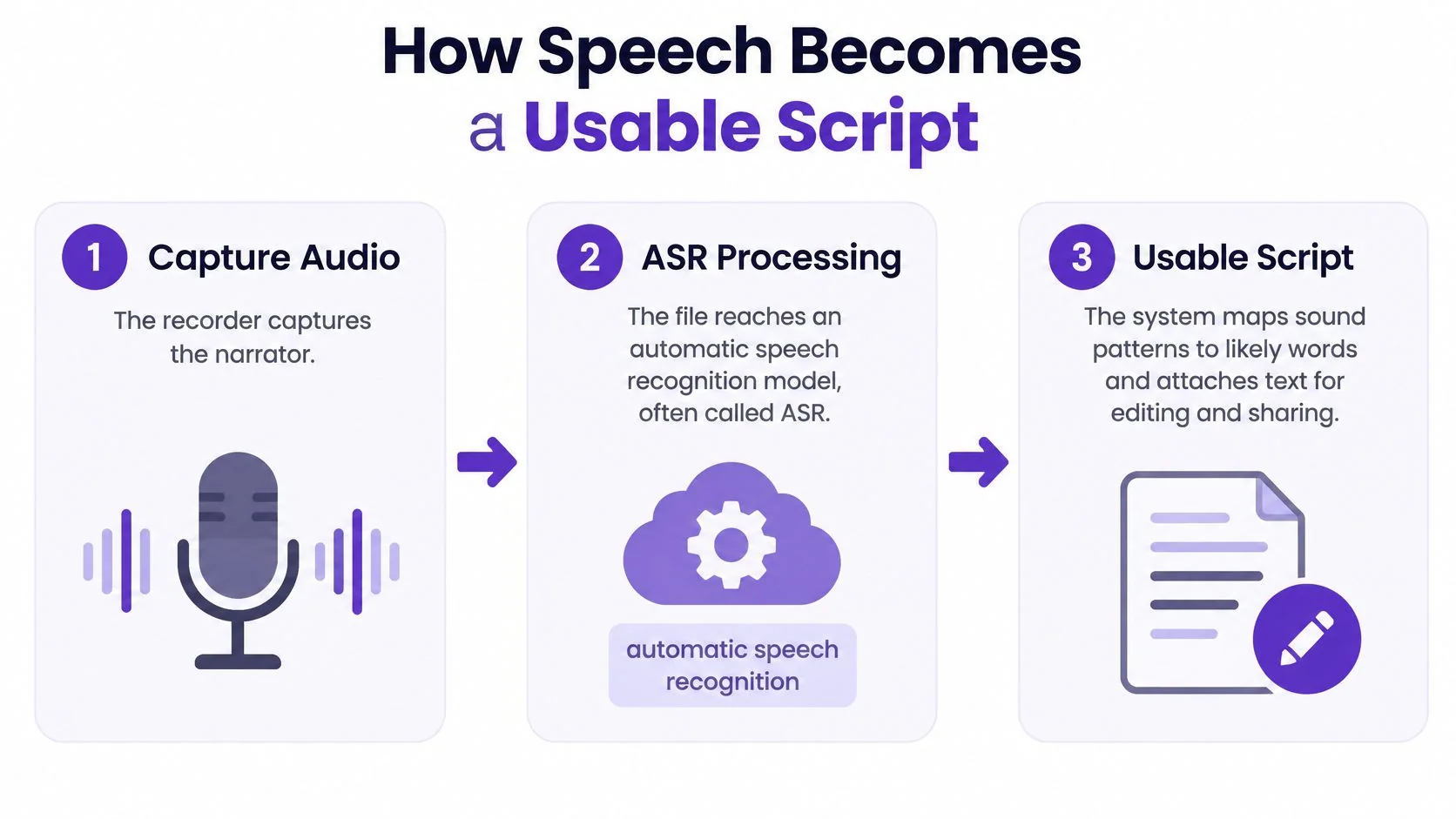
A language setting, or a language guess when no setting is chosen, decides which vocabulary the model reaches for. Punctuation and speaker labels, when a tool offers them, come as a second pass. That second pass is frequently wrong on short commands, because a two word instruction gives the model almost no context to work with.
Why Software Narration Is Harder Than It Sounds
The model behaves like a fast note taker who has heard a lot of ordinary speech. Ordinary speech is what that note taker knows well. It guesses when the room is noisy or when the word is rare, and software narration is full of rare words.
Interface labels, version numbers, file paths, and coined product names appear far less often in general training data than everyday conversation. A narrator can pronounce a feature name perfectly and still get a plausible English phrase in its place. Teams doing lighter tasks hit a milder version of the same issue, whether they’re repurposing tutorial narration or trying to get text from Instagram clips for a quick caption draft.
A plausible looking word is the most dangerous error in a tutorial, because nobody pauses to question it.
No Single Model Wins Every Recording
Quality depends on the recording and the vocabulary, not only on the engine. A benchmark reported in Frontiers in Big Data evaluated six datasets of interviews, lectures, and speeches, and found that dataset variability, including audio quality, speaker accents, background noise, and domain specific vocabulary, significantly affected results. No single model performed best across every dataset.
That finding explains a familiar frustration. A tool that handled a quiet product demo well can stumble on a support call recorded on a laptop in a shared room. Microphone quality, screen recording noise, and specialized terminology move the result from one session to the next.
So the test has to use the team’s own material. Running the same short demo through the tool a team plans to keep tells that team far more than a polished vendor sample ever will. The checks that turn that variability into something measurable come next.
Accuracy Checks Before You Trust a Transcript
Start with what to test, on which audio, and what failure looks like in a published tutorial.
| Check | Test on | Fail signal |
|---|---|---|
| Word error rate | A 2 minute sample from your narrators against a corrected reference | High substitutions, deletions, or insertions on ordinary words |
| Product language | UI labels, commands, URLs, and file paths in a glossary | A correct looking paragraph with one wrong button or command |
| Language | Each language you will publish, scored separately | English quality used as a stand in for another language |
| Speakers | Accents, fast speech, and stuttered or overlapping speech from real teammates | A strong average that hides one group’s errors |
| Review path | Time to correct the draft before captions or an article | No way to edit the script, or no confidence cue for bad lines |
| Data lifecycle | Where audio and text are stored, who can open them, and how deletion works | No retention control for names or customer details |
How Word Error Rate Works
Word Error Rate, or WER, is the standard measure. The NIST publication on speech recognition scoring describes WER as a widely accepted ASR metric, calculated as the number of substitutions, deletions, and insertions divided by the number of words in the reference transcript.
The three error types behave differently. A substitution replaces a spoken word with an incorrect one. A deletion omits spoken content, and an insertion adds content that was not spoken.
Consider a small example. The narrator says “click Invite teammate” and the draft says “click invite team.” That’s a deletion of part of a high value label, even if the rest of that minute scores well. The viewer goes looking for a control that isn’t there.
Teams outside training run into the same verification problem at higher stakes, which is why guidance on how to verify details in AI call transcripts treats names and commitments as items to confirm rather than copy.
What the Published Ranges Actually Tell a Team
A review published through Boise State ScholarWorks found Word Error Rates ranging from 7.3% to 54.2% depending on the corpus and tool. Another study cited in the same review reported a range from 0% to 83%, while human transcription is commonly benchmarked at roughly a 5% error rate.
Those ranges aren’t a shopping score. They show that results swing with microphone quality, background noise, speaker accents, domain vocabulary, and conversational overlap. That’s why WER should be measured on representative audio from a team’s own narrators, not borrowed from a demo clip.
Score a two minute sample from real narrators against a corrected reference, then score the glossary separately.
The practical bar for a software guide is stricter than any average. A low overall WER can conceal failures in product names, commands, URLs, and file paths, so those terms need a manual pass plus a small domain glossary. Captions deserve the same care, and a review of automatic caption generation for tutorial video helps teams see where caption timing and wording get corrected.
The pass rule is plain. Publish only after those technical entities match the current interface, character for character. If one label is wrong, the transcript has failed at the only job that matters.
Features That Matter for Software Training
Tool types make more sense by job than by feature count. Each type below does one job well and leaves a gap somewhere else.
| Job | Tool type | Strength | Limit |
|---|---|---|---|
| Notes from a support or training call | Meeting transcription | Fast draft of who said what | Overlap and new product names are often wrong |
| Captions on an existing lesson | Video captioning | Viewers can read the narration | Does not create a step by step article |
| Narrated software demo | Screen recorder with transcription | Speech stays tied to the screen | Still needs a glossary and a human pass |
| Help article from the same demo | Transcript plus a documentation editor | Searchable steps beside the video | A video only tool leaves the article unwritten |
| Lesson in another language | Translation after a corrected source script | One reviewed script can seed other languages | English accuracy does not transfer |
Matching the Tool to the Job
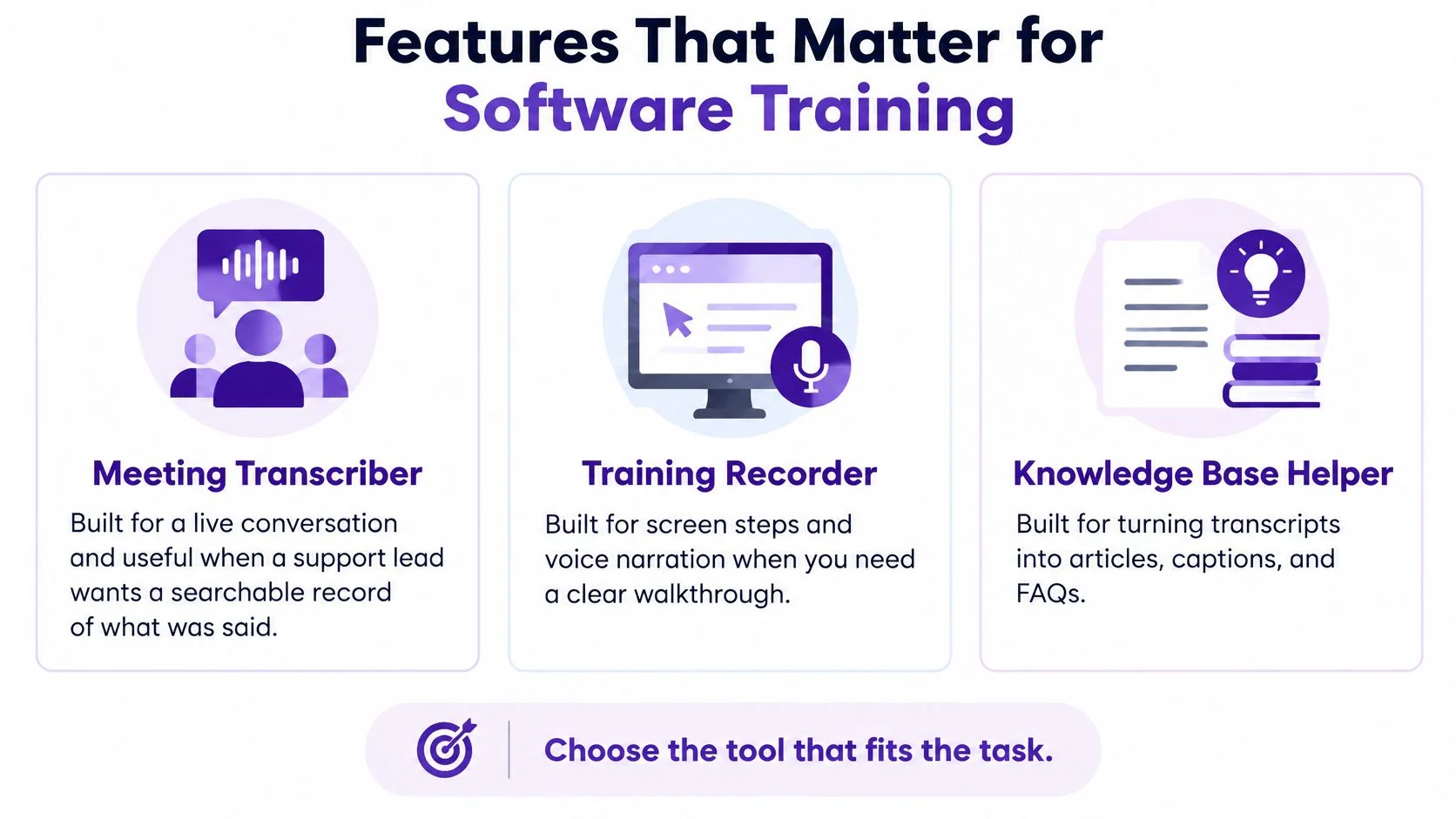
A meeting transcriber is built for a live conversation. It’s useful when a support lead wants a searchable record of what was said on a call. It weakens when two people talk at once or when a product name is new, because neither condition gives the model clean input.
A caption tool works on a finished video. It puts text on screen so viewers can read along, and it stops there. It doesn’t build a step list, pull screenshots, or give a writer anything to turn into a help article.
A screen recorder with transcription fits when the lesson is a software task. The words stay tied to what the viewer must see, so a corrected line can travel into captions and into written steps. That’s the difference between documenting a conversation and documenting a procedure.
Features That Change the Daily Work
- Editable text: Correcting a label should not require re-recording the whole demo.
- Timestamps that can be corrected: A caption that appears two seconds early confuses viewers as much as a wrong word.
- Glossary or find and replace: One fix for a feature name should repair every instance.
- Separate audio handling: Microphone and system audio need independent control.
- An export a writer can use: Steps have to leave the tool and land in a help center.
Speaker labels matter on calls and rarely matter for a single narrator. Translation is a later step, because a clean source script has to exist first and each language then gets checked on its own. Accuracy moves with language and writing system, so a translated script is a new draft, not a finished deliverable.
Some jobs belong elsewhere. A general video editor suits a video that isn’t a software demonstration, and a dedicated meeting tool suits work with no screen to document. Choosing by job keeps a team from buying captions when it needs documentation.
Training Support and Knowledge Base Uses
Three teams use the same recording differently. Each one ends up with a viewer or reader who has to receive something specific and usable.
Customer Education
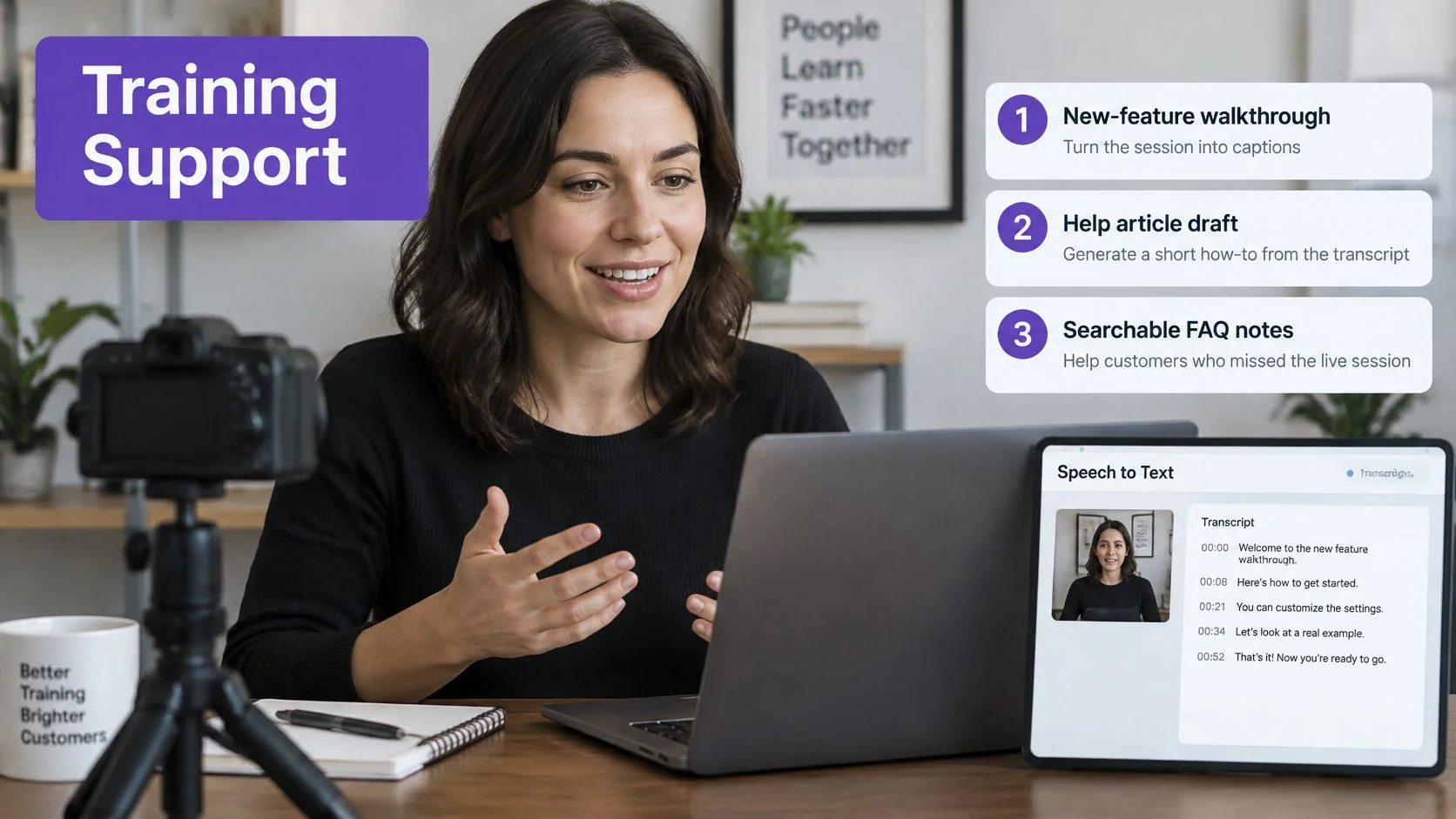
A new feature ships and a customer education team records the walkthrough. The transcript becomes captions for the video and the spine of a short help article. A customer who skips the video can still finish the task, because the steps sit on the page in order.
That written version isn’t a bonus. A report citing the GitLab DevSecOps Report, summarized in Happy Support’s state of documentation report, states that 68% of developers learning a new technology consult technical documentation first, ahead of AI tools and online courses.
The video shows motion, timing, and where a cursor lands. The article is what people search for at the moment of trouble, often with a half remembered error message as the only clue. Teams weighing how automation fits that writing work can look at AI for documentation workflows for the surrounding process.
Support
A known fix, such as resetting a user permission, gets captured once. Agents stop retyping the same steps from memory, and customers receive the same answer every time. Consistency matters here because a slightly different instruction each week gradually erodes trust in the help center.
Support teams also gain a maintenance advantage. When a product team renames that permission control, the team updates one article and one video instead of hunting through saved replies. The transcript makes the affected wording findable in seconds.
Internal Training
An internal SOP for a quarterly admin task works the same way. A spoken path through settings becomes numbered steps a new hire can follow without the original expert in the room. The expert’s knowledge stops living only in one person’s calendar.
Example. A team member records a custom field change while narrating each click, naming the settings menu, the field type, and the save confirmation. A reviewer then checks the resulting script against the live screen before the guide goes out, because the recording and the current interface may already differ.
Success check: A colleague who didn’t attend the recording completes the task from the guide alone, without asking a clarifying question.
That check is stricter than it sounds. It exposes missing prerequisites, unnamed buttons, and steps that only made sense while watching a cursor move. If the colleague stalls anywhere, the guide has a gap and the gap gets fixed before publication.
All three uses rest on one habit. The recording captures expertise once, the transcript makes it editable, and a reviewer confirms it still matches the product. The full procedure for doing that sits in the final workflow.
Errors Accents and Privacy Risks
The dangerous transcript reads smoothly. It can still rename a button, drop a warning, or attribute a sentence to the wrong person. Fluency hides those failures from a reviewer who is skimming.
Where Averages Conceal Harm
Accent, dialect, stuttering, and code switching are where benchmark averages stop being informative. Research summarized by the University of Colorado AI Institute found that a popular automatic speech recognition system was 24% less accurate for Black speakers than for white speakers. Fine tuning reduced the gap by roughly one third but did not eliminate it.
The same summary reports a 2025 study in which Whisper’s word error rate for stuttered speech was 0.130 versus 0.072 for fluent speech. Other systems showed even larger increases. A team that tests only its most polished presenter learns nothing about those speakers.
Poor audio produces the other predictable failure. A 2024 study in Frontiers in Communication found that Whisper correctly transcribed only 50% of the speech material in poor quality, forensic like audio.
Background noise, a distant laptop microphone, and overlapping talkers create that kind of input in ordinary offices. A draft from such audio should be treated as rough notes. Publishing it as captions tells viewers with hearing loss that accuracy was optional.
Privacy Sits Beside Accuracy
A support call or an employee SOP can contain names, account details, and internal URLs. The selection question becomes whether the tool supports a defensible data lifecycle rather than whether it claims to be secure.
- Notice and consent: People on a recording should know it’s being transcribed.
- Retention and deletion: Audio and text need defined storage periods and a working delete path.
- Access limits: Only people with a reason should open the raw recording.
- Redaction: Sensitive phrases and on screen details need a way to be removed.
An incorrect name or phrase can also change the meaning attributed to an identifiable person. Accuracy and privacy therefore fail together, and both land on the team that published.
Human review isn’t optional in four situations. It’s required when audio is noisy, when the speaker group wasn’t represented in testing, when the text will be translated, and when the content holds customer or employee data. In those cases the reviewer isn’t polishing style. The reviewer is the control that keeps a guess from becoming company documentation.
Review the Script Then Share the Guide
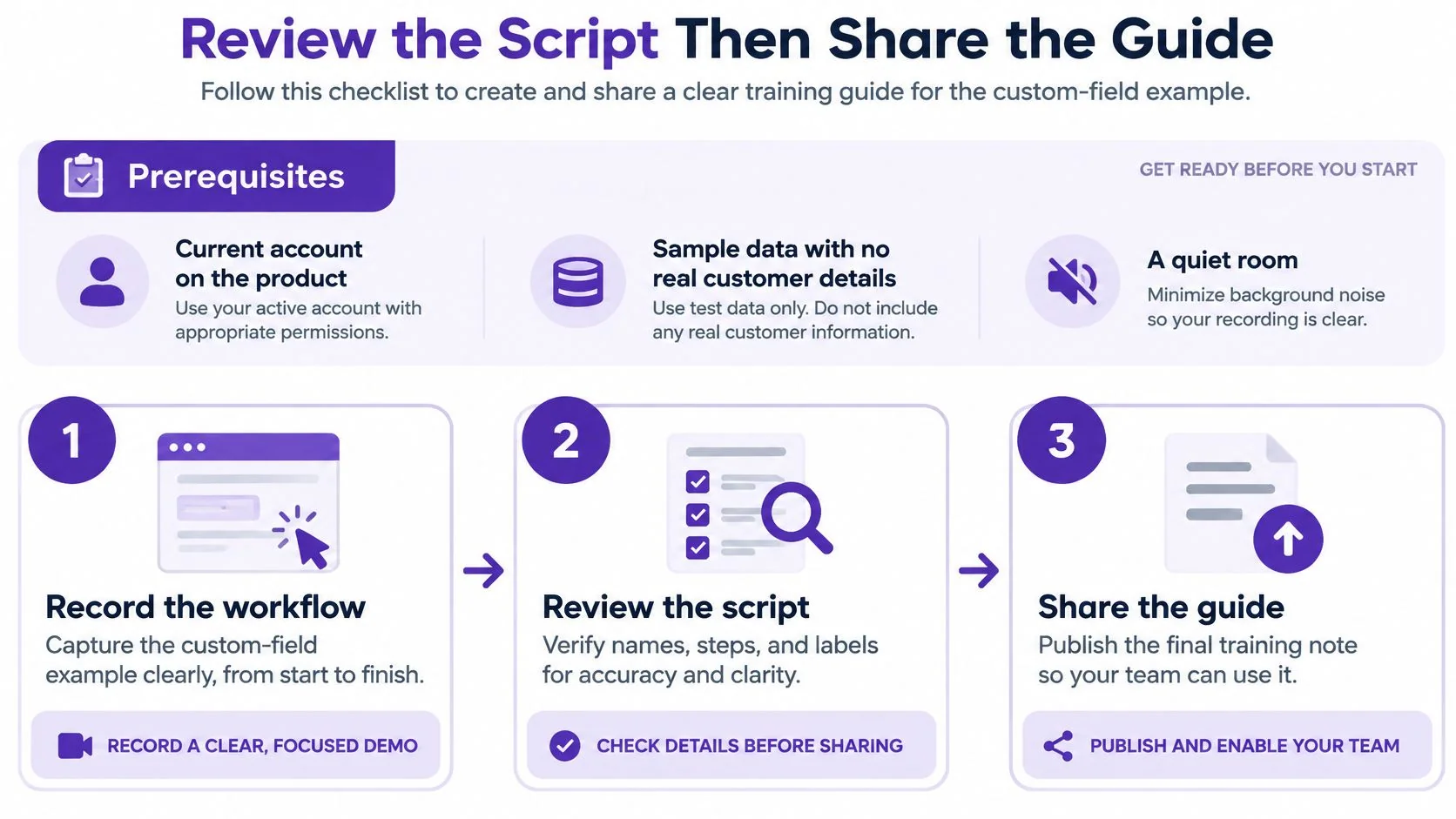
Prerequisites come first. The recorder needs a current account on the product, sample data with no real customer details, and a quiet room.
The Custom Field Procedure
- Decide what the viewer must see. The settings menu, the new field, and the save confirmation are the three moments that prove the task worked.
- Record the screen and narrate each action. Speak on the microphone and pause briefly on each control being named, so the words and the cursor stay together.
- Generate the drafts. Produce the transcript, the tutorial video, and the written steps from that one recording.
- Read every product name against the live screen. Interface labels, field types, and button names get corrected in the script before anyone else sees a draft.
- Run the second person check. Confirm the written steps match the screenshots, then hand the guide to a colleague who adds the field using the guide alone.
- Share both outputs. Place the video and article in the help center, LMS, or internal wiki the team already uses.
Accessible output belongs in step five rather than after launch. Reviewing video accessibility guidelines for tutorials at that point keeps captions and readable steps from becoming a later retrofit.
Failure has two common forms, and each has a clean recovery. If a label was misheard, the fix is to correct the script and regenerate rather than publish the guess. If the interface changed since recording, the honest fix is re-recording that step instead of editing old screenshots to fake a click that no longer exists.
Tutorial AI fits this specific job. It takes a screen recording from someone who already knows the software task and produces a narrated tutorial video and a written guide from that recording, both reviewed and edited before sharing. It isn’t a general video editor, an avatar tool, or a system that already knows how a company’s product works.
Verification Notes Before Publication
A short verification pass separates a checked guide from an unchecked one. Editors and documentation leads can run it in minutes when the items are written down in advance.
Facts That Need a Checked Date
- WER definition: Record the NIST source URL and the date it was checked, so the formula for substitutions, deletions, and insertions can be traced.
- Documentation figure: Record the GitLab DevSecOps Report figure on how developers learn new technology, with its source and checked date.
- Poor audio finding: Record the 2024 Frontiers in Communication study on transcription of poor quality, forensic like audio.
- Stuttered speech comparison: Record the 2025 Whisper comparison for stuttered and fluent speech, with the checked date.
Each entry belongs in draft notes beside the article. A reader never sees those notes, but a reviewer can confirm any number in the published text without searching again.
Product Details That Need Confirmation
Product claims age faster than explanations. Trial terms should be checked on the pricing page on the day of publication, including any limit on video projects, whether a credit card is required, and whether trial exports carry a watermark. If those terms can’t be confirmed, the article shouldn’t describe them.
The same caution applies to linked pages. Record the verified product page URL that the final call to action uses, rather than defaulting to a homepage or guessing at a path. A guessed URL that returns an error undoes the credibility the rest of the article earned.
Any feature, language count, or export format that can’t be verified belongs on an open review list, not in reader facing copy.
Uncertain items should be named plainly as open questions. Writing around a gap with vague adjectives doesn’t resolve it, and it leaves the next editor unable to tell what was checked.
Inventory and Status Checks
Before a new article moves forward, the existing inventory needs a scan for the same task and the same search intent. Two pages answering one question compete with each other and confuse readers. Improving the existing page is usually the better move.
Any slug collision, repeated body text, or repeated upstream article identifier gets flagged for review at that stage. Creating a suffixed duplicate to work around a collision only postpones the cleanup.
Status also needs plain labels. Drafted, approved, published, and measured describe four different states, and a prepared draft is never evidence that something is live. Confirming a production URL returns the right page is the only way to claim publication.
Those checks sound administrative, and they are. They’re also what keeps a transcription guide from making exactly the kind of unchecked claim it warns readers against.
Record one task the team explains repeatedly, such as adding a custom field, and turn that single screen recording into a narrated tutorial video and a written guide that a reviewer edits before anyone publishes. Start a free trial with Tutorial AI, run the accuracy checks and second person test described here, and share the corrected guide where customers and new hires already look for answers.