A customer opens your product tutorial after work, turns on captions, and discovers that the video only displays a rough dialogue transcript. The alert sound that confirms a successful action is missing. A speaker change is unclear. An important menu selection appears on screen but is never spoken aloud. Another customer watches from a different country and can understand the interface, but not the narration.
These are not edge cases. Product demos, feature release videos, customer onboarding, help-center videos, support articles, internal training, SOPs, and sales walkthroughs often combine speech, interface states, cursor movements, sound effects, and on-screen text. If your production process handles only the voice track, some viewers still won’t receive the information they need.
Video accessibility guidelines give teams a practical way to close those gaps. The work starts before recording, continues through editing and caption creation, and ends with manual testing of the published player and written alternative. The result isn’t merely a compliance artifact. It’s a tutorial that more people can perceive, understand, review, and use.
Introduction to Video Accessibility
A support manager publishes a short screen recording that shows how to change an account setting. The narrator explains the general task, but the critical button appears only as a visual highlight. A Deaf viewer can read the spoken instructions, yet the captions don’t identify the alert sound that confirms completion. A blind viewer hears the narration but has no way to know which menu opened, where the cursor moved, or what text appeared in the interface.
That experience creates friction for customers who already need the product to solve a problem. It can also leave employees unable to complete internal training and prospects unable to evaluate a feature accurately. Accessibility is therefore both an ethical responsibility and a practical quality standard for teams that use video as documentation.
The modern foundation for video accessibility guidelines is WCAG 2.0, published by the W3C on 2 April 2010. It formally established Success Criterion 1.2.2 for captions on prerecorded synchronized media and Success Criterion 1.2.3 for audio description or an equivalent media alternative on prerecorded video. These requirements define the minimum accessible treatment for video containing audio and visual information and form a baseline for many accessibility policies and procurement rules. Read the original framework in the W3C Web Content Accessibility Guidelines 2.0.
This guide focuses on the decisions that cause the most confusion: when captions need non-speech audio, when a transcript should include visual information, and when a narrated screencast still needs audio description. It also connects those requirements to a production workflow, including planning, editing, localization, quality assurance, and publication.
Understanding Video Accessibility
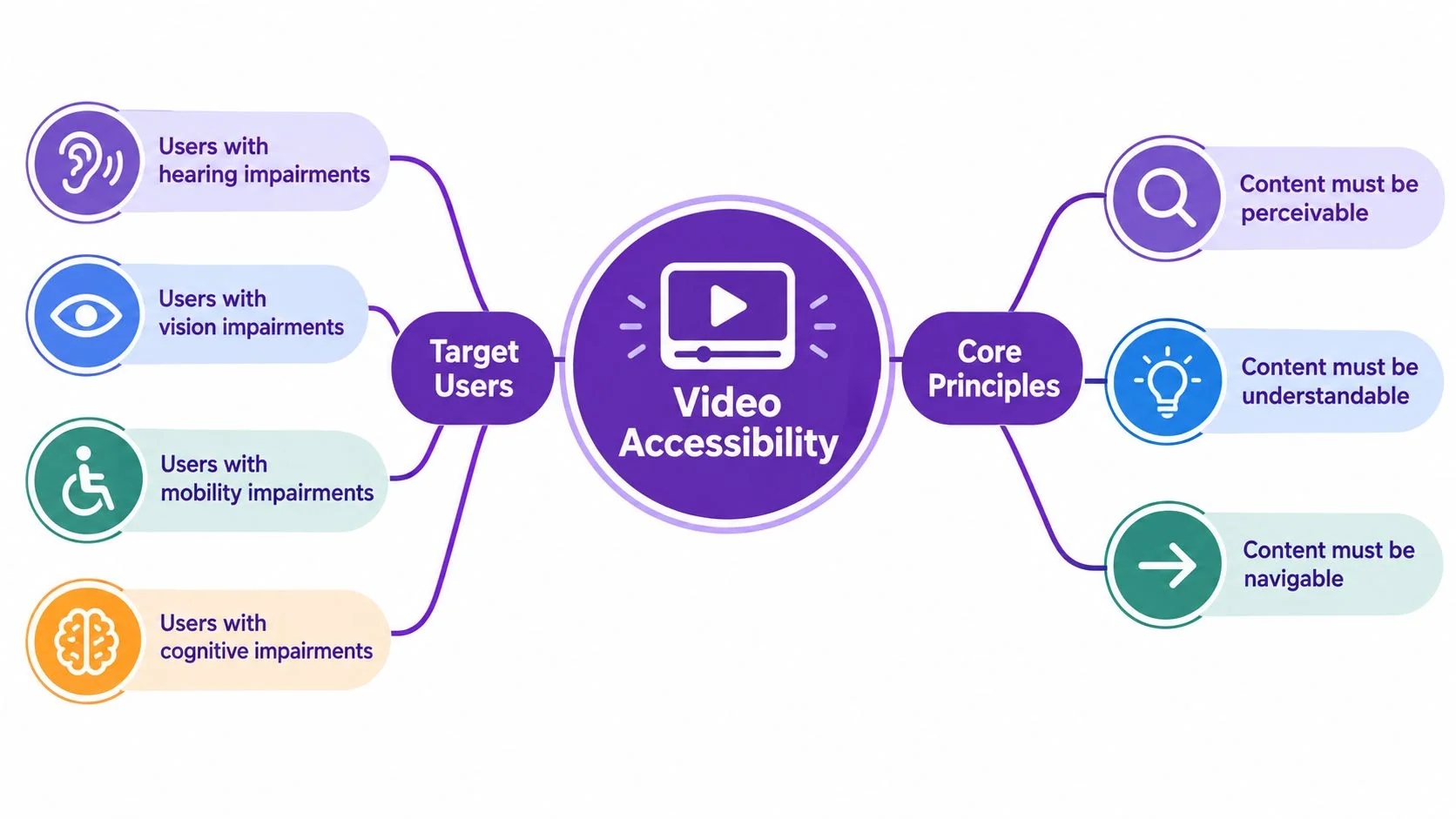
Video accessibility means designing content so people with hearing, vision, mobility, or cognitive impairments can perceive, understand, and interact with the experience. Think of captions as reading aloud for the ears, or a written transcript as giving someone a map of the spoken lesson. Audio description works in the other direction. It turns meaningful visual information into an audio story for someone who can’t see the screen.
A tutorial can fail even when its words are clear. A person with hearing loss may miss an alert or speaker change. A person with low vision may struggle with small interface text or low-contrast controls. Someone using only a keyboard may be unable to start, pause, or seek through the video. Someone with a cognitive disability may need a predictable structure, readable captions, and the ability to stop rather than follow fast automatic playback.
Accessibility is more than a caption file
Captions address the synchronized audio track, but accessibility also depends on the player, visual design, written alternatives, and the way the tutorial communicates its sequence. A viewer should be able to identify who is speaking, understand a meaningful sound, find the transcript near the original video, and operate playback controls without a mouse.
For software tutorials, the central question is simple: does the narration communicate every visual step that a viewer must understand? If the answer is no, captions alone won’t solve the problem. A caption can accurately report “Click Settings” while still leaving a blind viewer unsure where Settings appears or what changes after the click.
Inclusive design also supports more than disability access. Searchable text helps a customer find a precise instruction. A transcript supports review without replaying the entire recording. Translated captions and narration make the same lesson useful across regions. These benefits don’t replace compliance obligations, but they show why accessibility belongs in the core content workflow rather than in a final checklist.
Practical rule: Treat every important piece of meaning as belonging to one of three channels, spoken audio, visible information, or interaction. Then make sure each channel has an accessible equivalent.
Essential Accessibility Features for Video
Start with the media itself, then inspect how users reach and control it. A polished video can still be inaccessible if its caption track omits meaningful sounds or if its player hides keyboard focus.
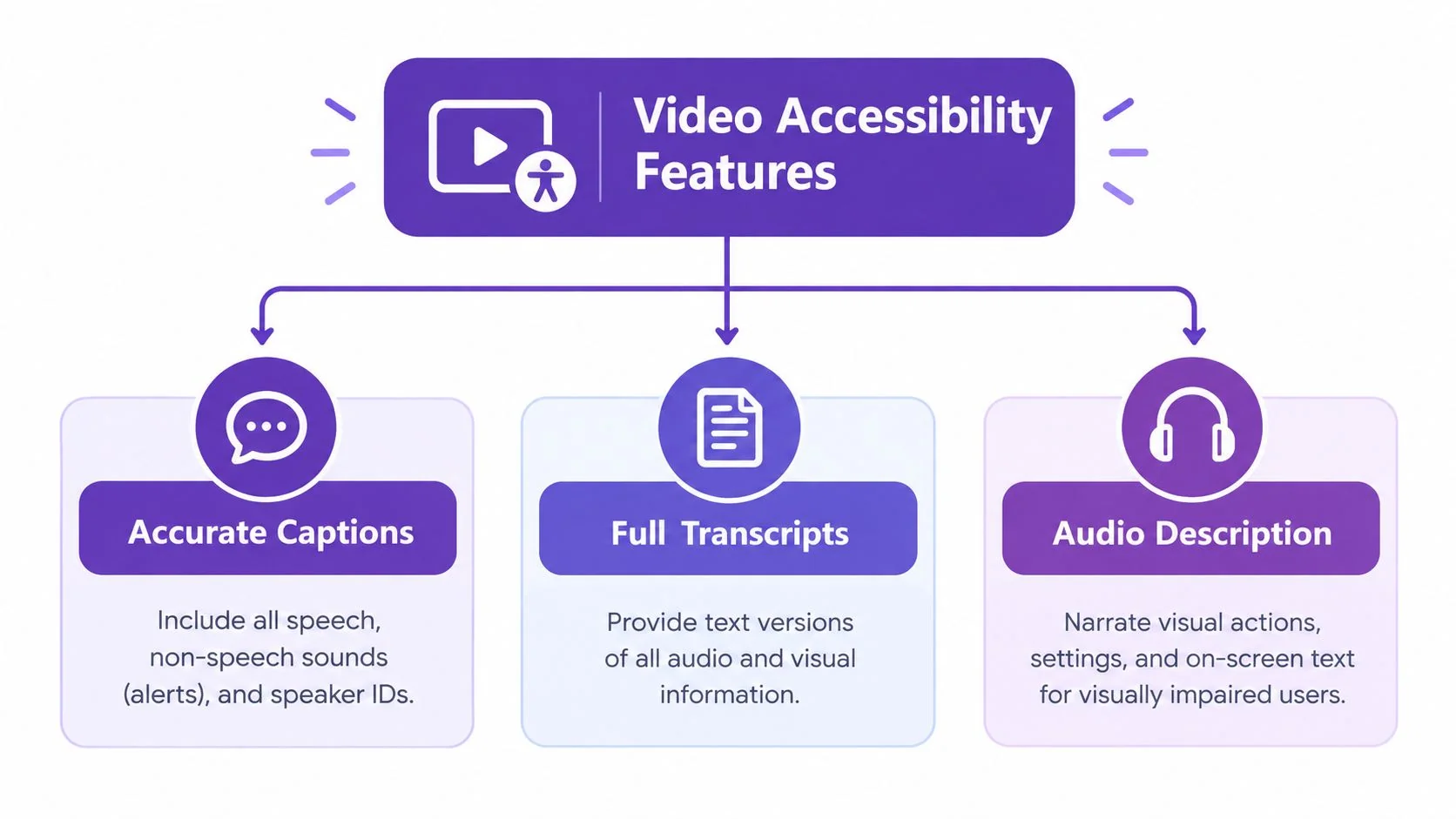
Captions that carry meaning
For prerecorded video, WCAG 2.1 and 2.2 require captions for all prerecorded audio content in synchronized media at Level A. The captions must include spoken dialogue and meaningful non-speech audio, including sound effects, music cues, laughter, speaker identification, and location cues, as described in the W3C guidance on captions for prerecorded media.
A dialogue-only subtitle track isn’t enough for a product demo. If a notification chime confirms that a setting saved, the caption should communicate that event. If two people speak, identify the speaker consistently. If a tutorial relies on a system sound to signal success or failure, preserve that information in the timed caption layer.
Teams comparing caption formats can use this guide to understand open and closed captions. Whichever format you choose, check timing against the final edit, not the unedited recording.
Transcripts that support review
A transcript provides a text alternative that users can search, scan, copy, and revisit. For a screen recording, a useful transcript may need more than dialogue. Include relevant visual actions, interface labels, state changes, and text that carries instructional meaning when the audio doesn’t already explain them.
Section 508 guidance recommends placing the transcript alongside the original content in an accessible format, such as an accessible web page, plain text file, or conformant Word document. The Section 508 captions and transcripts guidance also emphasizes accurate spelling, grammar, punctuation, synchronization, and readable display time for captions.
Audio description for visual steps
Audio description is a synchronized spoken explanation of visual information that isn’t already conveyed by the main soundtrack. It can describe actions, characters, scene changes, on-screen text, and other details that a blind viewer would otherwise miss. W3C explains that extended audio description pauses the video to add narration only when natural pauses don’t provide enough room and the video’s meaning would otherwise be lost. See the W3C explanation of audio description.
For a tutorial, write the description at the script stage. “Open the Billing menu in the left sidebar” is more useful than “Now click the next option.” Name the interface area, the visible label, and the resulting state. If the screen displays an email address, chart value, warning, or temporary dialog that matters to the task, make that information available in narration or a complete text alternative.
Player controls and supporting information
The player should expose clear controls for play, pause, seeking, volume, captions, and any available audio description track. Test those controls with a keyboard and confirm that focus is visible and understandable. Avoid relying on color alone to communicate status, and make control labels meaningful to screen-reader users.
Metadata matters too. Give the video a descriptive title, identify its language, and place the transcript where users expect to find it. If your team uses Tutorial AI, its workflow can turn a single screen recording and spoken narration into an edited tutorial and a matching written article, while still requiring human review of the captions, descriptive language, and published player.
Examples of Accessible Video in Practice
The hardest accessibility decisions often appear in short, UI-heavy tutorials. A screen recording may last only a few minutes, yet it can contain a dense sequence of clicks, transient states, tooltips, charts, and text labels. The W3C planning guidance for audio and video highlights this planning gap, especially when teams assume that captions automatically make visual steps accessible.
A feature release video
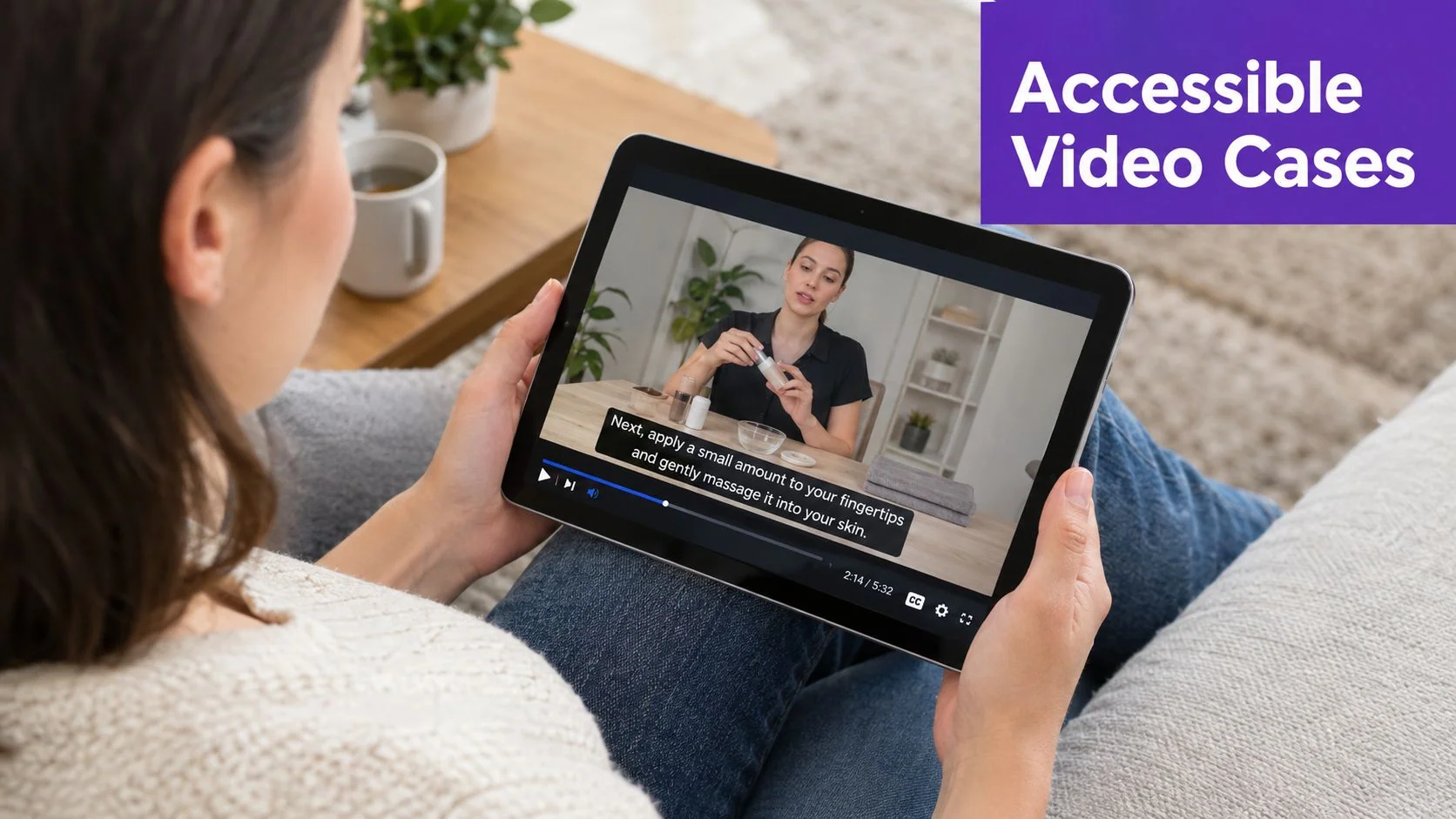
A feature release video for Bosch might begin with a product marketer explaining the benefit while the recording shows a new control. Captions need to carry the narration and any meaningful interface sound. If the marketer says, “You’ll see the status change here,” the script should name the status and its location instead of leaving the evidence entirely on screen.
An editing workflow that tightens pauses and retakes can make the final sequence easier to follow, but it doesn’t remove the need for caption review. The editor should compare every instruction with the exact UI state shown in the final cut.
An onboarding screencast
A Deutsche Bahn onboarding video could show an employee opening a menu, selecting a workflow, and receiving a confirmation message. If the narration says only “Select the option,” the visual instruction remains incomplete for someone who can’t see it. A descriptive narration track or a descriptive transcript should identify the menu, option label, and confirmation state.
This example also illustrates why cursor movement isn’t automatically meaningful narration. A large cursor highlight may help a sighted viewer, but it can’t substitute for language that explains the action.
A support article video
A Microsoft support article video becomes more useful when the video and transcript appear together. A customer can watch the demonstration, search the written steps, and return to a particular instruction without replaying the entire recording. The same pattern works for help-center content, internal training, SOPs, and sales enablement walkthroughs.
The workflow should preserve the relationship between the assets. A transcript generated from an earlier draft can become inaccurate after a button moves or the narration changes, so regenerate or revise it whenever the final video changes.
Aligning Guidelines with WCAG and ADA
Compliance mapping works best when each feature has a clear purpose and a verification method. Don’t label a video “accessible” because it contains a caption button. Check whether the caption text is accurate, synchronized, complete, and usable, then separately assess whether visual information has an equivalent.
The W3C framework published in 2010 established Success Criterion 1.2.2 for captions on prerecorded synchronized media and Success Criterion 1.2.3 for audio description or an equivalent media alternative on prerecorded video. Later WCAG guidance preserves the core distinction. Captions address synchronized speech and meaningful audio, while audio description addresses essential visual information that the audio doesn’t already convey.
| Accessibility Feature | WCAG Criterion | ADA/Section 508 |
|---|---|---|
| Prerecorded captions | 1.2.2, Level A, captions for prerecorded synchronized media | Section 508 guidance calls for synchronized captions containing dialogue and important sounds |
| Audio description or equivalent alternative | 1.2.3, audio description or a media alternative for prerecorded video | Use an accessible equivalent when visual information isn’t available through the soundtrack |
| Keyboard-operable player | 2.1.1, Keyboard | Section 508 requires accessible operation of digital content and controls |
| Accessible transcript | Supports a text alternative when visual or audio information needs an equivalent | Section 508 recommends an accessible transcript beside the original video |
| Sign-language interpretation | A higher-level enhancement in applicable WCAG contexts, not the basic caption requirement | Assess audience, policy, and procurement requirements separately |
| Clear structure and labels | Relevant WCAG principles for perceivable, operable, and understandable content | Apply the applicable ADA and organizational accessibility requirements to the full experience |
The table separates content accessibility from player accessibility. A perfectly captioned file doesn’t help if users can’t turn captions on, move through the timeline, or locate the transcript. Conversely, a keyboard-friendly player can’t repair a recording that leaves essential visual actions unexplained.
Legal obligations vary by organization, jurisdiction, audience, and delivery context. Teams should review their own counsel and procurement requirements, and use resources such as Presidio’s overview of ecommerce ADA compliance guidelines as background when evaluating the broader digital experience.
Deciding when description is necessary
Close your eyes while listening to the video. Can you still follow the task, including the actions, labels, and outcomes? If yes, the main soundtrack may already communicate the essential visual information. If no, add audio description or provide a full text alternative that explains the missing visuals.
The University of Wisconsin–Milwaukee accessibility guidance makes the same distinction for prerecorded media. The obligation depends on whether the visual information is already conveyed through speech or another equivalent, not on whether the recording is short, attractive, or professionally edited.
Testing and QA for Accessibility
A tutorial can pass an automated scan and still fail a viewer. For example, a learner may hear an alert but never learn what it means, or see a menu change without captions explaining the action. Run accessibility QA before publication, then repeat it after meaningful edits. Treat the checks like a rehearsal: test the finished experience, not only the source file.
Review the caption track
Mute the final video and complete the tutorial using captions alone. Mark every point where the sequence becomes unclear. Check product names, technical terms, punctuation, speaker changes, sound effects, music cues, and timing.
Section 508 guidance calls for captions that match the corresponding audio, use correct spelling, grammar, and punctuation, include dialogue and important sounds, remain visible long enough to read, and disappear when no meaningful sounds are present. Use the official Section 508 captions and transcripts guidance as the reference for this review.
Record each finding in a QA log:
- Timestamp: Identify where the problem occurs.
- Issue type: Classify it as transcription, timing, speaker identification, sound, or readability.
- Required fix: Provide replacement text or a timing adjustment.
- Owner: Assign the correction to the person responsible for the asset.
- Retest status: Confirm the correction in the published video, not only in the editor.
Tutorial AI can support this workflow by keeping the script, narration, captions, and visual steps connected during production. A reviewer still needs to confirm that the generated result reflects the actual interface and task.
Test description and the transcript
Listen without watching the screen, then ask a reviewer to complete the stated task using the audio and transcript. If they cannot identify a control, action, or result, revise the narration or add the missing visual context to the transcript.
Export the transcript and inspect it as a document, not only inside the editor. Check heading structure, reading order, speaker labels, link behavior, text alternatives for meaningful visuals, and whether the file opens in an accessible format. Viewers should be able to find the transcript from the video page without following an obscure search path.
Test the page and player
Use keyboard-only navigation from the page to the player. Operate every control, toggle captions, seek, pause, and return focus to surrounding content. Confirm that the focus indicator remains visible and that no control traps the user.
WAVE and axe DevTools can identify page-level problems such as missing labels, structural errors, and some contrast or focus concerns. They cannot judge whether the tutorial explains the right visual information. Test with a screen reader where available, and include people with different access needs in user testing.
A useful QA question: If the viewer cannot see the screen or hear a sound, where else does that information appear?
Multilingual Considerations for Global Audiences
Localization adds another layer to accessibility because translated speech changes timing, line length, terminology, and sometimes sentence structure. A caption that fits the original narration may become crowded in another language. A description that names a control must preserve the exact product label used in the localized interface.
Create one source of truth for the script, captions, transcript, and descriptive information. Record which version of the interface the video shows, then update every language asset when that interface changes. Review right-to-left scripts in the actual player and transcript layout, not only in a translation document.
Tutorial AI supports narration in 74 languages, and its Multilingual Player can give viewers a language selector in the published experience. Its AutoRetime workflow can adjust scenes, captions, and cuts to match the length of localized voiceover. These capabilities can reduce manual rework, but language QA still belongs to a fluent reviewer who can check terminology, reading order, speaker identity, and descriptive accuracy.
Use Brand Kits to keep caption styling, type choices, and visual treatment consistent across language versions. Consistency helps users recognize the same content family, while localization reviewers verify that the styling remains readable for each script.
For teams building a repeatable process, video translation services can be evaluated alongside human translation, terminology management, and accessibility review. Don’t translate captions first and ask accessibility questions later. Translate the complete information model, including meaningful sounds, visual actions, interface labels, and the transcript.
Implementation Checklist and Next Steps
Assign one owner for content accuracy, one for accessibility review, and one for publication quality. The same subject-matter expert who knows the product can often identify missing steps faster than an editor, while a dedicated accessibility reviewer can challenge assumptions about what the visuals communicate.
Planning
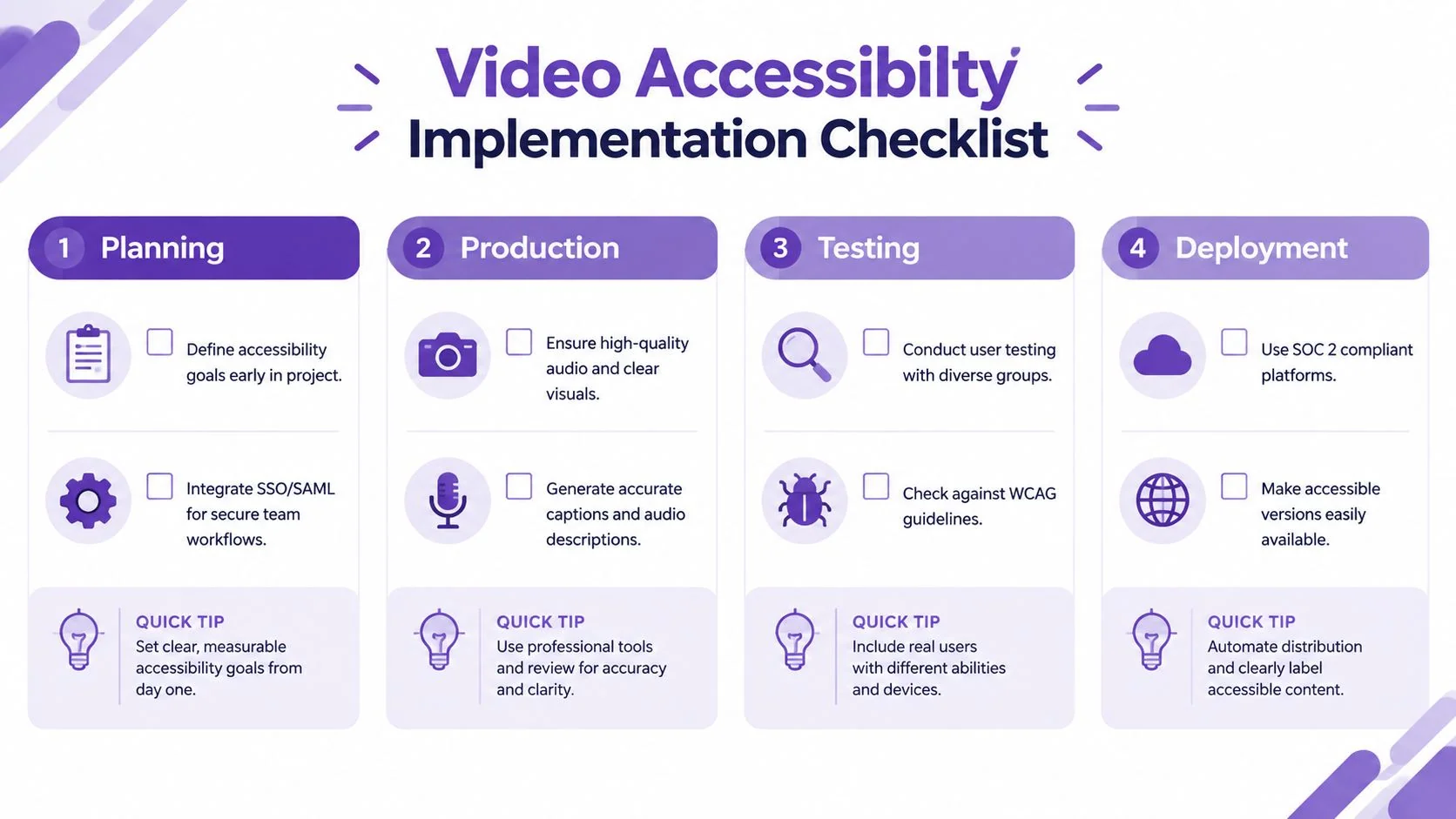
- Define the information: List spoken instructions, meaningful sounds, visible labels, state changes, and actions before recording.
- Choose the alternatives: Decide whether each visual step belongs in narration, a synchronized description track, or a descriptive transcript.
- Set team controls: Use SSO/SAML when your organization needs secure access and clear workspace ownership.
- Set content standards: Establish terminology, speaker-label conventions, caption styling, transcript format, and review responsibilities.
Production
- Record clearly: Capture understandable speech and uncluttered visuals. Keep sensitive information out of the recording or apply appropriate redaction.
- Describe actions: Say what the viewer needs to know, such as the location and label of a control, rather than relying on cursor movement alone.
- Build the text layer: Generate or create captions from the final narration, then add meaningful non-speech audio and speaker identification.
- Create the article: Use document generation to turn the same recording into a help article with ordered steps, screenshots, and accessible text.
For practical caption workflow guidance, see how to add captions to videos. Treat the resulting file as a draft until a reviewer checks it against the final edit.
Testing and deployment
- Review every channel: Test captions with audio muted, descriptions with the screen hidden, and the transcript as a standalone document.
- Operate the player: Confirm keyboard access, visible focus, caption controls, language selection, pause and seek behavior, and useful metadata.
- Test diverse access needs: Include reviewers who use captions, screen readers, keyboard navigation, magnification, or translated content.
- Publish together: Place the video, captions, transcript, and any description option in the same help-center or knowledge-base location.
- Protect the workflow: Evaluate security and privacy settings, including SSO/SAML and SOC 2 plus GDPR considerations, before sharing recordings that contain customer or employee information.
Use a shared workspace to assign issues, track revisions, and record the final approval. Accessibility becomes sustainable when it is part of the same release process as product accuracy, brand review, and technical publishing.
Tutorial AI turns a screen recording and spoken narration into an edited tutorial, synchronized captions, and a matching written article, helping teams build accessibility into one production workflow. Visit Tutorial AI to create accessible product demos, support videos, onboarding materials, and documentation with less manual editing.