You’ve asked an AI model for a two-minute product demo script. Seconds later, you have a clean draft that appears ready to record. Then you notice the invented menu label, the feature that hasn’t shipped, and the padded transitions that make the narration sound unlike anyone on your team.
That’s the challenge in script writing with AI. Generating words is easy. Producing a script that matches the product, the presenter, the recording, the captions, and every localized version requires a controlled workflow. AI can accelerate ideation, structure, and revision, but it needs clear inputs and human review at every important gate.
Why Most AI Script Drafts Don’t Survive First Contact
A generic prompt hides the information that makes a tutorial accurate. “Write a demo script about user permissions” doesn’t tell the model which interface the viewer will see, what the viewer already knows, which permission outcome matters, or which product terms are approved. The result may sound polished while drifting away from the actual workflow.
That drift creates practical problems. The script might refer to an “admin hub” when your product calls it Workspace settings, describe a button that isn’t present, or explain a feature scheduled for a later release. A subject-matter expert then has to rewrite the draft before recording, and the production team may discover additional problems only after narration and captions are created.
Research on co-writing screenplays and theatre scripts found that professional writers viewed language models as useful assistants for ideation and rapid variation, not replacements. The same evaluation identified generic output, hallucinations, and weak creative specificity as recurring issues, which is why smaller tasks, human guardrails, and repeated review outperform one-shot generation. The industry evaluation of AI co-writing supports a useful operating principle: ask AI to handle bounded work, then make a person responsible for judgment.
The first draft is a hypothesis
Treat the initial script as a proposed interpretation of the workflow. It isn’t a production asset until someone checks every action against the live product and confirms that the language sounds natural when spoken.
A reliable review asks:
- Product accuracy: Does every menu, button, and sequence exist in the recorded interface?
- Viewer outcome: Can the viewer complete one clearly defined task?
- Narration fit: Would a real presenter say these sentences aloud?
- Visual alignment: Does each line describe what the viewer can see?
- Reuse potential: Can the script support captions, documentation, and localization?
Good pacing still matters, especially for public-facing videos. Guidance on hook and pacing tips for YouTube can help with attention and structure, but tutorial scripts need another layer of discipline. A compelling opening won’t compensate for an incorrect click path or narration that runs ahead of the screen.
The solution isn’t to avoid AI. It’s to move AI further into a production loop where the prompt defines the context, the subject-matter expert validates the facts, and the script remains editable after recording.
Prompt Patterns That Produce Usable Tutorial Scripts
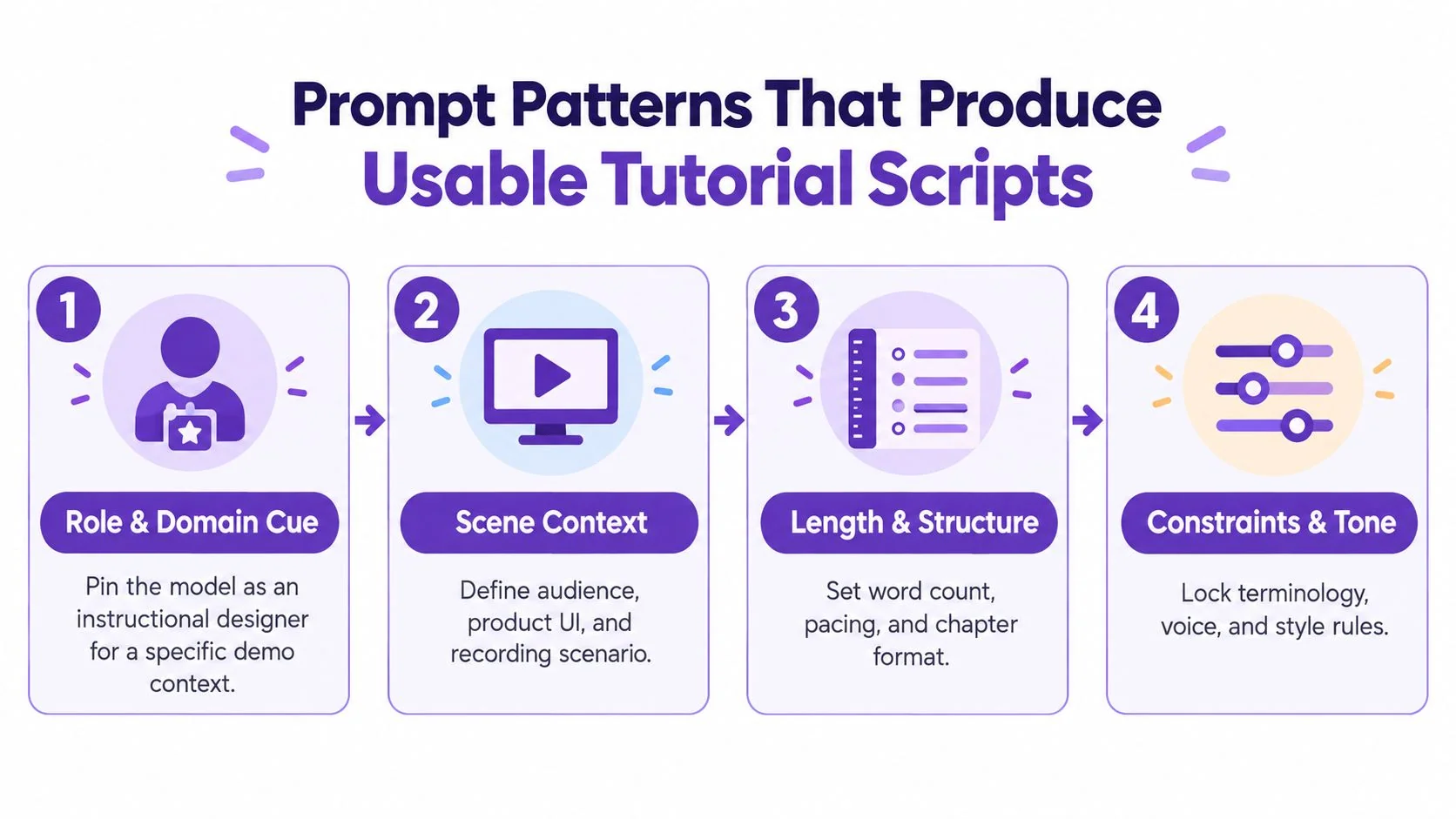
The best prompts for software tutorials are specific enough to constrain the model without forcing it to invent missing details. Four building blocks do most of the work: role and domain, audience and outcome, scene context, and length and voice constraints.
Start with a role and a viewer
Give the model a working identity tied to the task:
You are an instructional designer writing a software demo for a junior administrator learning a ticketing tool.
Then define the viewer’s starting point and destination. “For customer support managers who already know how to create tickets, help them configure an escalation rule” is more useful than “write for beginners.” Name the single result the viewer should achieve by the end.
Describe the scene before requesting prose
List the screens, actions, and result. For example:
- Show the ticket queue.
- Open the automation menu.
- Choose the escalation rule.
- Set the response condition.
- Save and test the rule.
- Confirm the ticket appears in the correct queue.
Tell the model what the recording shows and what it must not claim. If a step isn’t visible, the script should mark it for review instead of filling the gap with plausible language.
Add measurable writing constraints
Specify the target duration, approximate spoken-word count, sentence shape, section labels, and reading level. You can also require one narration line per visible action and instruct the model to flag uncertain product terminology.
For repeatable production, save this structure as a team template:
Role + Audience + Outcome + Scene beats + Length + Voice rules + Approved terminology + Exclusions
A consistent format makes drafts easier to compare and review. It also reduces the temptation to chase clever prompts that produce inconsistent outputs. For broader examples, script writing for viral content offers useful ideas about structure, but tutorial teams should adapt those techniques around task completion rather than entertainment alone.
Keep the final output format predictable. A defined video script format can separate narration, on-screen text, actions, and review notes so the draft moves cleanly into production.
The important constraint is factual restraint. Tell the model to write [VERIFY] when it lacks evidence. A visible uncertainty marker is far safer than a confident sentence about a button that doesn’t exist.
Common Failure Modes and How to Edit Around Them
AI-generated tutorial scripts fail in recognizable ways. Each failure needs a different review pass, not another vague request to “make it better.”
The most harmless problem is filler. Phrases such as “let’s dive in,” “as you can see,” and “now, let’s explore” add runtime without helping the viewer. Search for them globally, remove them from the house style, and instruct the model to begin with the action or outcome.
Hallucinated steps require a subject-matter expert. Compare every instruction with the current product interface, preferably while the recording is open. Don’t approve narration just because the sequence sounds plausible.
Tone drift is subtler. A script may begin as a technical walkthrough, turn into promotional copy, and finish with dense documentation language. A short voice specification prevents that shift.
| Failure Mode | Example | Editing Fix | Where to Catch It |
|---|---|---|---|
| Generic filler | “Let’s dive in and explore this powerful feature.” | Replace it with the viewer action and result. | First language pass |
| Hallucinated steps | “Open the Settings Hub and select Advanced Permissions.” | Check the path against the live interface. Mark unsupported actions for removal. | SME product review |
| Tone drift | Technical instructions followed by sales language. | Choose one voice, such as direct, warm, and expert. Rewrite outliers. | Read-aloud review |
| Weak specificity | “Configure the settings as needed.” | Name the exact field, value, and expected result. | Script edit |
Practical rule: If a sentence describes an action, someone must be able to point to that action on the screen.
Research on AI-assisted screenwriting also highlights ethical concerns involving bias, access, and training-data theft. For commercial tutorials, add a rights and authenticity check: confirm that the script uses approved source material, doesn’t imitate a named creator’s distinctive style, and clearly records where human review occurred. The model can help identify inconsistencies, but it can’t take responsibility for publication.
Tuning Voice, Pacing, and Brand Terminology
A technically correct script can still sound wrong once recorded. Read it aloud at the intended pace. Mark sentences that require a mid-sentence breath, stack several clauses, or use terms the presenter would not say naturally. Then revise for speech, not for written documentation.
For example, replace “Open the filter, then choose the report you need” with direct interface language that matches the visible sequence. Shorter instructions are easier to record and keep aligned with a cursor moving through the product. Check the revised version against the screen before approving it.
Give the model a voice specification
A compact style sheet keeps revisions consistent:
- Voice: Direct, warm, expert.
- Preferred verbs: Open, choose, enter, save, check.
- Avoid: Formal filler such as “just.”
- Terminology: Use the official feature name and capitalization.
- Sentence design: Keep one action per sentence where possible.
- Narration rule: Do not describe an element before it appears on screen.
The terminology list needs equal attention. Record product names, feature labels, button text, and words that must remain unchanged in translation. If the brand says “workspace” rather than “account,” state that preference in the prompt and check every revision against it.
| Element | Generic AI Draft | Tuned Script |
|---|---|---|
| Opening | “Let’s dive into the settings available to you.” | “Open Workspace settings.” |
| Action | “Choose the permissions functionality.” | “Choose Permissions.” |
| Explanation | “This will give you better control.” | “You can now control who can view the project.” |
| Close | “You’re all set to explore this powerful feature.” | “Save the rule, then test it with a sample ticket.” |
The tuned wording gives the narrator a clear sequence and gives viewers a result they can verify. It also creates shorter caption units. AI can propose alternatives, but the final voice belongs to the people who understand the brand, the product, and the audience. Review pacing again after recording, because spoken delivery often exposes edits that looked fine on the page.
Treating the Script as the Single Source of Truth
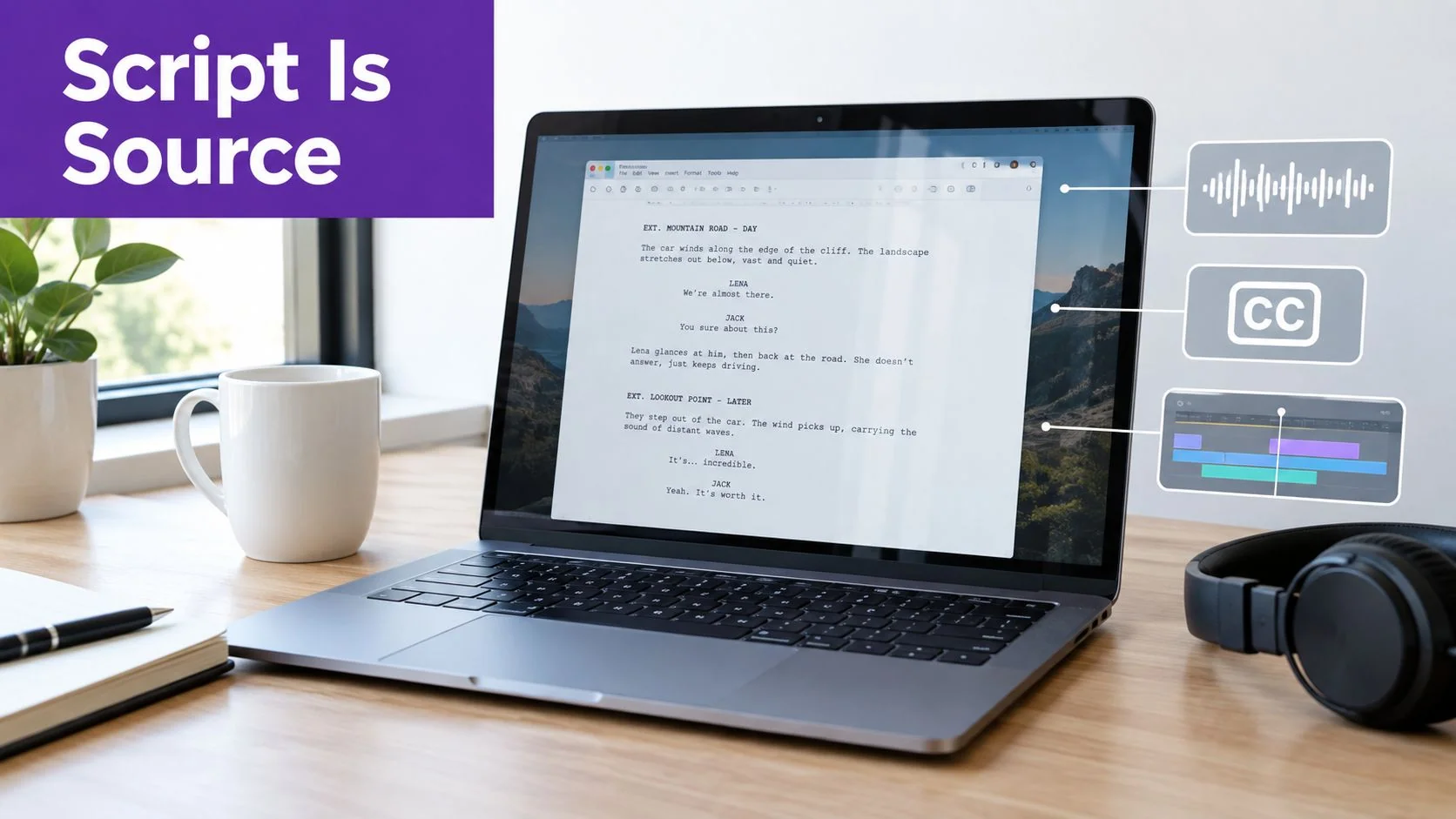
A tutorial revision rarely ends with the first recording. A presenter may stumble over a sentence, a product term may change, or a reviewer may cut an explanation. If narration, captions, timing, chapter markers, and documentation were edited separately, one correction becomes several synchronization tasks. Keep the approved script at the center, then regenerate dependent assets from that text.
The working rule is edit the source before editing its outputs. Attach the approved script version to the recording, reviewer notes, prompt, and release status. This gives the team one place to verify what changed and which assets still need review.
Use the editor as a controlled revision loop:
- Record the product workflow, with narration or without.
- Compare the draft script with the recording.
- Correct the sentence that needs work.
- Regenerate the matching narration.
- Recalculate scene timing and captions.
- Check the new audio against the visible action.
- Approve the version and log the change.
Tutorial AI documents this text-first model. Its narration script operates as an editable audio track below the video. Text edits can add or remove narration, rearrange paragraphs, trigger voiceover regeneration, and re-synchronize the video. Tutorial AI’s script editing documentation describes the workflow and its practical controls.
This source-first setup also supports video-to-document work. A finalized screen recording and workflow can supply a step-by-step guide for a help center, internal training, SOP, or customer onboarding. Review the generated document against the approved script, because documentation may need more context than narration while still following the same actions.
AI video production guidance describes a similar order: establish the script and storyboard before adding voiceover, music, and captions. AI video production workflow guidance supports treating those assets as downstream production components rather than separate versions of the message.
Localizing Scripts Across Languages Without Losing Timing
A translated script can break a tutorial even when every sentence is accurate. English instructions may expand in another language, while captions become crowded if the original time window stays fixed. The production target is clear: preserve the viewer’s understanding of the action, not the source language’s exact word count.
The guidance on caption translation and retiming recommends manual timing adjustments after automatic translation and advises teams to prioritize readability over exact one-to-one timing when a caption does not fit comfortably. That trade-off matters in recorded tutorials, where viewers must read the caption and follow the interface at the same time.
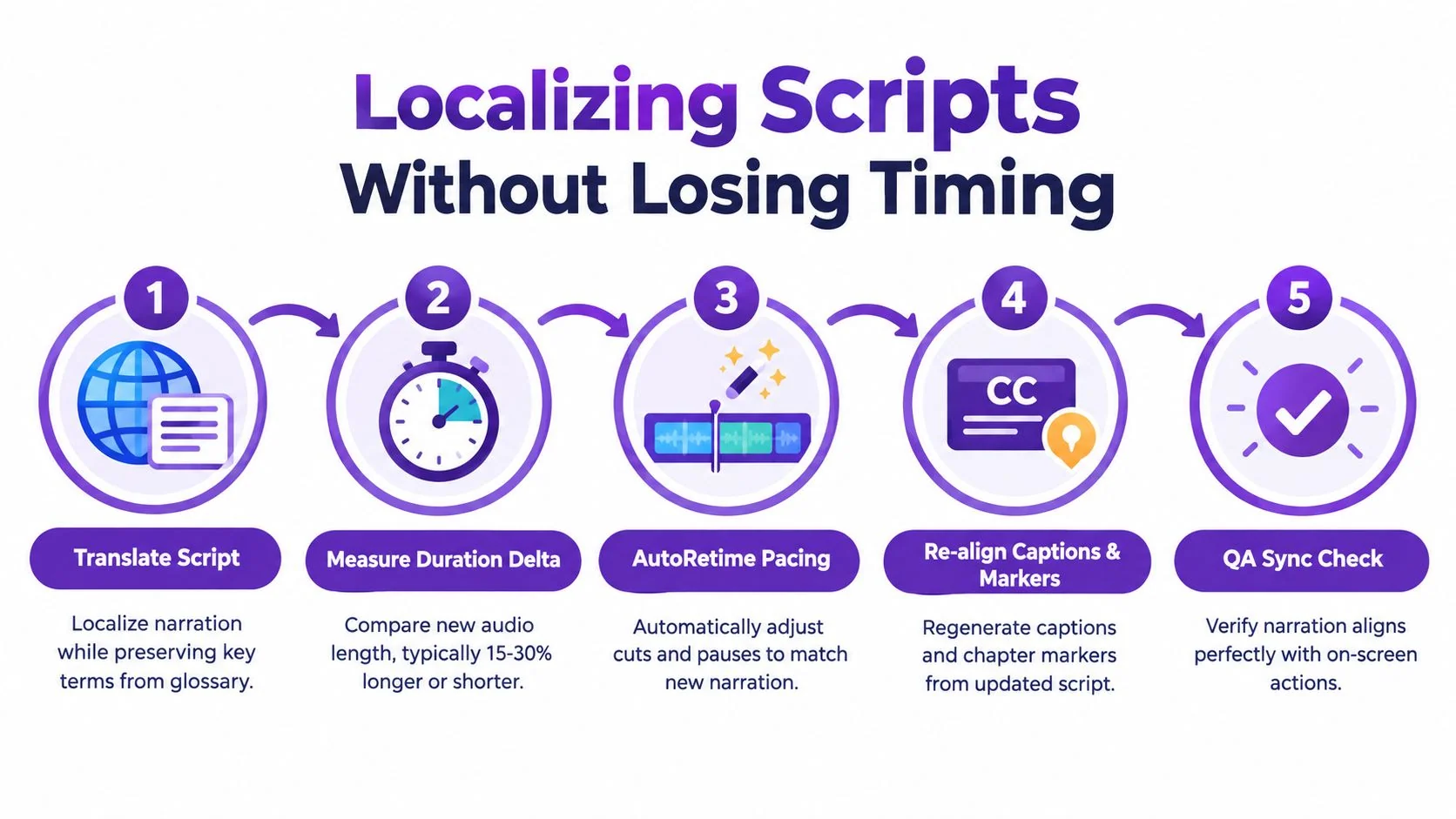
Treat localization as a new timing pass. Regenerate narration from the localized script, compare the audio with the original scene boundaries, then adjust pauses, cuts, or scene length until the spoken instruction matches the visible action.
Check these points during review:
- Preserve action order: Keep numbered procedures aligned with the captions that explain them.
- Protect pause beats: Leave room between clicks, interface changes, and explanations.
- Separate screen text: Identify labels shown in the product separately from spoken narration.
- Review caption readability: Break longer translations at natural linguistic points.
- Validate terminology: Apply the approved glossary to product and feature names.
- Check every language: Confirm that each locale works with its own narration length.
Tutorial AI supports narration in 74 languages, and its AutoRetime workflow adjusts pacing and scene timing around localized voiceover. Teams adapting one source tutorial for international audiences can review this voiceover translation workflow alongside their own production checks.
Replace the localized script, regenerate narration and captions, and inspect the visual alignment again. Manually stretching captions while keeping the original narration locked leaves the timing problem unresolved.
A Repeatable Workflow You Can Use on the Next Tutorial
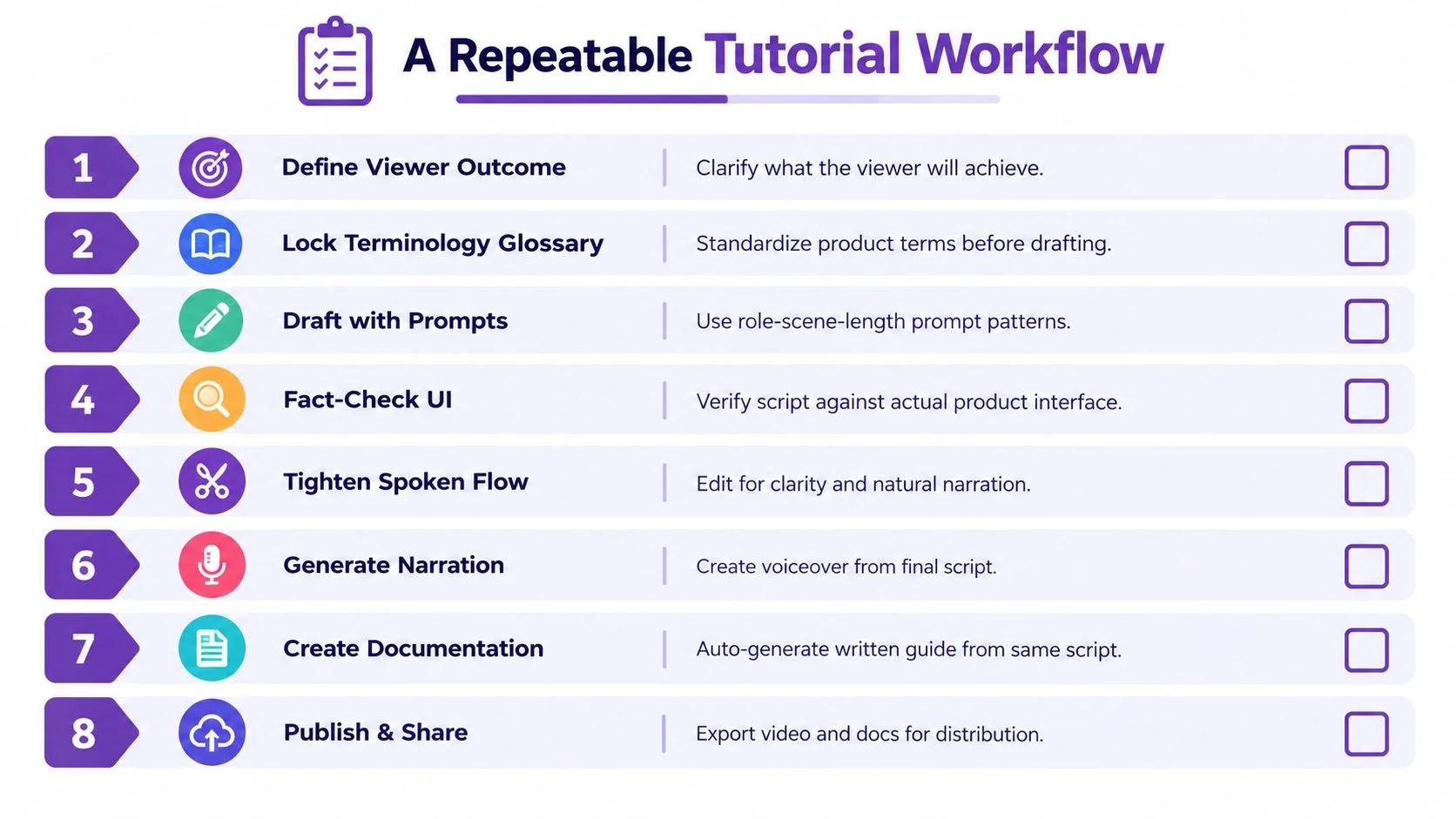
A reliable production loop turns script writing with AI into a sequence of decisions and artifacts. Each step should have a clear owner and a gate before the next person starts work.
- Define the viewer outcome. Write one sentence describing what the viewer will complete. Gate: reject scripts with multiple competing outcomes.
- Lock the terminology glossary. List official labels, capitalization, and forbidden alternatives. Gate: have the product owner approve the terms.
- Draft with structured prompts. Include the role, audience, scene beats, length, tone, and uncertainty rules. Gate: require the model to flag missing information.
- Fact-check the interface. Compare every click, label, and result with the live product. Gate: the subject-matter expert signs off before recording.
- Tighten spoken flow. Read aloud, remove filler, shorten dense sentences, and confirm the narrator’s natural vocabulary. Gate: approve the script for voiceover.
- Generate narration. Create the voice track from the approved script, then check pronunciation and pacing. Gate: verify the audio against the recording.
- Create documentation. Use the same validated workflow to produce a written guide with screenshots and structured steps. Gate: confirm the article matches the released interface.
- Publish and share. Export the video and documentation, then check embeds, captions, permissions, and language selection. Gate: complete a final viewer test.
Store the prompt, script version, reviewer, glossary version, and localization status with each project. That record helps teams identify which prompt patterns create clean drafts and which topics consistently need more SME correction. Run the process first on an internal tutorial with limited risk, then adjust the review checklist before using it for customer-facing onboarding or product education.
For presentations that need a more executive tone, write a speech like an executive offers useful guidance on structure and delivery. Tutorial scripts still need more operational detail, because the viewer must follow visible software actions rather than listen to an argument alone.
Use a consistent video script template to keep narration, on-screen text, actions, and review notes in the same place. When the process is stable, the subject-matter expert can record the workflow without becoming a video editor, while the production team retains control over accuracy, pacing, documentation, and localization.
Tutorial AI turns a screen recording and narration into an editable tutorial video, then lets you revise the script so narration, timing, and captions update together. Record your next software workflow and visit Tutorial AI to turn it into a polished tutorial and matching documentation.