Christmas gets busy fast. One night you’re wrapping gifts and answering texts, and the next you’re trying to figure out whether a personalized Santa call should sound homemade, polished, funny, or fully believable. A good Santa voice message works because it feels specific to your child, not because it sounds expensive or overproduced.
The practical path is simple. Write a short script, choose whether to record it yourself or generate it with a voice tool, clean up the pacing, and deliver it in the format your child will experience best. For some families that’s a morning playback on a speaker. For others it’s voicemail, a video card, or a live-style phone moment.
What usually separates a magical result from an awkward one isn’t the software. It’s the decisions around tone, age fit, timing, and privacy.
Understanding the Santa Voice Message Journey
The strongest Santa messages follow a clear path from idea to playback. If you skip steps, the result often sounds rushed, too generic, or oddly stiff. If you handle each stage deliberately, even a short message can feel memorable.
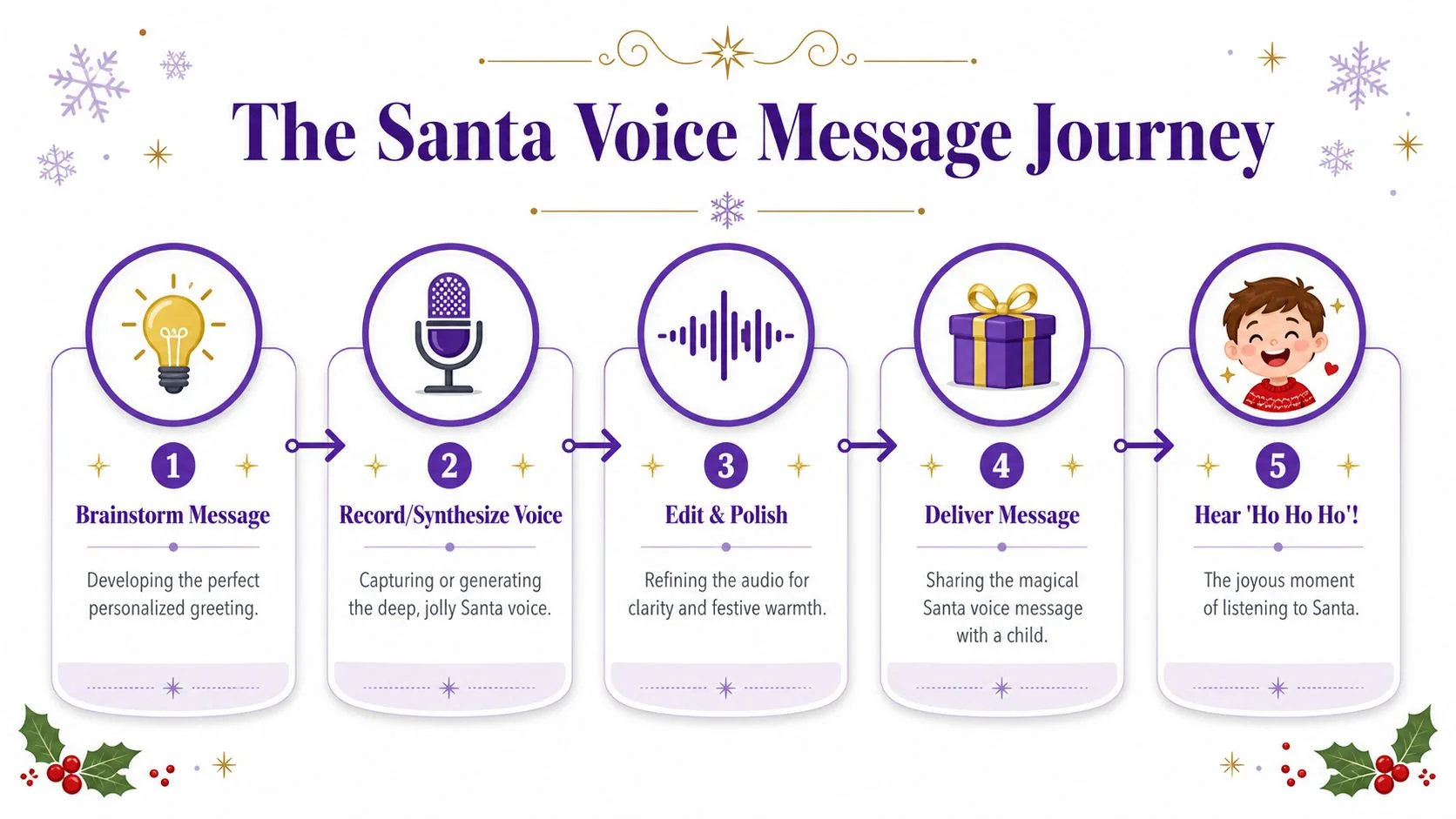
A useful way to think about the process is as five linked decisions:
- Brainstorm the moment. Decide when the child will hear it. Christmas Eve bedtime, Christmas morning, a classroom party, and a family video montage all call for different energy.
- Write the script. Keep it personal and brief. One strong detail about the child’s year usually lands better than a long monologue.
- Record or synthesize the voice. You can do this live with your own voice, ask another adult to perform it, or use a digital voice generator.
- Polish the audio. Remove dead air, fix uneven volume, and soften anything that sounds harsh or robotic.
- Deliver it well. The same message can feel magical in one format and flat in another.
The AI side of this category has grown quickly. The market for AI-generated Santa voice messages has expanded into a distinct digital sector with at least eight top-rated generator apps offering on-demand Santa audio files globally, as noted in this overview of the AI voice generator for videos landscape.
Where parents usually get stuck
It’s not ideas people struggle with. They struggle with fit.
A toddler needs reassurance, warmth, and a familiar rhythm. A school-age child usually enjoys a little North Pole detail and one specific compliment. A teen won’t respond well to babyish wording, but they may enjoy a playful or ironic version that still respects the tradition.
Practical rule: Build the message around one emotional goal. Comfort, excitement, praise, or surprise. Don’t try to do all four.
Formats that work in real homes
A Santa voice message isn’t limited to a phone call. Parents use it in several practical ways:
- Bedtime playback: Best for younger children who respond to ritual.
- Voicemail-style audio: Good when you want the message to feel like Santa called directly.
- Holiday video insert: Useful when you’re already making a family montage.
- Speaker reveal on Christmas morning: Simple and often more effective than anything complicated.
- Live-style interactive setup: Great for events, but it needs more testing.
If you choose the right format first, every later step gets easier.
Crafting Personalized Santa Scripts
A script doesn’t need to be long. It needs to sound like Santa knows who he’s talking to. The fastest way to lose that feeling is to stuff the message with too many facts, too much praise, or lines no child would believe Santa would say.
What to include and what to leave out
Use three ingredients:
- A greeting with the child’s name
- One or two true details from their life
- A warm closing with a clear holiday cue
Skip anything that sounds like a report card. Santa can mention kindness, effort, or a recent achievement, but once the message turns into a lecture, the magic drops.
A good script also matches the child’s age. Younger children need simpler language and calmer pacing. Older children can handle humor, a little suspense, or references to hobbies and current interests.
Sample Santa Scripts by Age
| Age group | Script sample | Voice style |
|---|---|---|
| Toddlers and preschoolers | Ho ho ho, Emma. Santa here from the North Pole. I heard you’ve been helping at home and giving big hugs. The reindeer are getting ready, so snuggle up, sleep well, and have the merriest Christmas. | Slow, gentle, warm pauses after the child’s name and before the closing |
| Early elementary | Ho ho ho, Jackson. Santa Claus speaking. The elves told me you’ve been working hard and showing real kindness this season. I also heard about your new dinosaur collection. Keep that big Christmas smile ready for morning. | Deep and cheerful, with emphasis on Merry, North Pole, and the personal detail |
| Upper elementary | Ho ho ho, Ava. It’s Santa. Word reached my workshop that you’ve been practicing piano and helping your little brother. That’s exactly the kind of spirit we notice up here. Keep up the good work, and leave a little room for cookies. | Confident, slightly playful, with storytelling pauses |
| Tweens | Hello, Mason. Santa here. The sleigh team heard you’ve had a busy year with basketball and school projects. I like that you kept going. Enjoy the break, be kind to your family, and don’t stay up too late trying to catch me. | More natural and conversational, less theatrical |
| Teens | Santa checking in. I know, you’re probably pretending you’re too old for this, but the North Pole still keeps tabs. I heard you handled a lot this year and showed up for your people. That’s worth recognizing. Merry Christmas. | Dry humor, restrained delivery, minimal cartoonish “Ho ho ho” |
Personal details that help
The safest details are ordinary, recent, and positive. Try these:
- A hobby: soccer, drawing, dance, coding, baking
- A small achievement: finishing a book series, learning a song, helping a sibling
- A family cue: new pajamas, leaving out cookies, decorating the tree
- A local reference: hometown weather, neighborhood lights, a school play
Use details that feel plausible for Santa to know. Favorite toy, hometown, or a recent achievement works. Exact schedules, school logistics, or private family issues don’t.
Voice wording that sounds better out loud
Words on the page don’t always perform well in a Santa voice. Build the script for sound, not just for reading.
- Short sentences help. They let the performer breathe and keep the rhythm warm.
- Repetition works. “Ho ho ho” and “Merry Christmas” create familiarity when used lightly.
- Pacing words matter. “Tonight,” “up at the North Pole,” and “before morning” create atmosphere.
- One image is enough. Reindeer bells, toy workshop sounds, or snowy rooftops. Pick one, not all.
If you’re writing for an AI-generated voice, punctuation matters even more. Commas and line breaks do a lot of the performance work.
Recording and Synthesizing the Santa Voice
You have two solid options. Record a human performance, or generate the voice digitally. Both can work. Both can also fail in obvious ways if the setup is wrong.
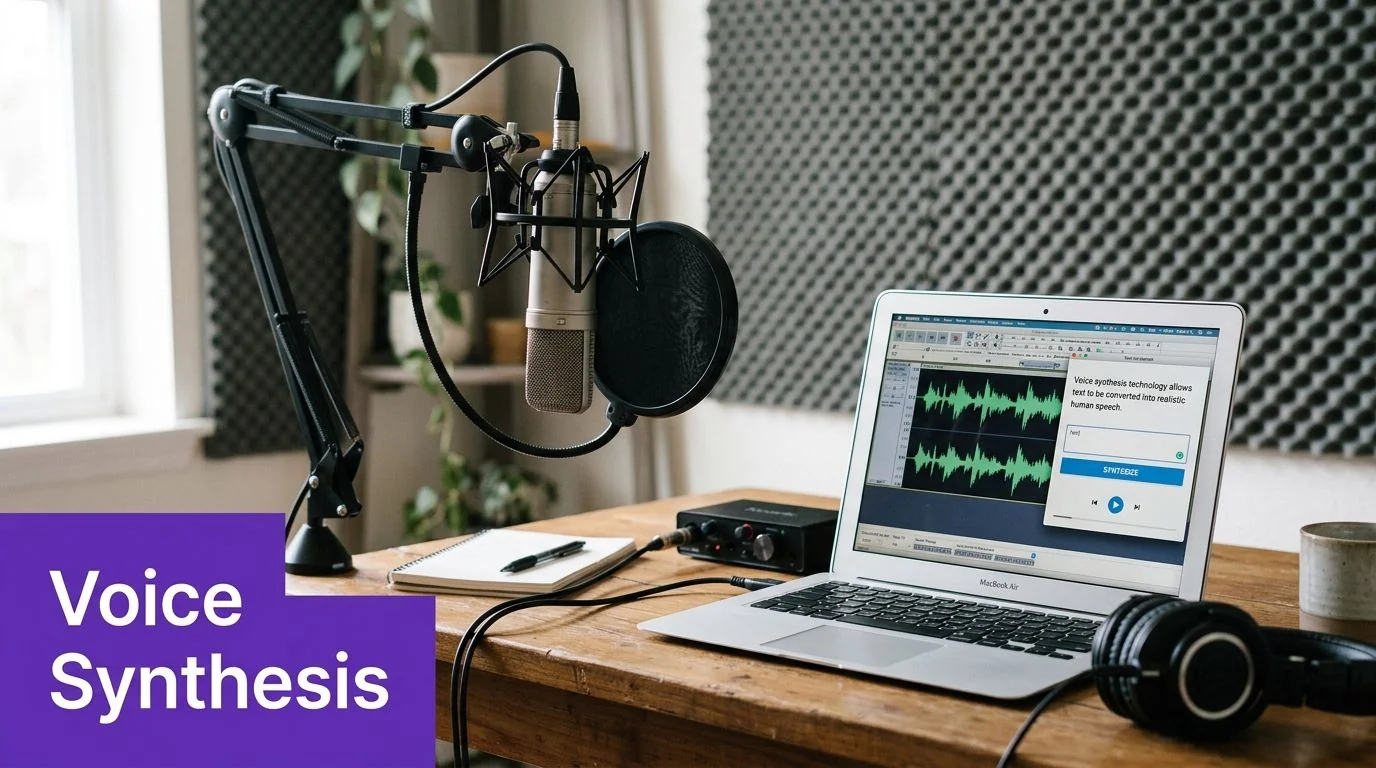
DIY recording that doesn’t sound homemade in a bad way
For a live recording, the room matters almost as much as the voice. Record in a quiet space with soft surfaces. A carpeted room, closet, or bedroom with curtains usually sounds better than a kitchen or office with hard walls.
Then focus on performance:
- Warm up first: Read the script twice before recording the final take.
- Lower your energy slightly: Many adults overact Santa and end up shouting.
- Smile while speaking: It changes the tone in a useful way.
- Sit or stand consistently: Movement changes distance from the microphone and makes the level uneven.
If you’re using your own voice, don’t chase an ultra-deep effect. A believable Santa is usually warm first, deep second.
AI settings that sound more like Santa and less like a robot
Digital tools are strongest when you control the prosody carefully. According to guidance in Murf’s Santa voice generator article, expert implementations adjust pitch to lower frequencies at 85–120 Hz and increase pause duration by 15–20% to boost storytelling realism and reduce listener dissonance by 30%.
That tells you what to tune:
- Pitch: Lower it, but don’t push it so far that it becomes monstrous.
- Speech rate: Slightly slower usually sounds more confident and festive.
- Pauses: Add small breaks before names, after “Ho ho ho,” and before the final holiday wish.
- Accent localization: Match the child’s expected Santa voice. A mismatch can sound off even if the audio is technically clean.
For families exploring voice synthesis in more detail, this guide to AI voice cloning software gives a useful starting point for comparing workflows.
The most common mistake is over-synthesis. Too much pitch lowering without smooth timing turns Santa into a movie villain.
A simple decision rule
Choose DIY recording if the child responds best to warmth and imperfection. Choose AI synthesis if you need clean output fast, want multiple takes, or need to produce several messages for different children.
Either way, test the message on another adult before you play it for a child. Adults catch robotic phrasing and odd emphasis quickly.
Editing and Polishing Your Message
Raw audio is rarely the version you should play. Even a good take usually has extra silence, breath noise, or a line that drags. Editing doesn’t need to be fancy. It needs to protect the mood.
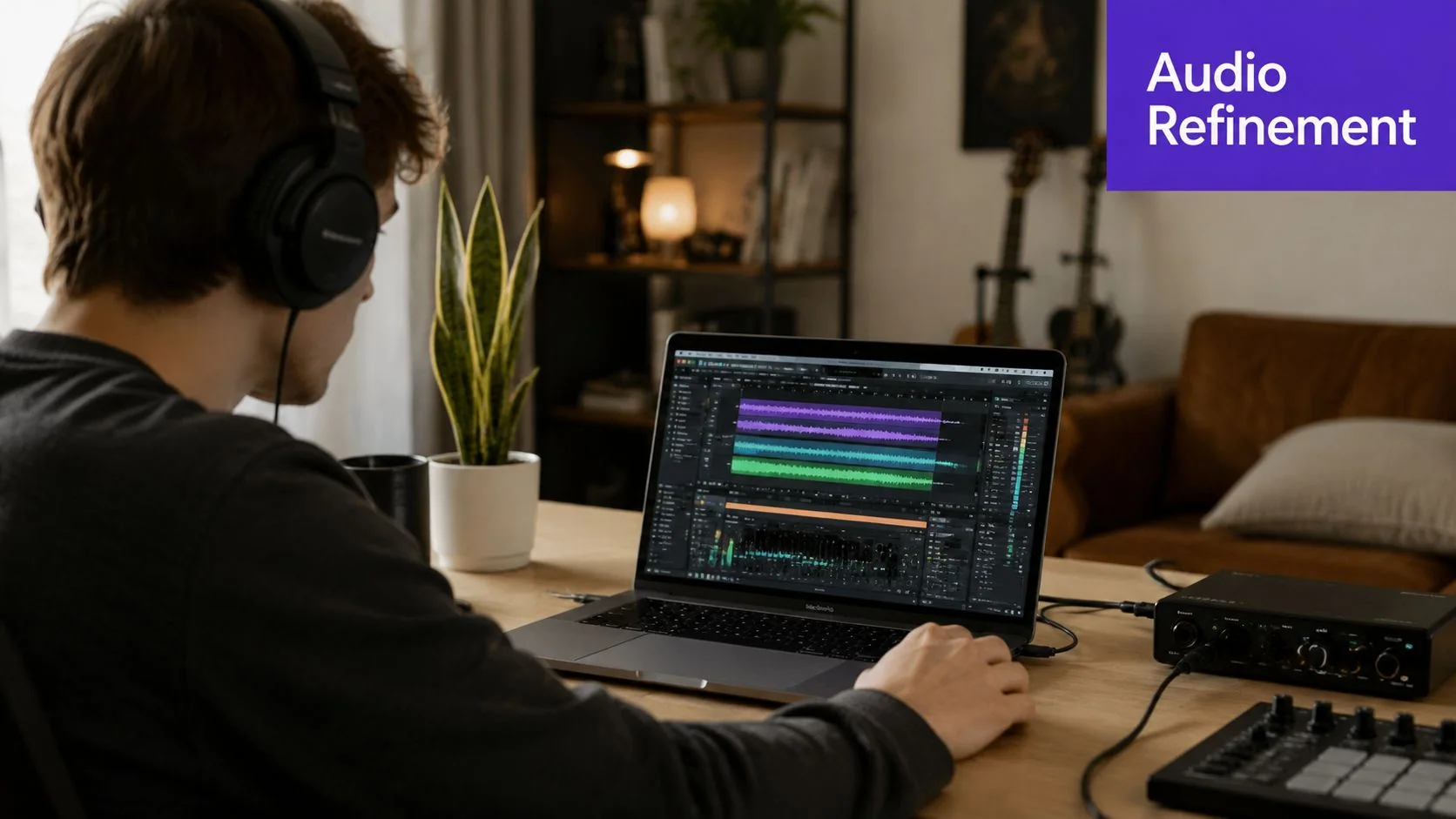
What to fix first
Start with pacing. If Santa takes too long to get to the child’s name, attention drops. Trim the front, tighten long gaps, and shorten any sentence that feels sleepy rather than suspenseful.
Then clean up the sound:
- Remove dead air: Silence only works when it feels intentional.
- Even out volume: The opening greeting and closing line should sit at a similar level.
- Soften harsh consonants: Some microphones make “s” and “sh” sounds brittle.
- Limit effects: A tiny bit of warmth helps. Heavy echo usually hurts believability.
If the message is part of a video
Some parents and holiday organizers don’t stop at audio. They build a screen-based reveal, a slideshow, or a short Santa video card. In those cases, timing matters as much as voice quality.
Tutorial AI’s Auto-Cut feature automatically removes idle moments and pauses between clicks, tightening recordings in seconds without manual timeline editing. If you’re assembling a screen-based holiday walkthrough or a personalized reveal, that’s useful because long pauses between actions make the whole thing feel less magical.
For anyone creating a narrated visual message, this walkthrough on how to voice over is a practical reference for syncing spoken delivery with on-screen moments.
Editing test: If an adult listener reaches for the skip button mentally, trim another beat.
Festive touches that work
Keep add-ons restrained. One soft sleigh bell at the beginning or a light ambient bed under the closing can work. Full holiday music under the whole message often competes with the words.
If you want the message to feel premium, focus on clarity first, not decoration. A clean voice with good pacing beats a cluttered soundtrack every time.
Delivering Your Santa Voice Message
Delivery changes the experience more than most parents expect. The same recording can feel intimate as a voicemail, theatrical in a video, or awkward if a live phone setup lags at the wrong moment.
Six delivery formats worth considering
- Phone speaker playback at home
This is the easiest option. Queue the file, keep the device out of sight, and play it when the moment feels natural. It works especially well for younger kids. - Voicemail-style send
Record the message as if Santa called personally. This format feels direct and doesn’t require the child to sit still for a full video. - Audio attachment from a parent or grandparent
Good for long-distance families. Send the file privately and let the adult control when it’s played. - Embedded in a holiday slideshow or video card
Best when you’re already making a family holiday video. This works well for sharing with multiple relatives. - Inside an app-based Santa experience
Some families prefer a ready-made interface with visual cues. That’s convenient, but you should still preview the audio quality and privacy terms. - Live-style phone interaction
This can be the most immersive option, but it needs technical testing before a child ever hears it.
Real-time calls and latency trade-offs
For organizers running an interactive call flow, webhook architecture is common. Integrating Santa voice messages into real-time channels often uses webhooks, and selecting a regional server can cut latency by 40%, which helps the call flow smoothly, according to this video walkthrough on voice agent deployment.
What matters in practice is simple. If the system pauses too long after the child says hello, the illusion weakens.
Use this checklist before any live delivery:
- Test the exact device: A setup that works on one phone can behave differently on another.
- Run a full dry run: Include connection, playback start, and message end.
- Keep backup audio ready: If the live interaction fails, you still need a smooth save.
- Choose the shortest path: Fewer moving parts means fewer holiday headaches.
Picking the right channel for your family
If your child is very young, choose reliability over novelty. A clean playback from a trusted adult is often better than a complicated live simulation.
If you’re doing a school event or a community program, then scale and consistency matter more. In that setting, pre-rendered files are easier to control than real-time systems.
Privacy Legal Best Practices for Santa Messages
A personalized Santa message usually asks for names, ages, interests, and sometimes location details. That’s where the cheerful surface can hide a real trust problem.
Parents have growing concerns over data collection by seasonal AI services, yet many guides skip privacy disclosures, which creates a trust gap, as discussed in this report on parent concerns around Talk to Santa-style services.
What to collect and what to avoid
Collect the least amount of information you need to make the message feel personal.
- Good data to use: first name, age range, one hobby, one recent achievement
- Data to avoid unless necessary: exact address, school name, daily routine, health details
- Best cleanup habit: delete seasonal data after the holiday unless the parent clearly asks you to save it
If you’re using any service that stores recordings or text prompts, read the privacy language before entering a child’s details. If the service isn’t clear about retention or deletion, use a generic script instead of a highly personal one.
Child comfort matters too
The legal side isn’t the only risk. The emotional setup matters, especially for younger children. Keep the experience playful and age-appropriate, and give the child room to enjoy it without pressing them to declare whether it was “real.”
Ask, “What part made you smile?” That’s gentler and more useful than asking whether they believed it.
If you’re organizing messages for multiple families, state upfront who records the message, what information is used, and when it will be removed. Clear consent language protects everyone and keeps the holiday focus where it belongs.
If you create holiday tutorials, personalized reveal videos, or family how-to content around Santa messages, Tutorial AI is worth a look. It turns a single screen recording plus spoken narration into a polished tutorial video and a matching written article from the same recording. That’s useful for product demos, feature release videos, customer onboarding, help-center videos, support article videos, internal training, SOPs, and sales enablement walkthroughs. Compared with casual screen recorders, it auto-tightens recordings that often run longer than needed. Compared with Camtasia, Adobe Premiere Pro, and Final Cut, it gives non-editors a polished result without requiring expert editing skill. It also supports narration in 74 languages, AutoRetime for pacing each language version correctly, document generation from one recording, Brand Kits, a Multilingual Player, SSO/SAML, and SOC 2 + GDPR support. Teams at Bosch, Deutsche Bahn, Intesa Sanpaolo, Microsoft, and UNICEF use it when they need real screen plus real voice, not synthetic talking heads.