
How do I remove a pause or speed up my video?
Use Auto-cut in Clips to remove idle moments automatically, or cut specific segments yourself with Cut a segment.
If your video feels slow or has stretches where nothing is happening, there are two tools in Clips to fix this: Auto-cut for idle moments and Cut a segment for anything specific.
Step 1 — Run Auto-cut first
Auto-cut automatically detects and removes idle moments from your recording — pauses between clicks, loading screens, and sections where the mouse isn’t moving. It’s the fastest way to tighten up a video in one click.
Open Clips and click Auto-cut in the toolbar. Hover over the button first to preview what it would cut. Auto-cut works on the clip you’re on, so run it on each clip that needs it, then preview the result and go to step 2 if anything still needs trimming.
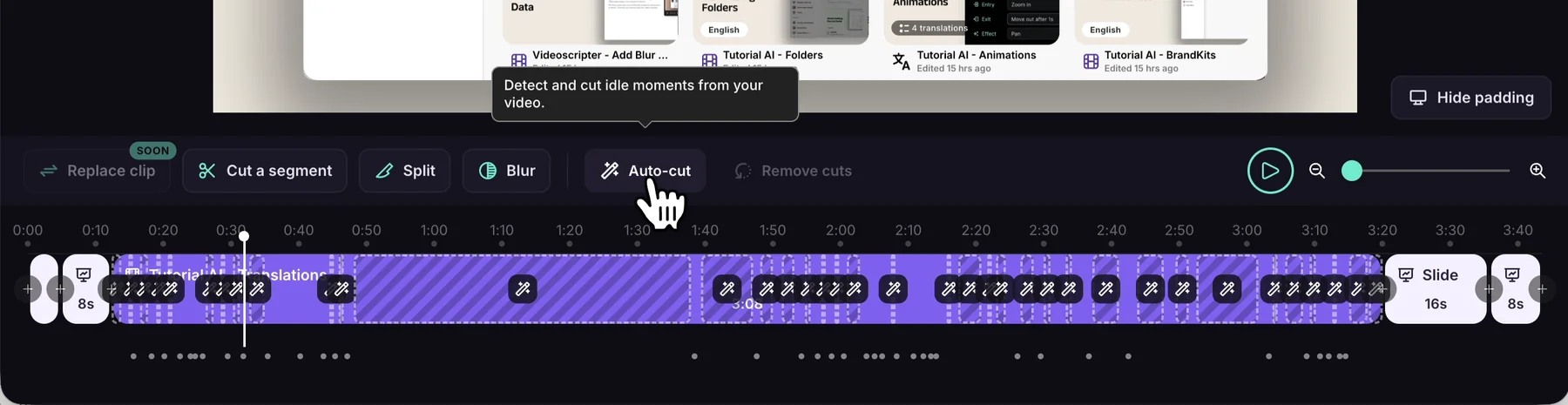
Step 2 — Manually cut remaining segments
If there are still specific sections you want to remove — unnecessary clicks, a wrong turn in the recording, or a segment that’s simply too long — click Cut a segment in Clips (or Shift + Click on the timeline) to cut them out manually — see Cut & Trim Video Segments.
When you remove a video segment, the narration between its surrounding Sync Markers automatically adjusts to fit the shorter footage. The video will play faster through that section instead of pausing.
Why this works
In Tutorial AI, pauses in the narration are caused by the video being longer than the narration between two Sync Markers — the video has to wait. By cutting out footage, you shorten the video segment and the system no longer needs to pause.