Ever felt like your beautifully crafted PDF is just sitting there, not getting the attention it deserves? You’re not alone. Static documents, whether they’re in-depth reports, sales proposals, or training guides, often struggle to compete for eyeballs. Turning that PDF into a dynamic video can make all the difference, and thankfully, it’s easier than you might think.
You can go old-school and screen-record a presentation, get your hands dirty by sequencing PDF pages as images, or take the fast track with an AI-powered tool that does most of the heavy lifting for you. In just a few minutes, you can breathe new life into that document and create something truly engaging.
Why Bother Turning a PDF into a Video?
Let’s be honest: most people don’t read lengthy PDFs. They skim. In our fast-paced, visually-driven world, a video is a much more effective way to capture and hold attention, making complex information easier to digest. The real question isn’t if you should do it, but how you can transform a document meant for reading into a story that’s worth watching.
The right approach depends entirely on what you’re trying to achieve. There are a few solid methods for converting a PDF to video, and each one comes with its own set of trade-offs.
Picking Your Path: 3 Ways to Convert Your PDF
One of the most common starting points is simple screen recording. You just pull up your PDF, hit record on your screen capture software, and talk through the material. It’s fast, it’s direct, and it adds a personal touch. The downside? It can feel a bit unpolished, and if you stumble over your words, you’re stuck with a tedious editing job or have to start all over again.
Another well-trodden path is image sequencing. This is a more hands-on technique where you save each PDF page as an image (like a JPEG or PNG), then line them up in a traditional video editor. This approach gives you granular control over timing, transitions, and other effects, but it can be a real time-sink, especially if you’re working with a hefty document.
The goal here isn’t just to make a video for the sake of it. You’re creating a communication tool. The best method for you will strike a balance between the effort you’re willing to put in, the quality you’re aiming for, and what the video will ultimately be used for—be it marketing, training, or sales.
A Smarter Way: The Rise of AI in Video Creation
The most efficient route today involves using an AI-powered platform like Tutorial AI. These tools have completely changed the game by automating the most tedious parts of video creation. You can upload your PDF and get a polished, professional-looking video with minimal manual work, bridging the gap between a simple screen recording and hiring a video production team.
This shift is more than just a trend. The market for AI video tools is exploding, reflecting a massive demand for smarter content creation. The global AI video generator market, valued at USD 788.5 million in 2025, is on track to hit USD 3,441.6 million by 2033. You can dig deeper into these figures by reading the full research on AI video market trends.
PDF to Video Conversion Methods At a Glance
To help you decide which path is right for you, here’s a quick breakdown of the three main methods.
| Method | Effort Level | Final Quality | Best For |
|---|---|---|---|
| Screen Recording | Low | Low to Medium | Quick, informal walkthroughs and personal demos. |
| Image Sequencing | High | Medium | Short, visually-driven marketing clips with precise timing. |
| AI-Powered Tools | Low to Medium | High | Professional training, sales demos, and marketing videos. |
As you can see, AI tools offer a compelling sweet spot, delivering high-quality results without the high effort of manual editing. They’re quickly becoming the go-to for anyone who needs to create professional-grade videos at scale.
A Look at the Old-School Ways to Turn a PDF into a Video
Before we had smarter AI tools to do the heavy lifting, turning a PDF into a video was a real grind. Knowing these traditional methods gives you a good baseline for just how much easier things have gotten. It really puts the “hard way” into perspective and shows you the exact problems that modern tools were built to solve.
The most common route people took was simple screen recording. You’d just pull up your PDF, put it in full-screen mode, and start recording your screen while you talked your way through the pages. It’s a direct approach, sure, and doesn’t require much technical know-how to get started.
But that simplicity is deceptive. The moment you cough, a dog barks, or you stumble over a word, you’re faced with a choice: start the whole thing over or get ready for a frustrating session in a video editor, trying to slice out the mistake. It’s incredibly easy to end up with a clunky, unprofessional video that loses your audience’s interest right away.
The Page-by-Page Image Method
The other classic technique was to convert every single page of the PDF into an image, usually a PNG or JPEG. You’d end up with a folder stuffed with images that you’d then import into a video editing program and line them up one by one on the timeline. This definitely gives you more granular control than a screen recording, but the tradeoff is a massive amount of manual labor.
Honestly, this process is a masterclass in tedious work. You have to:
- Manually drag out the duration of each image to sync up with your narration.
- Record your audio as a separate file and then painstakingly align it to each image “slide.”
- Add every single transition, zoom, or pan by hand.
If your PDF has, say, 50 pages, you’re looking at hours of pure, repetitive clicking and dragging. And if you need to change a single sentence in your voiceover? You’ll likely have to re-time every single slide that comes after it. The whole thing can feel like a house of cards. A similar level of effort is often required when you need to turn a PowerPoint into a video, demanding a careful approach to sync visuals and audio.
Key Takeaway: The old-school methods basically made you choose between the fast-but-messy screen recording or the controlled-but-exhausting image sequencing approach. Neither path was great for subject matter experts who just wanted to create a polished video without spending all day on it. This hands-on approach forced you to be the presenter, video editor, and sound engineer all at once. For anyone who wasn’t a dedicated video pro, turning a pdf to video was a huge obstacle. You either had to settle for a low-quality final product or sink a ton of time and resources into it—time that could have been spent on more important work. This is exactly the challenge that new AI-powered workflows are designed to solve.
Using AI to Create Professional Videos
When you need to turn a PDF into a video, the old methods force you to choose between speed and quality. This is exactly why modern AI tools are such a breakthrough. They offer a smarter way to get professional results without the headaches of traditional video editing. Platforms like Tutorial AI are built to solve this problem, completely changing how experts can share their knowledge through video.
The whole process can start with a simple screen recording. Forget about a perfect script—just open your PDF and talk through it naturally. This is a common starting point for many people, but the raw recording is often far from perfect.
From Raw Recording to Polished Video
Easy-to-use recording tools like Loom are fantastic for quickly capturing your screen and voice, but let’s be honest: the final videos are often 50-100% longer than necessary. They’re full of awkward pauses, “ums” and “ahs,” and sections you have to re-record. On the flip side, you could use professional video editing software like Camtasia or Adobe Premiere Pro to clean it all up, but that requires expert video editing knowledge and hours of tedious timeline work.
Tutorial AI takes a fundamentally different approach. Its tools let you speak freely without any practice, and still, your video will look professional as if it was edited in Adobe Premiere Pro. After you finish your recording, the platform instantly creates a word-for-word transcript. This is where the magic happens: you edit the video by editing the text.
Instead of messing with complex timelines, you just delete words or sentences from the transcript. The AI automatically snips out the matching video and audio segments. It’s as intuitive as editing a Google Doc, which means you can create a tight, professional video that looks like a pro spent hours on it. This text-based editing puts the power back in the hands of the person who actually knows the material—the subject matter expert. You no longer need to send recordings back and forth with a dedicated video editor, which saves a ton of time and money.
This flowchart shows the old-school way of doing things, with all the manual steps that AI now automates.
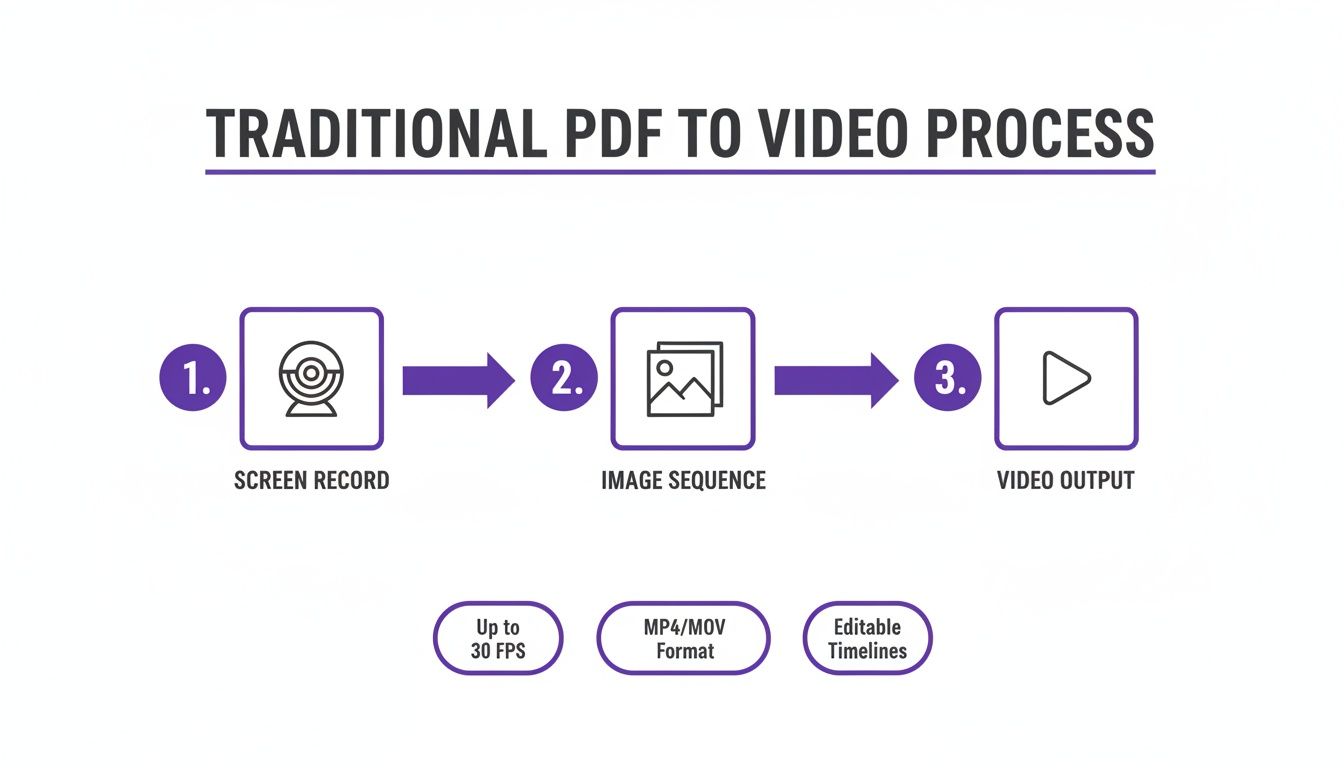
As you can see, the traditional process is broken into separate, time-consuming stages. AI-powered tools bring all of this into one seamless workflow.
Creating On-Brand Content at Scale
Tutorial AI excels at helping you generate video tutorials based on screen recordings. This allows the subject matter expert to create on-brand videos with extreme efficiency for a wide range of needs:
- Demos and explainer videos
- Onboarding videos and feature release videos
- Knowledge base videos and support article videos
A truly professional video is more than just clean edits; it needs to look and feel like it comes from your brand. AI tools make it incredibly easy to apply your branding consistently across every video you make. In just a few clicks, you can:
- Add your company logo as a watermark.
- Set custom fonts and colors for all your captions and text overlays.
- Drop in animated intro and outro slides to give your videos a polished, consistent frame.
This ability to brand content in seconds is a huge advantage for teams that need to create a lot of videos. If you’re curious about the broader applications of AI in video, our guide on how to create AI video covers the entire process from start to finish.
The evolution of AI has even opened up new ways to create visuals directly from text. For example, you can now use script to video AI tools to turn written documents into dynamic presentations. This idea of automating the technical work lets creators get back to what they do best: focusing on the message.
Polishing Your PDF Video with AI Magic
A raw recording is a great starting point, but it’s not the finished product. This is where AI-driven tools come in to transform a simple screen capture of your PDF into something genuinely professional. These features bring a level of polish that once required a dedicated video editor, making high-quality production available to anyone.
Give Your Recording a Professional Look and Feel
After trimming the awkward starts and stops, your next job is to guide your viewer’s attention. Instead of spending hours setting manual keyframes, you can lean on AI to add dynamic effects that make your points clearer and your video more engaging.
Here are a few of my favorites:
- Smart Zooms: I love this one. The AI automatically zooms in on key details in your PDF as you’re talking about them. It ensures your audience can always read that important graph or text section you’re referencing.
- Cursor Effects: You can add highlights or a magnification effect to your cursor, which is a lifesaver for complex walkthroughs. It makes it incredibly easy for viewers to follow exactly what you’re doing.
- Privacy Blurs: If your PDF contains sensitive information, you can add blurs that automatically track and hide that data throughout the video. It’s a set-it-and-forget-it solution.
Features like these, which used to be a massive time sink, now take just a few seconds to apply. It’s no surprise that this is the fastest-growing corner of AI video technology. The global market was valued at USD 131 million in 2024 and is expected to hit USD 1,166 million by 2032. You can read more in this video enhancing AI tool market analysis.
Make Your Video Accessible to a Global Audience
A great video doesn’t mean much if people can’t understand it. AI-powered transcription and translation services are no longer just nice-to-haves; they’re essential for reaching a wider audience.
AI-generated captions are crucial for accessibility, opening up your content to viewers who are deaf or hard-of-hearing. As a bonus, they also give your video’s SEO a major boost since search engines can crawl the text. If you want to take your audio to the next level, an AI voice generator for videos can provide crystal-clear narration for all your projects.
Pro Tip: Don’t just stop with captions in one language. Look for tools with features like AutoRetime translation, which can instantly prepare your video for global viewers. The AI doesn’t just translate the text; it actually adjusts the timing of your on-screen actions and zooms to align perfectly with the new narration in different languages. This is a game-changer. It means you can create a video from your PDF once and then, with a few clicks, adapt it for multiple international markets. This workflow turns a single piece of content into a powerful asset for global training, marketing, or sales.
Getting Your New Video Seen: Optimization and Distribution
You’ve done the hard work of turning that static PDF into a dynamic video. That’s a huge step, but the job isn’t quite finished. A fantastic video is only as good as its reach, so now it’s time to shift gears and focus on getting it in front of the right audience.
First things first, let’s talk about exporting. Your export settings really depend on where your video will live.
- YouTube or Vimeo: For these high-quality streaming platforms, you’ll want to export in 1080p or 4K resolution. Using the H.264 codec is a standard, safe choice that ensures your video looks sharp and professional.
- Internal Knowledge Bases: If the video is going into a Confluence page, a support doc, or an internal training module, a 1080p file is usually more than enough. It keeps the quality high without sacrificing loading speed.
This is where having a tool with a built-in embeddable player becomes a real game-changer. Instead of just sending a link, you can copy a snippet of code and paste it directly into your website, help center, or even a Salesforce record. It keeps your audience right where you want them.
Making Your Video Discoverable
Once your video is exported and uploaded, you need to help people find it. That’s where video SEO comes in. Think of it as leaving a trail of breadcrumbs for search engines like Google and YouTube to follow.
It all starts with a smart title and description. A generic title like “Product Update” isn’t going to cut it. Instead, think about what a user would actually type into a search bar. Something like “How to Use the New Reporting Dashboard Feature” is far more effective. It seems like a small tweak, but it makes a world of difference.
The transcript your AI tool generated isn’t just for editing—it’s an SEO goldmine. When you upload this as a closed captions file (a .SRT file), you’re essentially handing search engines a word-for-word script of your video. This dramatically boosts its chances of ranking for all the specific keywords and phrases mentioned. This push to make documents more searchable and engaging is part of a much bigger picture. The video conversion market, valued at USD 1,518 million in 2025, is projected to nearly double to USD 3,000.38 million by 2033. This explosion in growth shows that powerful pdf to video tools are quickly becoming a must-have for everyone from solo creators to large enterprises. You can dive deeper into these trends with data from Cognitive Market Research.
Connecting Video to Your Business Goals
Ultimately, every piece of content should have a purpose. By sharing your video in the right places, you’re tying your creation efforts directly to tangible business outcomes.
Whether your goal is to reduce support tickets with a clearer how-to guide, generate more leads with a persuasive product demo, or onboard new hires more effectively, a well-made and properly distributed video is an asset that works for you. Your polished video is now ready to deliver real value.
As you start thinking about turning your static PDFs into engaging videos, you’ll probably run into a few common questions. It’s a path many of us have walked, so let’s clear up some of the frequent hurdles right now.
Can I Really Convert a PDF to a Video for Free?
Absolutely. You can definitely get the job done without spending a dime. Tools like OBS Studio or even the screen recorder built into your computer can capture your PDF slides. From there, you can drop the saved pages (as images) into a free video editor and piece them together.
But, I’ll be honest—it’s a grind. This manual approach takes a lot of time, and the final video often feels a bit clunky and unprofessional.
If you want a more polished result without the headache, many AI-powered tools like Tutorial AI offer free plans. They give you a fantastic way to create something impressive without the steep learning curve or the long hours.
What’s the Sweet Spot for Video Length?
This is a classic “it depends” question, but I can give you some solid guidelines based on experience.
If you’re making a focused software tutorial, aim for 2-5 minutes. That’s usually the sweet spot for keeping your viewer’s attention while you explain a specific task. For something like a marketing brochure you’re turning into a promo video, you’ll want to keep it much tighter—think 60-90 seconds.
The golden rule is to be concise. This is where an AI editor can be a lifesaver. By letting you simply delete text from the generated transcript, you can easily trim your raw recording time by 30-50%. You’ll cut out all the filler without losing a single important point.
What’s the Best Way to Handle the Voiceover?
Trying to narrate perfectly while you’re also screen recording is incredibly stressful. One tiny slip-up, and you’re back to square one. I’ve been there, and it’s not fun. The most efficient and stress-free method I’ve found is using a tool that lets you record the narration separately and naturally, without a script.
Tutorial AI’s tools let you speak freely without any practice, and your video will still look professional, as if it was edited in Adobe Premiere Pro. This unique approach allows the subject matter expert to create on-brand videos with extreme efficiency. The AI transcribes what you said, and you just edit the text—no wrestling with a complicated audio timeline. The platform then re-generates a clean, perfectly-paced voiceover that syncs beautifully with your visuals. It completely eliminates the need for endless re-recordings.
How Can I Make My Video Look Genuinely Professional?
To elevate your video beyond a simple screen recording, you need to add layers of polish. Start by using a platform that allows you to incorporate brand elements like your logo and custom fonts. This instantly makes it feel like your content.
Use dynamic effects, like smart zooms, to draw attention to important details. Simple cursor effects also work wonders for guiding your viewer’s eye.
And don’t forget captions—they’re crucial for accessibility and help with SEO. Finally, bookend your content with a clean, animated intro and outro. Many AI platforms can automate these touches, giving you that studio-quality finish without you needing to be a video editing pro.
Ready to turn your raw recordings into polished demos and tutorials effortlessly? Tutorial AI makes it easy to create studio-quality videos in minutes. Start creating for free today!