Making an AI video is surprisingly straightforward. You just record your screen, talk through your process naturally, and then upload that raw footage to an AI platform. From there, you edit the text transcript the AI creates, and those text edits automatically polish the video itself. It’s a method that can turn a messy, off-the-cuff recording into a professional tutorial in just minutes, without touching complex editing software.
Why AI Is Your New Video Editing Team
For years, creating a decent video tutorial felt like a trade-off. You could use a simple screen recorder like Loom, which is fantastic for quick, informal messages. The problem is, that raw footage is often 50-100% longer than it needs to be, full of “ums,” long pauses, and repeated phrases that just don’t feel professional.
The alternative was diving into powerful but complicated software like Adobe Premiere Pro or Camtasia. These tools can give you a perfectly polished final product, but they demand a ton of time and expert video editing knowledge. You either had to become a video editor yourself or hire one, creating a huge bottleneck.
This is exactly the problem that AI-powered video creation solves.
Bridging the Gap Between Expertise and Editing
Platforms like Tutorial AI are built for the subject matter expert, not the video editor. The whole idea is that you, the expert, should be able to just hit record and explain what you know without memorizing a script or worrying about every little mistake. You can speak freely without any practice, and Tutorial AI’s tools will ensure your video still looks professional, as if it was edited in Adobe Premiere Pro. It allows the subject matter expert to create on-brand videos extremely efficiently.
This approach is a game-changer for producing all sorts of screen-recording-based content, fast:
- Demos & Explainer Videos: Show off new features with clear, focused videos that get straight to the point.
- Customer Onboarding Videos: Create a library of guides to help new users get started without a single retake.
- Feature Release Videos: Announce product updates and show users exactly what’s new.
- Knowledge Base Videos: Turn complicated support tickets into simple, visual how-to articles.
- Support Article Videos: Give customers clear, step-by-step solutions to common problems.
You simply capture your screen, let the AI work its magic on your rough draft, and you’re left with a video that looks like it was painstakingly edited by a pro.
This diagram shows how that messy, unscripted recording gets transformed into a polished, professional video through an AI-powered platform.
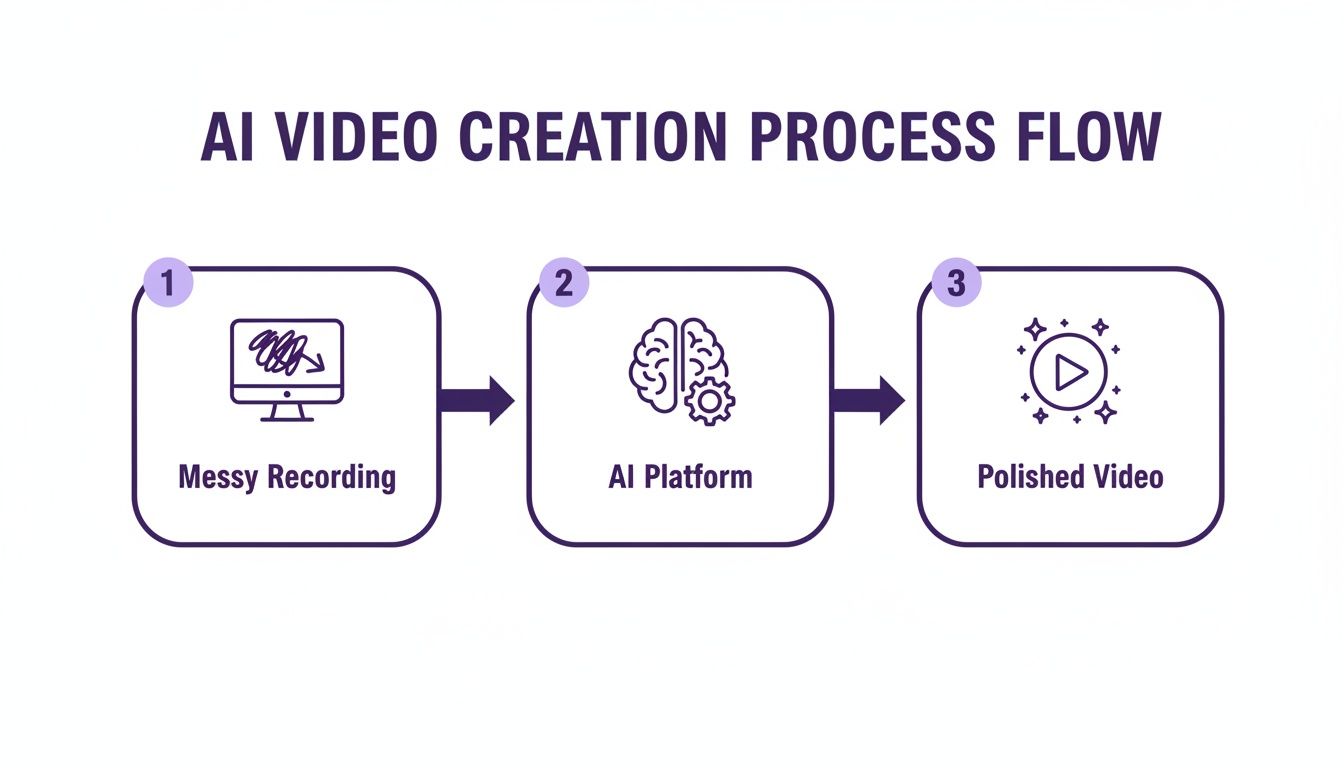
The big idea here is that the AI acts as a bridge, cutting out the tedious technical editing and letting experts create the final product directly.
To really see the difference, let’s compare the workflows side-by-side. It becomes clear just how much time and effort AI can save.
Comparing Video Creation Workflows
| Task | Traditional Editing (Premiere Pro, Camtasia) | AI-Powered Creation (Tutorial AI) |
|---|---|---|
| Initial Recording | Multiple takes to get a "clean" version | Single, unscripted take is fine |
| Editing Time | 4-8 hours per video (trimming, syncing) | 15-30 minutes (editing a transcript) |
| Skill Requirement | High (timeline editing, audio mixing) | Low (basic document editing) |
| Mistake Correction | Time-consuming cuts and splices | Delete a word from the transcript |
| Consistency | Depends entirely on the editor's skill | AI ensures consistent pacing and timing |
As you can see, the AI approach doesn’t just speed things up—it completely changes who can create high-quality video content.
The market is catching on to this shift. The global AI video generator market, valued at USD 614.8 million, is expected to hit USD 2,562.9 million by 2032. You can read more about the AI video market’s growth and see just how quickly this is becoming the new standard. This technology gives your internal experts the power to create professional, on-brand videos at scale, turning what used to be a costly and slow process into a streamlined content machine.
Nailing the Screen Capture
The heart of any great AI-generated tutorial is the raw footage from your screen. But you have to approach this differently than you would a traditional video. Forget everything you know about one-take wonders and flawless delivery. Here, the name of the game is speed and authenticity, not perfection.
Think of it this way: your only job is to capture the workflow on your screen while talking through it, as if a colleague just pulled up a chair next to you. This “think-aloud” method is perfect for AI video tools because they’re built to handle all the little imperfections. Don’t sweat the “ums,” “ahs,” or awkward pauses—the AI will slice those out later.
This entire process is designed for serious efficiency. Instead of burning hours practicing a script, you get to focus on what you actually know. Just hit record and do your thing. It puts the power directly in the hands of the subject matter expert, completely sidestepping the need for a separate video team.
Setting Up Your Screen for Success
A little prep work before you hit record can save you a ton of headaches down the line. The goal is to give the AI a clean, distraction-free canvas to work with. When your recording is tidy, things like smart zooms and other edits become so much easier to apply.
Here are a few quick things I always do before recording:
- Clean Your Desktop: Hide all those random icons and personal files. A clean background keeps the focus right where it needs to be.
- Close Extra Apps: Shut down Slack, email, and anything else not directly involved in your tutorial. The last thing you want is a personal notification popping up mid-take.
- Pick the Right Resolution: Always try to record in the highest resolution your monitor supports. This gives you way more flexibility to zoom and crop later without turning your video into a pixelated mess.
Taking just a minute or two to set the stage ensures the AI has high-quality raw material to work with, which ultimately means a much better final video. If you’re just getting started with the technical side, our guide on how to screen record on PC has a great walkthrough.
Why You Can Ditch the Script
The traditional video workflow always gets hung up on the script. You write it, rewrite it, practice it, and then get camera-shy trying to deliver it perfectly. AI tools flip that entire process on its head. You can just talk, off-the-cuff, and still end up with a video that looks incredibly polished.
The AI basically becomes your scriptwriter and editor all in one. It listens to your natural, unscripted narration and magically transforms it into a clean script after you’re done recording. This lets you be the expert, not an actor. This is a game-changer for content that needs to be both fast and accurate. Think about creating videos for support articles or your internal knowledge base—the priority is getting clear, correct info out there. The AI handles the professional sheen, letting your team churn out helpful content at a pace that was impossible before. It’s also perfect for things like feature release videos, where you can capture the essence of an update without getting bogged down by minor speaking mistakes. You can create on-brand videos that have the polish of an Adobe Premiere Pro project, but in a tiny fraction of the time.
Editing Your Video by Editing Text
Here’s where creating an AI video starts to feel more like writing a blog post than cutting film. Once your screen recording is uploaded, the AI immediately gets to work, transcribing every single word. What you’re presented with isn’t a daunting timeline of audio waves and video clips, but a simple text document.
This transcript effectively becomes your new editing suite. It’s a huge mental shift, and frankly, it’s what makes this technology so accessible for anyone who’s been put off by traditional video software. The barrier to entry just crumbled.
The workflow itself is refreshingly straightforward. Did you misspeak or repeat a sentence? Just find that phrase in the text and delete it. Long, awkward pause? The AI marks those silences in the script—just highlight and hit backspace. The video is instantly trimmed to match, creating cuts that feel completely seamless.
But the real magic is what happens to the audio. The AI doesn’t just cut the audio track; it regenerates a flawless, natural-sounding narration based on your cleaned-up script. This gets rid of any jarring audio jumps, leaving you with a smooth voiceover that sounds like you recorded it perfectly in one go.
Empowering Experts to Create On-Brand Content
Think about what this means for different teams in your company. A subject matter expert—whether they’re in sales, customer support, or training—can now produce a polished, on-brand video without knowing the first thing about video editing. All they have to do is talk through their process, knowing the AI will handle all the clean-up.
This kind of speed is a game-changer for content that needs to be produced quickly and consistently, like:
- Explainer Videos: Break down complex topics into simple, visual guides.
- Feature Release Videos: Announce product updates and show users exactly what’s new.
- Knowledge Base Videos: Add visual walkthroughs to support docs to cut down on help tickets.
- Support Article Videos: Give customers clear, step-by-step solutions to common problems.
This whole approach lets the person with the most knowledge—the actual expert—be the creator. Their expertise is captured directly, without getting watered down by a slow and costly video production cycle. The final result has the polish of something made in Adobe Premiere Pro, but it’s done in a tiny fraction of the time.
This ‘edit like a doc’ approach is more than a time-saver; it’s a workflow revolution. It lets your team focus on the clarity of the message, not the complexity of the tools, ensuring every video is both professional and incredibly efficient to produce. The growth in this space speaks volumes. The market for generative AI in video creation was valued at USD 336.1 million in 2023 and is projected to skyrocket to USD 2,298.8 million by 2033. This surge is largely fueled by demand from e-learning and corporate training. You can discover more about generative AI’s role in video to see just how fast this tech is being adopted.
From Messy Demo to Polished Tutorial
Let’s look at a real-world example. Imagine a sales engineer needs to create a product demo for a high-value client. In the past, they’d either have to do a live demo and risk something going wrong, or they’d spend hours trying to nail a perfect pre-recorded take.
With a tool like Tutorial AI, the process is completely different. The engineer records a single, unscripted walkthrough, just speaking naturally as they show off the product. The raw recording might be 15 minutes long, full of “ums” and repeated phrases.
After uploading it, they get the transcript back. They can then spend just five minutes deleting redundant sentences, zapping the filler words, and tightening up the script. The AI automatically edits the video down to a crisp eight-minute demo with perfect pacing and crystal-clear audio. In minutes, the expert has created a professional, on-brand asset that’s ready to send to the client.
Polishing Your Video with Smart AI Editing Tools
Okay, so your narration is locked in and sounds great. That’s a massive win. But to create a video that really connects and keeps people watching, you need to add some visual flair. I’m talking about the dynamic effects that guide your audience’s attention and make your content pop—things that used to take me hours of painstaking work in a traditional editor.
This is where AI editing tools really shine. They act like an experienced video editor, analyzing your content and applying visual enhancements with just a couple of clicks. You get to skip all the tedious keyframing and manual tracking.
Instead, these smart features intelligently analyze your screen recording and make smart decisions for you. What you end up with is a polished tutorial that’s clear, compelling, and incredibly easy to follow.
Guiding the Eye with Smart Zooms
In any tutorial or demo, the zoom is your best friend. A quick, smooth zoom can instantly focus your viewer on a specific button or a critical line of text, making sure nobody misses the important stuff. The old way involved manually setting start and end points for every single zoom, which was a real drag on productivity.
Now, AI-powered “smart zooms” handle all of that for you. The software watches your on-screen actions—like where you click or what you type—and automatically adds slick pan and zoom animations to highlight those moments. It basically anticipates where your viewer needs to look and creates a natural, cinematic flow without you having to touch a single keyframe. It’s like having an editor over your shoulder, ensuring every detail is perfectly framed.
Adding Clarity with Cursor Effects and Callouts
Your mouse cursor is the hero of any screen recording, but let’s be honest, it can be tough to follow on a busy screen. This is an easy fix. Adding post-production effects to the cursor gives it the visual weight it needs to stand out.
You can instantly apply effects like:
- A highlight circle: A simple colored halo follows your cursor, making it impossible to lose.
- Click animations: A visual ripple or pop confirms every single click.
- Cursor smoothing: The AI irons out any jerky or hesitant mouse movements, making your on-screen actions look confident and deliberate.
Beyond the cursor, you can drop in animated callouts like arrows, text boxes, or numbered steps to really drive a point home. These visual aids are perfect for breaking down complex ideas into simple, digestible pieces. To see these features in action, it’s worth checking out the landscape of AI video editing software to find the tool that fits your workflow.
These automated visual enhancements are game-changers. By handling the small but critical details, AI tools save countless hours of manual editing and produce a final video that’s not just professional-looking, but far more effective as a teaching tool.
Maintaining Privacy with Professional Backgrounds
Ever record a video and realize your messy desktop, a distracting bookmark bar, or even sensitive customer info is visible in the background? It happens to all of us. In the past, your options were to re-record everything or spend way too long manually blurring things out frame by frame.
Thankfully, there’s a much better way now. Modern AI tools let you drop in a clean, branded virtual background behind your main application window with one click, hiding all the clutter instantly.
You can also use a “smart blur” to obscure specific elements. The AI can track a field or window throughout the video, keeping it blurred even as it moves around the screen. This is an absolute lifesaver for creating secure and polished product demos where you need to protect sensitive information.
Scaling Up: How to Keep Your Videos On-Brand and Go Global
Alright, you’ve nailed the basics of creating a slick AI-narrated video. Now, the real challenge begins: how do you make dozens, or even hundreds, of these videos without losing your mind or your brand’s identity?
This is where most teams get bogged down. Consistency is key, whether you’re building out an entire training library or just a series of product demos. In the past, this meant someone had to manually check every single video for the right logo, font, and color scheme. It was a tedious but necessary evil.
Thankfully, we can automate that now. Modern tools offer a Brand Kit feature, which is a lifesaver. You just upload your company’s assets once—logos, specific fonts, color palettes—and they become the default.
Suddenly, every video created by your team, from the marketing intern to the head of engineering, looks professionally produced and perfectly on-brand. No more guesswork, no more off-brand colors. It’s a simple setup that saves countless hours down the line.
Taking Your Content to a Global Audience
If branding feels like a hurdle, localization can feel like a mountain. The old way of translating video was a nightmare. You’d transcribe the script, send it for translation, hire voice actors for each language, and then—the worst part— painstakingly re-edit the entire video to match the new audio timing. It was slow, expensive, and frustrating.
AI completely flips the script on this with a feature often called AutoRetime.
Imagine your five-minute English tutorial is done. With just a few clicks, you can translate the script into one of 30+ languages. But here’s the magic: the AI doesn’t just give you a new voiceover. It automatically re-syncs everything in your video to match the new narration.
All your zooms, captions, and on-screen callouts are intelligently adjusted to align with the new timing and cadence. A process that once took days of tedious manual work is now finished in minutes.
This isn’t just about swapping one language for another; it’s true localization on a massive scale. It means global companies can finally build comprehensive, multilingual knowledge bases and support portals without a massive budget or dedicated localization team. If you’re looking to expand internationally, leveraging AI-powered auto translation tools is a game-changer for getting your video content in front of diverse audiences.
Why Scalable Video Creation Matters
This shift toward rapid branding and localization isn’t just a convenience; it’s a major business advantage. The AI video generator market, currently valued at USD 0.8 billion, is projected to explode to USD 4.13 billion by 2034. That’s a 20% CAGR, driven by teams who can now “edit like a doc”—making a quick script change and watching the AI instantly update the voiceover, timing, and cuts.
This efficiency delivers some huge wins:
- A Consistent Customer Experience: Every customer gets the same high-quality, on-brand experience, no matter their language.
- Insanely Fast Time-to-Market: New feature announcements and support guides can go live globally, almost instantly.
- Massive Cost Reduction: Say goodbye to expensive voice talent and manual re-editing for every new language.
- Empowered Teams: Your subject matter experts can now create and deploy localized content themselves, without needing a video pro or translator.
By combining automated branding with intelligent localization, you’re not just making videos faster. You’re building a powerful, scalable content engine that can truly serve a global audience.
Sharing and Publishing Your Finished Video
Alright, you’ve put in the work and created a fantastic AI-powered video. But creating it is just the first part of the journey. Now, it’s time to get that video in front of your audience and, just as importantly, make it easy for your team to weigh in.
Bringing Your Team into the Fold
Modern AI video tools are built for teamwork, which is a huge departure from the old days of emailing massive video files back and forth. You can set up shared workspaces where your entire team can access, edit, and comment on projects from one central hub. It keeps everything organized and everyone on the same page.
When you need feedback from someone outside your immediate team, like a client or a stakeholder, you can grant them guest access with a simple link. They can drop time-stamped comments right on the video timeline, which makes the review process incredibly precise and fast. No more vague notes like “the part around the 1-minute mark looks weird.”
Getting Your Video Out into the World
Once you’ve nailed the final cut, you’ve got a few different ways to publish it. The best choice really just depends on where your audience is and how you want them to see it.
Most platforms will give you these core options:
- Download a high-resolution file: For maximum flexibility, you can export your video in up to 4K resolution. This is my go-to when I need to upload the video to multiple places or use it in a larger presentation.
- Publish directly to key platforms: Many tools have built-in integrations with sites like YouTube or Vimeo. This lets you send your video directly to your channel without the extra step of downloading and re-uploading.
- Grab a shareable link: This is the fastest way to get your video out there. Generate a public link and you can paste it into an email, a Slack message, or a social media post in seconds.
To make sure your video actually gets clicked, a great title is essential. I’ve found that using an AI-powered YouTube video title generator can really help brainstorm catchy, effective titles that grab attention.
Embedding Videos Where They Matter Most
Honestly, one of the most effective ways to use these videos is to embed them directly into the platforms your audience already uses. Instead of making people leave what they’re doing to watch a video, you bring the video to them. It’s a small change that makes a huge difference in engagement.
Think about it: your support team could embed a quick tutorial right inside a Zendesk knowledge base article. Your training department could drop a new module directly into your company’s LMS. I’ve even seen sales teams embed personalized demos right into a contact’s record in their Salesforce CRM to help move a deal forward.
Putting your video directly into the user’s workflow is what makes it truly powerful. It stops being just a video and becomes a problem-solving tool that provides answers and drives action right when it’s needed most. Finally, don’t forget about making your content accessible to everyone. We’ve got a great resource on how to add captions to videos that walks you through the process. It’s a simple step that ensures your message can reach the widest possible audience.
Got Questions About Making AI Videos?
Whenever you’re trying a new piece of technology, you’re bound to have questions. When it comes to making videos with AI, I’ve found that people are usually curious about what it’s actually like to use, how the process works, and what the final product looks like. Let’s dig into some of the most common ones I hear.
Do I Really Need to Know Video Editing?
Nope, not at all. In fact, that’s the whole point of tools like Tutorial AI. They’re designed for subject matter experts—people who know their stuff inside and out—not professional video editors.
If you know how to edit a basic text document, you’ve got all the technical skills you need. The AI does the heavy lifting, like syncing up your voice, making clean cuts where you need them, and getting the timing just right.
This is a game-changer for generating video tutorials based on screen recordings, such as:
- Demos and explainer videos
- Onboarding videos
- Feature release videos
- Knowledge base videos
- Support article videos
The idea is to let you, the expert, focus on sharing your knowledge, not wrestling with complicated software.
What Happens When I Mess Up While Talking?
We all do it. We say “um,” pause for too long, or have to restart a sentence a few times. The AI actually makes this a non-issue.
It starts by transcribing everything you say during your screen recording—the good, the bad, and the ums. From there, you just go into the text editor, find those little mistakes in the script, and hit delete.
The moment you delete the text, the platform automatically snips out the corresponding video and audio. It then stitches everything back together and regenerates the narration, making it sound like you nailed a perfect, one-take recording. It’s a core part of the magic that lets you just hit record and speak naturally without stressing about mistakes.
But Will It Still Sound Like Me?
Absolutely. The whole process starts with your voice from the screen recording you made. The AI uses that original audio as the foundation.
When you edit the script, the platform’s job is to smooth out the narration so it flows perfectly, but it’s still fundamentally based on your own voice. This keeps the final video feeling authentic to you and your brand’s style.
For companies that need total consistency, some platforms even let you create a custom voice clone. That way, every single video has the exact same on-brand sound, no matter who recorded the original.
How Much Time Will This Actually Save Me?
The time savings are pretty staggering. Easy-to-use recording via tools like Loom is often 50-100% longer than necessary, while professional video editing software such as Camtasia or Adobe Premiere Pro requires expert video editing knowledge.
With an AI-powered workflow, you can speak freely without any practice and your video will still look professional, as if it was edited in Adobe Premiere Pro. A task that might take a professional editor hours can often be knocked out in less than 30 minutes. It allows the subject matter expert to create on-brand videos extremely efficiently.
Ready to see for yourself? Stop spending hours on messy screen recordings and start creating polished, professional tutorials in minutes. With Tutorial AI, if you can edit a doc, you can edit a video. Get started for free and create your first AI video today!