A release shipped on Thursday. By Friday the support queue holds six tickets about the same export setting, and the one person who fully understands it has a calendar with no gaps. Somebody proposes a walkthrough video. Somebody else wants a help article. The debate stalls because the team is arguing about formats when it should be arguing about jobs.
The short answer: use a tutorial video when the learner has to watch a sequence unfold, and a written guide with screenshots when someone needs to find one step later. Most software processes deserve both, linked to each other. Knowing how to choose between a tutorial video and a written software guide gets much easier once a team scores three things that rarely enter the format debate: who will update the content, who will search for it, and who will read it in another language.
Video and Written Guide Side by Side
Start with the task, then check the format against the criteria that cost your team time. The table below sets out the six that decide most software tutorials.
| Criterion | Tutorial video | Written guide with screenshots | Choose when |
|---|---|---|---|
| Learning an unfamiliar workflow | Shows motion, timing and changing states | Works when screenshots capture each state | Video first, guide as companion |
| Finding one step later | Needs scrubbing a timeline unless chapters exist | Searchable headings and exact interface labels | Guide for repeat lookup |
| Following along silently or with captions | Needs captions and a transcript | Native text that screen readers can read | Guide, or video with a transcript |
| Updating after a UI change | Re-record the affected segment | Edit the affected step only | Guide for frequently changing screens |
| Translation | Narration and captions per language | Translate text and re-capture screenshots | Depends on how often the content changes |
| Printing or offline reference | Not practical | Easy to print and keep | Guide |
Why each row lands where it does
- Learning: a cursor path and a state change after each click carry meaning that a static image can only approximate, so video earns its place at first contact.
- Lookup: a reader searching for “default file format” lands on a heading in a guide, while a video needs chapters and a transcript to offer the same jump.
- Silent following: text works natively with screen readers and in a loud office, whereas video needs captions plus a transcript to reach the same people.
- Updates: one changed button means one edited step and one replaced screenshot in a guide, but a re-recorded segment, new narration and fresh captions in a video.
- Translation: a guide needs translated text and recaptured screenshots per locale, while a video needs narration and captions per language, which is heavier work when screens change often.
- Printing: field engineers, auditors and warehouse staff still pin procedures to walls, and only one of these formats survives that trip.
Preference is a default, not a verdict
Wyzowl’s survey of 266 respondents conducted in late 2025 found that 63% would most like to learn about a product or service by watching a short video, while 12% preferred reading an article and 4% preferred an ebook or manual, according to Wyzowl’s video marketing statistics. That’s a strong reason to lead with a concise screen recording for onboarding and feature demos.
It isn’t proof that video wins. The survey measures stated preference for product learning, not task-completion time, retention, accessibility or performance on a complex procedure.
Practical rule: treat preference as the tiebreaker for first contact, and treat searchability, update effort and translation as the tiebreakers for everything that happens after week one.
Match the Format to the Task You Are Solving
Software tutorials sort into three groups, and each group has a one-line test the team can run before anyone opens a recorder. The infographic below shows the split at a glance.
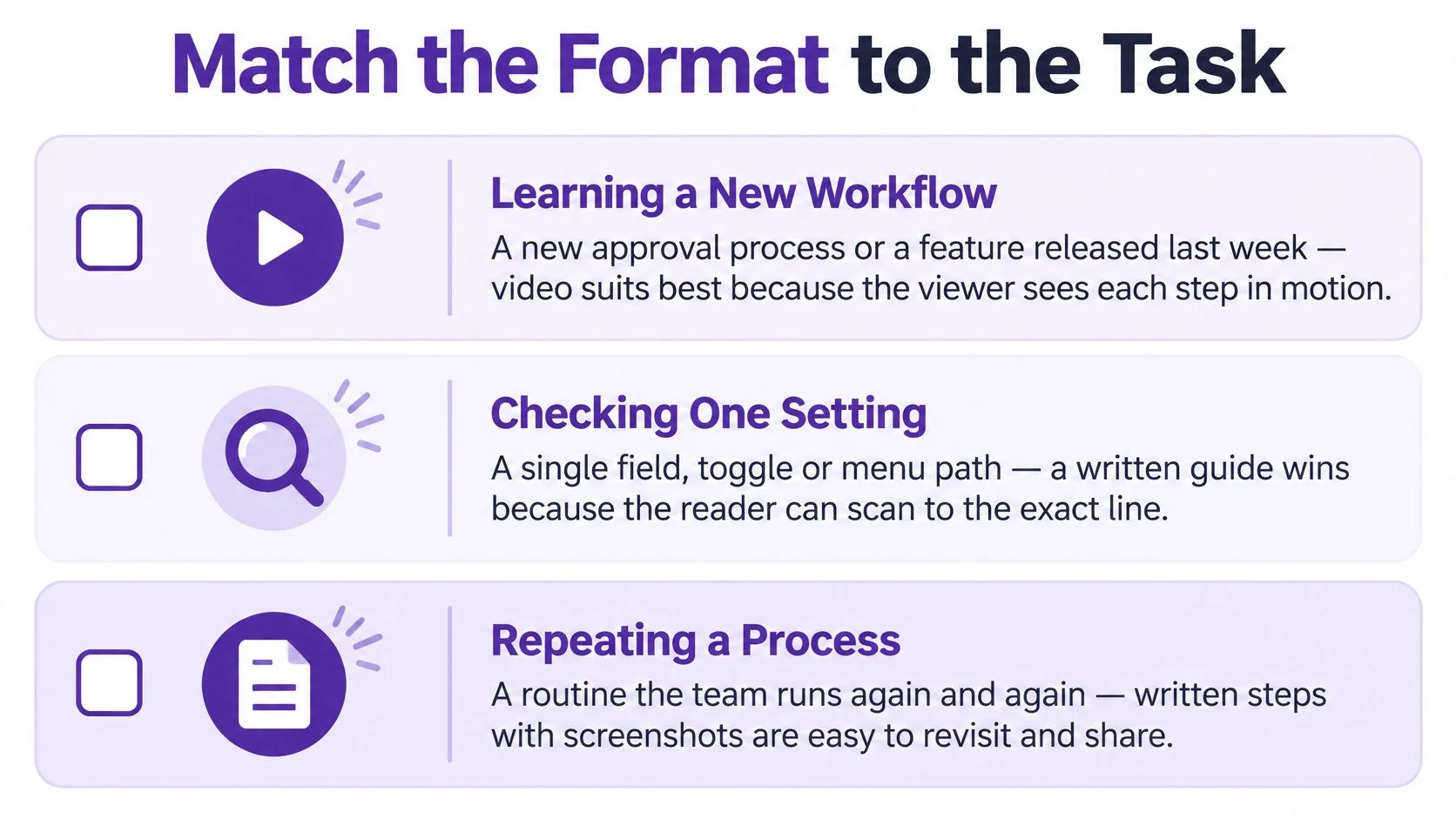
Learning a workflow nobody has done before
The test: could a competent user complete this from a list of steps alone, or do they need to see what happens between the clicks? A new approval chain, a feature released last week, a migration wizard with conditional branches. These belong on video first, because the viewer needs the cursor path, the pause while the system thinks, and the panel that appears only after a toggle flips.
Write the companion guide anyway. The video handles orientation, and the guide handles the moment three days later when the learner remembers the concept but not the menu name.
Checking one setting or error message
The test: is the reader trying to finish a whole process, or confirm a single value? Error strings, settings paths, field rules, API parameters and permission names are lookup jobs. A reader scans headings, searches the exact interface label, compares a screenshot with the live screen and leaves.
A controlled technical-documentation experiment comparing text-only instructions, illustrated text and video found that task completion success didn’t primarily depend on format, but illustrated text significantly reduced solution time, while text-only documentation produced substantially more faulty steps for some problems, as reported in Computers in Human Behavior. The lesson isn’t “text beats video”. It’s that text without screenshots is the weakest option on the board.
Repeating a known procedure
The test: does the same person run this every month? Billing close, quarterly access review, a recurring data import. These readers already know the shape of the task and want a numbered checklist they can keep beside the application, tick off and hand to a colleague covering their leave.
A short guide with one screenshot per changed interface state serves them better than a nine-minute recording they’d have to scrub through.
One screenshot per changed interface state, and a video only when the sequence itself carries the meaning.
A checklist for the library you already have
- Tag each tutorial by job: learning, lookup or repeat execution, then check whether the format matches the tag.
- Flag text-only pages covering visually complex workflows and add screenshots, callouts and version labels.
- Flag videos that are the only source for a precise step, and write the step list beside them.
- Split monolithic articles into modular pages for error messages and configuration references, so one UI change touches one page.
Count the Cost of Updates, Search and Accessibility
A tutorial becomes wrong the first time the interface changes, and the two formats fail at very different prices.
The label change that breaks a recording
Say a product team renames a button from Export to Download. In the video, someone re-records that segment, re-narrates the line, fixes the captions, checks the timing and re-exports the file. In the guide, someone edits one sentence and replaces one screenshot. Same correction, different afternoon.
Multiply that by a release cadence and the format decision starts looking like a staffing decision. Ask the question plainly for each candidate tutorial: how many screens in this workflow changed in the last two releases, and who owns the fix?
Search, silence and translation
Search is the next cost. A support agent handling a live ticket needs the step for one field, and a guide’s text is searchable by default. A video has no searchable step unless someone added chapters and a transcript, which is real work that gets skipped under deadline.
Accessibility follows the same pattern. Text works with screen readers, magnification and silent reading without extra production. Video needs captions and a transcript to serve someone who can’t hear narration or can’t watch the screen, and those assets need updating alongside every re-record.
Then localization. A guide needs translated text and recaptured screenshots for each locale. A video needs narration and captions per language, and every UI change repeats that cost across every language version.
The engagement argument doesn’t settle this. An Army Research Institute report on online help found that visuals improve task performance while most participants preferred written instructions over spoken instructions, and that written-instruction users can catch up or outperform when the original aid is removed and the task must be recalled later, according to the DTIC technical report. More engaging doesn’t automatically mean more usable.
Teams that build personal reference habits hit the same wall from the reader’s side, which is why the practice of keeping and revisiting your own notes, described in remember what you read with Quotabl, pairs well with text-first procedures people can copy into their own systems.
Score each tutorial before you build it
Mark each line low, medium or high for the tutorial in front of you, then let the highest-cost row decide the format or push you toward both:
- Update effort: how often do these screens change, and how many assets does a fix touch?
- Search need: will readers arrive mid-task from a search box or a ticket?
- Accessibility need: does the audience include screen reader users, non-native listeners or people in shared spaces?
- Localization need: how many languages, and how fast do they need to follow the source?
- Error recovery: does the reader need to jump back to one step after something goes wrong?
The structural side of this, including how to keep modular articles current, is covered in software documentation best practices.
What the Research Says About Learning and Memory
The learning evidence is more even than most format arguments assume. The comparison worth keeping in mind looks like this.
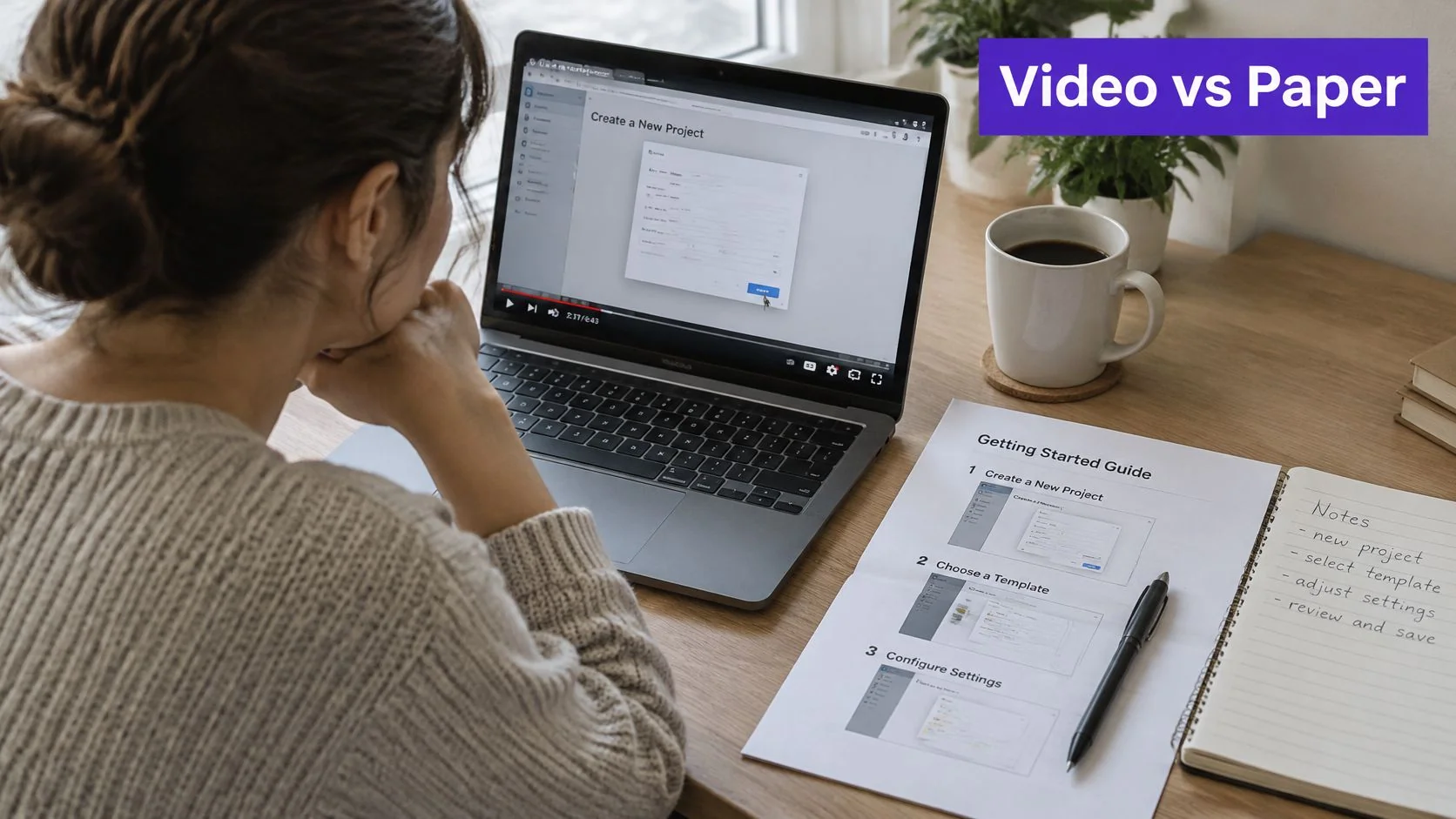
Both formats teach, and the split shows up later
A two-experiment software-training study reported learning gains of approximately 30% for both video and paper tutorials, with a significant tutorial-type interaction favoring video on at least one task, according to the software tutorial comparison on arXiv. Video isn’t universally superior. It pulls ahead when motion, sequencing or contextual cues carry the meaning.
Research on developers in the same paper found a cleaner split: text-only participants completed the tutorial faster, while video-only participants applied the learned content faster. When both were available, learners preferred video for acquiring new material and text for looking up missed information.
That’s two different jobs inside one training session, and it explains why a team can watch satisfaction scores rise while ticket volume stays flat.
Turn each result into a design decision
- Segment the video into chapters. Navigation cost is the main tax on video, and chapters cut it without shortening the explanation.
- Publish a transcript or step list beside every video. Searchable text preserves retrieval, accessibility and maintainability even when the recording stays as it is.
- Keep captions visible, not optional, so the video works in an open-plan office and for anyone who can’t hear the narration.
- Write the guide as a lookup asset, with exact interface labels in headings rather than friendly paraphrases.
Measure learning and lookup separately
Most of these studies test immediate performance, so nobody should assume the early advantage survives once the aid is removed. Learners who lean on a demonstration during training may struggle to reproduce the sequence a week later without it, which is the same reason retrieval practice works better than rereading, a principle explained in the MasteryMind guide to active recall.
Run two tests instead of one. First, can a new user complete the workflow after watching or reading once? Second, three days later, can they find the one step they forgot without asking a colleague? Score those separately, because a format can win the first and lose the second.
Different audiences also split on how they prefer to take in a procedure, and the trade-offs behind that are worth reading in adult learning styles before standardizing on one medium for every team.
A Worked Example for a New Feature Release
Example, not a customer result: a support team must explain a new export setting where the default file format changed in last week’s release. Customers keep exporting in the old format and opening tickets about broken imports.
What to have ready
- A test account with the feature enabled, so nothing sensitive appears on screen.
- The current software version and platform, written down, because the guide header needs both.
- A short note of the steps and what the viewer must see: the settings menu, the changed default format field, and the exported file.
- The audio decision. Confirm which audio sources the recorder offers. Use microphone audio when narrating, and system audio only when the application’s own sound matters to the task. Note the choice in the script notes so the next editor doesn’t guess.
The five actions
The process below runs from one recording to both published formats.
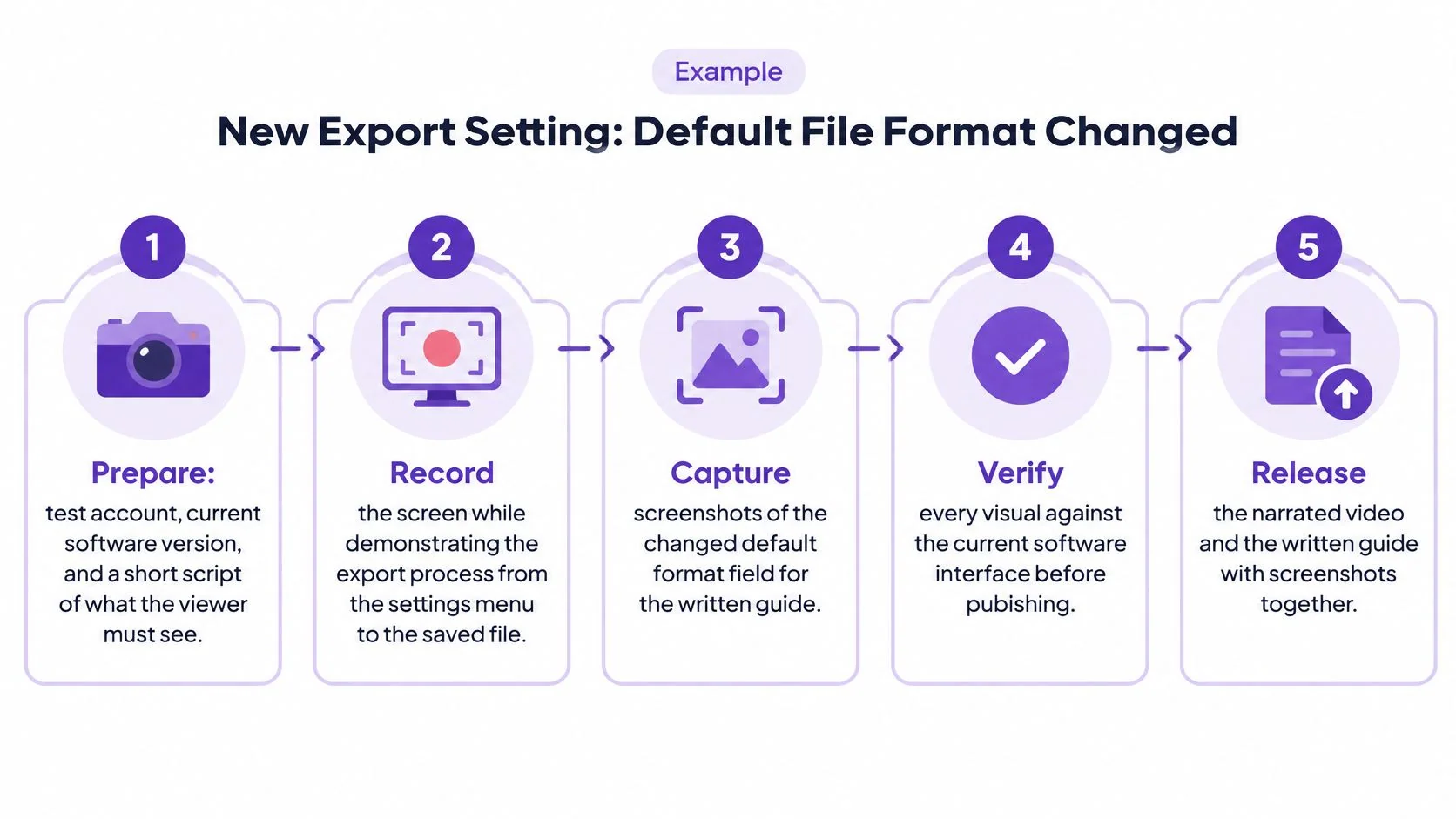
- Record the workflow once. Record a short workflow with Tutorial AI or upload an existing screen recording. Capture at the window size the viewer will use, click through the menu, change the setting and complete the export. Narrate live or stay silent, since a silent recording still produces a script from the on-screen actions. Keep the changed field and its result visible after each click.
- Generate the video and check the focus. Review the generated script, edit the wording and pick a narration voice. Then watch the cursor path and the zoom effects. If the zoom lands on the wrong panel while the default format field changes, fix it here, because that field is the entire reason the tutorial exists.
- Create the written guide from the same recording. Generate the video, then open the Document tab to create a written guide with screenshots. Documentation auto-generates help articles with screenshots from any recording, so the steps and images come from the same pass rather than a second session. Verify the current name of the Document tab in the interface before writing internal instructions for your team.
- Review both outputs against the live interface. Check every step title, script line and screenshot label on the same version and platform you recorded. Edit any label that differs. Put the software version and platform in the guide header. Generated output still needs review before sharing, and this is the step that catches a stale menu name.
- Publish for two different jobs. Share the video for first learning and link the guide from the help article for lookup. Link both to the product page for the feature once that URL is confirmed.
Success check and the usual failure
Two checks tell you whether this worked. A colleague who has never seen the feature completes the export using only the written guide, with no verbal help. A second colleague finds the changed setting through help center search in under a minute and lands on the right step, not the top of a long article.
The common failure is a screenshot showing an older interface label, usually because the recording came from a staging build or an outdated account. Recovery is narrow: re-record only the affected step, replace the one image and correct the matching line in the script. The rest of the tutorial stays as it is.
The workflow doesn’t change when the team decides to publish only the guide or only the video. Recording once and reviewing both outputs costs less than producing them separately, even when one format ends up unpublished.
Publish Both Formats Starting With Your Next Tutorial
Pick the next process your support team explains twice a week. Publish a short tutorial video for orientation and a written guide with screenshots for exact steps, then link them to each other. Use a guide alone for lookup content such as error messages and settings references. Use video alone only when the sequence carries the meaning and the screens won’t change soon. That split also respects three different readers: the new user trying to understand the flow, the agent searching for one step, and the person who needs the material in another language.
A study of 111 fifth- and sixth-grade participants learning Microsoft Word formatting found that all formats produced significant improvement from pre-test to post-test, but mixed designs and the video-only condition outperformed the paper-only condition, according to the University of Twente publication record. It was a school study, not a support-team test, so treat it as support for pairing formats rather than as a promise about your customers.
Four checks before anything goes live
- Confirm the guide matches the current interface version, screen by screen.
- Label the software version and platform in the guide header.
- Add captions and a transcript to the video.
- Ask one person who hasn’t seen the feature to complete it using only the guide.
Tutorial AI is built specifically for product tutorials. Its AI handles mouse-pointer smoothing, zoom effects, script writing, and voice output, turning raw screen recordings into finished tutorials in minutes. The workflow is direct: record a short workflow or upload an existing screen recording, check the AI-generated script and choose a narration voice, generate the video, then open the Document tab to create a written guide with screenshots. Check the video and guide for accuracy, make final edits, then export or share. Videos are hosted on Tutorial AI’s servers and can be shared through a link, with no third-party hosting needed, which removes one dependency from the publishing checklist.
Reference-heavy collections outside software still show why text-first structure matters, and the public finance policy guide library is a useful reminder that navigable pages answer focused questions. For teams starting from capture rather than editing, an AI screen recorder is the practical entry point.
Pick one recurring process, record it once, and publish the narrated video beside a written guide with screenshots. Tutorial AI turns that single screen recording into both formats, with the script, narration, steps, and visuals open for review before anything reaches a customer. Start a free trial and run your next feature release through it.