A customer opens your help center, finds the right article, and presses play. The video shifts outside its container, starts without usable controls, or refuses to play because the browser blocked autoplay. Your team can see page traffic, but it can’t tell whether the embedded tutorial helped the viewer complete the task.
An embeddable video player solves more than video placement. It connects playback, accessibility, privacy, localization, and measurement to the pages where customers and employees already work. For SaaS teams, that makes the player part of the documentation and training infrastructure, not a decorative widget.
Understanding the Embeddable Video Player
An embeddable video player renders hosted video inside another page, usually through an iframe or a script-based integration. The viewer stays in the knowledge base, product page, LMS, wiki, or customer portal while the player loads the media from its hosting service.
That distinction matters operationally. A video file can be hosted successfully and still fail as an embedded experience if the container is badly sized, the controls aren’t accessible, consent settings block required behavior, or the team can’t identify which page generated engagement.
Embedded playback is a distribution channel
YouTube’s analytics taxonomy treats embedded viewing as a distinct traffic source. Its Analytics API defines EMBEDDED views as views that happen on another website or application where the video plays through an <iframe> or <object> embed, and Google exposes an embedded-specific report dimension for channels in its YouTube Analytics dimensions documentation.
That gives SaaS teams a useful mental model. An embed isn’t just a visual copy of a video hosted elsewhere. It’s a measurable route through which content reaches users, with its own reporting category and attribution possibilities. A product marketing team can compare embedded playback with other distribution sources, while a documentation team can evaluate whether a tutorial is being used where the related feature is explained.
Practical rule: Treat every embed location as a publishing surface with its own layout, permissions, consent, and measurement requirements.
Independent web-technology data reinforces the scale of this delivery model. A 2026 census of video-player technologies reports video players on 11.9% of all websites. Among detected players, YouTube accounts for 40%, MediaElement.js for 38.4%, Video.js for 12.6%, Vimeo for 8%, and jPlayer for 4.7%. The same source’s other market-share view tracks 8,439,152 websites using video-player technologies, with YouTube at 46%, MediaElement.js at 30%, Vimeo at 11%, and VideoJS and Plyr at 2% each.
The exact player choice still depends on your governance needs, but the broader conclusion is clear: embedded playback is a standardized web delivery pattern. Teams that publish tutorials, product demonstrations, and help content should design for repeatable deployment rather than treating each video as a one-off page element.
A useful adjacent workflow is embedding a video in a PDF, especially when sales enablement or training teams distribute documents alongside web-based guides. The same principle applies: the delivery context determines whether the content remains usable and measurable.
Essential Features for Knowledge Bases and Training
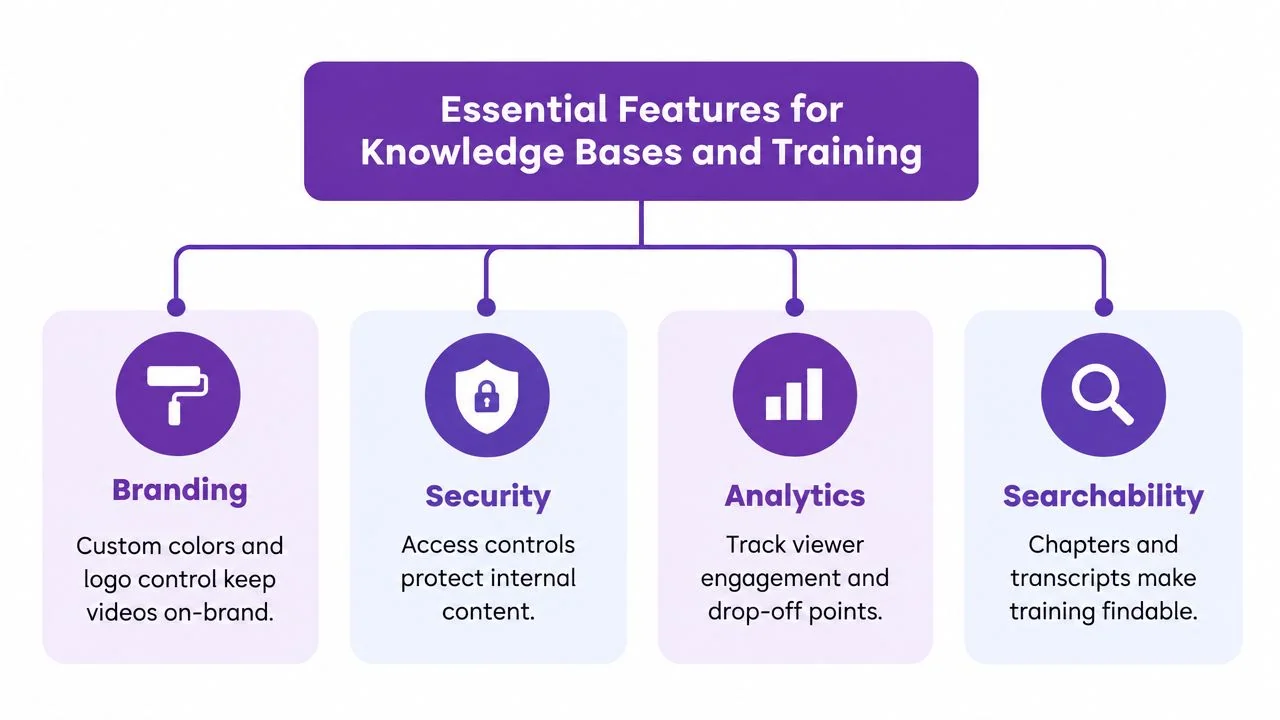
A branded player can match your interface and still be unsuitable for enterprise training. Visual customization helps users recognize your content, but keyboard access, captions, privacy controls, and reliable reporting determine whether the player works for a broad audience and a controlled publishing environment.
Accessibility comes before visual polish
Embedded players should support full keyboard operation, visible focus states, screen-reader labels, and human-edited captions. Auto-generated captions alone aren’t sufficient when accuracy, comprehension, or compliance matters. Stanford’s web media accessibility guidance also emphasizes that autoplaying media shouldn’t begin with audible sound unless viewers can stop or mute it quickly.
A practical review should test the player without a mouse. Can a user reach play, pause, volume, captions, and fullscreen controls with the keyboard? Does the focused control remain visible? Does a screen reader announce each control clearly? Can a viewer pause the video immediately if it begins unexpectedly?
Custom skins often introduce risk. Hiding controls may produce a cleaner product page, but it can remove the very functions users need. For education, support, and internal training, operability is usually more valuable than decorative control over every visual element.
Security and privacy require trade-offs
Domain restrictions are useful when internal training or customer-specific material shouldn’t appear on arbitrary websites. Current Vimeo embed documentation describes controls for restricting embeds to specific domains and privacy-enhanced options that reduce tracking or personalization.
Those settings aren’t interchangeable. A stricter privacy mode can reduce measurement quality, and it may still leave some cookies active. A domain allowlist can protect distribution, but an incomplete list can break a help center, LMS, or customer portal after a migration. Teams should document every approved host, test the live publishing path, and decide which analytics are essential before choosing the strictest available mode.
Evaluate the player as a system
Use these questions during procurement or implementation:
- Accessibility: Are captions editable, controls keyboard-operable, focus states visible, and labels available to assistive technologies?
- Security: Can administrators limit allowed domains and separate public, customer, and internal content?
- Analytics: Can the team distinguish embedded playback from other traffic and connect viewing data to the page or learning workflow?
- Searchability: Can transcripts, chapters, and surrounding page text help users find the relevant instruction?
- Resilience: Does the player provide a usable click-to-play fallback when browser policy blocks automatic playback?
The strongest implementation may look less customized than a marketing demo, but it will behave predictably for more users and more publishing teams.
Technical Integration Methods for Your CMS or LMS
Your integration method determines how much control the host page has over the player. An iframe is quick and isolated, a JavaScript API enables deeper events and actions, and oEmbed reduces publishing friction when the CMS supports it.
| Integration Method | Best Use Case | Control Level | Implementation Effort |
|---|---|---|---|
| iframe embed | Help articles, product pages, and quick CMS publishing | Basic | Low |
| JavaScript API | Custom analytics, player controls, and LMS completion workflows | High | Medium to high |
| oEmbed | Editors who need to paste a URL into a compatible CMS | Moderate | Low |
iframe embeds
An iframe is usually the right starting point for a help center article or a product page. The provider owns the player interface, updates can happen centrally, and the CMS only needs to accept the embed code.
The trade-off is limited control. You may be able to configure dimensions, playback parameters, and permissions, but custom events can be difficult or unavailable. An iframe also depends on host-page behavior, including responsive CSS, sandbox settings, consent tools, and iframe permissions.
Use it when the success condition is simple: the right video should load in the right article and remain usable on desktop and mobile.
JavaScript APIs
A JavaScript API is appropriate when playback must interact with another system. An LMS might need to react to play, pause, completion, or progress events. A product page might reveal a related action after a viewer reaches a particular point. A documentation platform may need to associate viewing behavior with a page context.
This approach creates more responsibility. Developers must manage event listeners, failure states, consent behavior, version changes, and browser restrictions. The API can give you deep control, but it won’t fix a poorly designed content workflow or an inaccessible custom interface.
A JavaScript API is justified by a concrete workflow requirement, not by the desire to make a simple embed feel more sophisticated.
oEmbed
oEmbed works well for editorial teams that need to publish video without handling raw HTML. The editor pastes a supported URL, and the CMS requests the appropriate embed representation.
Its convenience depends on the CMS and provider working together. It may expose fewer configuration options than a direct iframe or API integration, so confirm how it handles responsive sizing, privacy consent, captions, and analytics before standardizing on it.
For teams evaluating whether video should also connect to structured learning records, understanding what a SCORM file is can clarify where an embedded player ends and a formal LMS package begins. An embed can support learning content, but it isn’t automatically a complete course-tracking format.
Delivering Multilingual Content to Global Audiences
A global SaaS audience needs more than translated page text. A customer may understand the article but still struggle with a software walkthrough if the narration, captions, controls, and default playback language don’t match their preferences.
Modern multilingual players can keep several localized versions behind a single embed. A documented multilingual video-player workflow can detect the viewer’s browser language when no default language parameter is set. If a matching translation exists, the player serves it. If it doesn’t, playback falls back to the original language.
Configure a predictable language path
Start with a deliberate fallback sequence:
- Provide the available translations. Keep language labels clear in the player and maintain a source version that remains the editorial reference.
- Set a default when the page has a known audience. A URL parameter can define the preferred default language for a localized help center or regional portal.
- Use browser detection when the audience is mixed. If no default parameter is present, the player can match the browser language when that translation exists.
- Define the fallback openly. Users should never be left with a blank player because their language isn’t available. Return to the original language and offer captions where possible.
Some implementations expose a built-in language selector, allowing viewers to choose their preferred version without leaving the page. One documented approach supports multiple language versions through a single embed code, with the viewer selecting a language from the player controls. That reduces duplicate page maintenance, but it doesn’t eliminate the need to review each localized script and visual sequence.
Separate interface language from captions
Localization has at least two layers. The player interface may need one language, while the caption track may need another. Bunny.net’s streaming embed documentation describes separate lang and captions parameters, demonstrating why teams should test these settings independently.
For a new feature walkthrough, publish the original recording, translated narration or captions, and a written guide together. Then test language detection, manual selection, untranslated fallback, caption timing, and screenshots. A multilingual content creation workflow can help teams plan the surrounding documentation instead of treating localization as a final subtitle export.
Implementation Checklist for Accessibility and Performance
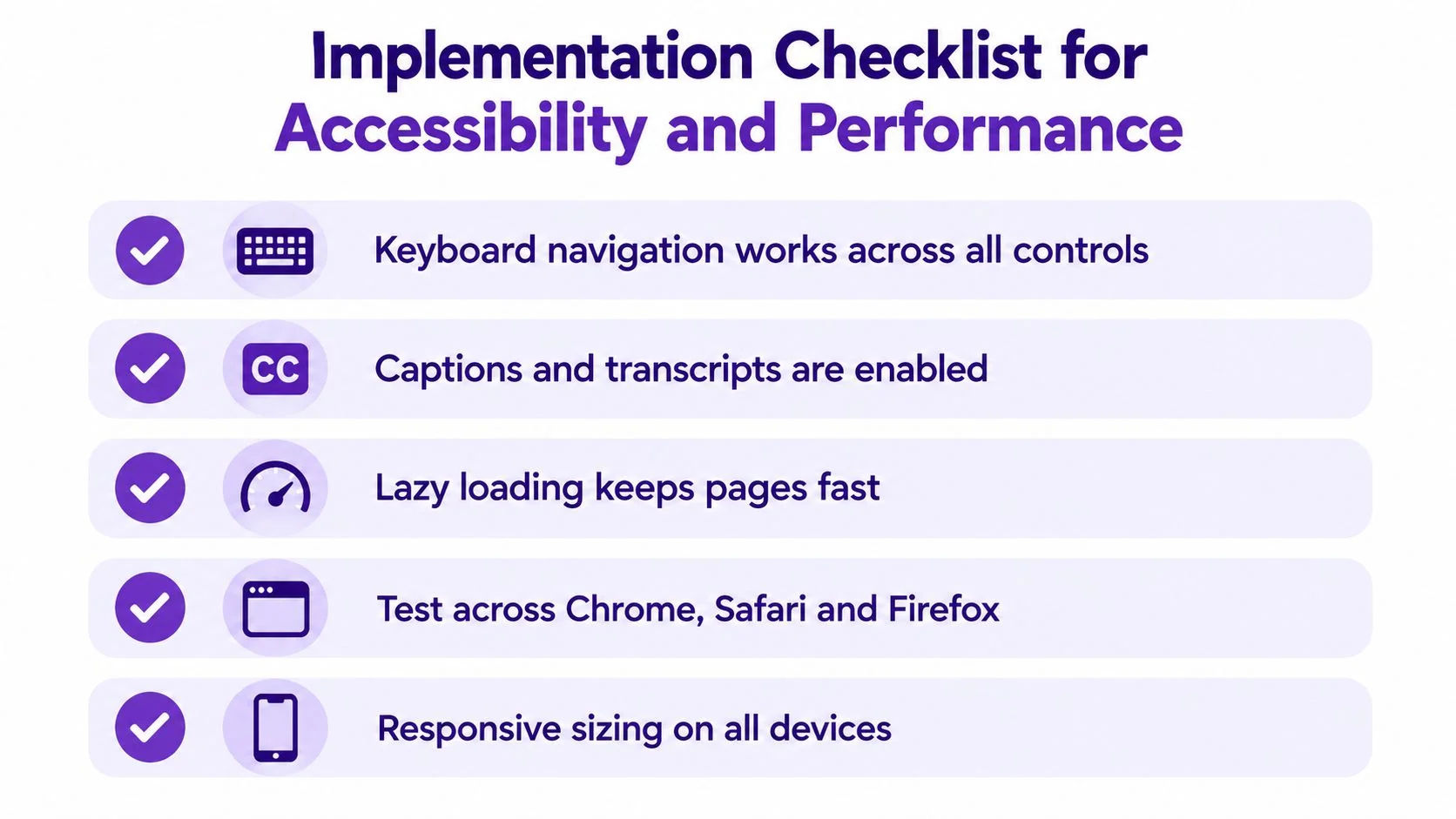
A production embed needs a test plan, not just a copied snippet. Browser policies, iframe permissions, layout dimensions, and consent behavior can all change what the viewer experiences.
Playback behavior
Mainstream browsers generally block autoplay for media with audible tracks unless the video is muted, the user has interacted with the page, the site is allowlisted, or the iframe receives permission through Permissions Policy. The MDN autoplay guidance explains why an embed must account for element state, sandboxing, and feature permissions rather than assuming autoplay will work.
Use this sequence:
- Choose muted autoplay or click-to-play: If instant playback is necessary, start muted. Otherwise, require an explicit user gesture.
- Expose a visible fallback: The player should show a clear play control when autoplay is blocked.
- Inspect iframe permissions: Confirm that the host page and iframe policy allow the intended behavior.
- Test sandbox changes: A restrictive sandbox can affect playback and related features.
- Avoid audible surprises: Never make users hunt for a pause or mute control.
Size, responsiveness, and access
YouTube’s embedding guidance states that embedded players must be at least 200 px by 200 px, and recommends 480 × 270 px for a 16:9 player so controls have room to work. These figures appear in the YouTube player parameters documentation.
Reserve space before the player loads to reduce layout movement. Check the same embed at narrow mobile widths, on a desktop knowledge-base template, and inside an LMS content frame. A responsive aspect ratio is useful, but it doesn’t guarantee that captions and controls remain comfortable at every size.
Privacy and release checks
Before publishing, verify:
- Keyboard navigation: Every playback control works without a mouse.
- Captions and transcripts: Captions are available, editable where required, and synchronized with the recording.
- Consent behavior: The player follows your site’s consent decision and doesn’t load disallowed tracking.
- Domain controls: Approved CMS, LMS, portal, staging, and preview domains are configured and tested.
- Analytics continuity: Privacy settings don’t remove the reporting your support or training team needs.
- Failure states: A blocked script, denied permission, or unavailable translation produces a useful message rather than an empty rectangle.
Building Software Tutorials with Tutorial AI
A practical workflow starts with the person who knows the process. Record an employee demonstrating a new feature, a support specialist walking through a customer setup, or a product marketer explaining a release. The recording can include spoken narration or capture the screen, depending on how much editorial control the team wants later.
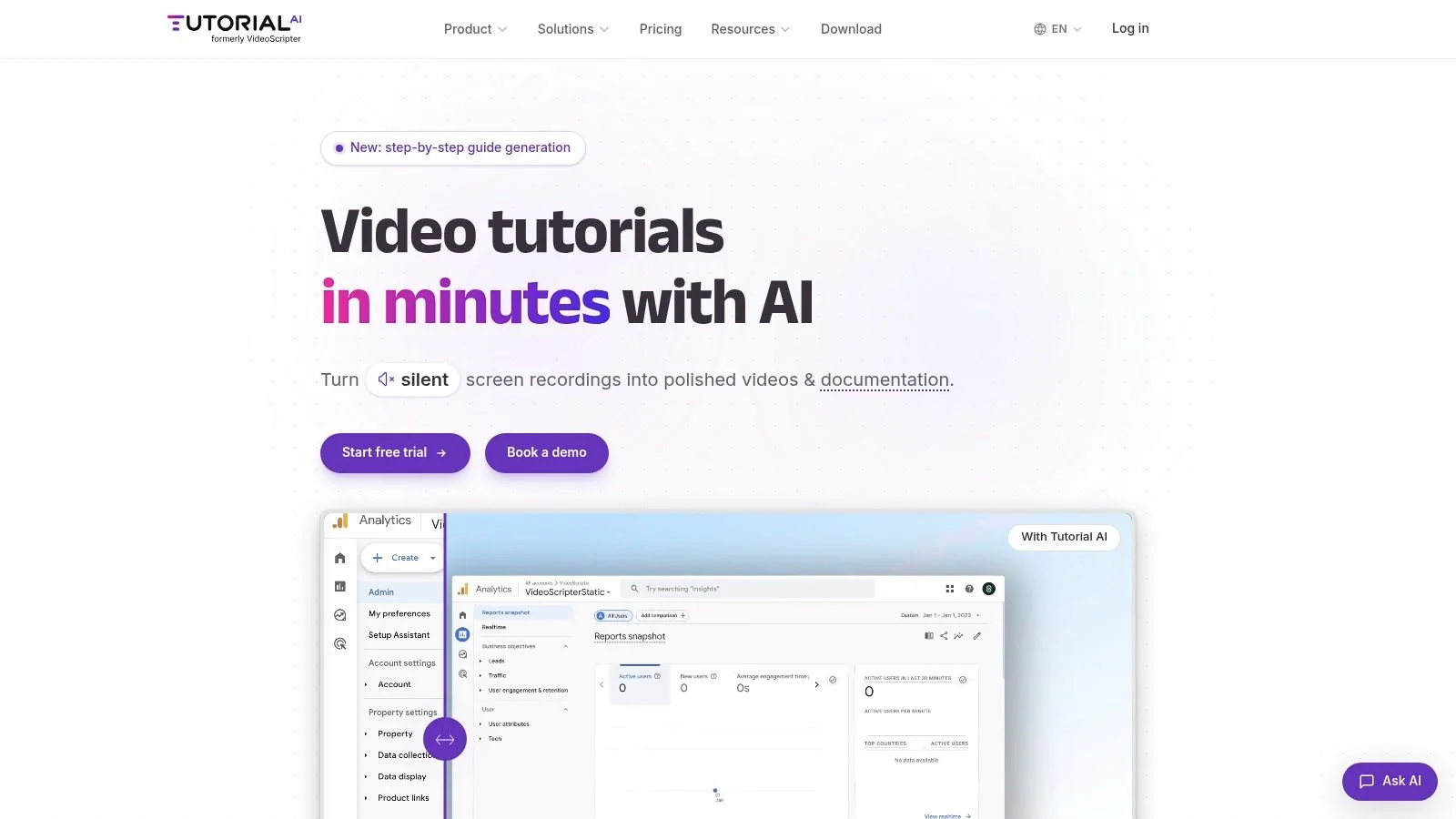
Tutorial AI turns that recording into a tutorial video and a written guide with screenshots. The user can review and edit the generated script, narration, steps, and visuals before sharing the result. That matters for SaaS teams because the same demonstration can support a help article, onboarding module, internal SOP, or release announcement without requiring separate scripting and documentation from scratch.
A release walkthrough example
Suppose a product team ships a new reporting workflow. A product specialist records the exact clicks and explains why each step matters. The team reviews the generated tutorial, corrects terminology, adjusts the written steps, and checks that screenshots reflect the current interface.
The publishing decision then becomes simpler. The team can place the video in the feature’s help article, pair it with the generated guide, and use an embeddable player in the documentation environment. If the audience is multilingual, a player with an in-player language selector can let viewers choose an available version from the same embedded experience.
The player still needs the checks described earlier. Content generation doesn’t replace keyboard testing, captions review, domain restrictions, consent validation, or mobile layout testing.
A short demonstration can help stakeholders understand the intended experience:
Tutorial AI is suitable when the source material is a real software workflow and the person demonstrating it already has the relevant knowledge. It isn’t an avatar video generator, a general-purpose video editor, an LMS, or a system that automatically understands a company’s software without a demonstration.
Choosing the Right Video Strategy for Your Team
The right strategy starts with the job the video must perform. A public product explainer may need broad compatibility and restrained analytics. An internal training lesson may need domain controls and captions. An LMS workflow may require API events or a formal learning package rather than a standalone iframe.
Audit your current library before changing platforms:
- Find broken experiences: Check for empty frames, incorrect aspect ratios, missing controls, and pages where autoplay failure leaves no obvious play action.
- Test accessibility: Move through the page without a mouse, inspect focus visibility, activate captions, and ask whether a screen reader can identify every control.
- Review privacy settings: List where each player is embedded and confirm that consent, domain restrictions, and analytics align with the content’s audience.
- Map content ownership: Identify which team updates the recording, written guide, translations, captions, and embed code after a product change.
- Measure the useful outcome: Choose a signal that matches the page, such as tutorial engagement, completion workflow, support-content usage, or a follow-on product action.
A player should make publishing easier without hiding operational costs. Basic iframe delivery may be enough for a focused help article. A JavaScript API can be worth the effort when your LMS or product experience depends on playback events. A multilingual player can simplify distribution, but language fallback and editorial review still belong in the release process.
For a broader perspective on video in enablement and presales, this interview with Cornerstone’s PreSales leader offers relevant context for teams deciding how video fits into customer-facing and internal workflows.
The strategic shift is straightforward. Stop asking only whether a video can be embedded, and ask whether the resulting experience is accessible, measurable, private enough, localized, and maintainable by the team that owns the content.
Tutorial AI helps teams record real software workflows, turn those recordings into tutorial videos and written guides, review the generated content, and publish it through an embeddable player with a language selector. Visit Tutorial AI to explore a recording-to-tutorial workflow for your help center, onboarding program, or internal SOP library.