So, you want to embed a video in a PDF? Technically, yes, you can. But before you go down that road, let me be blunt: it’s a practice loaded with hidden problems and almost guaranteed to create a frustrating experience for your audience.
While it seems like a brilliant way to create a single, self-contained document, the reality is far from perfect. The issue isn’t you or the video; it’s a fundamental compatibility breakdown in how PDFs handle media.
The Allure and Unseen Dangers of Embedding Video in PDFs
It’s an idea that gets a lot of people excited. I’ve seen sales, marketing, and support teams all light up at the thought of a video embedded directly in a PDF. They imagine sending a single, polished file—a proposal, a tutorial, a product demo—that combines the structure of a document with the dynamic power of video.
For anyone creating knowledge base articles or sales enablement materials, it sounds like the perfect way to level up static content. Unfortunately, this is where the dream collides with a harsh technical reality. The entire method is crippled by massive compatibility issues that are completely out of your control.
The Broken Reality of PDF Video
The core problem is the sheer number of PDF viewers, web browsers, and devices your audience might be using. Each application handles embedded media differently, and most of them prioritize security and fast loading times over playing a video file someone stuck inside a document.
This lack of a universal standard leads to widespread failure. For example, a huge portion of your audience will open PDFs right in their web browser. In a viewer like Google Chrome—which holds over 65% of the global browser market share—embedded videos simply won’t play 80-90% of the time. Instead, security protocols often flatten the video into a static, unclickable image.
It gets worse. If someone opens your PDF with Apple’s Preview app on a Mac, the video and its poster image might just disappear entirely, leaving a blank space. The user won’t even know they missed something. As many experts now advise, it’s a feature to avoid at all costs.
This chart gives you a painfully clear picture of how often embedded videos fail on the platforms that matter most.
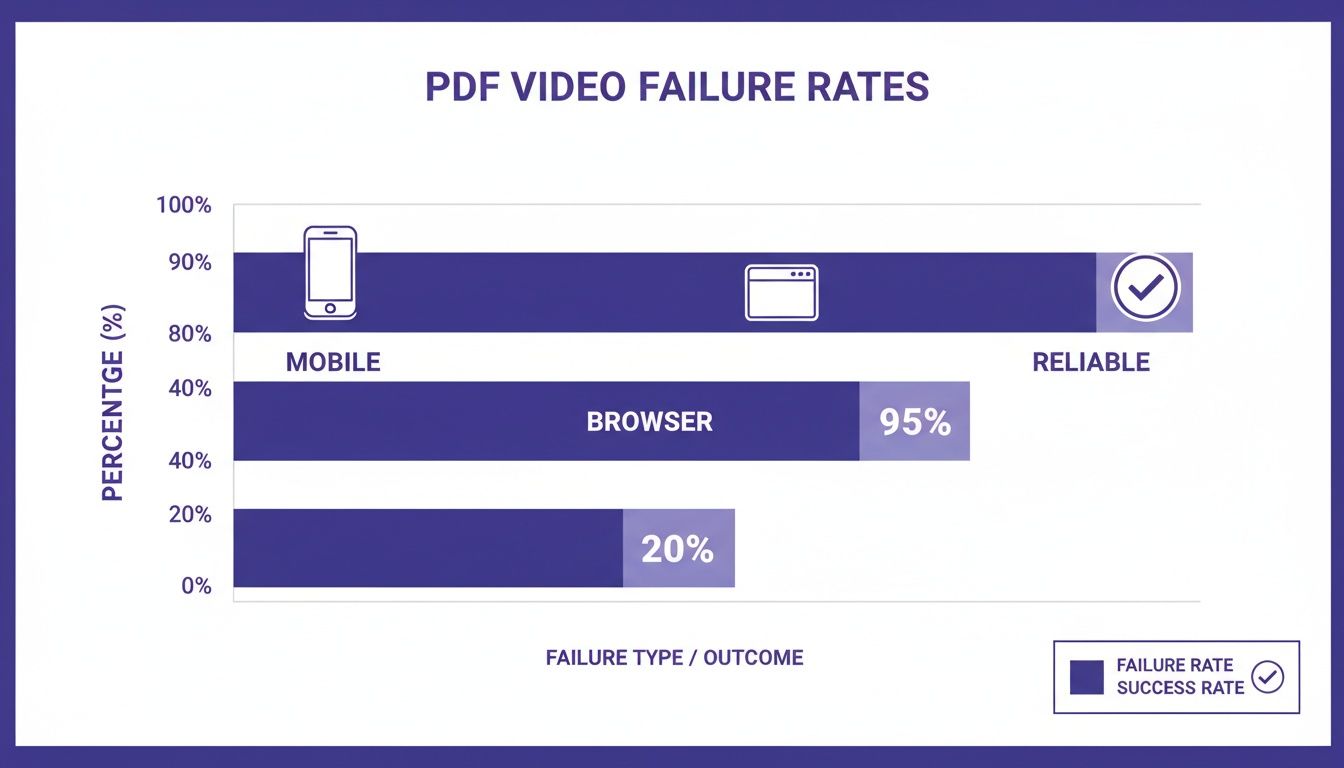
The data makes it obvious: trying to deliver video this way, especially to anyone on a mobile device or in a browser, is a gamble you are almost certain to lose.
To put this in perspective, here’s a look at how unreliable playback is across some of the most common applications people use to view PDFs.
PDF Video Playback Reliability Across Common Viewers
This table starkly illustrates the inconsistent and often failed playback of embedded videos across the most widely used PDF applications and browsers.
| PDF Viewer / Browser | Approximate Market Share | Video Playback Success Rate |
|---|---|---|
| Adobe Acrobat Reader (Desktop) | ~25% | Generally High (but requires user activation) |
| Google Chrome (Browser PDF Viewer) | ~65% (Browser Share) | Very Low (Fails 80-90% of the time) |
| Apple Preview (macOS) | ~15% (OS Share) | Extremely Low (Often removes video entirely) |
| Microsoft Edge (Browser PDF Viewer) | ~5% (Browser Share) | Low to Moderate (Inconsistent) |
| Mobile PDF Viewers (iOS/Android) | N/A | Very Low (Fails >80% of the time) |
As you can see, only users with the dedicated Adobe Acrobat Reader software on a desktop have a decent chance of playing the video, and even then, they often have to click through security warnings. For everyone else, it’s a broken experience.
The bottom line is simple: while the idea is compelling, the execution is a technical minefield. Cross-platform studies show that only about 40% of PDFs with embedded video play back reliably worldwide. That number plummets to under 20% on mobile devices. This isn’t a minor glitch. It’s a fundamental failure in content delivery that actively undermines your message and leaves your audience confused. The PDF format, which was designed for static document integrity, just wasn’t built for the dynamic needs of modern video. This sets the stage for a much-needed conversation about finding a better, more reliable solution that actually works every time, for every user.
How to Embed Video in a PDF and Why It Breaks
Even knowing that embedding a video in a PDF is a gamble, many of us still feel the pull to try it. I get it. The idea of a rich, self-contained document is compelling. But having been down this road many times, I can tell you it’s littered with technical dead ends.
Let’s walk through the actual process in a common tool like Adobe Acrobat Pro. Consider this your “how-to” guide, but with a heavy dose of real-world experience baked in. At every turn, I’ll point out where things start to fall apart.
The Standard Workflow (and Its First Failure Point)
The journey starts inside Adobe Acrobat Pro. You’ll head over to the “Tools” center, click “Rich Media,” and select the “Add Video” option. This lets you draw a rectangle right on your PDF page where the video should go.
A dialog box then asks for your video file. And right here, you hit your first major snag.
REAL-WORLD WARNING: Acrobat’s documentation might say it supports formats like MOV and MP4 (with H.264 encoding), but that claim is incredibly misleading. “Support” just means Acrobat can process the file, not that your audience can actually play it. Security policies in nearly all modern browsers and mobile PDF viewers will block the rich media from running.
Once you’ve selected your file, Acrobat presents you with a new set of “advanced” options, leading you further down the rabbit hole.
Fine-Tuning the Playback Experience
This is where you get a false sense of control. Acrobat lets you customize how your video embedded in PDF looks and behaves. You can pull a “poster image” from a frame of the video or upload a slick, custom graphic with a play button to encourage clicks.
You also get a panel of playback settings:
- Activation: Set the video to play on click, when the page loads, or when someone hits a specific bookmark.
- Display: Choose between playing the video in a floating pop-up window or directly within the box you drew.
- Controls: Show or hide the video controller bar (the skin with the play/pause button and timeline).
REAL-WORLD WARNING: None of these settings matter for the vast majority of your audience. They only work in a pristine, lab-like environment: a user on a desktop computer, running an up-to-date version of Adobe Acrobat Reader, who has specifically enabled rich media playback. For everyone else—on a phone, in a web browser, or using a viewer like Apple Preview—that poster image becomes a static, unclickable picture or disappears completely.
Your carefully configured playback settings are rendered useless the second the PDF is opened in an unsupported viewer, which is how most people will see it. Your “interactive” element just becomes a point of confusion. The process gives you all the tools to build something that feels polished but simply doesn’t work in the wild. It’s a crucial distinction, especially when you compare it to other tasks, like learning how to embed a video into a PowerPoint presentation, where compatibility within the Microsoft ecosystem is far more reliable.
The Unfortunate Reality
After tweaking every setting, you save the PDF. The file size is now massive, weighed down by the embedded video file. You confidently send it out, thinking you’ve created a slick, all-in-one asset. What you’ve actually shipped is a user frustration time bomb.
This entire workflow—from choosing a so-called “supported” format to designing a custom poster image—is a trap. It validates your goal but only serves to prove the core problem: the technology for a video embedded in a PDF is fundamentally broken for modern content distribution. It’s not you, and it’s not your video file; it’s a flaw in a system that wasn’t built for how we share content today.
The High Cost of a Failed Video Experience

We’ve already seen that the technical side of embedding video in a PDF is, frankly, a mess. But let’s set aside the “how” for a moment and focus on the why. A failed video isn’t just a minor glitch; it’s a strategic blunder with a very real price tag.
By 2026, video is simply how people prefer to learn, discover new products, and get help. When your video embedded in a PDF shows up as a dead link or a static image, you’re not just failing on a technical level. You’re failing to meet a basic, fundamental user expectation.
The Strategic Importance of Video
The data on video’s dominance is impossible to ignore. As of 2026, a massive 93% of businesses are using video as a core part of their marketing efforts. This isn’t a random trend—it’s a direct response to how people behave.
Consider this: 78% of people would rather watch a short video about a product than read a text-based article. That’s a staggering 8.6x preference gap. And the demand is only growing, with 91% of consumers saying they want to see more video content from brands.
Yet, with PDF-embedded videos failing for over 60% of viewers, you’re actively working against this demand and tanking your own return on investment. If you want to dig deeper, you can find more compelling video marketing statistics that paint the full picture.
A broken video experience does more than just annoy a user. It signals that your brand is out of touch, unprofessional, or doesn’t care about the quality of its communication. This perception damage can be far more costly than the effort to produce the video in the first place. When a customer looking for a tutorial or a prospect evaluating your software encounters a broken video, they don’t stop to blame their PDF viewer. They blame you. The immediate thought is, “If they can’t even get a simple video to work, how can I trust their product?”
The Challenge of Creating On-Brand Video Content
So, if embedding directly into a PDF is off the table, what’s the solution? For many teams, the next hurdle is figuring out how to create professional-looking video content efficiently. Your subject matter experts are the ones with the knowledge, and they need to produce a whole range of video tutorials, often for very specific use cases.
This includes creating crucial assets like:
- Product Demos: Showing exactly how your software solves a customer’s problem.
- Onboarding Videos: Guiding new users through their first, most important steps.
- Explainer Videos: Breaking down complex features into simple, easy-to-follow visual guides.
- Feature Release Videos: Announcing and demonstrating exciting new functionality.
- Knowledge Base Videos: Providing detailed, visual answers to common support questions.
- Support Article Videos: Resolving customer issues with clear, step-by-step screen recordings.
The problem has always been the tools. On one hand, simple screen recorders like Loom are incredibly easy to use, but the final videos are often 50-100% longer than necessary. They’re typically filled with ums, ahs, and backtracking that feels unscripted and unprofessional.
On the other hand, professional editing suites like Adobe Premiere Pro or Camtasia can produce beautiful results, but they demand a level of skill most subject matter experts simply don’t have the time to develop. This creates a frustrating gap: you need high-quality videos, but the creation process is either too simplistic or far too complex.
Bridging the Gap with a Smarter Workflow
This is where a modern approach completely changes the game. Tutorial AI, for example, is designed specifically to bridge this gap by generating polished video tutorials based on simple screen recordings. It’s a process that empowers your subject matter expert to be the creator, without forcing them to become a video editor.
You can just hit record on your screen and speak freely without any practice. The AI then takes that raw recording and transforms it into a professional-grade tutorial. It allows the subject matter expert to create on-brand videos extremely efficiently, with a final product that looks as if it was meticulously edited in Adobe Premiere Pro.
This lets the person who truly knows the material create powerful assets that strengthen your brand—instead of damaging it with a broken video embedded in a PDF.
A Smarter Way to Create Professional Video Tutorials
Let’s be honest—relying on a video embedded in a PDF is a gamble that rarely pays off, often leading to a frustrating dead end for the user. So, what’s a better approach? The real challenge isn’t just about sharing a video; it’s about the entire process of creating a high-quality tutorial in the first place.
Most teams get stuck choosing between two less-than-ideal options. On one hand, you have quick screen recorders like Loom. They’re great for casual, one-off messages, but the final videos often ramble, ending up 50-100% longer than necessary. They’re riddled with pauses, “ums,” and repetitive clicks that come across as unprofessional and waste your viewer’s time.
On the other hand, you have powerhouse editing tools like Adobe Premiere Pro or Camtasia. These can deliver broadcast-quality results, but the learning curve is incredibly steep. Your subject matter experts (SMEs)—the people who actually know the product—shouldn’t have to become video editors just to share their knowledge.
This conflict creates a painful bottleneck. The people with the knowledge can’t produce polished content, and the video pros don’t have the deep subject expertise. The trick is to find a workflow that bridges that gap, empowering your experts to create professional, on-brand videos without the headache.
Escape the Editing Timeline
This is where AI-powered video creation tools are completely changing the game. Picture a new workflow: your product expert simply hits record, talks through a process naturally, and doesn’t worry about getting it perfect on the first try. They can record a screen recording for a new feature demo or walk through an onboarding flow in a single, unscripted take.
That’s the whole idea behind Tutorial AI. The tools let you speak freely without any practice and still your video will look professional as if it was edited in Adobe Premiere Pro. It takes that raw, rambling screen recording and automatically polishes it into a professional tutorial that looks like it took hours to edit.
The goal is to let your subject matter expert focus on what they do best: sharing their knowledge. With the right AI tools, they can create on-brand videos with extreme efficiency, turning a process that once took days into one that takes minutes. With this approach, you can forget about traditional video editing. No more tediously cutting out mistakes, trimming silent gaps, or re-recording an entire video because of one slip-up.
From Raw Recording to Polished Tutorial
The real magic happens after you stop recording. Tutorial AI gets to work generating video tutorials based on screen recordings, automating all the tedious tasks that used to require a video specialist.
Here’s what the AI does behind the scenes:
- Transcribes everything you said, turning your audio into an editable text document.
- Cleans up the script by removing filler words like “um” and “ah” while tightening sentences for clarity.
- Generates a new voiceover using a professional, human-sounding AI voice, which means perfect audio with no background noise or stumbles.
- Analyzes your screen actions, automatically adding smooth zooms and highlights to guide the viewer’s attention exactly where it needs to be.
All of a sudden, editing a video is as simple as editing a Google Doc. Want to change what’s said? Just edit the text. The AI instantly updates the voiceover and re-syncs the on-screen visuals to match. This workflow is perfect for producing all sorts of crucial video assets. You can dig deeper into these methods in our guide on how to make a training video.
Empowering Experts to Create On-Brand Content
This efficient workflow is a massive win for teams that need to create specific, high-value content. For a support team, it means turning a quick screen recording of a bug fix into a crystal-clear knowledge base video. For a sales team, it means whipping up a custom explainer for a new prospect in minutes.
Think about all the common video types where this kind of speed makes a real difference:
- Demos: Quickly create demos based on screen recordings.
- Explainer Videos: Break down complex features without ever needing to write a script.
- Feature Release Videos: Quickly produce polished announcements for product updates.
- Onboarding Videos: Guide new users through your product with clear, step-by-step instructions.
- Knowledge Base Videos: Build a library of visual answers to common customer questions.
- Support Article Videos: Help resolve tickets faster with easy-to-follow visual guides.
When you remove the technical hurdles of video production, the person who knows the subject best becomes the creator. The result is a library of powerful, on-brand tutorials that are always current and look professionally made—a far better experience than a broken video embedded in a PDF.
The Smarter Alternative: A Reliable, Embeddable Player

After wrestling with the limitations of embedding video directly into a PDF, the real solution starts to come into focus. The issue isn’t the PDF format itself—it’s that we’re trying to make it do a job it was never built for. A much more modern and reliable approach is to stop fighting the technology and use the PDF as a simple, lightweight gateway to a video hosted online.
Instead of trying to cram a bulky, temperamental video file into your document, you just pop in a hyperlink. That’s it. This one small change completely solves the playback problem, guaranteeing your audience has a smooth viewing experience every time. This is exactly where a professional, embeddable player really shows its value.
Create a Flawless, On-Brand Experience
When you switch to a dedicated solution like Tutorial AI’s embeddable player, you take back control. The player is built from the ground up to work perfectly on any platform, whether it’s your company’s knowledge base or just a link you share in a document. This approach delivers 99.9% reliability, which is a world away from the constant failures of traditionally embedded PDF videos.
The writing has been on the wall for a while. Even as a report on the future of video marketing notes that 95% of marketers will be all-in on video by 2026, the technical reality is that embedded videos are simply invisible in 60-80% of common PDF apps like Chrome’s built-in viewer and Apple’s Preview. This disconnect forces us to find a better way, and hosted players are the answer.
Your PDF is no longer a point of failure. It becomes an efficient vehicle for delivering dynamic, up-to-date video tutorials. The document stays small and easy to share, while your video content lives online, ready to play perfectly on any device. By leaving outdated methods behind, you can finally deliver rich media content without all the technical headaches. But solving playback issues is just the beginning—this workflow unlocks a ton of other powerful benefits.
More Than a Fix: A Whole New Toolkit
Using an embeddable player does more than just make your videos work. It gives you a powerful set of tools for managing and measuring your content, which is where the real magic happens.
Once your video is hosted on a proper platform, you suddenly gain access to critical features that are impossible with an offline file:
- Deep Analytics: Finally get real data on your videos. Track who’s watching, how long they stick around, and where they drop off. This is gold for figuring out what’s working and what needs improvement.
- Instant Version Control: Need to update a tutorial? Just swap out the video file on your hosting platform. Every link, including the one in your PDF, will automatically play the new version. No more chasing down old files.
- A Single Source of Truth: Maintain one master version of every video. This completely eliminates the risk of outdated or incorrect information floating around, ensuring everyone sees the most current content.
To truly get past the pitfalls of embedded PDF videos, it’s worth it to explore dedicated video creation alternatives that prioritize stability and a professional viewing experience.
Turn Your PDF into a Video Portal
This workflow doesn’t just fix a technical problem; it fundamentally streamlines your entire content strategy. For teams creating product demos, onboarding guides, or support articles, the efficiency gains are massive. Our guide on turning /b/pdf-to-video shows you how to make this transition seamless.
Think about a sales team sending out proposals. Instead of a bloated, broken PDF, they can send a sleek document with links to perfectly branded video testimonials and product demos that always work. Or picture a support team that can update a “how-to” video in their knowledge base instantly, without having to track down and replace every PDF that ever contained it. That’s the power of a modern, centralized approach to video.
Common Questions & Straight Answers
Even with all the technical hurdles, the dream of a video playing seamlessly inside a PDF is a powerful one. I get it. But as we’ve seen, the reality is a lot messier.
Let’s tackle some of the questions that always come up when teams are weighing their options.
What About Just Linking to a YouTube Video from My PDF?
Yes, you can absolutely do this. Just adding a simple hyperlink to some text or a custom “play” button image is a massive improvement over trying to embed the video file itself. It’s far more reliable and will work for pretty much anyone who opens your PDF.
The tradeoff, however, is the user experience. The moment a user clicks that link, they’re whisked away from your carefully crafted document and dropped into the chaotic world of YouTube. Your video is suddenly surrounded by YouTube’s branding, distracting pre-roll ads, and a sidebar of competing videos trying to pull your user down a rabbit hole.
A dedicated, embeddable player gives you that same rock-solid reliability but keeps the focus entirely on your content and your brand. You get the universal compatibility without sending your audience away.
What If My Audience Only Uses Adobe Acrobat Pro?
I’ve heard this one a lot over the years, and it’s a tempting thought. On paper, if you could guarantee everyone uses the latest version of Adobe Acrobat Pro on a desktop, embedding might seem viable.
But that’s a huge, risky assumption. Real-world behavior is unpredictable. People open PDFs on their phones between meetings, in a web browser for a quick glance, or on older, company-issued computers. You have zero control over their environment. Plus, future Acrobat updates could easily tighten security and disable media playback, breaking your content overnight.
Relying on a single, best-case viewing scenario is like building a house on a shaky foundation. It’s just a matter of time before it fails someone. A web-based player is future-proof and device-agnostic, making it a much safer and more professional choice.
How Does an Embeddable Player Affect PDF File Size?
This is where using a hosted player really shines. When you embed a video file directly, your PDF’s file size can balloon from a manageable few kilobytes to 50 MB, 100 MB, or even more. These massive files are a pain to email and painfully slow for your audience to download.
Using a hosted player, on the other hand, is completely different. All you’re adding to the PDF is a hyperlink and a thumbnail image. The video itself lives online. This means your PDF remains incredibly small and lightweight.
Your document stays easy to share, and your audience gets a fast, frustration-free experience. No one wants to wait five minutes for a huge download, only to find the video doesn’t even work.
Are There Security Risks with Embedding Videos in PDFs?
Yes, and it’s the main reason most modern PDF viewers have stopped supporting embedded media altogether. It’s a classic Trojan horse problem—malicious code can be hidden inside a video or multimedia file, creating a serious security risk for the person who opens it.
To protect their users, the developers behind viewers in Chrome, Firefox, and mobile apps made a conscious decision to disable this feature. It’s not a bug; it’s a security protocol.
This industry-wide shift toward security is the final nail in the coffin for directly embedding video files. By linking out to a trusted, professionally hosted video player, you sidestep the security risk and provide a safer, more reliable experience for everyone.
Instead of wrestling with broken files and security warnings, you can give your team the tools to create fantastic, effective tutorials in just a few minutes. With Tutorial AI, a simple screen recording becomes a polished, on-brand video that plays perfectly, every single time.
Ready to see how easy creating professional tutorials can be? Learn more and start creating at tutorial.ai.