When it comes to making great tutorials and product demos, the best effects for video editing aren’t always the flashiest. The real goal is to boost clarity and gently guide your viewer’s attention. Think of effects like smart zooms, blurs, and highlights as your secret weapons for making complex ideas stick. They transform a confusing screen share into a lesson that’s easy to follow and remember.
The New Era of Video Editing Effects
We’ve entered a whole new chapter in creating videos. Gone are the days when you needed a professional editor on speed dial to produce polished, high-quality content. A new wave of tools is completely changing the game, particularly for educational videos like software tutorials and demos. The mindset is shifting—effects are no longer just for show; they’re essential tools for communication.
Bridging the Knowledge Gap with AI
One of the biggest hurdles in creating tutorials has always been the gap between knowing your stuff and knowing how to edit video. A subject matter expert can easily hit “record” on a tool like Loom and walk through a new feature, but the raw footage is often 50-100% longer than it needs to be, riddled with ums, ahs, and restarts.
On the flip side, powerful editing software like Camtasia or Adobe Premiere Pro demands serious expertise and countless hours to master. This creates a frustrating bottleneck where the person with the knowledge can’t easily turn it into great content.
This is exactly where AI-powered platforms like Tutorial AI are making a difference. They’re built to close that gap, allowing experts to just talk and record naturally, without a script or a ton of prep. The AI then works its magic, automatically cleaning up the video so it looks like it was painstakingly edited in a pro-level suite. This empowers your experts to create polished, on-brand videos with incredible efficiency.
The core benefit is simple: Empower the expert to create, not just record. AI handles the technical complexities, transforming a raw screen capture into a polished, professional video that is ready to publish.
The Rise of AI in Video Production
The demand for high-quality video is exploding, and AI is rising to the occasion. This isn’t just a fleeting trend; it’s a fundamental shift in the market. The global AI video editing market is on track to jump from USD 0.9 billion in 2023 to a staggering USD 4.4 billion by 2033, growing at an impressive 17.2% CAGR. Even more telling, organizations using these tools are reporting a 47% boost in team productivity.
This growth is all about the need to create content faster without cutting corners on quality. To keep up, you have to understand and master workflows for AI video effects editing. By getting on board with these advances, your team can churn out everything from product demos and onboarding videos to feature announcements and knowledge base articles on a scale you never thought possible.
Learn more about the specific capabilities that make this possible in our complete guide to AI video editing software.
Anyone who’s ever made a software tutorial knows the feeling. You hit “stop recording,” and you’ve got the raw material, but what you don’t have is a polished, professional video. This is the starting line, not the finish line. The real work—applying effects for video editing—is just beginning.
It’s a huge gap to cross, and it’s where most teams get stuck. On one side, you have your easy-to-use screen recorders. On the other, you have these incredibly complex, professional editing suites. The middle ground feels like a no-man’s-land.
The Problem With Raw Recordings
Think about the last demo you recorded with a simple tool like Loom. It was fast, sure. But the final cut is often 50-100% longer than it should be.
Why? Because it’s usually packed with little imperfections that derail a viewer’s focus:
- Unplanned Pauses: Those dead-air moments while you’re trying to remember what to say next.
- Verbal Stumbles: The classic “ums,” “ahs,” and sentences you have to restart.
- Editing Mistakes: Clicking the wrong thing and having to navigate back.
- Distracting Movements: A frantic mouse cursor darting all over the screen.
These recordings are great for a quick internal message, but they just don’t cut it for polished knowledge base articles or official feature-release videos. They need a heavy editing hand to make them clear and concise.
The Steep Climb of Professional Software
So, to clean up the mess, you might be tempted to jump into a professional editing tool. A program like Camtasia or Adobe Premiere Pro can do almost anything you can imagine, but that power comes at a cost: a massive learning curve that requires genuine video editing expertise.
This creates the classic workflow bottleneck: the person who knows the software inside and out isn’t a video editor, and the professional video editor has no idea how the software actually works. The result is a process that’s slow, expensive, and just plain inefficient. To see what this traditional landscape looks like, you can check out the top video editing software on the market. Turning that raw footage into a great tutorial becomes a major project, demanding a serious investment in time and training.
A New Approach With Tutorial AI
This is where a tool like Tutorial AI completely flips the script. It’s built to bridge that gap, letting your subject matter expert do what they do best—talk and demo freely, without the pressure of a perfect performance.
You can just hit record, warts and all, and the final video will look like it was painstakingly edited by a pro in Adobe Premiere. Tutorial AI is designed to automate the most tedious parts of the editing process, letting your team produce high-quality, on-brand content with stunning efficiency.
The demand for speed has completely changed the game. Here in 2026, clients expect short-form content delivered in 24-48 hours, a world away from the 5-7 day turnarounds that were standard back in 2023. This is largely because AI has made it possible. This acceleration is a major theme, and you can get a full analysis by reading about the video production services in 2026. It’s clear that to keep up, you need smart, efficient tools that don’t compromise on quality.
Using Visual Effects to Enhance Clarity and Focus
When you’re making a tutorial or product demo, your main job is to make things crystal clear for your audience. This is where effects for video editing come in, but maybe not in the way you think. We’re not talking about Hollywood-style explosions or flashy transitions. Instead, the goal is to use subtle, purposeful effects to guide your viewer’s eye.
Think of it as creating a visual hierarchy. You’re telling the viewer exactly where to look, what’s important, and what they can ignore. When done well, these effects feel completely natural, almost invisible, but they make a world of difference in how easily someone can follow along and learn.
The Problem With Raw Screen Recordings
We’ve all seen it: a raw screen recording from a subject matter expert. While they know the software inside and out, the recording itself can be a meandering journey. A simple screen capture from a tool like Loom often ends up being 50-100% longer than it needs to be.
These raw takes are usually full of long pauses, “ums” and “ahs,” and those little mouse-wiggling moments of hesitation. This isn’t just a pacing issue; it actively confuses the viewer. Sure, you could clean this up with professional tools like Camtasia or Adobe Premiere Pro, but that requires a ton of editing know-how and time—skills the expert often doesn’t have.
This creates a frustrating bottleneck. The person with the knowledge can’t easily create a polished tutorial, and the viewers get a subpar learning experience.
A Smarter Workflow With Tutorial AI
This is exactly the problem Tutorial AI was built to solve, especially for generating video tutorials from screen recordings like demos, onboarding videos, explainer videos, feature releases, knowledge base videos, and support articles. It addresses the core conflict: easy recording tools like Loom often produce footage that is 50-100% longer than necessary, while professional software like Camtasia or Adobe Premiere Pro requires expert video editing knowledge.
Tutorial AI’s tools let you speak freely without any practice, and your video will still look professional, as if it was edited in Adobe Premiere Pro. The platform’s AI engine analyzes your raw recording and transforms it, smoothing out pacing, adding clean cuts, and applying professional effects. This allows the subject matter expert to create on-brand videos extremely efficiently, freeing them up to share their knowledge while the technology handles the production.
This next diagram breaks down the three workhorse effects—Zoom, Blur, and Highlight—that are the secret sauce to creating that clarity.
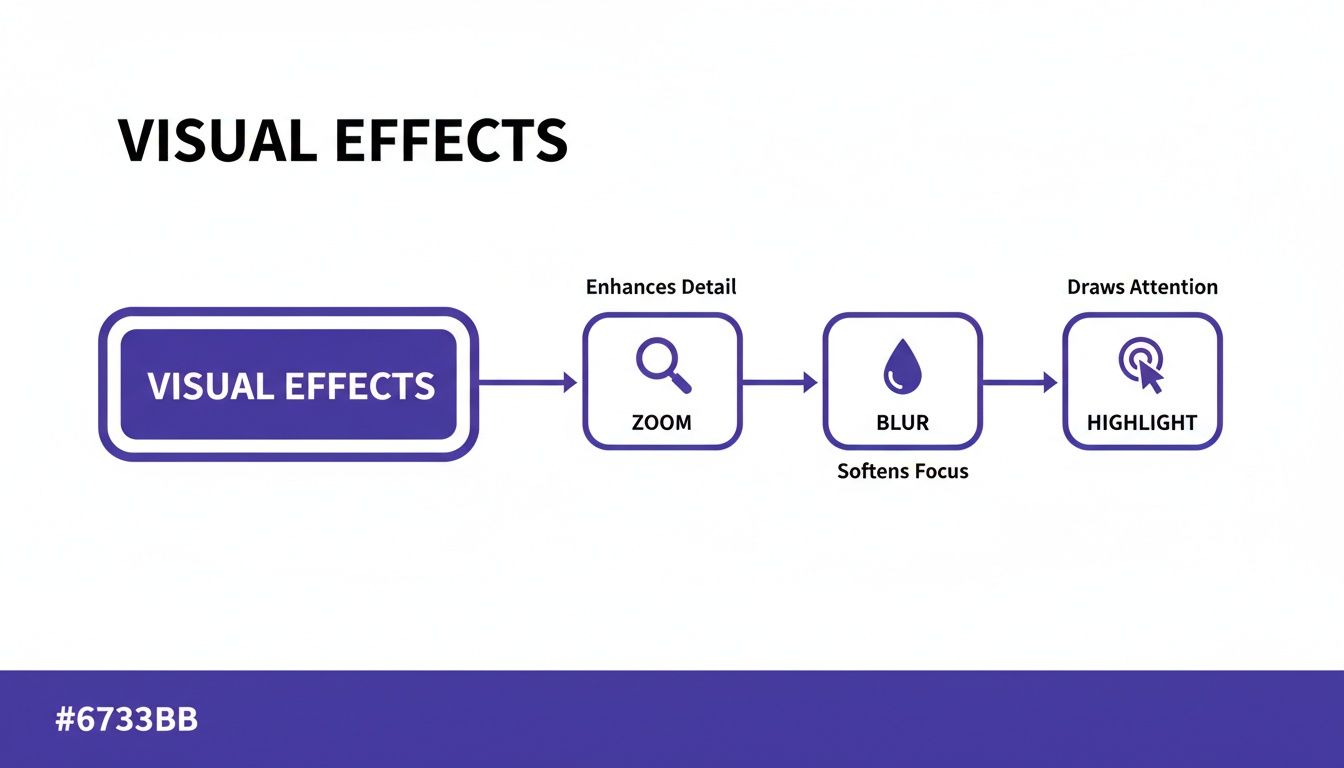
As you can see, each effect plays a specific and crucial role in directing the viewer’s attention right where it needs to be.
To help you decide when to use each, here’s a quick breakdown of the core visual effects every tutorial creator should master.
Core Visual Effects for Tutorial Videos
| Effect | Primary Function | Problem Solved |
|---|---|---|
| Smart Zoom | Automatically pans and zooms to follow the cursor or active area. | Viewer gets lost on a busy screen or can't see small UI elements. |
| Blur | Obscures a specific region of the screen. | Sensitive data is accidentally exposed, or background clutter distracts from the main action. |
| Highlight | Temporarily draws an annotation (like a circle) around an element. | Viewer misses a quick click or doesn't know which button to focus on. |
These three simple effects are the foundation of a clear and effective tutorial. Let’s dig into how each one works in practice.
Smart Zooms for Highlighting Detail
One of the most effective tools in your arsenal is the Smart Zoom. Imagine you had a dedicated camera operator who instinctively knew the most important part of your screen at any given moment. That’s a Smart Zoom. It automatically tracks the action, smoothly zooming and panning to keep the key element—a button, a menu, a line of code—front and center.
This is a game-changer for any kind of instructional video, from quick demos to in-depth onboarding. It removes any guesswork for the viewer, ensuring their eyes are always locked on the right spot.
A Smart Zoom isn’t just a visual trick; it’s a storytelling device. It silently tells your audience, “Look here. This is what matters right now,” making your tutorials far more direct and effective.
Using Blurs for Focus and Privacy
While zooms pull things closer, blurs do the opposite: they push things into the background. This seemingly simple effect serves two critical purposes in any tutorial.
- Protecting Sensitive Information: You’re recording your screen and suddenly realize a customer’s email or a private API key is visible. Instead of re-recording, you can simply apply a blur. This is absolutely essential for creating secure videos for public knowledge bases or external demos.
- Reducing Distraction: Let’s be honest, our desktops can be a chaotic mess of icons and notifications. A complex app can be just as noisy. By blurring the background or irrelevant parts of the interface, you help the viewer focus solely on the task at hand.
Using blurs strategically gives your video a cleaner, more professional feel and, more importantly, keeps your viewer’s attention from wandering.
Highlights to Emphasize Action
Highlights and annotations are your digital pointers. Think of them as drawing a quick circle around a button just before you click it or using an arrow to point out a tiny but crucial setting. They are your secret weapon for fast-paced demos where a lot is happening on screen.
The key is to use them sparingly for maximum impact. When you do, they provide an unmistakable signpost for your viewer, reinforcing the action you’re taking. It’s a simple technique, but it’s incredibly effective at making sure your instructions are followed perfectly.
Mastering Cursor and Motion Effects
Think of your cursor in a screen recording—it’s the star of the show. It’s your viewer’s guide, telling them exactly where to look and what you’re doing next. But when the cursor zips around erratically or moves with hesitation, it can be incredibly frustrating to watch. This is where mastering cursor and motion effects for video editing becomes a true game-changer, turning a messy recording into a polished, easy-to-follow guide.
It’s these small details that make a huge difference in how professional your video feels. When every movement on screen is deliberate and has a clear purpose, you build trust with your audience and make sure your instructions land perfectly. It’s all about taking back control of the narrative, even after the recording is finished.
The Problem With Raw Recordings
Let’s be honest about how most tutorials get made. A subject matter expert, who knows their product inside and out, fires up a simple recorder like Loom to quickly capture a demo. They’re an expert on the software, not a professional presenter. The result? A recording that’s often 50-100% longer than it needs to be, packed with ums, ahs, mistakes, and a mouse cursor that darts around reflecting their thought process, not a clear set of steps.
This kind of raw footage just doesn’t cut it for a polished knowledge base video or a support article. The next step is usually handing it off to be fixed in professional software like Camtasia or Adobe Premiere Pro. But that requires a skilled video editor, creating a bottleneck where the person who actually knows the content can’t efficiently produce the final video.
The Tutorial AI Solution
Tutorial AI flips that workflow on its head, particularly for generating video tutorials from screen recordings like demos, onboarding videos, explainer videos, and support articles. It directly solves the problem where easy recording via Loom is often 50-100% longer than it needs to be, yet professional software like Camtasia or Adobe Premiere Pro requires expert video editing knowledge.
With Tutorial AI, you can speak freely without any practice, and your video will still look professional, as if it was edited in Adobe Premiere Pro. The platform is built to take that raw, authentic recording and give it a professional polish. It allows the subject matter expert to create on-brand videos extremely efficiently.
The big idea here is to let experts focus on sharing knowledge, not on their on-screen performance. Tutorial AI gives creators the tools to produce professional, on-brand videos with incredible efficiency, turning raw footage into a polished asset in minutes. The ability to manipulate the cursor after the recording is what really makes the difference. You can learn more about how Tutorial AI helps you perfect every click with advanced cursor editing. This post-production flexibility is what separates a decent recording from a truly great tutorial.
Refining Cursor Movement for Ultimate Clarity
Once your raw recording is in the system, applying cursor effects is where the magic really begins. These aren’t just cosmetic tweaks; they have a direct impact on how well your audience understands the material.
Here are a few key effects you’ll use:
- Cursor Smoothing: This feature is a lifesaver. It automatically takes out all the shaky, hesitant movements from your original recording. It smooths out the cursor’s path into a confident, clean arc that looks professional and keeps viewers focused.
- Cursor Size and Color: A tiny default cursor can easily get lost on a busy interface. Making it bigger or changing the color to stand out against the background ensures your viewer’s eye is always where it needs to be.
- Highlight Effects: Drawing attention to the exact moment of a click is crucial. A cursor highlight, which often appears as a colored circle on click, gives clear visual confirmation of an action. It’s an absolute must for showing users exactly what to press.
Elevating Flow With Motion Effects
Beyond just the cursor, other motion effects help guide the story and maintain a professional look. Think of them as the glue that holds all your different scenes together smoothly.
Consider adding these essential motion effects to your toolkit:
- Animated Slides: Use these to introduce a new topic, add important context, or summarize key points. They provide a nice visual break from the screen recording and help reset the viewer’s attention.
- Professional Transitions: Nobody likes an abrupt jump cut. Instead of jarring cuts between scenes, use subtle transitions like a simple fade or slide. It makes the jump between different screens or concepts feel seamless and intentional.
By combining sharp cursor control with thoughtful motion effects, you can elevate your content from a simple screen share into a high-value educational asset. It’s how you ensure every second of your video serves a purpose, guiding your viewer with absolute clarity and confidence.
Applying Advanced Effects for Branding and Production Value
Once you’ve nailed the basics of making your tutorials clear, the next big leap is all about your brand. This is where you move from creating one-off videos to building a professional library with a signature style. It’s the difference between a video that just informs and one that builds trust and authority, making viewers instantly recognize your content.
When every tutorial, from a new user’s first onboarding steps to a quick support clip, shares that same professional polish, you’re telling your audience they’re in the right place. That consistency is what creates a powerful, trustworthy brand experience.
The Old, Broken Workflow
Let’s get real about a common headache. Your subject matter expert records a quick demo on their laptop. It’s full of useful information, but the raw file is often 50-100% longer than it needs to be, packed with pauses, “ums,” and restarts. It gets the job done, but it’s just not polished enough for a big feature announcement or a permanent spot in your knowledge base.
What’s the usual fix? You hand that footage over to a video editor, who then has to clean it up and add the branding in a complex tool like Camtasia or Adobe Premiere Pro. This creates a huge bottleneck. The expert who knows the content is now disconnected from the final product, and the whole process becomes slow and expensive. Trying to scale video creation this way is a recipe for frustration.
A Smarter Way with Tutorial AI
Tutorial AI gives you a third option—one that sidesteps that entire mess. It’s built to empower the experts themselves to create high-quality, on-brand videos with incredible efficiency. It excels at generating various types of video tutorials from screen recordings, including demos, onboarding flows, explainer videos, feature releases, knowledge base videos, and support articles. The core problem it solves is that easy-to-use recording tools like Loom produce content that is 50-100% longer than necessary, while professional software like Adobe Premiere Pro demands specialized knowledge.
Tutorial AI’s tools let you speak freely without any practice, and your video will still look professional, as if it was meticulously edited. It allows the subject matter expert to create on-brand videos extremely efficiently, bridging the gap between raw recordings and professional production.
Tutorial AI bridges the gap between raw recordings and professional production. It lets the expert focus on sharing their knowledge, while the AI handles the complex editing and branding, ensuring every video looks polished and on-brand, every time. This is a game-changer for teams that need a consistent look across all their video content, whether it’s for:
- Demos & Onboarding Videos: Give new users a seamless and professional first impression.
- Explainer & Feature Release Videos: Launch new updates with the polished visuals they deserve.
- Knowledge Base & Support Videos: Deliver clear, authoritative answers that reinforce your brand’s credibility.
Creating a Cohesive Brand Identity
A strong brand is built on consistency, and your videos are a huge part of that. Instead of manually applying branding to every single clip, a tool like Tutorial AI can do the heavy lifting for you, saving countless hours and making sure no video goes out “naked.”
Brand Kits: Think of this as your digital brand bible. You set up your logos, color palettes, and custom fonts just once. From then on, you can apply them to any video with a single click. This guarantees your visual identity is perfectly stamped on everything from the intro to the final call to action. For a great example of this in action, check out how you can use lower third examples to reinforce your brand.
Custom Animated Backgrounds: Nobody wants to see a cluttered desktop or a messy home office in a professional tutorial. Custom animated backgrounds swap that chaos for a clean, branded environment. It’s an instant upgrade that’s especially useful for formal videos where you need to look your best.
Text Callouts and Annotations: Need to add a quick tip or point something out without stopping the show? Animated text callouts are your best friend. You can style them with your brand’s fonts and colors to seamlessly add extra context, highlight key details, or point viewers to other resources—all while keeping the look and feel completely consistent.
Frequently Asked Questions About Video Editing Effects
As you’ve seen the different ways video effects can elevate a tutorial, a few questions might still be bubbling up. Let’s tackle some of the most common ones we hear from creators, especially those just dipping their toes into AI-powered video editing.
Can I Really Get Professional Results Without Learning Complex Software?
Absolutely. The old belief that you need to be a wizard in Adobe Premiere Pro to create a professional video is fading fast. Modern tools have completely flipped the script, moving us away from tedious timeline editing and toward a smarter, AI-assisted workflow.
Forget about wrestling with keyframes and getting lost in a sea of settings. The process is much simpler now.
- Just Hit Record: Capture your screen and your voice. Don’t worry about a perfect take or a flawless script.
- Let AI Take Over: The software instantly transcribes what you said, and that transcript becomes your editing canvas.
- Edit Like a Doc: To get rid of a long pause or a flubbed sentence, you just delete the text. The video and audio automatically sync up.
This new way of working lets you, the subject matter expert, focus entirely on what you know best. The AI handles the grunt work—trimming dead air, smoothing out the pacing, and adding smart zooms—giving you a polished video without that massive learning curve.
How Does Tutorial AI Actually Help Make Videos Look Professional?
This is where you see the gap between an amateur and a pro video disappear. Tutorial AI is specifically designed for generating polished video tutorials from screen recordings, such as demos, onboarding videos, feature releases, and support articles. It solves a common dilemma: easy recording via a tool like Loom often results in footage that’s 50-100% too long, while professional software like Camtasia or Adobe Premiere Pro requires expert editing skills.
Tutorial AI cuts out all that back-and-forth. It lets the expert record freely and naturally, speaking without practice, yet the final video looks as if it were edited in Adobe Premiere Pro. The AI simply automates all the tedious tasks a professional editor would do by hand. This allows the subject matter expert to create high-quality, on-brand videos with extreme efficiency.
Will Adding Effects Make My Videos Look Distracting?
That’s a great question, and the answer comes down to one word: subtlety. The best effects are the ones your viewer doesn’t even notice, but they make the content way easier to follow. The goal isn’t to dazzle with flashy graphics but to gently guide the viewer’s attention.
Consider the difference between a raw screen recording and one that’s been properly edited:
- A raw recording is often full of distractions. The mouse cursor zips around erratically, long pauses break the flow, and the viewer can get lost.
- An edited video uses effects to remove those distractions. A smooth Smart Zoom is far less jarring than watching the creator manually zoom in and out. Cursor smoothing gets rid of jerky movements, making the final video feel cleaner and more deliberate than the original take.
Modern AI tools are designed to apply these effects with a light touch. They create a smooth, guided experience that lowers the mental effort for your viewer, helping them absorb the information instead of getting distracted by it.
How Does AI Help With Audio and Voiceovers?
This is one of the most game-changing applications of AI in video today. Beyond just visuals, AI platforms can completely transform how you manage your audio.
It all starts with an automatic transcription of your narration. From there, a whole new world of possibilities opens up.
- Fix Mistakes by Typing: If you trip over a word or decide to rephrase a sentence, you don’t have to re-record anything. You just type the correction into the script, and the AI will generate that part of the voiceover with a new, perfectly lifelike AI voice.
- Automated Audio Polishing: The platform automatically cleans up your audio by removing background noise, getting rid of annoying mouth clicks, and leveling the volume across the entire video. It ensures your audio is always crisp and clear.
- Instant Translations: Need to reach a global audience? Many tools can translate your video in minutes, complete with a new AI voiceover in the target language. This is a massive shortcut that avoids the cost and complexity of hiring translators and voice actors.
This AI-first approach to audio saves an incredible amount of time and hassle. It puts high-quality sound within reach for everyone, no expensive microphone or soundproof room required.
Ready to see how quickly you can turn raw recordings into polished tutorials? Tutorial AI uses powerful AI to automate your editing, apply professional effects, and make sure every video is perfectly on-brand. Get started for free at Tutorial.ai.