Lower thirds are more than just text on a screen; they’re a critical element for establishing credibility, reinforcing your brand, and guiding viewer attention. For anyone creating demos, onboarding videos, or knowledge base content, a well-designed lower third transforms a simple screen recording into a professional, engaging tutorial. The professionalism added by these graphics can even be a key factor in the effectiveness of your overall video advertising strategies.
However, achieving this polished look often presents a challenge. Easy-to-use recording via Loom is often 50-100% longer than necessary. In contrast, professional video editing software such as Camtasia or Adobe Premiere Pro requires expert video editing knowledge. This creates a significant barrier for subject matter experts who need to create video tutorials based on screen recordings—like demos, onboarding videos, explainer videos, feature release videos, knowledge base videos, and support article videos.
This is where Tutorial AI changes the game. Its tools let you speak freely without any practice, and still, your video will look professional as if it was edited in Adobe Premiere Pro. It empowers subject matter experts to create on-brand videos extremely efficiently, transforming raw footage into a polished final product. This article provides 8 actionable lower third examples you can implement today, with specific guidance on how to apply them within Tutorial AI to maximize impact and efficiency.
1. Minimalist Text-Only Lower Third
The minimalist text-only lower third is a foundational design choice that prioritizes clarity and directness above all else. This approach strips away complex graphics and animations, presenting only essential information like the speaker’s name, title, or the current topic. Its power lies in its simplicity, making it one of the most effective lower third examples for instructional content where viewer focus must remain on the subject matter.
This style is a staple for platforms like LinkedIn Learning and MasterClass, where the content’s educational value is paramount. The clean presentation ensures that key information is delivered without distracting from the expert on screen. It reinforces authority and professionalism with zero clutter.
Strategic Analysis
The core strategy behind this lower third is informational efficiency. It answers the viewer’s immediate questions, “Who is speaking?” or “What is this segment about?”, and then disappears. By avoiding elaborate visuals, it keeps the cognitive load on the viewer low, allowing them to absorb the primary content more effectively.
Key Insight: The goal is not to impress with design but to inform with precision. This minimalist approach respects the viewer’s attention by making the speaker’s credentials or topic instantly scannable, which builds trust and maintains focus on your tutorial.
Actionable Takeaways
You can implement this clean, professional look in your own projects with just a few steps. It’s an ideal choice for screen-recorded demos, knowledge base videos, and onboarding tutorials where clarity is crucial.
- Font Choice is Key: Use a crisp sans-serif font for a modern feel or a classic serif font to convey tradition and authority. Ensure the font is a core part of your brand identity.
- Color with Purpose: Apply your established brand colors from a brand kit for the text and a subtle background shape. This creates instant brand recognition and visual consistency across all your content.
- Line 1: Name
- Line 2: Title/Company
- Animate Simply: Use a gentle fade-in and fade-out animation. This is less distracting than complex movements and keeps the video feeling polished and professional. Explore our guide to find a cohesive video style that matches your brand’s aesthetic.
2. Animated Brand Logo + Text Lower Third
Incorporating an animated logo into your lower third elevates it from a simple nameplate to a powerful branding tool. This dynamic approach combines text, like a speaker’s name and title, with a subtly animated version of your company’s logo. The movement draws the viewer’s eye just enough to register the brand, adding a layer of professionalism and visual interest without disrupting the main content on screen.
This style is a favorite among SaaS product marketing teams and professional video production studios, appearing often in product demos, sales enablement presentations, and brand-heavy marketing content. The animation reinforces brand identity at key moments, making the content feel polished and memorable. It’s one of the most effective lower third examples for building brand recall.
Strategic Analysis
The strategy here is brand reinforcement through motion. A static logo is passive, but an animated one actively introduces your brand into the visual narrative. This small burst of movement captures attention, associates the expert on screen with your company, and gives the video a high-production-value feel that builds viewer trust.
Key Insight: The animation’s purpose is to make your brand an active participant, not just a watermark. This technique transforms a standard informational graphic into a memorable brand moment that strengthens your company’s visual identity.
Actionable Takeaways
You can bring this dynamic effect to your own tutorial videos, even without deep video editing skills. It’s perfect for presales training materials and feature release videos where brand authority is key.
- Keep Animations Short and Sweet: Aim for a duration of 0.5 to 1.5 seconds. The goal is a quick, clean entrance and exit, often using ease-in and ease-out effects for smooth, natural motion. For inspiration, explore various animated logo examples to see how others effectively use motion.
- Establish Consistency with Presets: To maintain a uniform look across all your content, create and save your animated lower third as a preset within your brand kit. Our guide on setting up your brand kit can show you how to store assets for quick access.
- Match Pacing to Your Content: The animation’s speed and style should align with the video’s overall tone. A fast-paced product demo might use a quick, sharp animation, while a thoughtful leadership video would benefit from a slower, more graceful motion.
- Line 1: Full Name
- Line 2: Role or Company
3. Split-Screen Lower Third with Avatar
The split-screen lower third with an avatar is a polished design that balances personality with professionalism. It divides the graphic into two distinct parts: a circular or rounded avatar image on one side and the speaker’s name, title, and other credentials on the other. This format is a powerful way to humanize your video content by putting a face to the name, which is especially effective for sales enablement and customer-facing tutorials.
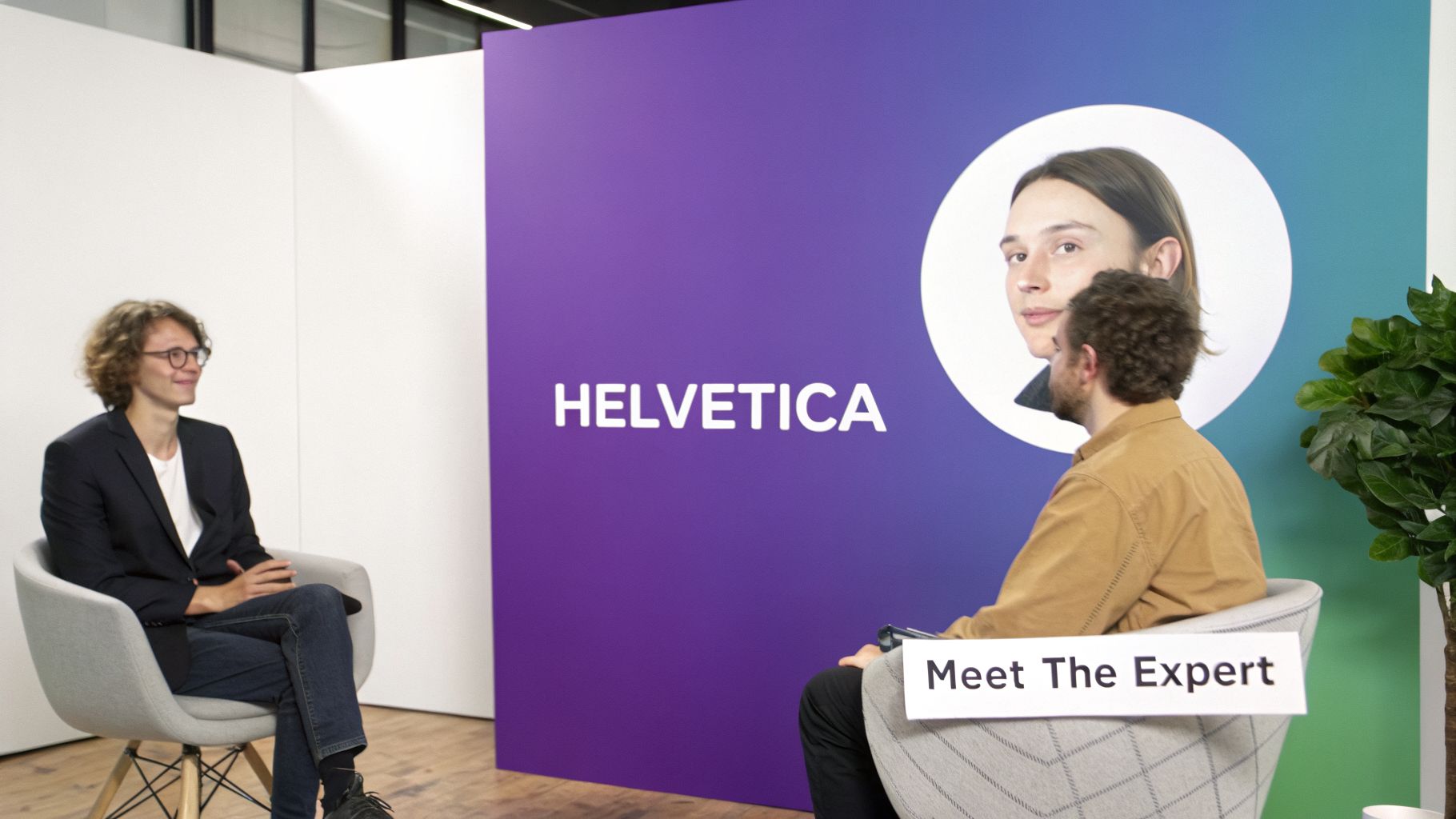
This style is frequently seen in sales training content from platforms like Gong.io or HubSpot, where building trust and establishing the speaker’s credibility is a primary goal. By including a professional headshot directly in the lower third, you create an immediate personal connection that text-only versions can’t match. It’s an excellent choice for expert interviews, sales pitch recordings, and customer testimonial videos.
Strategic Analysis
The core strategy of this lower third is credibility through connection. The avatar humanizes the expert, making them more relatable and trustworthy, while the adjacent text provides the formal credentials to back up their authority. This dual approach is highly effective in scenarios where both personal rapport and professional expertise matter, such as a presales demo or an internal training module led by a company leader. It bridges the gap between cold, corporate information and a warm, human presence.
Key Insight: The goal is to build rapport visually before the viewer fully processes the speaker’s title. An avatar creates an instant subconscious connection, making the accompanying information feel more credible and memorable.
Actionable Takeaways
You can easily adopt this engaging style in your own videos to make your subject matter experts feel more present and authoritative. This is particularly useful for sales enablement teams creating role-play videos or product marketers introducing a new feature with a lead engineer.
- Use Professional Headshots: A clear, well-lit, professional headshot is non-negotiable. Ensure all avatars used across a video series share consistent lighting and style.
- Balance Image and Text: Keep the avatar in a 1:1 ratio, often displayed in a circle. Position the text cleanly beside it, limiting it to two or three lines for name, title, and company.
- Add Subtle Depth: Apply a gentle border or a soft drop shadow to the avatar. This small detail helps it pop from the background and gives the entire graphic a more finished, high-quality look.
- Animate with Purpose: Animate the avatar and text blocks together. A quick slide-in from the side or a coordinated fade-in maintains a clean, modern feel without being distracting.
4. Full-Width Color Block Lower Third
The full-width color block is a bold and modern lower third design that commands attention. It consists of a solid or semi-transparent colored bar that stretches across the entire width of the video frame, with text overlaid on top. This impactful style is perfect for product marketing videos, feature announcements, or any tutorial where you need to signal a key moment or a new section.

Popularized by modern SaaS marketers and streaming platforms like Netflix, this design acts as a visual punctuation mark. It is one of the more assertive lower third examples, making it ideal for highlighting a new feature in a product demo or delivering a powerful “Did You Know?” tip that you want viewers to remember.
Strategic Analysis
The strategy behind the full-width block is visual disruption for emphasis. Unlike subtle designs that blend in, this lower third intentionally interrupts the visual flow to draw the eye and announce that something important is happening. It creates a clear hierarchy, elevating the on-screen text to a primary point of focus.
Key Insight: This design creates a strong visual anchor that separates the informational text from the main video content. Use it to introduce new topics, call out feature benefits, or make a bold statement that defines a section of your tutorial.
Actionable Takeaways
You can apply this dynamic look to your tutorials to add a professional, broadcast-quality feel. This style is especially useful for breaking up longer screen-recorded demos into digestible chapters or highlighting a specific call to action.
- Brand with Color: Use a primary or secondary color from your brand kit for the block. This immediately connects the graphic to your brand identity and builds visual recall.
- Ensure Readability: Place white or high-contrast text over the color block. The text must have a sufficient contrast ratio to meet accessibility standards (WCAG AA or higher).
- Line 1: Section Title (e.g., “Feature Highlight”)
- Line 2: Specific Feature (e.g., “New Analytics Dashboard”)
- Animate for Impact: Use a quick slide-in animation from the side or a fast reveal to match the design’s bold nature. A simple fade feels too passive for this style. This adds a layer of polish that makes your video feel expertly produced.
5. Translucent Overlay with Icon Lower Third
The translucent overlay with an icon is a modern and stylish lower third design that balances informational clarity with visual sophistication. This technique features a semi-transparent background shape that allows the main video content to remain visible, paired with icons or small graphics. These visual cues can represent a speaker’s role, the topic, or a key concept, making this one of the most effective lower third examples for technical training content where context is everything.
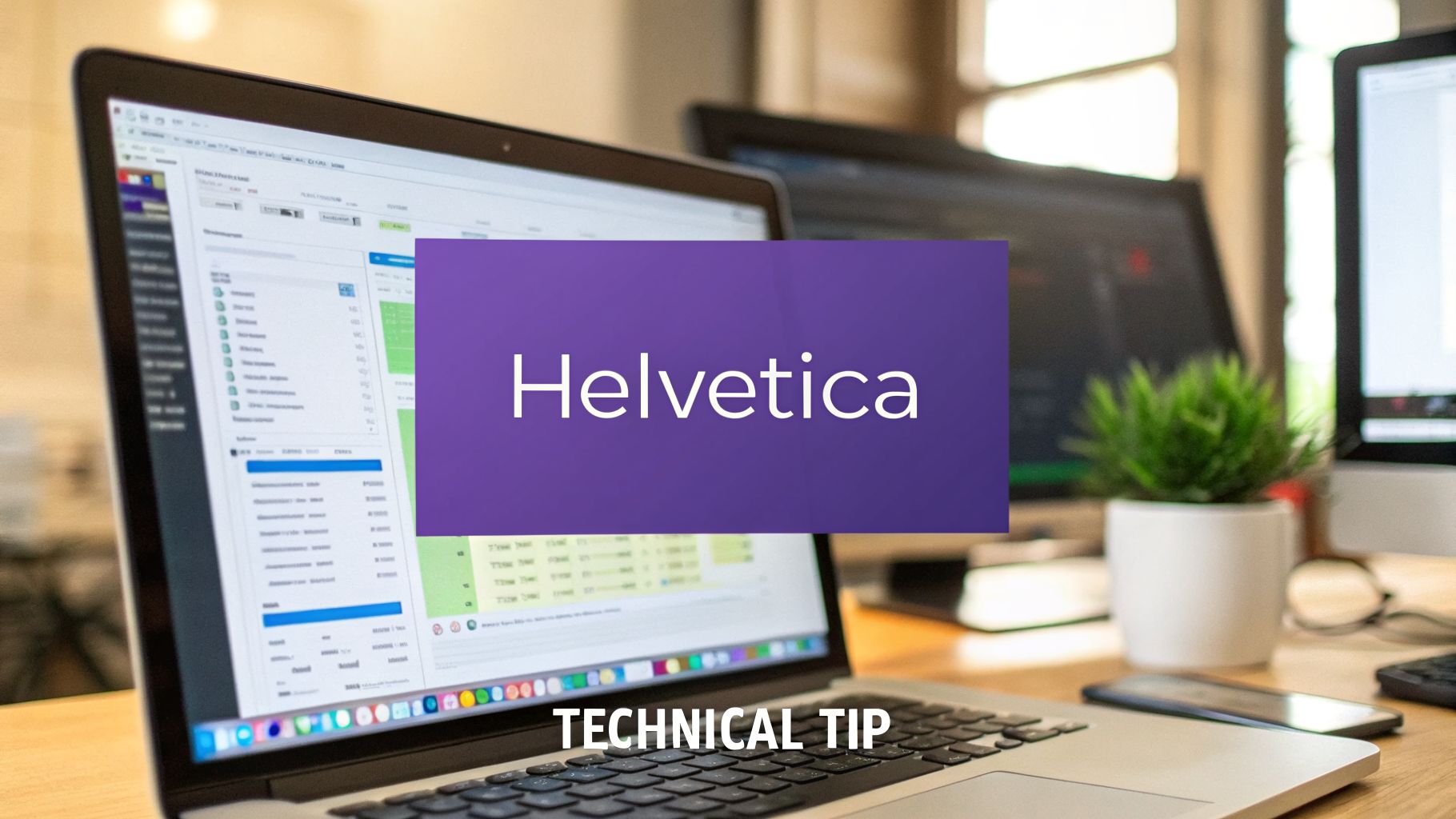
This design is frequently seen in content from Apple, Figma, and other modern SaaS companies. It adds a layer of professional polish to software onboarding and knowledge base videos without obstructing the user interface or on-screen action. The result is a graphic that provides necessary context while feeling integrated into the video, not just placed on top of it.
Strategic Analysis
The strategy behind this lower third is contextual layering. By allowing the background video to show through, it maintains a strong connection between the information presented in the graphic and the primary visual content. The icon acts as a quick mental shortcut, helping viewers instantly categorize the information as a tip, a warning, or a specific topic, which improves information retention.
Key Insight: This design creates a sense of depth and integration. The transparency makes the graphic feel part of the scene, while the icon provides instant context, making the information easier for the viewer to process and remember.
Actionable Takeaways
You can apply this professional design to your training videos to create a polished, high-value feel. It’s perfect for adding explanatory notes to screen-recorded demos or highlighting key functions in a software tutorial.
- Balance Opacity: Set your background shape’s opacity between 60% and 70%. This provides enough of a tint to make text readable but keeps the background action visible.
- Use Consistent Icons: Pull icons from a single design system or your brand’s established icon library. This ensures a consistent and professional look across all your video content.
- Prioritize Text Contrast: Test your lower third over various background scenes (both light and dark) to confirm that the text remains legible. A subtle drop shadow or outline on the text can help.
- Animate the Entrance: Add a touch of polish by having the icon and text animate in separately. For example, the icon could slide in first, followed by a fade-in of the text, drawing the viewer’s eye.
6. Multi-Line Information Stack Lower Third
The multi-line information stack is a comprehensive lower third design that organizes several pieces of information vertically. This approach goes beyond a simple name and title, often including credentials, social media handles, or areas of expertise in a clear, hierarchical format. Its value is in establishing deep authority and giving viewers immediate pathways to connect, making it a powerful choice among lower third examples for building a community.
This style is frequently seen in content marketing and creator-focused videos where building a personal brand is as important as the information being shared. Think of expert interview segments or webinar presentations where the speaker’s full range of qualifications needs to be displayed efficiently. It builds credibility by presenting a complete picture of the expert’s background.
Strategic Analysis
The strategy behind the information stack is authority by detail. By presenting multiple credentials or contact points, it quickly builds a case for the speaker’s expertise and encourages audience engagement beyond the video itself. It is designed to be a mini-profile that appears on screen, giving viewers all the context they need in one glance.
Key Insight: This design turns the lower third from a simple identifier into a networking and credibility tool. It answers “Who is this?” and immediately follows up with “Why should I trust them?” and “Where can I find more from them?”
Actionable Takeaways
You can build this authoritative lower third to add depth to your own expert-led tutorials or interviews. It’s particularly effective when a subject matter expert is creating a tutorial with a tool like Tutorial AI, as it reinforces their qualifications without them having to state it directly.
- Establish a Visual Hierarchy: Use different font sizes, weights, or colors to guide the viewer’s eye. The name should be the most prominent, followed by the title, with smaller details like social handles at the bottom.
- Line 1: Name (Largest)
- Line 2: Title/Company
- Line 3: Key Credential (e.g., “Ph.D. in Psychology”)
- Line 4: Social Handle (e.g., @handle) or Website
- Use Subtle Dividers: A thin line or small graphic element between information types can improve readability and organization without adding clutter.
- Color-Code for Clarity: Assign specific brand colors to different types of information, like using a secondary color for social media links to make them stand out.
7. Animated Callout Box with Dynamic Content Lower Third
The animated callout box with dynamic content represents an evolution of the traditional lower third, turning a static graphic into an interactive storytelling tool. This design isn’t just a label; it’s a responsive element that appears, updates, and disappears to highlight specific features or steps as they happen on screen. Its effectiveness shines in product tutorials and sales enablement videos where information needs to be timely and contextual, allowing the lower third to evolve with the narrative.
This style is a hallmark of advanced SaaS tutorial creators and professional product marketing teams who need to guide viewers through complex processes. Instead of a single, persistent lower third, dynamic callouts keep the screen clean and direct attention precisely where it’s needed at any given moment, making it one of the most powerful lower third examples for detailed demonstrations.
Strategic Analysis
The core strategy behind this lower third is contextual reinforcement. It provides just-in-time information that complements the on-screen action and voiceover, preventing cognitive overload. As the presenter demonstrates a feature, a callout box can appear with key benefits or a keyboard shortcut, then vanish as the video moves to the next step.
Key Insight: The goal is to create a guided experience where visual cues are perfectly synchronized with the narration. This dynamic approach makes complex information feel more manageable and keeps the viewer actively engaged with the content.
Actionable Takeaways
You can build this dynamic style into your tutorials to make them more engaging and easier to follow. It’s perfect for multi-step software guides and competitive comparison videos where highlighting specific details is critical.
- Plan Animations in the Script: During the scriptwriting phase, map out exactly when each callout should appear and what it should say. This ensures a seamless flow between your narration and the on-screen graphics.
- Keep Animations Quick: Use simple, fast animations (under 0.5 seconds) for transitions. A quick slide-in or fade is effective without being distracting, maintaining a professional feel.
- Synchronize with Voiceover: Time the appearance of each callout to coincide with the relevant part of the narration. This synchronization reinforces the information and improves viewer comprehension. For complex recordings, a smart tool can help. Our AI video editing software can automatically tighten up narration and sync visual elements, ensuring your dynamic callouts appear at the perfect moment without manual timeline adjustments.
- Create Reusable Presets: Design a few consistent callout box styles and save them as presets or templates. This saves time and ensures your video series maintains a cohesive brand identity.
8. Minimal Corner Badge Lower Third
The minimal corner badge is a compact lower third design that tucks essential information into a small, pill-shaped container. Typically positioned in the lower-left or lower-right corner, this approach is exceptionally unobtrusive, making it one of the best lower third examples for screen recordings where the on-screen action is the star of the show. It delivers context without obstructing crucial interface elements.
This design is a favorite among tech educators and is frequently seen in software documentation videos and feature walkthroughs. Its small footprint ensures that even dense user interfaces remain fully visible, allowing the viewer to follow along without distraction. This style effectively communicates “who” is speaking without competing for visual attention.
Strategic Analysis
The strategy behind the corner badge is maximum screen real estate preservation. It operates on the principle that in a tutorial, every pixel matters. By confining the speaker’s information to a small, semi-transparent element, it keeps the focus squarely on the demonstrated process, whether that’s navigating a complex software menu or showcasing a specific feature.
Key Insight: The goal is to be present but not intrusive. This lower third acknowledges the speaker’s authority while respecting the primacy of the instructional content. It’s a subtle nod, not a loud announcement.
Actionable Takeaways
This discreet design is perfect for your knowledge base videos, product demos, and support tutorials. You can easily apply this professional look to screen recordings made with tools like Loom, which can often be lengthy. For instance, Tutorial.ai can take these raw recordings, automatically trim them for conciseness, and apply branded elements like this corner badge, producing a polished video that looks like it was made with professional software.
- Position Intelligently: Place the badge in the corner with the least important on-screen content. Analyze your typical screen layout to determine if the lower-left or lower-right is consistently clearer.
- Use Opacity: Set the badge’s background shape to 60-70% opacity. This allows some of the on-screen content to show through, further minimizing its obstructive feel.
- Line 1: Name
- Line 2: Title or Company (one line only)
- Test Across Formats: Before finalizing, check how the corner position looks on different aspect ratios like 16:9 (desktop), 9:16 (shorts/reels), and 1:1 (social posts) to ensure it never covers critical UI elements.
8-Style Lower Third Comparison
| Design | Implementation Complexity 🔄 | Resource Requirements ⚡ | Expected Outcomes ⭐ | Ideal Use Cases 💡 | Key Advantages 📊 |
|---|---|---|---|---|---|
| Minimalist Text-Only Lower Third | Low — simple static layout and typography | Low — basic assets, minimal render time | ⭐ Clear, highly readable; professional look | Knowledge base, internal training, software tutorials | Minimal distraction; fast to produce; consistent branding |
| Animated Brand Logo + Text Lower Third | Medium — requires animation timing and presets | Medium — logo assets, motion templates, longer export | ⭐ Strong brand recall; polished presentation | Sales enablement, product marketing, brand-focused videos | Reinforces brand identity; more engaging than static |
| Split-Screen Lower Third with Avatar | Medium — layout and image prep (cropping, masks) | Medium — high-quality headshots, slight design work | ⭐ Builds trust and personal connection | Sales training, expert interviews, presales content | Humanizes speaker; clear credential display |
| Full-Width Color Block Lower Third | Low–Medium — simple bar but careful placement needed | Low — color assets and fonts; easy to scale | ⭐ High visibility; attention-grabbing | Product demos, announcements, feature highlights | Bold presence; strong brand consistency |
| Translucent Overlay with Icon Lower Third | Medium–High — needs frosted effect and contrast testing | Medium — icons, opacity tuning, testing on backgrounds | ⭐ Modern premium look while preserving main content | Technical tutorials, software onboarding, KB videos | Blends with content; icons aid quick scanning |
| Multi-Line Information Stack Lower Third | Medium — hierarchical typography and spacing | Medium — multiple text lines, optional icons | ⭐ Comprehensive context and credibility | Creator intros, webinars, expert segments | Provides rich speaker info; good for cross-promotion |
| Animated Callout Box with Dynamic Content Lower Third | High — timeline planning and synchronized animations | High — multiple animated assets, editing time | ⭐ Highly contextual and engaging when timed well | Complex product tutorials, multi-step training, comparisons | Dynamically surfaces relevant info; maintains engagement |
| Minimal Corner Badge Lower Third | Low — compact badge positioning and simple styling | Low — small asset, quick rendering | ⭐ Unobtrusive context with minimal screen intrusion | Screen-capture tutorials, walkthroughs, focused demos | Preserves primary content; subtle branding |
Choosing the Right Lower Third for Maximum Impact
Throughout this exploration of diverse lower third examples, a central theme emerges: a well-executed lower third is far more than a simple name tag. It is a strategic asset that directs attention, reinforces brand identity, and adds a layer of professional polish that keeps your audience focused and engaged. From the understated authority of the Minimalist Text-Only style to the dynamic storytelling of the Animated Callout Box, each design serves a specific purpose.
The key is to match the graphic to the message. A clean, full-width block might be perfect for a formal sales enablement video, while a translucent overlay with icons could effectively highlight key features in a product demo without obstructing the view. Your choice signals intent and professionalism.
From Strategy to Execution
Mastering these concepts does not require you to become an expert video editor. The gap between a casual screen recording and a polished, professional tutorial is no longer defined by your knowledge of complex software like Adobe Premiere Pro or Camtasia. Instead, it’s about having the right tools designed for efficiency. This is precisely where Tutorial AI changes the game for subject matter experts.
You can record your screen freely, speaking naturally without a script, and still produce a video that looks expertly crafted. Tutorial AI’s system allows you to:
- Instantly Apply Designs: Choose from a library of lower third styles or upload your own branded assets.
- Maintain Brand Consistency: Use the Brand Kit to automatically apply your company’s logos, fonts, and color palettes to every video element.
- Edit with Ease: Trim mistakes, add animated slides, and insert on-brand lower thirds using a simple, document-like editor. The AI handles the technical details, so you can focus on sharing your knowledge.
The next time you need to create a knowledge base video, a customer onboarding tutorial, or a feature release announcement, remember the lower third examples we’ve reviewed. Think about your goal, your audience, and your brand. A lower third is a small detail, but its impact on clarity, authority, and viewer retention is significant. By pairing a clear strategy with an efficient creation process, you can consistently produce high-quality, on-brand videos that deliver real results.
Ready to move from theory to practice? With Tutorial AI, you can apply these professional lower third designs to your screen recordings in minutes, not hours. See how easy it is to create polished, on-brand tutorials and demos by visiting Tutorial AI and transforming your content today.