Your team has a product walkthrough due by Friday. The script is ready, the narration sounds clean, and the interface looks sharp. Then reviewers pause the video with the same question: “Which button did you click?”
The problem usually isn’t the microphone or the editing timeline. It’s the cursor. It disappears during a menu interaction, jumps between low-quality frames, blends into a busy interface, or lands somewhere different from the narrator’s instructions. Cursor tracking software is therefore a usability control first and a visual effect second. The right system makes the pointer easy to follow, preserves useful interaction data, and gives your compliance team a clear answer about what gets captured and retained.
Why the Cursor Is the Hardest Part of a Tutorial Video
A polished screen recording can still fail if viewers lose the pointer. The narrator says “select Settings,” but the cursor has already crossed the screen. A click ripple appears after the menu closes. A fast movement becomes a jagged jump because the capture missed intermediate positions. Viewers stop following the explanation and start hunting through the interface.
That failure matters across every format. Product demos, feature release videos, customer onboarding, help-center videos, support article videos, internal training, SOPs, sales enablement walkthroughs, and knowledge-base content all depend on visual precision. The audience doesn’t need cinematic motion. It needs a reliable answer to one question: where should I look right now?
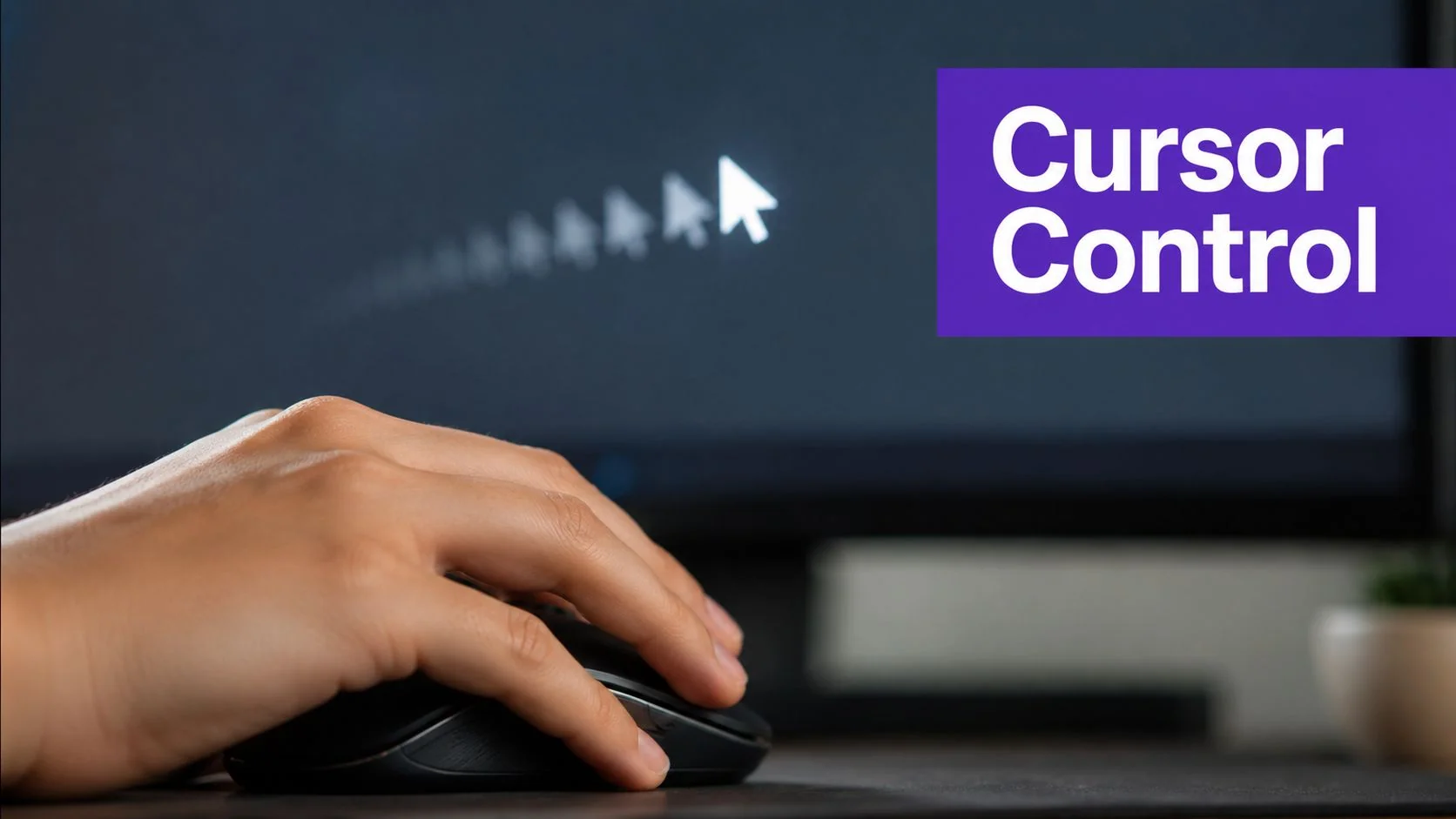
A missing pointer creates comprehension debt
Documentation teams often try to fix this problem with more narration. They add phrases such as “over on the left” or “in the upper-right corner,” then record another take. That treats the symptom, not the cause. If the pointer remains invisible or unstable, every extra verbal instruction increases cognitive load.
A useful cursor system separates the recorded movement from the final presentation. It can smooth an uneven path, enlarge the pointer, add a contrast ring, emphasize a click, and frame the active area with a controlled zoom. These effects aren’t decoration. They preserve the relationship between the spoken instruction and the action on screen.
Practical rule: If a reviewer has to pause to identify the click target, the cursor treatment failed, even when the recording looks attractive.
Before buying, review how the vendor handles cursor effects for screen recordings. Look for post-recording control, not only a checkbox that makes the cursor visible. You should be able to correct a weak pointer treatment without reshooting the entire walkthrough.
What Cursor Tracking Software Does
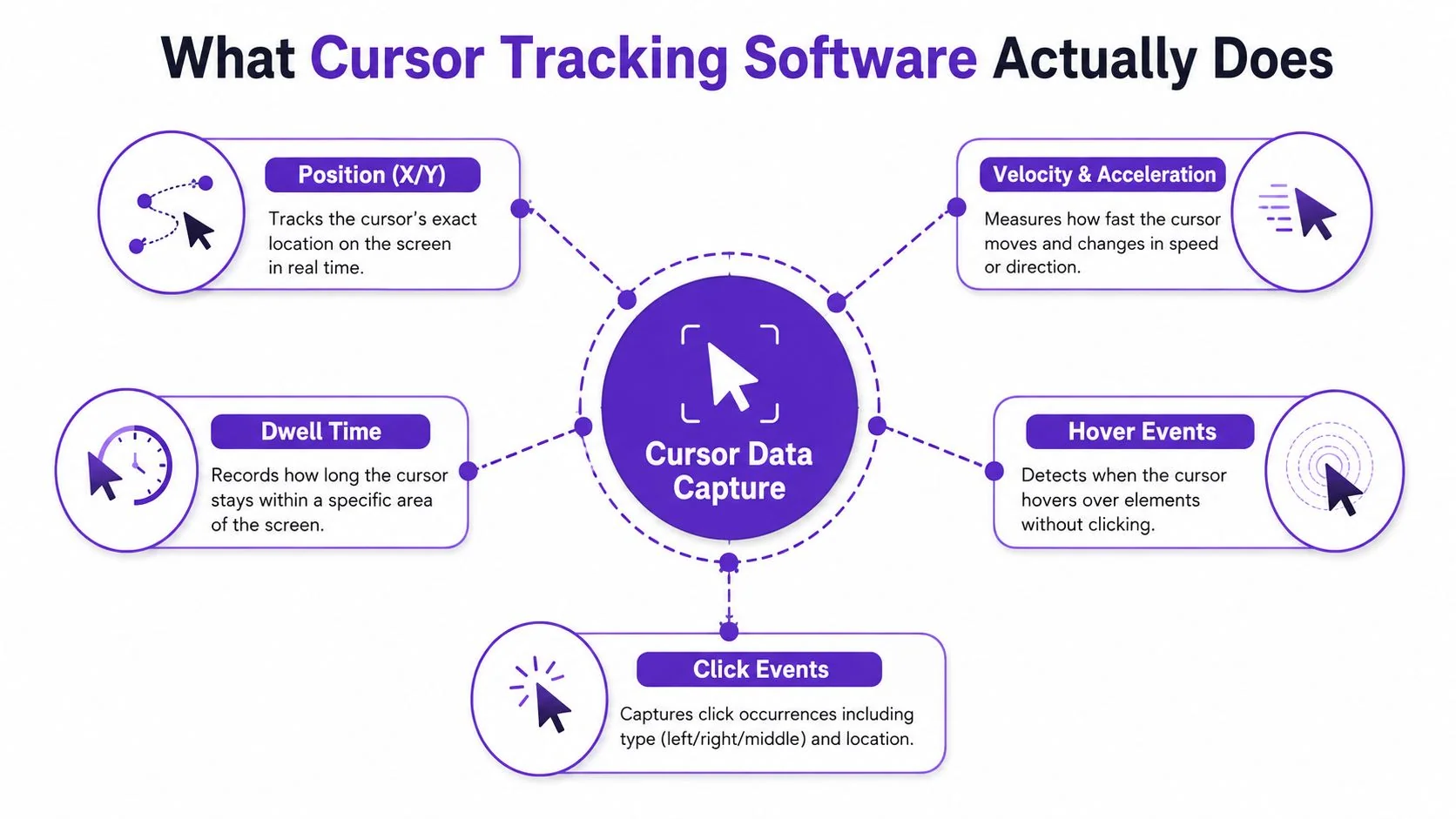
Cursor tracking software records pointer behavior as structured data, rather than treating the cursor as a fixed pixel inside a video frame. Depending on the product, the captured stream may include X and Y position, velocity, acceleration, dwell time, hover events, click timestamps, right-click events, scroll correlation, and window-focus changes. That makes the tool a data-governance decision before it becomes a recording enhancement. Define who can access the event stream, how long it stays stored, and whether employee activity is being monitored.
The same label covers two distinct uses. A recording tool uses pointer data to reconstruct a clearer path for viewers. An analytics platform uses it to study behavior across sessions. Ask which output the product supports. Pixel-only capture cannot provide dependable behavioral analysis, while a system that drops intermediate samples cannot recreate smooth playback.
The recording path
For tutorial production, raw pointer events can drive several post-processing effects:
- Smoothing: Interpolates between captured positions so movement feels deliberate rather than jagged.
- Click emphasis: Adds a ripple, ring, or color change when an interaction occurs.
- Spotlight treatment: Keeps attention on the pointer when the interface contains dense controls.
- Smart framing: Uses click coordinates or active regions to guide zoom and pan decisions.
- Idle handling: Hides or reduces the pointer when it is not helping the viewer.
Keep these choices editable after capture. A documentation lead can enlarge the cursor for a small interface, reduce an effect for an executive demo, or simplify a path without asking a subject-matter expert to repeat the walkthrough. Confirm that exported videos preserve accessibility, including sufficient contrast and a pointer treatment viewers can locate without relying only on color.
The analytics path
UX and product teams can use the same event stream for heatmaps, hesitation analysis, click clustering, and form-flow investigation. Cursor movement also supports established usability research. A 1999 study found that Fitts’ law explained between 44% and 97% of the variance in cursor movement time, depending on the analysis method, as documented in the study on cursor movement time and Fitts’ law.
The research lineage reaches back to at least 1997. One cited collection included 10,471 live browsing sessions alongside 25 lab sessions, showing how cursor analysis expanded from lab usability work into larger web datasets, as described in the early cursor movement analysis paper. For teams examining interface behavior, DOM Studio developer workspace features offer context for considering interaction data alongside the working environment.
Core Features That Separate Good From Great
Feature pages tend to flatten every capability into the same checklist. That’s a procurement mistake. Training production and UX analytics need different cursor data, different controls, and different exports.
For tutorial teams, smoothing is the first serious test. Linear interpolation can make a path look mechanical, while more refined interpolation produces movement that supports the narration. The pointer also needs enough visual contrast to remain visible over dashboards, modal windows, code editors, and dark interfaces. Size controls, halos, rings, spotlight masks, and color changes matter because viewers can’t learn from an action they can’t locate.
Click tracking is the second essential capability. A good system distinguishes movement from interaction, then lets you style the click independently. That separation supports a quiet pointer during navigation and a stronger visual cue when the narrator says “click.” Smart zooms tied to click coordinates can also frame a dense control without forcing an editor to keyframe every camera move.
Match the feature to the job
| Feature | Tutorial / Training | UX Analytics |
|---|---|---|
| Cursor smoothing | High priority for readable playback | Low priority unless movement playback is part of the research |
| Size and highlight effects | High priority for findability | Usually irrelevant to raw behavioral analysis |
| Click tracking | Important for viewer comprehension | Essential for interaction analysis |
| Smart zooms | Valuable for dense interfaces | Not a substitute for event-level analytics |
| Raw event export | Useful for reuse and auditability | Critical for warehouse and research workflows |
| Dwell and hover data | Helpful when diagnosing confusing steps | Important for hesitation and attention analysis |
Secondary features deserve a lower place in the buying decision. Click annotations, keyboard overlays, multi-monitor stitching, and coordinate JSON can help, but they shouldn’t compensate for weak capture fidelity or poor privacy controls.
Research also shows why normalization matters. Cursor data can distinguish reading from information seeking and expose hardware differences, according to the open-source cursor-tracking workflow described in the Journal of Open Research Software framework. If your objective is cross-session analysis, ask how the product handles device variability, sampling differences, and missing events. If your objective is training, prioritize a stable visual result and editable effects over a large analytics dashboard.
How Cursor Tracking Compares to Other Recording Tools
The adjacent categories look similar in a vendor comparison, but they solve different problems. Casual recorders capture the screen. Professional editors refine the footage. Avatar platforms generate a presenter. Cursor tracking software treats the pointer as an interaction layer that can be reconstructed after capture.
OBS and native operating-system recorders are fast and useful for raw capture. They’re also limited when the pointer needs correction. If the cursor is hard to see, moves too quickly, or lands beneath a menu, you typically need another recording or a separate editing pass. The same problem appears in many lightweight online screen recording workflows, where speed is strong but cursor treatment may be basic.
Camtasia, Adobe Premiere Pro, and Final Cut offer far more control. They’re appropriate when a video editor owns the production process and the project needs detailed compositing, audio work, or brand animation. They’re inefficient when a product expert needs to publish a weekly walkthrough without learning a timeline, managing keyframes, or handing every revision to another person.
Choose based on the job you need to ship
| Tool Category | Cursor Polish | Capture Speed | Editor Required | Best Fit Job |
|---|---|---|---|---|
| Casual screen recorder | Basic | Fast | Usually no | Quick internal explanation |
| Professional editor | Strong | Moderate | Usually yes | High-control video production |
| AI avatar tool | Doesn’t solve real UI pointer clarity | Fast for scripted narration | Often no | Presenter-led announcements |
| Cursor tracking workflow | Strong when effects remain editable | Fast to moderate | Not necessarily | Software tutorials and product walkthroughs |
AI avatar tools such as Synthesia, HeyGen, and Vyond generate synthetic talking heads, voices, or animated presenters. That approach can work for a scripted company message, but it doesn’t show the actual interface behavior. When viewers need to see the actual UI, a real screen capture and a visible cursor are more useful than a synthetic presenter.
For creator teams that publish across social channels, a broader collection of tools for Twitch and TikTok creators can help with capture, streaming, and distribution. Those tools still shouldn’t be judged by the same standard as documentation software. The reader’s job determines the winner. Screen clarity and throughput favor a cursor-aware workflow. Maximum post-production control favors a professional editor.
From One Recording to a Video, Article, and Analytics
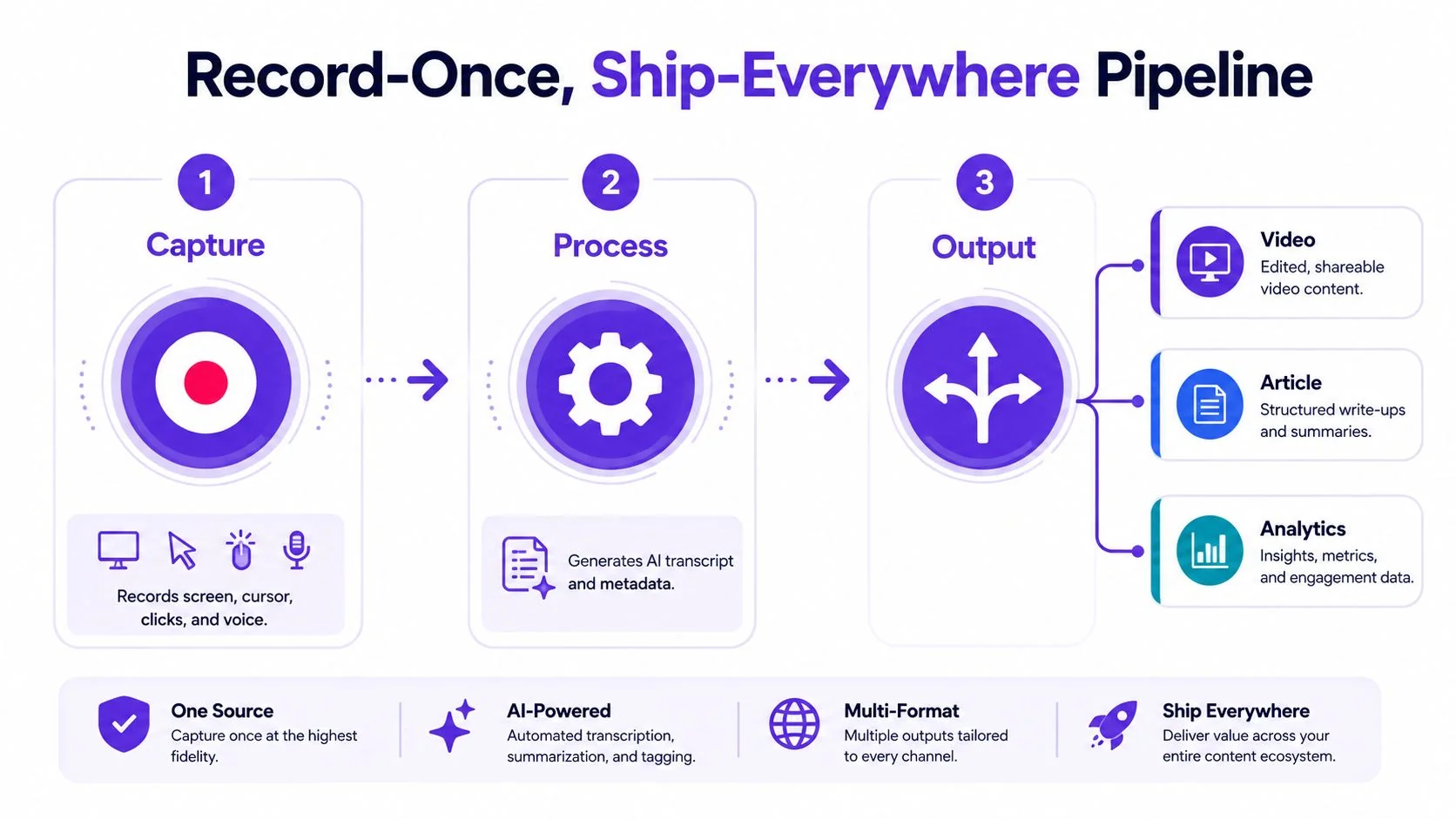
A recording shouldn’t become a dead-end MP4. The stronger model is record once, then branch the source into video, documentation, and analysis.
Tutorial AI illustrates this workflow by capturing the screen, cursor events, clicks, and voice together. The recording becomes a source for three outputs. First, the video renderer can apply smoothing, click emphasis, and smart zooms before publication to a help center or learning platform. Second, documentation generation can turn the narration and interaction sequence into structured steps with screenshots. Third, event data can support product analysis when the capture is configured for that purpose.
Keep the source flexible
The article output should reflect decisions made during the walkthrough, not merely repeat the transcript. A useful screen-recording-to-documentation workflow includes a short outline, extracted steps, screenshots placed where decisions need clarity, and a publish step to a help center, as described in this screen recording documentation workflow.
The video and article should also be reviewed together. The video teaches through motion and voice. The article supports search, scanning, translation, and future maintenance. If a button moves, the team can update the written step and decide whether the video needs a new capture.
Don’t surrender the raw capture
Vendor lock-in becomes painful when the platform only exports baked pixels. Require ownership of the source recording and a practical way to retrieve structured cursor events, transcript content, screenshots, and metadata. The exact export format matters less than whether another system can consume it.
Use the content repurposing workflow to plan the branching point before recording. Capture once only works when the source retains enough information for every downstream use.
Privacy, Surveillance, and Compliance Risks Buyers Underestimate
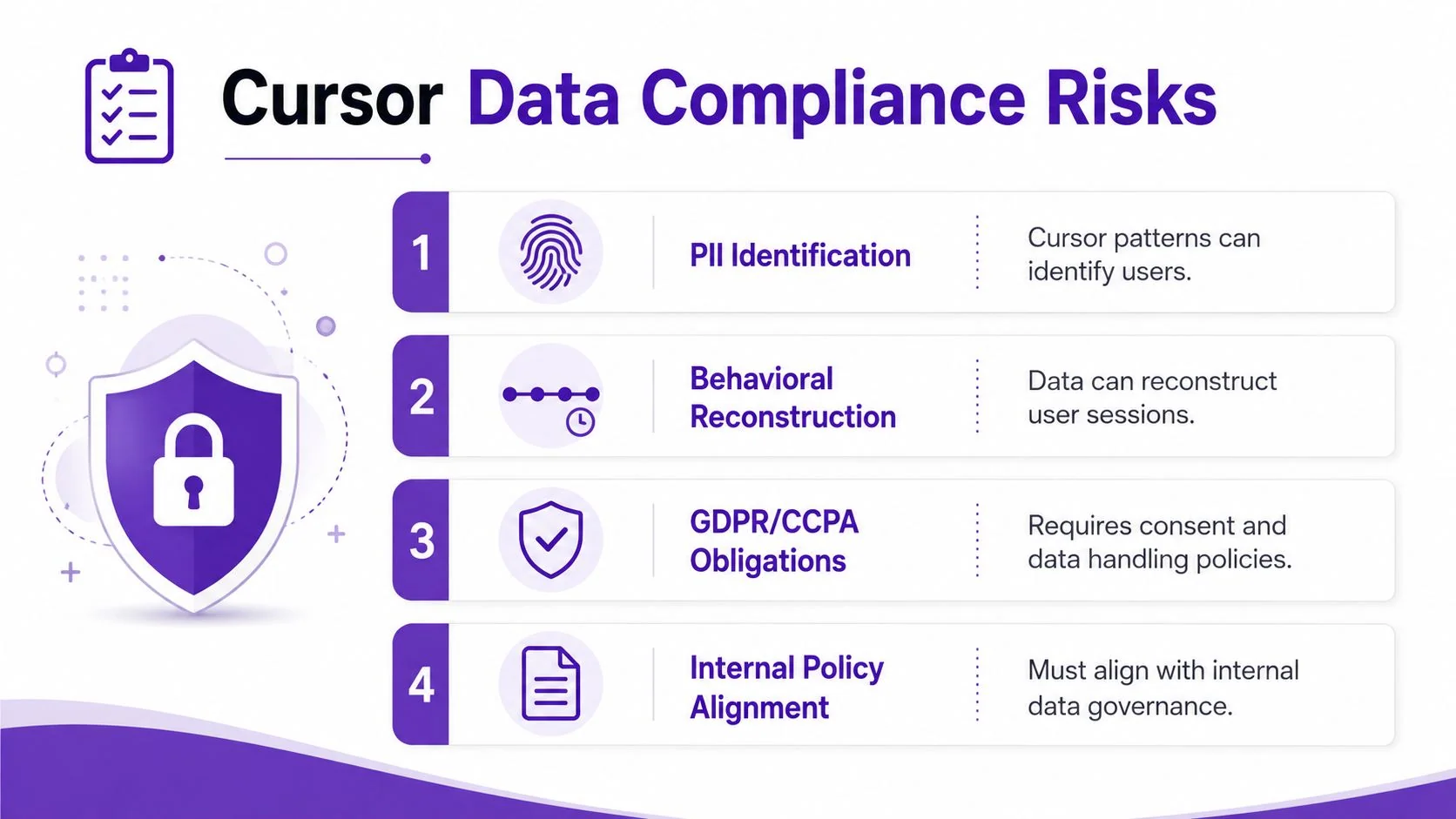
Treat cursor data as telemetry, not as a decorative overlay. A position, click, or dwell interval can help reconstruct a person’s workflow, especially when the recording includes login screens, customer records, internal admin panels, or support cases.
The governance risk grows when teams treat production capture and analytics capture as interchangeable. A training recording may need a visible cursor and a short retention period. A behavioral dataset may include event-level logs, user identifiers, access controls, and a longer analytical lifecycle. Those are different processing purposes and should be governed separately.
Four questions belong in procurement
- What gets captured? Ask whether the system stores only video pixels or also pointer coordinates, click events, timing, hover behavior, scroll context, window focus, audio, and transcripts.
- Who can access it? Require role-based permissions, administrative visibility, auditability, and clear separation between workspace owners, editors, viewers, HR, and analytics users.
- How long is it retained? Set a schedule tied to the stated purpose. Don’t let recordings remain available just because storage is inexpensive or a vendor default is convenient.
- Can the vendor use it for training? Review whether recordings, transcripts, cursor events, or derived analytics can be retained or used to train models. Governance guidance for Cursor the IDE treats privacy mode as a meaningful control because it changes whether code is retained or used for model training, as discussed in this Cursor privacy governance guidance. Review the vendor’s current policy directly during procurement.
Cursor motion can become telemetry, surveillance, or training data. The implementation determines the compliance burden.
Recent reporting reinforces the need for review. Meta paused an internal mouse-tracking program after sensitive employee data was reportedly accessible across the company, while its spokesperson said the program was halted as privacy safeguards were reviewed, according to coverage of Meta’s mouse-tracking pause.
Redact before capture, not after. Separate employee training recordings from product analytics. Require SOC 2 or equivalent evidence, document a retention schedule, complete the relevant privacy impact assessment, and involve legal counsel when employee monitoring or jurisdiction-specific communications rules may apply.
Evaluation Checklist for Choosing the Right Tool
Run the evaluation as a short, scored exercise rather than a feature-tour marathon. Give each pillar a 1 to 5 score, then define a hard pass or fail condition before the demos begin. That keeps a visually attractive tool from winning despite weak data handling.
Features
Confirm that the product records cursor position and velocity separately from the video frames. Test whether you can smooth movement after recording, adjust size and highlights without reshooting, and export click events as structured data rather than only baked pixels.
Use a real product flow, not a staged blank screen. Include a menu, modal, dense table, hover state, and a form. If the cursor becomes unclear in that environment, the product doesn’t meet the training requirement.
Compliance
Ask for SOC 2 or equivalent documentation, configurable retention windows, role-based access, deletion controls, and a data-processing agreement. Request a documented DPIA template that your privacy team can review and the vendor can support.
Enterprise video platforms commonly advertise SOC 2 Type II, GDPR support, SSO, administrative controls, and LMS integration, as summarized in this enterprise video platform overview. Treat those labels as starting points, not a completed security review. Verify the scope, product coverage, sub-processors, and actual controls.
Integration
Test SSO or SAML, provisioning, publishing to your LMS or knowledge base, and API access for analytics. A webhook is useful only if it reliably carries the metadata your publishing system needs. Ask whether transcripts, screenshots, cursor events, and permissions survive export.
Pricing
Model cost by active recorder, recording volume, storage, transcription, translation, and analytics usage. Include the overage tier you’ll reach when adoption expands. Compare the cost of an additional recorder with the cost of a separate editor, documentation writer, analytics platform, and compliance review.
A finalist should pass every hard requirement even if its overall score is attractive. A polished cursor effect can’t compensate for missing deletion controls or an export that prevents migration.
Common Pitfalls and the One Habit That Prevents Them
Most rollout problems appear after the demo, when real teams record real interfaces.
- Resolution drift: The team records at native resolution, then publishes a file that viewers can’t stream comfortably. Fix: define a delivery resolution for each channel and test the exported file in the target LMS or help center.
- Oversized click effects: Large animations and unnecessary visual layers push files beyond platform limits. Fix: use restrained effects and validate file size before publishing.
- Retention creep: Recordings remain available because nobody owns deletion. Fix: assign a data owner and enforce a written retention schedule.
- Skipped privacy assessment: The vendor’s template looks complete, so the team never maps the actual fields shown during capture. Fix: review a real recording and document every sensitive surface.
- Confused privacy modes: The recording appears private, but an analytics export sends identifying data to a dashboard. Fix: audit capture settings and analytics settings as separate controls.
- Stale cursor styling: The team standardizes a cursor treatment, then the product UI changes and contrast suffers. Fix: include a current interface in routine quality checks.
The habit that prevents most of these failures is a weekly fifteen-minute review. A team lead scrubs three random recordings, deletes anything outside retention, checks the cursor against the current interface, and writes one sentence about what to change in the next batch.
That small ritual catches resolution drift, retention creep, weak contrast, oversized effects, and accidental data exposure before they become an LMS complaint or a compliance finding. Cursor tracking software only earns its place when the team maintains the system after procurement.
Tutorial AI records real screens and narration, then lets teams refine cursor size, smoothing, highlights, smart zooms, scripts, captions, and pacing without rebuilding the walkthrough from scratch. It can also generate a matching step-by-step article from the same recording, making it practical for teams that need both polished training videos and governed documentation. Visit Tutorial AI to evaluate the workflow with your own product capture.