A lot of teams are stuck in the same loop. A product manager records a feature walkthrough. The first take runs long. The second has cleaner narration but misses a click path. Then someone opens Camtasia or Adobe Premiere Pro, realizes the edit will take longer than the recording, and the “quick tutorial” slips another week.
That used to be annoying. Now it’s operational drag.
When support, onboarding, enablement, and internal training all depend on video, an online screen recorder isn’t just a convenience tool. It’s part of the publishing pipeline. The key question isn’t whether your team can capture the screen. It’s whether one recording can become a polished video, a usable help article, and something your team can maintain without a specialist editor.
Why Creating Great Tutorials Is So Hard
Most tutorial bottlenecks start with the wrong person doing the wrong work.
The person who knows the product best is usually a product marketer, support lead, solutions engineer, or trainer. They know the feature, the customer questions, and the exact workflow that matters. What they usually don’t have is time to script tightly, record multiple takes, clean audio, trim pauses, add callouts, export versions, and then rewrite the whole thing as a knowledge-base article.

The recording is only the beginning
A typical feature demo sounds simple on paper. Open the product, explain the use case, click through the flow, publish. In practice, the raw recording often includes false starts, filler words, dead air, and detours that make perfect sense while speaking but feel slow to the viewer.
That’s why casual screen captures often run longer than they should. They preserve the whole thinking process, not just the final explanation. For internal handoffs that may be fine. For customer onboarding, help-center videos, sales enablement walkthroughs, or SOPs, it usually isn’t.
Practical rule: If the subject-matter expert has to become a video editor to publish one tutorial, your workflow won’t scale.
Demand keeps rising
This problem matters more because teams now rely on recorded knowledge far more than they did a few years ago. The global screen recording software market reached USD 2.95 billion in 2026 and is projected to reach USD 11.45 billion by 2034, with an 18.48% CAGR, driven by digital documentation and remote training, according to Fortune Business Insights on the screen recording software market.
That growth tracks what teams feel day to day. Hybrid work, distributed onboarding, async support, and frequent product changes all increase the need for tutorials that are fast to produce and easy to update.
What breaks in most teams
The hard part isn’t capturing the screen. It’s everything around it:
- Narration drift: The expert knows too much and explains three paths when the audience needs one.
- Editing overhead: Tools like Adobe Premiere Pro, Final Cut, and Camtasia can produce polished output, but they expect editing skill.
- Documentation duplication: After the video is done, someone still has to convert it into a support article or internal guide.
- Version maintenance: A small UI change can force a full re-record and a second round of written updates.
That’s why teams should evaluate screen recording as a workflow problem, not a recording problem.
Understanding Online vs Desktop Screen Recorders
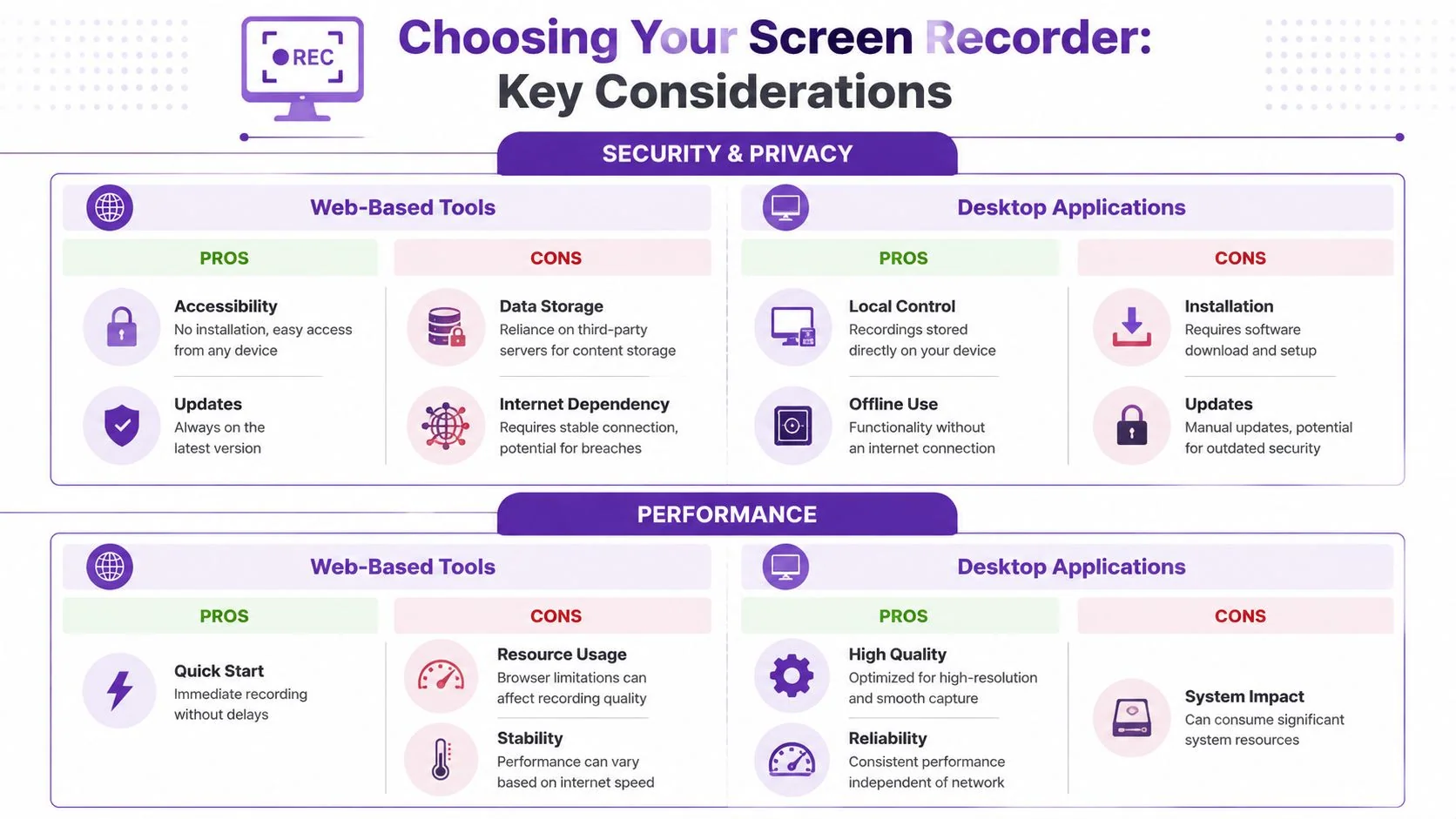
The simplest distinction is this. A desktop screen recorder runs as installed software on your machine. An online screen recorder runs in the browser and starts from the web.
The easiest analogy is Google Docs versus Microsoft Word. Both let you write. One starts instantly in the browser and is built around access and sharing. The other gives you deeper local control and a more traditional software model. Screen recording tools follow a similar pattern.
What makes a recorder “online”
An online screen recorder usually lets someone open a browser, grant screen and microphone permissions, and begin recording without installing a full application. That removes setup friction for teams that need lots of people to create content, not just one media specialist.
This matters when a support team, onboarding manager, and sales engineer all need to record tutorials in the same week. The less they have to install, update, and troubleshoot, the more likely the recording gets made.
For a more detailed product-level comparison, Tutorial AI’s guide on desktop recorder vs Chrome extension is useful because it frames the trade-offs in practical terms rather than treating one format as universally better.
Where desktop tools still win
Desktop recorders still make sense in several cases:
| Situation | Better fit |
|---|---|
| Recording high-resolution local workflows with heavy system demands | Desktop |
| Working fully offline | Desktop |
| Need for deep manual timeline editing | Desktop |
| Fast recording from any machine with minimal setup | Online |
| Broad team adoption across non-technical users | Online |
OBS Studio is a good example of a desktop-first tool that gives strong capture control. Camtasia sits in the middle with recording plus editing. Both can be powerful. They also require more intentional setup and a higher comfort level with project files, exports, and local workflows.
Where online tools are better
Browser-based recorders are better when speed and access matter more than local control.
- Lower friction: People can start recording from the browser instead of waiting for installs or permissions from IT.
- Easier sharing: Teams can publish, review, and distribute recordings without passing around large local files.
- Less maintenance: Updates happen in the product, not through user-led software management.
The best online recorder for a team isn’t the one with the longest feature list. It’s the one that gets used consistently by people who aren’t video producers.
For product experts, that distinction matters. If your workflow depends on experts recording often, the browser model usually gets more content published.
From Basic Capture to AI-Powered Production
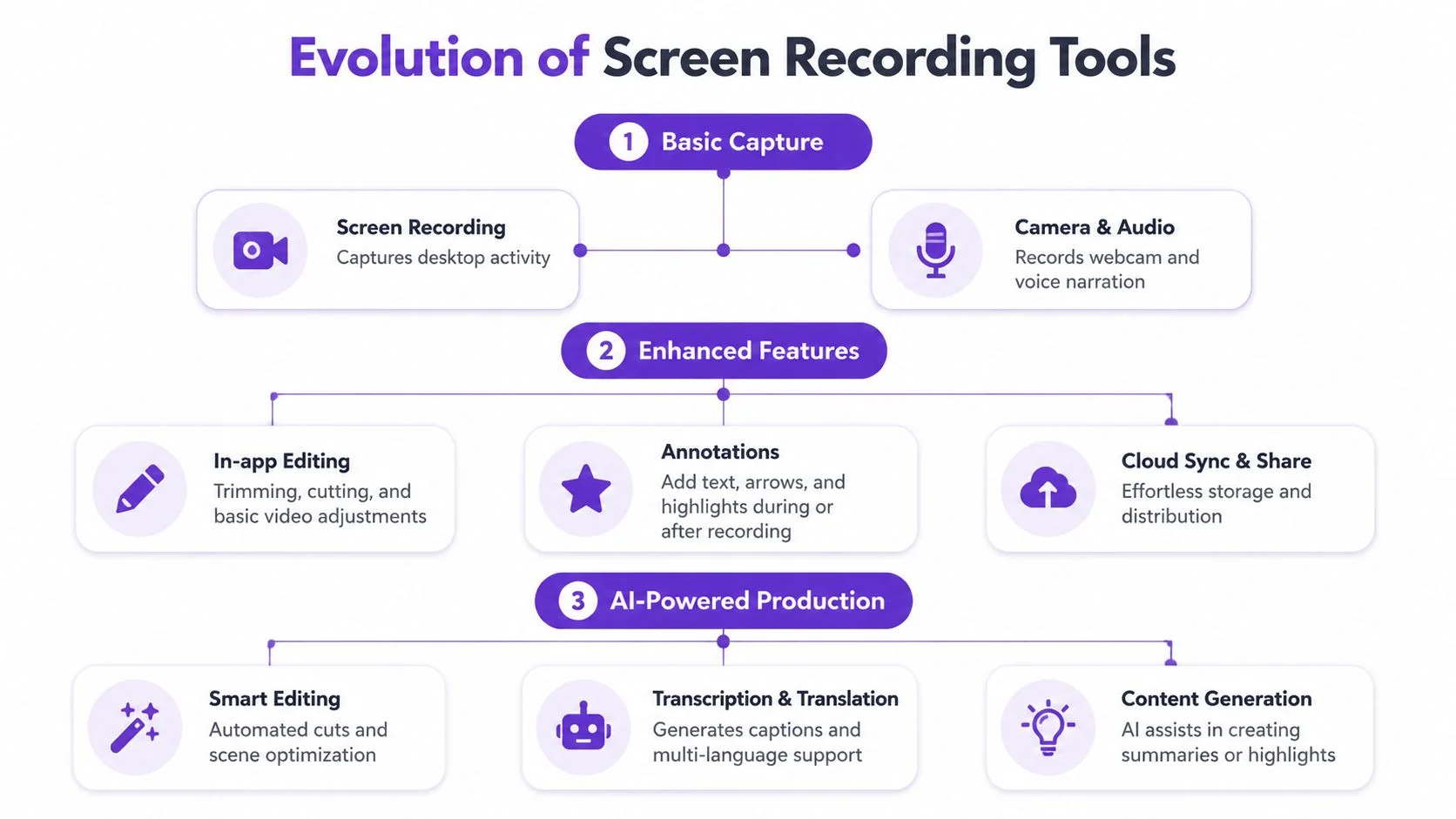
There are really two categories of screen recorder now. The first captures your screen, camera, and microphone. The second helps you publish something people will want to watch and reuse.
That difference is where most buying decisions go wrong.
Basic capture is table stakes
Every modern recorder should handle the fundamentals:
- Screen capture: Full screen, window, or tab recording
- Audio input: Microphone narration and, where needed, system audio
- Camera support: Webcam overlay for intros, training, or presenter-led walkthroughs
- Simple sharing: Export or publish without awkward file handling
That’s enough for quick updates and informal async communication. It’s not enough for polished customer education, release videos, support article videos, or repeatable internal training.
Production bottlenecks start after capture
The moment a raw recording exists, teams hit the expensive part. Someone has to tighten pacing, remove retakes, clean awkward pauses, create captions, and turn the content into a format suitable for the help center or LMS.
Modern tools have advanced beyond simple capture. Some platforms now turn the spoken narration into an editable script, then use that script to adjust timing and cuts. That matters because product experts usually think in words first, not in timeline edits.
Loom and similar casual recorders are useful for fast communication, but they tend to preserve the full recording session. In practice, that means rambling sections, recovery pauses, and duplicate explanations stay in the final asset unless someone edits manually. Script-based cleanup and automatic pacing adjustments are what turn “good enough for Slack” into “ready for customers.”
The real gain is document generation
One of the biggest gaps in most online screen recorder content is that it stops at video. Documentation teams know that’s only half the job.
A 2025 survey of 1,200 customer support teams found that 81% waste 3 to 5 hours each week manually converting video tutorials into text documentation, while only 12% of online screen recorder guides mention auto-documentation generation, according to Jumpshare’s screen recorder guide.
That statistic highlights the core operational issue. Video alone doesn’t close the loop. Teams still need a written article for the help center, SOP repository, or internal wiki.
What works: Record once, then generate a matching article with screenshots and steps from the same source material.
What doesn’t: Publish a video first and treat the article as a separate writing project.
That’s also why transcript-first and script-first workflows are becoming more important. If the spoken explanation is the source of truth, the video and the article can stay aligned.
Why advanced production matters
For teams comparing tool categories, the split looks like this:
| Tool type | Best at | Common limitation |
|---|---|---|
| Casual browser recorder | Fast internal updates | Raw output often needs trimming |
| Camtasia or Adobe Premiere Pro | Deep manual polish | Requires editing skill and time |
| AI avatar tools like Synthesia, HeyGen, Vyond | Synthetic presenter-led content | Not ideal when viewers must see the real product UI |
| Modern record-to-publish workflow tools | Real screen plus structured outputs | Still requires a good source recording |
If you’re evaluating adjacent tooling, it’s also worth seeing how a dedicated AI video editing platform approaches script-based and automated editing, because that mindset is reshaping what teams should expect from recorder workflows.
For training teams specifically, Tutorial AI’s post on creating training videos with AI is useful because it focuses on workflow speed rather than just output quality.
The practical standard has changed. Teams no longer need “a recorder with a few editing tools.” They need a system that turns one recording into publishable assets without asking a subject-matter expert to think like an editor.
Navigating Security Privacy and Performance
The phrase “online screen recorder” makes some teams nervous for good reason. If you’re recording a product demo, customer workflow, internal process, or pre-release feature, the first question isn’t visual polish. It’s where the recording goes, who can access it, and what happens before it’s published.
That concern is especially common in education, enterprise support, and regulated environments.
Security concerns are real
Users aren’t imagining this problem. Data from Reddit education forums shows people explicitly asking for tools where “recordings never leave your device,” and related research cited in the same verified set says 68% of new browser-based recorders now prioritize on-device processing to meet regulatory standards like GDPR, as discussed in this Reddit discussion about simple web-based screen recording.
That tells you two things. First, privacy-first recording is no longer a niche concern. Second, browser-based tools have had to improve their architecture to stay viable for business use.
What to evaluate in practice
When teams assess recorder security, they should separate three issues that often get blurred together:
- Capture architecture: Does the tool process media locally during capture, or upload raw material immediately to a backend?
- Identity controls: Can your team enforce SSO/SAML access and workspace governance?
- Compliance posture: Does the vendor support standards your legal and security teams already care about, such as SOC 2 and GDPR?
A browser-based recorder can be secure. A desktop recorder can also be insecure if files are scattered across unmanaged laptops and shared manually. The format alone doesn’t answer the security question.
Security check: Ask where raw media exists during recording, where it is stored after recording, and how access is controlled at the workspace level.
If your application team is already thinking this way for product infrastructure, the same mindset applies here. MeshBase’s guide to Next.js application security is a useful reminder that architecture decisions, not just front-end labels, determine risk.
Performance trade-offs are different, not worse
Performance is the second major consideration. Browser-based tools benefit from immediate startup and simpler collaboration, but they can be more sensitive to browser resource limits and network conditions. Desktop tools usually offer steadier local capture, especially for long or high-resolution sessions, but they place more weight on the user’s machine and local setup.
A straightforward comparison helps:
| Decision factor | Online screen recorder | Desktop recorder |
|---|---|---|
| Startup speed | Fast | Slower setup |
| Collaboration | Easier to share and review | More file handling |
| Offline reliability | Limited | Better |
| Local performance control | Lower | Higher |
| IT overhead | Lower for broad teams | Higher |
The right answer depends on the workflow
For customer support, product marketing, onboarding, and many internal training flows, browser-based recording is often the better default because publishing speed and team adoption matter more than maximum local control.
For security-sensitive demos, some teams will prefer tools with on-device processing or hybrid capture models. For highly produced videos or resource-heavy local environments, desktop recording may still be the safer operational choice.
The key is not to frame this as convenience versus seriousness. The serious evaluation is whether the tool matches your content risk, publishing workflow, and reviewer process.
How to Choose the Right Recorder for Your Team
Many organizations overbuy on editing depth and underbuy on operational fit. The better question isn’t “Which recorder has the most features?” It’s “Which recorder helps the people closest to the product publish useful content consistently?”
That shifts the evaluation from solo creator preferences to team workflow.
Start with the publishing path
If your output ends in a help center, LMS, CMS, CRM, or internal documentation hub, the recorder has to support that path cleanly. A strong team tool should fit the systems you already use, not create another manual export layer.
Tutorial AI’s overview of tutorial creation software is relevant here because it treats recording as part of a broader content production stack rather than a one-off capture tool.
Use a team-first checklist
Look for the basics, but don’t stop there.
- Access controls: Enterprise buyers should treat SSO/SAML, SOC2, and GDPR support as table stakes for serious rollout.
- Brand control: Brand Kits, custom fonts, and animated slides matter when multiple teams publish customer-facing material and need it to look consistent.
- Distribution flexibility: Embeddable players and compatibility with LMS, CMS, and CRM systems make the content easier to reuse across support, enablement, and training.
- Language support: Multilingual players are increasingly important when the same tutorial needs to serve distributed teams and customer bases.
The practical point is simple. Recording quality matters, but governance and distribution determine whether a tool works at scale.
Don’t confuse authenticity with polish
There’s also a category mistake teams make when evaluating video creation platforms. AI avatar tools such as Synthesia, HeyGen, and Vyond are useful for certain communication formats, especially when a synthetic presenter is acceptable. They are not a substitute for product walkthroughs where viewers need to see the actual interface and hear an actual explanation tied to actual clicks.
For product demos, feature release videos, support article videos, and sales enablement walkthroughs, authenticity matters. Buyers want to see the actual UI. Support users want to follow the exact path. Internal trainees need to understand the actual workflow, not a simulated scene.
If the value of the video depends on showing the actual product in motion, a real screen recording should be the center of the workflow.
Choose for maintainability
The right recorder should make updates manageable. Product interfaces change. Labels move. Steps get shortened. If your publishing model depends on expert editors to keep routine tutorials current, maintenance will pile up fast.
The strongest teams choose tools that help subject-matter experts record clearly, standardize output, and publish across channels without creating a long handoff queue.
Practical Workflows for Teams and Use Cases
The most useful way to evaluate an online screen recorder is to look at the workflow before and after adoption. The tool matters less than the number of handoffs it removes.
Help center and support article videos
Before modern record-to-publish workflows, a support lead would record a walkthrough, trim it manually, upload it, then write a separate article with screenshots and steps. That split is why documentation work drags.
Now the better workflow is simpler. Record the product flow once with spoken narration. Use automation to tighten pacing and shape the output into both a polished tutorial video and a matching written article.
That matters because support teams don’t just need a video asset. They need something searchable and skimmable for users who prefer text.
A related skill is structuring webinar and walkthrough material so it stays useful after the live moment. This guide to creating valuable webinar content is worth reading because the same principle applies to support and onboarding assets. Record for reuse, not just the first viewing.
Internal training and SOPs
Internal training is where rough recordings cause the most hidden waste. Teams often accept low polish because the audience is internal, but the cost shows up later in repeated questions, outdated instructions, and inconsistent delivery across regions.
A stronger SOP workflow looks like this:
- Record the process once with the subject-matter expert narrating the actual path.
- Tighten pacing so the recording reflects the final procedure, not the speaker’s drafting process.
- Publish both the video and the written steps so trainees can watch, skim, or search as needed.
This model is already being used by organizations including Bosch, Deutsche Bahn, Intesa Sanpaolo, Microsoft, and UNICEF for training and documentation use cases.
Product demos and sales enablement
Presales and product marketing teams need speed. A feature release video or sales enablement walkthrough loses value if it ships after the launch window.
Here the gain from automation is straightforward. Verified data shows that tools such as Tutorial AI can reduce video creation time from 90 to 180 minutes per traditional video to 12 to 33 minutes, while cutting cost per asset from $75 to $150 down to $10 to $27, based on Pointerful’s review of creating professional screen recordings quickly.
That doesn’t mean recording disappears. Someone still has to capture the flow and explain it clearly. What changes is the amount of post-production required to get from raw footage to publishable material.
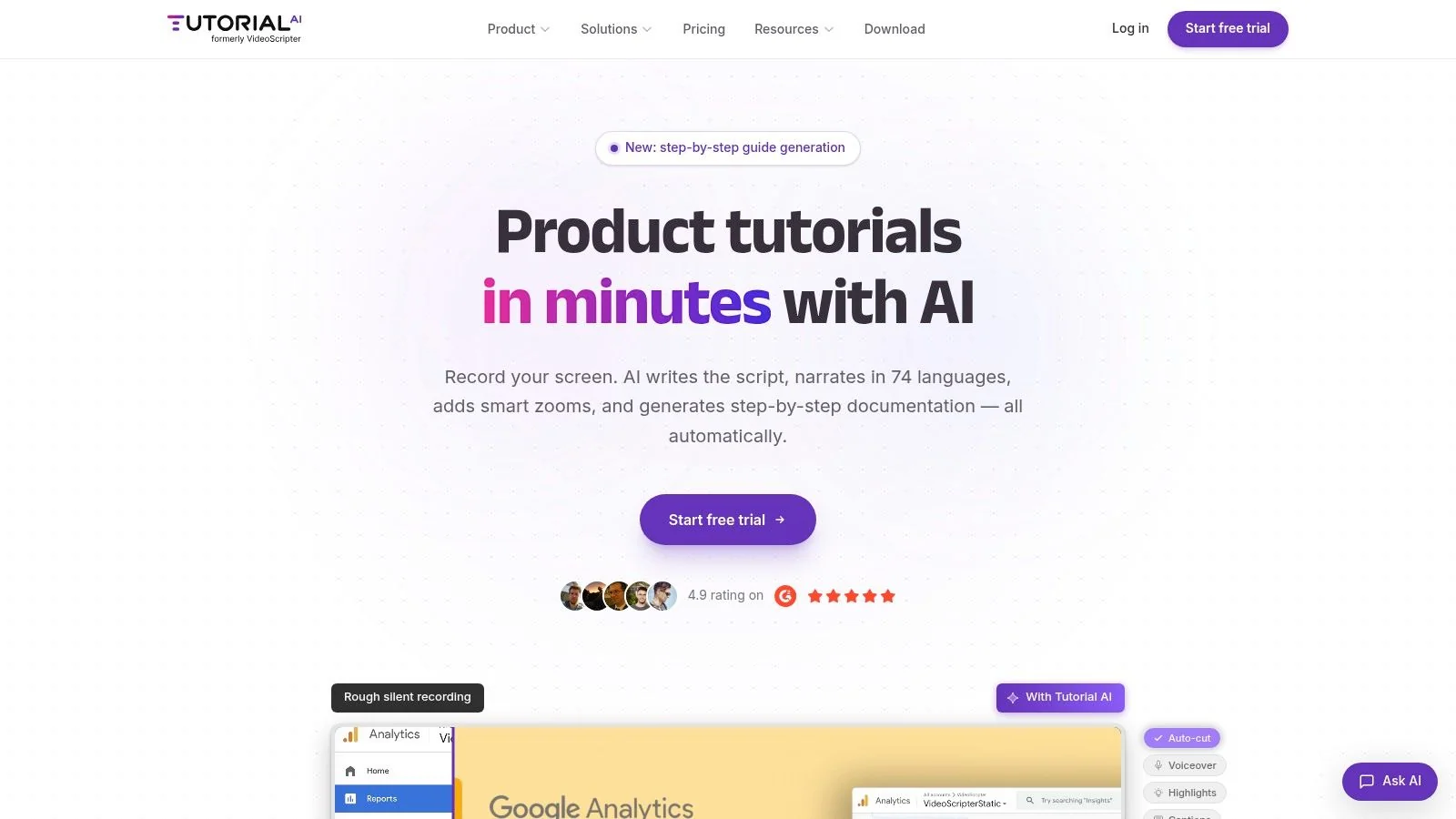
Here’s a product example in action:
What the efficient version looks like
Across use cases, the winning pattern is consistent:
- Record once: Capture screen and narration.
- Polish automatically: Tighten pace, improve flow, and prepare captions.
- Generate documentation: Turn the same recording into structured written material.
- Publish everywhere: Use the output in the knowledge base, LMS, CRM, or onboarding flow.
That’s the real step change. Teams stop treating video, documentation, and localization as separate projects and start treating them as outputs from one source recording.
Conclusion Beyond Recording to Smarter Workflows
The category has changed. An online screen recorder used to mean a faster way to capture your screen from the browser. For teams that produce training, support, onboarding, and product education content, that definition is too narrow.
The better standard is record-to-publish.
That means one workflow that captures the product itself, shapes the explanation into something concise, and produces assets your team can effectively use. A polished video. An editable script. A written article that matches the recording. Strong tools now support branding, language distribution, and enterprise controls without forcing every subject-matter expert to learn Adobe Premiere Pro.
The practical takeaway is simple. If your team still treats recording, editing, documentation, and publishing as separate jobs, content will move slower than your product does. The teams that work faster are the ones that reduce handoffs and build around a single source recording.
If your team needs to turn product knowledge into publishable tutorials without building a full video production process, Tutorial AI is worth a close look. It turns a single screen recording and spoken narration into a polished tutorial video that looks edited in Adobe Premiere Pro, then generates a matching written article from the same recording so you can ship video and documentation together.