Finding the best free video editing software can dramatically change how your team creates content, whether you’re producing polished marketing assets or internal training materials. The right tool empowers you to transform raw footage into professional-quality videos without the steep learning curves or prohibitive costs associated with high-end suites like Adobe Premiere Pro or Final Cut Pro. This guide is designed to cut through the noise and help you select the perfect editor for your specific needs.
We’ve compiled a detailed list of the top free options available today, moving beyond simple feature lists. For each platform, you’ll find an honest assessment of its strengths and limitations, ideal use cases, and practical insights to get you started quickly. We will cover everything from industry-standard powerhouses like DaVinci Resolve to accessible, browser-based editors like Microsoft Clipchamp, complete with screenshots and direct links to help you evaluate them efficiently.
This resource is specifically built for teams in sales, support, and L&D who need to create high-quality video content efficiently. We’ll also explore specialized tools like Tutorial AI, which targets the unique challenges of creating demo and explainer videos. While free software eliminates subscription fees, it’s still crucial to consider the time investment. Understanding the real cost of in-house video editing helps put the value of an efficient workflow into perspective. This list will equip you to make an informed decision that saves both time and money.
1. Tutorial AI
Tutorial AI is a powerful, AI-first platform designed to generate professional video tutorials based on screen recordings. It’s the ideal solution for creating demos, onboarding videos, explainer videos, feature release videos, knowledge base videos, and support article videos with minimal effort.
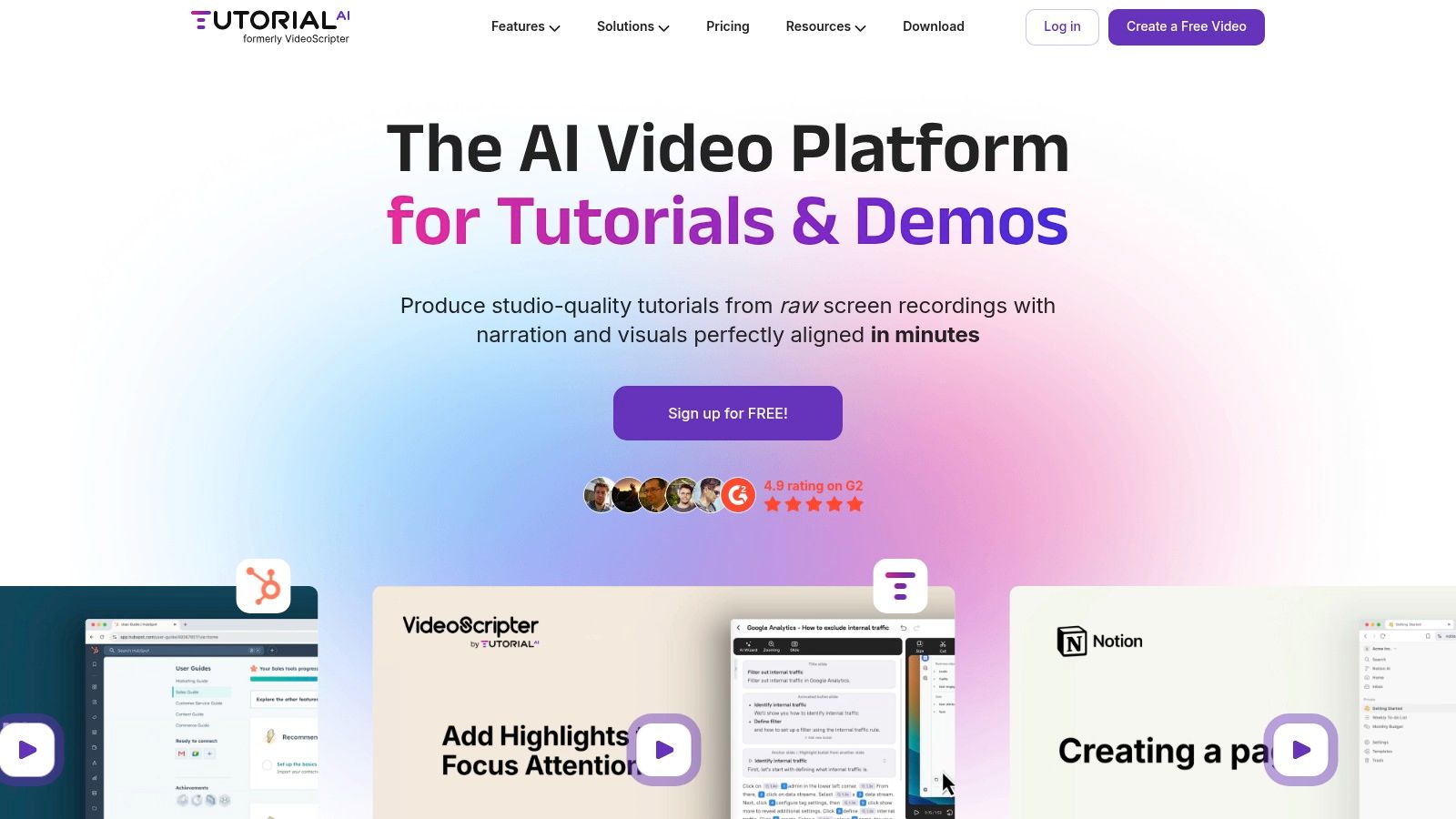
The platform bridges the gap between simple recording tools and complex editing software. While easy-to-use recording via Loom is often 50-100% longer than necessary, professional software like Camtasia or Adobe Premiere Pro requires expert video editing knowledge. Tutorial AI’s tools let you speak freely without any practice, and your video will still look professional, as if it was edited in Adobe Premiere Pro. It allows the subject matter expert to create on-brand videos with extreme efficiency. The platform’s “edit like a doc” workflow generates an AI transcript of your recording; you simply delete text to remove mistakes. Refinements are just as easy: type your changes, and a natural-sounding AI voiceover is instantly generated and synchronized.
Key Strengths & Use Cases
Tutorial AI is purpose-built for efficiency, allowing subject matter experts, not just video editors, to create on-brand content. Its unique cursor-tracking system records mouse movements independently from the screen capture. This lets you add post-production effects like cursor smoothing, highlights, and smart zooms that automatically follow the action, making your guide clear and easy to follow.
Best for: SaaS product teams, support and documentation specialists, sales enablement, and L&D trainers who need to produce high-quality, translatable tutorials quickly and without specialized editing skills. The platform is also built for global teams. Its AutoRetime™ feature automatically adjusts the timing of scenes, captions, and callouts when you translate a script, a significant time-saver for multilingual support content. You can explore more of its capabilities in this overview of AI video editing software.
- Pros: Rapid Production: Go from raw recording to a polished tutorial in minutes with AI transcription, script editing, and instant voice regeneration.
- Post-Recording Control: Unique cursor effects, smart zooms, and data blurring provide flexibility that standard screen recorders lack.
- Brand Consistency: Brand Kits, custom fonts, pronunciation maps, and collaborative workspaces ensure all content is on-brand.
- Global-Ready: One-click translation to 30+ languages with automatic timing adjustments for scenes and captions.
- Cons: Generated-Video Minute Caps: Paid plans have a monthly or yearly cap on the duration of videos you can generate (recording isn’t counted), which may be a constraint for high-volume producers.
- Tiered Features: Advanced functions like iPhone/iPad recording and custom voice cloning are reserved for higher-tier plans.
Website: https://www.tutorial.ai
2. DaVinci Resolve (Blackmagic Design)
DaVinci Resolve is not just a free video editing tool; it’s a full-fledged professional production suite used in Hollywood. The free version offers a staggering amount of power, combining professional 8K editing, visual effects (VFX), motion graphics, color correction, and audio post-production into a single application. For creators producing high-quality tutorials, software demos, or training content, Resolve provides an industry-standard workflow without watermarks or significant feature restrictions, making it one of the most powerful options available at no cost.
Unlike simpler editors, its workflow is organized into dedicated pages for different tasks: “Cut” for quick assemblies, “Edit” for traditional timeline work, “Fusion” for complex VFX, “Color” for its legendary node-based grading, and “Fairlight” for advanced audio mixing. This structure allows for deep specialization in each part of the production process. While it has a steep learning curve and demands a powerful computer with a dedicated GPU, its capabilities for creating polished, professional-grade videos are unmatched in the free software space. The high-resolution output files are impressive but often large; learning how to reduce video file size is a key skill for sharing your finished projects efficiently.
Best for: Creators who need professional-grade color correction, audio mixing, and VFX capabilities for free and are willing to invest time in learning a complex system. It’s ideal for producing cinematic-quality tutorials and marketing videos where visual polish is paramount.
3. Microsoft Clipchamp
Microsoft Clipchamp is a user-friendly, browser-based video editor that excels at creating clean, quick videos without requiring any software installation. As part of the Microsoft ecosystem, its free plan is surprisingly generous, offering unlimited watermark-free exports in up to 1080p (HD) resolution. It’s built for speed and simplicity, making it a go-to option for creating short marketing snippets, internal announcements, or simple training guides where a polished, template-driven look is more important than complex visual effects.
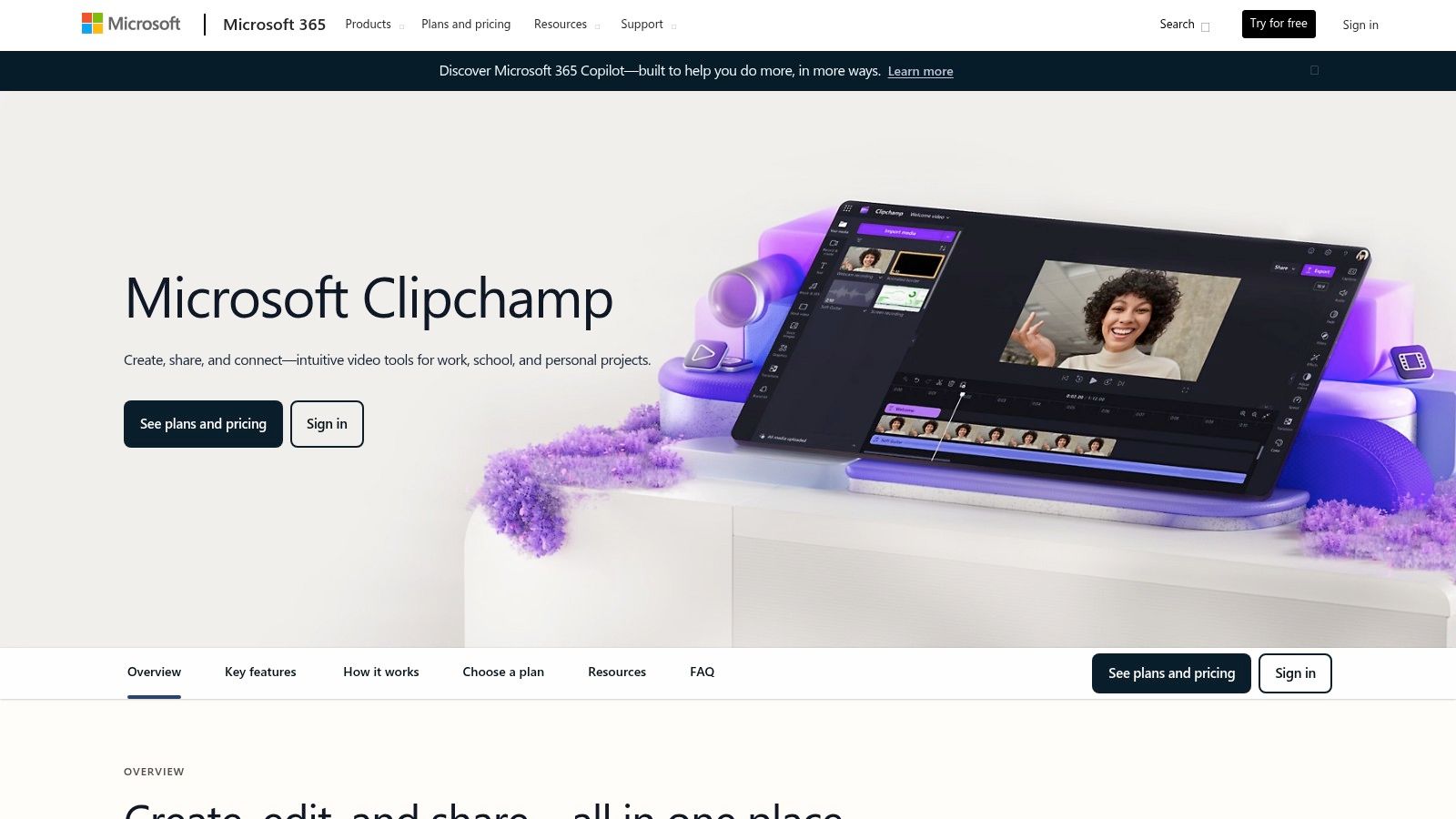
The platform operates on a simple drag-and-drop timeline and provides access to a limited but useful library of free stock audio, video, and graphics. Its key strength lies in its template-driven workflow, allowing users to quickly assemble professional-looking content. While it lacks the deep timeline control and advanced features of professional editors, its accessibility makes it one of the best video editing software for beginners. The free version is powerful for basic edits, though more advanced capabilities like 4K exports, expanded stock libraries, and brand kit management require a premium plan, often bundled with Microsoft 365.
Best for: Teams and individuals who need a fast, accessible tool for creating simple, brand-aligned videos for social media, internal communications, or basic tutorials. Its low learning curve makes it ideal for users who are not video editing experts but need to produce polished content quickly.
4. iMovie
For creators fully invested in the Apple ecosystem, iMovie is a remarkably capable and intuitive free video editing software. Pre-installed on macOS, iOS, and iPadOS devices, it offers a clean, user-friendly interface that lets beginners jump straight into editing. It excels at creating polished how-to videos, quick social media clips, and simple tutorials without the intimidating complexity of professional suites. Features like Storyboards and Magic Movie provide guided templates that help assemble footage quickly, making it easy to create a cohesive narrative from scratch.
iMovie’s core strength is its seamless integration across Apple devices. You can start a project on your iPhone, add effects on your iPad, and then perform final edits on your Mac. It supports 4K resolution and even lets you adjust the depth-of-field effect in Cinematic Mode video shot on newer iPhones. While it includes essential tools like picture-in-picture, green screen, and split-screen effects, it lacks the advanced color grading, audio mixing, and VFX capabilities found in more professional software. However, for Apple users who need to produce high-quality videos quickly and reliably, iMovie delivers exceptional value without any cost or watermarks.
Best for: Apple users who need a straightforward, fast, and free editor for creating clean tutorials, vlogs, or family videos. Its zero learning curve and seamless cross-device workflow make it the perfect entry point into video editing for anyone with a Mac, iPhone, or iPad.
5. Shotcut
Shotcut is a mature, open-source, and cross-platform video editor that stands out for its extensive format support and commitment to being completely free without watermarks. As a long-standing project, it offers a stable and feature-rich environment that appeals to users who value open-source principles and need reliable offline editing capabilities. It’s an excellent choice for creators producing training videos or tutorials who need a no-cost tool that runs on Windows, macOS, or Linux, ensuring team-wide compatibility.
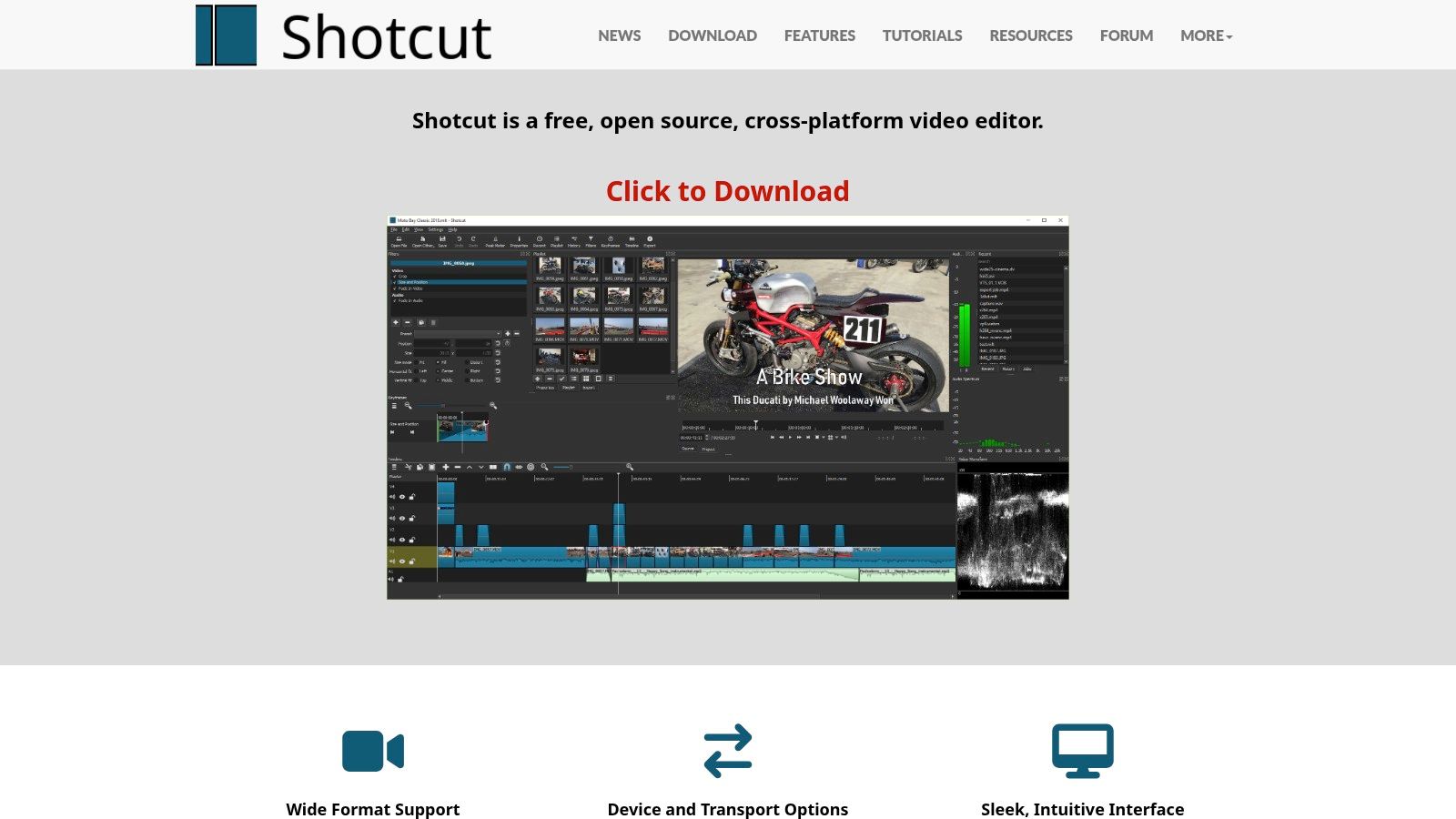
The software supports native timeline editing for hundreds of audio and video formats, including 4K and 8K resolutions, thanks to its powerful FFmpeg integration. Unique features include robust audio tools with filters like compressors and limiters, advanced video effects, and even webcam and screen capture capabilities, making it a versatile tool for creating software demos. While Shotcut offers considerable depth, its user interface and workflow can feel less polished compared to commercial alternatives, and some users may find its non-traditional layout less intuitive at first. However, its active development community ensures frequent updates and a solid, ever-improving feature set.
Best for: Individuals or teams who prioritize open-source software and need a powerful, cross-platform editor that can handle a wide array of file formats without cost. It’s a great option for creating detailed tutorials and knowledge base videos, especially in mixed-OS environments.
6. Kdenlive
Kdenlive is a powerful, open-source, non-linear video editor from the KDE community that brings multi-track editing and a wide range of features to users across all major operating systems. Originally popular on Linux, it is now a solid cross-platform choice, offering a traditional timeline interface that feels familiar to those who have used other editors. Its active development and strong community support make it a reliable and ever-improving tool for creators looking for one of the best free video editing software options without proprietary restrictions.
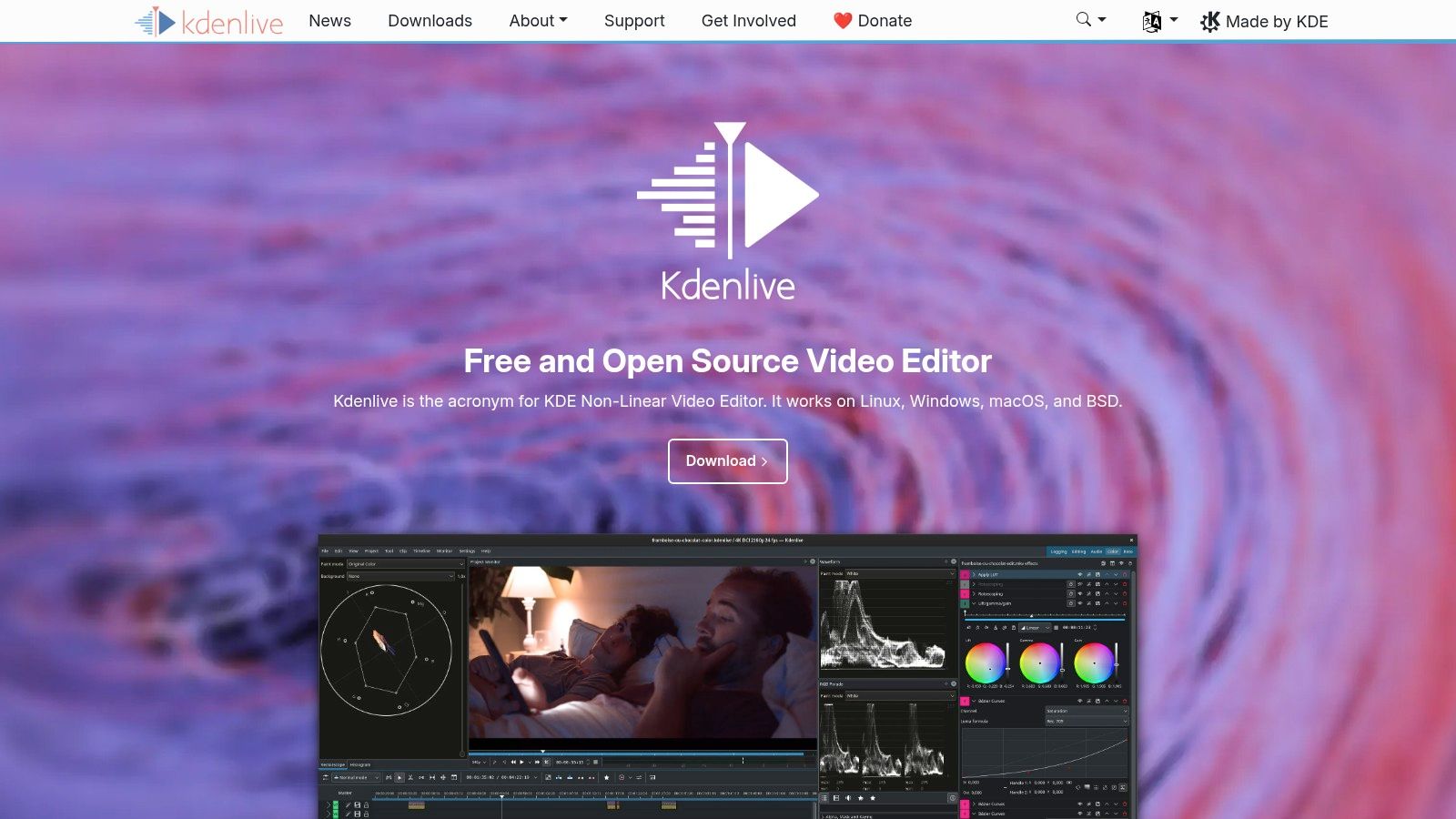
The software stands out for its excellent performance with high-resolution footage, thanks to its built-in proxy editing feature. This creates lower-resolution copies of your video files for smoother editing, then applies all changes back to the original high-quality files during final export, a critical feature for those with less powerful hardware. It also boasts broad codec support, numerous effects and transitions, and configurable interface layouts, providing a high degree of flexibility. While its interface may feel less polished than some commercial software and stability can occasionally be an issue on Windows or macOS, its core functionality is robust and capable of producing professional results.
Best for: Content creators and small teams on a budget who need a full-featured NLE that works across Windows, macOS, and Linux. Its proxy workflow makes it particularly well-suited for editing 4K footage on mid-range computers for tutorials, vlogs, and general video projects.
7. OpenShot
OpenShot is a powerful yet surprisingly easy-to-use open-source video editor that strikes an excellent balance between beginner accessibility and advanced features. As a cross-platform tool available for Linux, Mac, and Windows, it provides a flexible solution for creators who need a reliable editor without a steep learning curve. It is particularly well-suited for assembling tutorial recordings, creating straightforward marketing clips, or producing social media content, offering unlimited tracks for video, audio, and watermarks, which is a rare find in free software.
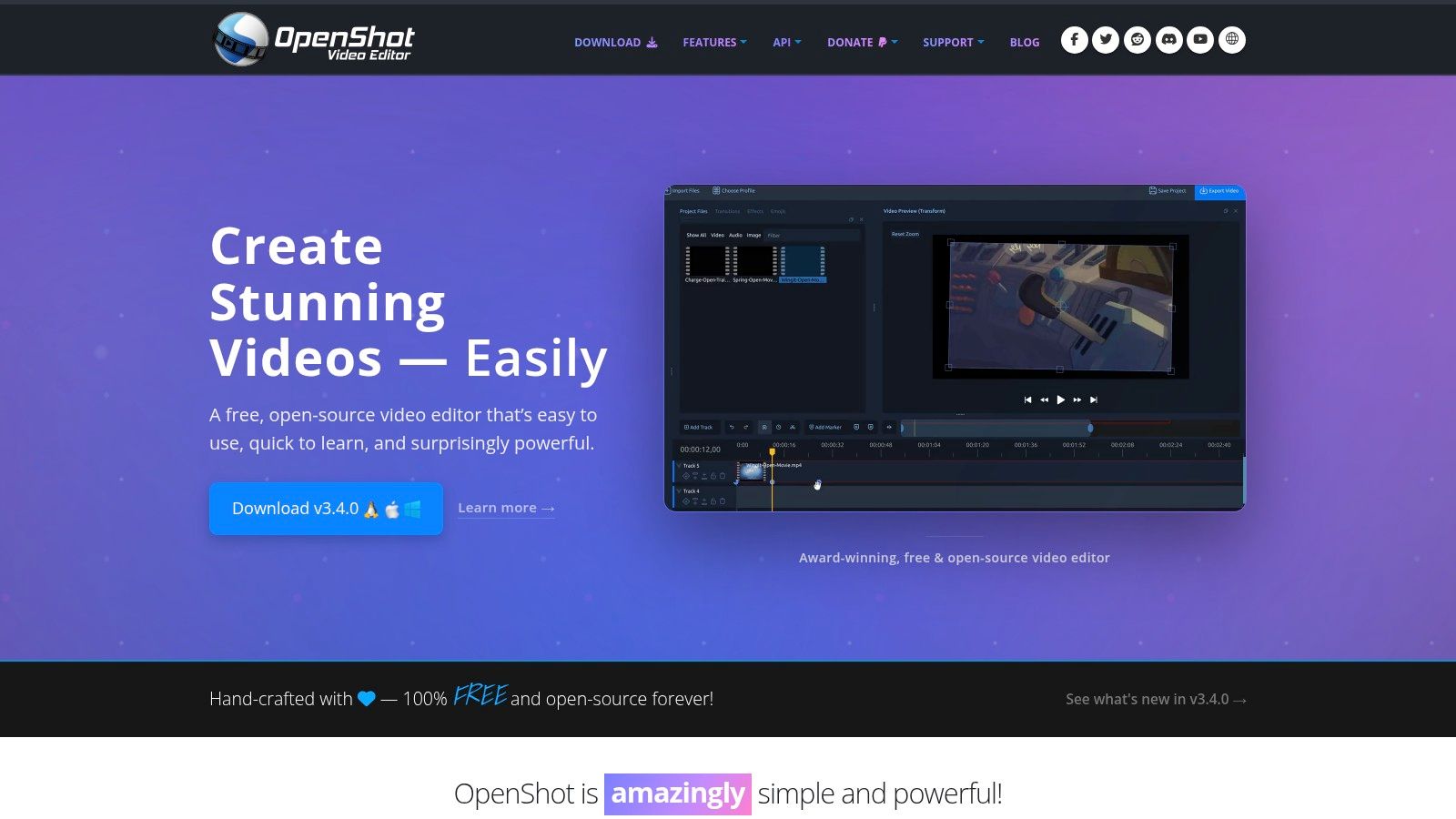
The interface is built around a simple drag-and-drop system, making it quick to get started. Beyond basic cuts, OpenShot supports keyframe animations for precise control over an element’s position, scale, and opacity over time. It also includes over 400 transitions, chroma key (green screen) effects, and the ability to generate 3D animated titles by integrating with the free 3D software Blender. While its performance can sometimes slow down on complex, multi-layered projects, and it lacks the deep color and audio tools of professional NLEs, its simplicity and robust feature set make it one of the best free video editing software options for direct, effective video production.
Best for: Beginners and intermediate users who need a straightforward, free editor for creating tutorials, YouTube content, and simple marketing videos. Its unlimited tracks and keyframe animation capabilities offer a solid foundation for creative projects without overwhelming complexity.
8. Blender (Video Sequence Editor)
While Blender is world-renowned as a professional 3D creation suite, it also contains a surprisingly capable non-linear editor called the Video Sequence Editor (VSE). For creators already working within the Blender ecosystem to produce 3D animations or motion graphics, the VSE provides a convenient, integrated way to assemble final video content. This eliminates the need to export assets to a separate application, creating a seamless workflow from 3D modeling to final video cut, making it an excellent free video editing software for technical content.
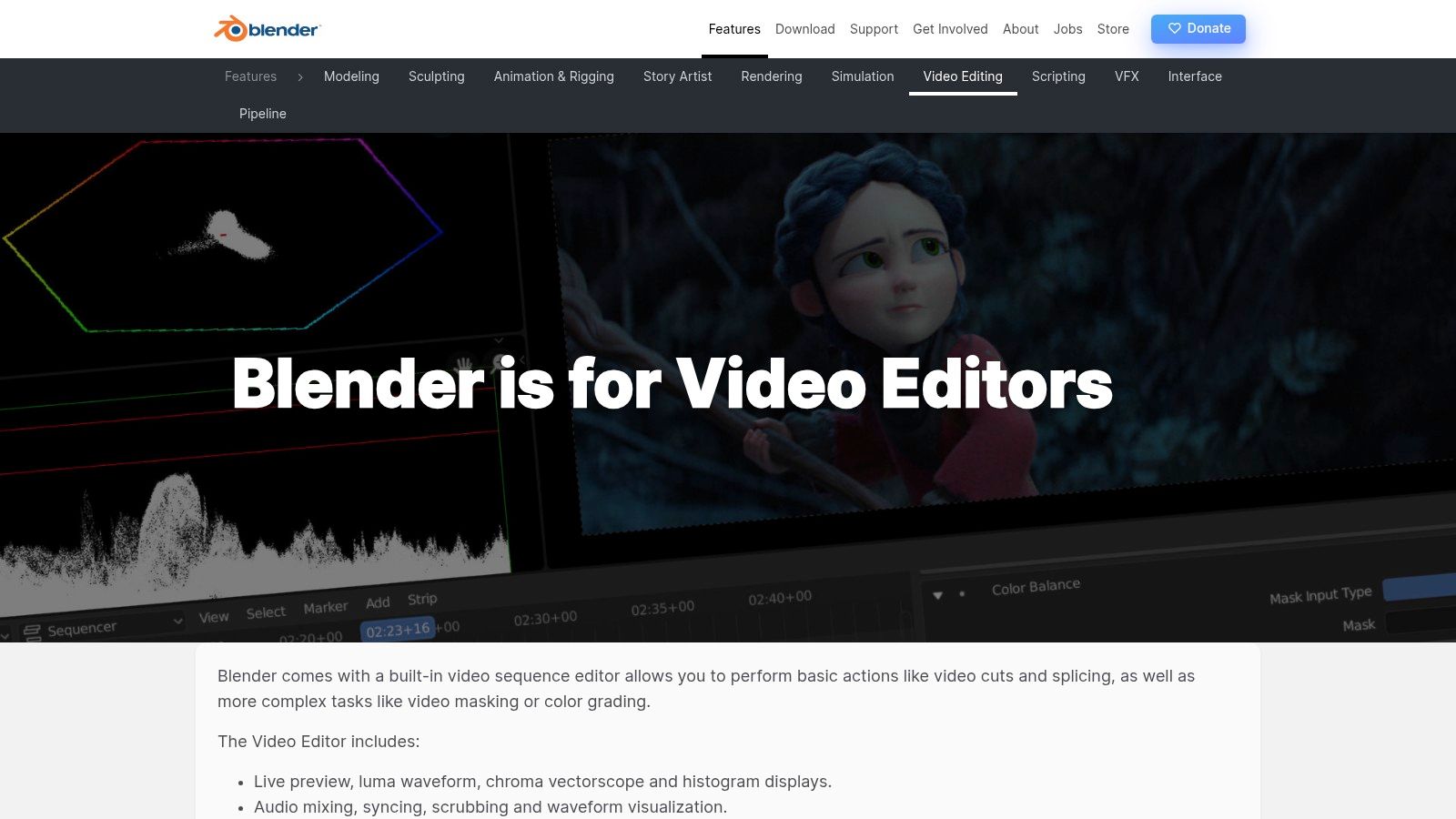
The VSE supports all the fundamentals, including up to 32 tracks for video, audio, and effects, along with tools for cutting, transitions, and audio mixing. It also includes professional scopes like a waveform, vectorscope, and histogram for basic color grading. Its true power is unlocked when you combine video footage with 3D assets directly within the same project. However, the interface is not immediately intuitive for those unfamiliar with Blender’s unique, hotkey-driven paradigm. It functions best as a powerful companion tool for 3D artists rather than a standalone editor for general video projects.
Best for: 3D artists, animators, and motion graphics designers who need to edit video projects that heavily feature assets created within Blender. It’s ideal for consolidating a complex production pipeline into a single, powerful, and completely free application.
9. Lightworks Free (LWKS)
Lightworks is a non-linear editor with a long history in the professional film industry, and its free version offers a gateway into its unique, timeline-centric workflow. While many editors have adopted a similar feel, Lightworks retains a distinct, professional layout that prioritizes speed and precision for editors comfortable with its logic. The free tier is fully functional for core editing tasks, including multi-cam editing and applying real-time effects, making it a solid choice for learning professional editing principles or creating content destined for the web.
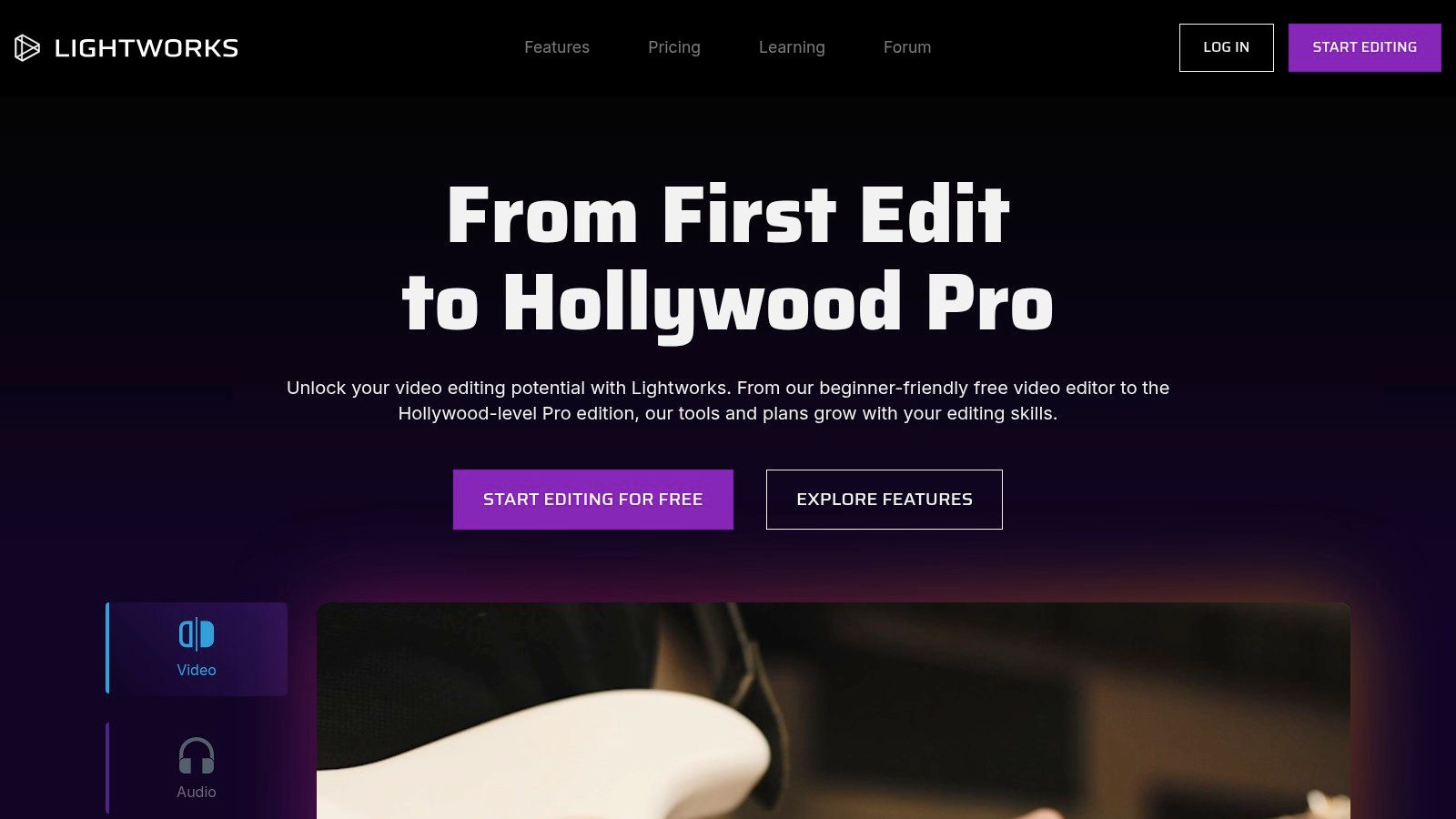
Its main limitation is the export cap: the free version restricts output to 720p resolution with limited format presets. This makes it less suitable for high-fidelity projects but perfectly adequate for social media clips, internal training videos, or initial drafts. The interface can be intimidating for absolute beginners, but its stability and professional toolset provide a robust platform for those who outgrow simpler editors but are not yet ready for a more complex suite like DaVinci Resolve. It stands as one of the best free video editing software options for users who value a stable, traditional editing environment.
Best for: Aspiring editors and content creators who want to learn a professional NLE workflow without a financial commitment. It’s a great fit for producing web-quality tutorials and social media videos where 720p resolution is acceptable.
10. VSDC Free Video Editor
VSDC Free Video Editor is a surprisingly capable non-linear editor designed exclusively for Windows users. It stands out by offering a suite of advanced features often reserved for paid software, including full 4K and HDR support, chroma keying for green screen effects, and a wide array of visual and audio effects. For creators on a budget using a Windows PC, VSDC provides a robust, watermark-free solution for producing tutorials, software demos, and marketing content without financial investment.
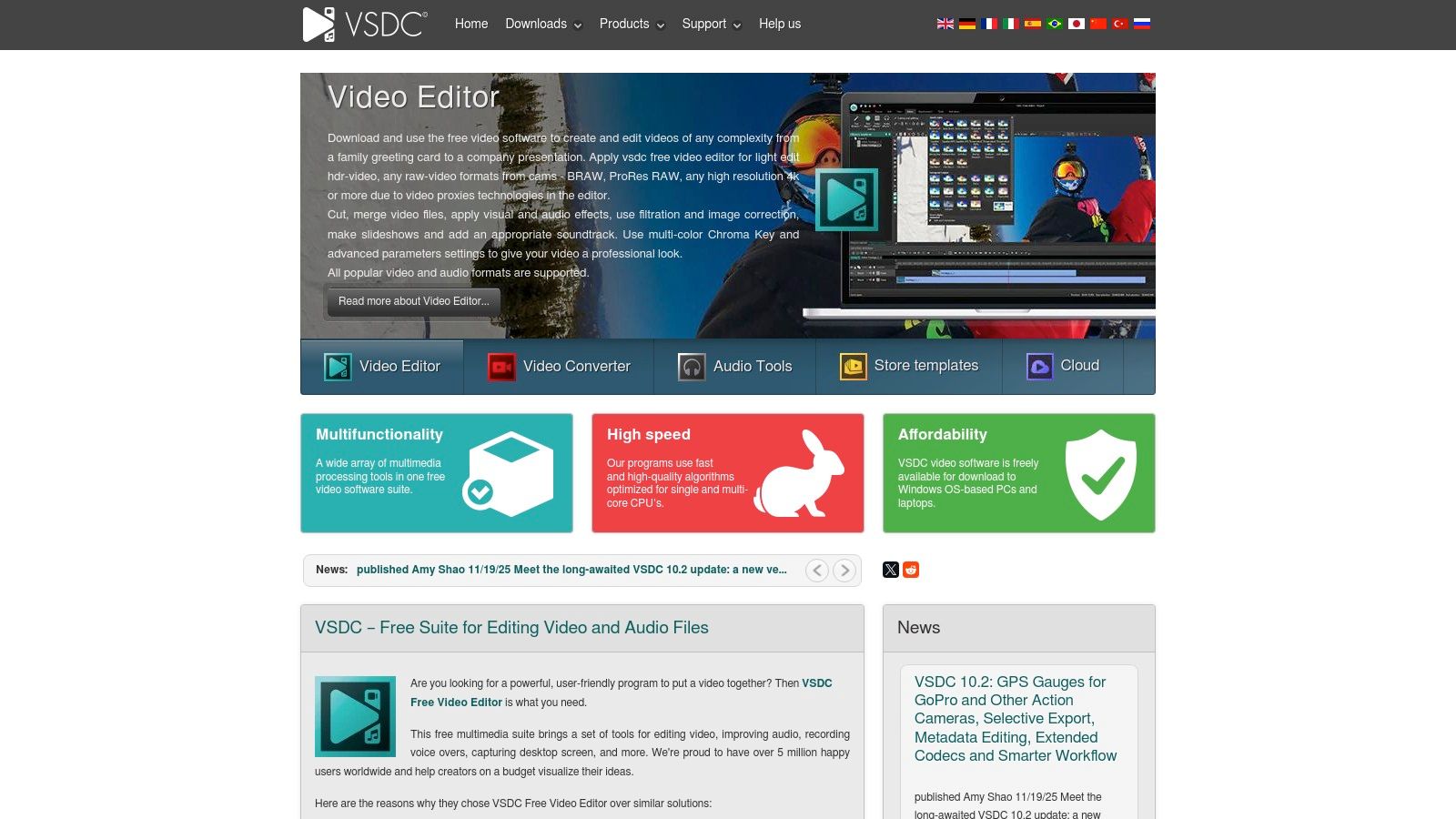
Unlike many free tools that simplify the interface, VSDC presents a more traditional, timeline-based layout that grants precise control over every element. It supports a vast range of formats and codecs, eliminating the need for file conversion before starting a project. While the interface can appear dense to newcomers and more demanding features like hardware acceleration and video stabilization are locked behind a Pro license, its core functionality is more than enough for most editing tasks. Its ability to handle complex projects makes it a strong contender in the free software category.
Best for: Windows users looking for a feature-rich, watermark-free editor that can handle advanced tasks like chroma keying and 4K editing without a subscription. It’s a great choice for those willing to learn a slightly less intuitive interface to gain access to powerful tools.
11. CapCut
Originally known for its dominance in mobile social media, CapCut has grown into a powerful cross-platform video editor available on desktop, web, and mobile. Developed by ByteDance, it is engineered for creating engaging, vertical, and trend-driven content with incredible speed. For creators making quick tutorial snippets, software feature explainers, or engaging knowledge base videos, CapCut’s template library, AI-powered tools like auto-captions, and seamless cloud sync across devices make it a highly efficient choice. It excels at producing short, shareable content without a steep learning curve.
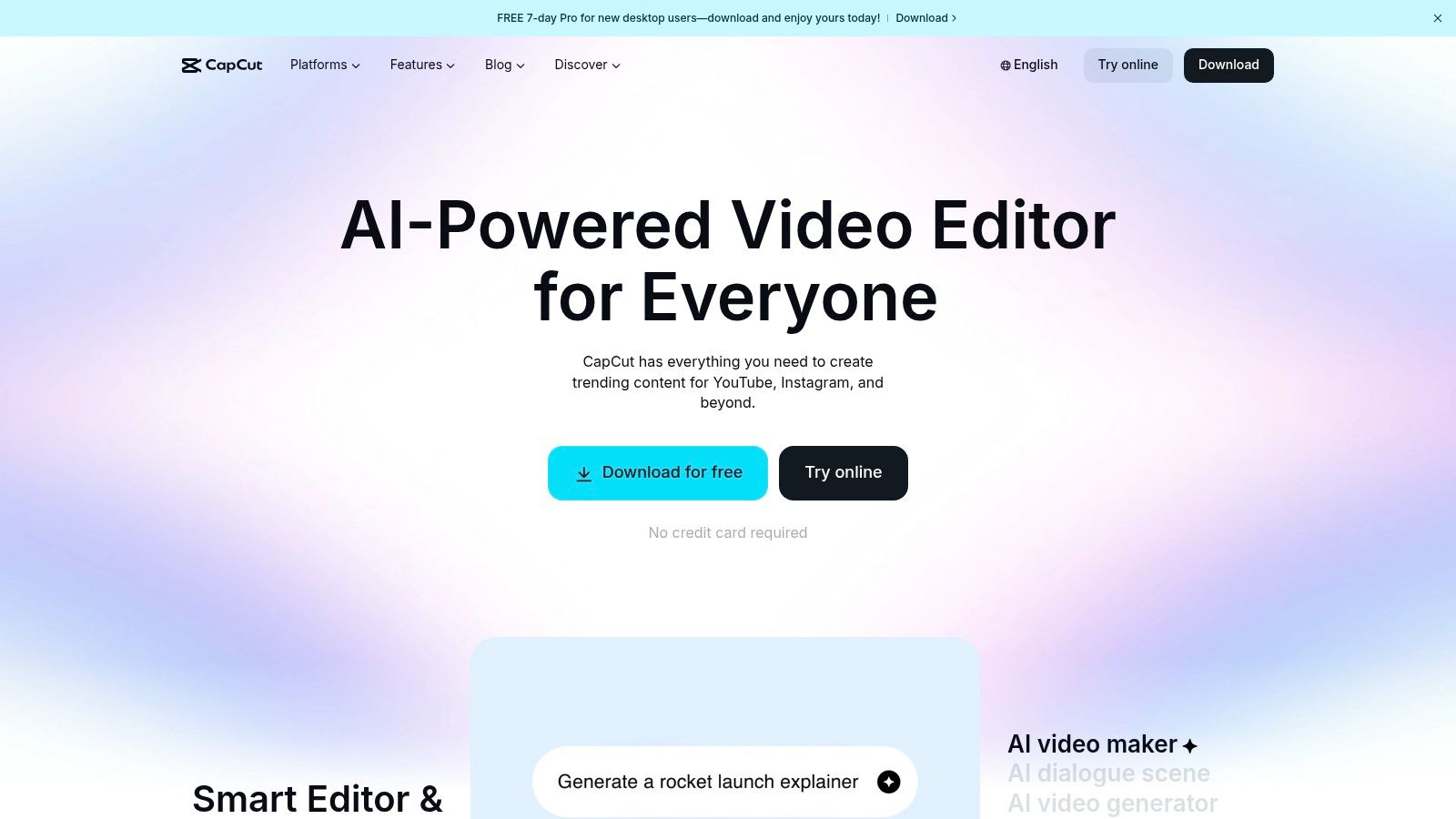
Its interface combines a multi-track timeline with a vast library of effects, transitions, and text animations, making it one of the best free video editing software options for social-first creators. The platform’s AI features, such as one-click background removal and script-to-video generation, simplify tasks that would otherwise require advanced skills. While its free tier is generous, users should be aware that its terms of service, subscription models, and content licensing have evolved over time. It is always wise to review the current commercial use terms before standardizing it for business-critical content creation.
Best for: Social media managers, content creators, and trainers who need to quickly produce visually appealing, short-form vertical videos like tutorials and explainers with trendy effects and automated captions. It’s perfect for anyone prioritizing speed and ease of use over deep technical control.
12. VideoProc Vlogger
VideoProc Vlogger is a consumer-friendly desktop editor designed for creators who want to add dynamic effects without a steep learning curve. It stands out by offering advanced features like cinematic camera movements and speed ramping in an accessible package, completely free and without watermarks. For creators making quick product demos, action-cam tutorials, or engaging social media clips, it provides powerful tools to add visual flair that typically requires more complex software. It’s a strong contender for those who find traditional editors too intimidating but want more than a basic trimmer.
0
The software’s core strengths lie in its visual motion and speed controls. You can easily apply presets like Ken Burns effects or create custom pans and zooms to keep static shots interesting. Its visual speed editor uses Bezier curves for smooth, precise adjustments to video playback, ideal for highlighting key moments in a process. It also includes solid color correction tools with LUT support, HSL controls, and an audio editor with an equalizer and beat detection. While it lacks the high-end finishing tools for broadcast or collaborative projects, its focus on motion, speed, and ease of use makes it an excellent choice for producing high-energy, polished videos quickly.
Best for: Action camera users, vloggers, and tutorial creators who need to add dynamic motion and speed effects to their videos with an intuitive interface. It’s perfect for producing visually engaging instructional content without needing professional editing skills.
Top 12 Free Video Editors — Feature Comparison
| Product | Core features ✨ | Quality ★ | Target 👥 | Price/Value 💰 |
|---|---|---|---|---|
| 🏆 Tutorial AI | AI transcription & script editing; instant lifelike voice regen (30+ langs); post‑recording cursor effects; AutoRetime translations; Brand Kits | ★4.9/5 (G2) | 👥 SaaS product teams, docs/support, sales enablement, L&D | 💰 Free → Solo ~$29/mo → Growth ~$89/mo → Enterprise (custom); generated-video minute caps |
| DaVinci Resolve (Blackmagic) | Pro NLE: editing, node‑based color, Fusion VFX, Fairlight audio | ★★★★☆ (industry‑grade) | 👥 Editors, colorists, studios, advanced creators | 💰 Free powerful tier; Studio upgrade (one‑time) for advanced AI/tools |
| Microsoft Clipchamp | Browser‑based editor, templates, stock assets, social export workflows | ★★★★ easy & fast | 👥 Marketers, social creators, onboarding teams | 💰 Free 1080p; 4K/expanded stock via Microsoft 365 add‑ons |
| iMovie | Storyboards/Magic Movie, titles, filters, 4K export, Apple cross‑device sync | ★★★★ Apple‑friendly | 👥 Apple users, educators, beginners | 💰 Free on macOS/iOS/iPadOS |
| Shotcut | Open‑source NLE, wide format/FFmpeg support, 4K/8K, subtitle import | ★★★★ solid OSS | 👥 Open‑source advocates, budget teams | 💰 Free (GPL) |
| Kdenlive | Multi‑track timeline, proxy workflows, wide codec support, active community | ★★★★ community‑driven | 👥 Linux users, cross‑platform teams | 💰 Free (community) |
| OpenShot | Beginner UI, unlimited tracks, keyframing, SVG/3D title support via Blender | ★★★ beginner‑friendly | 👥 Beginners, quick social/tutorial clips | 💰 Free (OSS) |
| Blender (VSE) | Video Sequence Editor + tight 3D/motion integration; multi‑track editing | ★★★★ powerful but complex | 👥 3D artists, VFX/motion workflows | 💰 Free (OSS) |
| Lightworks Free | Professional timeline editing, stable core, autosave (free export limits) | ★★★ solid learning tool | 👥 Learners, web‑resolution creators | 💰 Free (exports capped ~720p); paid tiers for higher |
| VSDC Free Video Editor | Windows NLE with effects, masking, chroma key, 4K via proxy workflows | ★★★ feature‑rich (Windows) | 👥 Windows budget editors | 💰 Free; Pro license unlocks advanced tools |
| CapCut | Multi‑track templates, AI auto‑captions, background removal, mobile/cloud sync | ★★★★ fast for social | 👥 Social creators, short/tutorial snippets | 💰 Free tier; confirm availability/commercial terms |
| VideoProc Vlogger | Speed‑ramping, motion presets, LUTs, action‑cam workflows, no watermark | ★★★ user‑friendly | 👥 Consumer creators, action/demo clips | 💰 Free full exports; paid extras/tools available |
Start Creating Professional Videos Today, For Free
The journey to finding the best free video editing software can feel overwhelming, but as this guide illustrates, the market is filled with powerful, accessible tools. We’ve explored a dozen distinct options, from industry-standard powerhouses like DaVinci Resolve to user-friendly web-based editors like Microsoft Clipchamp and open-source champions such as Shotcut and Kdenlive. The key takeaway is that you no longer need a significant budget to produce high-quality, professional-looking video content.
Your ideal choice hinges entirely on your specific goals and current skill level. A Hollywood-level colorist will find a home in DaVinci Resolve’s node-based system, while a social media manager churning out daily clips will appreciate the speed and templates of CapCut. For Apple users, iMovie remains a fantastic, intuitive starting point for personal projects and simple marketing videos. The open-source community offers incredible flexibility with tools like Blender for 3D artists who need a capable video editor, and OpenShot for beginners who want a gentle learning curve without platform restrictions.
How to Choose the Right Tool for Your Needs
Making the final decision requires a moment of honest assessment. Before you download and install any software, ask yourself these critical questions:
- What is my primary use case? Are you creating screen recordings for a knowledge base, cinematic short films, or quick social media ads? A tool specialized for your primary task will save you immense time. For tutorial and demo creation, a platform like Tutorial AI is built specifically for that workflow, whereas a narrative filmmaker needs the timeline control of Lightworks or DaVinci Resolve.
- What is my technical comfort level? If you’ve never touched a video editor, jumping into a complex nodal interface will likely lead to frustration. Start with something more approachable like Clipchamp or iMovie. If you have some experience, a more advanced editor like Shotcut or VSDC offers greater control without a steep initial learning period.
- What are my system’s limitations? Professional-grade software often demands significant RAM and a dedicated graphics card. If you’re working on an older or less powerful machine, a lightweight option like OpenShot or a browser-based tool is a much safer bet. Always check the recommended system specifications before committing.
From Editing to Impact: The Real Goal
Ultimately, the software is just a means to an end. The goal is to create clear, engaging, and effective video content that serves your audience, whether they are customers, colleagues, or followers. This is especially true for educational and training content.
A common challenge for subject matter experts in sales, support, or L&D is the “efficiency gap.” Recording a quick Loom video is easy, but it’s often rambling and 50-100% longer than necessary, losing viewer engagement. On the other hand, editing that raw footage in a professional tool like Premiere Pro requires a specialized skillset and significant time investment that experts simply don’t have.
This is where workflow-specific tools truly shine. For teams creating software demos, onboarding guides, or video support articles, the most important factor is turning expertise into a polished, on-brand asset as quickly as possible. The right software removes friction, allowing the creator to focus on the message, not the mechanics of editing. The best tool isn’t always the one with the most features; it’s the one that best fits your workflow and helps you achieve your communication goals with the least amount of resistance.
For teams focused on creating polished tutorials and software demos without the steep learning curve of traditional video editors, Tutorial AI offers a smarter path. It transforms your raw screen recordings into professional, on-brand videos automatically, saving your subject matter experts valuable time.
Learn how Tutorial AI can streamline your video creation process.