You know the product cold. You can explain the workflow on a customer call, in Slack, or on a whiteboard without thinking. Then someone asks for a polished video demo, onboarding walkthrough, or help-center tutorial, and the work suddenly expands into scripting, recording, trimming, retakes, captions, voiceover fixes, and article writing.
That’s why the best ai-generated videos matter now. This category isn’t niche anymore. One 2026 projection estimates the global AI video generation market will reach $18.6 billion by the end of 2026, growing at a 34% CAGR, while other market reports project smaller but still fast-growing markets over longer periods according to this 2026 AI video market roundup. The practical takeaway is simple. Teams across marketing, support, enablement, and education want faster video production without lowering quality.
Existing roundups still focus on cinematic clips, prompt tricks, and visual spectacle. That’s useful, but it misses the day-to-day work many organizations need done. Subject-matter experts need product demos, onboarding flows, SOPs, and support videos that are accurate, editable, and reusable across formats. If you’re also evaluating your broader stack, this roundup of best AI tools for content creators is a useful companion.
1. Enterprise Product Demos with AI Avatars
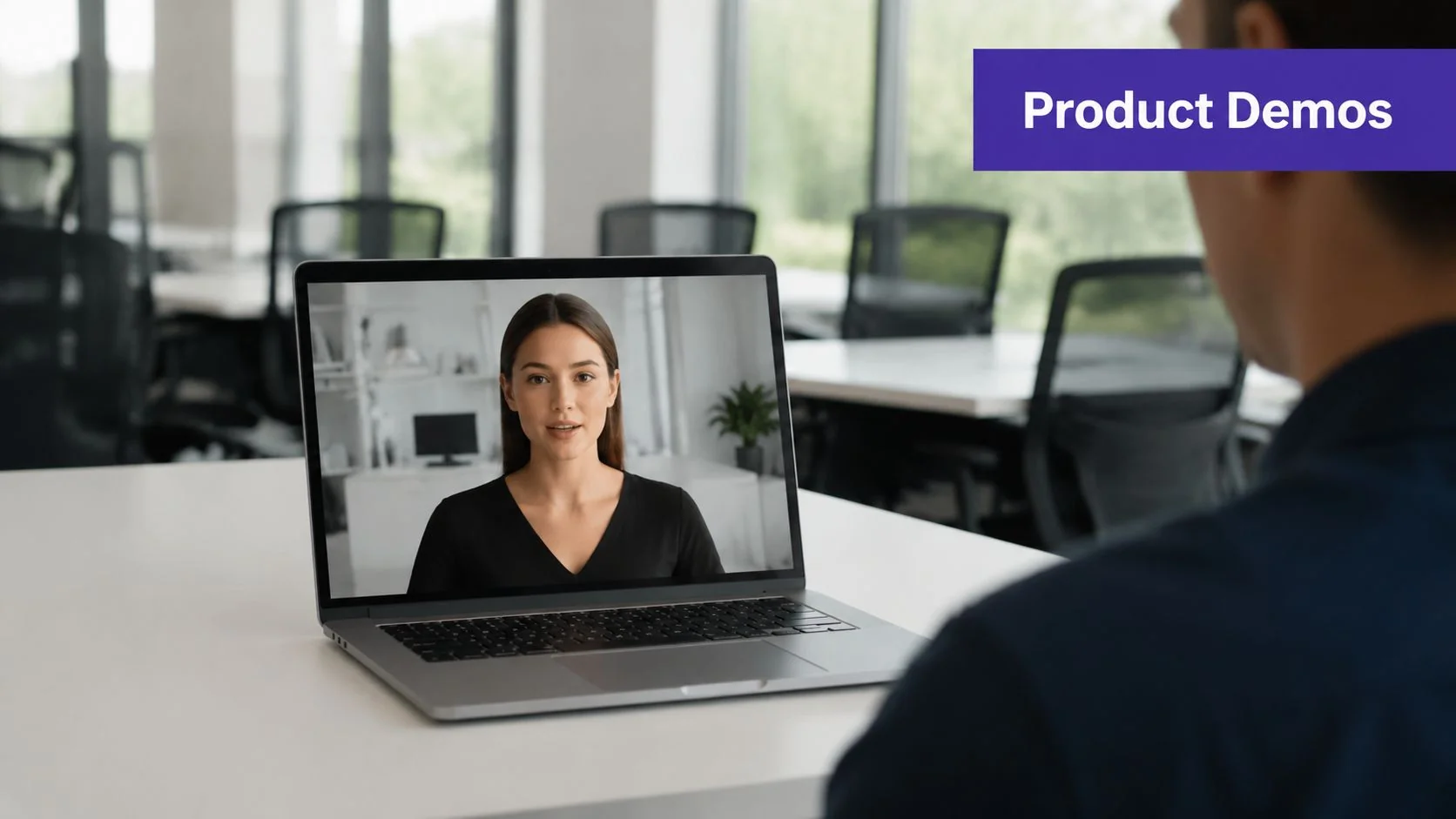
Synthesia is one of the clearest examples of where avatar video works in business. It’s strong when you need a presenter on screen, a controlled script, and a repeatable format for internal training, policy updates, or broad product announcements. Microsoft is one of the organizations Synthesia names among its customers, which fits this use case well.
The operational upside is speed. In Synthesia case studies, organizations report a 70% faster internal video asset creation rate, and another sales enablement case reports an 87% reduction in video production time. Those outcomes matter when one team owns a lot of recurring training or enablement content.
When avatars work best
Use avatar video when the speaker is the main asset. That usually means:
- Executive updates: Leadership messages, launch announcements, and policy changes.
- Repeatable training: Compliance, HR, onboarding, and internal communications.
- Language variants: The same approved script can be adapted for different regions without re-shooting.
Practical rule: If the audience needs to trust the message more than inspect the interface, an avatar can work well.
Where this falls short is software instruction. If the viewer needs to see the actual product, menus, clicks, and field values, a synthetic presenter won’t replace an actual screen capture. For that kind of workflow, a screen-first tool such as Tutorial AI for chatbot walkthroughs is often the better fit because it captures the actual UI and your actual narration rather than simulating a spokesperson.
For the nicest results, keep scripts tight, avoid dense paragraphs, and treat avatar videos like formal communication, not live demos. They’re best when precision in wording matters more than spontaneity.
You can also compare that workflow with guides focused on streamline video production with PhotoMaxi.
2. Personalized Sales Outreach at Scale
D-ID is useful when a sales or customer success team wants a human-looking intro without recording each message manually. The format is simple. Start with a still image, animate it, pair it with a short script, and send a personalized first-touch video that feels more direct than a text email.
This works best at the top of the funnel. A rep can send a brief greeting tied to an account, a role, or a trigger event. A customer success manager can use the same pattern for onboarding intros or support follow-ups. The point isn’t deep education. It’s attention and context.
What actually works in outreach
The strongest outreach videos share a few traits:
- Short scripts: One point, one next step, one reason to reply.
- Clean inputs: Front-facing headshots with simple lighting produce better motion.
- Tight handoff: The intro should point to a useful follow-up asset, not try to explain everything itself.
A common mistake is asking this format to carry a full demo. It usually can’t. Once the prospect wants details, they need to see the actual workflow inside the product. That’s where a screen-recorded walkthrough beats an animated portrait every time.
The personalized intro opens the door. The real screen demo closes the gap between interest and understanding.
A practical pairing is D-ID for the first touch, followed by a product-specific tutorial recorded in a screen-first tool. That second asset should show the actual interface, not a generic motion background, because buyers want proof that the workflow is real and understandable.
3. Generative B-Roll for Explainer Videos
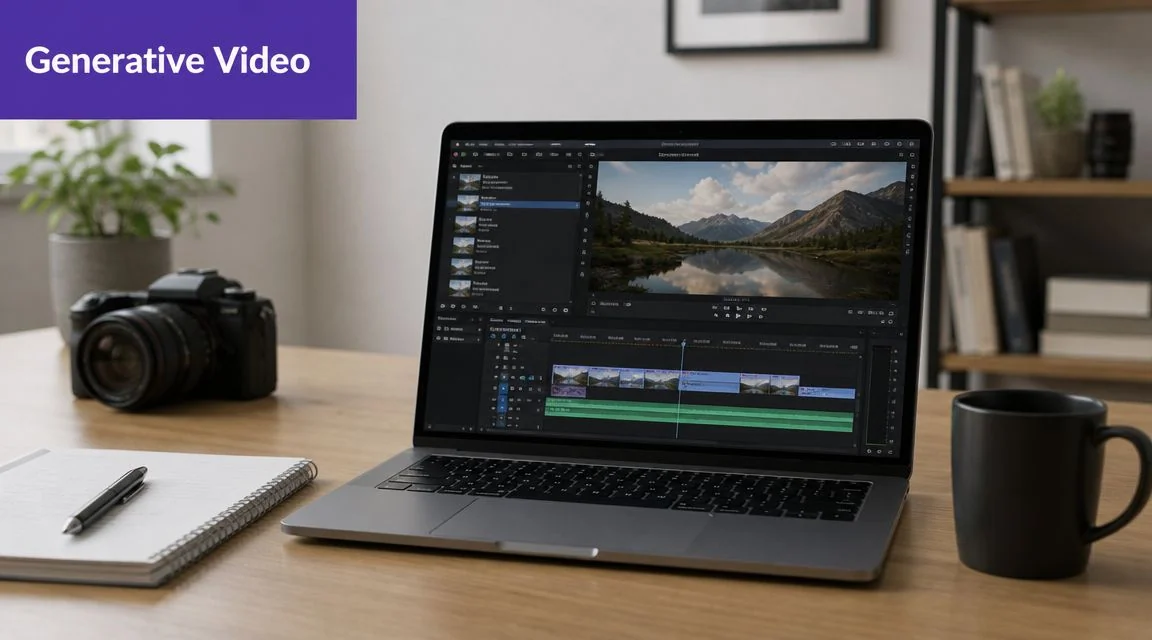
Runway is a good fit when your video needs visual support that doesn’t exist in your product footage. Think abstract backgrounds, metaphor clips, stylized transitions, or motion inserts that make a feature announcement feel more produced.
Many people misunderstand a key aspect of the best AI-generated videos. The strongest business videos usually don’t rely on generated footage alone. They use generated footage to support a clear explanation. A feature launch video might open with stylized b-roll, then cut into a real UI walkthrough. A training video might use abstract visuals to explain the concept before showing the exact steps.
Use generative clips as support, not substance
That means keeping generated clips in a narrow lane:
- Concept framing: Show an idea visually before the tutorial begins.
- Transitions: Smooth the move between sections or scenes.
- Brand polish: Add texture to a launch or announcement without shooting extra footage.
If you need ideas for where B-roll helps, this collection of b-roll example uses in video storytelling is useful, and this guide to B-roll examples for tutorial videos maps well to software education workflows.
Runway also sits in a broader trend. Meta’s progression from Make-A-Video in September 2022 to Movie Gen in October 2024 shows how quickly text-to-video quality is moving. Movie Gen uses a 30 billion-parameter video model and a 13 billion-parameter audio component, and it can generate 16-second videos at 16 frames per second in 1080p with audio up to 45 seconds long, based on this overview of Make-A-Video and Movie Gen milestones. That’s why visual expectations have risen so fast.
Here’s a demo worth watching before you plan your own b-roll-heavy workflow:
What doesn’t work is replacing your whole tutorial with generated footage. If the user needs to learn a real sequence in a real app, generated visuals should stay in the supporting role.
4. Template-Driven Marketing and Sales Videos
HeyGen is strong when speed matters more than originality. You pick a template, drop in approved messaging, choose an avatar or visual structure, and publish quickly. That makes it practical for recurring campaign assets, internal updates, short launch clips, and regional variants.
This category is often underrated because the output can feel formulaic. But for many teams, formula is the point. If marketing needs a weekly market update or sales needs a consistent product teaser for different segments, templates reduce decision fatigue.
Good use cases for templated video
A few situations fit especially well:
- Feature announcements: Short launch videos for email, social, or in-app promotion.
- Regional variants: Reusing the same structure across markets.
- Sales support: Consistent intros for reps, partners, or channel teams.
The trade-off is obvious. Template-driven videos are fast, but they rarely become your deepest educational asset. They’re more like wrappers around a message. If someone clicks through because the teaser worked, they still need a detailed walkthrough, help article, or onboarding sequence that answers practical questions.
That’s where screen-based tutorial creation matters more than avatar polish. A common workflow is a HeyGen announcement followed by an in-depth support video and article generated from the same recording in a tool built for product education. That division of labor usually works better than trying to force one asset to do both jobs.
5. The Edit Like a Doc Tutorial Video
Descript changed expectations for non-editors because it made trimming video feel like editing text. That shift matters a lot for product managers, support leads, and trainers who know the material but don’t want to live in a timeline editor.
The appeal is straightforward. You speak naturally, get a transcript, remove the unnecessary parts in text form, and the video updates with it. For anyone making tutorials, that’s often the difference between publishing and abandoning the project halfway through.
Why this workflow fits subject-matter experts
This editing model works especially well when:
- You ramble on first take: Transcript editing makes cleanup less painful.
- The script evolves after recording: Rewording is easier than rebuilding a timeline.
- The owner isn’t a video specialist: The learning curve is lower than Adobe Premiere Pro or Camtasia.
The limitation is that transcript editing alone doesn’t solve the whole tutorial problem. Software education usually needs better pacing, cleaner zoom and cursor treatment, structured scenes, and matching written documentation. That’s why teams often move from “edit the transcript” toward “edit the script and let the system update narration, timing, and captions.”
If your raw recording is solid but messy, document-style editing is one of the most practical upgrades you can make.
For tutorial-heavy teams, the most useful version of this workflow also handles retiming after script changes and can turn the same recording into a written article. That’s often more valuable than adding extra effects because it keeps product education aligned across video and docs.
6. AI-Powered Repurposing of Long-Form Content
Opus Clip is built for a different problem. You already have the long video. Now you need more distribution from it. Instead of editing from scratch, the tool identifies likely highlights, reframes them for short-form channels, and adds captions for social use.
This is practical for webinar teams, customer education programs, and internal communications. A long onboarding session can produce a set of short reminders. A product webinar can turn into a sequence of feature clips. A support training can be split into searchable mini-assets for internal use.
Where repurposing helps, and where it fails
Repurposing works well when the source material is already good. It fails when the original video is bloated, poorly structured, or too dependent on context.
Review clips carefully for:
- Context loss: A selected moment may sound strong but lack the setup viewers need.
- Accuracy: Auto-selected clips can over-prioritize punchy lines over precise instruction.
- Channel fit: A short social snippet and a help-center clip often need different framing.
The best way to use repurposing tools is to start with a clean primary asset. If the original tutorial is concise and visually polished, the derived clips tend to hold up better. If the original is rambling, the repurposed outputs usually inherit that weakness, even if the captions look polished.
For support and training teams, I’d treat Opus Clip as a distribution multiplier, not a rescue tool.
7. Custom AI Visuals for Conceptual Training
Midjourney isn’t a video editor, but it belongs in this conversation because some training topics are hard to show with a screen recording alone. Process models, role-based scenarios, architecture concepts, and policy explanations often need visual aids that don’t exist in your product.
That’s where custom image generation helps. A technical trainer can create a consistent visual language for a networking lesson. An HR team can build illustrated scenarios for policy training. A product marketer can generate visual metaphors for an explainer before transitioning into the actual interface.
Best way to combine conceptual visuals with real demos
The strongest workflow is usually mixed media:
- Custom visuals first: Introduce the model, process, or scenario.
- Screen demo second: Show how it appears in the actual product.
- Written doc third: Give the viewer something searchable and referenceable afterward.
If you’re building internal education or repeatable onboarding, this approach works well with AI-assisted training video creation workflows. It lets you combine concept slides, illustrations, and screen capture without turning the project into a full studio edit.
A common mistake is over-stylizing the visuals so much that they distract from the instruction. For business training, consistency matters more than spectacle. Use a stable prompt style, keep overlays readable, and make sure every image helps the learner understand a decision, step, or exception.
8. Cloned Voices for Branded Tutorial Narration
ElevenLabs is useful when the voice matters but the original speaker can’t keep re-recording every update. That’s a common problem in product education. A feature changes, a flow gets renamed, or legal wording shifts, and suddenly the old voiceover is outdated.
Voice cloning solves that operational bottleneck, not the whole video problem. You still need the screen recording, the script, and a review step. But it does make narration more maintainable, especially for ongoing tutorial libraries.
Where cloned narration earns its keep
This approach works best when teams need:
- Consistency: One recognizable voice across multiple tutorials and SOPs.
- Updates without re-recording: Script changes don’t require the same person to be available.
- Localization support: A controlled narration workflow across many languages.
This is also where multilingual scalability becomes more important than most “best AI video” lists admit. A lot of reviews focus on realism, prompt quality, or cinematic output. They spend far less time on the practical issue of making one training asset usable across multiple languages without re-editing everything. That gap is highlighted in this review of best AI video generators and what they miss about localization workflows.
For teams shipping tutorials globally, that operational detail matters more than visual flash. If narration changes length by language, the video needs to stay synchronized. That’s why script-based retiming and multilingual playback are often more valuable in practice than just having a convincing synthetic voice.
Always get explicit permission before cloning a real person’s voice. This should be governed like any other brand or identity asset.
9. Batch-Generated Onboarding Video Series
Steve.ai fits teams that need structured video output in batches. Think welcome sequences, feature overviews by segment, or onboarding series tied to customer type. The value is repeatability. Instead of making each video from zero, you create a framework and generate variants at scale.
This is useful early in the customer journey. A new admin might get one version. End users get another. Mid-market prospects see one angle, while enterprise buyers get a version framed around governance or rollout.
What batch generation is good at
The sweet spot is content that stays high level:
- Welcome videos: Basic orientation and next steps.
- Segment-specific intros: Tailoring by role, team, or industry.
- Feature sequences: Breaking a product into digestible modules.
The weak spot is depth. As soon as onboarding becomes product-specific and step-driven, templated batch output starts feeling generic. That’s where real product footage matters again. The user doesn’t want to hear that your setup is easy. They want to see the exact steps in your interface.
That distinction is important because many articles still confuse “best” with “most cinematic.” In business video, the more valuable asset is often the accurate screen-recorded walkthrough, not the most visually impressive generated clip. That mismatch is one reason mainstream coverage leaves a gap for support, L&D, and technical documentation teams, as discussed in this commentary on why tutorial workflows are underserved in AI video coverage.
10. Interactive Video Quizzes and Onboarding
The best ai-generated videos don’t always sit alone. Sometimes the strongest result comes from putting short video modules into a branching experience. A tool like Typeform can handle the interaction layer, while the video segments deliver the explanation.
This works well for onboarding and internal training because it turns passive viewing into decision-based progress. A new customer answers a setup question and gets the right next video. An employee misses a quiz concept and gets routed to the remedial clip. An admin and a standard user can follow different paths without maintaining one huge universal walkthrough.
How to build interactive video without making it messy
Keep the structure modular:
- Use short segments: One task or concept per video.
- Branch on role or knowledge level: Don’t branch on every minor preference.
- Measure confusion points: Failed questions usually indicate weak explanation, not just weak attention.
A practical quality signal comes from adjacent workflows in video understanding and metadata. In Appen’s AI Video Description Generator case study, the team validated and refined 40,000 video descriptions and reached 95% accuracy. That’s not an onboarding quiz example directly, but it does show why description quality, captions, and structured metadata matter when you need videos to be searchable, accessible, and reusable inside learning and support systems.
Good interactive video depends on clear modular assets. If each segment is vague, branching just multiplies confusion.
For product onboarding, short polished clips tend to outperform long monolithic tours because users can find the exact answer they need and move on.
Top 10 AI-Generated Video Use Case Comparison
| Item | Implementation Complexity 🔄 | Resource Requirements ⚡ | Expected Outcomes ⭐ | Ideal Use Cases 💡 | Key Advantages 📊 |
|---|---|---|---|---|---|
| 1. Enterprise Product Demos with AI Avatars (Synthesia) | Low–Medium 🔄: script-driven cloud workflow | Low ⚡: text scripts, brand assets, subscription | High ⭐: consistent multilingual talking-head videos | Announcements, internal training, executive messages | Scales production, cuts filming costs, fast localization |
| 2. Personalized Sales Outreach at Scale (D‑ID) | Medium 🔄: CRM integration + asset prep | Medium ⚡: high-quality headshots, automation tools | High ⭐: increased open/engagement for first touch | Personalized sales emails, prospect outreach | Humanized automation, reuses existing photos, scalable personalization |
| 3. Generative B-Roll for Explainer Videos (Runway) | Medium–High 🔄: prompt engineering + editing | Medium ⚡: cloud credits, creative time, iteration | Medium⭐: unique conceptual clips, quality varies | B-roll, visual metaphors, transitions in explainers | Custom visuals, reduces stock footage dependence |
| 4. Template‑Driven Marketing & Sales Videos (HeyGen) | Low 🔄: template selection and minor customization | Low ⚡: templates, Brand Kit, subscription | Medium⭐: rapid, consistent short-form assets | Social ads, weekly updates, quick feature announcements | Very fast time-to-market, large avatar library, built-in translation |
| 5. “Edit Like a Doc” Tutorial Video (Descript) | Low–Medium 🔄: transcript-based editing workflow | Low ⚡: good audio, subscription, recording device | High ⭐: fast editing by non-editors, polished tutorials | Product tutorials, internal training, podcast clips | Intuitive text editing, filler removal, rapid iteration |
| 6. AI‑Powered Repurposing of Long‑Form Content (Opus Clip) | Low 🔄: upload + auto-detection, requires review | Low ⚡: source recordings, subscription | High ⭐: many short-form clips for distribution | Webinar highlights, social promotion, repurposing content | Automates clip selection & reframing, saves manual effort |
| 7. Custom AI Visuals for Conceptual Training (Midjourney) | Medium–High 🔄: prompt creation and refinement | Medium ⚡: creative skill, subscription, time for iterations | Medium⭐: unique, on‑brand stills for video use | Diagrams, illustrated scenarios, conceptual slides | High-quality custom imagery, consistent stylistic control |
| 8. Cloned Voices for Branded Tutorial Narration (ElevenLabs) | Medium 🔄: audio capture, consent, API integration | Medium ⚡: clean voice samples, legal clearance, API credits | High ⭐: consistent branded narration, multilingual scaling | Narration for tutorials, SOPs, multilingual voiceovers | Scales voice across assets, avoids re-recording, high fidelity |
| 9. Batch‑Generated Onboarding Video Series (Steve.ai) | Low–Medium 🔄: template + data mapping pipeline | Low ⚡: spreadsheets/CRM, automation integrations | Medium⭐: many personalized videos quickly | Welcome series, feature walkthroughs at scale | Programmatic personalization, CRM integration, bulk output |
| 10. Interactive Video Quizzes & Onboarding (Typeform+Video) | High 🔄: design branching logic and flows | Medium–High ⚡: modular videos, LMS/CRM integration, analytics | High ⭐: adaptive learning, improved retention & insights | Role-based onboarding, assessments, remediation flows | Personalizes learning paths, collects comprehension data |
From Examples to Execution Your AI Video Strategy
The most useful takeaway from these examples is that there isn’t one tool that defines the best ai-generated videos. There are several categories, and each one solves a different production problem.
Avatar platforms help when you need a presenter without scheduling a shoot. Generative video tools help when you need custom visuals or atmospheric b-roll. Repurposing tools help you stretch the value of webinars, demos, and training sessions. Voice tools help you maintain a consistent narration layer across updates and languages. Interactive layers help you turn passive watching into guided onboarding.
But most business teams don’t need cinematic experiments as their core workflow. They need product demos that are accurate. They need onboarding videos that can be updated when the interface changes. They need SOPs that match the current process, not last quarter’s version. They need help-center videos that answer a support question clearly, and they often need a matching article so the same explanation is searchable in written form.
That’s why screen-first workflows matter so much. When the primary value is showing the UI, a synthetic presenter or a purely prompt-generated clip won’t carry the job on its own. The practical center of a business video stack is usually a tool that records the screen, captures narration, lets you revise the script after recording, and produces outputs the rest of the team can readily reuse.
For many teams, that also means thinking beyond the video file. Localization, versioning, captions, article generation, review workflows, branding, and access controls all become part of the decision. The best setup is the one your product expert can use repeatedly without turning every tutorial into a mini post-production project.
Tutorial AI fits that screen-first category. It’s designed to turn a single screen recording and spoken narration into a polished tutorial video, then generate a matching written article from the same recording. For product demos, onboarding, support content, sales enablement walkthroughs, and internal training, that’s often closer to the actual day-to-day need than the flashiest text-to-video demo.
The best ai-generated videos are the ones your team can keep producing, keep updating, and keep trusting.
If you need to turn raw screen recordings into polished tutorials and matching documentation without living in a timeline editor, take a look at Tutorial AI. It’s built for teams that need real product walkthroughs, help-center videos, onboarding content, and training assets from the same recording workflow.