Creating training videos with AI isn’t about fancy gimmicks; it’s about swapping tedious, manual editing for a smarter, text-based workflow. Imagine this: instead of spending hours trimming clips or re-recording audio because of one tiny mistake, you just record your screen, edit the automatically generated transcript like a document, and let AI handle the rest.
This simple shift turns a rough first take into a polished tutorial in minutes, not days.
Why Traditional Video Creation Is Holding Teams Back
For years, making training videos has felt like a massive compromise. Teams usually get stuck choosing between two bad options, and both slow down the process of getting important learning content out the door.
One path is the quick-and-dirty screen recording. Tools like Loom are fantastic for letting a subject matter expert quickly hit record and share what they know. But let’s be honest, the final product is often far from perfect. These videos are frequently 50-100% longer than they need to be, packed with “ums,” long pauses, and rambling explanations.
The other path involves professional video editing software. Big names like Camtasia or Adobe Premiere Pro can create beautiful, high-quality videos. The catch? They require a ton of expertise and a steep learning curve. Mastering timelines, keyframes, and audio mixing is a full-time job, and it’s not something most product managers or engineers have time for.
The Bottleneck Between Speed and Quality
This puts teams in a real bind. Do you sacrifice quality for speed, or speed for quality? Neither option works for teams that need to create demos, onboarding flows, or explainer videos on a tight schedule. The result is almost always the same: an outdated knowledge base, delayed feature announcements, and support videos that never even get made.
This is where Tutorial AI completely changes the game. It specializes in generating polished video tutorials based on simple screen recordings, making it perfect for demos, onboarding videos, explainer videos, feature release videos, knowledge base videos, and support article videos. Tutorial AI’s tools let you speak freely without any practice, and still, your video will look professional as if it was edited in Adobe Premiere Pro. It allows the subject matter expert to create on-brand videos extremely efficiently.
The core idea is simple: You should be able to speak freely and naturally during a recording, without needing any practice, and still end up with a video that looks as if it were meticulously edited in Adobe Premiere Pro. Let’s break down how this actually works by comparing the old way with the new.
Traditional vs. AI-Powered Video Workflows
| Phase | Traditional Workflow (Camtasia/Premiere Pro) | AI-Powered Workflow (Tutorial AI) |
|---|---|---|
| Scripting | Manual scriptwriting; often requires multiple drafts. | Optional. AI transcribes your recording, creating an editable script. |
| Recording | Requires multiple takes to get a "perfect" narration. | Record once, freely. Mistakes and filler words are removed in editing. |
| Editing | Manually cutting clips, trimming silences, and syncing audio on a timeline. | Edit the text transcript. Deleting a word deletes it from the video. |
| Voiceover | Re-record the entire audio for any script change. | AI regenerates a lifelike voiceover for any text you edit or add. |
| Localization | Hire translators, re-record audio in new languages, re-edit video. | One-click translation for voiceover and captions with automatic retiming. |
As you can see, the AI-powered approach removes nearly all the time-consuming, manual steps that make video production such a headache.
Empowering Experts to Be Creators
Tutorial AI gives your team the power to create high-quality, on-brand videos with ridiculous efficiency. Instead of fighting with a complex timeline, you just edit the transcript. This workflow means anyone on your team can produce professional-grade content without needing to become a video editor overnight.
This screenshot from Tutorial AI shows just how simple it is.
The video’s script is front and center. You’re not looking at timelines or audio waves; you’re just editing text. When you make a change, the video updates automatically. This is the new, more efficient standard for creating great training content.
Your AI Workflow From Raw Recording to Polished Tutorial
This is where the magic really happens. Forget everything you know about practicing scripts, multiple takes, and agonizing over edits. The new way of working is all about capturing your expertise as it flows and letting smart technology turn that raw recording into a polished, professional tutorial.
It all starts with a simple screen recording. Seriously, just talk through the process as if you were showing a colleague something at their desk. Don’t worry about getting it perfect—in fact, it’s better if you don’t. The whole idea is to let your subject matter experts be experts, focusing on the content without the pressure of a perfect performance.
From Spoken Words to an Editable Script
As soon as you finish recording, Tutorial AI gets to work, automatically transcribing every word you said. This isn’t just a transcript for reference; it becomes the very foundation of your video. You’re no longer wrestling with confusing timelines and audio waveforms. You’re just working with words on a page.
This text-based approach is a total game-changer for anyone who’s ever been frustrated by traditional video editing software.
- No More Timeline Headaches: Need to find a specific spot? Just search for the word or phrase in the transcript. No more endless scrubbing.
- Instantaneous Edits: Filler words like “um” and “ah” are gone with a simple backspace. It’s as easy as deleting a word in a document.
- Effortless Pacing: You can tighten up the entire video by trimming unnecessary pauses or rambling sentences right from the script.
If you can edit a document, you have all the skills you need to produce a studio-quality training video. This is what it means to create training videos with AI—it’s intuitive, fast, and incredibly effective.
The core idea is brilliantly simple: Edit the text, and the AI edits the video. When you delete a sentence from the script, the corresponding video and audio disappear, and the remaining clips are seamlessly stitched together. It just works. This side-by-side comparison really highlights how different the AI-powered approach is from the old-school, manual grind.
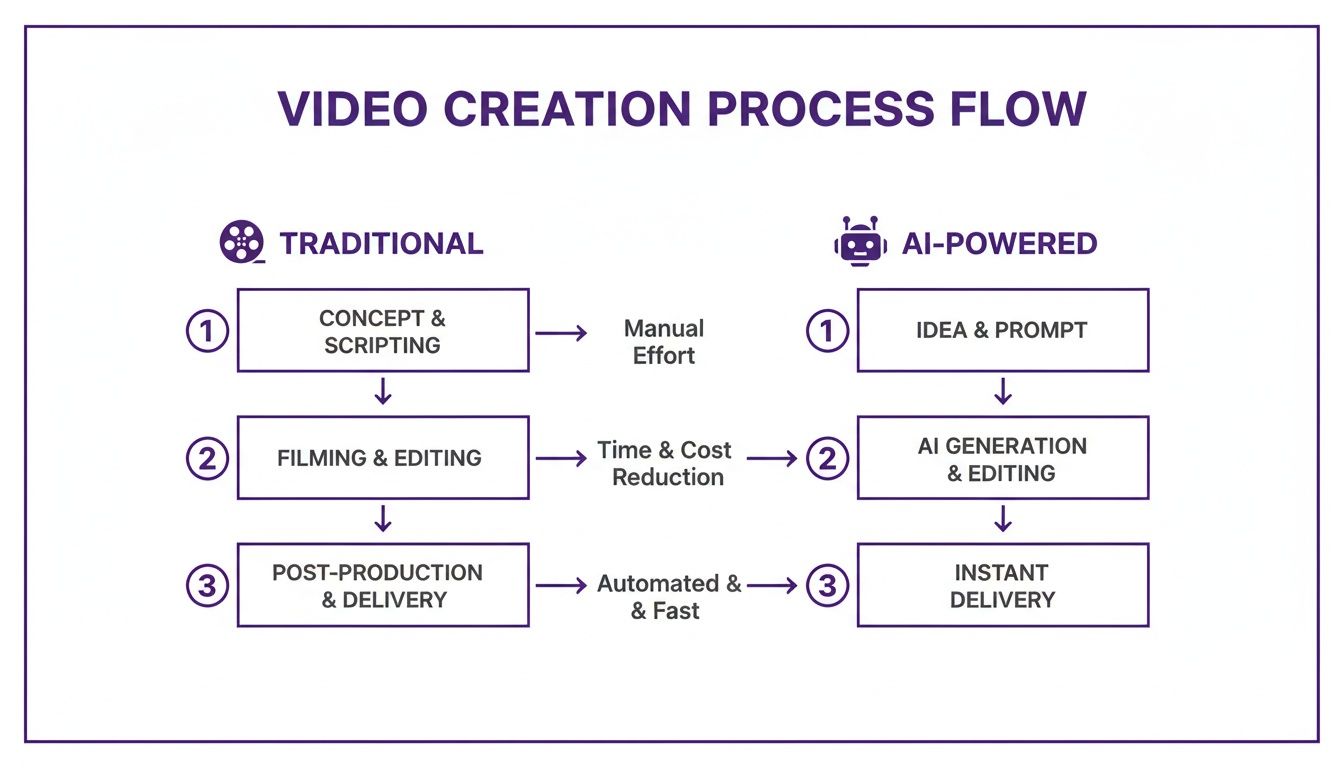
As you can see, the AI workflow completely eliminates the most tedious and technical parts of video production, like manual cutting, audio syncing, and re-recording.
Regenerating Voiceovers Without Re-recording
But what if you need to change something? Maybe you want to rephrase a sentence for clarity or add a new point you missed. Traditionally, that meant dragging out the microphone, trying to match your original tone and energy, and hoping the audio quality was the same. It was a huge pain.
With a tool like Tutorial AI, you just type the new words directly into the script. The AI instantly generates a flawless, lifelike voiceover for that line. This feature alone is a massive time-saver, especially for keeping content like feature updates or support articles current.
This AI-powered narration guarantees consistency. You never have to worry about background noise, a different mic, or even just having an “off” day. Every line sounds crisp, clear, and professional.
The Power of an Imperfect First Take
The real beauty of this workflow is that it not only accepts but embraces the imperfect first take. Those spontaneous, off-the-cuff recordings—which can often be 50-100% longer than the final version when using tools like Loom—are the perfect raw material. The AI editing process trims the fat, cleans up the mistakes, and refines your initial thoughts into a concise, engaging video.
Think about what this unlocks for your team:
- Onboarding Videos: A new hire can record their first time working through a process, and AI can transform it into a polished guide for the next person.
- Explainer Videos: Your product manager can create a quick demo of a new feature without needing to book time with the video team.
- Knowledge Base Videos: A support agent can record themselves solving a common customer issue and turn it into a permanent, helpful resource for everyone.
This approach empowers your in-house experts to become creators. Your engineers, support agents, and product managers can now produce on-brand, high-quality videos without ever stepping away from their primary roles. The final video looks like it was meticulously edited in Adobe Premiere Pro, but the person who made it never touched a keyframe.
For a deeper dive into making that initial capture as effective as possible, check out our guide on best practices for screen recording for training.
By shifting the entire editing process from a complex timeline to a simple text document, you empower your whole organization to create and share knowledge more effectively. It’s not just a faster way to edit; it’s a fundamentally better way to build and maintain training content at scale.
Okay, you’ve nailed down the script and the narration. That’s the heart of your training video. Now it’s time to add that layer of visual polish that makes a tutorial truly click for the viewer.
This isn’t about getting bogged down in a complicated video editor and manually adding effects for hours. When you create training videos with AI, the platform does the heavy lifting. It transforms a simple screen recording into a guide that’s clear, engaging, and looks like a pro put it together.
The whole idea behind a tool like Tutorial AI is that you can just talk and demonstrate naturally during a recording. You don’t have to worry about every little mouse movement or where to zoom. The system is built to make the final cut look meticulously planned, directing your viewer’s attention exactly where it needs to go without you ever touching a keyframe.
Guiding the Viewer with Intelligent Cursor Effects
We’ve all seen those product demos where the cursor is a frantic, jittery blur. It’s distracting, and it completely undermines the lesson. On the flip side, sometimes the cursor is so small you can barely see it. These little annoyances pull people out of the learning experience.
AI-powered tools fix this after you’ve recorded. It’s a game-changer.
Tutorial AI intelligently tracks your cursor movements, giving you a ton of control in the editing stage. You can easily:
- Smooth out jerky movements for a confident, controlled feel.
- Resize the cursor so it’s always easy to spot.
- Add a highlight or focus ring to draw the eye to a specific button or menu.
The best part? You don’t have to stress about perfect mouse control while you’re focused on explaining a complex workflow. Just record your screen, and let the AI help you clean up the visuals later. This is incredibly helpful for dense software tutorials where every click counts.
Adding Dynamic Zooms Without Manual Effort
One of the best ways to keep viewers engaged is by zooming in on the important stuff. Traditionally, this meant fiddling with keyframes, adjusting zoom levels, and trying to make the motion look smooth. It was tedious, to say the least.
Now, AI handles it all. You can just highlight a bit of your transcript, and the tool automatically creates a smooth pan-and-zoom effect on the corresponding part of your video.
Let’s say you’re making an onboarding video for new software. When you narrate, “Next, you’ll want to find the ‘Integrations’ tab,” you can instantly make the video zoom in on that exact spot. This tiny action makes your instructions incredibly easy to follow.
This is where the magic really happens. Your visual cues become perfectly timed with your voiceover. When you say, “Click on the ‘Advanced Settings’ button,” the video zooms right on cue. It creates a seamless, almost intuitive learning experience.
Protecting Sensitive Data with Smart Blurring
When you’re creating support articles or knowledge base videos, showing real-world examples is key. But that often means screen-sharing parts of your application that contain sensitive customer data—names, emails, account numbers, you name it. Manually blurring that information frame by frame is a nightmare.
With an AI video editor, you can apply a blur effect to a specific area with just a few clicks. The tool is smart enough to track that area even if the screen scrolls or moves, keeping confidential info hidden throughout the clip. This lets you create authentic, useful demos without ever compromising on privacy.
These smart visual features, combined with text-based editing, are what make professional video creation so much more accessible. The narration drives the story—and you can learn more about perfecting that in our complete guide on using an AI voice generator for videos.
By taking the most technical parts of post-production off your plate, AI empowers subject matter experts to create high-quality, on-brand videos with shocking efficiency. You no longer have to choose between a quick-and-dirty recording and a time-consuming professional edit. Now, you can get both speed and quality.
Scaling Your Training for a Global Audience
Not long ago, creating training content for a global team was a massive headache. You needed a dedicated localization department and a budget to match. Think about it: a single training video had to be re-scripted, sent to translators, re-recorded by voice actors in a dozen languages, and then painstakingly re-edited to match the new audio. It was so slow and expensive that most companies just didn’t bother.
That whole equation has been flipped on its head. Now, a small team—or even a single subject matter expert—can effectively support colleagues and users all over the world. The old barriers that made global training a pipe dream have been torn down by smart automation.
Overcoming the Language Barrier with AI
The real beast in video localization has always been timing. A sentence that’s five seconds long in English might take eight seconds in German or just four in Japanese. In a traditional workflow, that meant an editor had to manually re-cut every scene, stretch or shrink on-screen graphics, and re-sync all the captions. It was a nightmare.
This is where a feature like ‘AutoRetime’ translation in Tutorial AI comes in. It automates that entire painful process. When you generate a new AI voiceover in Spanish or Japanese, the platform is smart enough to adjust the timing of every single element in your video.
- Scenes and Cuts: The video automatically extends or shortens each scene to perfectly match the pacing of the new narration.
- Captions: Subtitles aren’t just translated; they’re also re-timed to appear exactly when the words are spoken in the new language.
- On-Screen Callouts: Visuals like zooms, highlights, and annotations all get realigned with the new audio track automatically.
This single feature eliminates the most tedious part of the job. What once took a professional editor days of meticulous work now happens in a few clicks. Suddenly, it’s actually feasible to create training videos with AI for every market you operate in.
This isn’t just about saving time; it’s about changing strategy. It means a new feature announcement or a critical support guide can go live for your entire global audience at the same time, not weeks or months later. The data backs this up. Learning and development managers using AI have reported a 57% increase in course completion rates and a 60% reduction in the average time-to-completion. When teams use AI for localization, they can dramatically expand their language support, turning a single video into a powerful multi-market asset with almost no extra effort.
Maintaining Global Brand Consistency
Scaling content isn’t just about language; it’s about making sure your brand looks and feels the same everywhere. A video for your audience in Berlin should have the same professional polish as one for Tokyo. This is where a Brand Kit becomes absolutely essential.
Instead of fiddling with brand guidelines for every single video, you pre-configure your company’s assets once. From then on, every piece of content automatically sticks to your standards.
A good Brand Kit should let you lock in:
- Company Logos: Automatically place your logo in a consistent spot.
- Color Palettes: Ensure all text, backgrounds, and highlights use your approved brand colors.
- Custom Fonts: Maintain typographic consistency across all on-screen text.
When you combine automated translation with a centralized Brand Kit, even a one-person team can produce a high volume of professional, on-brand content for a worldwide audience. This approach also makes your content more accessible—features like automated captions are a must for global teams. If you want to dig deeper, you can learn more about how to add captions to videos.
Ultimately, this lets your subject matter experts do what they do best: share their knowledge. They can create content that is not only informative but also globally accessible and perfectly branded, all without needing a background in video production.
Getting Your Video Seen: Collaboration and Distribution
So, your video is finally done. You’ve put in the work, and the result is a polished, professional tutorial. But creating the video is only half the battle. Now comes the critical part: getting it reviewed, approved, and actually in front of the people who need it.
Let’s be honest, the old way of doing things was a mess. We’ve all been stuck in those endless email chains, trying to track feedback from five different people on a massive video file that someone had to upload to a clunky file-sharing service. It was a recipe for version-control chaos. Thankfully, that’s no longer the reality.
Working Together in a Shared Space
Before any video goes live, it needs a final look from stakeholders, maybe a legal review, or just a quick check by another subject matter expert. This is where a centralized platform like Tutorial AI really shines. It’s built for this exact scenario.
- Shared Team Workspaces: Forget wondering if you’re looking at the latest version. Everyone on the project has immediate access to the same file, all the time.
- Guest Access: Need feedback from someone outside your team? Just send them a secure preview link. They can watch and comment without needing full editing permissions.
- Time-Stamped Feedback: This is a game-changer. Instead of vague notes like “the audio is weird around the one-minute mark,” comments are tied to the exact moment in the video. It makes revisions incredibly clear and efficient.
This whole approach keeps everyone on the same page and finally ends the version-control nightmare that used to bog down every single video project.
Getting Your Video Where It Needs to Be
Once everyone has signed off, it’s time to get your tutorial out into the world. The goal here is simple: put the content where your audience already is. You want to make it as effortless as possible for them to find and watch it.
The best way to do this is with embeddable players. You can drop your videos directly into the tools your team uses every single day. Think about embedding a tutorial right inside a lesson in your Learning Management System (LMS) or adding a how-to video to a support article in a knowledge base like Zendesk or Confluence.
If you’re aiming for a wider audience, one-click publishing to platforms like YouTube or Vimeo is a huge time-saver. And of course, you can always export a high-resolution 4K file if you need the raw video for other uses.
The most effective training content lives within the workflow. By embedding videos directly into your documentation and internal tools, you provide answers at the exact moment of need, boosting both adoption and retention. The speed of this whole process is a direct result of using AI in the first place. The efficiency gains are massive. A 2025 report revealed that while teams used to take a week or more to produce a single video, 88% now finish videos in under four hours. Some studies have even found that employees using AI tools save around 45 hours per month. That kind of time savings allows even small L&D teams to publish content at an enterprise scale. You can find more of these insights in the 2025 AI video report.
Your Pre-Flight Checklist
Before you hit that final “publish” button, run through a quick final check. It’s a simple step that ensures your video is polished, professional, and ready for your audience.
- Clarity Check: Is the main point crystal clear and easy to follow?
- Brand Consistency: Are the logos, fonts, and colors all on-brand?
- Accessibility: Are the captions accurate and easy to read?
- Audio Quality: Is the voiceover crisp and free of any distracting background noise?
- Visuals: Do all the zooms, highlights, and cursor effects point to the right things?
Once it’s live, don’t forget to check your metrics. Keeping an eye on things like view counts, completion rates, and engagement heatmaps is essential. This data is your feedback loop—it tells you what’s working and what isn’t, so you can make sure your training is actually making a difference.
Answering Your Questions About AI Video Creation
When people first hear about AI video creation, a few common questions always seem to come up. It’s natural to be curious—and maybe a little skeptical—about how well it actually works in the real world.
Let’s dig into some of the things people often ask when they’re thinking about making training videos with a tool like Tutorial AI.
Do the AI-Generated Voiceovers Actually Sound Human?
Honestly, yes. The robotic, monotone voices from a few years ago are ancient history. Modern AI voice technology is stunningly realistic, delivering natural-sounding tone and inflection that’s perfect for training content. You’d be hard-pressed to tell it apart from a human narrator.
With Tutorial AI, you get a whole library of different voices and languages to choose from. The real magic, though, is how you control the delivery. Since you’re just editing a text script, you can tweak punctuation to nail the pacing and emphasis. Need a pause? Add a comma. Want a more definitive stop? Use a period. This simple process completely sidesteps the need for pricey voice actors or painful re-recordings just to fix one or two words.
How Much Technical Skill Do I Need to Create Videos This Way?
Almost none. Seriously. These platforms are built for the people who know the material—the subject matter experts—not professional video editors. If you’re comfortable editing a Google Doc or a Word document, you’ve got all the skills you need.
The entire workflow is centered on editing text. All the complicated, time-consuming stuff is handled for you behind the scenes:
- Perfectly syncing the voiceover to your on-screen actions.
- Adding smooth, professional-looking zooms to guide the viewer’s eye.
- Making clean, seamless cuts between different parts of your recording.
This “edit-like-a-doc” model means anyone on your team, from a support agent to a product manager, can produce high-quality, branded videos.
What if I Need to Update a Video Later?
You absolutely can, and this is probably one of the biggest game-changers. Your video isn’t a final, locked-down file. With Tutorial AI, it’s a living project you can go back and edit anytime. Change a sentence in the script, and the platform automatically regenerates the voiceover and re-syncs the visuals to match.
This is a lifesaver for keeping training content up to date. When your software UI gets a facelift or a company process changes, you just edit the relevant text instead of starting over from square one and re-recording everything.
How Does This Handle Sensitive Information on My Screen?
AI tools make protecting sensitive data incredibly simple. After you’ve recorded your screen, you can easily go into the editor and apply a blur or an overlay to any part of the screen to hide private information.
The best part is that you don’t have to stress about hiding things while you’re recording. Just focus on your demonstration. You can go back afterward and use the editor to precisely cover up any customer names, personal details, or confidential numbers before you share the video. It lets you create authentic, real-world demos without ever risking a privacy breach.
Ready to see for yourself how easy it is to turn a simple screen recording into a polished tutorial? Start creating with Tutorial AI and see what the future of training videos looks like. Get started for free at tutorial.ai.