You finish recording a solid YouTube video, then lose the next two hours on cleanup. Dead air. Retakes. Captions. Audio fixes. A vertical cut for Shorts. Sometimes a second version for another channel or language. For many creators, editing is no longer the craft bottleneck. Repetition is.
That shift is why teams searching for an ai video editor for youtube usually are not looking for one more effect pack. They are trying to compress the full record to edit to publish cycle without lowering quality. The useful question is less “which tool has AI?” and more “which parts of post-production can this tool reliably remove from my weekly workload?”
The answer depends on the kind of channel you run. Screen-recorded tutorials, product demos, release notes, talking-head explainers, gaming clips, and Shorts all create different editing pressure. A transcript-first editor saves time if you revise narration after recording. A timeline editor still wins if pacing, motion graphics, and layered cuts carry the video. Tools like Tutorial AI matter here because they are aimed at screen recording workflows specifically, which is a different job from assembling a montage or generating an avatar video. If you want a practical reference for that style of production, this guide on how to create AI video is a useful starting point.
If your publishing cadence is outpacing your edit capacity, it helps to optimize content workflow with AI. The right editor will not replace judgment on pacing, structure, or what deserves a cut. It will remove the repetitive passes that keep subject-matter experts stuck in post instead of recording the next video.
1. Tutorial AI
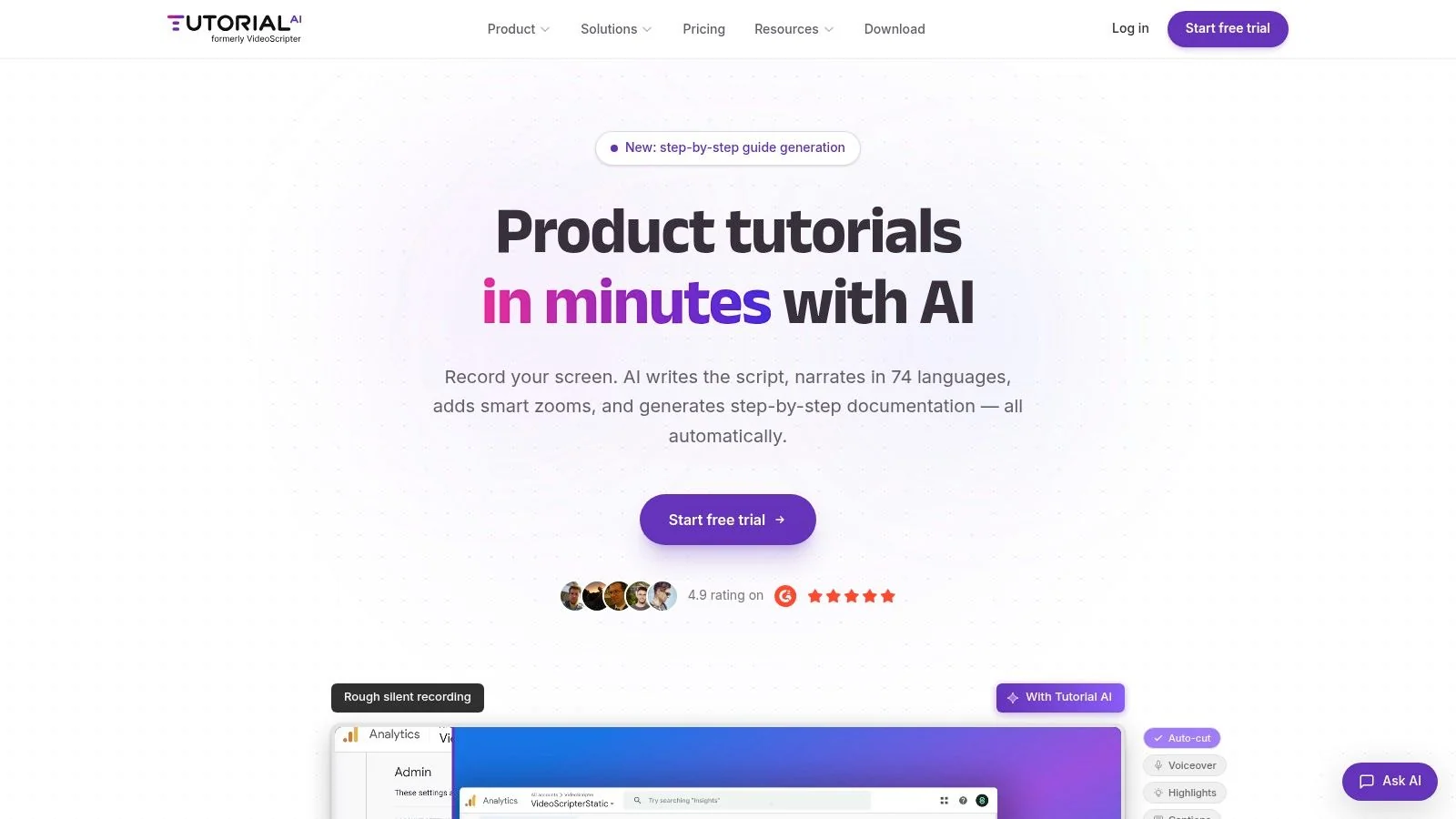
Tutorial AI stands out because it is built for a specific kind of YouTube workflow that many software teams, educators, and product marketers run. You record your screen, speak through the product, and then need a polished tutorial without opening a complex timeline. That is different from making a faceless montage or an avatar video, and the tool reflects that.
For product demos, onboarding videos, support walkthroughs, SOPs, and help-center content, the hardest part usually isn’t recording. It’s tightening the recording into something viewers will want to watch. Casual screen recorders often leave you with footage that runs much longer than needed. Traditional editors can fix that, but they also force subject-matter experts into an editing job they didn’t sign up for.
Where it fits best
Tutorial AI automates the edit around the recording itself. You can record on Mac, Windows, iPhone, iPad, or in Chrome, transcribe the narration, rewrite the script, and have the voiceover, captions, and timing update together. That “edit like a doc” model is the main reason I’d put it on a shortlist for any team that makes repeatable screen-based YouTube content.
Its strongest use cases are practical, not flashy:
- Product walkthroughs: Show the actual UI with your real voice instead of replacing the whole thing with an avatar.
- Help-center videos: Generate the video and matching written doc from the same recording.
- Release notes videos: Update wording, timing, and narration without rebuilding the edit manually.
- Training and enablement: Keep outputs consistent with Brand Kits, shared workspaces, and versioning.
A large reason this matters now is that AI-assisted production has become normal in creator workflows. An industry roundup reported that 58% of YouTube ads are AI-generated or customized with AI video editing tools, and 72% of YouTubers use AI-edited thumbnails, with those thumbnails linked to a 38% increase in click-through rates, according to this AI video editing statistics roundup. Even if you treat marketing-industry numbers carefully, the workflow shift is obvious. Faster iteration now affects packaging as much as editing.
Practical rule: If your audience needs to see the real product interface, pick a tool built around screen recordings and post-record script edits, not a synthetic presenter.
Trade-offs and operational strengths
Tutorial AI is especially strong when one recording needs to become several assets. It can regenerate narration in 74 languages, auto-retime scenes and captions to fit those language changes, and publish through an embeddable player with a language selector. That matters when one tutorial has to serve YouTube, your docs portal, customer education, and internal training.
The other differentiator is that it produces a matching article from the same source recording. For teams that ship video plus documentation together, that removes a common handoff problem between product experts and technical writers. If you want to see the workflow in context, this guide on how to create AI video is the relevant starting point.
What doesn’t fit as well? If your channel is mostly cinematic edits, multi-cam interviews, or heavy motion graphics, you’ll still want a traditional editor. Tutorial AI automates a lot, but very bespoke edits can still need manual fine-tuning. Enterprise features like deeper collaboration and custom voice workflows are also tied to higher-tier plans.
2. Descript
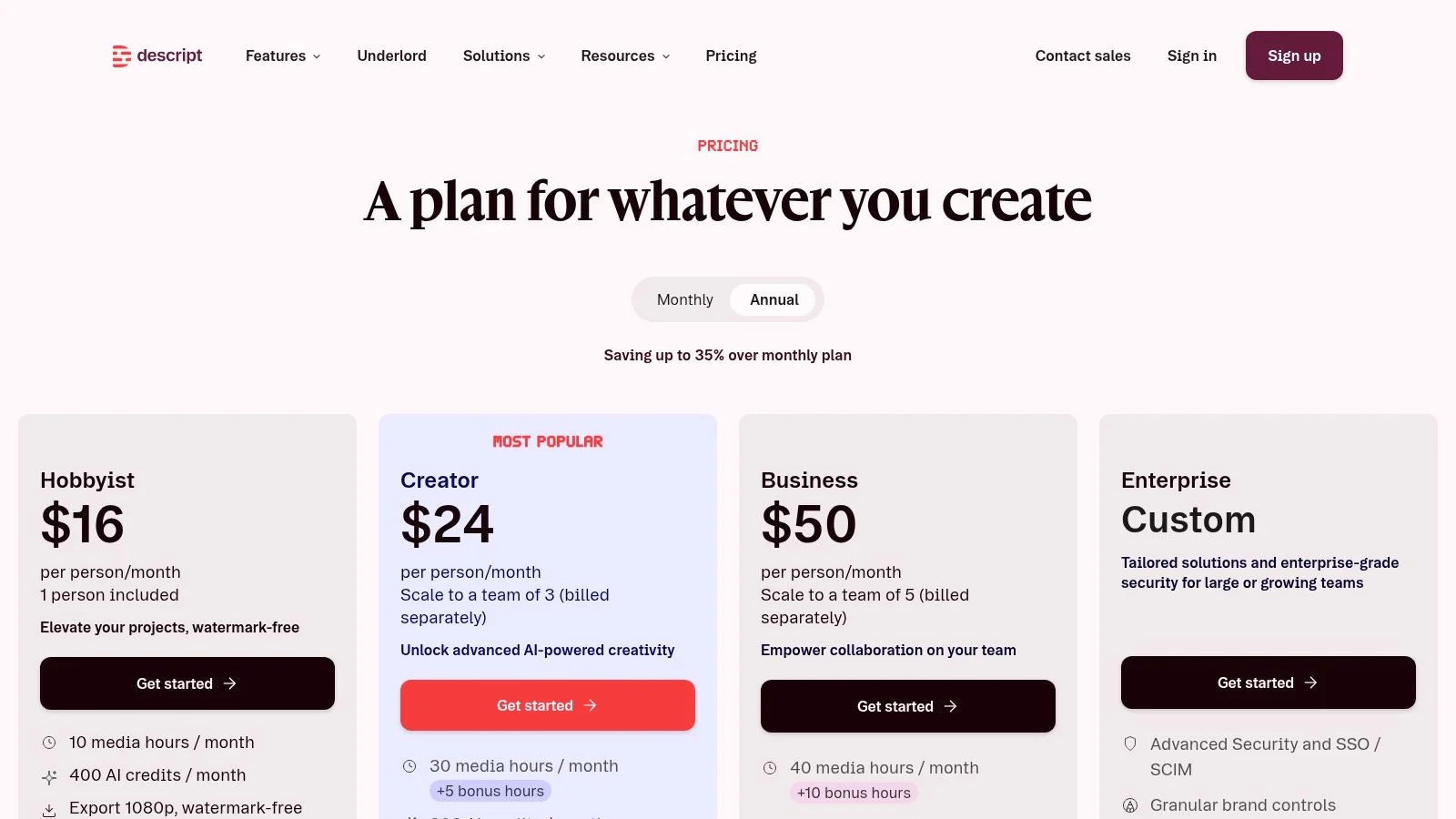
Descript works best when your edit follows your transcript more than your timeline. If your YouTube channel relies on talking-head lessons, voiceover explainers, webinars, interviews, or screen-plus-camera tutorials, that’s a big advantage. You delete text, and the corresponding video or audio goes with it.
That sounds minor until you’re cleaning a rough recording with filler words, repeated lines, and abandoned starts. In a normal editor, you’re hunting through waveforms and cuts. In Descript, you’re revising a document.
What it does well
Its strongest features are the boring ones that save the most time. Automatic transcription, filler-word cleanup, retake removal, Studio Sound, and script-based rough cuts all shorten the first pass. Eye Contact can also help if you record educational videos and don’t always nail lens contact during delivery.
For YouTube creators, the practical benefit is speed on high-frequency content:
- Talking-head channels: Fast cleanup and caption generation.
- Podcast-to-video repurposing: Pull clips from a transcript instead of scrubbing a timeline.
- Course and tutorial creators: Revise spoken lines without re-editing everything manually.
- Small teams: Screen recording, editing, and publishing happen in one environment.
Descript is excellent at getting you from rough recording to clean draft quickly. It’s less satisfying when you want granular visual control over every frame.
Where it falls short
Descript’s timeline controls are still lighter than Adobe Premiere Pro or other desktop NLEs. That matters when pacing depends on precise B-roll timing, stacked visual layers, custom motion work, or detailed color treatment. Lower tiers can also make heavy use awkward because usage limits show up fast if you’re processing a lot of long-form footage, voice tools, or multilingual outputs.
For many YouTube creators, though, that’s an acceptable trade. If the primary bottleneck is “I need to clean and publish this educational video today,” Descript is one of the fastest ways to get there. Visit Descript.
3. Adobe Premiere Pro
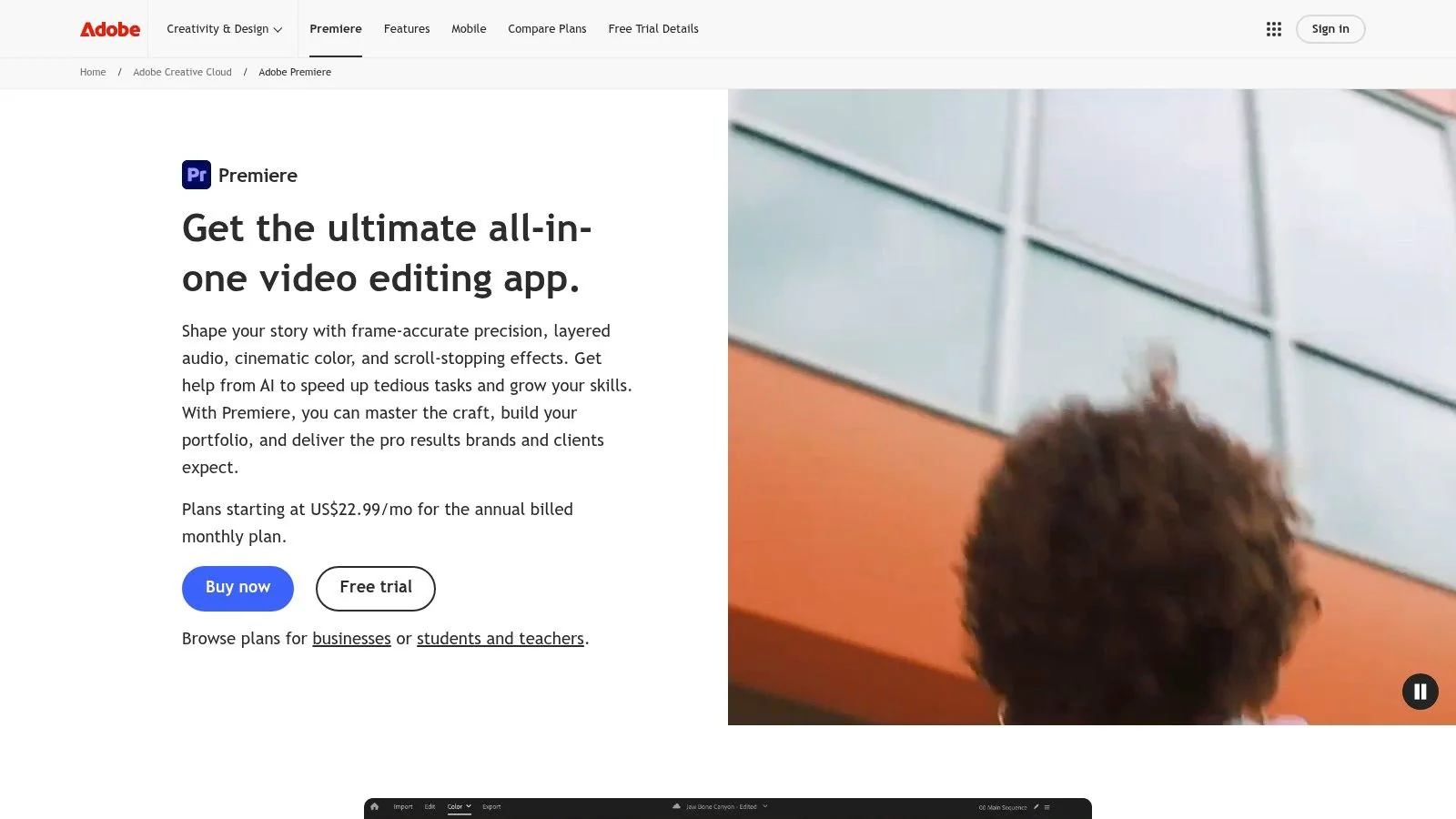
Premiere Pro is still the right answer when you need control first and automation second. A lot of AI editor roundups position full editors as overkill, but for YouTube channels with layered edits, sponsor segments, motion graphics, multicam shoots, and detailed sound design, that control isn’t optional.
Adobe has added useful AI assistance without changing what Premiere fundamentally is. It remains a professional editor. The AI features help you move faster inside that environment.
Why experts still choose it
Text-Based Editing, auto-transcription, Enhance Speech, Auto Reframe, object masking, Media Intelligence search, and Frame.io review make the rough cut and review process less painful. For a YouTube team, that means less time on setup work and more time on the edit decisions that shape retention.
Premiere is strongest when your workflow includes several of these:
- Complex long-form edits: Multiple camera angles, layered assets, audio mixing, and graphics.
- Team review cycles: Frame.io is useful when editors, producers, and approvers all touch the same project.
- Cross-app work: Photoshop, After Effects, and Illustrator assets move in cleanly.
- Channel packaging: You can keep editing, graphics, captions, and finishing in one Adobe ecosystem.
If subtitle cleanup is part of your workflow, this guide on how to boost subtitle accuracy with Vatis Tech is a useful companion for Premiere users.
The trade-off
Premiere Pro is not the fastest path for a subject-matter expert who just wants to turn a screen recording into a polished tutorial. It takes real editing skill, and the AI features don’t remove that learning curve. They reduce repetitive work inside a professional environment. They don’t turn Premiere into a browser tool for non-editors.
If your team already has an editor, Premiere stays hard to beat. If your product marketer or support lead is the one making the video, it may be more software than they need. Visit Adobe Premiere Pro.
4. CapCut
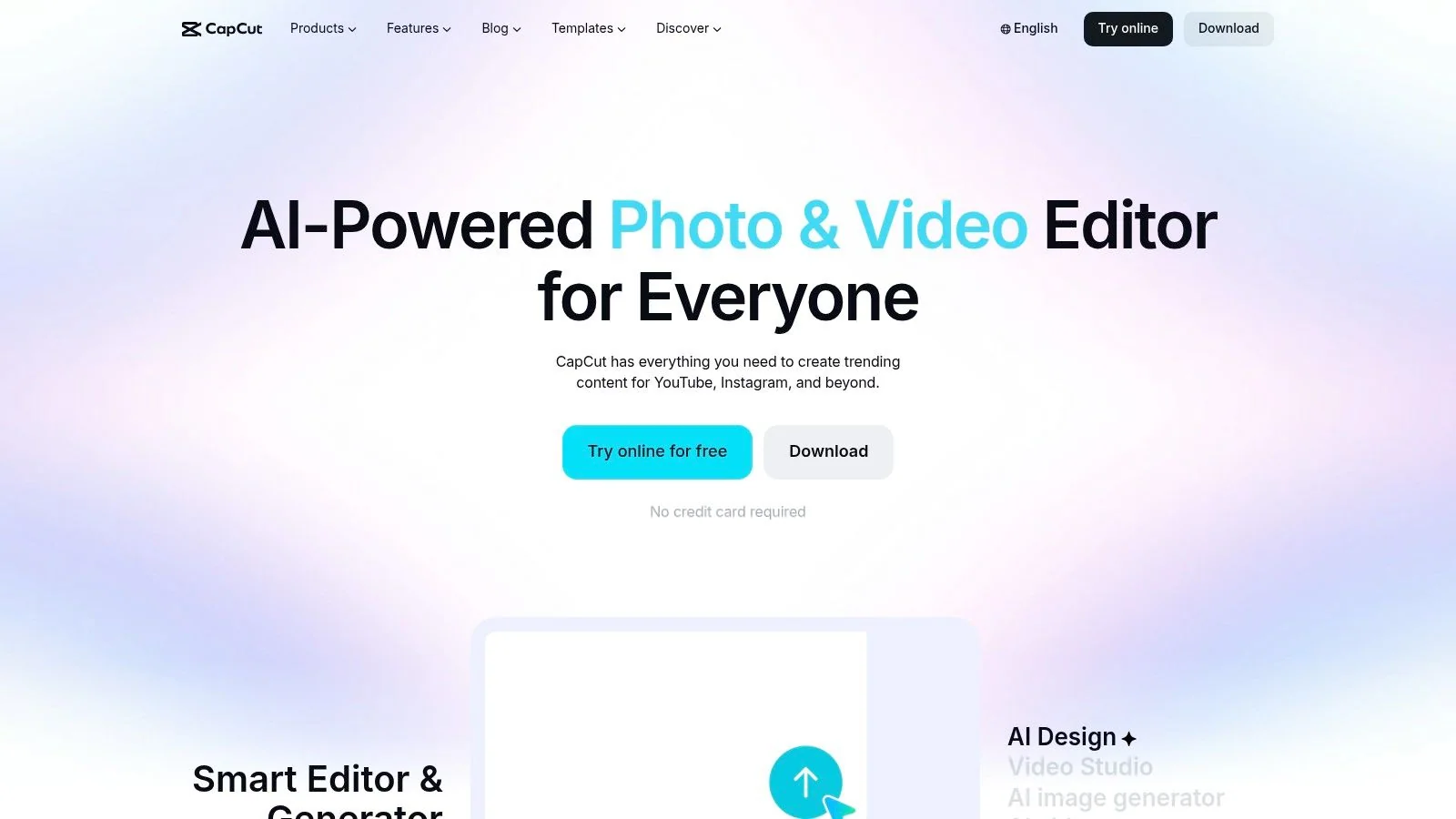
CapCut is the tool I’d look at first if your YouTube workflow centers on Shorts, repackaged clips, and fast trend response. It’s built for speed, not editorial elegance. That’s often the right choice.
A lot of creators don’t need a perfect editor. They need one that gets captions on screen, removes the background, cuts quickly, and syncs across desktop, web, and mobile. CapCut is good at that exact job.
Best use case
CapCut makes the most sense when your publishing model is volume plus repurposing. If you pull clips from podcasts, streams, demos, or long YouTube uploads and need vertical versions quickly, templates and auto tools matter more than deep timeline precision.
Its practical strengths include:
- Auto-captions: Fast for Shorts and social reposts.
- Template-driven edits: Useful when visual consistency matters more than originality.
- Cross-device workflow: Start on desktop, tweak on mobile.
- Script and ad helpers: Helpful for marketers making simple promotional cuts.
What to watch for
CapCut’s plan structure can be messy because features and pricing can vary by device or region. That’s manageable for solo creators, but it gets annoying if you’re trying to standardize a team workflow. Some advanced features also feel more optimized for social-native content than for polished educational YouTube videos.
This is the core trade-off. CapCut is very fast, but it can encourage a template-first editing style. That’s great for Shorts. It’s less ideal if your brand depends on a specific instructional format or more careful pacing. Visit CapCut.
5. Kapwing
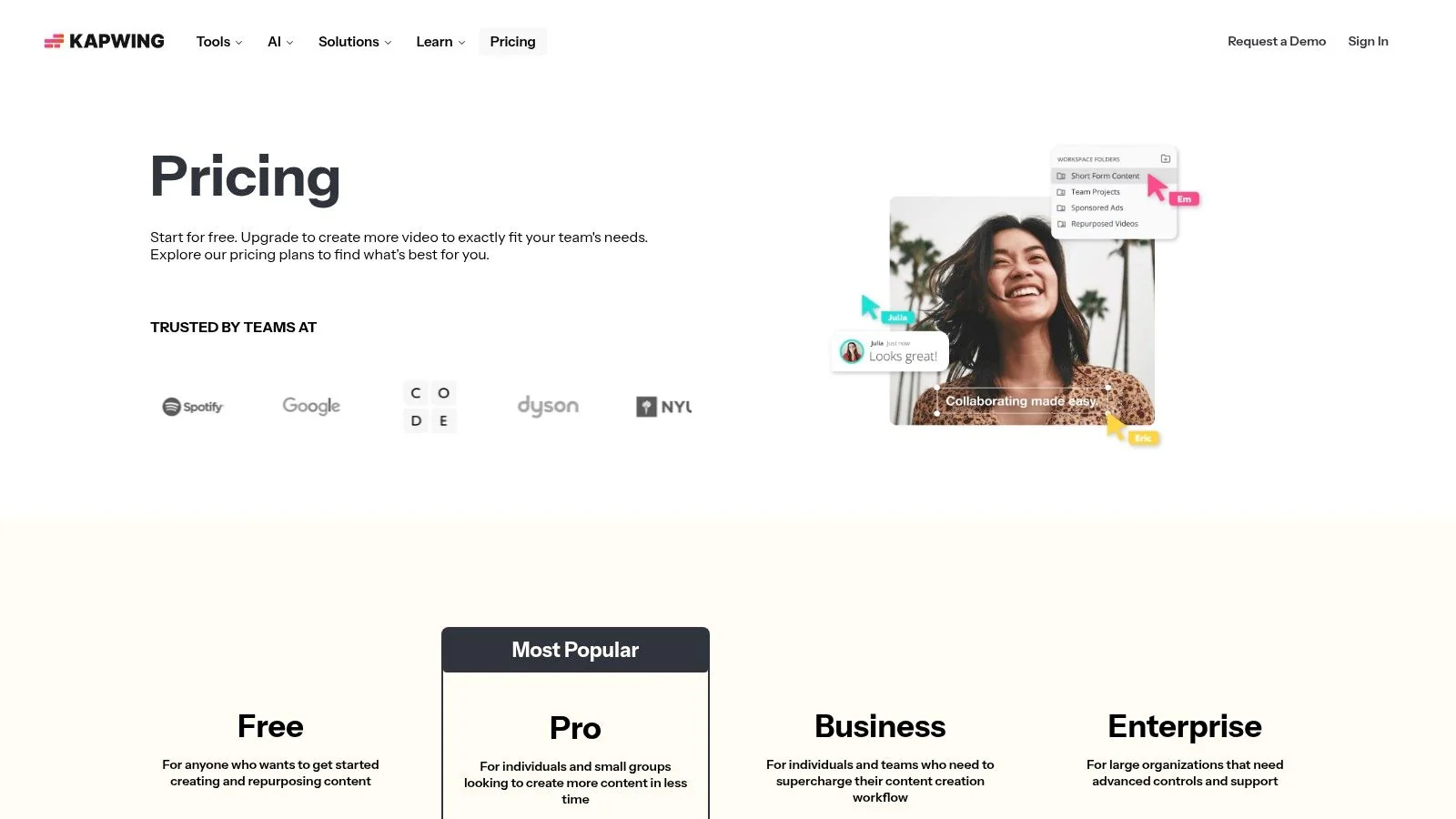
Kapwing is one of the cleaner browser-based options for teams that repurpose existing content into YouTube assets. It doesn’t try to be a full professional NLE. It tries to make clipping, subtitling, dubbing, and collaborative editing straightforward.
That’s a good fit for podcast teams, webinar marketers, educators, and internal content teams that need an editor everyone can use without onboarding pain.
Where it earns its place
Kapwing is especially practical when the raw material already exists. Import a webinar, a meeting recording, a product demo, or a podcast. Then use AI tools to turn it into shorter YouTube clips, subtitled versions, or dubbed variants. Link import also helps if your content already lives elsewhere and you don’t want another download-upload cycle.
A few useful strengths stand out:
- Collaboration: Browser-based review and editing is easier for mixed-skill teams.
- AI subtitles and dubbing: Good for accessibility and repurposing.
- Templates and brand kit: Helpful for repeatable channel formats.
- Transparent limits: Export resolution, credits, and duration are usually clearer than in many AI tools.
The compromise
Credit-based AI usage can become the friction point. If your team is heavy on subtitles, dubbing, clip generation, and repeated revisions, lower plans can feel tight quickly. Kapwing also won’t satisfy editors who want intricate timeline control or advanced finishing tools.
Still, for teams that care more about shipping than polishing every frame, it’s a strong browser option. Visit Kapwing.
6. Microsoft Clipchamp
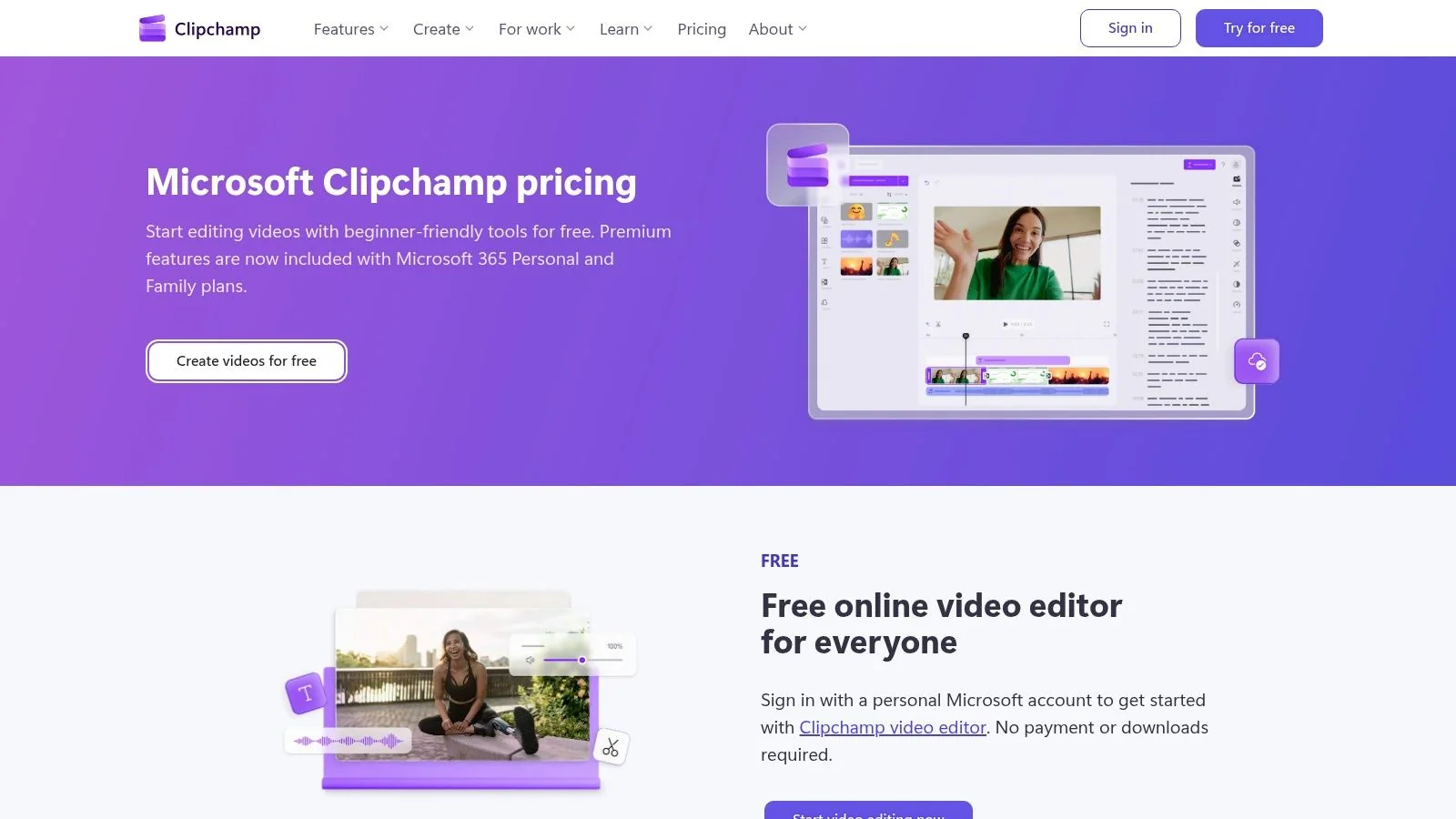
Clipchamp is easy to underestimate because it looks simple. That simplicity is the feature. If you’re a Windows-heavy team making YouTube videos without a dedicated editor, Clipchamp covers a surprising amount of common production work.
Screen recording, webcam capture, subtitles, text-to-speech, silence removal, brand assets, and OneDrive integration make it a practical utility tool. It doesn’t try to win on cinematic editing depth.
Why some teams will prefer it
Clipchamp is useful when the people producing videos are inside Microsoft 365 all day anyway. Internal training teams, enablement managers, support teams, and small businesses often care more about low-friction production than about advanced editing theory.
Its strongest advantages are operational:
- No-watermark 1080p exports on free plan: Good for lightweight publishing.
- Microsoft ecosystem fit: OneDrive and Microsoft 365 make asset handling easier.
- Recording plus editing: Helpful for tutorials and explainers.
- Low learning curve: Most users can become productive quickly.
Limits to keep in mind
Clipchamp is not where I’d go for detailed visual storytelling, heavy effects work, layered sound design, or nuanced pacing on long-form YouTube content. The best experience also tends to be in Edge or Chrome, which isn’t a dealbreaker but is worth knowing for locked-down enterprise environments.
If your main problem is “people on my team need to make decent YouTube videos without training on a pro editor,” Clipchamp is a credible answer. Visit Microsoft Clipchamp.
7. VEED
A common YouTube production problem looks like this. The edit itself is simple, but the team still has to record, caption, resize, dub, and publish multiple versions fast. VEED is built for that workload.
It is a browser editor with a strong distribution layer. For channels producing tutorials, product updates, interviews, or educational videos in more than one format or language, that matters more than advanced timeline depth. You can record in-browser, generate subtitles, translate or dub, cut social variants, and move toward publishing without handing the project off across three different tools.
That makes VEED a better fit for publish-many workflows than for highly crafted post-production. If Tutorial AI is especially strong at the front of the workflow for screen recording-based content such as product demos and help-center videos, VEED is stronger later in the chain when the job becomes packaging, localization, and output management for YouTube and adjacent channels.
Where VEED earns its keep
VEED is useful when one source asset needs to become several deliverables quickly. A long YouTube video can turn into a captioned full-length upload, a square teaser, a subtitled short, and a dubbed version for another market without leaving the browser.
For teams shipping on a schedule, that changes the editing decision. The question is not whether VEED can out-edit Premiere. It usually cannot. The key question is whether reducing handoffs saves more time than you lose from lighter editing control. For many marketing, education, and SaaS teams, the answer is yes.
The trade-off
You pay for that convenience in precision. Complex compositing, dense multicam edits, detailed audio mixing, and frame-level polish are still better handled in a full NLE. Browser performance can also become a constraint on longer or heavier projects, and AI-heavy plans can get expensive if dubbing, transcription, and repurposing are part of every weekly upload cycle.
I would use VEED when speed after recording is the bottleneck. I would not use it as the main editing environment for YouTube videos where pacing, visual rhythm, and layered storytelling carry the channel.
For teams that treat editing as part of a record to edit to publish system, VEED is a practical operations tool, not just a caption app. Visit VEED.
8. Wondershare Filmora
Wondershare Filmora is the practical middle layer between lightweight browser editors and full pro software. If Premiere Pro feels too heavy and CapCut feels too template-driven, Filmora often lands in the sweet spot.
It’s a desktop editor for creators who want visible control, lots of guided effects, and a growing AI toolkit without having to think like a post-production specialist.
Why it works for many YouTubers
Filmora gives you enough structure to make polished videos quickly. Auto-captions, voice tools, smart cutouts, AI Extend, object removal, and a large effects library help creators who want their content to look finished without building every motion or graphic element from scratch.
That’s useful for channels making:
- Explainers and educational videos
- Product reviews and walkthroughs
- Commentary and list-style content
- B-roll-heavy edits that need polish more than precision
The real trade-off
Filmora’s ease comes from abstraction. You gain speed through presets and guided tools, but you lose some of the fine-grained control available in higher-end editors. Some plans also rely on AI credits, and those feature boundaries matter if you expect to use AI tools heavily every week.
For many creators, that’s still a smart compromise. Filmora is better thought of as an efficient creator editor than as a stripped-down professional suite. Visit Wondershare Filmora.
9. Runway
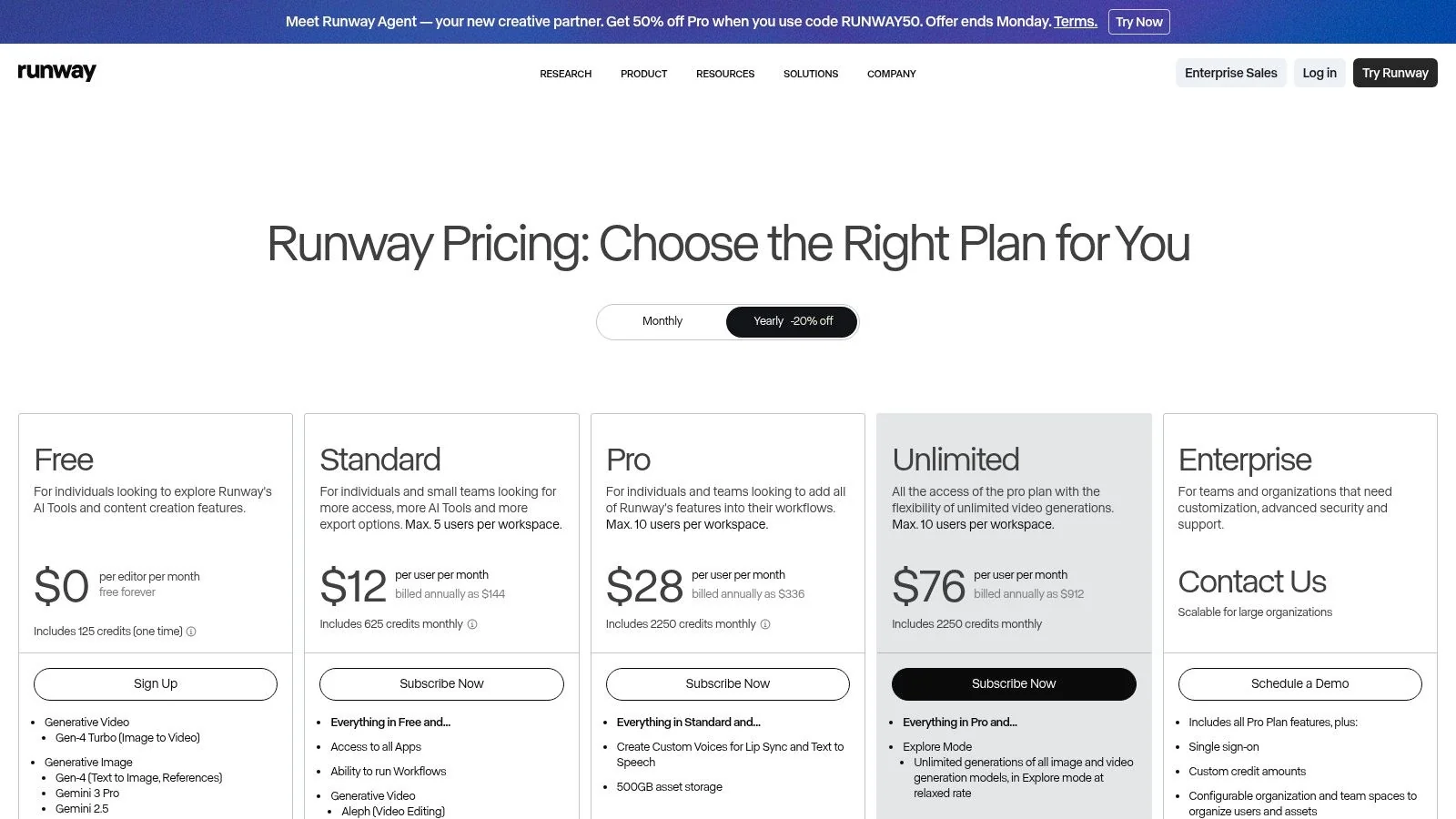
Runway is not the first tool I’d choose as a primary ai video editor for youtube if your work is mostly factual long-form editing. It is one of the first tools I’d choose if your YouTube videos need generated visuals, stylized intros, synthetic B-roll, or concept footage that would otherwise take too long or cost too much to source.
That distinction matters. Runway is strongest as a creative layer inside the workflow, not always as the whole workflow.
Where it adds the most value
Runway’s generative video models, background tools, upscaling, editor, and voice features are useful when the missing ingredient is visual material. Educational channels can use it for abstract illustrations. Business channels can use it for stylized cutaways. Essay-style channels can use it to fill narrative gaps without relying entirely on stock.
The business context is moving in Runway’s favor. Quantumrun reports the AI video generator market generated $614.8 million in 2024 and projects it to reach $2.56 billion by 2032, and Meticulous Research forecasts the broader AI video generation and editing software market at $3.67 billion in 2026 and $24.89 billion by 2036, as summarized in these AI video market statistics. For YouTube creators, that signals growing pressure toward production throughput and derivative content creation.
What it doesn’t replace
Runway can generate compelling assets. It doesn’t automatically make it the best place to manage a careful long-form edit with exact editorial timing, factual inserts, and complex revision cycles. Credit-based generation also changes how you work. You have to think in experiments, not just edits.
That’s why I’d treat Runway as an enhancement engine. It’s great for visual gaps, not always for the backbone of the edit. Visit Runway.
10. InVideo AI
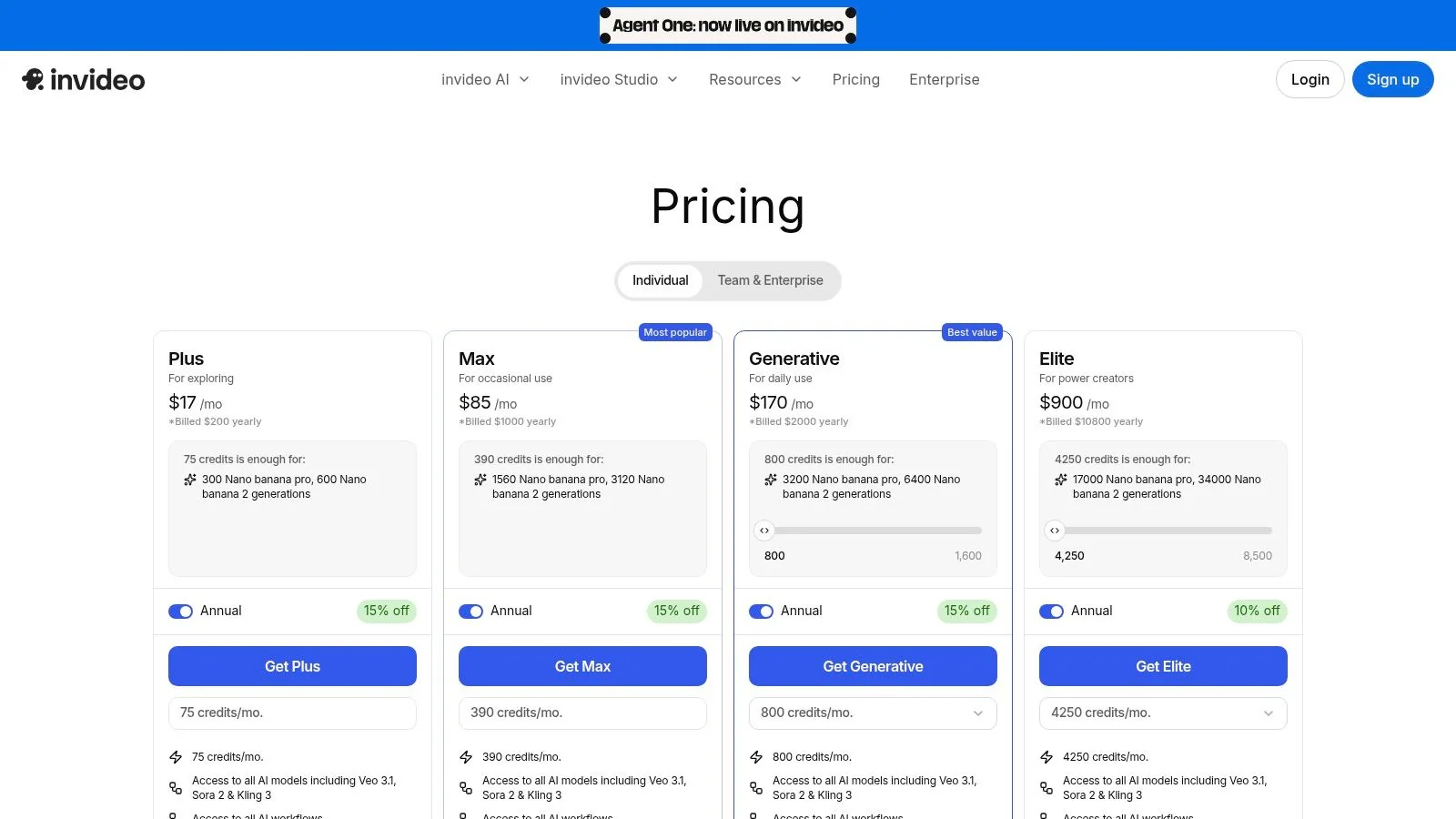
InVideo AI is useful when you need a first draft faster than you need perfect control. That makes it a strong option for list videos, promos, intros, short explainers, and faceless YouTube concepts where the bottleneck is ideation plus assembly.
It’s less satisfying when you already know exactly how every scene should land. Prompt-driven systems are better at drafting than obeying precise editorial taste.
Best way to use it
The mistake with InVideo AI is expecting it to replace a meticulous editor. The better use is to let it build the base version, then tighten from there. If you’re producing recurring content formats, that can be a real time-saver.
It fits best for:
- Concept validation: Test a YouTube idea before investing in a full production pass.
- Script-to-video drafts: Turn an outline into a presentable first cut.
- Promo and support content: Assemble quick explanatory videos from scripts and assets.
- Listicles and roundup formats: Build structure fast, then refine manually.
If you’re still figuring out the scripting side before editing, this AI video script generator is relevant to that earlier stage of the workflow.
What to expect in practice
InVideo AI gives you a broad model catalog and fast draft generation, but credit-based access and surfaced costs at login or checkout mean you need to watch usage patterns. It’s also not where I’d go for exacting, frame-sensitive educational edits.
As a drafting engine, though, it can save a lot of early-stage work. Visit InVideo AI.
11. Which AI Editor is Right for Your YouTube Channel?
The best tool depends on where your workflow breaks. Not where the product page says it breaks. Most YouTube teams already know whether they’re blocked by editing skill, review cycles, localization, short-form repurposing, or sheer production volume.
A good selection process starts with the source footage and the publishing model.
Match the tool to the workflow
If you mainly publish screen recordings, product walkthroughs, onboarding videos, and help-center content, Tutorial AI is the clearest fit. It’s designed around turning one recording into a polished tutorial and matching documentation, which is unusually useful for software education and support content.
If your channel is transcript-heavy and spoken-word first, Descript is often faster. If you need professional finishing, layered timelines, and cross-app creative control, Premiere Pro remains the strongest choice. If Shorts dominate your channel, CapCut is hard to ignore.
Here’s the simple breakdown:
- Choose Tutorial AI if your videos show real software and need fast edits, localization, and docs from the same source.
- Choose Descript if transcript editing is your main editing style.
- Choose Premiere Pro if editorial control matters more than ease of use.
- Choose CapCut or VEED if short-form and repurposing speed drive the channel.
- Choose Filmora or Clipchamp if you want approachable editing without a steep learning curve.
- Choose Runway or InVideo AI if generation and draft creation are central to the workflow.
The right ai video editor for youtube is the one that removes the step your team repeats every week, not the one with the longest feature list.
If you’re refining your publishing strategy as much as your editing stack, this guide on how to make best YouTube videos is a useful companion.
Top 11 AI Video Editors for YouTube, Feature Comparison
| Product | Core Focus / Key Features ✨ | Quality & UX ★ | Best For 👥 | Value & Pricing 💰 |
|---|---|---|---|---|
| 🏆 Tutorial AI | AI screen recorder + “edit like a doc”, AutoRetime™ translations, 74 languages, cursor effects, docs & brand kits ✨ | ★★★★★ studio polish, fast turnaround | 👥 Knowledge bases, customer education, internal training | 💰 Free → Enterprise; advanced voices & cloning on higher tiers |
| Descript | Text-first editing, Studio Sound, voice cloning, screen recording ✨ | ★★★★☆ clean script workflow & audio | 👥 Talking-head creators, educators | 💰 Freemium → paid tiers; credits/limits on lower plans |
| Adobe Premiere Pro | Pro NLE + Text-Based Editing, Enhance Speech, AI masking, Frame.io integration ✨ | ★★★★★ professional-grade control | 👥 Cinematic editors, pro post teams | 💰 Subscription (higher cost) for full feature set |
| CapCut | Mobile-first editor, templates, auto-captions, background removal ✨ | ★★★★ quick, template-driven UX | 👥 Shorts creators & social-first teams | 💰 Strong free tier; some pro features device/region-gated |
| Kapwing | Browser editor, auto-subtitles/dubbing, smart clips, 4K export ✨ | ★★★★ simple collaborative web UX | 👥 Teams repurposing podcasts/webinars | 💰 Credit-based AI usage; transparent paid limits |
| Microsoft Clipchamp | Browser recorder/editor, AI TTS & subtitles, OneDrive + brand kit ✨ | ★★★★ smooth on Edge/Windows | 👥 Microsoft 365 users & quick YouTube producers | 💰 Free 1080p; 4K with Microsoft 365 subscription |
| VEED | In-browser recording, subtitles/translations, avatars & voice cloning ✨ | ★★★★ accessible web workflow | 👥 Social & YouTube workflows, small teams | 💰 Freemium → paid; heavy AI needs higher tiers |
| Wondershare Filmora | Desktop editor with AI Extend, object remover, templates & presets ✨ | ★★★★ user-friendly, guided effects | 👥 Creators wanting easy but powerful tools | 💰 One-time/subscription plans; AI features vary by plan |
| Runway | Generative video (Gen models), upscaling, editor & text-to-speech ✨ | ★★★★ cutting-edge visuals, credit-driven UX | 👥 Creators needing B-roll, motion graphics | 💰 Credit-based pricing; pay-per-generation model |
| InVideo AI | Text-to-video, AI avatars, stock integrations, multi-model access ✨ | ★★★★ fast ideation & drafts | 👥 Marketers, promo & listicle creators | 💰 Credit-based model; varied access per plan |
The Future of Editing is Your Workflow
A lot of YouTube editing waste starts before the timeline. You record a product walkthrough, trim dead air, fix captions, rewrite the intro, export a full video, cut a Short, then turn the same material into help-center docs or onboarding assets. The editor matters, but the bigger bottleneck is how many times the same source has to be handled before it is ready to publish.
That is why tool choice should map to workflow shape, not feature volume. Some channels need transcript-driven editing because the script changes after recording. Some need fast repurposing because every upload becomes Shorts, clips, and localized versions. Others need to turn a raw screen capture into a polished tutorial with usable documentation attached.
As noted earlier, AI now reaches beyond timeline assistance into packaging, optimization, and iteration. For YouTube teams, that changes the buying criteria. The question is no longer which editor has the longest feature list. The useful question is where the production queue slows down.
For practitioners, the trade-offs are pretty concrete. Script-first editing reduces retakes, but it can feel limiting when pacing depends on visual timing rather than spoken words. Template-heavy tools speed up publishing, but they can flatten the look of a channel if every video follows the same structure. Generative tools help fill visual gaps, but they also add review overhead because AI-created footage still needs judgment.
Workflow compression is the tangible gain.
Descript fits teams that cut by transcript and revise copy late. Premiere Pro fits channels that need precision, multi-layer control, and a finishing pass that lighter tools cannot handle. CapCut, Kapwing, Clipchamp, and VEED fit faster publish cycles where repurposing matters as much as the main upload. Runway and InVideo AI fit cases where ideation, B-roll generation, or rough draft creation is the constraint.
Tutorial AI stands apart because it starts from a different assumption. The recording is the source of truth. That matters for creators publishing product demos, software walkthroughs, internal training, onboarding videos, and help-center content. In those workflows, the output is often not just a YouTube video. It is a video, a set of steps, and documentation a team can reuse without rebuilding the same explanation in another format.
That record to edit to publish chain is the angle that matters most in practice. If recording is messy, editing gets slower. If editing is disconnected from the script or screen actions, review gets slower. If publishing requires extra manual work to create supporting assets, the whole system backs up. The strongest AI editor for your channel is the one that removes the repeated handoffs in that chain.
Editors are still making judgment calls. AI does not replace pacing, narrative structure, or audience awareness. It does remove a lot of repetitive cleanup, especially for channels publishing tutorials at volume.
If you are evaluating tools seriously, look at the full path after record is pressed. How fast can the team tighten the cut, correct the script, produce alternate versions, and publish useful assets from the same source material? That is usually where time savings show up first.
If you want to strengthen that broader system, this blueprint for video marketing is a helpful companion to the editing decision.
If your YouTube workflow starts with a screen recording and ends with a tutorial, help article, onboarding video, or product demo, Tutorial AI is worth trying first. It is built for subject-matter experts who need polished results without living in a timeline, and it handles the part most tools skip: turning one recording into both a video and documentation that your team can ship.