You’ve got a recorded product demo, training session, or customer call sitting in a video file. Converting it to text sounds like the obvious first step, but the transcript may only be the beginning. You might also need speaker labels, accurate captions, an editable script, subtitle files, a polished tutorial video, or a structured help article your team can publish immediately.
The best video to text converter depends on the entire production path, not just the first transcript. This comparison looks at transcription quality, language coverage, speaker identification, editing depth, export formats, pricing structures, intended use cases, and downstream publishing. Accuracy also depends heavily on the recording. Benchmarks show that leading English systems can reach low-single-digit Word Error Rate, while multilingual, low-resource, noisy, and multi-speaker recordings can perform far worse. Recent ASR benchmark results and India-focused language testing make that variation clear.
For teams turning one screen recording and spoken narration into both a finished tutorial and a written article, Tutorial AI is the most complete fit. For meeting transcripts, subtitle files, human review, or traditional video editing, other tools may be the better choice. This listicle starts with the workflow decision, then evaluates each platform on what it helps you publish. You can also use this video transcription software guide for broader background on choosing transcription software.
1. Tutorial AI
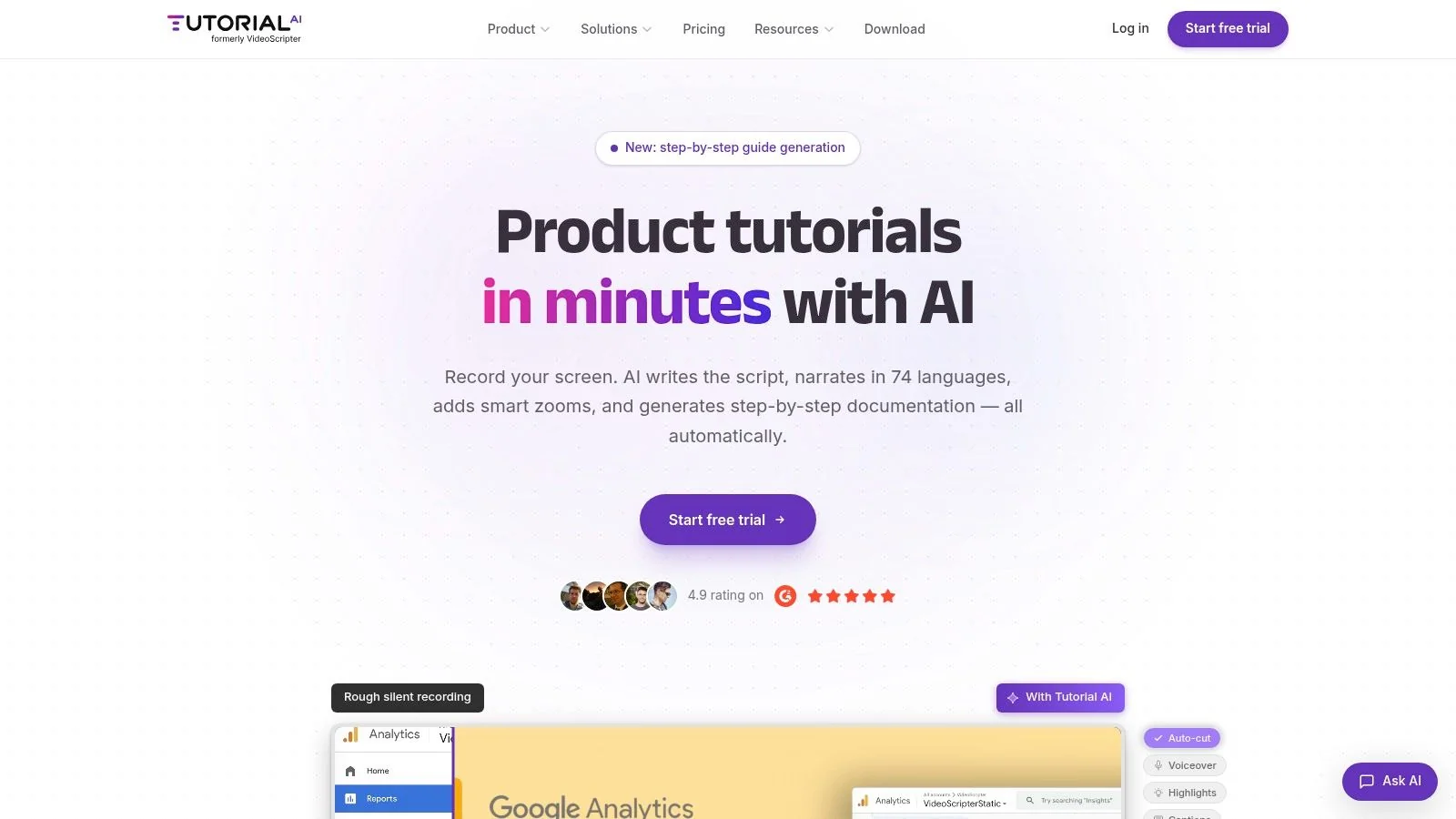
Tutorial AI is built for a specific production problem: turning a screen recording and narration into a polished tutorial video plus documentation. You can record a product demo, feature release video, customer onboarding walkthrough, support article video, internal training lesson, SOP, sales enablement walkthrough, or knowledge-base video, then work from the generated script rather than a traditional editing timeline.
Its central advantage is the connection between transcript editing and video production. Tutorial AI’s product page describes a workflow where users record a screen process, edit the generated narration script like text, and publish a finished tutorial. Tutorial AI’s edit-like-a-doc workflow supports the practical distinction between a transcript tool and a production tool. Changing the script updates the narration, timing, captions, and cuts, while AutoRetime helps synchronize translated scenes and captions for localized versions.
Best for one recording, several publishable assets
Tutorial AI can generate a matching written article from the same recording, including formatted documentation, screenshots, and structured exports. That makes it useful for knowledge-base teams, customer education, product marketing, L&D, technical writers, and support operations that need video and written instructions without maintaining separate production processes.
The platform also includes screen-focused effects such as cursor tracking, automatic zooms, highlights, blurs, backgrounds, and shadows. Those controls matter when viewers need to follow a real interface or when the recording contains sensitive information. Brand Kits, custom fonts, animated slides, shared workspaces, comments, versioning, guest sharing, embeddable players, and integrations with LMS, CMS, CRM, and documentation tools extend the workflow beyond transcription.
Practical rule: Choose Tutorial AI when the deliverable is not merely text. Choose it when the same source recording must become a polished video, captions, localized playback, and structured documentation.
Tutorial AI supports narration in 74 languages and regional accents, with AutoRetime synchronizing scenes, captions, and cuts to the translated voiceover. It offers plans from free to Enterprise, with advanced AI voices, custom voice cloning, and priority support on higher tiers. The limitations are important: advanced capabilities may require a paid or Enterprise plan, and the platform is optimized for software and screen-based tutorials rather than highly cinematic, non-screen video production.
2. Otter.ai
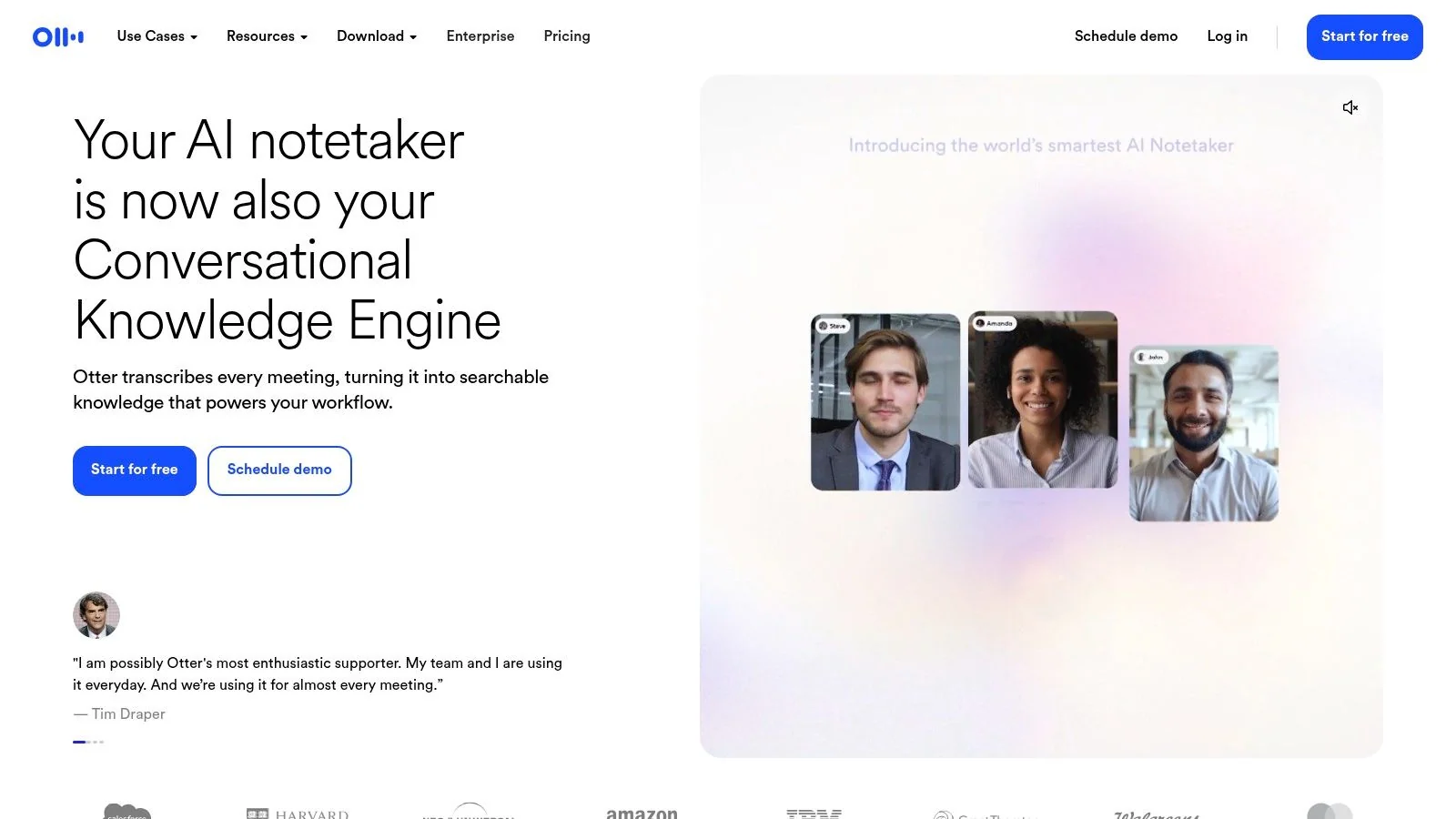
Otter.ai is a meeting-first transcription and note-taking platform, so its strongest use cases are recorded calls, interviews, webinars, product discussions, and customer conversations. It imports audio and video, creates editable transcripts, identifies speakers, and gives teams a searchable place to review the source material.
The workflow makes sense for a support or sales team that already records meetings in Zoom, Google Meet, or Microsoft Teams. Search, highlights, comments, sharing controls, and desktop and mobile apps help turn a conversation into an internal record. Otter.ai also connects with Zapier and CRM workflows, which can make the transcript more useful after the meeting ends.
Where Otter.ai fits
Otter.ai is particularly practical when the output is a searchable transcript with speaker separation rather than a finished tutorial. Its SRT export is useful when a recorded webinar or interview needs captions, while TXT, DOCX, and PDF exports cover common documentation and review needs. The platform’s meeting orientation is an advantage for teams managing recurring conversations, but it can feel heavier than a focused upload-and-transcribe utility.
Some important capabilities, including SRT export, are gated behind paid tiers. That pricing structure matters if you only need occasional video files and don’t need meeting integrations or team collaboration.
Best fit: Use Otter.ai for meeting archives, interviews, and shared conversation notes. Use a screen-recording editor when the transcript must drive cuts, visual pacing, tutorial polish, or a help article.
For teams that only need a quick file conversion, compare the workflow with this free video transcription tool from Tutorial AI.
3. Descript
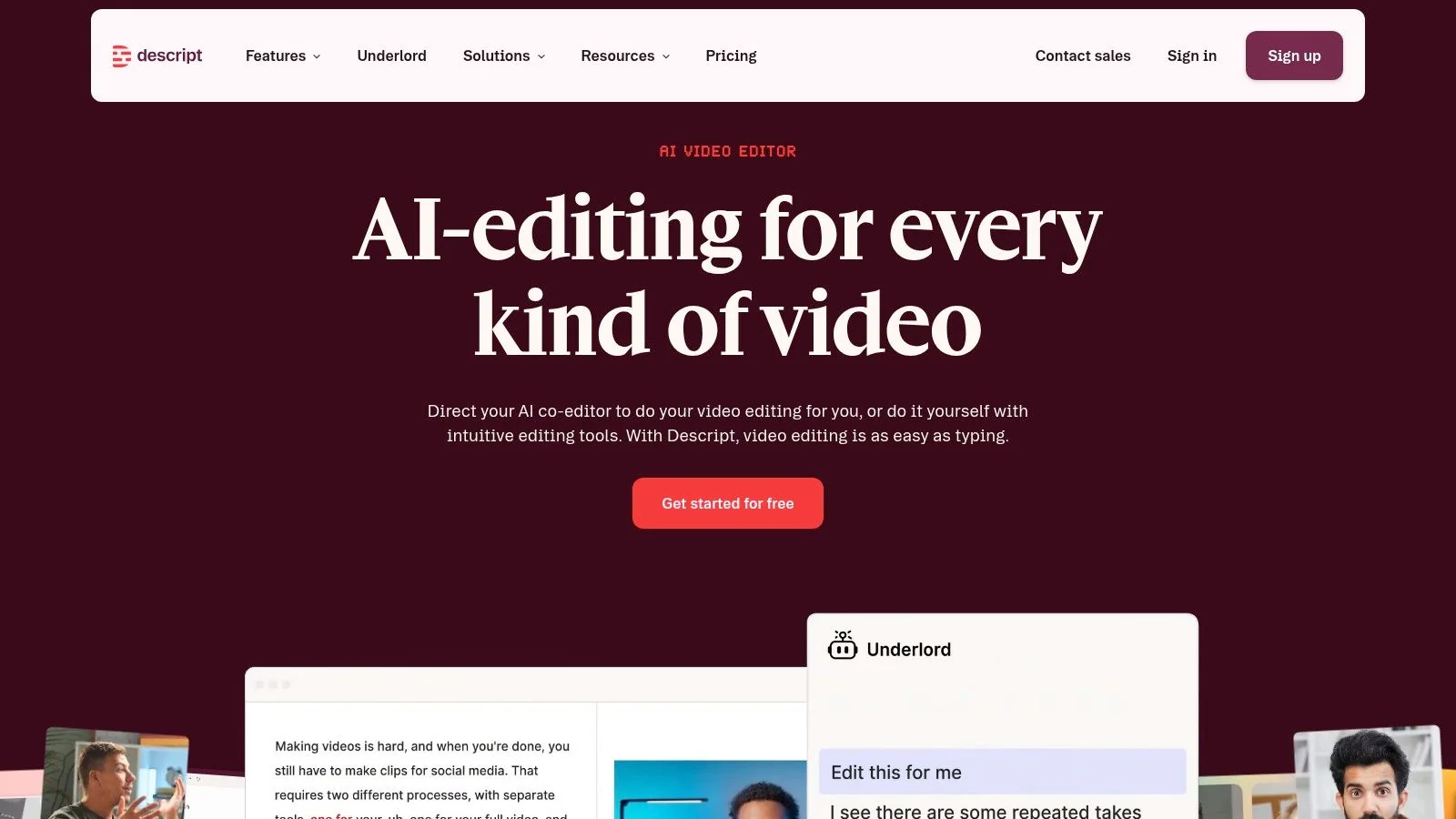
Descript treats the transcript as the editing interface. Import a video, let the platform transcribe it, then remove words, pauses, or sections from the document to change the corresponding media. That makes it a strong choice for creators who want to record, transcribe, edit, style captions, and export from one browser-based workspace.
Its multitrack transcription, speaker detection, dynamic captions, subtitle styling, and support for approximately 25 transcription languages give it broader production value than a basic converter. It can export finished video and caption files, including 1080p and 4K output options described in the product plan. The business workflow also supports team templates and brand guardrails.
A strong middle ground for content teams
Descript is well suited to podcasts, tutorials, interviews, social clips, and marketing content where text-based editing is the main time saver. It offers a more complete editing environment than Otter.ai or a transcript-only service, but it also asks users to manage media-minute quotas and AI-credit consumption. Top-ups are available, yet teams with unpredictable production volumes should monitor usage before standardizing on it.
The important distinction is editorial depth. Descript helps you produce and revise the video itself. It doesn’t automatically make the same screen recording into a formatted help article in the way Tutorial AI does, so documentation teams may still need a separate publishing step.
4. Rev
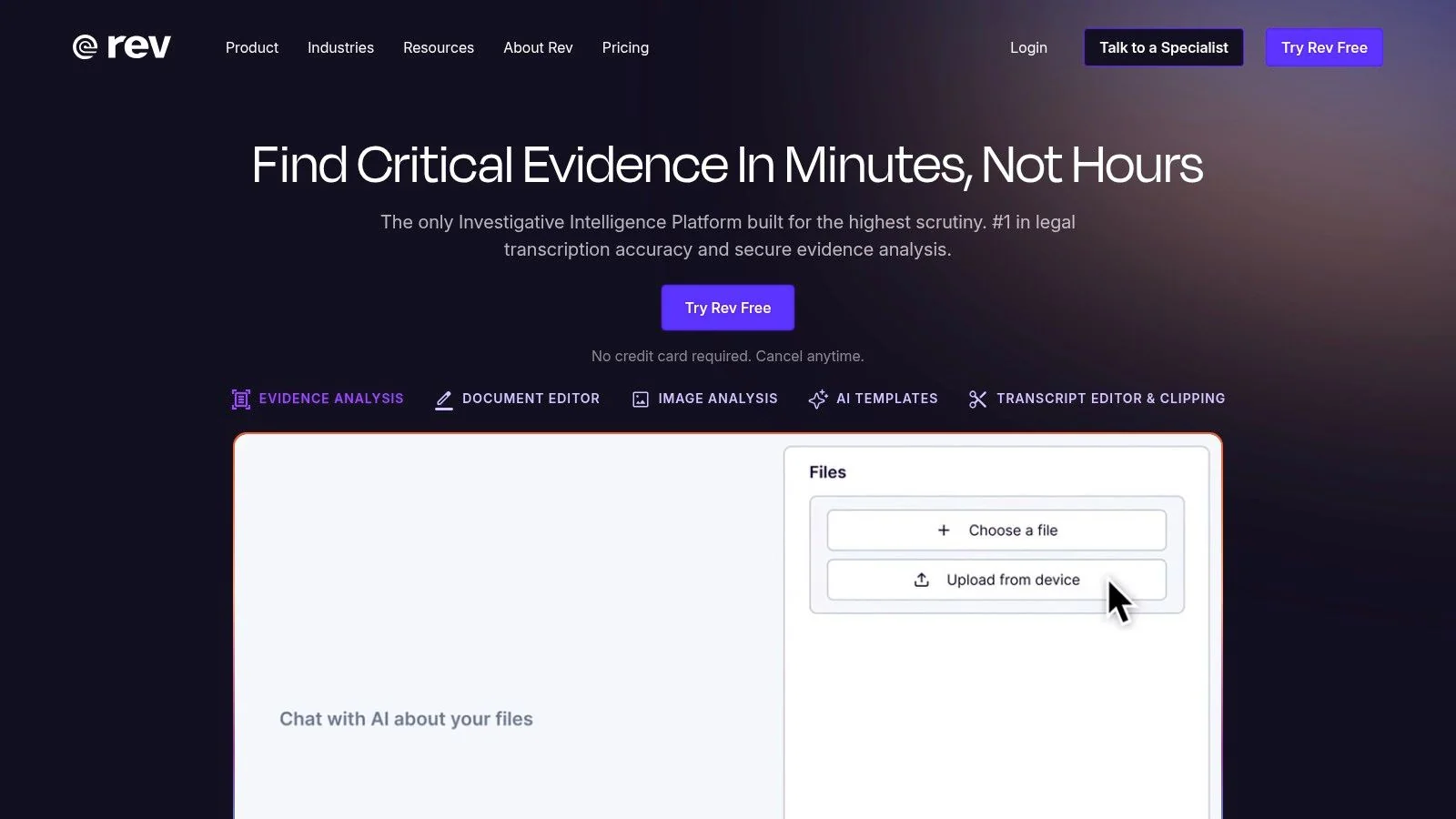
Rev takes a hybrid approach. It provides automated transcription for speed, then offers human-verified transcription and captions when the draft isn’t sufficient for publication, compliance, legal review, or other high-stakes uses.
That escalation path is Rev’s main differentiator. Teams can start with an AI transcript, correct routine errors themselves, or send the file for a human service with a stated 99%+ accuracy SLA. Rev also offers legal-formatted transcript options, enterprise controls, and caption workflows associated with FCC and ADA requirements. Human services can have same-day turnaround, although availability and project conditions should be confirmed before relying on it for a deadline.
Accuracy is a workflow decision
Automatic speech recognition quality is commonly measured with Word Error Rate, which counts insertions, deletions, and substitutions against a reference transcript. That metric is useful, but it doesn’t answer whether a transcript is ready for a legal record, regulated training asset, or public caption track. A human review option can matter more than a small difference in automated benchmark performance.
Rev’s weakness is cost at scale. Human transcription and captioning are priced per minute, so recurring high-volume libraries may find the model expensive. The interface and feature set also lean toward investigative, legal, and evidence-oriented packaging rather than polished screen-tutorial production.
5. Trint
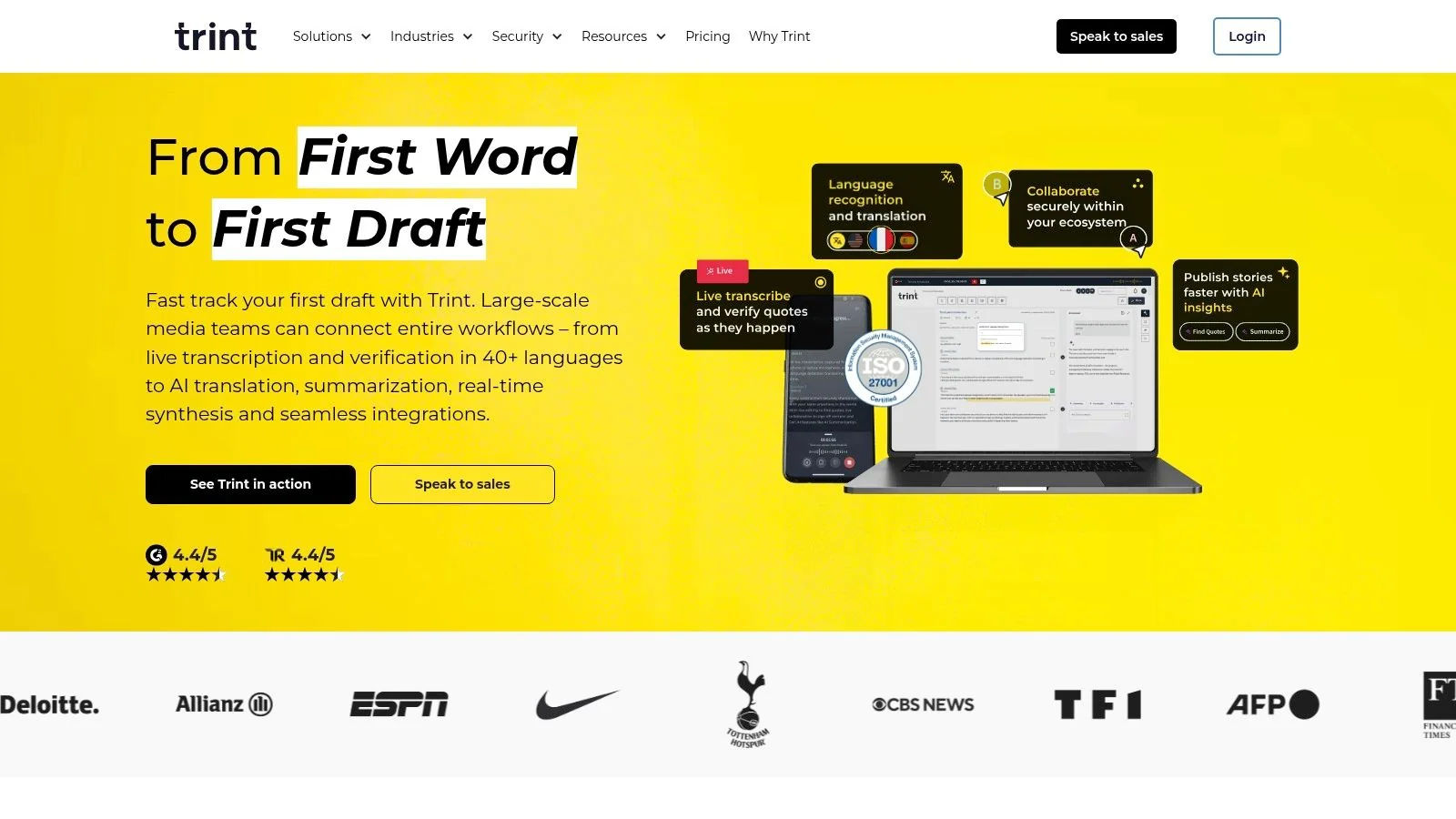
Trint is designed for newsroom-style transcription, collaboration, and review. Its web editor synchronizes the transcript with the media player, allowing a reviewer to click through the text and verify the corresponding video or audio. Project workspaces, comments, search, and collaboration controls make it suitable for editorial teams managing shared transcript libraries.
The platform supports 30+ languages, speaker labeling, Zoom and Zapier integrations, API access, and enterprise security controls. SSO, data residency, and ISO 27001 options are relevant for organizations that need more governance than a lightweight consumer transcription app provides.
Good for review queues and transcript libraries
Trint works best when several people must inspect, annotate, approve, and reuse source material. Bulk and API options give larger teams a route beyond manually uploading individual files. That makes it a better candidate than a meeting assistant for media organizations, research teams, and content operations groups with a growing archive.
The tradeoff is commercial clarity. Public pricing is limited, and many plan details require a sales conversation. The free trial also restricts full-length transcriptions and advanced features, so teams should test a representative file rather than judging the product from a short, clean clip.
For terminology, timestamps, subtitle formats, and the wider production context, this guide to what video transcription is provides a useful companion resource.
6. Sonix
Sonix is a focused AI transcription service with a polished web editor, multilingual support, speaker labeling, translation, and subtitle exports. It supports 50+ languages, searchable transcripts, SRT and VTT files, burn-in subtitle options, and multi-format document exports.
Its pricing model is attractive to teams that want predictable monthly hours with transparent overage pricing for additional transcription time. That structure can be easier to budget than a platform that combines media minutes, AI credits, seats, and separate export restrictions. It also gives occasional users a path to pay for actual usage rather than adopting a larger editing suite.
Clear audio is the dividing line
Sonix is a practical choice for interviews, webinars, research recordings, and clear narration where the core output is a cleaned transcript or subtitle file. It provides collaboration tools and enterprise options, including priority support, but it isn’t a replacement for a full non-linear editor. Teams that need detailed visual effects, timeline compositing, or screen-recording polish will need another production layer.
Burn-in subtitles may be limited or pay-as-you-go on some plans, so confirm the required delivery format before selecting it. A separate SRT or VTT file may be enough for a video platform, while a social campaign or sales demo may require captions rendered directly into the MP4.
7. Happy Scribe
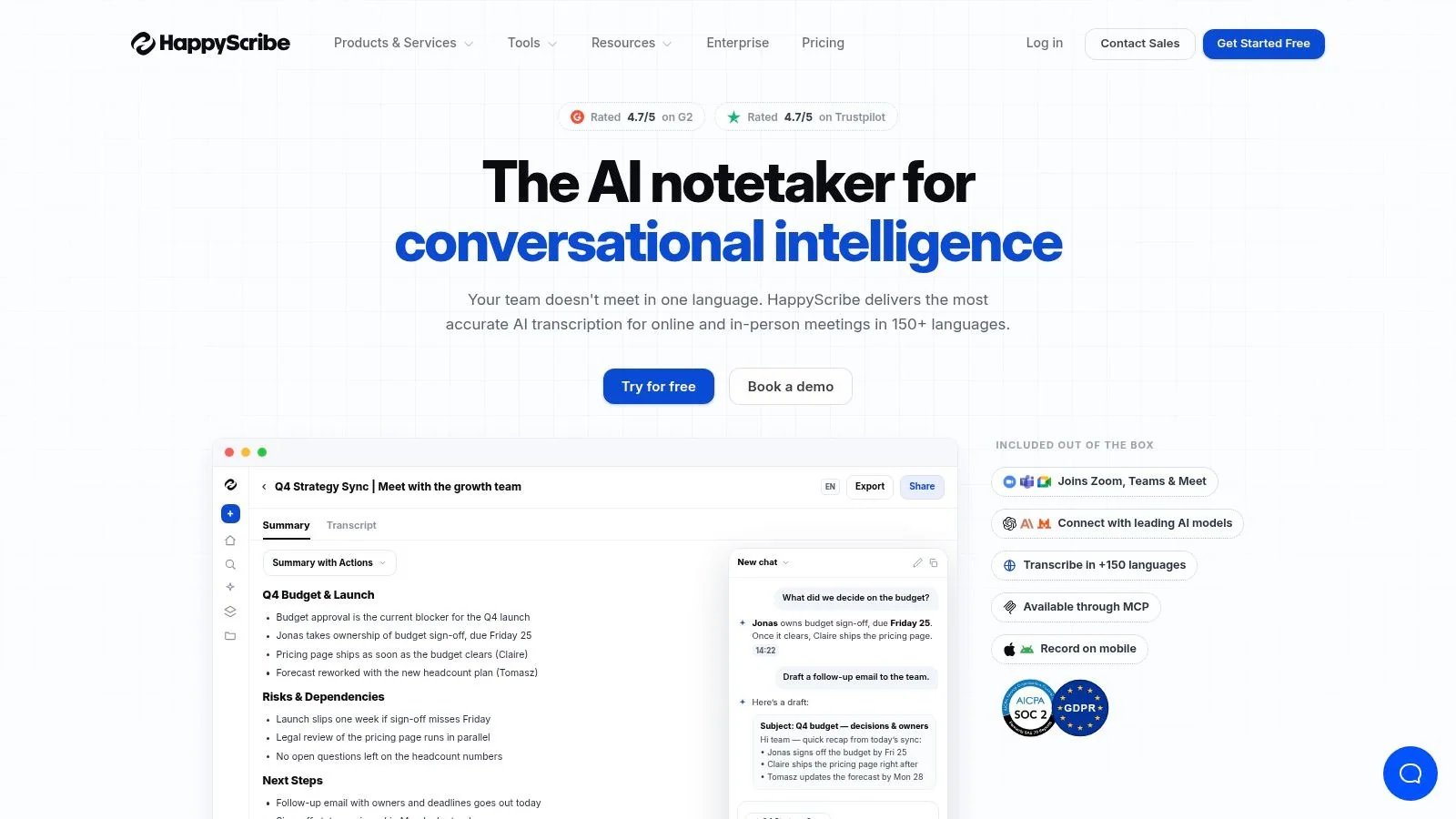
Happy Scribe brings AI transcription, subtitles, translation, and optional human proofreading into one workflow. It supports 150+ languages across AI transcription, subtitle, and translation tasks, giving localization teams one place to prepare transcripts, captions, and translated deliverables.
That consolidation reduces vendor handoffs for teams producing multilingual documentation or public-facing video. Exports include SRT, VTT, TXT, DOCX, and MP4. Connections with Meet, Zoom, Teams, YouTube, Drive, and Dropbox can also simplify file intake and delivery, although teams should verify which integrations support their required publishing steps.
Useful when review depth varies by language
Happy Scribe’s minute-credit model, plus rollover on annual plans, can help teams forecast recurring work. Team seats and role permissions suit shared production, while human proofreading provides a review path for high-visibility content.
Budgeting requires more than checking the entry plan. Extra AI credits generally cost more, and human proofreading is billed separately with pricing that varies by language. Model each project by language, expected transcript quality, review level, subtitle format, and whether the final asset is a file or a published video.
Broad language coverage also does not guarantee uniform recognition quality. Test representative recordings before adopting the service for localized help articles or captions. Include accents, technical vocabulary, overlapping speech, and typical background noise in the sample. Compare the transcript against the recording, then check subtitle timing and translated terminology before production use.
8. Temi
Temi is a low-friction, pay-as-you-go transcription service focused on English. Upload an audio or video file, receive a transcript, make corrections in the simple editor, and export the result as TXT, DOCX, PDF, SRT, or VTT.
The pricing model is its main appeal. There’s no subscription requirement for occasional users, and the service also offers a simple API using the same pricing model. A free first file of up to 45 minutes gives infrequent users a practical way to test the workflow before paying. That makes Temi a reasonable choice for a one-off interview, short training recording, or straightforward English narration.
Keep the input conditions realistic
Temi is less suitable for multilingual teams because it’s an English-only service. Accuracy can also drop with noisy audio, heavy accents, overlapping speech, or recordings captured in difficult environments. Those limitations aren’t unique to Temi. A review of video captioning found errors ranging from 73 to 263 words per 1,000, reinforcing that recording context matters as much as the converter’s headline capability. The captioning review also found strong results for some lecture-style videos but tool-specific limitations in live student conversations.
Use Temi when you need a direct transcript or subtitle file. Don’t choose it as the center of a workflow that also requires polished screen video, multilingual publishing, or structured documentation.
9. VEED
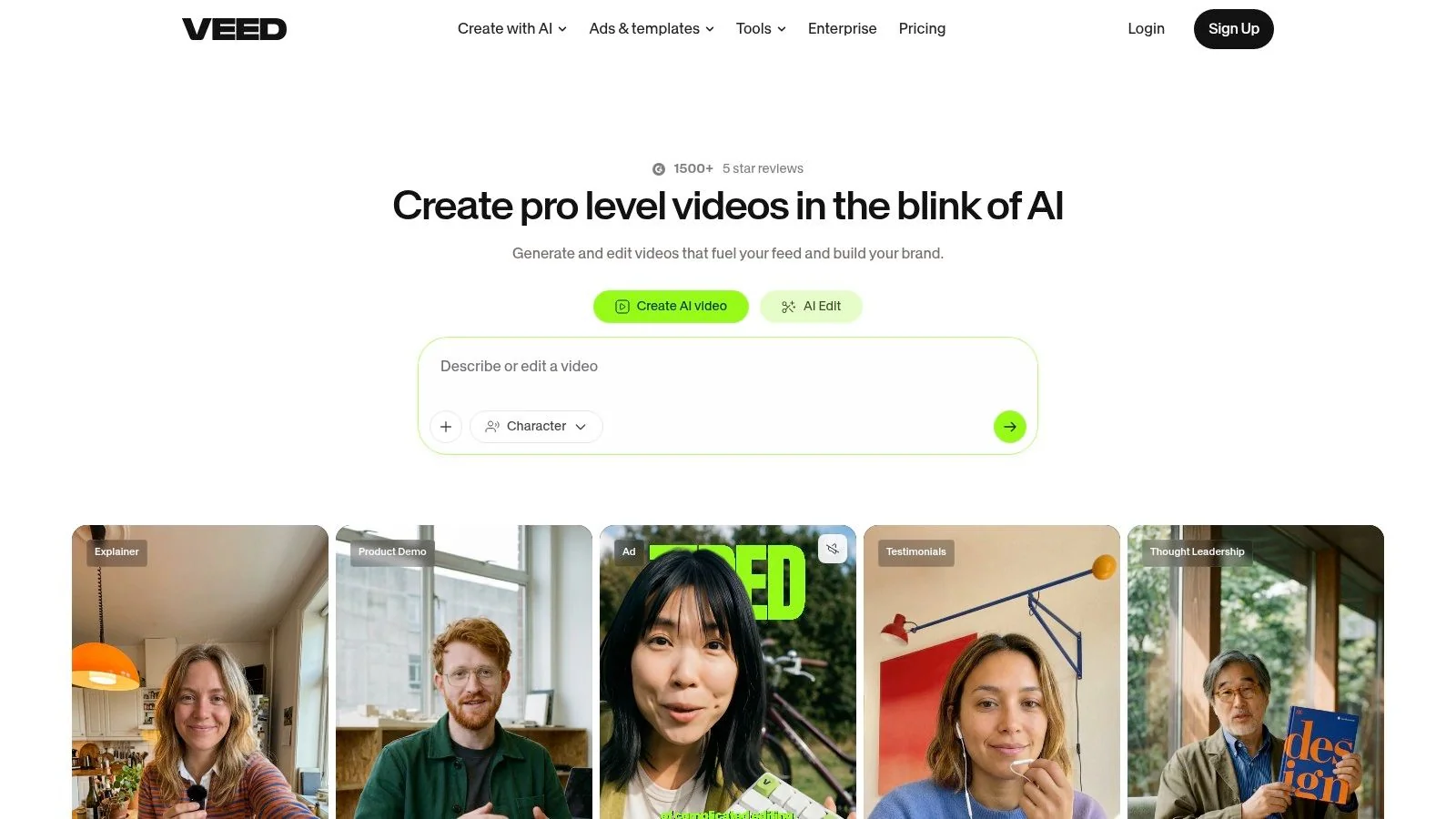
VEED is a browser-based video editor with automatic subtitle generation, translation, caption styling, transcript exports, and visual editing tools. It suits social and video marketing teams that want to create a captioned asset and make light edits without moving between separate applications.
You can export SRT, VTT, or TXT files, or burn captions into the video. Brand Kits, templates, resizing, cropping, and social-clip tools make it more production-oriented than a transcript utility. Its API can render MP4 files with captions, which is useful for programmatic video delivery, although the API returns rendered video rather than raw text and has feature limits.
Best for visible captions and quick edits
VEED’s strength is the visual result. A marketer can correct a subtitle, style it, resize the canvas, and export a social-ready video in one browser workflow. That’s a different job from building a searchable transcript library or generating a knowledge-base article.
The main constraints involve paid access. SRT downloads and unlimited auto-subtitling generally require paid tiers, and burn-in subtitle availability may depend on the plan or usage model. Check whether your team needs a caption file, a rendered MP4, or both before comparing VEED with Sonix, Temi, or Happy Scribe.
10. Adobe Premiere Pro Speech to Text
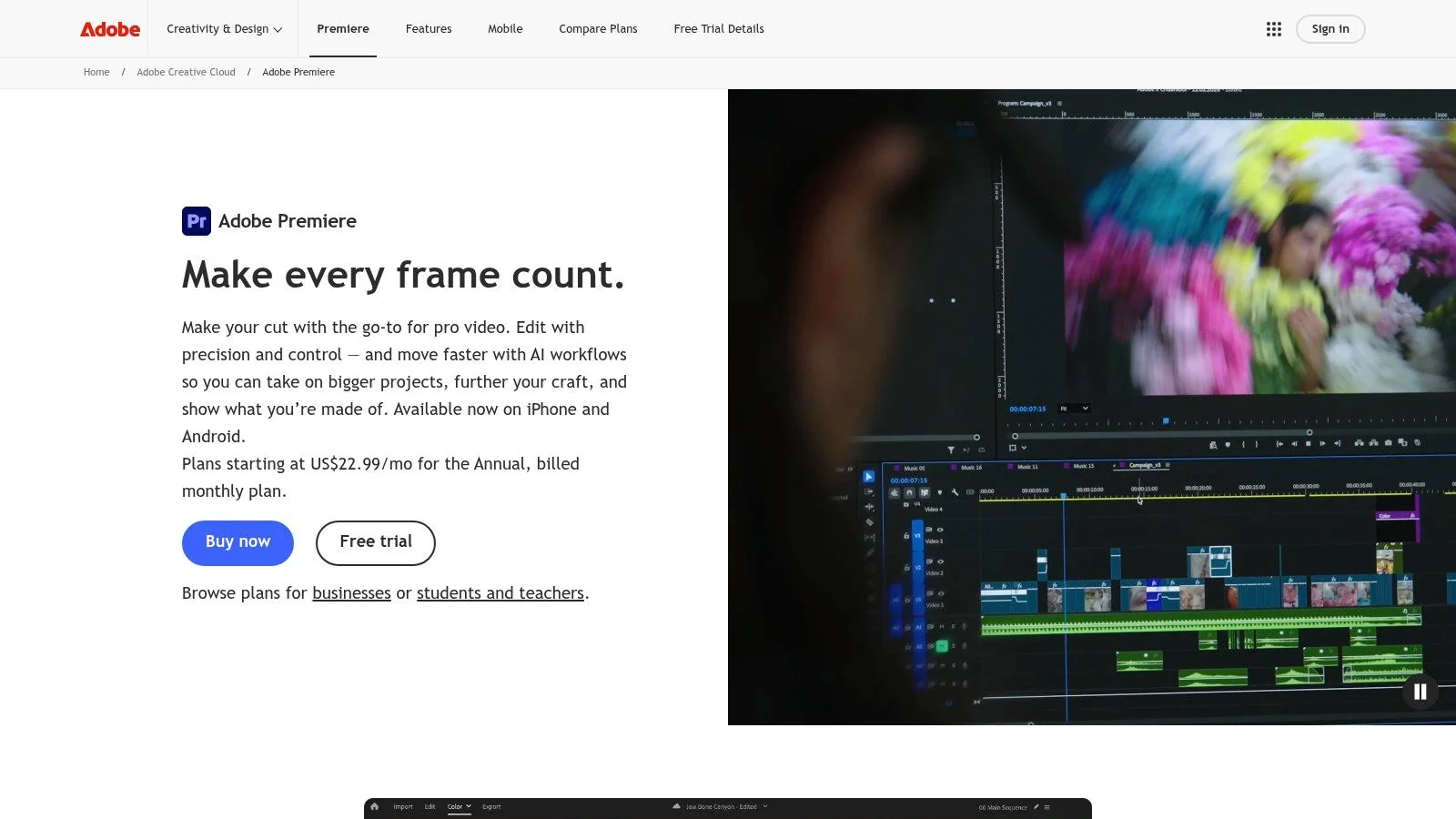
Adobe Premiere Pro places transcription and captions inside a professional non-linear editing workflow. Editors can generate a transcript on import, use text-based editing for rough cuts, create captions, adjust them, export caption files, or burn captions into the finished video.
That integration is the deciding factor. If your team already works in Premiere Pro and needs the transcript to support timeline edits, there’s no round trip to a separate converter. Editors can move from spoken-word cleanup to visual assembly, caption correction, effects, color, audio, and final export in the same project.
Powerful, but not a lightweight converter
Premiere Pro is aimed at video editors, not users who want a DOCX or TXT transcript. It requires a Premiere subscription and brings the complexity of a full editing environment. A subject-matter expert who needs to turn a software walkthrough into a polished tutorial may find the tool unnecessarily heavy without an experienced editor.
The choice becomes clearer when you separate the deliverable. Premiere Pro is strongest for teams that already have an editing pipeline. A simpler service is more efficient for a transcript or subtitle file, while Tutorial AI is more suitable when the subject-matter expert needs to record, revise narration, polish a screen tutorial, and create documentation without timeline expertise.
For teams focused on accessibility, this guide to adding captions to videos covers the captioning workflow alongside the broader production decision.
Top 10 Video-to-Text Converters Comparison
| Product | Core features ✨ | UX / Quality ★ | Price & Value 💰 | Target audience 👥 | Unique selling point 🏆 |
|---|---|---|---|---|---|
| Tutorial AI 🏆 | ✨ Screen recorder + doc-style editor, AI scripts & voiceovers (74 langs), AutoRetime™ localization, docs export | ★★★★★ (4.9), studio-quality outputs, SOC2/ISO security | 💰 Free → Enterprise; advanced voices & custom cloning on paid tiers | 👥 Knowledge bases, customer education, L&D, product & sales enablement | 🏆 Edit-by-text, AutoRetime multi‑language sync, cursor effects & auto-doc generation |
| Otter.ai | ✨ Meeting-focused transcription, speaker ID, SRT export, Zoom/Meet integrations | ★★★★, strong meeting accuracy & search | 💰 Freemium; paid for SRT/export & extra live minutes | 👥 Teams recording calls, interviews, webinars | Quick meeting transcripts, speaker labeling & collaboration |
| Descript | ✨ Text-based multitrack editing, transcription, captions, 1080p/4K export | ★★★★, doc-like editing, easy filler removal | 💰 Freemium → paid plans (media minutes, AI credits) | 👥 Podcasters, content creators, educators | Overdub voice cloning, integrated recording + editor |
| Rev | ✨ AI + optional human‑verified transcripts/captions, legal formats, SLAs | ★★★★, human 99%+ accuracy option, compliance-ready | 💰 AI subs + pay‑per‑minute human services (costly at scale) | 👥 Legal, compliance, publishing & enterprise teams | Fast AI drafts with certified human upgrade for publishing |
| Trint | ✨ Web editor, synchronized player, collaboration workspaces, 30+ langs | ★★★★, newsroom-grade review & search | 💰 Subscription/enterprise; many enterprise details via sales | 👥 Editorial & media teams managing large transcript libraries | Project workspaces, review workflows & enterprise controls |
| Sonix | ✨ 50+ languages, subtitle export (SRT/VTT), searchable transcripts | ★★★★, accurate for clear audio; easy cleanup | 💰 Subscription with transparent overage pricing | 👥 Teams needing predictable monthly hours | Transparent pricing and low overage rates |
| Happy Scribe | ✨ AI + human proofreading, 150+ languages, translation, many export formats | ★★★★, one platform for AI + human accuracy | 💰 Pay-as-you-go / credits; human proofreading extra | 👥 Teams needing translations + human QA | Unified AI→human workflow across many languages |
| Temi | ✨ Fast AI transcription, simple editor, SRT/TXT exports, API | ★★★, very fast & cheap but English-focused | 💰 Pay‑per‑minute; free first file (up to 45 min) | 👥 Occasional users needing quick, affordable transcripts | Lowest‑friction, pay-as-you-go transcription |
| VEED | ✨ Browser video editor, auto-subtitles & translation, brand kits, API | ★★★★, quick edits + styled captions for social | 💰 Freemium; SRT/downloads & unlimited auto-subtitles on paid plans | 👥 Social/video marketing teams, creators | All-in-one video editor + caption styling; API renders burned-in captions |
| Adobe Premiere Pro, Speech to Text | ✨ Integrated transcript & captions on timeline, multi-language, export | ★★★★, powerful for NLE users and timeline workflows | 💰 Requires Creative Cloud subscription | 👥 Professional video editors in Adobe ecosystem | Native NLE transcription & captioning within Premiere Pro |
Turn the Transcript Into a Reliable Publishing Workflow
A transcript is only useful when someone can trust it and publish it in the format the next system expects. Start by testing each shortlisted video to text converter against the recording conditions you have. Don’t rely on a clean sample supplied by the vendor if your production files contain screen noise, multiple speakers, product names, or compressed audio.
Use this compact review process before you standardize on a tool:
- Sample quiet and noisy sections: Check whether the transcript remains usable when the recording shifts from clear narration to background noise, keyboard sounds, room echo, or compressed screen audio.
- Verify names and technical terms: Review product names, customer names, acronyms, command names, and industry vocabulary manually. Generic accuracy can hide costly terminology errors.
- Inspect speaker labels: Confirm that the system separates speakers correctly when people interrupt, respond quickly, or speak at similar volume.
- Compare timestamps: Play several transcript sections against the video and check whether word-level or sentence-level timing is aligned well enough for captions and editing.
- Check captions against the video: Read the captions while watching the recording. Subtitle timing, line breaks, and omissions can make an otherwise readable transcript difficult to follow.
- Confirm the required exports: Verify whether the plan provides the specific output you need, such as SRT, VTT, TXT, DOCX, PDF, or MP4.
The evidence points to a practical conclusion. English transcription can be highly accurate in favorable conditions, with leading benchmark systems reaching around 2.3% to 3.2% AA-WER in tested settings, but accuracy and latency trade off across real-time and final transcription modes. The reproducible benchmark across 86 systems and 12 datasets is useful because it shows why a single accuracy headline can’t predict every workflow.
Match the tool to the publishing job:
- Occasional transcripts: Choose a simple pay-as-you-go converter such as Temi when you need a direct English transcript or subtitle file.
- Accuracy or compliance: Use Rev or Happy Scribe when human review is necessary, especially for regulated, public-facing, legal, or accessibility-sensitive content.
- Finished marketing video: Choose Descript, VEED, or Adobe Premiere Pro when visual editing and caption styling matter as much as the text.
- Meetings and conversations: Use Otter.ai when speaker-aware notes, search, comments, and meeting integrations are central.
- Collaborative media libraries: Choose Trint when multiple reviewers need shared projects, comments, approval steps, and enterprise controls.
- Screen recording to video and documentation: Choose Tutorial AI when one recording must become a polished tutorial, localized player, captions, and a structured help article.
Treat review ownership as part of the workflow, not an afterthought. Assign a person who understands the product or subject matter, store the approved transcript in the relevant documentation or knowledge base, and preserve the caption file alongside the final video. If you publish through an LMS, CMS, CRM, or embedded player, test the final embed, language selector, captions, links, and export before announcing the content.
The broader market context supports this workflow approach. A 2024 survey reported that 90% of organizations caption at least some content, while 66% had defined caption-accuracy standards. The same survey reported that 67% of businesses caption at least half of their audio and video content, with 55% captioning 50% to 75% and 12% captioning 75% to 99%. The 2024 ASR survey report also cites an AI transcription market estimate of $4.5 billion in 2024, projected to reach $19.2 billion by 2034. Those figures don’t make every converter suitable for every team. They do show why transcript review, caption standards, and downstream publishing now belong in the buying decision.
Tutorial AI turns screen recordings and spoken narration into editable scripts, polished tutorial videos, captions, localized playback, and structured help articles from one workflow. If your team needs to move from product knowledge to publishable video and documentation without relying on a specialist editor, visit Tutorial AI and test it with a real onboarding, support, or product walkthrough.