Your video is done. The walkthrough is recorded, the product demo looks clean enough, and now the work starts, turning that recording into something your team can reuse. If you need publishable captions, a transcript for the help center, or a fast way to pull support content out of a training video, a free video transcription tool can save hours, but only if you choose the right one for the job. Some tools are best for quick YouTube captions, others are better for private processing, and a few are transcript-first editors that fit a larger documentation workflow. That distinction matters when you’re shipping product demos, feature release videos, customer onboarding content, SOPs, sales enablement walkthroughs, or internal training.
The best free options all make a trade-off. Some keep the workflow simple but limit exports, some give you decent transcription and then add watermarks, and some are technically free but require local setup. Free tools are good for testing, short clips, and light production. For support teams and subject-matter experts who need polished output fast, the better question is which tool fits the content you make most often, and when it’s time to upgrade to a full workflow like Tutorial AI.
1. YouTube Studio automatic captions
If your content already lives on YouTube, this is the fastest free starting point. You upload the video, YouTube Studio generates captions, and you can clean them up in the subtitle editor before exporting files like SRT, VTT, or SBV. It’s a practical baseline for creators who can publish unlisted or private videos and still need reusable captions for other platforms. The official workflow starts at YouTube Studio, and for teams that want a tighter publishing process, this captioning guide from Tutorial AI is a useful companion.
The upside is obvious. You don’t install anything, you don’t learn a new editor, and you can hand caption cleanup to whoever already manages the channel. Channel-level caption roles also make it easier for a support or marketing team to split responsibilities without moving files around manually.
The limitation is equally obvious. You still have to upload media to YouTube, and transcription quality depends on audio quality and supported languages. That makes it a strong fit for public-facing tutorials and knowledge-base clips, but a weaker fit for internal training, product demos with sensitive details, or anything you’d rather keep off a third-party platform.
Use YouTube Studio when distribution already happens there. Use something else when privacy or workflow control matters more than convenience.
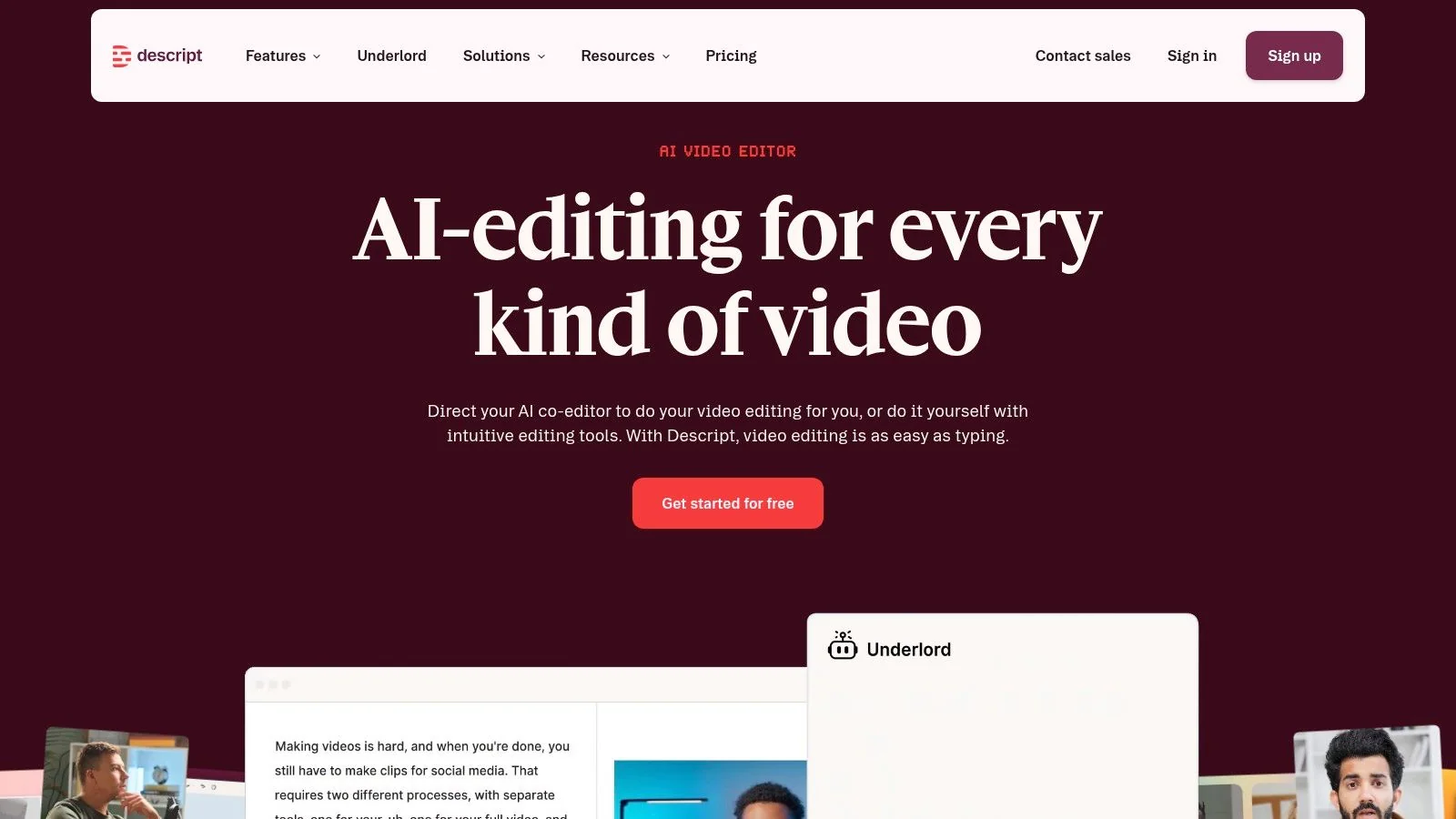
2. Descript Free Plan
Descript sits in a different lane from a basic caption generator. It’s a text-based editor, so the transcript becomes part of the edit, which is exactly why it works well for tutorials, product videos, and L&D content. The Free plan includes 60 media minutes per month, plus multi-language transcription in 25 languages, speaker detection, multitrack transcription, and dynamic captions. For the product page and current plan details, start at Descript.
That combination is useful when the transcript is not the end product. Support teams can trim a rambling screen recording, clean up filler, and export captions without bouncing between separate tools. It also handles the common “one recording, multiple outputs” workflow well, where a webinar becomes a tutorial clip, a caption file, and a polished internal reference.
The catch is that free minutes disappear quickly if you’re working on several videos a month or if AI features are doing most of the heavy lifting. The desktop app also asks for a bit of patience the first time you use text-based editing. If you want the transcript to drive the edit, Descript is strong. If you only need a transcript and a fast export, it can feel like more tool than you need.
Best fit and friction
- Best fit: Product walkthroughs, enablement videos, internal training, and any workflow where editing starts from text.
- Friction point: The free allowance is tight enough that teams need to plan usage before they import a batch of recordings.
- Practical payoff: A cleaner transcript-to-edit process than most browser-only tools.
3. Kapwing Free Plan
Kapwing makes sense when the priority is speed, not long-form production. It’s browser-based, so there’s no install, and its auto-subtitle tool can generate an editable transcript from uploaded video, audio, or links. The free workspace is handy for social clips and short explainers, especially when a support or marketing team needs something usable the same day. Visit Kapwing if you want the browser workflow.
Kapwing’s editor gives you word-level timing control, subtitle translation options, and collaboration in the browser. That’s useful for teams that need to hand off caption cleanup without sending files back and forth. It’s also a good fit for quick turnaround clips from webinars, product announcements, and help-center teasers.
The downside is the free export watermark and the workspace limits. That changes the economics for polished support content, because a watermark usually means the free tier is only useful for internal review or draft generation. If you’re producing customer-facing training, the tool is fast, but the free output isn’t always final.
Kapwing works best as a rapid draft tool. It’s less attractive when the export itself needs to be publish-ready on the first pass.
4. VEED Free Plan
VEED works well if the transcript is only part of a faster captioning job. It is a browser-first editor, and its auto-subtitles support 100+ languages, subtitle translation, and basic cleanup, so it fits social clips, marketing cutdowns, and multilingual captions where style matters as much as timing. The platform overview is at VEED.
The practical value is in the workflow. A support or content team can upload, caption, style, and export in one browser session, which keeps the process short for smaller tasks and avoids switching into desktop software. That matters for teams that need a quick turnaround on clips, teaser videos, or localized snippets, but do not need a full transcript-editing environment.
The free plan is limited by the watermark and tighter auto-subtitle allowances. That makes it useful for testing caption styling, checking how fast a team can move, or producing internal drafts. It is a weaker fit for a final customer-facing tutorial, because the output still looks like a free-tier preview rather than a finished training asset. If your goal is a reusable help article or a branded knowledge-base video, the free plan reaches its limit quickly.
What VEED does well
- Fast browser edits: Useful for teams that need to caption and publish quickly.
- Language range: Helpful for content that is not English-only.
- Short-form focus: Better for clips than for multi-step tutorial documentation.
When VEED is the right free tool
Use VEED if the main task is caption styling and quick export, not transcript analysis or long-form editing. It suits social content, announcement clips, and multilingual snippets where the transcript supports the video instead of driving the whole workflow. If your team needs heavier transcript cleanup, longer review cycles, or a path from rough draft to polished training content, a dedicated workflow tool like Tutorial AI becomes the better upgrade path.
5. Microsoft Clipchamp Free
Clipchamp is a good fit for Windows-based teams and anyone already living in the Microsoft ecosystem. It offers AI automatic transcript features, embedded captions, optional SRT export, and free 1080p exports if you avoid premium assets. You can use it in the browser or through the Windows desktop app, and it integrates naturally with OneDrive. Start with Microsoft Clipchamp if that matches your stack.
For support teams, the integration matters as much as the transcription. Files already in OneDrive are easier to keep organized, and the editor is straightforward enough for quick caption cleanup on screen recordings, training snippets, and product explainers. It’s not a specialist transcript editor, but it is a decent all-around option when your team already uses Microsoft tools for storage and collaboration.
The free tier is less forgiving once premium assets enter the timeline. Caption accuracy can also need cleanup when the audio is dense, technical, or poorly paced. That means Clipchamp is strongest for clean recordings and simple exports, not for heavily edited knowledge-base videos with multiple rounds of polish.
Clipchamp is a practical choice when the captioning tool has to fit your existing Microsoft workflow instead of forcing a new one.
6. Otter.ai Basic
A recorded webinar can sit in a folder for weeks, then turn into support material once someone needs the transcript. Otter handles that kind of workflow well enough for teams that start with conversation audio or video and want text fast. The Basic plan includes 300 monthly transcription minutes, speaker identification, and AI summaries, and it accepts pre-recorded audio or video imports in a limited way. If the source already exists as a webinar, recorded call, or internal training session, Otter.ai can make it searchable without much setup.
Otter fits a team that records first and edits later. Support leaders, customer success teams, and sales enablement groups often land here because the goal is to capture what was said, not build a polished captioning process from scratch. It also works well when the transcript needs to be shared for notes, review, or internal alignment, and caption styling is not the main concern.
The practical limit is the free import allowance. Once you start processing more files, or you need repeatable exports from a larger library of recordings, the Basic plan feels tighter. That makes Otter a sensible free option for meetings and short recordings, while recurring tutorial production usually calls for a tool with more room for file handling.
Where Otter fits
- Recorded meetings and webinars: Works well for content that already exists as a conversation.
- Team notes and summaries: Useful when a transcript and a quick recap are both needed.
- Limited file workflows: Less suitable when you are processing many pre-recorded videos at once.
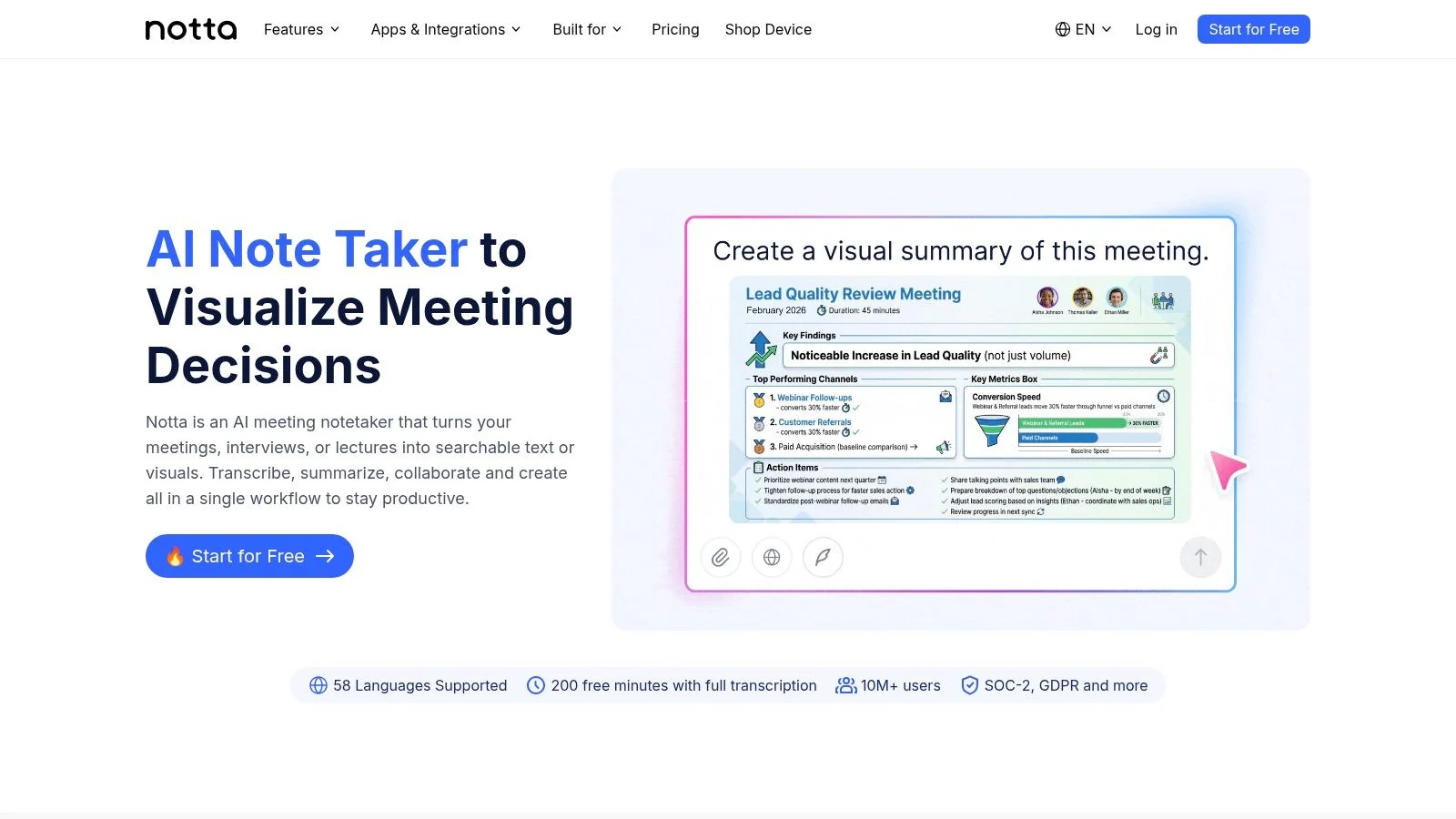
7. Notta Free Plan
Notta is easier to plan around than many free tools because the limits are clearly defined. The Free plan includes 120 transcription minutes per month, up to 3 minutes per recording, 50 file uploads per month, speaker identification, basic editing, Chrome extension support, calendar integrations, and YouTube link import. That makes Notta a good option for short snippets, bite-sized demos, and quick tests of imported content.
The short per-recording cap is the practical issue. If you’re working with a longer product demo or a full onboarding video, you’ll end up segmenting the source file or choosing a different tool. For support teams, that can be acceptable when the goal is to capture a single callout, a short clip, or a narrowly scoped excerpt.
Notta’s strength is usability. The import flow is smooth, the limits are visible, and the tool works in browser and mobile contexts. That makes it attractive for teams that want a small free allowance they can understand immediately, instead of discovering the limits after the fact. The downside is that anything beyond short-form use gets awkward quickly.
If a free tool makes you break a video into tiny chunks just to get a transcript, it’s no longer helping the workflow. It’s creating one.
8. MacWhisper on macOS
MacWhisper fits teams that need transcription to stay on the machine. It runs locally on macOS with Whisper models, imports MP4 and MOV files, supports SRT and VTT export, and handles batch transcription. For internal training, customer calls, or product demos that should not leave the device, MacWhisper is a straightforward option.
Local processing is the main reason to use it. Sensitive recordings stay off a browser service, which matters for onboarding walkthroughs, customer data, and other material that should remain under team control. Batch transcription also helps when you need to run several recordings back to back, especially for repeatable support or training workflows.
That fit comes with trade-offs. MacWhisper is limited to macOS, speed depends on your hardware, and some export options are part of the Pro version. For Mac users who want private transcription and clean SRT or VTT output without sending files elsewhere, it remains one of the more practical free choices.
Why MacWhisper stands out
- Local processing: Better fit for sensitive material than browser upload tools.
- Batch work: Useful when you have multiple recordings to process.
- Mac-only reality: Strong for Apple teams, irrelevant elsewhere.
For teams comparing free tools by use case, this is the private-processing option. It makes sense when privacy and local control matter more than collaborative editing or social clip production. If the workflow later needs shared review, scripted editing, or a broader content pipeline, Tutorial AI’s overview of video transcription is a useful reference point for deciding what to add next.
9. OpenAI Whisper
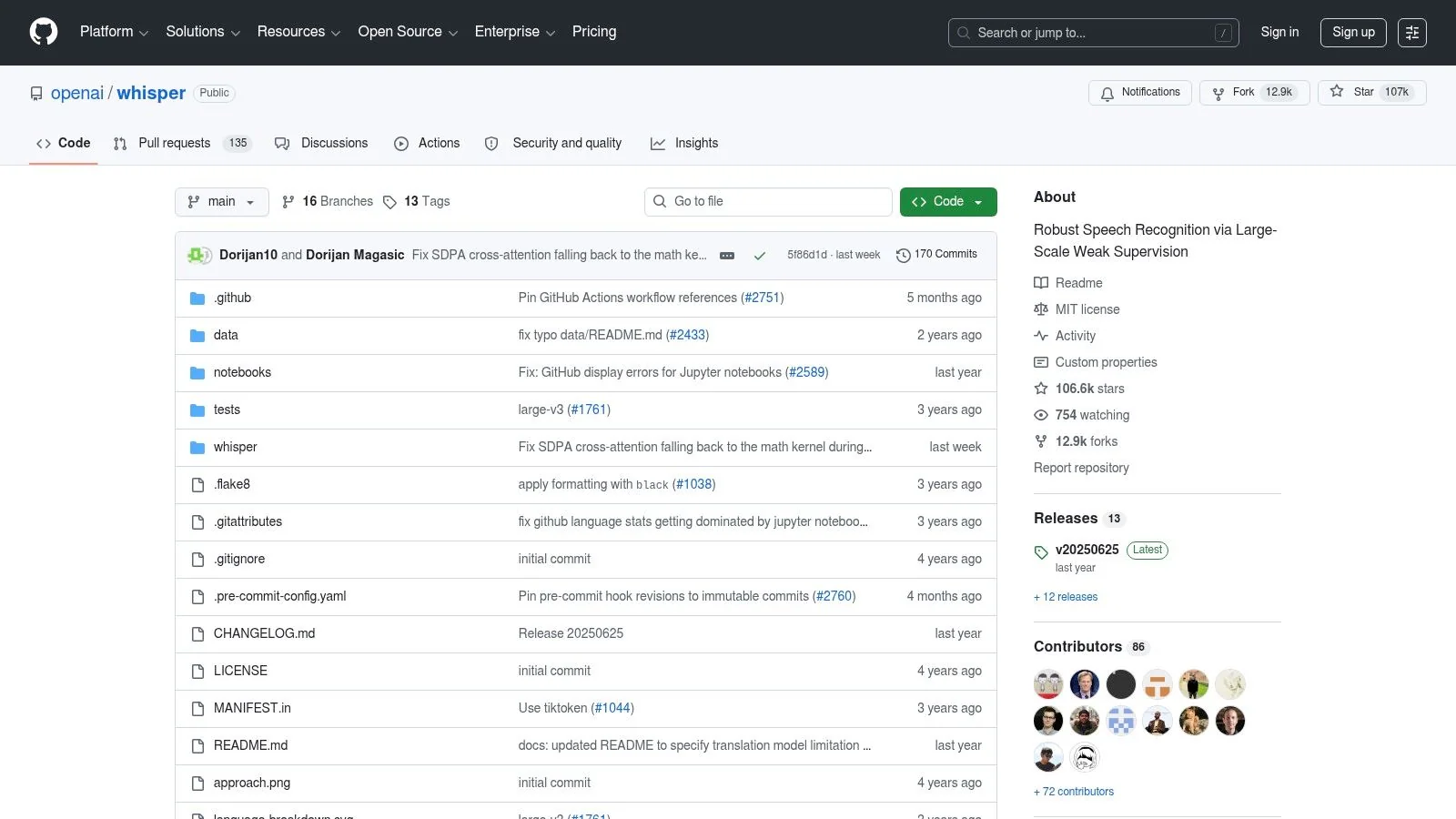
OpenAI Whisper is the clearest example of a free transcription option because it’s unlimited, self-hosted, and doesn’t rely on monthly minute caps. It’s also one of the best choices when privacy matters and you want full control over the workflow. The open-source project is at OpenAI Whisper on GitHub, and Tutorial AI’s overview of video transcription is a helpful companion if you’re comparing approaches.
The main value is freedom from recurring usage limits. That makes Whisper attractive for teams with lots of internal footage, archived recordings, or custom pipelines where transcription is just one step in a larger system. It also supports a local or self-hosted setup, which keeps video files under your control instead of sending them to a browser service.
The cost is operational, not financial. You need to download the video, set up the tooling, and process it locally, which is not the same thing as clicking an upload button. One practical guide estimates it runs at roughly 1x real time on a modern laptop as noted in the 2026 free transcription guide, so a 10-minute file can take about 10 minutes to transcribe. That’s fine for technical users, but it’s still a real workflow decision.
Whisper is free in money terms, not free in effort terms. Teams that want zero monthly fees still need to budget setup time and machine time.
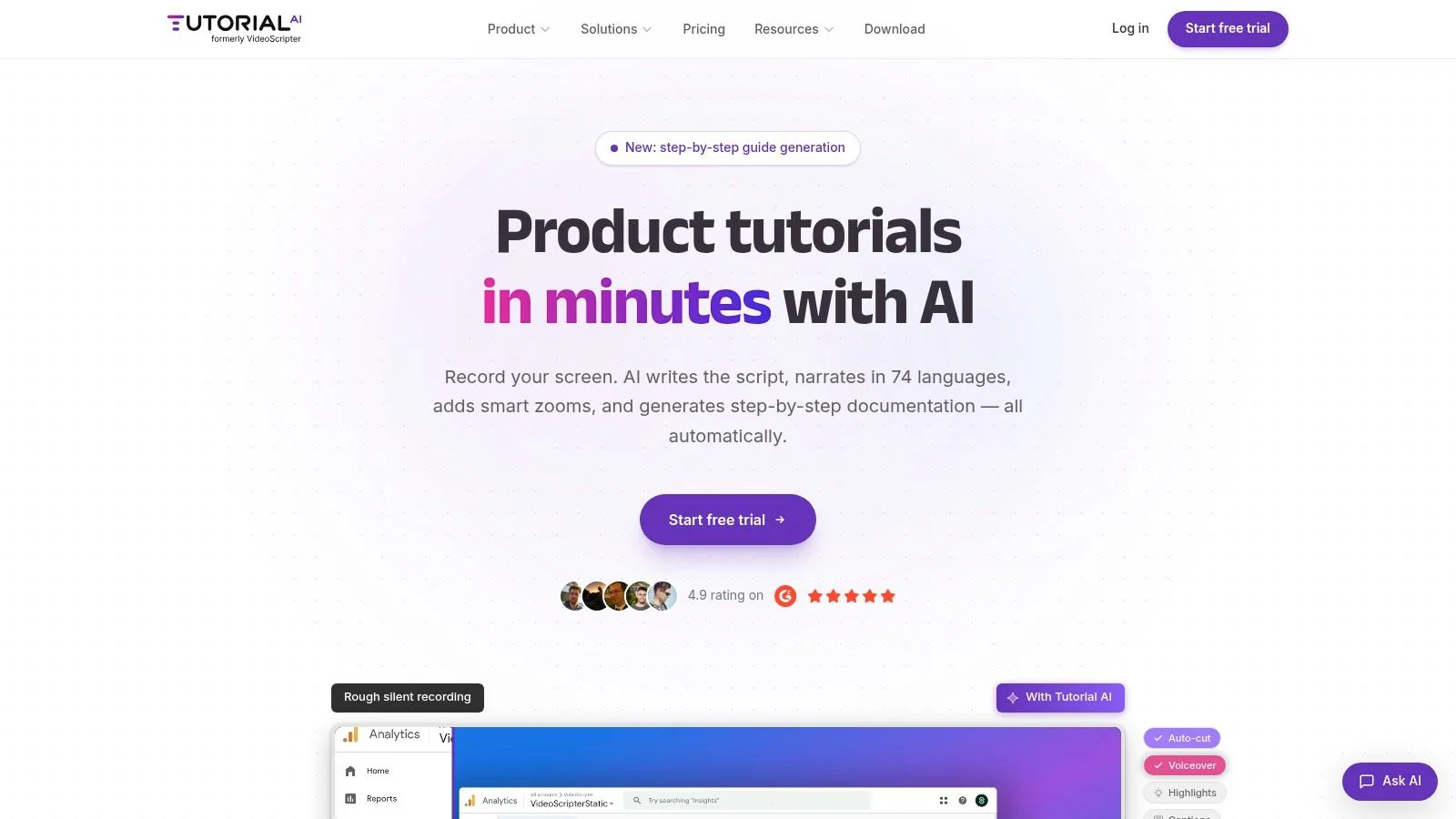
10. Tutorial AI
Tutorial AI fits the workflow where transcription is only one piece of the deliverable. It turns a screen recording with spoken narration into a polished tutorial video, then generates a matching written article from the same recording. For product demos, feature release videos, customer onboarding content, help-center articles, support explainers, internal training, SOPs, and sales enablement walkthroughs, that solves more of the job than a transcript-only tool.
The workflow is built for subject-matter experts, not video editors. You record the screen, edit the script like a document, and the platform updates timing, voiceover, captions, and cuts automatically. That matters when a recording runs longer than planned, because Tutorial AI tightens pacing instead of leaving pauses, retakes, and rambling sections for manual cleanup. If you want the recording side of the workflow in one place, the screen recorder with transcription keeps capture and transcript generation tied together.
It also solves a gap that free transcription tools usually leave open. A transcript alone does not give you a publish-ready training asset. Tutorial AI adds narration in 74 languages, a Multilingual Player, Brand Kits, SSO/SAML, and structured document generation from the same recording. Teams that need to ship a video and a help article together get a production workflow instead of a transcript utility. The platform also supports security and compliance expectations, and teams can browse AI search coverage for related context on how these workflows fit into broader discovery and support use cases.
Top 10 Free Video Transcription Tools, Comparison
| Product | Core features | Quality & UX | Pricing & Value | Target audience | Unique selling points |
|---|---|---|---|---|---|
| Tutorial AI 🏆 | Screen recorder + doc‑style editor, AI transcription & lifelike voice (74 langs), AutoRetime™, 4K export, docs/SCORM | ★★★★★, fast “edit like a doc”, studio polish, team collaboration | 💰 Free → Enterprise; trial/demo available | 👥 Knowledge bases, L&D, customer education, sales enablement teams | ✨ AutoRetime™, instant voice/script regeneration, cursor effects, brand kits, SOC2/ISO |
| YouTube Studio automatic captions | Auto speech recognition on upload, subtitle editor, SRT/VTT export | ★★★, varies by audio/language | 💰 Free (requires upload; can be unlisted/private) | 👥 YouTube creators and simple caption needs | ✨ Free baseline, easy SRT/VTT export |
| Descript (Free plan) | Transcript‑first editor, dynamic captions, speaker detection, collaboration | ★★★★, mature transcript→edit workflow | 💰 Free 60 min/month; paid plans for more | 👥 Creators, teams editing tutorials & training videos | ✨ Powerful doc‑style editing, multitrack speaker tools |
| Kapwing (Free plan) | Browser auto‑subtitle, transcript editor with word timing, translation | ★★★, fast for short/social clips | 💰 Free with watermark & export/length limits | 👥 Social creators, quick turnarounds | ✨ No install, browser link imports |
| VEED (Free plan) | Auto‑subtitles (100+ langs), styling, translation, basic editing | ★★★, simple browser UX | 💰 Free with watermark; limited minutes on free plan | 👥 Marketers & social teams | ✨ Wide language support, easy subtitle styling |
| Microsoft Clipchamp (Free) | AI autocaptions, embedded SRT export, 1080p free exports, OneDrive integration | ★★★★, good for Windows workflows | 💰 Free tier; some premium assets require upgrade | 👥 Windows / Microsoft 365 teams | ✨ 1080p free export, OneDrive & Edge integration |
| Otter.ai (Basic/free) | Cloud transcription, speaker ID, AI summaries, import of recordings | ★★★★, strong meeting/webinar transcripts | 💰 💰 Free 300 min/month; limited imports on free tier | 👥 Meeting hosts, webinar teams, note takers | ✨ AI summaries, collaborative notes |
| Notta (Free plan) | 120 min/month, up to 3‑min per recording free, YouTube link import | ★★★, clear free limits | 💰 Free with short per‑recording cap; paid for longer sessions | 👥 Quick-note takers, short video transcribers | ✨ YouTube import, clearly documented limits |
| MacWhisper (macOS) | On‑device Whisper models, SRT/VTT export, batch processing, local privacy | ★★★★, private & efficient on Mac | 💰 Free core; one‑time Pro license for extras | 👥 Privacy‑conscious Mac users, bulk transcribers | ✨ Local Whisper, no cloud uploads, batch jobs |
| OpenAI Whisper (self‑hosted) | Open‑source models, multiple sizes, multilingual transcribe/translate, CLI/Python | ★★★★★, high accuracy if provisioned well | 💰 No license fees (you provide compute) | 👥 Developers, self‑hosters, enterprises needing control | ✨ Fully extensible, private/self‑hosted, adjustable accuracy/speed tradeoffs |
When to Upgrade from Free Transcription to a Full Workflow
Free tools are excellent when you need a transcript once, or when the video is short enough that a limited free tier doesn’t get in the way. They’re also good for testing audio quality, checking a script, or pulling captions from a quick clip. The trouble starts when transcription becomes part of a repeatable content pipeline.
That’s when the limitations show up. Watermarks make customer-facing exports awkward. Minute caps break batch production. Browser-only upload tools raise privacy questions for internal training, customer calls, and product demos. Manual cleanup also eats time fast, especially when the goal is not raw text but polished support content that needs to be accurate, branded, and ready to publish.
A platform like Tutorial AI is a better fit once you need the transcript to feed a broader workflow. It automates the edit process, auto-retimes pacing, supports narration in 74 languages, and generates a matching article from the same recording. Instead of transcribing first and rebuilding the asset somewhere else, teams can move from one recording to a polished video and written guide in one pass.
That’s the upgrade point, not when you run out of curiosity, but when you run out of time. If your team is creating tutorials, onboarding content, or knowledge-base material every week, the right move is to stop treating transcription as the final step. Visit Tutorial AI to see how one recording can become a polished tutorial, a help article, and a reusable training asset without the usual manual rework.