87% of Americans use captions at least sometimes, and 49% use them often or always, according to U.S. survey data reported by TV Technology. Only 13% say they never use them.
That changes the job of a product expert recording a tutorial. You may start with a quick screen capture, explain a new feature, pause to find the right menu, repeat a sentence, and finish with a recording that runs longer than it should. Then someone still needs to trim it, correct the transcript, add captions, style the video, and turn the same explanation into a help-center article.
A video editor with captions should handle more than subtitle generation. It should help you shape the explanation, make spoken content readable, synchronize text with the screen, and reuse the recording across product demos, feature release videos, customer onboarding, support article videos, internal training, SOPs, and sales enablement walkthroughs.
The most useful workflow treats the transcript as an editable document. Fix a sentence in the script, and the narration, timing, and captions update together. That approach lets a subject-matter expert ship a polished tutorial that looks edited in Adobe Premiere Pro without becoming a timeline editor.
Introduction Why Captions Now Define Good Video
A product specialist finishes recording a walkthrough of a new reporting dashboard. The explanation is correct, but the video includes a long pause while the dashboard loads, two retakes of the same sentence, and a detour into a setting that most viewers don’t need. The raw file is useful to the person who recorded it. It isn’t ready for a customer.
Captions make that editing problem more visible. Once every spoken word appears on screen, rambling becomes easier to spot, terminology errors become obvious, and the difference between a useful explanation and a polished tutorial becomes measurable in the editing interface. Captions aren’t something you attach after the creative work. They expose where the creative work still needs attention.
Viewers also use captions for reasons that have little to do with formal accessibility. The same U.S. survey found that 21% of Americans always have captions on, while only 13% never use them. A separate AP-NORC survey reported by TV Technology found that one third of the public always or often uses subtitles for television or films. Among people who use subtitles at least sometimes, half do so to catch every word, and 4 in 10 use them to understand accents or watch content in another language.
Practical rule: Treat captions as part of the explanation, not as a file you create after the explanation is finished.
For knowledge-base and training teams, captions provide a readable record of the tutorial. They help viewers follow a demonstration in a noisy office, search for a phrase in a transcript, and understand a product term that sounds unfamiliar. They also create source material for documentation and localization.
A modern workflow can turn one screen recording and spoken narration into a captioned video and a matching written article. The recording still matters. You still need to demonstrate the product and explain the task. But you don’t need to reconstruct the result through manual timeline editing every time the script changes.
What a Video Editor With Captions Really Does
Start with the viewer’s choice. Open captions are permanently burned into the video, so they remain visible wherever the file plays. Closed captions are a separate text layer that viewers can turn on or off in a compatible player. A transcript is the complete written version of the spoken content, usually without the visual positioning and timing needed for playback.
A capable editor connects these layers rather than treating them as unrelated outputs. It transcribes the narration, divides the text into timed caption segments, and lets you edit those segments as words. You can correct a product name, remove a false start, adjust punctuation, or shorten a sentence without hunting through a multi-track timeline.
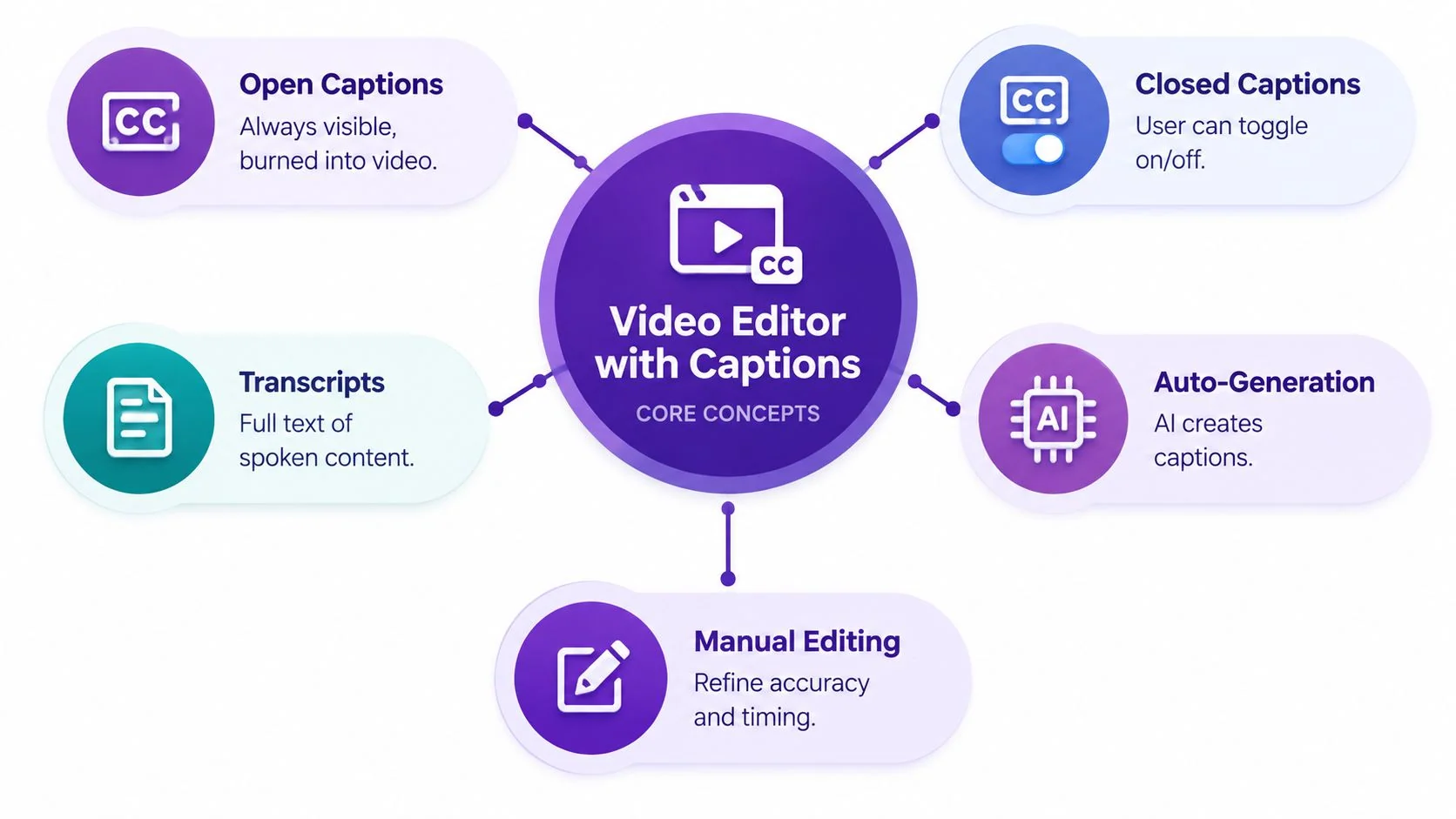
Captions are an editing surface
Think of the transcript as a document connected to the video. If a sentence says, “Click the export button, then choose CSV,” you should be able to edit that sentence directly and have the caption timing follow the revised narration. This is different from editing a caption file after the video has already been cut, because the words, audio, and screen action can remain aligned.
That connection supports three practical jobs:
- Comprehension: Viewers can read terms and instructions while watching the interface.
- Accessibility: People who are deaf or hard of hearing can follow spoken content, including relevant non-speech audio and speaker changes.
- Reuse: The transcript can become a help article, release note draft, or training reference.
Captioning also has a substantial accessibility history. In U.S. public media, closed captioning was first demonstrated in 1971, and the National Captioning Institute was founded in 1979 to expand captioning for broadcast television, as documented in 3Play Media’s accessibility overview.
The workflow extends beyond subtitles
A video editor with captions should let you review text in context, adjust its timing, control its appearance, and export formats such as SRT or VTT when another platform requires them. The strongest tools also connect captions to cuts, zooms, cursor emphasis, and documentation.
If you’re evaluating a wider software stack for a small team, software that cuts costs for small businesses can help frame the decision around time savings and operational simplicity. The right caption editor should earn its place by reducing repeated work, not by adding another isolated production step.
Key Features to Evaluate Before You Choose
The best choice depends on who owns the workflow. A video producer may need frame-level control. A product expert creating a help article may care more about transcript editing, accurate timing, reusable documentation, and publishing integrations. Start with the work your team must complete, then test whether the editor removes that friction.
| Feature | Why It Matters | What to Verify |
|---|---|---|
| Automatic transcription | Creates a working text layer quickly | Can you edit words in context and correct technical terms? |
| Caption timing control | Keeps text synchronized with speech and screen actions | Can the tool retime captions after script or narration changes? |
| Open and closed caption support | Serves different players and distribution channels | Can you burn captions in or export a separate track? |
| Styling and Brand Kits | Makes tutorials consistent with your visual system | Can you control fonts, colors, position, and templates? |
| SRT and VTT export | Supports LMS, CMS, help centers, and external players | Are files available in the formats your publishing stack accepts? |
| Accessibility review | Protects readability and viewer trust | Can you check names, punctuation, speaker cues, and non-speech audio? |
| Localization | Supports multiple languages without rebuilding each video | Can translation preserve terminology, timing, and caption readability? |
| Documentation generation | Turns one recording into video and written support content | Does the article include steps, screenshots, prerequisites, and troubleshooting? |
Must-have controls
Automatic transcription is useful only when the transcript is editable. Look for word-level corrections, search and replace, capitalization control, and a way to review captions while the relevant screen action plays. Timing matters just as much as spelling. A caption that appears before the button is shown can confuse the viewer even when every word is correct.
Export is another practical test. A player may support closed captions directly, while an LMS or CMS may require an SRT or VTT file. Don’t assume that a stylish in-app caption layer can travel with the video. Verify the actual delivery formats before you commit.
Features that reduce production skill requirements
Smart zooms, cursor effects, background treatment, blur, shadows, and animated captions can draw attention to the task without requiring expert compositing. Brand Kits help keep those choices consistent across product demos and internal training. An edit-like-a-doc workflow also suits subject-matter experts who know the product but don’t work in Camtasia, Final Cut, or Adobe Premiere Pro.
That doesn’t make professional editors irrelevant. Powerful tools remain valuable for complex storytelling, custom motion design, and frame-precise projects. The trade-off is that a document-style editor prioritizes repeatable instructional production over unlimited creative control.
The same distinction separates real screen recordings from avatar tools such as Synthesia, HeyGen, and Vyond. Synthetic presenters can explain a general idea, but a software tutorial often needs the actual interface, cursor path, and real voice. For creative short-form work, even a specialized service such as wedding reels Italy editing reflects a different production goal than a product walkthrough.
For a closer look at the workflow itself, review this video editor for tutorial production. Then test one real recording, not a polished sample supplied by the vendor.
Why Auto Captions Alone Fall Short and How to Fix Them
Automatic speech recognition gives you a draft. It doesn’t give you publish-ready captions.
A California State University evaluation reported average AI-generated caption accuracy of 89.8% across platforms, while the University of Maryland says auto-captions are typically 85% to 90% accurate and require review and correction before posting, as explained in its caption accessibility guidance. Those figures describe a substantial gap when a tutorial contains product names, API terminology, accents, multiple speakers, or background noise.
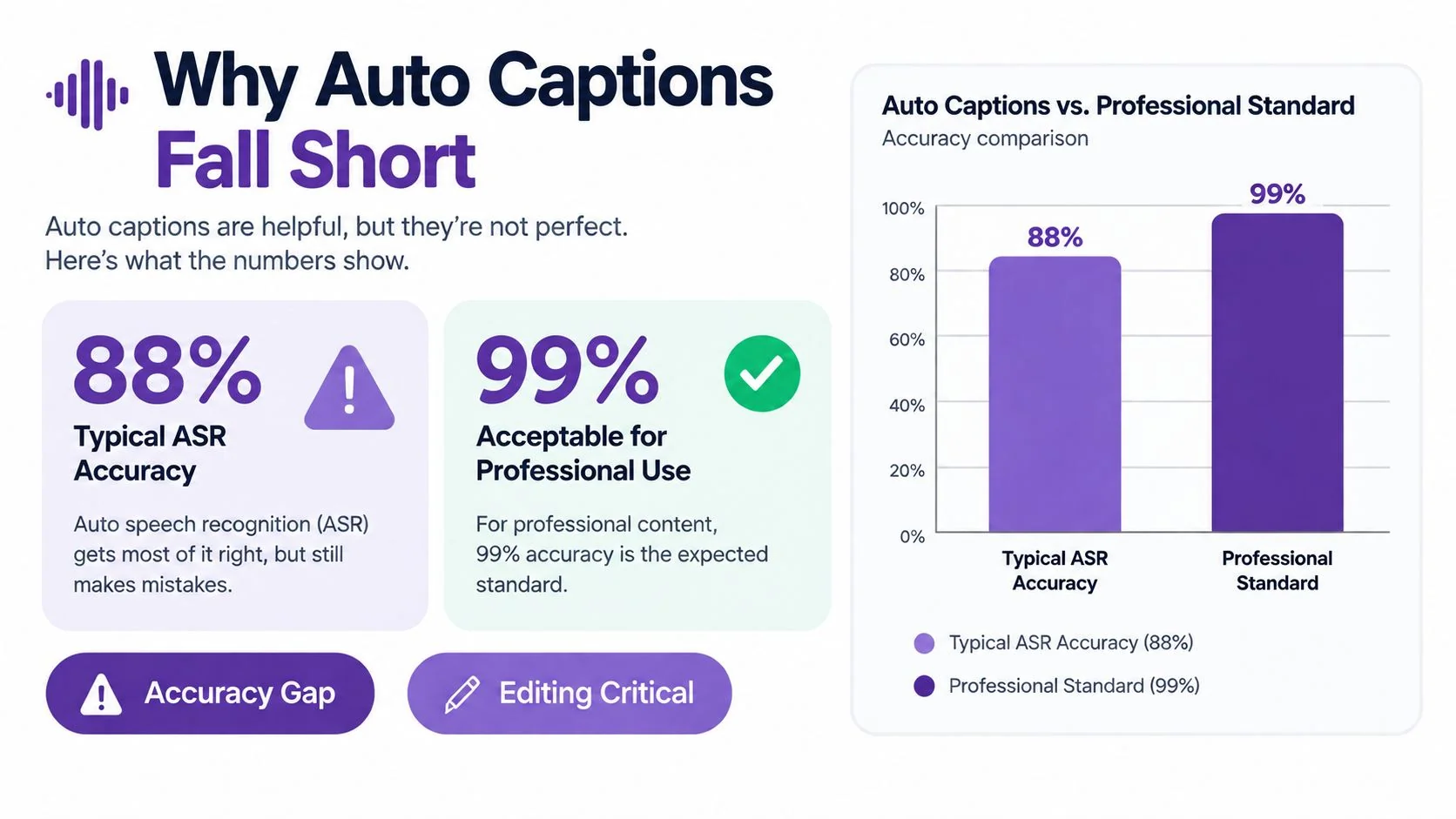
Review the words viewers depend on
Section 508 guidance cited by the University of Illinois Springfield says captions must be at least 99% accurate to be readable, and W3C’s WAI notes that automatically generated captions usually need significant editing. They don’t satisfy accessibility requirements unless the final captions are confirmed fully accurate, according to the University of Illinois Springfield captioning guidance.
Review in a deliberate order:
- Names and jargon: Check company names, product features, customer names, acronyms, and technical terms against the source of truth.
- Punctuation and capitalization: Make instructions readable, especially when a sentence contains a menu label or command.
- Timing: Confirm that captions appear with the speech and remain visible long enough to read.
- Completeness: Include meaningful sounds, speaker identification, and relevant non-speech audio.
- Consistency: Use the same spelling for a feature across the video, transcript, and article.
A transcript-based editor makes this review faster because corrections happen where the words are already visible. Human review remains essential, but it can focus on meaning and usability instead of forcing an editor to rebuild every caption segment manually.
For creators comparing automated short-form workflows, a resource on better than Submagic for creators offers useful context around caption editing alternatives. The broader lesson is simple: generation starts the job, while review makes the result trustworthy.
You can also compare that process with an automatic caption generator, provided you treat its output as a draft that still needs a quality pass.
Practical Workflows for Training and Knowledge Base Videos
A reliable tutorial starts before you press record. Choose one job to be done, such as creating a report, changing a billing setting, or troubleshooting a failed import. A recording that tries to cover every feature becomes difficult to edit, difficult to caption, and difficult to convert into documentation.
Screen recording to documentation is a defined workflow. It turns a walkthrough, such as a product demo, SOP, onboarding flow, or troubleshooting session, into a structured help article with goals, prerequisites, numbered steps, screenshots, and troubleshooting sections, as described in this screen-recording documentation workflow.
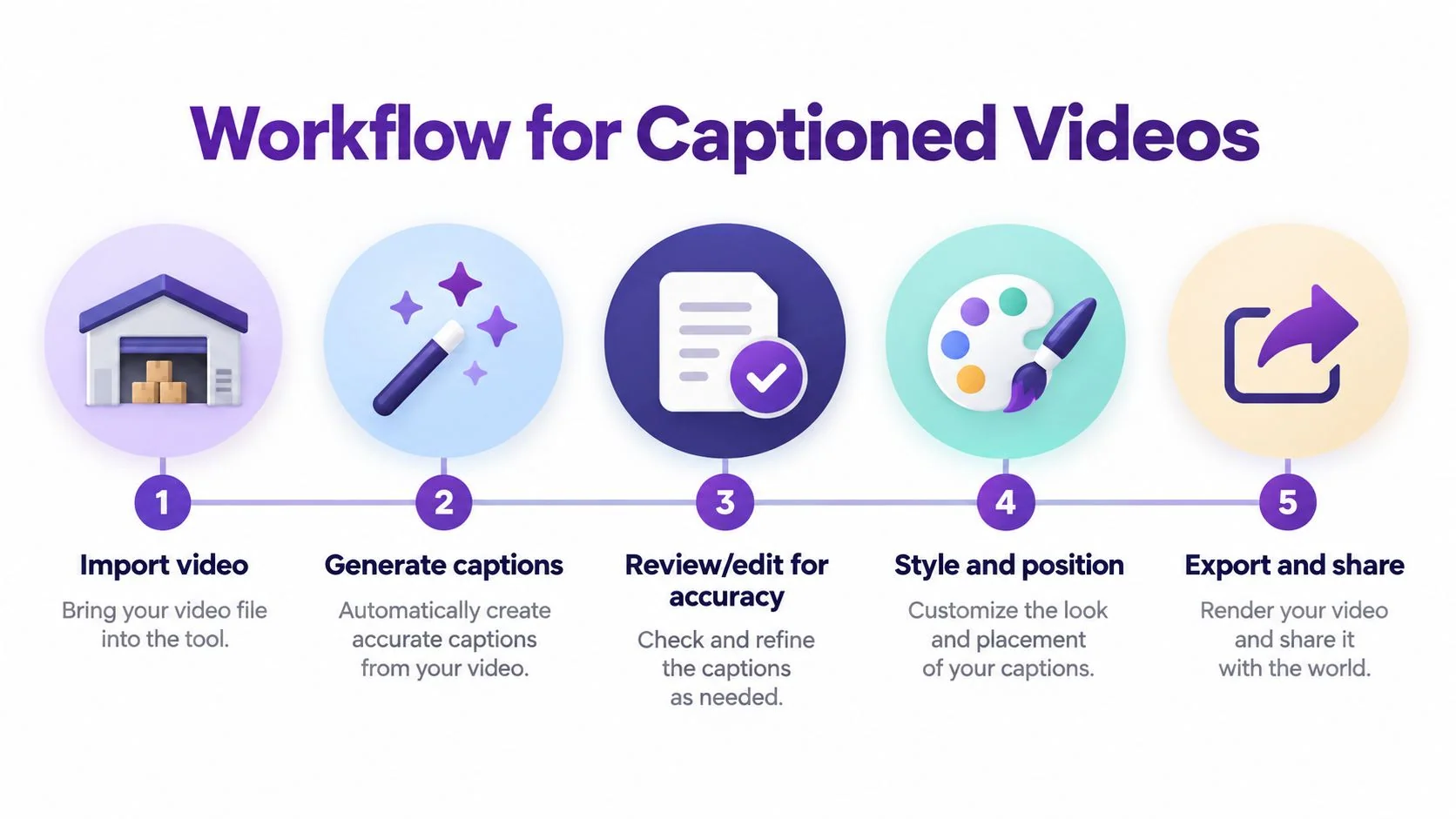
Record for reuse
Use a focused structure:
- State the outcome: Tell viewers what they’ll complete.
- Name prerequisites: Identify the account, permission, file, or setup they need.
- Perform the task: Move through the interface in a logical order.
- Call out decisions: Explain why a viewer should choose one setting over another.
- Close with verification: Show the result and mention the next action.
Keep UI labels exactly as they appear in the product. Use imperative verbs such as “Open Settings,” “Select Reports,” and “Choose CSV.” Extract the steps from the recording instead of rewriting the entire narration as a long article. That keeps the documentation scannable while preserving the video as the fuller explanation.
A 50% to 100% longer-than-needed recording often contains pauses, retakes, and verbal detours, according to the Tutorial AI positioning for casual screen recordings. An automatic pacing and cut feature such as AutoRetime can tighten those sections, while editable narration lets the subject-matter expert revise the explanation without working across a complex timeline.
Editing principle: Remove hesitation from the delivery, but keep the decision that helps the viewer complete the task.
A practical workflow can produce the video, captions, and article from the same capture. The editor applies smart zooms and cursor emphasis to show where attention belongs, then generates screenshots and structured steps for the written version. Narration can be regenerated in 74 languages, and a Multilingual Player can give viewers access to language options without requiring separate public pages for every version.
Use the following embedded example as a reference for the kind of focused walkthrough that can become both video and documentation:
For teams building repeatable internal education, this training video workflow provides a useful model. The important operational choice is to record once with documentation in mind, rather than treating the article as a separate project after video production ends.
Scaling Captions Across Languages and Enterprise Systems
A multilingual tutorial needs more than translated subtitle text. The translated narration may take a different amount of time, which affects caption timing, scene length, cuts, and the relationship between the spoken instruction and the interface.
Modern localization workflows can translate a script, re-render voiceover with AI voices, and burn in localized captions. They can also support language and dialect choices, such as Mexican Spanish versus Castilian Spanish or Brazilian versus European Portuguese, as described by Fliki’s video translator documentation. For software education, those distinctions matter because a technically correct translation can still sound wrong to the intended audience.

Localization needs timing intelligence
A translation-aware editor should retime scenes and captions to match the new voiceover. Otherwise, a team may finish the language pass and discover that every cut, caption break, and cursor action needs manual adjustment. AutoRetime-style workflows address that problem by treating translation as a coordinated change to audio, captions, and visuals.
The scale challenge also includes governance. Enterprise video and documentation platforms increasingly combine editing and publishing with SSO/SAML, SOC 2, and GDPR support, while documentation workflows emphasize help-center publishing and painless updates after the original recording, according to this overview of screen-recording documentation for teams.
Organizations such as Bosch, Deutsche Bahn, Intesa Sanpaolo, Microsoft, and UNICEF illustrate the kinds of distributed, customer-education and internal-training environments where shared workspaces, versioning, access controls, and embeddable players become important. The caption file is only one part of the delivery system. Teams also need to know which version is current, who can access it, and how an update reaches the help center or LMS.
Choosing Your Next Step With Confidence
Choose a video editor with captions by testing the complete path from recording to publishing. Don’t judge the tool only by how quickly it creates subtitles. Ask whether your team can:
- Edit the transcript: Correct names, terminology, punctuation, and pacing without timeline expertise.
- Verify accessibility: Review synchronization, completeness, speaker identification, and non-speech audio.
- Control presentation: Apply captions, cursor effects, zooms, fonts, and brand styling consistently.
- Reuse the source: Generate a structured article, screenshots, and step-by-step instructions from the same recording.
- Scale delivery: Translate narration and captions, preserve timing, export usable formats, and publish through the systems your audience already uses.
- Govern access: Support the authentication and compliance requirements of internal and customer-facing content.
Support teams should test a help-center article video. Learning and development teams should test an SOP with prerequisites and verification steps. Product marketing teams should test a feature release walkthrough that needs strong visual emphasis and consistent branding.
The right tool won’t remove the recording step, and it won’t replace human review. It should remove repetitive production work, let subject-matter experts edit like they edit a document, and make one focused capture useful in more than one format.
Tutorial AI turns a single screen recording and spoken narration into a polished tutorial video with editable scripts, synchronized captions, AutoRetime pacing, Brand Kits, and narration in 74 languages. It also generates a matching written article from the same recording, so you can record your next workflow once and ship both the video and help content through Tutorial AI.