Learning how to make a training video used to mean choosing your poison: either record a rambling, one-take demo or lose days wrestling with complex editing software. But what if there was a better way? This guide walks you through a modern, AI-powered workflow that helps anyone create polished, professional tutorials without the headache.
Rethinking How We Make Training Videos
Let’s be honest, making great training videos has always been a pain. Traditionally, you were stuck between two pretty bad options.
First, there was the “quick and dirty” screen recording. You’d fire up a tool like Loom, talk through your process off-the-cuff, and just hope it made sense. The result? A video that’s often 50-100% longer than it needs to be, rambling and full of “ums” and “ahs.” It gets the point across, sure, but it’s not a great learner experience and definitely lacks polish.
The other option was the “big production” route, using powerful but complicated software like Adobe Premiere Pro or Camtasia. These tools can create amazing results, but they require expert video editing knowledge. This approach creates a huge bottleneck. The subject matter experts (SMEs)—the people who actually have the knowledge—can’t create the content themselves. Instead, they have to hand off a rough cut to a dedicated video team, which slows everything down.
The Modern Way to Create Training Content
Thankfully, there’s now a much smarter way to work that bridges this gap. AI-powered tools like Tutorial AI are built from the ground up to generate video tutorials based on screen recordings. This new workflow is a game-changer for producing all kinds of training content with incredible speed.
Just think of all the videos your team is responsible for:
- Demos and explainer videos for sales prospects.
- Customer onboarding videos to guide new users.
- Feature release videos announcing product updates.
- Knowledge base videos and support article videos to help cut down on support tickets.
With a modern platform like Tutorial AI, your subject matter expert can speak freely without any practice, and their video will still look professional, as if it was edited in Adobe Premiere Pro. The AI handles the heavy lifting, allowing the SME to create on-brand videos extremely efficiently.
The old way forced a choice between speed and quality. The new way gives you both. It lets the actual subject matter expert create on-brand, studio-quality videos in a fraction of the time, turning a specialized, slow process into something simple and scalable. This isn’t just about convenience; it’s about meeting a real demand. People learn better with video. In fact, employees are 75% more likely to watch a video than read documents, and viewers retain a staggering 95% of a message from a video compared to just 10% from text. You can dig into more data on the power of training videos to see just how effective this medium is.
This guide will show you how to finally make a training video that meets this demand, without any of the old-school frustrations.
Laying the Groundwork: How to Plan a Training Video People Will Actually Watch
Before you even dream of hitting the record button, let’s talk about the most important part of the process: the plan. I’ve seen it time and time again—the quality of a training video is almost always sealed long before the camera is even turned on. Rushing this pre-production phase is the number one mistake I see, and it consistently leads to rambling, confusing content that doesn’t actually teach anyone anything.
Think of your plan as the blueprint for your video. It ensures every single element, from your opening line to the final sign-off, has a clear purpose. It’s what separates a meandering, hard-to-follow screen recording from a sharp, effective tutorial that gets the job done and respects the viewer’s time. This is where you build the foundation for a video that works.
First Things First: What’s the Point?
Start by asking one simple, brutally honest question: What should someone be able to do after watching this video?
The answer is your learning objective. And it needs to be specific. Vague goals like “understand the new feature” are completely useless. They don’t give you any direction.
Instead, you need sharp, action-oriented objectives. A much better goal is: “After watching this, the user will be able to create a new project, add three team members, and assign them a task.” See the difference? That level of clarity dictates everything that comes next. It’s your filter for cutting out the fluff and focusing only on what’s absolutely essential.
Here are a few real-world examples of solid objectives:
- For a support video: “The viewer will learn how to reset their password using the ‘Forgot Password’ link.”
- For an onboarding tutorial: “The new user will connect their calendar and successfully schedule their first meeting.”
- For a feature announcement: “The customer will find the new reporting dashboard and export their first quarterly report as a PDF.”
Nailing the Structure
Once your objective is locked in, you can map out the video’s structure. A simple three-act structure is a classic for a reason—it works for just about any training video, whether it’s a two-minute feature update or a deep-dive for your knowledge base.
- The Hook (The “Why”): Open by immediately addressing the problem your video solves. Tell them what they’re about to learn and, more importantly, why it should matter to them. This grabs their attention and sets a clear promise for what’s to come.
- The How-To (The “Meat”): This is the core of your video. Your job is to break the process down into logical, bite-sized steps. The golden rule here is to show, not just tell. Guide them through the workflow on screen, step-by-step.
- The Wrap-Up (The “What’s Next”): Briefly recap the most important takeaways. Reiterate the main benefit and, if it makes sense, point them toward the next logical step—maybe that’s exploring another feature or checking out a related help article.
This framework gives your viewer a clear path to follow, which is crucial for preventing them from getting lost or overwhelmed.
Scripting for a Real Human (With a Little Help from AI)
Okay, now it’s time to write the script. But I want you to completely reframe what “scripting” means. We’re not writing a formal document to be read word-for-word like a robot. The goal is a natural, conversational tone, and thankfully, modern tools make this a lot easier.
With a platform like Tutorial AI, you can do what I call “scripting for AI.” You basically create a conversational outline or a rough script, knowing the software has your back. The AI can help polish your narration, automatically snip out all the “ums” and “ahs,” and even regenerate your voice if you flub a line. This is huge—it frees up your subject matter experts to just speak naturally during the recording, without the pressure of being perfect.
Your script should feel more like a guide for a conversation than a rigid teleprompter read. This approach not only makes writing faster but also results in a final video that feels way more authentic and engaging. Getting the timing right is also key, especially if you’re creating short, focused videos. Knowing how your word count translates to screen time is a skill you’ll want to develop. A great resource for this is Mastering Words to Minutes for Perfect Script Timing. It helps you estimate how long your script will actually run, which is incredibly useful for keeping your videos concise and impactful.
Forget Perfect Takes: How to Record Flawlessly by Embracing Mistakes
For years, creating a training video felt like a high-wire act. You’d hit record and feel this immense pressure to be perfect. Every stumble, every “um,” every wrong click meant starting over. It was exhausting. That pressure alone is why so many valuable training videos never get made.
But what if I told you the secret to a perfect video is an imperfect recording?
Modern AI-powered tools have completely flipped the script. The new mindset is simple: ** record once, speak freely, and let the software clean it up later.** You no longer need to be a polished presenter to produce a professional-grade tutorial.
This is a world away from the old trade-offs. You could use a tool like Loom for a quick, unedited screen share, but the result often felt rambling and could be 50-100% longer than necessary. Or, you could spend hours wrestling with complex editors like Camtasia or Adobe Premiere Pro, which require a ton of technical skill. It was always a choice between speed and quality.
Not anymore. An AI-powered screen recorder like Tutorial AI lets you just hit record and focus on what you know best—your subject matter.
The “One-Take” Philosophy
Here’s how you put this into practice: treat your recording like a single, continuous conversation. It doesn’t matter if you cough, pause to gather your thoughts, or misclick. Seriously, none of it matters during the recording phase.
Just talk through the process as if you’re showing a colleague how to do something. If you mess up a step, don’t stop. Take a breath, get back on track, and keep going. This “messy” first take is exactly what you want.
The real magic happens right after you stop recording. The AI instantly transcribes everything you said into text, and that transcript becomes your editing timeline. Instead of fumbling with waveforms and video tracks, you just edit words. Find a sentence you don’t like? Delete it, and the corresponding video vanishes. It’s that simple. This is how a subject matter expert, with no video experience, can create a pixel-perfect tutorial on their first try.
From Raw Screen Capture to Polished Guide
This workflow is a game-changer for just about any kind of training content you can think of. The ability to speak naturally and then surgically refine your message is a massive advantage.
Just think about these common use cases:
- Onboarding Videos: Walk new hires through software setup without re-recording every time you flub a line.
- Feature Release Videos: Knock out a polished announcement for a new product update, even when you’re on a tight deadline.
- Knowledge Base Videos: Create a library of crystal-clear support tutorials that solve real customer problems.
- Explainer and Demo Videos: Craft compelling sales and marketing presentations by focusing on the story, not the delivery.
In every scenario, AI-powered tools let you record without any practice, but the final video looks like it was meticulously produced. It completely closes the gap between expert knowledge and professional presentation.
Of course, before you hit record, a little planning goes a long way. Before you dive in, it might be helpful to review the basics of how to screen record with sound.
This simple three-step flow is all you need to keep your recording session on track.
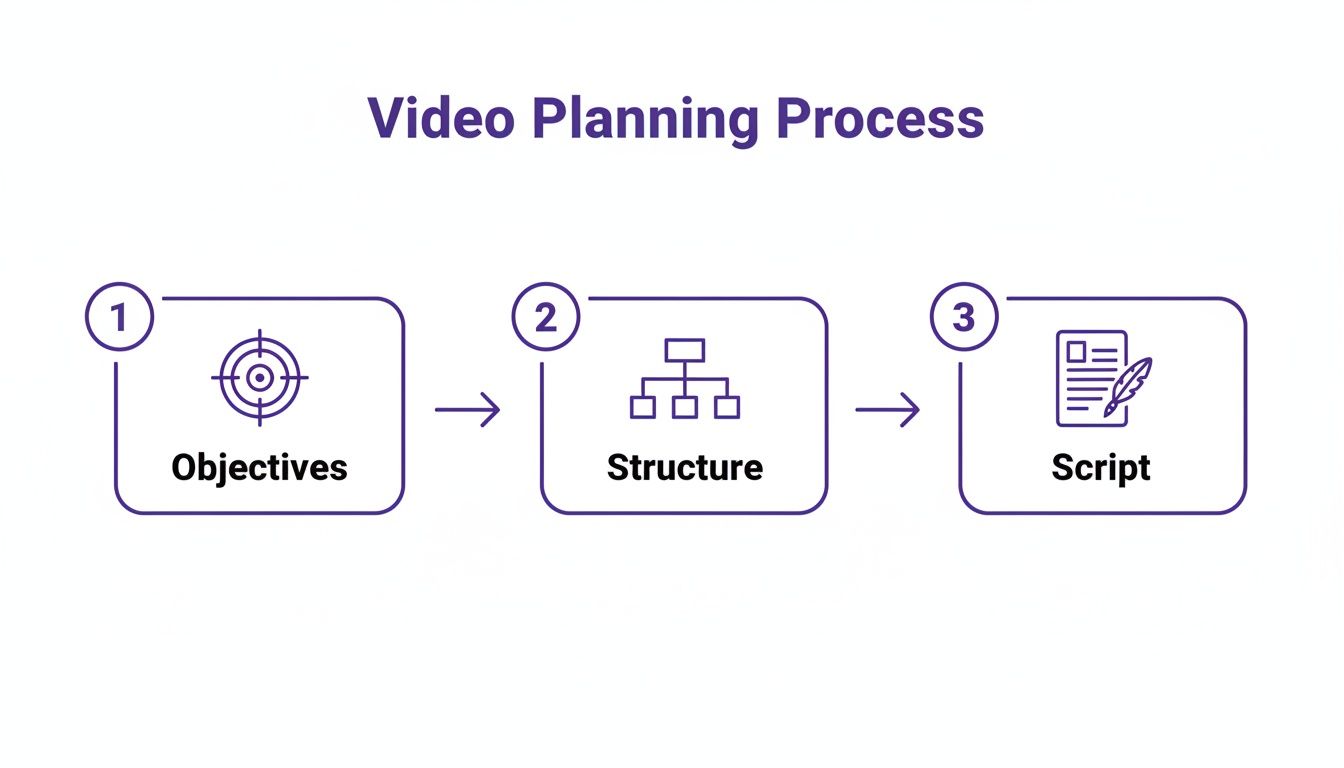
Knowing your objective and having a rough outline ensures that even a free-flowing recording stays focused.
The Power of Editing Video Like a Document
Let’s look at why this is so much faster. In a traditional editor, fixing a five-second mistake means finding the exact start and end points on a tiny timeline, making precise cuts, and praying the audio doesn’t go out of sync. It’s tedious, finicky work.
With a text-based AI editor, you just find the sentence you messed up in the transcript and hit delete. The software instantly snips out the corresponding video and audio, seamlessly stitching everything back together. No fuss.
The ability to edit video by editing text is the single biggest leap forward in creating training content. It democratizes video production, putting the power to create polished tutorials directly into the hands of the subject matter expert. Let’s compare the two workflows side-by-side.
Traditional vs AI-Powered Video Recording Workflow
The table below breaks down the difference between the old way of doing things and the new, AI-driven approach. It’s not just about saving time; it’s about making the entire process more accessible.
| Phase | Traditional Method (e.g., Camtasia, Premiere Pro) | AI-Powered Method (e.g., Tutorial AI) |
|---|---|---|
| Pre-Production | Heavy script finalization and practice runs required to minimize mistakes. | Light outline is sufficient; no practice needed. |
| Recording | Multiple takes to get a "perfect" recording. High pressure on the speaker. | Single, continuous "imperfect" take. Low pressure, conversational style. |
| Editing | Manual, time-consuming process of cutting, trimming, and syncing on a complex timeline. | Fast and intuitive text-based editing. Delete words to delete video segments. |
| Time Investment | Hours to days. Steep learning curve for the software. | Minutes to hours. Minimal learning curve. |
| Skill Required | Specialized video editing skills. Often requires a dedicated editor. | Subject matter expertise. Anyone can edit. |
The difference is clear. This new workflow removes the technical barriers and production bottlenecks, slashing creation time from days or weeks down to just a few hours. Suddenly, building and maintaining a comprehensive video library is something anyone on your team can do.
Editing Your Video Like a Document
Alright, you’ve finished the recording. You spoke naturally, captured your screen, and didn’t sweat the small mistakes. Now we’re at the editing stage—the part that used to be a massive time sink. This is where an AI-powered workflow completely flips the script on how you make a training video.
If your past experience involves wrestling with complex timelines, keyframes, and audio tracks, I want you to forget all of that. The new way is as intuitive as editing a text document.
Once you stop recording in a tool like Tutorial AI, the platform immediately starts transcribing every word. This transcript isn’t just for reference; it becomes your editing studio. Instead of a confusing timeline of video clips, you’re looking at a simple block of text.
The Old, Painful Way of Editing
For years, editing screen recordings meant picking your poison. You could use simple tools like Loom, which are great for quick, informal videos. The problem? The final recording is often 50-100% longer than necessary, filled with ums, uhs, and long pauses. Trimming that fat is clunky and imprecise.
The other option was professional-grade software like Camtasia or Adobe Premiere Pro. These tools are incredibly powerful, but they come with a steep learning curve. If you’re a subject matter expert, you shouldn’t have to spend weeks learning software just to share your knowledge. This creates a huge bottleneck, forcing you to hand off raw footage to a dedicated video team and slowing everything down.
This is exactly the problem we built Tutorial AI to solve. It lets an expert speak off-the-cuff and still end up with a video that looks like a pro spent hours on it in Premiere Pro. We put the power of a professional editor into a simple, text-based interface.
How Text-Based Editing Actually Works
Think about proofreading a document. When you find a clunky sentence, you just highlight it and hit delete. That’s exactly how this works for video.
Your raw recording might have a section that sounds like this:
- “Okay, so… um… first you’re going to click on the… no, wait… you click the ‘Settings’ button over here.”
In a traditional editor, cleaning that up involves a lot of tedious slicing and splicing. With a text-based editor, you just find that sentence in the transcript, delete the words, and they vanish from the audio and video. The AI seamlessly stitches everything back together.
This is the whole philosophy behind “edit like a doc.” By decoupling editing from a complex video timeline, you can polish your message with unbelievable speed and precision. It makes video editing something anyone can do, not just the specialists. The ability to edit like a doc is more than just a nice feature; it fundamentally changes how fast you can produce top-tier training content.
More Than Just Cuts and Trims
This text-based approach unlocks powerful features that are a real headache in traditional software. It gives you total control over what your audience sees and hears.
Here’s how this plays out for different types of videos:
- Onboarding Videos: Easily remove any hesitation or unclear instructions. A new user’s first experience should be seamless.
- Feature Release Videos: Quickly slice out jargon or rambling to create a short, punchy announcement that gets to the point.
- Knowledge Base & Support Videos: Make sure every step is crystal clear to cut down on customer confusion and support tickets.
- Explainer Videos: Refine your pitch by zapping filler words, making you sound more confident and polished.
Tutorial AI also handles the visual polish automatically. It can apply smart zooms to focus on the action, blur sensitive information with a click, and add branded backgrounds to keep everything looking professional.
For a subject matter expert, this is a game-changer. You can focus 100% on delivering accurate information, knowing the final video will look amazing and be perfectly on-brand. It’s an incredibly efficient way to make a training video that actually works.
How to Share and Scale Your Video Training Content
You’ve put in the hard work planning, recording, and polishing your video. Now comes the moment of truth: getting it in front of the people who need it. After all, an amazing training video collecting dust on a local drive isn’t doing anyone any good. This final phase is all about smart distribution and building a system that can grow with you.
How you deliver your video really boils down to your audience and your goals. Sometimes, you’ll need a crisp, high-resolution 4K file for a big sales presentation. Other times, the smartest move is to embed the video player directly where your team already works—think a Zendesk knowledge base article or a process guide in Confluence. The key is to meet your learners where they are.
Moving From a Single Video to a Content Engine
Making one great training video feels good. But building an entire library of high-quality, up-to-date videos? That’s how you actually shift your organization’s learning culture. It’s about moving beyond one-off projects and creating a true content engine.
The investment in video isn’t small—professional production can run anywhere from $1,500 to over $10,000 per finished minute. But the return is undeniable. We consistently see that eLearning courses with video have completion rates up to 40% higher than those relying on text and slides alone. Better engagement means better learning, and that’s a win for everyone. You can see a full breakdown of the ROI of training video production if you want to dig deeper into the numbers.
To scale your video efforts, you need a workflow that’s both fast and repeatable. This isn’t just about churning out new content. It’s also about having an easy way to update your existing library when a product feature changes or a process is refined, without having to start from scratch.
Taking Your Content Global with AI
For a lot of companies, “scaling” means going global. And historically, localizing video content has been a logistical nightmare. Imagine translating a one-minute video into ten languages. That used to mean ten separate, painstaking editing sessions, where you’d manually re-time every single scene and caption to match the new voiceover.
This is where AI tools like Tutorial AI’s AutoRetime completely change the game. When you translate your video into one of over 30 languages, the platform doesn’t just swap the audio track. It intelligently analyzes the timing of the new voiceover and automatically adjusts everything in your video to match.
AutoRetime is a lifesaver. It makes sure all your scenes, captions, zooms, and on-screen callouts stay perfectly synchronized with the new narration. This technology can save hundreds of hours of tedious manual work. What was once a massive roadblock is now just another simple, scalable step in the process. You can finally give your international teams and customers the same high-quality training, creating a consistent learning experience across the board. If you’re building out a help center, these strategies are essential for improving documentation and training at a global scale.
Publishing and Beyond
Once your masterpiece is ready for the world, you’ve got options. Modern platforms give you the flexibility to share your content in whatever way makes the most sense for your audience.
Here are the most common ways people get their videos out there:
- A Simple Link: Just generate a unique URL and send it over via email, Slack, or any other platform. It’s fast and easy.
- Embedding in Your Tools: Copy a snippet of code and paste it right into your knowledge base, LMS, or company intranet. The video lives right where your team works.
- Social and Video Platforms: Push your content directly to places like YouTube or Vimeo to reach a wider audience.
- Exporting Files: Need an offline copy? You can download the video in various resolutions, all the way up to 4K, for trade shows, sales meetings, or marketing campaigns.
When you combine a smart distribution plan with an AI-powered workflow for creation and localization, you’re doing more than just making a training video. You’re building a comprehensive, global learning library that delivers real, measurable value.
Common Questions About AI-Powered Video Creation
When teams start exploring a modern workflow for making training videos, the same questions tend to pop up. Moving away from traditional methods to an AI-first approach can feel like a big leap, so let’s walk through some of the most common concerns to get you started on the right foot.
What Is the Difference Between Loom and Tutorial AI?
This is a great question, and it really gets to the heart of why you’re making a video.
Tools like Loom are fantastic for quick, informal screen shares. The goal is fast, asynchronous communication. You hit record, talk through something, and send a link. It’s the digital version of walking over to a coworker’s desk.
Tutorial AI, on the other hand, is purpose-built for creating polished, evergreen training content from those same screen recordings. A typical Loom video is often 50-100% longer than it needs to be, filled with pauses and ums. With Tutorial AI’s text-based editor, you can trim all that out effortlessly. You can just talk naturally during the recording, knowing the final cut will look as clean as if a pro edited it in Adobe Premiere Pro. It’s designed so any subject matter expert can efficiently produce on-brand demos, onboarding tutorials, and support articles.
Do I Need Expensive Equipment?
Not anymore. While a decent microphone is always a good investment for clear audio, you definitely don’t need professional cameras or a full lighting rig for screen-recorded tutorials.
Modern AI platforms are built to take your raw recording and give it a professional sheen. They add studio-quality touches right from your computer, like:
- Smart zooms that automatically pan and focus on key actions.
- Branded backgrounds to keep your content looking consistent.
- Crystal-clear AI voiceovers that scrub out distracting background noise.
The software does the heavy lifting on production value, letting you stay focused on delivering great content.
How Should I Handle Mistakes While Recording?
Just keep going! This is one of the biggest mental shifts from the old way of doing things. In the past, a mistake meant stopping, getting frustrated, and starting over. With an AI-driven workflow, you can just power through any stumbles or misclicks.
After recording, your narration is automatically transcribed. To fix a mistake, you just edit the text.
The ability to delete filler words, awkward pauses, or incorrect statements by simply editing a document is a core advantage. The AI automatically regenerates the audio and syncs the video timing, creating a seamless final cut from an imperfect take. As you get more comfortable, you’ll find a whole ecosystem of tools out there. Many different AI video creation tools offer unique features designed for all sorts of different needs.
How Do I Update Videos When My Software Changes?
This is where text-based editing really proves its worth. Instead of dreading a small UI update that forces you to re-record an entire video, you can just go back into the project and make surgical fixes.
If a menu name changes, you can edit that part of the script and regenerate the AI voiceover. If a button moves, you can record a new, tiny clip of just that action and drop it into place. This “edit like a doc” approach makes maintaining a large library of training videos manageable instead of a nightmare.
Ready to stop wrestling with complicated timelines and start creating professional tutorials in minutes? Tutorial AI turns your subject matter experts into video creators. Start making better training videos today.