81% of customers attempt self-resolution before contacting support, according to the customer-service analysis cited in PHPKB’s guide to why manuals go unread. A software manual therefore needs to work at the moment someone gets stuck, not merely look complete during an internal review.
A useful user manual for software application template combines a copy-ready structure with task instructions, visible success checks, and maintenance ownership. The template below starts with applicability, then moves through setup, navigation, workflows, recovery, and release changes. Every task should identify the version it covers and the person responsible for keeping it accurate.
Copy-Ready Template for Every Manual Section
Software application manual template by section
| Section | Reader question it answers | Required content |
|---|---|---|
| Applies To block | Is this instruction valid for the installed version and access level? | Version, platform, user role, permissions, last-verified date, owner |
| Overview | What is this app and who is it for? | One paragraph, supported platforms, the version covered |
| Installation and Setup | How does the app get running? | Prerequisites, system requirements, first-run steps, a launch check |
| UI Walkthrough | Where is that screen or control? | One screenshot per screen, control names as shown in the app, labelled regions |
| Core Tasks | How is this workflow completed? | Goal, prerequisites, numbered steps, expected result for each task |
| Troubleshooting | What should happen when something goes wrong? | Symptom, likely cause, fix, escalation path |
| Release Notes | What changed and which tasks are affected? | Version, date, changed steps, removed or renamed features |
Copy-ready page fields
The following fields can be pasted into a documentation editor and completed for each task page. Bracketed text marks content the author must replace before publication.
Applies To
- Application and version: [Product name and supported release]
- Platform: [Operating system, browser, or device]
- User role and permissions: [Required role and specific permission]
- Last verified: [Date the procedure was successfully replayed]
- Owner: [Named person or accountable team]
Overview: [Explain what the application does, who uses it, which platforms are supported, and which release this manual covers.]
Installation and Setup: [List prerequisites and system requirements. Add numbered first-run actions and the visible launch check.]
UI Walkthrough: [Identify each screen, its purpose, its exact control labels, and the screenshot showing its main regions.]
Core Task: [Task name expressed as an action]
- Goal: [Observable outcome]
- Starting state: [Screen, account, and data needed before beginning]
- Prerequisites: [Access, configuration, and dependencies]
- Procedure: [Numbered actions with relevant system responses]
- Expected result: [Visible evidence of completion]
- Recovery: [Safe next action if the result doesn’t appear]
Troubleshooting: [Symptom → likely cause → fix → escalation path]
Release Notes: [Release, date, affected task pages, changed instructions, and removed or renamed features]
Why this order works
The structure supports both a new user’s first session and an experienced user’s direct search for an answer. Setup precedes navigation, navigation supplies context, and task pages carry the operational detail. Troubleshooting belongs close enough to the task that a failed action doesn’t force a separate search.
The assumption that nobody reads manuals doesn’t hold across the surveys reviewed in the 2014 Information Research paper on documentation use: 96% of 201 respondents in an underlying study consulted instruction manuals. That finding supports making practical guidance easy to locate, rather than treating the manual as optional background reading.
Practical rule: A task page should still make sense when someone lands on it from search without reading the overview.
For online delivery, use task titles that match the action readers need to complete, such as Export a ticket queue, rather than an internal feature name. For downloadable manuals, preserve the same headings and applicability fields. A polished cover can’t compensate for instructions that leave readers guessing about permissions or completion.
Write Overview, Setup, Walkthrough and Troubleshooting Entries
The overview should establish scope without becoming a product pitch. A reader needs to know whether the manual applies to the application, role, and environment in front of them.
Overview and setup entries
A copy-ready overview can follow this pattern:
[Application] helps [audience] complete [primary workflows]. This manual covers [release] on [supported platforms] for [roles]. Administrative configuration is documented separately unless a task explicitly requires it.
Keep unsupported platforms out of the paragraph. If desktop and mobile workflows differ, identify that distinction instead of promising a universal procedure.
Installation and Setup needs enough detail to reproduce the starting environment. For a browser-based application, that might mean an active invitation, an approved browser, and access to the correct workspace. An installed application may also require a supported operating system, installer access, and prerequisite components.
A useful setup entry separates preparation from execution:
- Before starting: Confirm account access, required permissions, and any prerequisite integration.
- First-run actions: Open the application, complete authentication, and select the intended workspace.
- Launch check: Confirm that the home screen displays the expected signed-in account and workspace name.
- Failure path: Identify the support route for invitation, authentication, or workspace-access problems.
A launch check should describe something visible. “Installation completed successfully” is weaker than a named screen and an account identity the reader can inspect.
Walkthrough, troubleshooting, and release entries
The UI Walkthrough is a map, not a second set of task instructions. Group each screen into meaningful regions, such as navigation, queue controls, results, and account settings. Use the application’s exact labels, even when the writer prefers another term.
Include a labelled screenshot for each screen being introduced. Crop closely enough to make the controls readable while retaining enough context to show where they sit.
Troubleshooting entries should begin with the symptom, because readers may not know the cause. Consider this fictional example, where the interface explicitly displays a password validation rule:
| Field | Example entry |
|---|---|
| Symptom | The password submission button remains disabled after a reset |
| Likely cause | The new password doesn’t meet the rule displayed beneath the field |
| Fix | Enter a password that satisfies the displayed rule, then submit it |
| Escalation | If the button remains disabled, send support the application version and a redacted screenshot |
Don’t present a guessed cause as certain. If several causes are possible, add a diagnostic check before the fix.
Release Notes should identify the release, date, changed steps, removed or renamed features, and affected task pages. Keep the same section names across the manual so readers don’t need to relearn its structure for each product area.
Customize Each Workflow and Publish Your First Guide
Start with a workflow a new teammate needs to perform, such as creating a refund. Prepare a test account with the appropriate role, safe sample data, and a window sized to match the intended reader’s working environment.
The publication sequence should move from a defined task to verified instructions, not from a long recording to an unedited transcript.
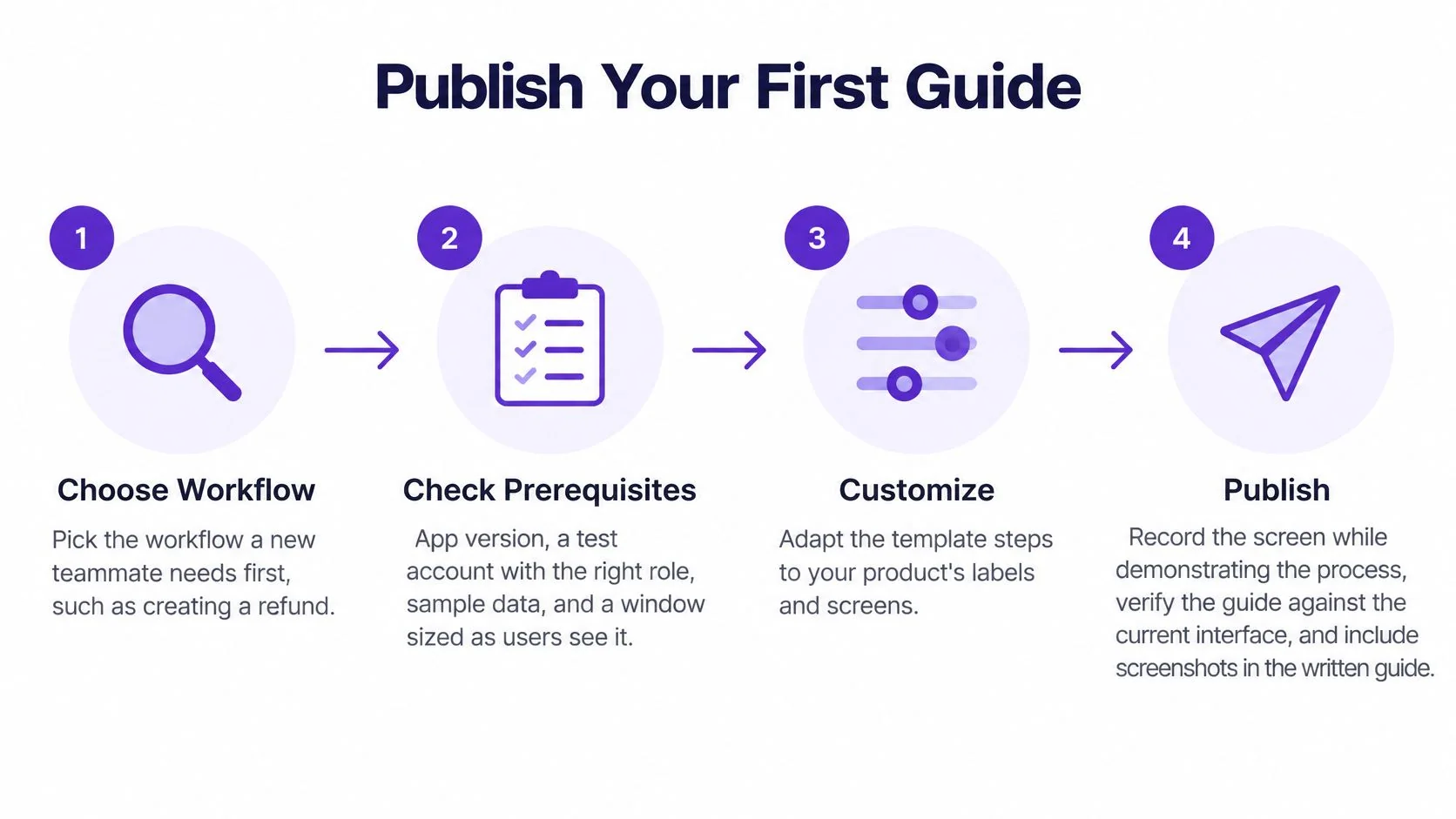
Adapt the template to the actual workflow
- Name the application, version, and roles. State which environment the procedure covers and which account can perform it. A procedure demonstrated with administrator access may fail for an ordinary support agent.
- Choose the five to ten tasks most users run. Treat that range as an initial editorial shortlist, then prioritize tasks using support questions and onboarding requirements. Avoid giving obscure settings the same prominence as the application’s primary workflow.
- Write the task as a complete procedure. Include its goal, starting state, prerequisites, numbered actions, expected result, and recovery path. Add system responses where a reader must wait or make a decision.
- Capture the decision point. Show the control or state that determines the next action, and preserve the labels displayed in the application. A full-screen image is less useful when the relevant menu occupies a small corner.
- Complete the Applies To block. Add the version, role, verification date, and accountable owner before review. Missing fields should block publication rather than become permanent blanks.
- Test with a new user and an experienced user. Ask both to complete the task without coaching, then revise any stalled or ambiguous step. Record completion, errors, recovery time, and comments separately so a quick but incorrect attempt doesn’t count as success.
Environment details deserve explicit attention. In a 47-session reproducibility study, average task success rose from 72.2% with uncurated material to 84.2% with curated documentation, and completion reached 90.0% when documentation was paired with a standardized execution environment, as described in the task-documentation study published through IOPscience.
Labelled example of a refund guide
A support lead documenting a refund should use a sandbox transaction, not a live customer payment. The recording must show the selected transaction, the refund amount, the confirmation action, and the resulting status.
The written guide should distinguish submitted, pending, and completed if the application exposes those states. A confirmation banner alone may not establish that the final financial outcome has occurred.
The success check is concrete: a new teammate completes the sandbox refund using only the guide and identifies the resulting status correctly. If an outdated screenshot uses an old menu label, the author should re-record the affected step and replace the image rather than leave a warning beside stale content.
Turn the demonstration into reviewable content
With Tutorial AI, the creator can record a short workflow or upload an existing screen recording, with or without spoken narration. After reviewing the generated script and narration, the creator generates the video, then opens the Document tab to create a written guide with screenshots.
Before sharing, the reviewer checks the video and guide for accuracy, edits the steps and visuals, and confirms menu names against the live interface. The final quality check should include a fresh replay using the intended user role, followed by export or sharing only after the visible outcome matches the instructions.
Knowledge Base Examples with Commands and Screenshots
A focused knowledge-base article should answer a narrow operational question. The following fictional example shows how commands, UI actions, expected results, and recovery can fit into a reusable task page.
The illustration provides context for the export task, not evidence of a particular product’s interface.
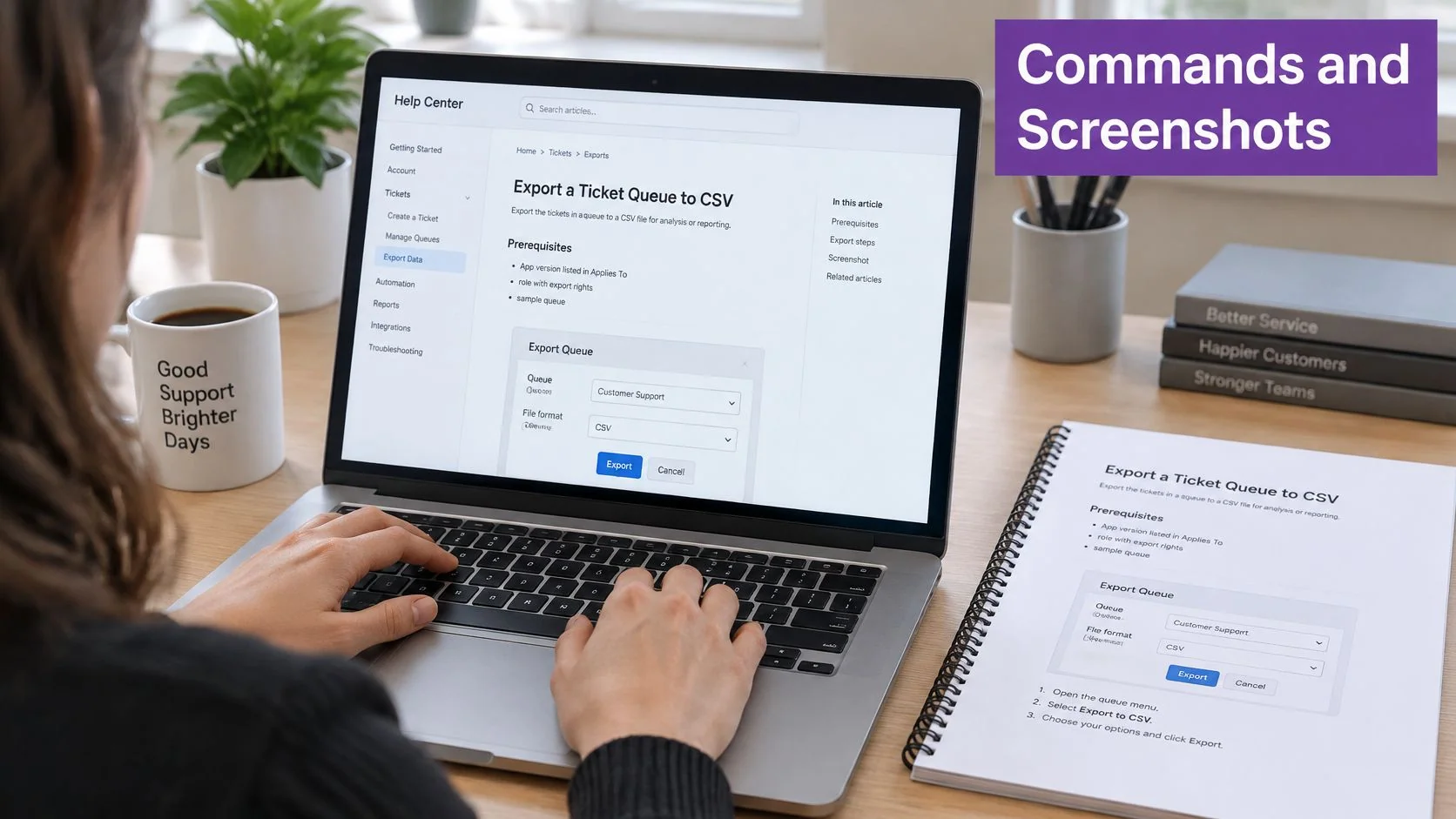
Fictional example, Export a Ticket Queue to CSV
Goal: Download the tickets in a filtered queue as a CSV file.
Applies To: Fictional Acme Helpdesk, current release identified in the maintained page record, desktop interface, support-agent role with export permission. The page record also holds the documentation owner and last-verified date.
Prerequisites: An account with export rights, a queue containing at least five sample tickets, and access to the fictional application’s installed command-line tool. The sample size is part of this example, not a product requirement.
Command check: Run acme-helpdesk --version in the terminal. The expected output is the application name and a release identifier matching the Applies To record; a mismatch means the reader should select the matching guide before continuing.
Procedure
- Open Tickets.
- Select at least one queue filter.
- Click Export.
- Choose CSV.
- Confirm that the downloaded file name includes today’s date.
- Open the downloaded file.
Expected result: The CSV opens with a header row and one data row per ticket in the filtered queue. Compare the exported ticket identifiers with the queue, not merely the presence of a downloaded file.
Recovery: In this fictional application, Export is greyed out when no filter is applied. Return to the filter step, apply a filter, and retry; if export remains unavailable, confirm the account’s export permission before escalating.
Escalation: Send support the application version, selected filter, and a redacted screenshot. Never include customer-sensitive ticket content unnecessarily.
Why the example is structured this way
Each numbered item contains a single action. Choosing the format is separate from opening the export control, making it easier to identify exactly where a reader stopped.
For an actual product article, place a tightly cropped screenshot beside the export decision. Its caption should name the relevant control and explain what must be selected, rather than repeat the task title.
The ACM paper on documentation quality discusses readability formulas calibrated to about 50–75% comprehension, compared with the 90–100% comprehension computer-information users may require for reliable task completion. A readable score therefore doesn’t replace a practical execution test.
Related knowledge base examples can help teams compare task-page structures. Tutorial AI’s Documentation capability auto-generates help articles with screenshots from a recording, providing a starting draft that still needs product verification.
The accompanying video offers another format for explaining a software workflow.
Verification: Ask a colleague unfamiliar with the screen to follow the article and report where progress stopped. Fix the instruction or missing context at that point instead of relying on verbal clarification.
Accessible and Localized Instructions for Every Reader
Accessibility is a task question: can a reader reach the same outcome using the interaction method available to them? A shorter paragraph won’t solve a missing keyboard path, an unlabeled screenshot, or an instruction that only works on a wide screen.
The Markdown Editor user-manual guidance cites a study in which 61.58% of participants preferred simplified language over more technical wording. Plain language should preserve necessary distinctions, especially when permission levels, irreversible actions, or completion states matter.
Remove the interaction barrier
Keyboard access requires a tested route through the actual interface. Document supported keyboard operation where it differs from pointer use, including how to reach menus and dismiss dialogs. Don’t invent shortcuts or imply that documentation can repair an inaccessible application.
Touch and small screens need instructions that match the responsive interface. If navigation collapses into a menu, name that menu and explain the alternative route. Hover-only guidance should include a supported persistent control wherever the product offers one.
Screen-reader access requires more than image descriptions:
- Task goal: State the intended outcome in plain language before the procedure.
- Image text: Describe the relevant control and its purpose, not merely “application screenshot.”
- Document structure: Use semantic headings and ordered lists rather than visual styling alone.
- Motion alternatives: Provide written actions and results so animation isn’t the only explanation.
For publishing teams implementing the page structure, Agentable’s guide to semantic markup provides useful context for connecting visible formatting with meaningful HTML. Bold headings can improve scanning, but they shouldn’t replace actual heading elements.
A screenshot can support an instruction. It shouldn’t be the only place the instruction exists.
Adapt the workflow, not only the wording
Localization should use a maintained source document with linked locale variants. Separate copies without shared ownership make it harder to identify which translation needs an update after a product change.
Translate interface labels exactly as they appear in the localized application. Then check the screenshots, step order, date formats, and control locations against that interface. A linguistically correct sentence can still direct someone to a button that doesn’t exist in that locale.
The team’s localization best practices should distinguish translation review from workflow verification. Language reviewers need access to the product, not just the text.
A locale is ready only after a reviewer has confirmed the keyboard route, descriptive image text, matching interface labels, and successful task completion. Where the product lacks an equivalent interaction path, document the limitation and supported alternative plainly.
Keeping the Manual Accurate Across Software Releases
Fictional release example: Release 4.3 moves Export from the toolbar into a menu. The old manual still looks polished, but its central instruction now sends readers toward a control that isn’t there.
The documentation owner should receive a change ticket, replay the affected workflow, replace the obsolete screenshot, and update the task’s navigation steps. The completion check should also be rerun, even if the release notes suggest that only the layout changed.
Make ownership and change triggers explicit
Traceability matters more than adding another explanatory paragraph. A University of Wisconsin thesis on technical documentation emphasizes accuracy, relevance, precision, and currency as determinants of documentation usefulness.
Extend each page’s applicability record with locale, plan where relevant, and deprecation status. A release note, renamed control, changed permission, or retired feature should open a ticket for the assigned owner. Keep a short what changed record near the top so reviewers can distinguish a verified update from an untouched page.
Release discipline: A verification date should record a successful replay, not the date someone corrected punctuation.
A shared source recording can help keep the video and written guide aligned, but it doesn’t remove the need to inspect both. A changed screen may require updates to narration, captions, screenshots, and procedural wording.
The release checklist makes those dependencies visible.
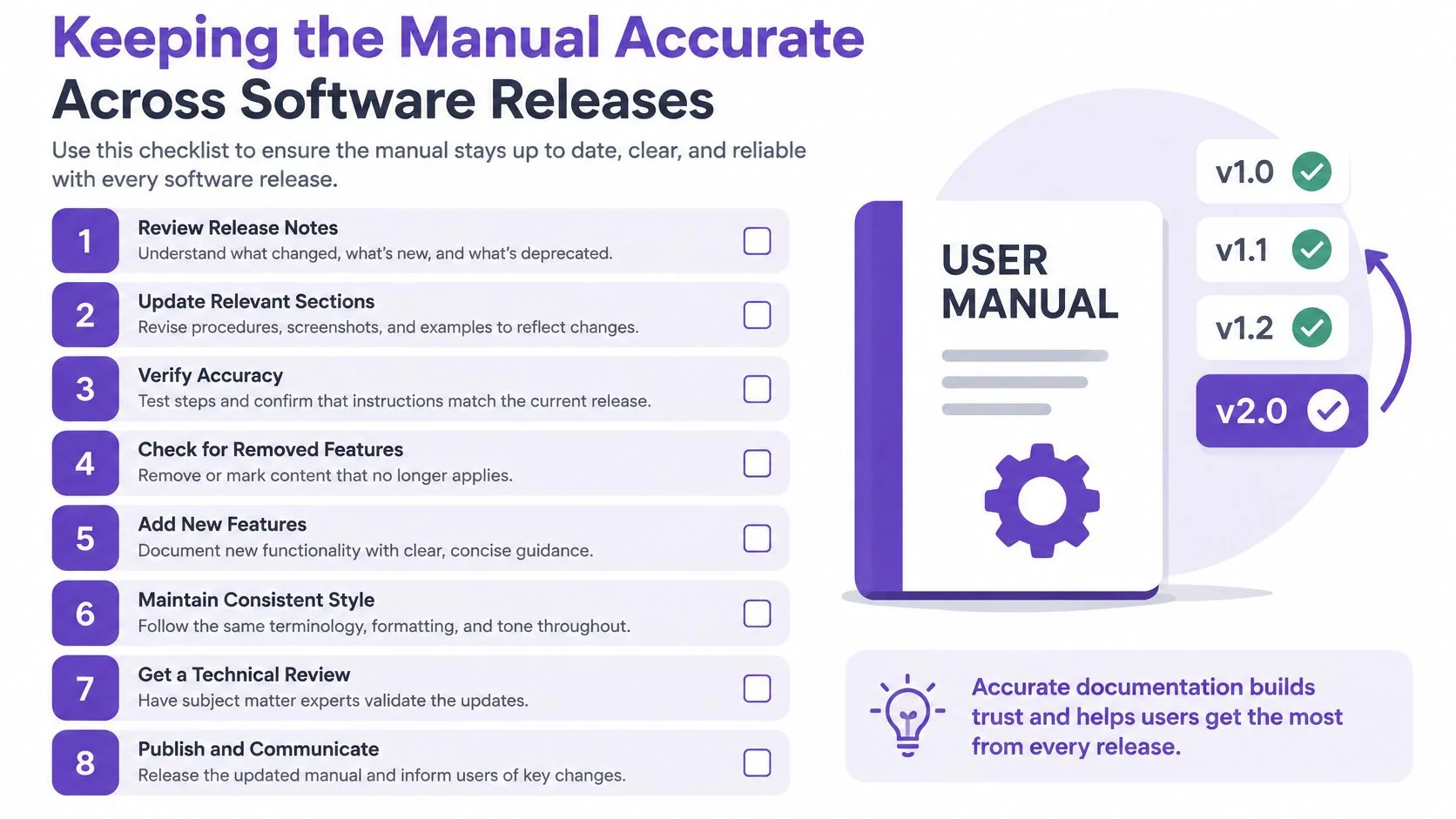
Apply a documentation release gate
- Replay critical workflows: Use the supported environment and intended role.
- Inspect screenshots: Match controls, labels, and screen states to the current interface.
- Check links and search: Confirm destinations work and task titles are discoverable.
- Review locale variants: Identify translations and visuals affected by the change.
- Validate permissions: Confirm that documented roles can perform each action.
- Exercise failure states: Check recovery instructions and escalation details.
- Confirm undo and privacy handling: Explain reversibility and remove sensitive sample content.
- Update the record: Save the verification date, owner approval, and change summary.
Treat incorrect, ambiguous, inconsistent, missing, or outdated instructions as documentation defects. An unresolved critical defect should block the affected guide, rather than disappear into a general backlog.
A team’s software documentation best practices should define who can approve these checks and what happens when the owner is unavailable. A template only works when someone remains accountable after the release ships.
Tutorial AI turns a software screen recording into a narrated tutorial video and a written guide with screenshots, giving teams related materials to review and maintain together. Visit Tutorial AI and select Start free trial to document a real workflow, then verify the generated instructions against the application before sharing. Check the current trial terms on the website’s pricing page before beginning.