Your support queue is filling with questions users should be able to answer themselves. The user documentation manual exists, but customers can’t find the right task, screenshots show an older interface, and the opening page explains the product instead of helping someone complete a job.
That problem usually isn’t solved by adding more pages. A manual works when it helps a specific person find, understand, and complete a specific task. A controlled usability study of user manuals found that changes to manual features affected both users’ performance with the manual and their performance with the software itself, showing that documentation quality can influence task outcomes directly rather than functioning only as reference material. (Read the usability study)
Introduction What a User Documentation Manual Really Does
A user documentation manual is an interaction tool. It guides a user through decisions, actions, warnings, and expected results. A good page answers the question in front of the reader without forcing them to understand the entire product first.
Consider a new administrator setting up access for a team. The task may require opening the correct workspace, selecting a role, saving the change, and confirming that the invitation was sent. If the manual organizes those actions under a vague heading such as “Account Management,” the user has to interpret the product’s information architecture before doing the work. If the page is titled “Invite a team member,” lists prerequisites, shows the relevant screen, and explains what success looks like, the same user can move forward with less uncertainty.
That difference affects more than customer frustration. Clear instructions can prevent avoidable support conversations, reduce repeated explanations from internal teams, and preserve operational knowledge when product specialists move to other roles. The historical logic behind manuals supports this view. The printing press, invented in the 1440s, made large-scale reproduction of instructional texts possible and helped establish technical manuals in areas such as agriculture, military drill, and navigation within decades of Gutenberg’s innovation. (Explore the history of technical manuals)
Modern teams still use that standardization principle. The format has changed from printed booklets to help centers, embedded assistance, downloadable files, videos, and assistant-readable content, but the purpose remains practical: transmit a repeatable procedure with less variation.
Practical rule: Write the manual around the user’s task, not around the way your company divides ownership internally.
This guide treats the manual as a maintained product with several delivery channels. You’ll plan the audience and scope, choose a structure, write procedures from real workflows, test usability, and create an update system that keeps pages, screenshots, and videos aligned. You’ll also account for users who arrive through traditional search, AI-powered search, coding assistants, and other interfaces. For readers exploring the relationship between documentation and contextual assistance, Figr’s overview of AI-powered in-product guidance provides useful context.
By the end, you’ll have a practical method for building a manual that helps humans complete tasks, gives search systems clear material to retrieve, and gives your team a manageable way to keep the content accurate.
Planning Your Manual Audience Scope and Structure
Start with decisions, not drafting. A writer who opens a blank document too early usually produces a broad product tour, then adds exceptions until the manual becomes difficult to use.
Identify the people and the work
List each meaningful user group separately. An administrator, a daily operator, an approver, and a support agent may use the same feature but need different instructions. Record the job each person needs to complete, what they already know, what permissions they have, and what could go wrong.
A useful planning sheet includes:
- User group: Name the role in language users recognize.
- Primary task: Describe the outcome, such as “approve an expense” or “export a report.”
- Starting condition: State what must already be configured.
- Risk or confusion: Note the decision most likely to cause an error.
- Preferred format: Choose a task article, reference topic, onboarding path, or video.
- Success signal: Define what the user should see after completing the procedure.
Keep the group definitions tied to behavior. “Customers” is too broad to guide content decisions. “Workspace administrators who manage access” gives you a clearer audience, vocabulary, and permission model.
Decide what belongs in the manual
A manual should provide durable guidance for the core product experience. It shouldn’t become a storage room for every announcement, troubleshooting thread, and training asset your team has created.
Use a simple split:
| Content type | Put it in the manual when | Use another format when |
|---|---|---|
| Task procedure | Users need repeatable steps to reach an outcome | The task changes daily or depends on a one-time campaign |
| Reference | Users need definitions, field behavior, limits, or settings details | The information belongs in API reference or developer specifications |
| Onboarding | New users need a logical starting path | The material is a live workshop or role-specific coaching session |
| Video | Seeing cursor movement or a real interface removes ambiguity | The task needs searchable, precise text as the primary format |
| Troubleshooting | Users can diagnose the issue through observable symptoms | Support must inspect account-specific data |
A manual can link to help articles and training videos, but each destination should have a clear job. Don’t put a five-minute product tour where a user needs a short procedure. Don’t bury a critical warning inside a video that search can’t index effectively.
Choose the information architecture
Decide whether users need a linear sequence, modular topics, or both. Onboarding often benefits from a guided path. Daily work usually benefits from independent task pages. Reference content works best when users can jump directly to a term, setting, or field.
Use task-based titles that match the words users type into search:
- “Create a workspace”
- “Add a billing contact”
- “Export a usage report”
- “Reset a member’s access”
- “Configure approval rules”
Avoid organizing the entire manual by internal departments. “Platform Operations” may make sense to the product team, but “Manage member access” is more useful to the person trying to complete the task.
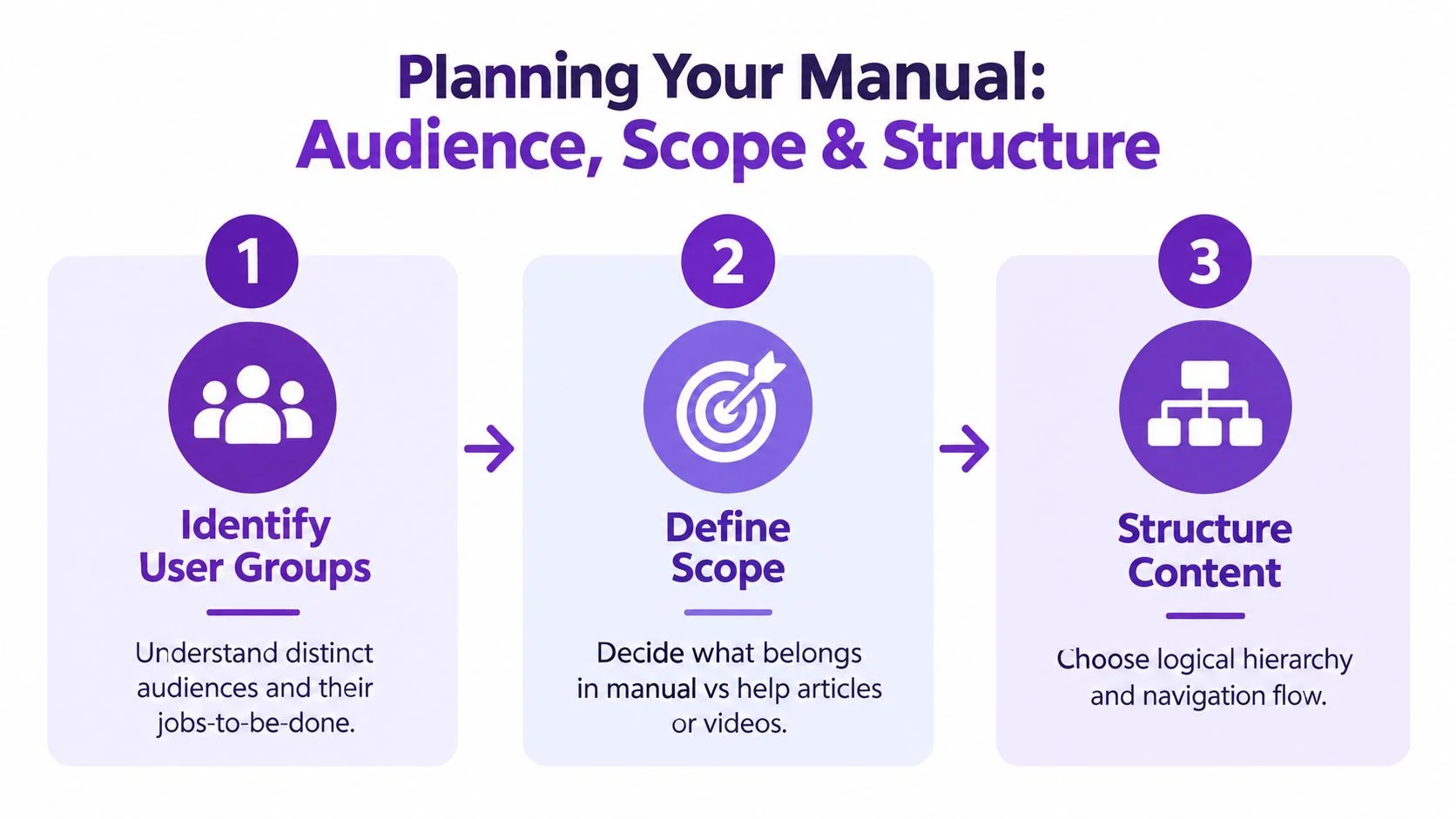
A modular structure also supports multiple delivery channels. A concise task page can appear in a help center, support an in-product link, supply an answer to an assistant, and connect to a longer onboarding path. For a broader classification of documentation formats, see this guide to types of documentation.
Before writing, approve a one-page content map. It should show user groups, top tasks, page types, ownership, and the product version each topic supports. That small planning artifact prevents duplicated pages and gives reviewers something concrete to challenge before writing effort is spent.
Writing and Structuring Clear Step by Step Content
The strongest procedure reads like a capable colleague guiding someone through the screen. It doesn’t describe every visible control. It tells the user what to do, why a decision matters, and what result confirms that the task worked.
Use a repeatable page pattern
Open with the outcome. “Use this procedure to add a new workspace member” is more useful than “This article explains workspace settings.” Follow it with prerequisites, the steps, a result, and any relevant troubleshooting note.
Write one action per step when the action requires attention. Combine only actions that users naturally perform together. A step such as “Open Settings, choose Members, click Add member, enter the email, select a role, and save” may look efficient, but it becomes hard to scan and difficult to troubleshoot. Separate the decision points.
Use consistent terminology. If the interface says “Workspace,” don’t alternate between “account,” “portal,” and “project” unless those are different objects. Match button labels exactly, and identify where the user should look before naming the control.
Writing test: A reader should be able to skim only the headings and numbered steps, then understand the task’s sequence.
Screenshots should answer a question. Add one when the user must identify a location, distinguish similar controls, or verify a state. Crop out unrelated interface areas, highlight the target without obscuring it, and place the image immediately after the instruction it clarifies. Mozilla’s support documentation demonstrates the practical mechanics of inserting images directly through an article editor, which is a useful model for teams building visual help content. (See how Mozilla places images in an article)
Record the real workflow first
Writing from memory creates predictable defects. The author may omit a prerequisite, describe an older route, or explain the ideal path instead of the path users follow.
Have the subject-matter expert perform the task in the software while recording the screen and narrating the decisions. TechSmith recommends this approach, asking the SME to record the workflow once and then trimming dead air and adding callouts during editing rather than starting from a blank page. (Review the SME recording workflow)
That recording becomes source material for both formats. Independent workflow guidance recommends recording with documentation in mind, outlining the article, extracting steps from the video, capturing screenshots where they clarify decisions, and publishing to a help center where updates remain manageable. (See a recording-to-documentation workflow)
Tutorial AI fits this recording-first process when a team needs a narrated tutorial and written documentation from the same workflow. The SME records the procedure, Tutorial AI tightens pacing and cuts with AutoRetime, the user reviews or edits the script, narration can be generated in 74 languages, and the platform can create formatted step-by-step documentation with screenshots from that recording. The writer still checks the result, corrects product terminology, and confirms that the published procedure matches the current interface.
For a practical guide to the writing method itself, use how to write step-by-step instructions as a companion resource.
Match each building block to the reader’s need
| Element | Purpose | Best For |
|---|---|---|
| Outcome statement | Sets the user’s destination | Task pages and troubleshooting articles |
| Prerequisites | Prevents failed attempts caused by missing access or setup | Administrative and configuration tasks |
| Numbered steps | Preserves action order | Procedures with dependencies |
| Screenshot | Shows location, state, or visual distinction | Interfaces with similar controls |
| Note or warning | Calls attention to a consequence or exception | Irreversible actions and permission changes |
| Expected result | Confirms completion | Tasks where success isn’t obvious |
| Troubleshooting branch | Gives the next action after a predictable failure | Setup, imports, integrations, and exports |
Don’t use screenshots as decoration. A visual that merely repeats nearby text adds weight without improving comprehension. When documenting a WordPress connection, for example, readers usually need to see the exact settings area, field names, and confirmation state. A focused reference such as the WordPress connection guide can help writers compare how another documentation page presents that kind of integration task.
Reviewing and Testing Your Manual for Usability
A complete manual can still fail its users. Review must answer a harder question than “Is the information correct?” It must determine whether a relevant person can find the page, interpret the instructions, perform the task, and recognize the result.
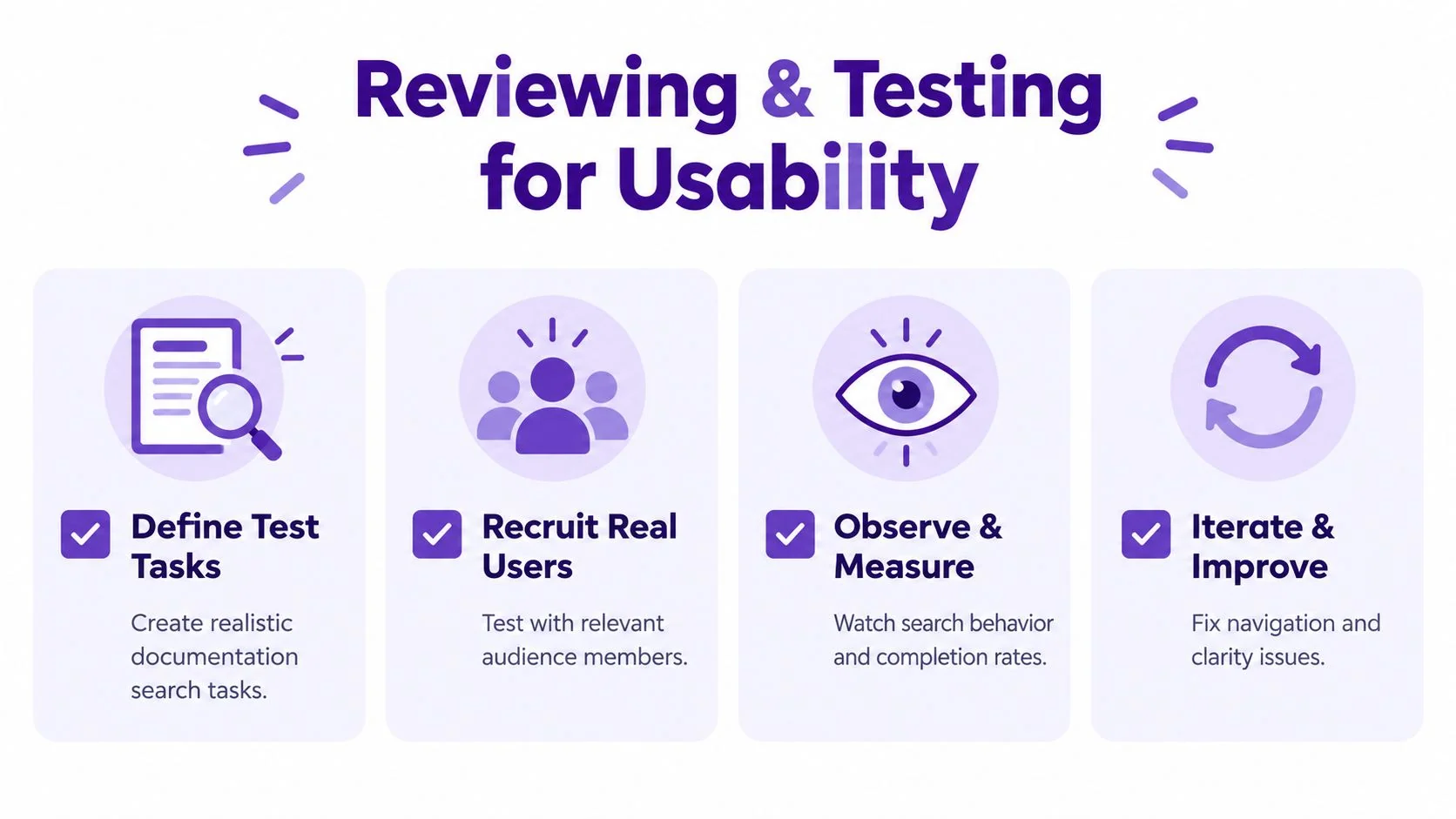
Test realistic tasks
Formative usability testing gives you a practical method. Define the documentation tasks, recruit relevant users, observe how they search and move through the material, record where they succeed or fail, then revise the content. Usability guidance for accompanying documentation recommends a sample of about 15 users when distinct user-group testing is feasible, because that is often enough to expose important problems. (Review the documentation usability guidance)
Don’t ask participants whether they “like” the manual. Give them a goal that resembles real work:
- Find the procedure: Ask an administrator to locate the page for changing a member’s role.
- Complete the task: Ask an operator to export a report using the manual without coaching.
- Recover from a problem: Show an expected error and see whether the troubleshooting path helps.
- Explain the result: Ask the participant how they know the task succeeded.
Watch search terms, abandoned clicks, backtracking, and requests for clarification. Those behaviors reveal problems that proofreading won’t catch.
Review the content as a product
A peer review should be short enough that people complete it and specific enough that they find defects. Ask the reviewer to verify:
- Accuracy: Does every label, path, permission, and result match the current product?
- Completeness: Are prerequisites, exceptions, and recovery steps present?
- Clarity: Can a reader understand each action without internal knowledge?
- Findability: Would the intended user search for this title and terminology?
- Visuals: Does each screenshot clarify a decision, and is it readable at the displayed size?
- Accessibility: Do headings, links, lists, contrast, captions, and alternative text support different users?
- Maintenance: Is the owner, version, and update trigger recorded?
Separate technical review from user review. A product expert catches incorrect behavior. A real user exposes unexplained jargon and navigation gaps. One person rarely provides both perspectives reliably.
Keep a defect log with the page, issue, severity, owner, and resolution. Fix blocked tasks first, then misleading instructions, then cosmetic inconsistencies. This order keeps the review focused on whether the manual helps someone finish work.
Keeping Your Manual Accurate Searchable and Up to Date
Creation is visible. Maintenance is where documentation programs usually weaken. A 2026 documentation synthesis describes the maintenance problem as larger than the creation problem, while another report records documentation creation AI usage rising from 60% to 76% in one year. (Read the 2026 documentation synthesis) Faster drafting increases the need for ownership and validation. It doesn’t remove them.

Build maintenance into the release process
Assign an owner to every important topic. Record the product version, last review date, source workflow, and dependencies such as screenshots, embedded videos, integrations, or permission rules. A release that changes a button label, navigation path, or task outcome should create a documentation review item automatically.
Use change triggers rather than relying only on calendar reminders:
- Interface change: Recheck screenshots, labels, and navigation.
- Workflow change: Re-record the procedure and regenerate dependent outputs.
- Permission change: Review prerequisites and role descriptions.
- Policy change: Update warnings, retention notes, and escalation guidance.
- Support pattern: Investigate searches and tickets that indicate a missing answer.
Versioning matters when different customers use different product states. Display the applicable version, preserve a clear archive policy, and avoid leaving old procedures indexed beside current ones without context.
Format content for several discovery channels
Documentation discovery is no longer limited to a portal menu. Data from 2026 reports that AI-powered search accounts for 35% of documentation discovery, while direct navigation accounts for 66%. The same source reports that 18% of users access documentation through coding AI assistants and 16% through MCP servers. (Review the 2026 documentation discovery data)
These channels favor different content behaviors. Human readers need useful headings and visible navigation. Search engines need descriptive titles, stable links, and clear page relationships. AI assistants need structured sections, unambiguous entities, concise answers, and steps that can be retrieved without surrounding marketing language.
Write each task page so its answer can stand alone. Put the product object, user goal, prerequisites, action sequence, and expected result in explicit text. Use meaningful headings instead of clever labels, and keep one procedure focused on one outcome.
The manual is therefore a multi-channel input layer, not a single destination. A page that looks attractive in a portal but hides the answer inside long paragraphs may still fail when an assistant tries to retrieve a precise step.
Keep video and text synchronized
When the interface changes, update the source workflow first. Then regenerate the video and written article from that recording instead of editing each asset independently. Tutorial AI can support this approach with video-to-document generation, Brand Kits for consistent presentation, Multilingual Player delivery, and AutoRetime for adapting scenes, captions, and cuts to translated narration. Teams still need to review every language and publish the correct version.
Use automated documentation workflows when repeated manual updates are consuming writing time. Automation is useful for finding stale screenshots, comparing terminology, checking missing headings, and flagging broken links. It should surface work for a human owner, not approve product behavior it can’t verify.
Conclusion Your Next User Documentation Manual Done Right
A useful user documentation manual starts with a defined audience and a real task. It separates durable procedures from reference material, onboarding paths, support articles, and videos. It uses task headings, consistent terminology, focused screenshots, explicit outcomes, and structures that let readers move directly to the information they need.
The writing process should begin with the software in use, not with a writer guessing from memory. Record the workflow with the subject-matter expert, extract the actual decisions and steps, then produce the formats your users need. Test those formats with relevant users, observe where they search and hesitate, and fix the navigation or wording that blocks completion.
Maintenance deserves equal status. Assign ownership, track versions, connect documentation review to product changes, and keep written and video outputs tied to the same source workflow. Structure every page so it works for a human reader, traditional search, and AI assistants that need short, precise, retrievable answers.
Start with one important workflow. Record it from the current product, identify the moments where users need visual help, write the task around the outcome, and test the result with someone who wasn’t involved in creating it. That small release will expose more useful problems than a large manual drafted in isolation.
Tutorial AI lets subject-matter experts record a real software workflow, tighten the recording without manual timeline editing, review the editable script, and generate both a tutorial video and matching step-by-step documentation with screenshots. Visit Tutorial AI to turn one workflow into the video and manual your users can use.