You’ve got the subject matter, the screenshots, the script, and a Spanish QuickBooks workflow that needs to look polished on the first pass. The problem isn’t knowledge. It’s the time sink between a rough screen capture and a tutorial that feels clear, localized, and ready for support, onboarding, or product education.
A good tutorial quickbooks en español has to do more than translate labels. It has to show the right UI, the right locale, the right invoice fields, and the right sequence so viewers don’t get lost in a mismatched workflow. That’s why Spanish QuickBooks content works best when the recording, the language switch, and the post-production steps are handled as one system instead of separate chores.
Why a Polished Spanish QuickBooks Tutorial Matters
A product expert can explain QuickBooks clearly and still end up with a tutorial that feels clunky. The usual failure points are easy to spot. The cursor jumps around, the narration drifts, and the interface is still partly in English even though the audience expects Spanish.
That mismatch matters because QuickBooks treats Spanish as a first-class interface option, not a loose translation layer. Intuit’s own help content shows the product can be switched into Spanish from the Advanced settings, alongside languages such as French and Italian, and that’s a strong signal that the Spanish experience belongs in the core product flow, not in a workaround layer. The same ecosystem includes Spanish tutorials for reports, customers, products and services, invoicing, and dashboard navigation, which makes the tutorial itself part of the product experience rather than a side note.
Practical rule: if the product’s own language settings are part of the experience, the tutorial should show them early and cleanly.
That’s especially true for tutorial quickbooks en español content aimed at support teams, sales engineers, or documentation writers. The audience isn’t looking for a glossy demo. They need a reliable path from setup to a working task, and they need to trust that what they see on screen matches what they’ll see in their own account. A polished tutorial reduces confusion before it starts, which is why the localization layer matters as much as the accounting workflow itself.
Planning Your Spanish QuickBooks Lesson
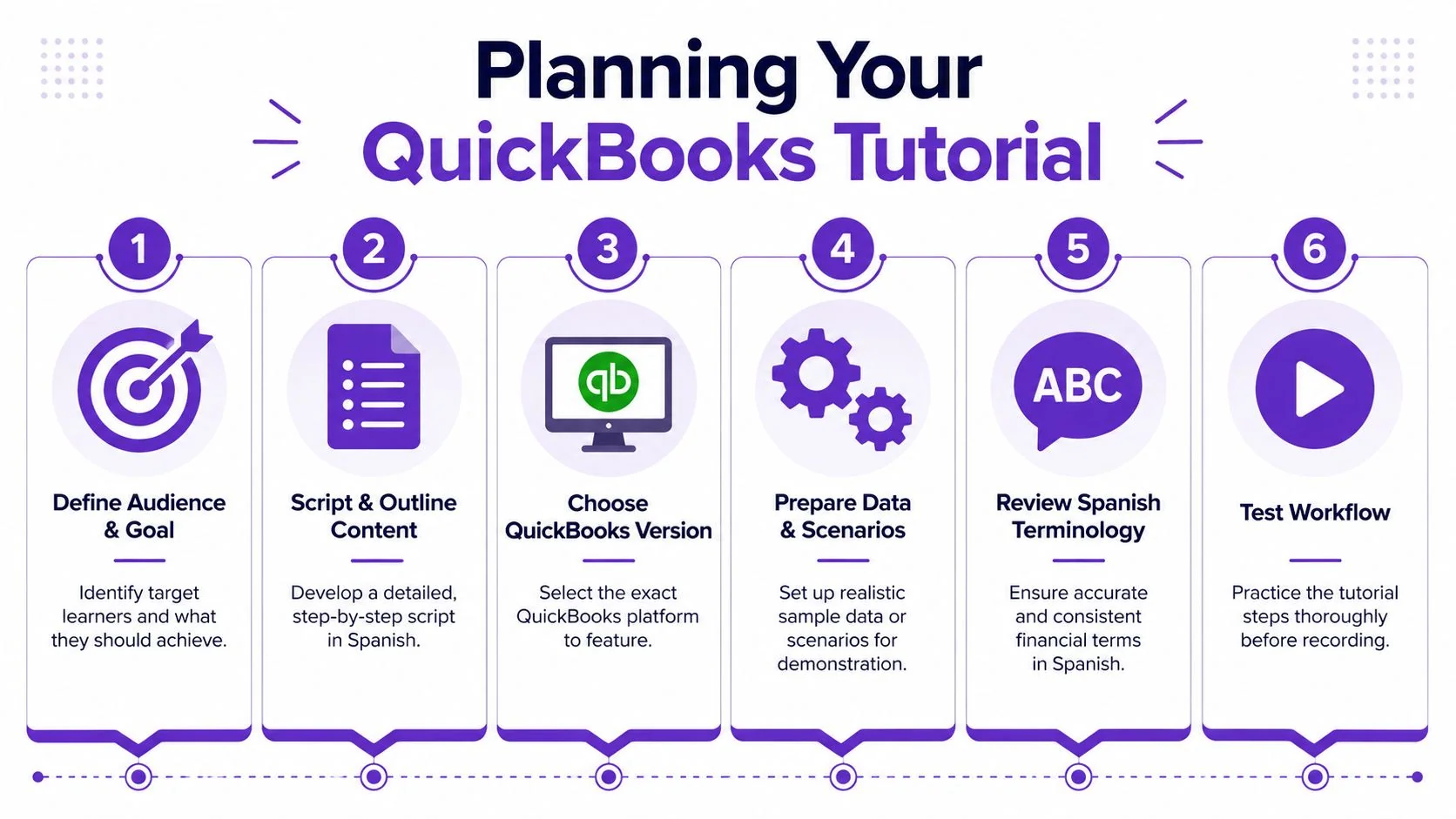
The most important planning decision is the one many guides skip, which QuickBooks product are you demonstrating. Spanish tutorials still blur QuickBooks Online and QuickBooks Desktop, even though the workflows don’t live in the same places and viewers need to know that before they commit to a lesson. Older Spanish material and newer cloud tutorials often sit side by side, which is exactly why a clear label upfront saves time and reduces drop-off.
Lock the version before you script anything
If the tutorial is for Online, the lesson should show browser-based setup, account settings, invoices, reports, and dashboard actions in that environment only. If it’s for Desktop, the path is different enough that mixing the two turns a helpful lesson into a confusing one. The practical fix is simple, name the platform in the title, in the opening line, and in the visual cues inside the video.
Use the planning checklist above as a working brief, not decoration. The audience, the version, the data set, and the Spanish terminology all need to be settled before the first recording session. That’s especially important if you’re creating training for different markets, because a Spanish-speaking viewer in Latin America may expect different wording or regional setup choices than a viewer in Spain.
Prepare the lesson data the same way you prepare the narration
A clean tutorial starts with safe sample data and a narrow scenario. QuickBooks training works best when the demo customer, product, and invoice are already staged, because the viewer should watch the task, not wait for admin cleanup. It also helps you avoid exposing real customer names or financial figures during capture.
Choose one workflow and one outcome. A lesson that tries to teach onboarding, invoicing, reporting, and settings all at once usually becomes hard to follow.
If you’re building a tutorial quickbooks en español for onboarding, keep the outline tight. Show the language choice, create the basic record, and move into the target task without detours. The result is easier to localize later because the narration follows the same sequence the user sees on screen.
Recording Your Screen and Initial Narration
The cleanest capture workflow starts with the screen, not the voice. Record the QuickBooks actions first so the visual movement stays smooth and you don’t pause to rephrase while looking for the next menu. Then record narration as a separate pass so you can speak naturally, correct wording, and tighten the pacing later without redoing the entire demonstration.
A key moment to capture is the language switch itself. QuickBooks Online’s Spanish setup flow shows that the user can choose a country and site language during onboarding, and later change the language from Advanced under Account and Settings, switching from English to Spanish and saving the change. Showing that step on camera gives viewers an immediate anchor, because they can tell whether their own interface is in the right state before they follow the rest of the lesson.
Record the UI change once, clearly
That one screen capture is more useful than a long explanation. It tells the viewer where to look, what to click, and what state the system should be in before they continue. If the interface still opens in English, the tutorial should show the correction instead of pretending the problem isn’t there.
For the narration, keep the language plain and task-focused. Say what the user is doing, why the action matters, and what should appear next. Avoid talking around the workflow or adding commentary that sounds polished but doesn’t help the learner complete the task.
Record as if someone is following along at the same time, not as if you’re presenting to a room.
A tool like Tutorial AI fits naturally, because a clean recording gives the editor better raw material to work with later. The more deliberate your capture, the less cleanup you need when you move into localization and final delivery.
Editing and Localizing with AI
Once the raw capture is finished, the quickest edit happens in the transcript, not on a timeline. That approach fits tutorial work because the script becomes the main editing surface. If the narrator talked too long before clicking Producto/servicio, trim the extra text. If the explanation around Cliente is too loose, rewrite that line and keep the workflow moving.
A practical QuickBooks example is the invoice flow. Intuit’s Spanish help documents the labels that matter, including Cliente, Fecha de la factura, Fecha de vencimiento, Condiciones, Producto/servicio, Tasa, Importe, Impuesto, and Guardar. When those fields are visible on screen, the edited script should match them closely. That keeps the tutorial aligned with the interface and removes filler that makes the lesson feel longer than it needs to be.
Localize the narration after the script is clean
That sequence saves rework. If Spanish voice is generated first and the script keeps changing, timing has to be rebuilt again and again. Once the script is stable, the Spanish narration can follow the on-screen steps with the right pace and wording, instead of sounding rushed or disconnected from the capture.
AutoRetime makes that workflow practical for localization. It adjusts pacing, cuts, and zooms so the Spanish narration fits the revised cadence without manual timeline rebuilding. For software training, that is more efficient than moving frame by frame in Adobe Premiere Pro.
The same process supports multilingual delivery from one recording. Narration in 74 languages and document generation from the same capture let teams produce a video and a written article together. In a localized QuickBooks lesson, the video shows the steps while the article gives users a format they can skim, search, or share.
Protecting Sensitive Data and Applying Branding
QuickBooks screens often show names, amounts, and account details that should not stay visible in a public tutorial. The safest workflow is to blur or redact those values before export, not after publication. Smart blurs reduce manual cleanup, and they keep the capture usable even when the original session included live customer data. See the practical steps in this guide to blurring sensitive data.
That matters for compliance and for trust. SOC 2 and GDPR expectations push teams to handle captured business data carefully, especially when tutorials are going to sales teams, customers, or knowledge bases. A tutorial can still be educational and still be unsafe if it leaks an address, an email, or a financial figure that was never meant for the audience.
Branding should feel deliberate. A Brand Kit keeps title cards, captions, and interface overlays from looking like they came from three different people in one afternoon. Logos, fonts, and color palette should stay consistent so the Spanish tutorial matches the rest of the product experience. That consistency also makes the series easier to recognize when viewers return for another QuickBooks lesson.
Intro and outro slides deserve the same treatment. If every tutorial uses the same typography and visual framing, viewers identify the series faster, and support teams can reuse the template without rebuilding the layout for reports, bills, or customer setup. AI helps here by applying the same visual rules across exports, which removes a lot of repetitive manual formatting.
Redaction and branding do not have to compete. You can obscure private fields, keep the interface readable, and still preserve a clean visual style. That balance is what software teams need when one recording has to serve training, support, and documentation at the same time.
Sharing Your Tutorial and Generating Documentation
Publishing a polished tutorial isn’t the end of the workflow, it’s the point where the single recording starts paying off in more than one format. A Multilingual Player lets viewers choose their language on the fly, so a Spanish-speaking user and an English-speaking teammate can use the same asset without asking for separate exports. That flexibility matters for support, onboarding, and internal training because the same recording can serve different audiences without duplicating production time.
The bigger efficiency gain is document generation. From one screen capture, you can produce a step-by-step help article with screenshots and formatted instructions, which is exactly the kind of output that support and documentation teams need when they’re building a knowledge base. If your organization later wants to publish the article as a printable guide or convert it for another documentation system, a resource like the guide for developers on HTML to PDF is a practical reference for handling that export path cleanly.
That one-to-many model is why a tutorial quickbooks en español should be planned as both video and documentation from the start. A single recording can become a tutorial video, a help article, and a reusable internal reference, which is much more efficient than producing each asset separately. It also keeps the wording aligned across formats, so the video, the article, and the captions all teach the same process.
If you’re building Spanish QuickBooks training for customers or employees, start with one clean recording, localize it once, and publish it in both formats. Then use Tutorial AI to turn that workflow into a repeatable asset for onboarding, support, or product education.