Creating a clear product demo, a helpful support video, or an internal SOP on Windows should be straightforward. In practice, it’s common to get stuck in the handoff between capture and polish. The recording is easy. Turning that recording into something concise, branded, accurate, and reusable is where time disappears.
That gap matters more now because demand for this category keeps rising. The broader screen capture software market is projected to grow from USD 12.3 billion in 2026 to USD 18.96 billion by 2030, with remote work, e-learning, content creation, and software testing all pushing adoption higher, according to the screen capture software market forecast. If you make tutorials, onboarding videos, support walkthroughs, or sales demos, you’re not choosing a niche tool anymore. You’re choosing part of your operating system for knowledge transfer.
This guide goes beyond simple feature lists. It focuses on what works for knowledge base managers, L&D teams, support leaders, presales teams, and product marketers who need polished output without wasting days in editing software.
Some tools are best for speed. Some are best for control. A few are built to close the gap between recording and publishing. These are the 10 screen capture software options for Windows worth considering in 2026.
1. Tutorial AI
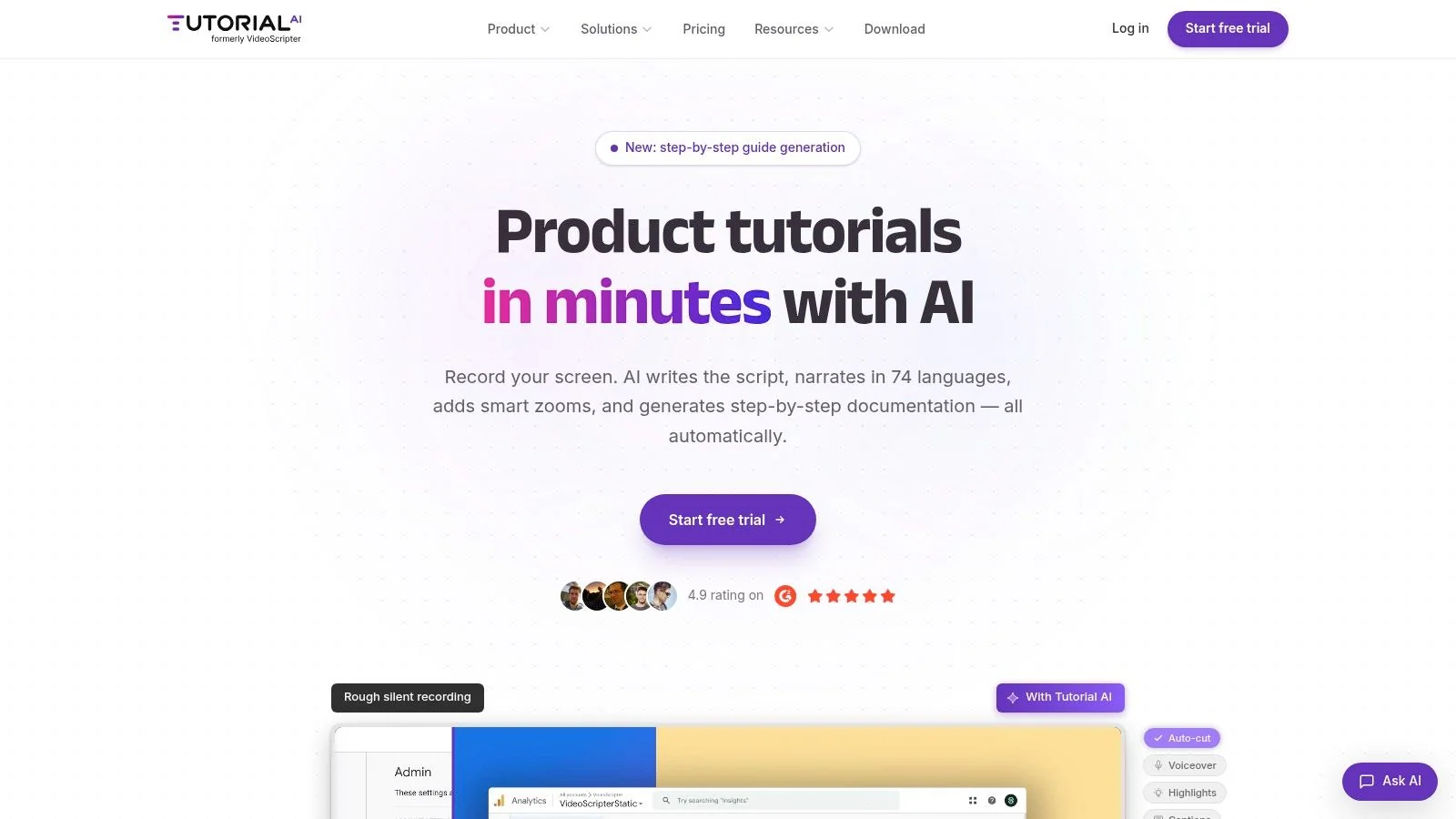
A product marketer records a feature demo on Windows. Then the actual work starts. Someone trims pauses, someone else rewrites the narration into a help article, and a third person tries to make both versions match. Tutorial AI is built for that production bottleneck.
It records the workflow once, then turns that capture and narration into two publishable assets. You get an edited tutorial video and a matching written article from the same source material. For teams producing repeatable training, support content, or polished demos, that changes the workflow more than another basic recorder ever will.
Where it fits best
Tutorial AI is a strong fit for teams that need finished content, not just raw footage. That includes L&D teams building internal training, knowledge base managers publishing step-by-step documentation, support teams creating reusable walkthroughs, and product marketers shipping release videos or demo content that needs to look on-brand.
It works especially well when the screen itself is the instruction. If the audience has to follow the exact interface, click sequence, and narration, real screen capture with real voice usually performs better than avatar-led formats.
If your team is still standardizing the basics of Windows capture before adding AI editing, this guide to recording your screen on Windows is a useful starting point.
What stands out in practice
The differentiator is not just AI editing. It is how the editing model maps to real tutorial production.
- Script-based editing with AutoRetime: Teams can tighten wording, remove tangents, and adjust pacing by editing text instead of working through a timeline.
- Video plus article from one recording: Useful for help centers and internal documentation libraries where written steps still matter.
- Localization support: Narration in multiple languages and automatic retiming help teams publish the same workflow for different regions without rebuilding every scene manually.
- Brand control: Brand kits, custom fonts, animated slides, and embeddable players help marketing and customer education teams keep output consistent.
- Admin and team features: SSO/SAML, SOC 2, GDPR support, guest sharing, versioning, and shared workspaces matter for larger organizations with multiple reviewers.
The practical advantage is speed without giving up polish. Casual recordings usually include dead space, retries, filler speech, and uneven pacing. Tutorial AI shortens that cleanup cycle for subject-matter experts who know the product well but do not want to edit in Premiere Pro or rebuild the same material again as documentation.
Trade-offs
Tutorial AI is not the best choice for quick internal check-ins or one-off clips where a rough recording is acceptable. It makes more sense when the output needs to be reused, localized, embedded in a help center, or reviewed across teams.
Pricing is another consideration. The higher-value features, including advanced collaboration and custom voice options, sit on higher plans. Teams should buy it for throughput and publishing efficiency, not because they need a simple recorder.
For organizations that want one workflow for capture, cleanup, documentation, and distribution, Tutorial AI is the most complete option in this list.
2. OBS Studio
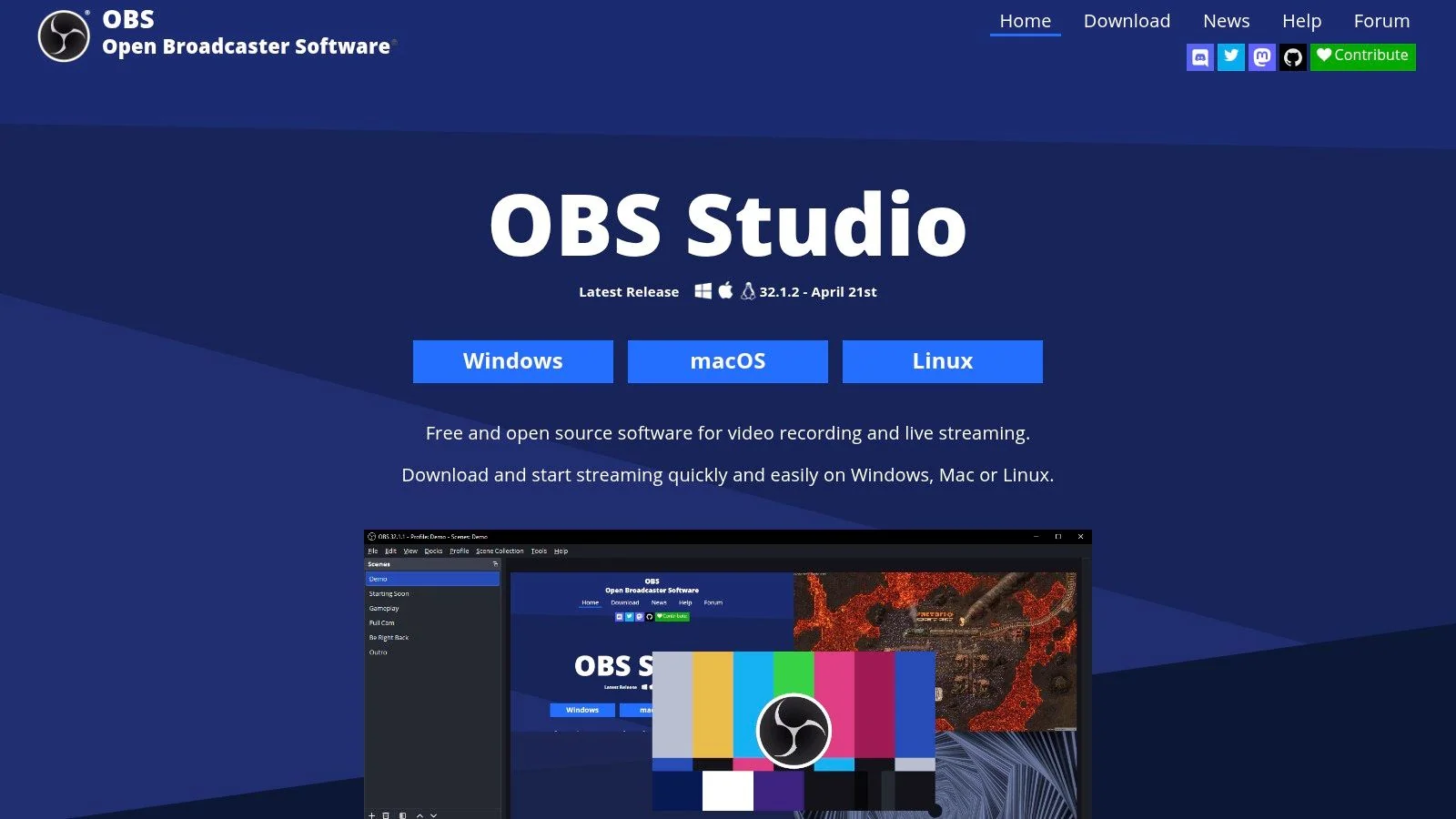
OBS Studio is what I recommend when capture control matters more than convenience. It’s free, open source, and built for people who want to manage scenes, sources, overlays, audio routing, and encoder settings directly.
That makes it a strong fit for technical walkthroughs, webinars, software demos with multiple windows, and any recording setup that needs more than a simple screen plus webcam layout. On Windows, it handles demanding capture jobs well if you’re willing to configure it properly.
Best use case
OBS is ideal for teams that already know what they want to capture. You can set up unlimited scenes, combine app windows with webcam, switch layouts, add overlays, and use hardware encoders such as NVENC, AMF, Quick Sync, plus software options like x264, AV1, and HEVC.
If you’re still getting your bearings with Windows capture, this practical guide to recording your screen on Windows helps clarify the basics before you step into OBS’s deeper controls.
OBS gives you recording power, not production judgment. It won’t tighten your script, remove rambling, or turn a rough take into a polished tutorial on its own.
Trade-offs that matter
- Best at control: Scene composition, source management, and audio flexibility are excellent.
- Weak at post-production: There’s no built-in editor that will polish a tutorial after capture.
- Strong for hybrid formats: Good for recordings that may also become live sessions or webinars.
- Harder for SMEs: Product managers and trainers can learn it, but they won’t love the setup phase.
OBS also has a blind spot that generic roundups usually miss. Some secure apps block or detect software-based capture. In those cases, standard OBS setups often fail. Practical workarounds include running the target app in a VM and recording from the host, using a physical HDMI capture device, or disabling hardware acceleration for browser-based apps. That gap matters because mainstream recorder lists rarely deal with protected environments, even though teams regularly need to document secure workflows.
You can download it from the OBS Studio website.
3. ShareX
ShareX is the tool for people who think in shortcuts, not studio timelines. It’s fast, highly configurable, and better at operational documentation than at polished video storytelling.
I like ShareX most for technical writers, QA teams, IT support staff, and anyone creating screenshot-heavy SOPs. It captures regions, windows, fullscreen, scrolling pages, video, and GIFs, then lets you chain actions after capture. That last part is why power users stick with it.
Where ShareX wins
You can capture, annotate, redact, upload, and archive without leaving the tool. Its built-in image editor is useful for support teams who need blur, highlights, arrows, and callouts on demand.
A few workflows where ShareX earns its place:
- Fast documentation: Capture a window, annotate it, and upload it to your knowledge base assets bucket.
- Privacy-aware support: Redact sensitive information before anyone else sees the image.
- Repeatable operations: Use hotkeys and after-capture automation to standardize internal processes.
Where it falls short
ShareX isn’t a polished tutorial platform. Its video features are lightweight, and once you move from “show this issue” to “teach this workflow cleanly,” you’ll want another editing layer.
That matters because recording is only one part of tutorial work. For teams that need auto-transcription, smart pacing, cursor smoothing, or article generation, ShareX is too narrow. It’s excellent for evidence capture and visual documentation, not for producing launch-ready onboarding or customer education videos.
You can get it from the ShareX website.
4. ScreenPal
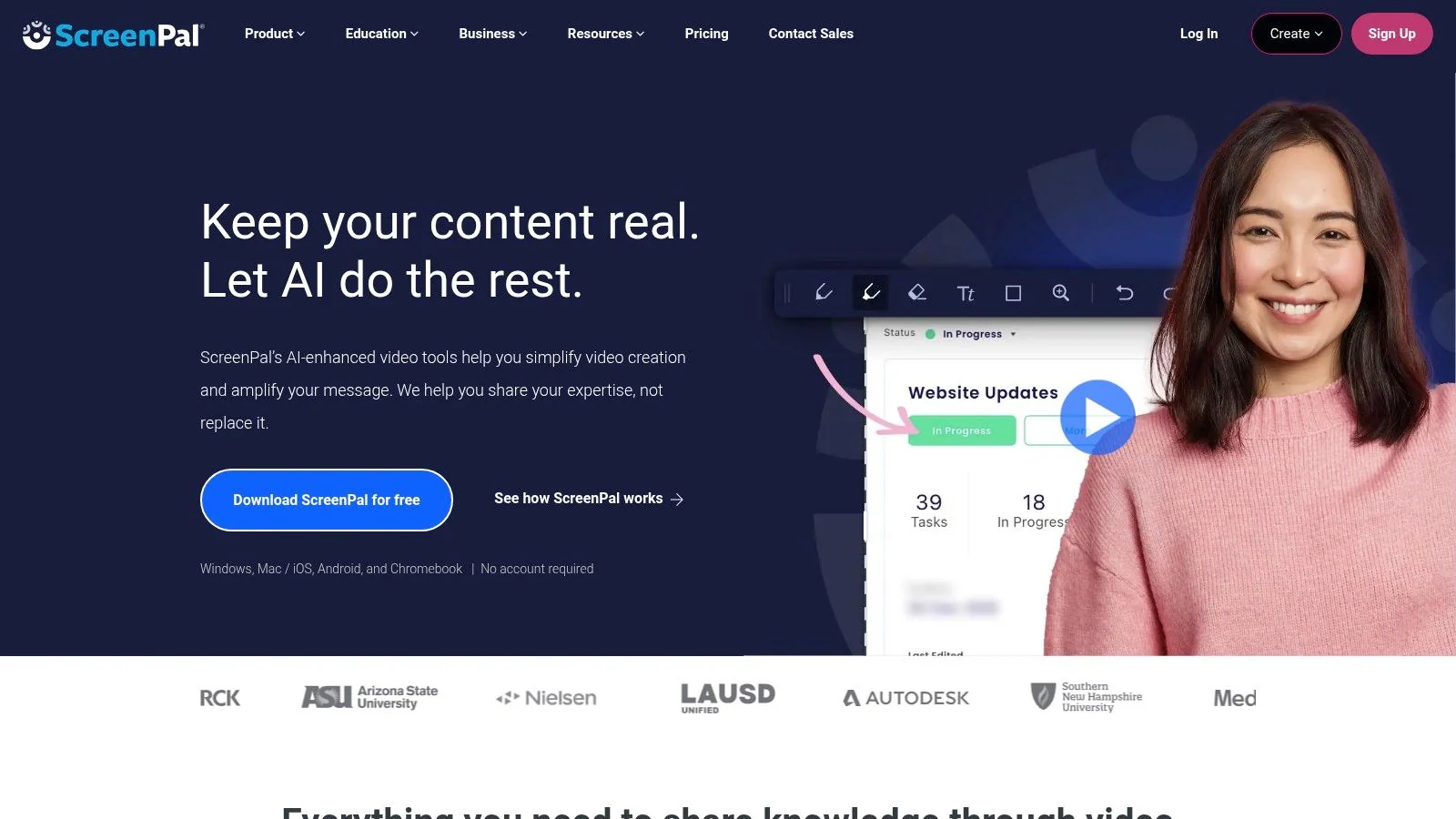
ScreenPal sits in the middle of the market. It isn’t as bare-bones as a free recorder, and it isn’t trying to be a pro editor. For small support teams, educators, and SMBs, that’s often exactly the right balance.
It gives you desktop and web recording, screen plus webcam capture, GIF export, and a built-in editor for trims, overlays, blur, transitions, and captions. That’s enough for straightforward explainers and support responses without creating a giant learning curve.
Good fit for small teams
If your team publishes recurring walkthroughs and wants some editing help without moving into heavier software, ScreenPal is easy to adopt. It also supports common publishing destinations, so basic distribution isn’t a hassle.
For teams recording demos, these software demo best practices are more important than the tool itself. ScreenPal can produce solid work when the script and flow are disciplined.
Real trade-offs
- Approachable editor: Better than free utilities for light cleanup.
- Useful sharing paths: YouTube, Drive, Dropbox, Vimeo, and native hosting cover common needs.
- Free plan limits: Watermarks and feature caps push serious use toward paid plans.
- Advanced automation lives higher up: More capable captioning, summaries, TTS, and translation features aren’t the entry-level experience.
The bigger market context supports why tools like this keep gaining ground. The screen recording software category was valued at USD 2.10 billion in 2025 and is projected to reach USD 4.62 billion by 2030 at a 17.08% CAGR, according to Mordor Intelligence’s screen recording software market analysis. That growth tracks with what many teams already feel: recording is no longer occasional. It’s part of support, sales, training, and customer education.
You can explore it on the ScreenPal website.
5. Snagit
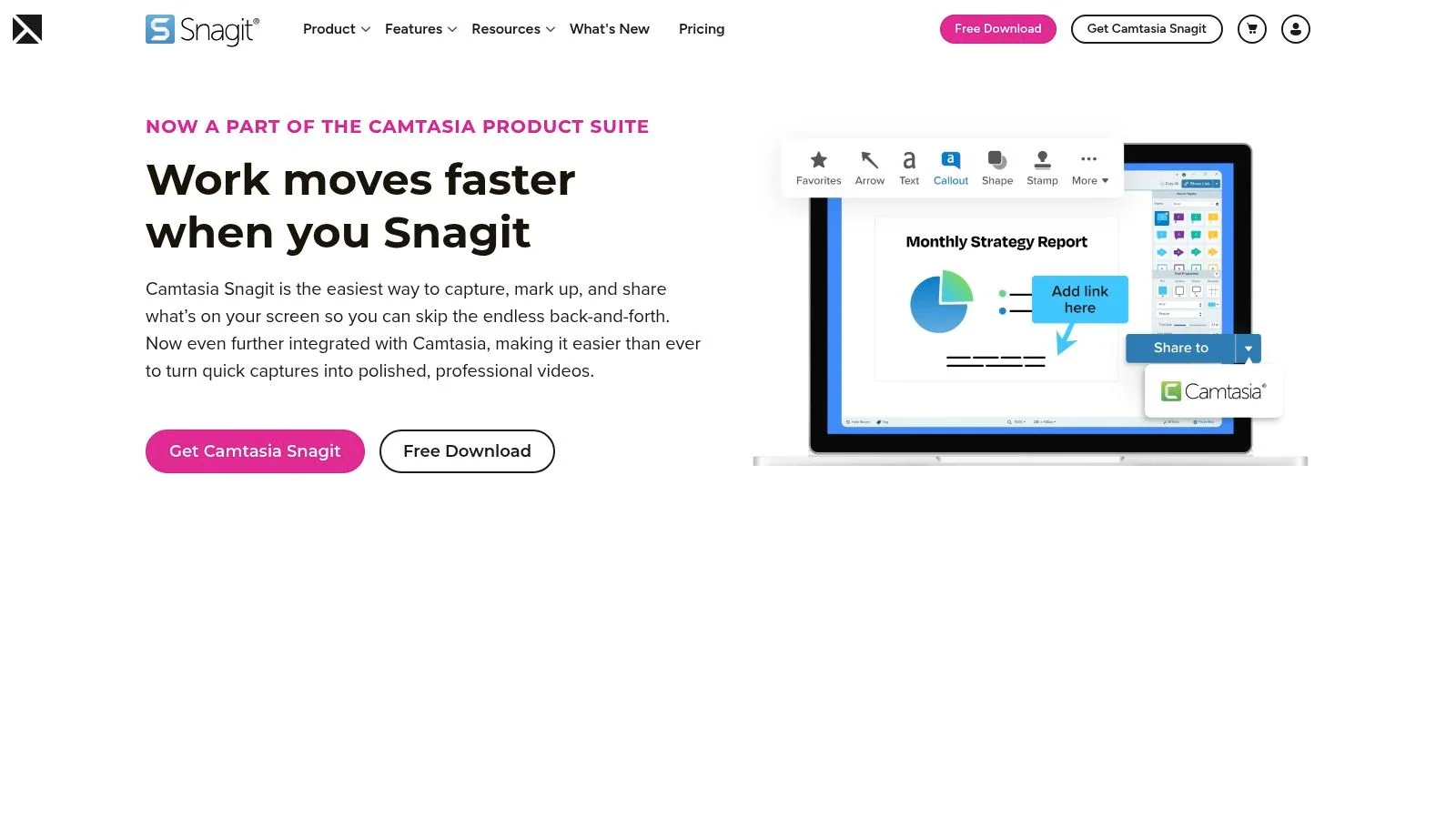
Snagit is still one of the easiest recommendations in this category, as long as you’re honest about what it is. It’s a documentation tool first, and a video tool second.
For annotated screenshots, scrolling captures, templates, and visual SOPs, Snagit is excellent. The workflow is quick, the mark-up tools are mature, and it handles the routine capture jobs that support teams and technical writers do every day.
Why teams keep buying Snagit
Most static documentation doesn’t need timeline editing. It needs a clean screenshot, strong callouts, maybe OCR, and a way to standardize layouts. Snagit does that better than most broader screen capture software for Windows.
If your workflow starts with “capture the process and label each step,” Snagit stays efficient. If it starts with “record a polished feature walkthrough with pacing, script cleanup, and multilingual versions,” its limits show fast.
For teams that have outgrown quick trims and basic clips, this guide to easy video editing software is a useful next step.
The practical limit
Snagit is what I’d hand to a technical writer who needs fifty screenshots by Friday. It’s not what I’d hand to a product marketer launching a polished demo next week.
Its screen recording is serviceable, but basic. You’ll get simple walkthrough clips with webcam and audio, not serious post-production. The move to subscription also changes the value calculation for teams that used to treat it as a one-time utility purchase.
You can review it on the Snagit website.
6. Loom
Loom is the fastest way on this list to go from thought to shareable link. That’s why product, support, success, and internal ops teams keep using it. Open the app, record your screen and camera, send the link, move on.
For internal communication, bug explanations, account walkthroughs, and async collaboration, Loom is still hard to beat. It also sits in a market that keeps accelerating. Fortune Business Insights projects the screen recording software market will grow from USD 2.49 billion in 2025 to USD 11.45 billion by 2034, and notes Atlassian’s USD 975 million acquisition of Loom as a marker of how strategic async video has become in enterprise workflows, according to the screen recording software market report from Fortune Business Insights.
Loom’s real strength
Loom’s value isn’t polish. It’s velocity. Auto summaries, chapters, transcript-based edits, viewer analytics, comments, and workspace libraries all support that model well.
That makes it a smart choice for:
- Internal updates: Product or engineering walkthroughs that don’t need heavy editing.
- Customer replies: Showing a solution is often faster than writing it.
- Sales and success handoffs: Personalized walkthroughs work well when speed matters.
Where Loom breaks down
The same speed that makes Loom useful also creates a quality problem. Casual recordings tend to run long, include filler, and preserve every pause and retake. That’s fine for an internal handoff. It’s not ideal for public onboarding, help-center libraries, or evergreen feature education.
The mismatch shows up most clearly when teams try to reuse Loom recordings as formal training assets. Usually, they need another tool or another person to tighten the material.
You can try it on the Loom website.
7. Bandicam
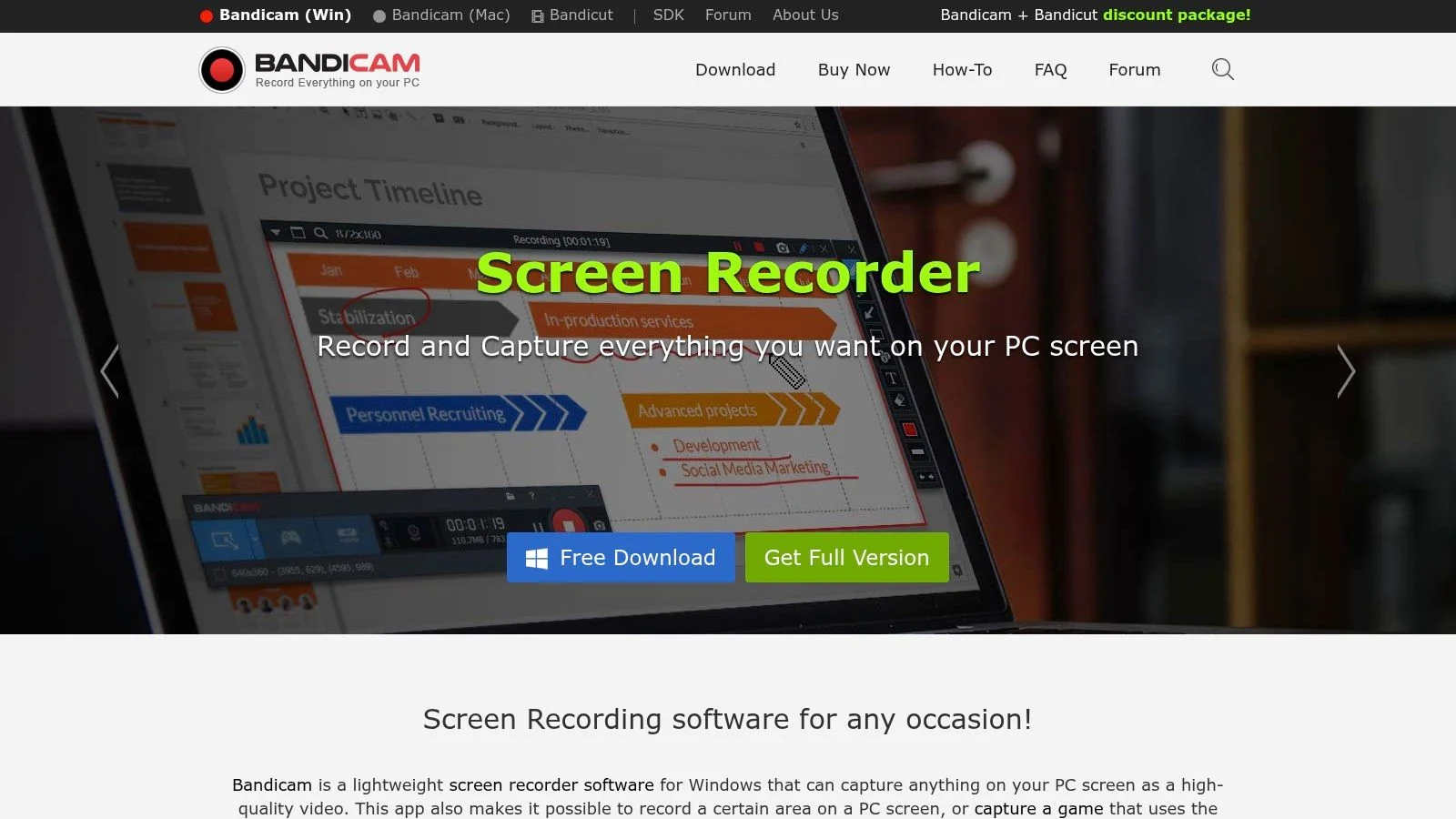
Bandicam is a recorder first, and it’s a good one. If your priority is smooth, long-form Windows capture with low overhead, it deserves attention.
It has a strong reputation among users who record games, high-motion interfaces, or long desktop sessions where dropped frames would ruin the result. That also makes it useful for product demos with animation-heavy UIs or any training content where smooth playback matters.
Best for performance-focused capture
Bandicam supports desktop, game, and webcam capture modes, plus hardware acceleration, capture card input, scheduled recording, mouse effects, and real-time FPS display. Those details matter when you’re recording software that pushes the GPU hard or when you’re capturing from another device.
In practice, it’s a solid fit for:
- Long training sessions: Stable recording matters more than editing bells and whistles.
- Game-like interfaces: Useful for interactive apps and high-frame workflows.
- External inputs: HDMI and capture card support broadens what you can document.
What it doesn’t solve
Bandicam doesn’t solve post-production. The free version also adds a visible watermark and time limits, which makes it more of a test environment than a production setup.
If your team only needs clean raw footage to hand off elsewhere, that’s fine. If the same person has to record, polish, brand, caption, and publish, Bandicam is only one piece of the workflow.
You can download it from the Bandicam website.
8. Movavi Screen Recorder
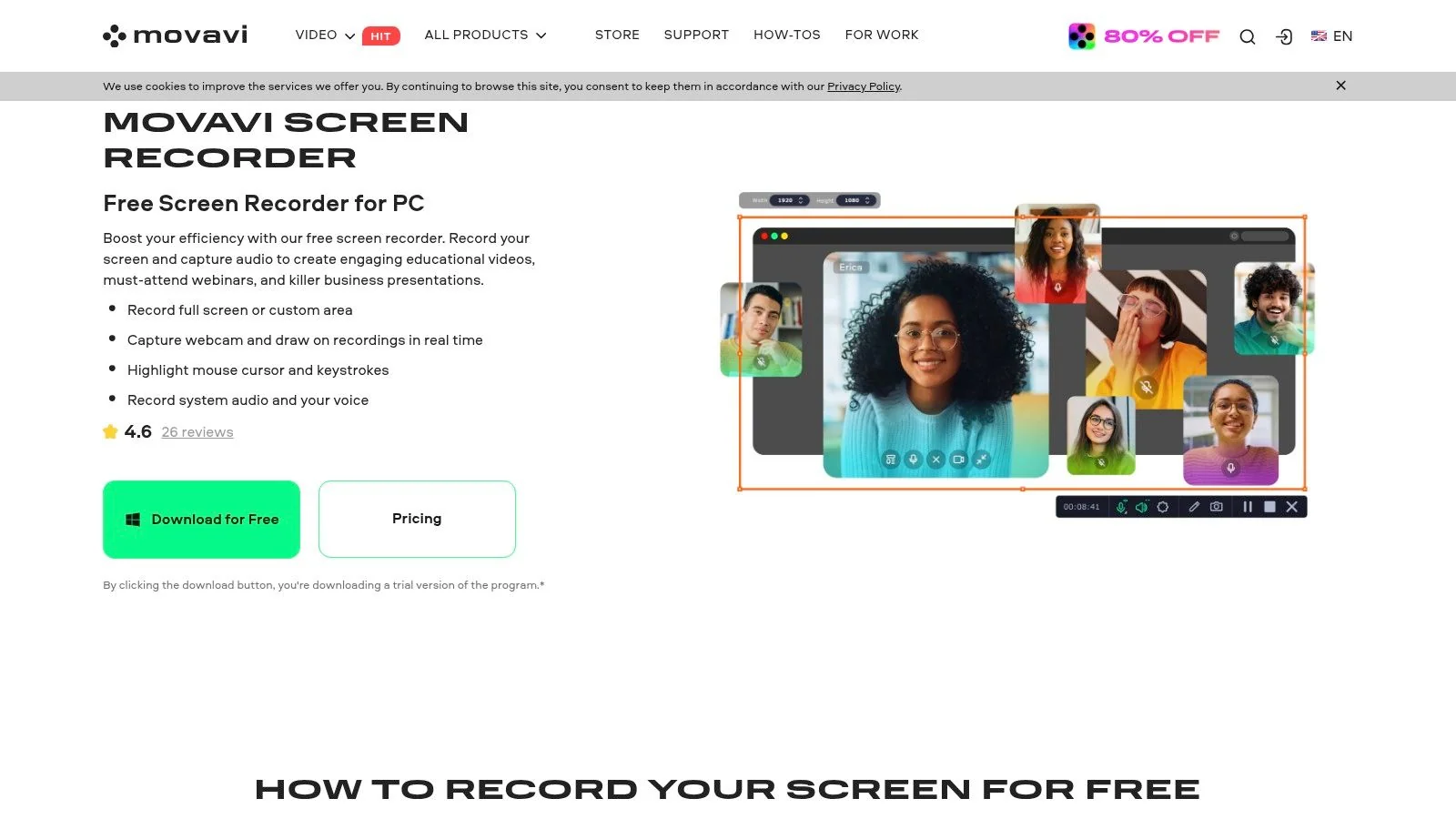
Movavi Screen Recorder is built for ease. It doesn’t ask much from the user, and that’s its main selling point.
If someone on your team rarely records tutorials and just needs a clean MP4 or GIF without learning a broadcast tool, Movavi is approachable. The interface is simple, setup is fast, and basic edits such as trims and minor adjustments are easy enough for non-specialists.
Where it works well
Movavi is a sensible option for occasional software demos, lightweight customer walkthroughs, and simple internal clips. Screen plus webcam capture, scheduled recording, on-screen drawing, cursor effects, and export presets cover the basics most small teams need.
For first-time users, that low-friction setup is the point. You can get a decent result without building a whole production process around the tool.
Where teams outgrow it
The trial version is restrictive, and the editing depth is modest. Once teams want layered motion graphics, stronger branding, transcript-driven edits, or reusable documentation outputs, they usually need a more complete production platform.
That doesn’t make Movavi a weak option. It just means it’s best treated as a straightforward recorder for clean captures, not as the center of a scaled tutorial operation.
You can see it on the Movavi Screen Recorder website.
9. FastStone Capture
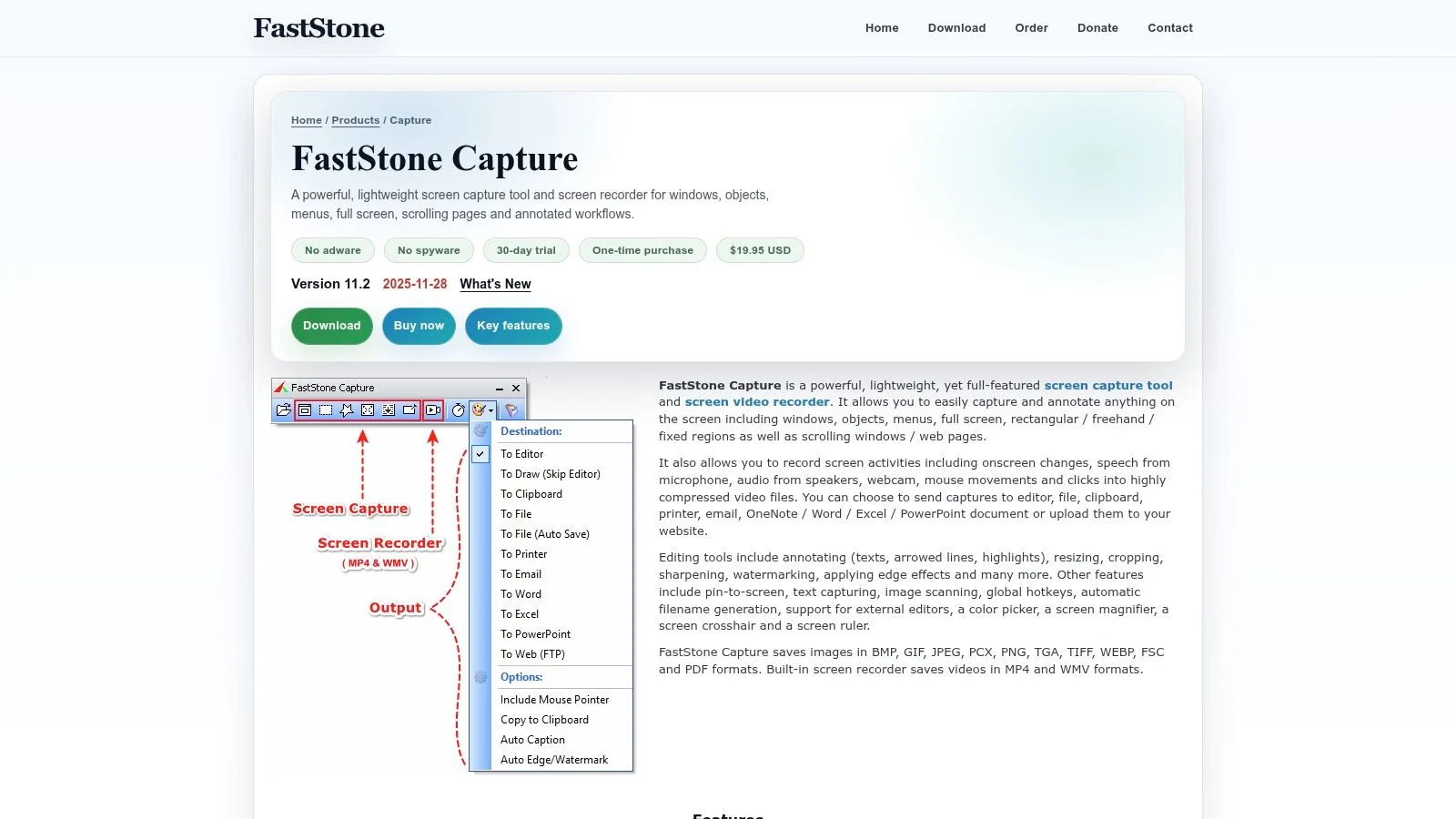
FastStone Capture has been around for years, and there’s a reason technical users keep it installed. It’s small, fast, dependable, and doesn’t try to be glamorous.
For IT teams, internal documentation authors, and anyone who values a lightweight local utility, FastStone still makes sense. It handles region, window, fullscreen, and scrolling capture well, and the editor covers practical tasks like blur, highlight, and callouts.
Why technical teams like it
The biggest appeal is friction, or lack of it. FastStone launches quickly, stays out of the way, and does the capture job without consuming attention. The portable option also matters in controlled environments where installs are inconvenient.
A few good use cases:
- IT runbooks: Fast screenshots, quick annotation, minimal overhead.
- Procedural guides: Reliable scroll capture for settings pages and consoles.
- Locked-down environments: Small footprint and portable operation help.
The limitation
Its UI feels dated, and video editing is limited. That’s acceptable if your output is mostly screenshot-led documentation or rough, direct captures. It’s less acceptable if stakeholders expect modern, branded tutorial content.
FastStone is still a good utility. It just isn’t trying to become a multimedia production platform.
You can find it on the FastStone Capture website.
10. Xbox Game Bar
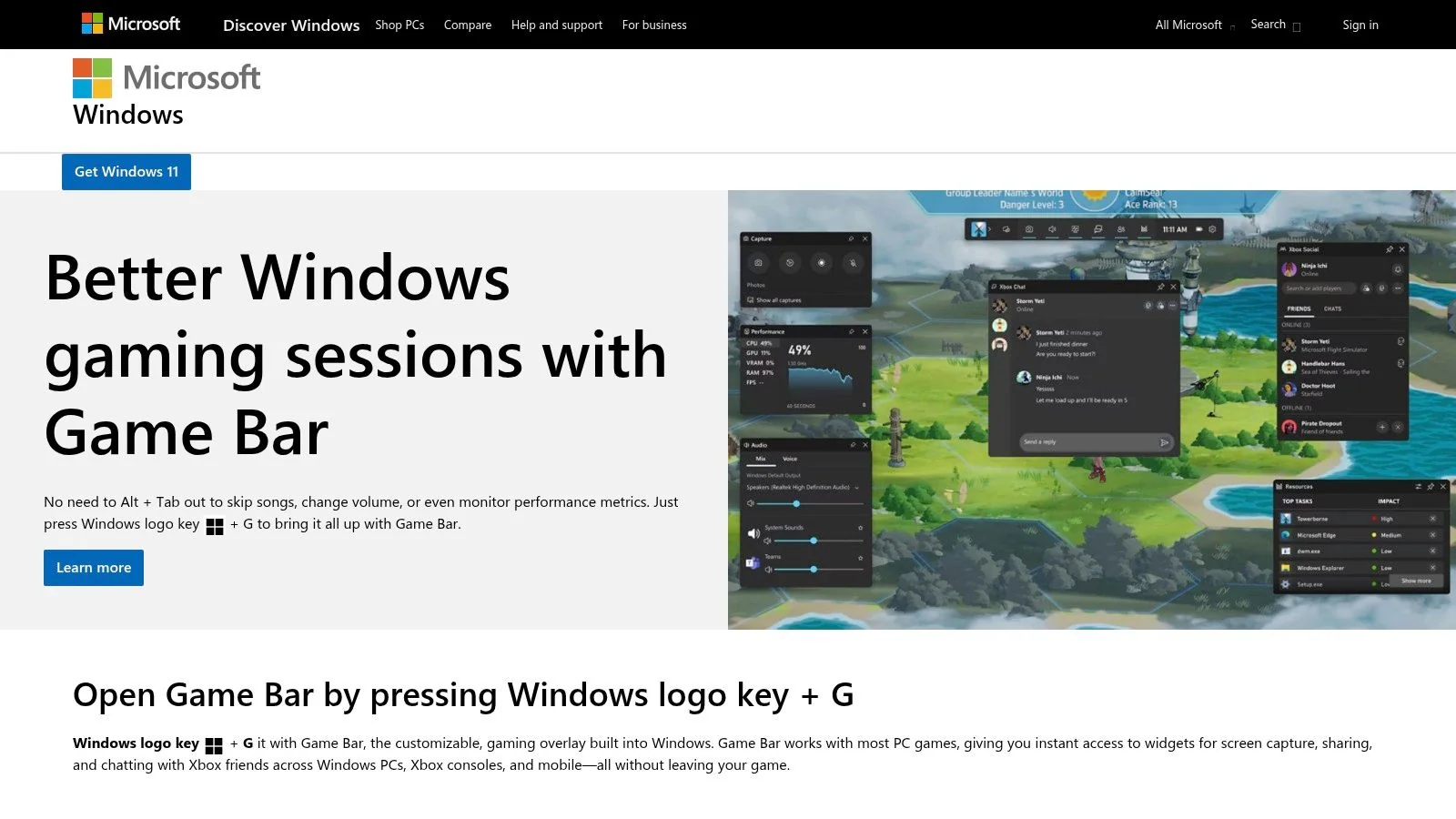
Xbox Game Bar is the default answer when you need to record something on Windows right now and can’t install anything. On corporate machines, that’s more useful than people admit.
It’s built into Windows 10 and 11, launches with Windows+G, and handles quick app or game capture with configurable settings and basic audio support. For a short clip, bug repro, or internal demonstration, that convenience is often enough.
Best for locked-down machines
If IT policies block installs, Game Bar may be the only screen capture software for Windows available to you. That alone earns it a place in this list.
It’s best at:
- Fast app clips: Capture without setup or approval cycles.
- Basic troubleshooting evidence: Show the issue and send it.
- Gaming workflows: It integrates naturally with Xbox-related features.
Why it stays limited
Game Bar can’t capture the Windows desktop or File Explorer directly, and the editing controls are minimal. It also doesn’t give you the polish, structure, or repurposing options that formal training and support content usually need.
Still, when the choice is “capture this now” versus “wait for software approval,” built-in tools win.
You can review Microsoft’s overview of Xbox Game Bar on Windows.
Top 10 Windows Screen Capture Tools Comparison
| Product | Core features & unique strengths ✨ | UX & quality ★ | Price / value 💰 | Best for 👥 |
|---|---|---|---|---|
| Tutorial AI 🏆 | Record (Mac/Win/iOS/Chrome), Edit “like a Doc”, AutoRetime™ translations, 74 AI voices, docs & 4K export | ★★★★★ 4.9 avg; studio-ready output; SOC2 & ISO; team collaboration | 💰 Free → Enterprise; advanced voices & custom cloning on paid plans | 👥 Knowledge bases, customer education, sales enablement, training teams |
| OBS Studio | Scene-based sources, hardware encoders, modular UI, plugins | ★★★★☆ Broadcast-grade quality; steep learning curve | 💰 Free / open-source | 👥 Streamers, webinar hosts, advanced power-users |
| ShareX | Fast captures, GIFs, annotation, upload automations, hotkeys | ★★★★☆ Extremely configurable; dense UI | 💰 Free / open-source | 👥 Technical writers, automation-focused users |
| ScreenPal | Desktop/web recorder, built-in editor, captions, AI helpers on higher tiers | ★★★★☆ Easy to learn; solid lightweight editor | 💰 Free tier (limits/watermark); affordable paid plans | 👥 Educators, SMBs, support teams |
| Snagit | Precision screenshots, scrolling capture, robust annotations, OCR | ★★★★☆ Best-in-class for annotated docs; fast workflows | 💰 Paid (moved to subscription / business pricing) | 👥 Technical writers, trainers, documentation pros |
| Loom | One-click screen+cam, transcripts, auto-summaries, viewer analytics | ★★★★☆ Extremely fast async sharing; good packaging | 💰 Free → Business; advanced admin features paid | 👥 Product/support/success teams, internal comms |
| Bandicam | High‑fps game/desktop capture, hardware accel, capture‑card support | ★★★★☆ Efficient for long/high‑fps recordings | 💰 Paid license; trial adds watermark | 👥 Gamers, long-session recording users |
| Movavi Screen Recorder | Simple recorder, basic editor (trim), presets, on-screen drawing | ★★★☆☆ User-friendly; quick exports | 💰 Paid (trial watermark); affordable consumer pricing | 👥 Casual creators, small teams needing quick clips |
| FastStone Capture | Precise region/scrolling capture, small footprint, portable option | ★★★☆☆ Lightweight & dependable; utilitarian UI | 💰 One-time affordable license | 👥 Technical writers, IT pros, portable-use cases |
| Xbox Game Bar | Built-in hotkey overlay, quick clips, basic capture widget | ★★☆☆☆ Convenient for quick clips; limited controls | 💰 Free (built into Windows) | 👥 Users on locked-down corporate PCs, quick game/clip capture |
From Capture to Content Making Your Final Decision
Choosing screen capture software for Windows comes down to three things. How fast your team needs to work. How polished the final output needs to be. And whether the audience is watching a one-off explanation or relying on the content as durable documentation.
If the job is fast internal communication, Loom is still one of the easiest tools to justify. It gets ideas out of people’s heads and into shareable video quickly. If the job is screenshot-first documentation, Snagit and ShareX remain practical standards, with Snagit leaning more polished and ShareX leaning more configurable.
OBS and Bandicam are stronger when capture quality and control matter more than post-production convenience. FastStone Capture and Xbox Game Bar are useful in constrained environments where simplicity or install restrictions matter more than advanced features. ScreenPal and Movavi sit in the middle, giving smaller teams a manageable editor without the complexity of full production software.
The bigger divide is this. Some tools help you record. A smaller set helps you publish. That distinction matters because the pain usually isn’t capture itself. The pain is cleaning up narration, tightening pacing, adding visual emphasis, localizing content, generating transcripts or articles, and getting assets into the help center, LMS, or customer education stack.
That’s where Tutorial AI stands apart. It’s built for subject-matter experts who know the product but don’t want to become editors. One recording can become a polished tutorial video plus a matching written article. For knowledge base managers, support teams, customer education leads, and L&D teams, that single workflow is often more valuable than another recorder with slightly different capture controls.
There’s also a measurable operational reason to think this way. In AI-assisted content and support workflows, task completion time is the metric that best reflects whether a tool speeds work up, as outlined in this guide to task completion time in generative AI performance measurement. And when teams publish clearer visual and written support content together, first-contact resolution and containment can improve while average handling time can drop by up to 40% when the content is structured well, according to this explanation of FCR, containment, and support AI metrics.
That’s the lens I’d use for any buying decision. Don’t start with the feature grid. Start with the repeatable job your team does every week. Product demos. Customer onboarding. Help-center videos. Internal SOPs. Sales walkthroughs. Then choose the tool that removes the most friction between raw recording and finished content.
One last practical point. Even the best screen recording looks amateurish if the audio is weak. If your tutorials matter externally, it’s worth learning the basics of recording and exporting audio professionally.
Test one or two tools with a real workflow, not a fake trial project. Record the kind of asset your team ships most often, then measure how much cleanup, rewriting, and rework still remains. The best tool is the one that closes that gap fastest.
If your team needs more than a recorder, Tutorial AI is worth trying first. It helps subject-matter experts turn one screen recording into a polished tutorial video and a matching written article, with AutoRetime, multilingual narration in 74 languages, Brand Kits, and enterprise features like SSO/SAML and SOC 2 + GDPR support. For knowledge base, onboarding, support, and training teams, it’s one of the few tools built for the full path from capture to publish.