Strong process documentation captures the workflow, explains decisions and exceptions, serves a defined audience, and has an owner and review trigger. Mature knowledge management can reduce support costs by 50% and help teams resolve customer issues 70% faster, while employees spend an average of 19% of their workweek searching for internal information, according to figures cited in this industry guide to knowledge-base documentation.
A new employee opens an SOP, follows the first few steps, and reaches a decision point the author never documented. The screenshot shows a different interface. The video uses an admin account. The written instruction says “select the appropriate option,” but doesn’t explain which option applies to the customer in front of them. Work stops, and the employee sends a message to someone who already knows the answer.
That failure usually isn’t caused by a lack of effort. It happens because documentation was treated as a file to complete instead of an operating system for a live workflow. The strongest process documentation best practices connect observed work with audience, format, ownership, search, accessibility, versioning, and measurement.
This guide covers practical examples from customer onboarding, support, internal operations, product training, and SOPs. It also shows where screen recording fits. You can record a workflow as the subject-matter expert performs it, tighten the result, and generate a polished tutorial video plus matching written documentation with Tutorial AI.
1. Document the Actual Workflow, Not Just the Steps
A process document should show what people do in the software, not what the process looked like when someone summarized it from memory. That means capturing the screens, decisions, permissions, inputs, outputs, and exceptions that determine whether the task succeeds.
For customer onboarding, “create an account” is too broad. A useful guide shows the signup flow, account setup, first feature interaction, and the result the customer should see. A support workflow might show a customer submitting a ticket, checking its status, and receiving updates. An IT operations SOP might include server provisioning, validation checks, and approval steps.
Capture context while the work is happening
Record one complete workflow in a staging or test environment. Use sample data that resembles real usage, but remove confidential information. A standard user account is usually better than an administrator account because new employees and customers may not have the extra permissions shown on screen.
Narrate the reason behind important choices. “Select this queue because billing requests require a different escalation path” teaches more than “click Billing.” Include one common mistake and the expected recovery path. That exception may be the moment when a new employee needs the documentation most.
Practical rule: If a person needs to ask what result should appear after a step, the procedure is missing context.
Keep the recording focused on one outcome. A product onboarding tutorial can cover creating a first project, inviting team members, and opening the first report. It shouldn’t also include unrelated administrative settings. Smaller, complete workflows are easier to search, update, test, and reuse.
Tutorial AI fits this capture stage when the subject-matter expert knows the process but isn’t a video editor. Record the workflow and narration, let Tutorial AI tighten pauses and pacing with AutoRetime, review the editable script, and generate the video and written article from the same recording. The owner still checks the result against the live system before publishing.
2. Use Screenshots and Video Strategically Based on Context
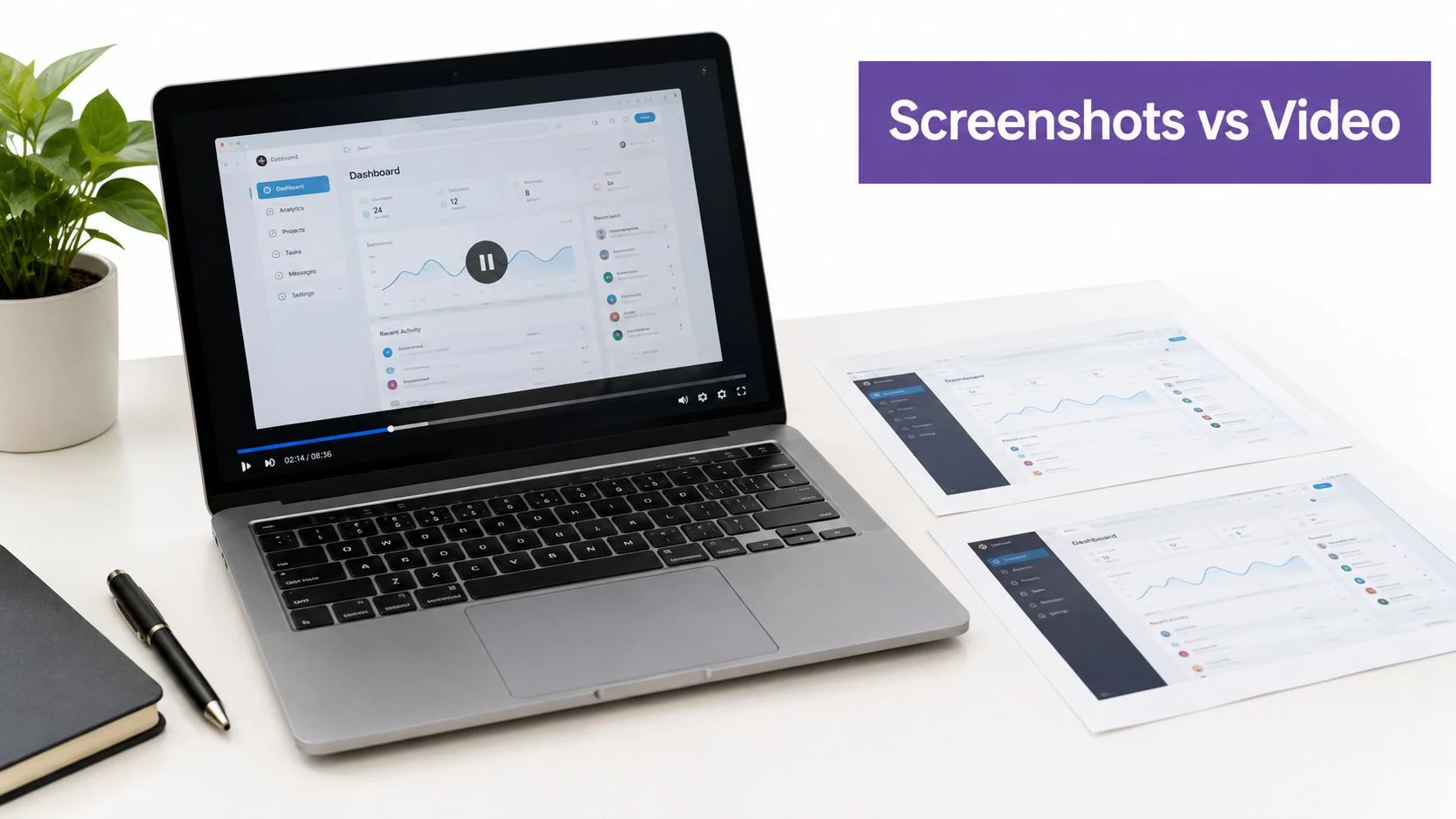
Screenshots and video solve different documentation problems. A screenshot is strong when someone needs to compare settings, identify a button, or confirm that a form is configured correctly. Video is stronger when the user needs to understand sequence, navigation, timing, or the reason a decision changes the next step.
A SaaS team might use a video for the complete data export workflow, then place screenshots of each dialog box in a written reference section. A support team can show password reset as a short sequence and include a labeled screenshot of the reset form for people who prefer to follow written instructions.
The right choice depends on how the user will consume the guidance:
- Use video for sequences: Navigation, scrolling, timing, and workflows with several connected actions are easier to understand when viewers can watch the complete path.
- Use screenshots for reference: Settings, field labels, configuration options, and visual comparisons are easier to scan in a static image.
- Use both for high-risk tasks: Pair a workflow video with written steps and point-in-place screenshots when a mistake could create rework or an incorrect customer outcome.
- Test access conditions: Check the page on mobile and with slow internet. A user who can’t stream the video still needs a complete written path.
Add captions and a transcript to every video. Captions support people who can’t hear the audio, while transcripts make the content searchable and usable without playback. Place screenshots beside the step they explain, not in a gallery at the top of the article.
If the workflow is primarily visual, an AI screen recorder for software walkthroughs can reduce the distance between doing the work and documenting it. The expert records the process, Tutorial AI removes unnecessary pauses and retakes, and the team can publish a polished video alongside written instructions rather than asking the expert to build both assets separately.
3. Assign Clear Ownership and Maintenance Responsibility
Documentation becomes unreliable when “the team” owns it. A team can contribute, review, and suggest changes, but one named person should be accountable for accuracy, review dates, and updates.
Assign ownership by workflow or product area. The onboarding team might own customer signup guidance. Support can own troubleshooting articles. IT can own provisioning and access-control SOPs. A product feature team can own the documentation for its workflows. This arrangement puts maintenance closest to the people who see changes first.
Ownership also needs a trigger. A document owner should be notified when a feature changes, a process ticket closes, a support issue exposes an error, or a role changes its permissions. A calendar review helps, but event-based review catches urgent drift sooner.
Make the review easy to perform
A quarterly review is a practical cadence for many stable documents, and the process-documentation guidance from ProcessFinder’s maintenance recommendations also points to fixed reviews such as 90 days or quarterly. Fast-changing workflows may need review after every meaningful release. The owner should answer a short set of questions:
- Check the interface: Do screenshots, labels, menus, and video narration match the current product?
- Check the procedure: Can a person complete the workflow using the documented permissions and data?
- Check dependencies: Have related features, policies, approval steps, or escalation paths changed?
- Check usage feedback: Did users report confusion, missing exceptions, or an incorrect result?
- Check responsibility: Is the named owner still in the role, and has a successor been assigned?
Include maintenance in release work and role expectations. When someone leaves, transfer ownership before departure. A shared register with the document name, owner, last review, next review, and status gives distributed teams a simple control system without requiring a large governance program.
4. Document at the Right Level of Detail for Your Audience
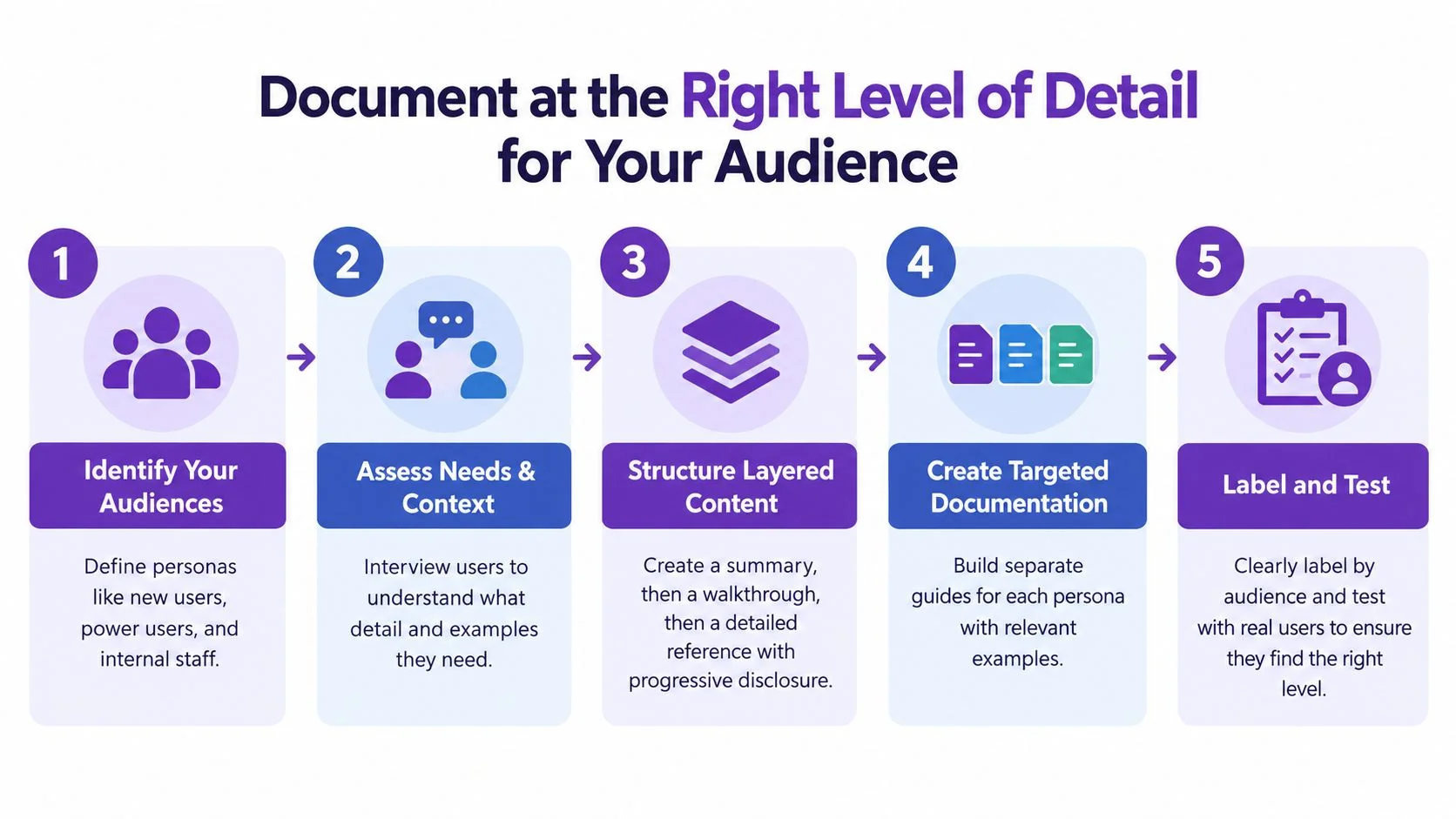
The same workflow often needs several versions because customers, support staff, administrators, and developers use it differently. A new customer needs orientation and expected outcomes. An experienced support agent may need only the diagnostic path and escalation conditions. An administrator may need permissions, dependencies, and configuration details.
Start each document by naming its audience and prerequisites. “For new workspace owners” is more useful than “User guide.” “Internal support staff only” prevents a customer-facing reader from following instructions that require access they don’t have.
A customer onboarding set might contain:
- Getting started: A short walkthrough of signup and the first successful action.
- Reference guide: Account settings, user roles, and common configuration choices.
- Advanced administration: Permission rules, integrations, and exception handling.
Support documentation can follow a similar split. One article explains how a customer submits a ticket. Another documents internal triage. A third covers API-based ticket creation for developers. Combining all three into one long article forces every reader to search through irrelevant detail.
Write for decisions, not page count
Internal SOPs for trained staff should emphasize decision points, validation checks, and exceptions instead of explaining basic navigation they already know. A monthly close video can show the normal path, while the written SOP records the checks required when a reconciliation fails.
Use chapters or timestamps in longer videos so experienced users can jump to the needed task. Put a quick answer first, then deeper explanation for readers who need it. Test the draft with people from each audience. Ask them to complete the task without verbal help and note where they pause, backtrack, or interpret a step differently.
A structured format supports this clarity. Survey and research documentation guidance describes a useful pattern that includes an overview, technical details, a data dictionary or annotated instrument, a record layout, and supplementary context such as a glossary. Not every SOP needs all of those sections, but the principle is valuable: separate the explanation, operating details, definitions, and reference material so readers can find the depth they need.
5. Keep Documentation in Sync with Product and Process Changes
A process document is part of change management. If a new feature, interface redesign, policy update, or infrastructure change alters the workflow, the related documentation update belongs in the same work item.
Add “documentation updated and tested” to the definition of done for releases and process changes. A SaaS team can attach the article to the product ticket. An IT team can track the SOP update in the same change request as the infrastructure modification. A support team can review the relevant article when a bug fix changes what customers see.
This approach prevents the common gap where a feature ships first and documentation becomes a backlog task. It also gives the owner enough context to update the right assets. A change template can ask what changed, which audience is affected, which screenshots or videos need replacement, and how the revised workflow was tested.
Re-record when the workflow changes materially
Trying to patch an old video can create awkward cuts, mismatched narration, and visual clues from the previous interface. For a major redesign, recording the workflow again is often clearer. The subject-matter expert can use a test account, narrate the new decision points, and provide a clean source for both formats.
With Tutorial AI, the workflow is direct: record the changed process, let the platform tighten the recording, edit the script if the explanation needs adjustment, regenerate narration and captions, and create a new written article with screenshots. Keep the old version available when customers or employees still use the earlier process, but clearly label which version is current.
A feedback loop matters between formal audits. Add a visible “report an issue” path to the article or player. When support hears that a customer is stuck, the owner should treat that report as evidence to test the workflow, not merely as a request to add another sentence.
6. Structure Documentation for Searchability and Navigation
People rarely open a knowledge base to read from beginning to end. They arrive with a task, a symptom, or a phrase from a coworker. Your titles, headings, summaries, transcripts, and links should match the language they use.
“Export a report” is more discoverable than “Output options.” “Reset a customer password” is clearer than “Account maintenance.” Use the terms found in support tickets, chat logs, search queries, and customer conversations. Avoid internal acronyms in titles unless users search for them.
Organize around tasks and outcomes rather than mirroring the product’s menu. A support repository might use “How to export a report,” “How to reset a password,” and “How to check ticket status.” An internal operations repository might use “Monthly close,” “Payroll processing,” and “Reconciliation,” even if employees perform those tasks across several systems.
Make video content searchable
Give videos descriptive titles, chapters, timestamps, captions, and transcripts. A customer onboarding video titled “Create your first project” can include chapters for creating the project, inviting team members, and setting permissions. The transcript gives search tools and assistive technologies text to work with, while chapters let an experienced user skip the introduction.
Use a consistent taxonomy and naming convention. The history of structured authoring supports this discipline. A history of knowledge-base best practices identifies SGML’s emergence in 1986 as a milestone in separating content structure from presentation, an idea that still supports reusable steps, templates, and versioned content.
Test navigation with someone unfamiliar with the system. Give them three common tasks and watch where they search first. If they open the wrong category, use the result to revise the information architecture rather than blaming the reader.
For a broader system, use this guide to building a searchable knowledge base as a practical reference for organizing reusable guidance, related articles, and workflow-based content.

7. Ensure Accessibility and Multilingual Support from the Start
Accessibility belongs in the source workflow, not in a final publishing check. Video documentation should include captions and transcripts. Screenshots need useful alternative text. Written instructions should use plain language, readable contrast, descriptive headings, and terms defined at first use.
A support article should still work for someone who can’t hear the video, doesn’t want to watch it, or has limited bandwidth. A screenshot can reinforce a step, but it shouldn’t be the only place where a required field or warning is explained. For diagrams, describe the relationship or decision the visual represents.
Global teams also need active language management. Translation isn’t a one-time export because the source process will change. Document360’s localization guidance recommends enabling supported languages, translating content, standardizing terminology with glossary terms, and setting review reminders so source edits trigger translation updates.
Keep terminology consistent across languages
Create a glossary for product names, role names, interface labels, and terms that shouldn’t be translated. Ask reviewers from the target language group to check whether the instruction sounds natural and still matches the interface.
Tutorial AI can support this workflow when one recorded process needs to serve multiple regions. Record the workflow once, generate the source tutorial and article, then use narration in 74 languages and AutoRetime to adjust scenes, captions, and cuts to the length of each language’s voiceover. Review each localized version with a language-aware owner. The Multilingual Player can give viewers a language selector, but it doesn’t replace human validation of terminology, permissions, or local process differences.
For teams with strict access requirements, evaluate publishing controls alongside accessibility. Tutorial AI supports SSO/SAML, and its stated compliance coverage includes SOC 2 and GDPR, but the owner should still confirm that the selected workspace, audience, and published content meet the organization’s own requirements.
Use these localization best practices when planning the source recording, glossary, review workflow, and language-specific outputs.
8. Version and Archive Old Documentation for Reference and Compliance
The current document isn’t always the only document people need. Customers may still use an older product version. An employee may need to understand the procedure that applied when a transaction occurred. An auditor may ask what policy was effective on a particular date.
Mark every page clearly as current, superseded, or archived. Include the version identifier, creation date, effective date, owner, and retirement date where those fields matter. Use a naming convention that makes the relationship between a product release, process, and document obvious.
A software company may maintain separate documentation for each major product version. An internal operations team can keep dated SOPs to show when an approval rule changed. A financial-services organization such as Intesa Sanpaolo may need dated policy records for audit reference. A customer-success team might retain the onboarding process that applied when a specific customer implemented the product.
Keep archives useful, not confusing
Store retired documentation in a clearly marked archive rather than mixing it with current guidance. Add a short “what changed” summary when a major revision replaces an older process. Link from the old version to the current version when that helps readers, but don’t redirect every historical reference to a procedure that didn’t exist at the time.
Version history also helps owners investigate why a process evolved. The documentation can show whether a change came from a product release, policy decision, customer requirement, or correction to an earlier mistake. That context matters during incident reviews and operational handoffs.
Treat access carefully. Archived procedures may contain old screenshots, internal systems, or sensitive workflow details. Restrict them to the people who need historical reference, and test retrieval. An archive that technically exists but can’t be found when a customer or auditor needs it is not serving its purpose.
8-Point Process Documentation Best-Practices Comparison
| Technique | 🔄 Implementation Complexity | ⚡ Resource Requirements | ⭐ Expected Quality | 📊 Expected Impact | 💡 Ideal Use Cases / Key Advantages |
|---|---|---|---|---|---|
| Document the Actual Workflow, Not Just the Steps | 🔄 Medium–High, requires live recording and narration | ⚡ High, recorder, staging/test data, editor time | ⭐⭐⭐, very accurate, realistic guidance | 📊 High, reduces confusion; uncovers process gaps | 💡 Onboarding & complex UX; shows real UI, decision points, error paths |
| Use Screenshots and Video Strategically Based on Context | 🔄 Low–Medium, decide format per context | ⚡ Medium, capture tools, hosting, captions | ⭐⭐–⭐⭐⭐, balance of reference clarity and realism | 📊 Medium–High, serves varied learning styles; cost-effective | 💡 Use video for sequences; screenshots for quick reference and low bandwidth |
| Assign Clear Ownership and Maintenance Responsibility | 🔄 Low, process and role definitions | ⚡ Low–Medium, coordination, review cadence, tracking tools | ⭐⭐⭐, improves accuracy and accountability | 📊 High, prevents stale docs; faster updates | 💡 Best for distributed teams; reduces duplication and assigns escalation paths |
| Document at the Right Level of Detail for Your Audience | 🔄 Medium, requires audience analysis and content layering | ⚡ Medium, multiple versions, testing with users | ⭐⭐⭐, better relevance and usefulness | 📊 High, improves findability and satisfaction | 💡 Create quick-start + deep reference; label by persona (new vs power user) |
| Keep Documentation in Sync with Product and Process Changes | 🔄 Medium–High, integrates with change management | ⚡ Medium, versioning, review triggers, release integration | ⭐⭐⭐, maintains trust and accuracy | 📊 High, reduces support load and surprise issues | 💡 Make docs part of definition-of-done; trigger reviews on releases |
| Structure Documentation for Searchability and Navigation | 🔄 Medium, requires IA and consistent titling | ⚡ Medium, taxonomy, search tooling, transcripts | ⭐⭐⭐, greatly improves discoverability | 📊 High, reduces support tickets; improves SEO | 💡 Organize by task, use clear titles, add transcripts and chapters |
| Ensure Accessibility and Multilingual Support from the Start | 🔄 Medium, planning and standards compliance | ⚡ High, captions, transcripts, translations, localized audio | ⭐⭐⭐, inclusive and broader reach | 📊 High, expands audience; reduces legal risk | 💡 Add captions/transcripts, alt text, plain language; plan translations early |
| Version and Archive Old Documentation for Reference and Compliance | 🔄 Low–Medium, set versioning policy and archive process | ⚡ Medium, storage, metadata, search by version | ⭐⭐⭐, preserves history and compliance evidence | 📊 Medium–High, supports legacy users and audits | 💡 Label current vs archived, date versions, provide “what changed” summaries |
Turn Documentation Into a Maintained Workflow
The eight practices work best as one operating model. Start with a real process that people repeat, such as customer signup, support-ticket triage, server provisioning, monthly close, or a product-training workflow. Watch someone perform it in the system. Capture the normal path, the decision rules, the expected result, and the mistake that causes the most confusion.
Then define the audience before choosing the format. A new customer may need a short narrated walkthrough and simple written steps. A support agent may need a searchable troubleshooting article with escalation conditions. An internal operator may need an SOP with approvals, validation checks, and exceptions. Don’t force every audience into one long document.
Assign one owner and record the review trigger. The trigger might be a product release, a process change, a policy update, a support escalation, or a scheduled quarterly review. Put the owner and next review date on the published page. If nobody knows who must update the document, the document is already at risk.
Choose media based on the work. Use video when the user must follow navigation, timing, or a sequence. Use screenshots when the user needs to compare fields or settings. Use written instructions for searchability, accessibility, and quick reference. In many cases, the strongest package is a video for orientation, an article for execution, and screenshots placed beside the steps where visual confirmation matters.
A structured authoring mindset makes this package easier to maintain. Separate overview, procedure, technical detail, definitions, and reference material. A benchmark-oriented documentation framework also recommends measuring process efficiency and user satisfaction with event timestamps, operational data, and standardized surveys, while using expert review, pretesting, and pilot testing to evaluate whether the artifact is understandable and usable. This documentation KPI research supports measuring whether people can complete the work, not merely counting published pages.
Use this launch sequence:
- Select one workflow: Choose a repeated process where missing context creates visible rework or risk.
- Observe the work: Record the system path with safe sample data and realistic permissions.
- Define the audience: State who can use the guide and what they should know first.
- Produce the formats: Combine video, written steps, screenshots, captions, transcript, and translations where needed.
- Assign accountability: Add the owner, version, effective date, review trigger, and feedback path.
- Test with users: Ask someone from the target audience to complete the task without coaching.
- Measure usage: Review search behavior, feedback, completion friction, and satisfaction, then revise the workflow guidance.
Tutorial AI can shorten the production step without taking ownership away from the subject-matter expert. Record the workflow and narration, let the platform tighten the recording, edit the script if needed, regenerate narration, and generate the matching article with screenshots. The owner should review both outputs against the live process before publishing them in the knowledge base, help center, training program, or SOP repository.
Documentation is only operational infrastructure when people can trust it at the moment they need it. Treat each process as a maintained workflow with a source recording, a defined audience, a responsible owner, a change trigger, accessible formats, and a version history. For guidance on connecting product claims to supporting documentation, see this product claims with documentation methodology.
Record one real workflow with Tutorial AI, then generate a polished tutorial video and matching written documentation from that recording. Have the named process owner test both versions, add captions and the correct audience labels, and publish the approved assets where your team or customers already work.