A rep opens the Opportunities tab and sees a wall of records. The useful deals are mixed with closed business, renewals owned by other teams, and opportunities that haven’t moved in weeks. The data may be accurate, but the workspace isn’t helping anyone decide what to do next.
That’s the practical role of list views in Salesforce. They turn an object tab into a focused operating surface, where a user can see the records relevant to a specific task without building a full report. The feature is quick, live, and convenient, but it has boundaries around access, sharing, performance, and scale. A good admin designs for those boundaries instead of treating every list view as a permanent solution.
The Daily Reality List Views Solve
Maya, a mid-market account executive, starts Monday with thousands of opportunities visible in one unfiltered tab. She scrolls past closed-lost renewals, searches for deals she owns, and tries to identify which opportunities need attention before her first call. The problem isn’t that Salesforce lacks the data. The problem is that the object tab offers too much of it at once.
Her admin creates three focused views: My Open Pipeline, Stalled Deals, and Renewals Closing This Quarter. Each view uses a small set of useful filters and columns. Maya opens the Opportunities tab, lands on the relevant pinned view, and works from a short queue of records instead of searching through an undifferentiated dataset.

This is why list views matter in daily operations. They sit between the raw object tab and the more analytical report. A rep can use one to prioritize outreach, a support agent can work through cases, and an operations user can review records requiring a specific status change. The view stays attached to the object and reflects changes to records rather than becoming a static export. Salesforce describes list views as dynamic, so deleted or changed records update the view automatically. Salesforce’s Lightning list view guidance documents this live operational behavior.
Practical rule: Build a list view around a decision or action, not around every field someone might want to inspect.
The best views answer questions such as “What should I work today?” or “Which records need intervention?” They shouldn’t attempt to replace pipeline reporting, historical analysis, or a complete data export. For teams documenting a follow-up process, a focused view can also give users the exact working set they need before they begin a CRM follow-up workflow.
What a List View Actually Is
A list view is a saved, filtered view of records belonging to a Salesforce object. It defines which records appear, which columns users see, and how the results are sorted. The object tab is the larger collection. The list view is the lens that makes one slice useful.
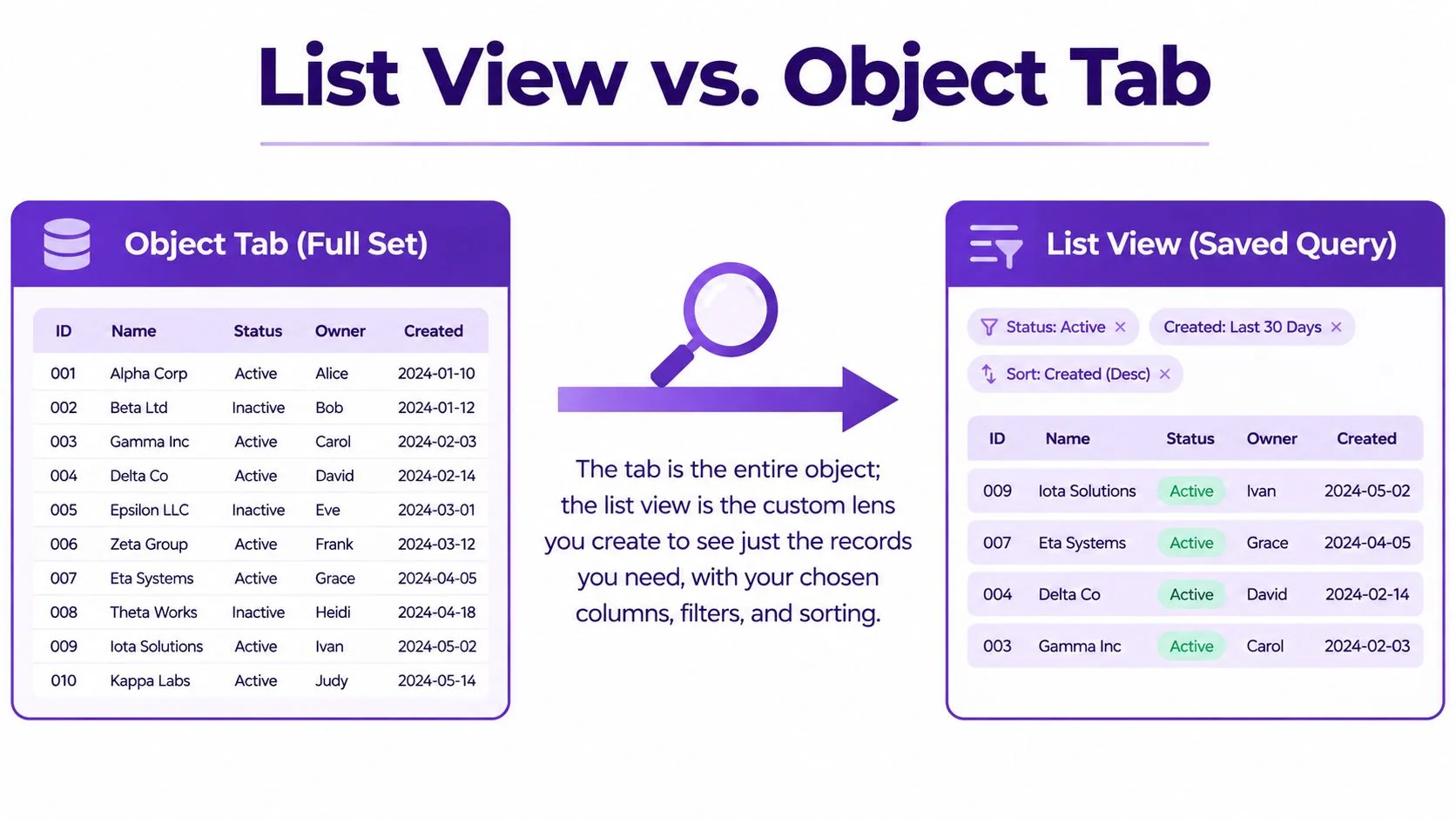
In Lightning Experience, users open the object tab and use the list view dropdown and List View Controls menu. To create a view, select New, enter a name, choose visibility, add filters, select the fields to display, and save. The filter panel lets you choose a field, operator, and value. Salesforce’s documentation gives examples such as Created equals today, and its filter operator reference explains how those conditions are assembled.
The Lightning workflow is intentionally compact:
- Open the object tab, such as Accounts, Leads, Opportunities, or Cases.
- Open the list view controls menu and choose New.
- Name the view and define who can see it.
- Add filters and choose the columns that support the task.
- Save the view, then pin it if it should become your default.
Salesforce Classic uses the same underlying idea but presents it differently. Users choose Create New View from the list view dropdown, then work through a multi-step setup for the name, filter criteria, visible columns, and sharing. Lightning uses inline filter controls and a gear-style controls menu, while Classic relies more heavily on wizard screens and dropdown navigation.
A list view isn’t a report. It doesn’t provide the same grouping, cross-object calculations, or scheduled distribution. It also isn’t a queue assignment mechanism. A queue can own or distribute work, while a list view shows records the user is allowed to access and that match the view’s conditions. Treating those tools as interchangeable creates confusing ownership and reporting designs.
The default Lightning view is generally Recently Viewed, and Salesforce lets each user pin one list view per object. The pinned list view documentation explains that the pinned view becomes the object’s default for that user.
Standard, Custom, and Dynamic Views Compared
Not every view in the dropdown has the same owner or maintenance model. Salesforce provides standard views, while admins and users can create custom views for specific workflows. Dynamic views add a further layer by making the result depend on the person currently using the view.
Standard views
Standard list views arrive with Salesforce and are available as part of the object experience. Examples include Recently Viewed, All Opportunities, and other named defaults that Salesforce defines for common navigation patterns. They provide a safe starting point because users don’t need to design filters before they can work.
Admins can often adjust visible columns on standard views, but standard views aren’t treated like fully owned custom assets. They generally can’t be deleted. Use them as the baseline, especially for a new object or a new user group, and avoid modifying them so heavily that their original purpose becomes unclear.
Custom views
Custom views are created inside the org for a team, process, or individual. A sales operations admin might create [SDR] New Leads, while a support leader might publish [CSM] Accounts Requiring Review. The view’s visibility determines who can use it, and its filters and columns can be maintained as the workflow changes.
Custom views work well when the audience has a stable shared need. They work less well when every manager creates a near-duplicate version with a slightly different name. That approach makes the dropdown difficult to use and gives new users no reliable indication of which view is authoritative.
Dynamic views
A dynamic view adjusts to the running user. A view designed around “my accounts” can show the current user’s accounts without requiring an admin to create a separate copy for each person. This pattern is useful for owner-relative work such as personal leads, accounts, or opportunities.
The important distinction is operational. A standard view is Salesforce-provided, a custom view is org-authored, and a dynamic view is user-relative. A practical selection rule looks like this:
| Attribute | Standard | Custom | Dynamic |
|---|---|---|---|
| Primary owner | Salesforce | Admin or user | Admin or process designer |
| Best use | Common navigation | Shared team workflow | Owner-relative work |
| Sharing model | Built into the experience | Chosen during setup | Shared view with changing results |
| Maintenance risk | Limited customization | Duplicate views and stale filters | Incorrect user-relative logic |
| Typical example | Recently Viewed | Renewals This Quarter | My Open Leads |
Start with a standard view when it already answers the user’s question. Create a custom view when a team needs a repeatable operating process. Choose a dynamic pattern when the same logic should follow whoever is logged in.
Permissions, Sharing, and Visibility
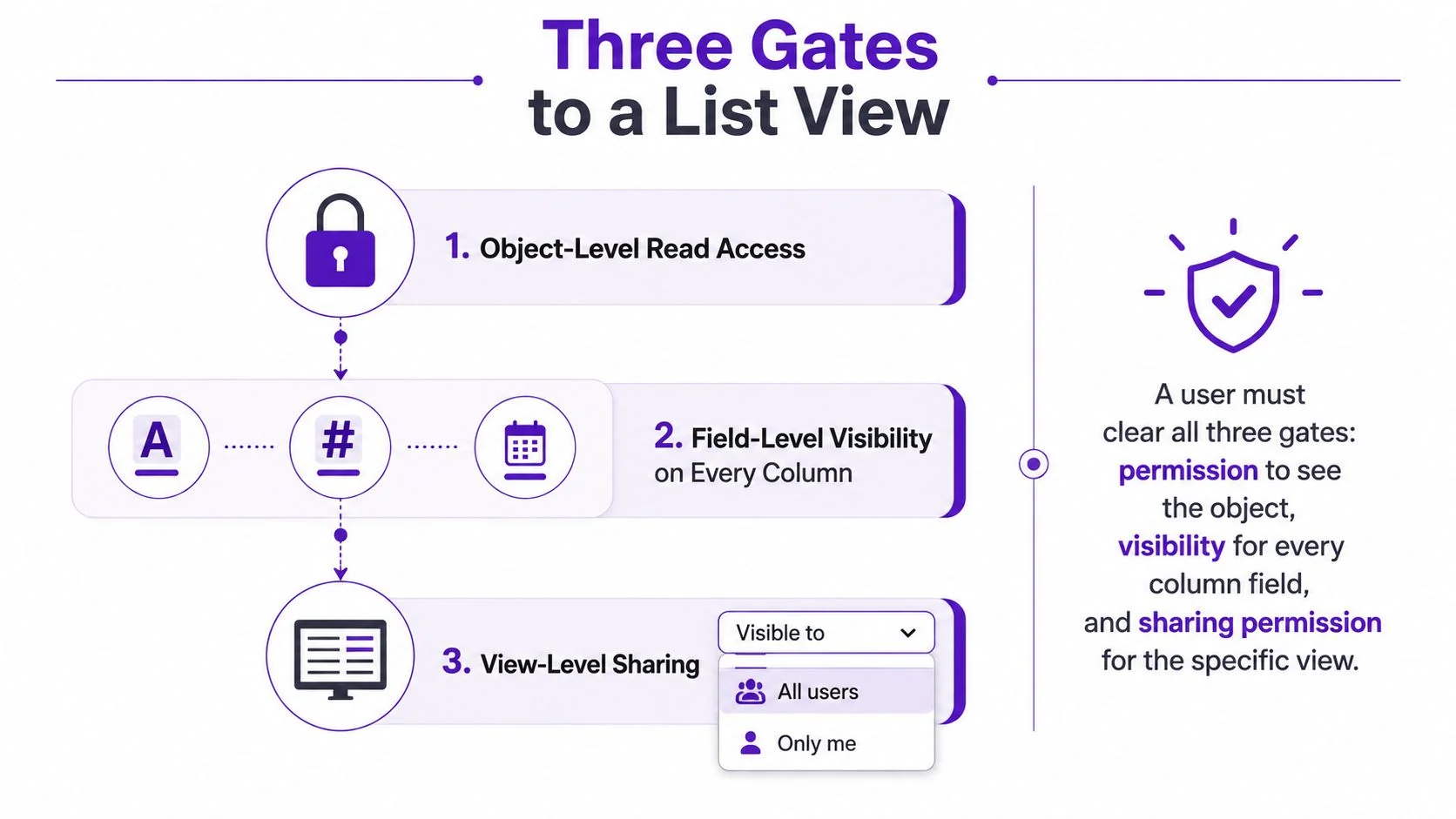
A missing list view doesn’t always mean the records are missing. Users must clear three separate gates before a view becomes useful: object-level read access, field-level visibility for the displayed columns, and view-level sharing.
The first gate is access to the object and its records. Salesforce states that a list view only shows records the user can access, including records they own, can read or edit, or that have been shared with them. The official list view access guidance frames list views as access-filtered surfaces, not complete object-wide inventories.
The second gate is field-level security. If a column contains a field hidden from the user’s profile or permission set, the user won’t experience the view as the admin designed it. This is why documentation teams should audit field visibility before assuming that role hierarchy or sharing rules caused a problem.
Sharing controls
Lightning’s Visible to choices make the audience explicit. Depending on permissions and configuration, an admin can share a view with all users, selected groups, roles, roles and subordinates, managers, or through manual sharing. The role hierarchy matters here. A view shared to a role can flow to users underneath that role, so the audience may be broader than the original creator expects.
Private views should remain private when they represent personal working habits. Public views need ownership and naming standards because a confusing shared filter affects every user who encounters it.
Salesforce introduced a new Summer ’26 permission that lets users share their own personal list views with roles, groups, or territories without granting broad administrative control, as described in the Summer ’26 admin release guidance. A separate option lets recipients edit shared list-view filters or names. Those are different rights, and they should be assigned differently.
Sharing a useful view and allowing someone to change its logic are separate governance decisions.
This permission doesn’t make private views universally visible, and it doesn’t remove the need to design access through roles, groups, territories, and object permissions. Enablement admins should decide which users may share personal views, then document whether recipients can only reference them or can also edit them.
Core Workflows Every Admin Should Know
List views become valuable when admins understand the small workflows users repeat every week. The sequence below follows a practical build, use, and maintenance pattern.
Start with a known-good view
Open the object tab, choose a view with the right record population, and select New from List View Controls. Give the new view a name that describes the action, not just the object. My Open Pipeline is more useful than Opportunity View 4.
Add filters in the filter panel. Use explicit operators such as EQUALS and bounded date conditions. For example, a sales view might combine Stage equals Qualification with an amount condition. If the logic needs to be carefully explained, document it in the view description or enablement material.
Shape the working surface
Use Select Fields to Display to add or remove columns. Put the fields a user acts on near the left, and remove fields that only satisfy curiosity. A rep may need owner, stage, amount, close date, and next step. A support agent may need case status, priority, contact, age, and owner.
The list view controls and gear icon also provide shortcuts for sharing and layout changes. The chart panel sits above the list when a list view chart is configured, giving users a quick visual summary without turning the view into a full dashboard.
Make small changes safely
Inline editing is useful for a single record correction. Hover over an editable cell, select the pencil icon, enter the value, and save. A locked field indicates that the current user can’t edit it. Inline edits don’t automatically refresh the entire list, so use Refresh when the visible result needs to reflect recent changes.
Users can select up to 200 records at a time, and Salesforce documents that safeguard for list views rendered with Lightning Web Components. The Salesforce list view limit guidance is important before you design a mass-action process. Mass updates can also skip records the current user can’t edit, which means the completed action may affect fewer records than the user selected.
Choose the right output
Export the visible results when someone needs to work outside Salesforce, but don’t turn routine exports into an unofficial reporting system. Teams handling structured data operations should define who owns the export and where the resulting file is stored. For a broader Salesforce data export workflow, document the handoff alongside your Salesforce data export process.
Pin the view when it should load by default for that user and object. Switch to Kanban when the work is about moving records through stages. Kanban is often a better fit for visual pipeline movement, while the list view remains better for scanning fields, editing values, and preparing a call list.
| Workflow | Entry Point | Key Limitation |
|---|---|---|
| Create a view | List View Controls, New | Filters still depend on accessible records |
| Add or remove columns | Gear menu, Select Fields to Display | Too many columns reduce focus |
| Edit one record | Pencil icon in an editable cell | Field permissions and save behavior apply |
| Update selected records | Row selection and Edit | Inaccessible or non-editable records can be skipped |
| Refresh results | Refresh button | Refreshing doesn’t replace good filter design |
| Pin a default | Pin icon beside the view name | One pinned view per object for each user |
| Use Kanban or charts | Display switcher or chart panel | Visual tools don’t replace detailed reporting |
An admin shortcut is to create and test the view as yourself, then reassign ownership through Setup when the view needs to inherit the right sharing model. Test it as a representative user before publishing it broadly.
Performance, Best Practices, and Common Traps
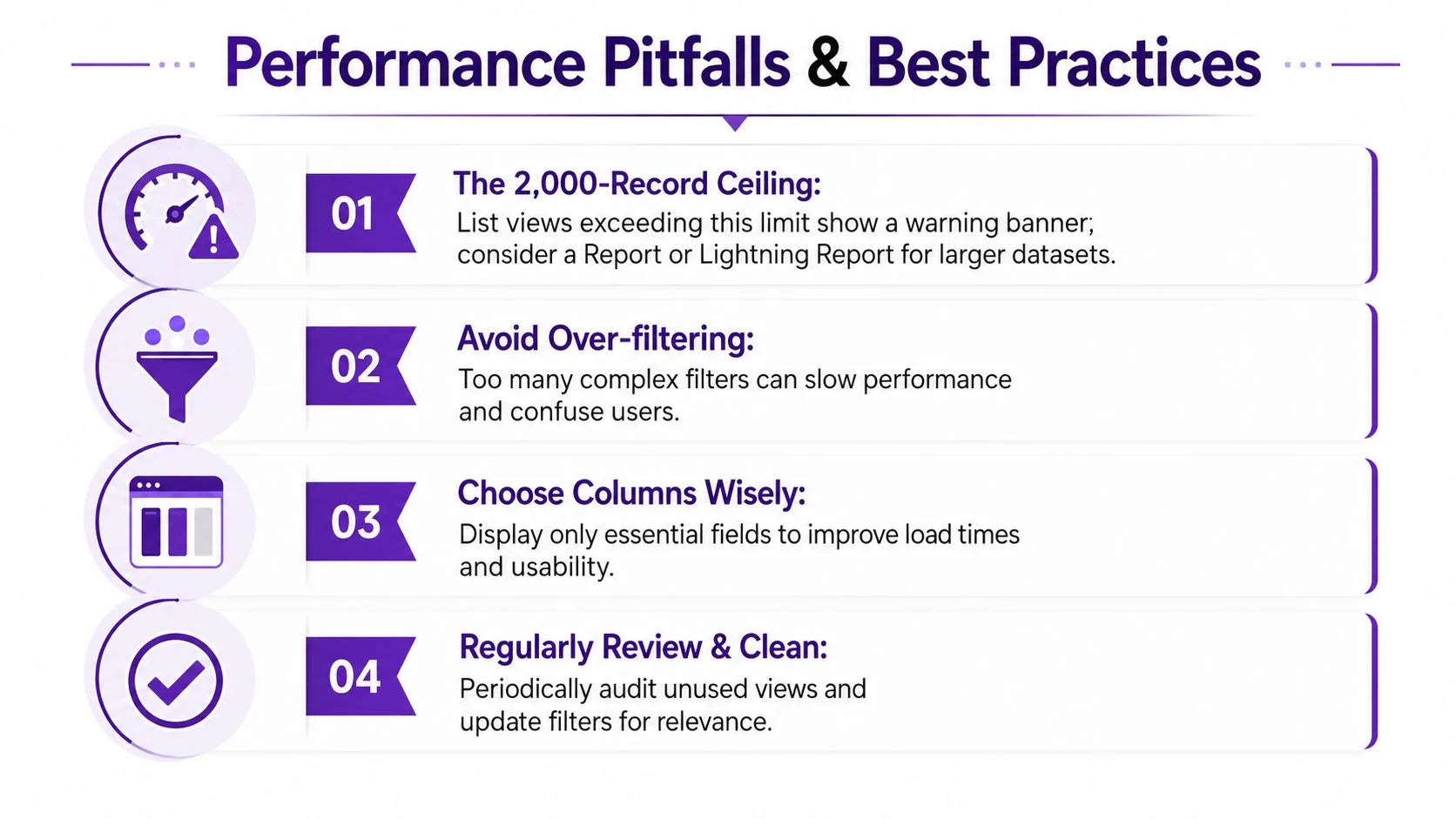
The most important limit is the 2,000-record ceiling. Salesforce documents that list view search only searches records included in the list view, and records beyond the first 2,000 aren’t displayed or searchable through that interactive list. The Salesforce documentation on list view search behavior makes the consequence clear: a view that returns more than 2,000 records is effectively truncated for interactive work.
A related Salesforce help article on returned records confirms that records beyond the visible threshold won’t be found through List View Search. Use narrower filters, a report, or a report chart when the complete population matters.
Filter for selectivity
Salesforce recommends EQUALS instead of CONTAINS, AND instead of OR, and relative date filters that reduce the scan scope. The list view best practices guidance also explains that non-deterministic and cross-object formula fields are typically not index-selective.
Prune each view to the fields the role uses. A compact grid is easier to scan and less likely to encourage users to treat a list view as a warehouse interface. Be careful with mass updates, too. Users may select records they can see but can’t edit, and the action can exclude those records.
Salesforce also documents operational details that admins often miss. Lightning Web Component list views can have a time-to-live of up to 30 seconds before updates appear, and sorting can be affected by locale. List views can’t sort by encrypted fields, and inline edits don’t automatically refresh the view.
Use this admin checklist during cleanup:
- Limit the workspace: Keep each object focused on a small set of clearly named working views.
- Name for the audience: Use stable prefixes such as [SDR] or [CSM] when multiple teams share an object.
- Review ownership: Confirm that the creator and sharing audience still match the current operating model.
- Test large datasets: Open the view as a real user and verify that filters return the expected working set.
- Retire stale logic: Remove views tied to abandoned processes, fields, or territories.
Performance isn’t only a loading concern. A fast view with the wrong records creates operational risk, while a carefully filtered view helps users act with confidence.
When a List View Stops Being the Right Tool
List views are excellent for focused execution, but they don’t scale indefinitely. The first warning sign is incomplete visibility. If a broad view crosses the documented 2,000-record limit, users may not see or search records beyond the returned set, so the view can no longer serve as a reliable inventory. Move that work to a report or a more selective report chart.
A second sign is analytical complexity. Reports are the better choice when users need grouped roll-ups, cross-object calculations, historical comparison, or scheduled distribution. List views can show selected fields and sort records, but they aren’t designed to answer every management question.
Queues and Kanban solve different workflow problems. A queue is appropriate when a team needs a shared ownership or assignment mechanism. Kanban is useful when users move opportunities or other records through stages and benefit from a visual board. A list view remains preferable when the team needs a dense field-based worklist.
Use a simple decision test
| Symptom | Best Alternative Tool | Why It Wins |
|---|---|---|
| Important records may sit beyond the list view result set | Report | Reports handle broader analytical populations |
| Users need grouped totals or cross-object math | Report | Reports support structured summaries and calculations |
| Work needs shared ownership or routing | Queue | Queues organize assignment rather than merely display records |
| Reps move deals through stages | Kanban | Kanban makes stage progression visual |
| Data is unevenly distributed across owners | Selective report or redesigned sharing | The result is easier to interpret and govern |
| The team needs external dashboards or blended sources | BI connector | A connector can support broader analytical workflows, such as a Power BI connector |
Use a report when the view requires more than a few meaningful filters, cross-object math, or scheduled distribution. Use a queue when responsibility must be assigned. Use Kanban when movement through stages is the work itself.
During an org cleanup, retire legacy views rather than leaving every historical filter in the dropdown. Dead views confuse new hires, weaken trust in Salesforce, and make it harder to identify the approved workflow. A list view should earn its place by helping someone make a decision or complete an action.
Tutorial AI turns a single screen recording and spoken narration into an edited tutorial video, then generates a matching written article from that same recording. Visit Tutorial AI to create Salesforce walkthroughs, onboarding videos, help-center articles, and internal training materials without requiring Adobe Premiere Pro editing expertise.