You can get a Power BI report working in Desktop, hand it to the Service, and still end up staring at a dashboard that won’t refresh. The connector looked fine yesterday, the source hasn’t changed, and the only obvious difference is that the file moved environments. That’s the moment teams realize the problem wasn’t the data at all, it was the connector path, the trust policy, or the authentication model hiding underneath it.
That’s why a Power BI connector deserves more than a quick definition. It’s the thing that gets you from Get data in Desktop to a published report in the Service, but it also defines how Power BI talks to the source, whether data is copied or queried live, and whether a custom extension is allowed to load at all. If you want the broader business framing for why teams keep running into this workflow, a useful companion read is transform data skills with Power BI from Professional Careers Training. For teams who are trying to connect reporting work to a bigger analytics program, enterprise analytics with Power BI from Ollo gives another useful angle.
The Moment a Working Report Stops Refreshing
An analyst opens Power BI Desktop, clicks Get data, connects to a source, loads the tables, and builds a report that looks ready to ship. The same file gets published, the dashboard appears in the Service, and then scheduled refresh fails or never shows new data. That is the point where connector issues usually surface, because Desktop success only proves one half of the path.
A lot of teams assume the source changed or the dataset is broken. In practice, the more common mistake is simpler. They verified the local connection, but never checked the Service-side credentials, the gateway requirement, or whether the published workspace can still reach the source. Microsoft’s Desktop workflow makes the first step feel straightforward, users choose a source, authenticate, and optionally transform the query before load, but the published report still depends on the connector behaving correctly after it leaves the machine Microsoft Desktop data sources.
Practical rule: if Desktop works and the Service does not, treat it as two separate connection problems, not one.
The clearest example is a SaaS connector that uses OAuth in Desktop but relies on a stored username and password in the Service because the tenant policy or gateway path is different. A Salesforce report, for example, may open fine with an interactive OAuth sign-in on a analyst laptop, then fail later when the scheduled refresh tries to reuse credentials that were never mapped into the Service connection settings. The report author sees a working table in Desktop, but production refresh depends on the auth method, the refresh context, and whether the connector exposes the same identity path after publication.
That split is why connector thinking matters. A report author starts in Desktop, but production behavior depends on whether the connector can survive trust checks, refresh scheduling, and network boundaries after publication. Teams that document those handoffs as runbooks instead of one-off fixes usually catch the missing step sooner, and this runbook versus playbook guide is a useful reference for separating repeatable operations from a one-time setup.
The important takeaway is simple. A Power BI connector is not finished when the table loads. It is only ready when the same source can still authenticate, refresh, and stay discoverable after the report moves into production.
What a Power BI Connector Is
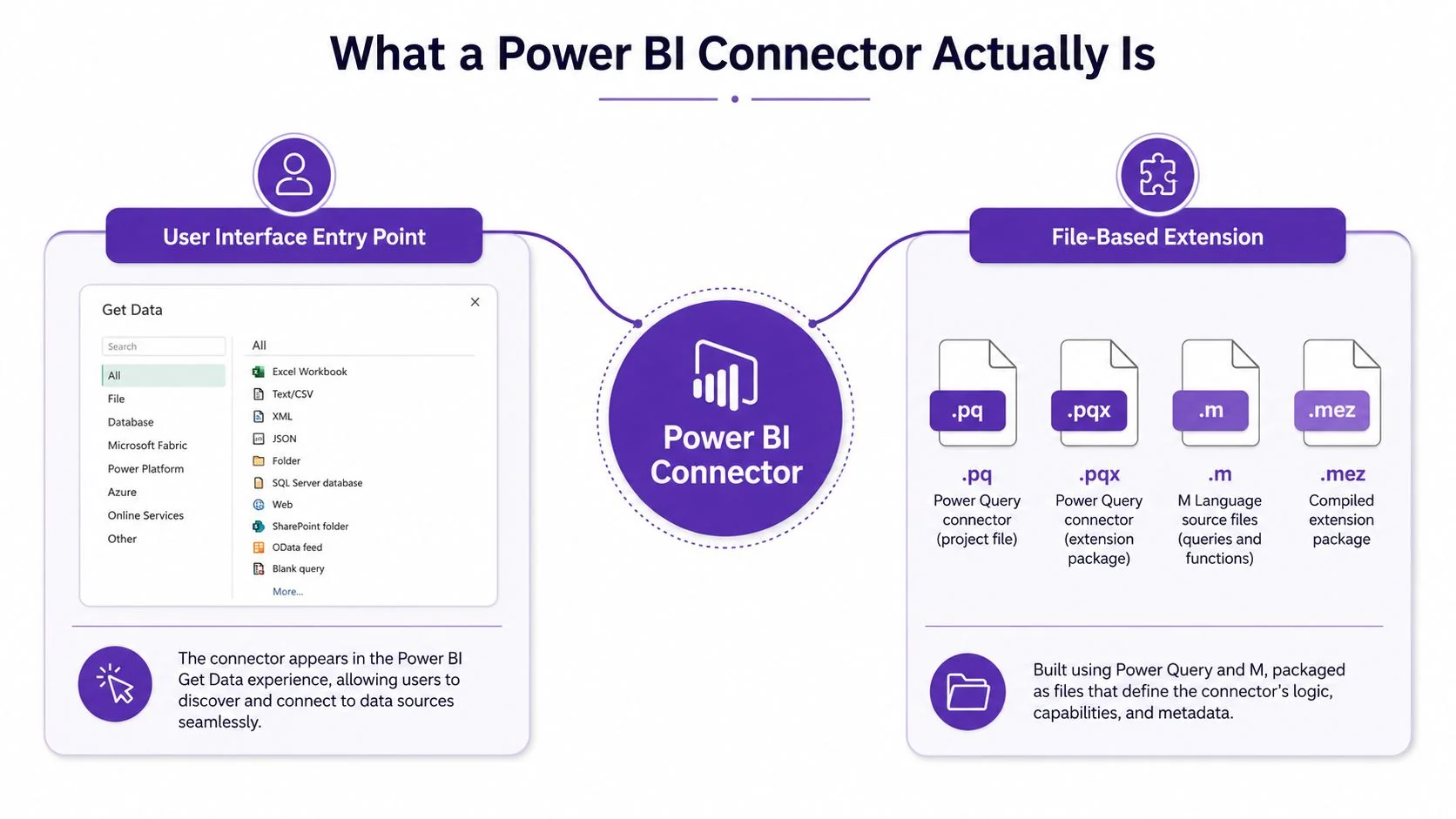
A Power BI connector is both the user-facing entry point and a file-based extension behind it. In Desktop, a user opens Get data, picks a source, signs in, and then Power Query can shape the data before it is loaded into the model. Microsoft also describes custom connector extensibility through files such as .pq, .pqx, .m, and .mez, which Power BI Desktop loads from a specific custom connectors folder Microsoft connector extensibility.
That distinction matters because a connector is more than a menu choice. It is a packaged piece of code that tells Power BI how to reach a source, which path to use, and which trust checks must pass before it can run. Microsoft’s connector guidance frames the same idea from the product side, showing how Desktop uses data source entry points while custom connectors extend that behavior when a native connector does not exist Microsoft Desktop data sources. A good companion explanation of the broader business use case appears in enterprise analytics with Power BI.
Two ways to think about the same thing
A built-in connector is the simpler case. Power BI already understands the source, so the user clicks through the dialog and the engine handles the rest. A custom connector is different because the code lives locally, the trust policy matters, and the file must sit where Desktop can find it.
A connector is part UI, part software artifact. If you only focus on the UI, you miss the security gate.
Governance-heavy teams should treat connector files like software, not like shortcuts. They carry versioning concerns, compatibility concerns, and trust concerns, and those issues appear long before a report reaches the Service. That is why the extensibility model belongs in the same conversation as development, deployment, and refresh behavior, not just in the initial data import screen.
The Four Layers of the Connector Architecture
A connector problem usually starts looking strange only after a report leaves Desktop. On the analyst’s machine, the source appears in Get Data, credentials work, and the query returns rows. After publish, the same dataset may stall because the Service, the gateway, and the custom connector file each have a separate job to do.
Power BI connector behavior is easier to diagnose when you break it into four layers. Power BI Desktop handles source discovery and local testing through Get Data and Power Query. Power BI Service handles published datasets, reports, and scheduled refresh. The on-premises data gateway bridges the Service to sources it cannot reach directly. Custom connectors add source-specific code and bring security and trust checks with them Microsoft connector extensibility.
Where the request actually travels
The path changes with the connection mode. In Import, Desktop pulls data into the model and caches it locally. In DirectQuery, the model keeps the data at the source and sends queries at runtime. Microsoft’s connector architecture guidance shows that this mode choice also affects whether the gateway has to sit in the middle, especially when the source is on-premises or otherwise outside the Service’s reach Power BI connector architecture and modes.
That is why a report can look healthy in Desktop and still fail in production. The Service may not see the same network path, the same saved credentials, or the same gateway mapping that existed on the developer’s laptop. In practice, the first sign of trouble is often a refresh that works once in Desktop, then stops after publish because the Service cannot complete the same handshake.
Custom connectors span the whole stack because they change how Power BI discovers the source, how it authenticates, and how the engine calls the endpoint. They are file-based extensions, so the file has to be in the right place and trusted by Desktop before it ever helps a report. If the file is missing, blocked, or rejected by policy, the source may never appear, and that failure can look like a data issue when it is really a load issue.
| Layer | What it does | Failure signal |
|---|---|---|
| Power BI Desktop | Lets the user choose a source, transform data, and test the connection | The connector never appears, or it fails during source selection |
| Power BI Service | Hosts published reports and runs scheduled refresh | Desktop works, but refresh fails after publish |
| On-Premises Data Gateway | Brokers access to sources the Service cannot reach directly | Timeout, unreachable source, or repeated connection failure |
| Custom Connectors | Extend supported sources with packaged code | The source does not load, or it behaves differently from Desktop |
If the source is a SaaS system with its own login flow, the connector can also make the authentication path visible. A Salesforce export example, such as this Salesforce export guide, helps show why desktop testing and service refresh can diverge when identity is handled by the vendor rather than by a plain username-and-password prompt.
Common Connector Categories and Real Scenarios
Databases, files, cloud SaaS, and web or API connectors solve different problems, and the category usually tells you where the friction will be. If you know the source shape first, you can predict the auth flow and the refresh model before you touch Desktop.
Databases, files, cloud apps, and APIs
Databases like SQL Server, PostgreSQL, and Snowflake fit the sources that already store structured operational or warehouse data. The connector concern here is usually connectivity mode and network reach, not the shape of the data itself. If the source is on-premises, the gateway becomes part of the design.
Files such as Excel, CSV, Parquet, and SharePoint folders fit the analyst workflow that starts messy and gets cleaned in Power Query. These connectors are common because teams still operate with data arriving as exports, ad hoc files, and shared folders. The connector does the ingestion job, but the core value is in what Power Query can do after the file lands.
Cloud SaaS connectors, including Salesforce, Google Analytics, and ServiceNow, usually push authentication into OAuth flows. That matters because the source identity model is already managed by the vendor, so the connector has to respect the SaaS login and token structure rather than pretending it’s a flat file. If you’re working with exported CRM data, this Salesforce export guide is a useful complement to the connector view.
Web and API connectors cover the long tail. REST, OData, and generic Web connectors are what you reach for when there isn’t a polished first-party source and the team needs to stitch data together from an endpoint or service response.
If the source already has a native connector, use it first. If it doesn’t, the API route is usually where the custom work begins.
The practical choice is less about elegance and more about source behavior. Databases want reliable connectivity, files want cleanup, SaaS wants authentication discipline, and APIs want careful shaping. The source category usually tells you which part of the pipeline will fail first.
Import, DirectQuery, and Live Connection Compared
The mode you choose in Get data changes how the connector behaves after setup, and that choice often decides whether a report stays useful in production or just looks fine on a desktop. Import copies data into the Power BI model, so the report runs from cached data inside the file and usually feels faster for smaller or less frequently changing datasets. DirectQuery keeps the data in the source and sends queries at runtime, which fits reporting that needs fresh numbers but can add latency to each visual. Live connection points Power BI at an existing model, so the report consumes someone else’s semantic layer instead of building its own local copy.
Mode choice changes the operational burden
For a team that wants predictable refreshes, Import is usually the easiest path because once the model is loaded, local performance is strong and refresh is handled on a schedule or manually. The trade-off is freshness. If the data changes after the last refresh, the report stays behind until the next successful run.
DirectQuery moves the burden to the source system and the network. That is why it fits dashboards where users care more about current state than about fast local rendering. It also means you need to watch query response time, because a busy report can feel sluggish if the source is slow or the visuals fire too many queries at once.
Live connection is tighter still. Power BI is reading from an external model, so the report author gives up some local shaping freedom, but the payoff is consistency with a managed semantic layer. That can be the right fit for a governed enterprise model, yet it also means changes have to be made upstream, not inside the report file.
| Mode | Data Location | Refresh Behavior | Best Fit | Operational Trade-off |
|---|---|---|---|---|
| Import | Copied into the Power BI model | Refreshed on a schedule or manually | Smaller or more static datasets | Usually recommended when the model stays under about 2 GB and refresh latency is acceptable |
| DirectQuery | Stays in the source | Queried at runtime | Near-real-time dashboards | Each visual can add about 200 to 500 ms, or more, depending on source performance |
| Live Connection | Existing external model | Depends on the source model | Managed semantic models | Best when the source model is already governed and the report should not duplicate it |
The practical point is that mode choice is part of connector architecture, not a detail you can ignore after the first setup. Once a report is built around one mode, changing it can affect performance, refresh behavior, security handling, and the way scheduled refresh works in the Service. If the desktop setup and production authentication do not line up, the report may open fine for a developer and still fail later when the refresh job runs. If you are documenting that handoff for a team, a short guide on software documentation best practices helps keep the setup steps and production assumptions aligned.
Installing a Custom Connector Step by Step
A custom connector starts as a file, then Power BI Desktop decides whether it is allowed to load. Microsoft’s extensibility model covers several file types, including .pq, .pqx, .m, and .mez, but the published package that teams usually copy into Desktop is the connector package file. Power BI Desktop looks for that package in [Documents]\Microsoft Power BI Desktop\Custom Connectors, and it may still block the connector until the security policy is updated for uncertified extensions. That separation matters because copying a file into the folder is only half the install, and a connector that is blocked by policy can fail Microsoft connector extensibility.
The usual install path
- Create the folder path if it does not exist. Power BI Desktop checks the expected custom connectors folder, so if the folder is missing the connector will not show up at all.
- Place the connector package in that folder. For the published connector build, that is usually the
.mezfile. If your connector source is a.pq,.pqx, or.mfile, those are development artifacts or source forms, so they follow the build and packaging path before Desktop can load them. - Restart Power BI Desktop. Desktop reads the extension list on startup, so a connector copied in after launch usually stays invisible until the app reloads.
- Open the security settings. Go to File > Options and settings > Options > Security > Data Extensions and allow the extension if your environment expects uncertified connectors.
- Check the source list under Get Data. If the connector loaded correctly, it should appear there as an available source.
The security gate exists because custom connectors are code, not just a visual add-on. Power BI has to decide whether it trusts the extension before it runs it, and vendor guidance often adds certificate thumbprints or similar trust controls so the connector can be treated like a governed software artifact Siteimprove connector setup guide.
A connector that is copied correctly but still does not appear is usually pointing to trust policy first. File corruption is possible, but blocked loading is the more common operational gap.
For teams that document connector setup or internal onboarding, software documentation best practices is a useful reference for keeping the install steps clear enough that people do not skip the security gate or confuse source files with the packaged connector.
Authentication, Gateways, and Scheduled Refresh
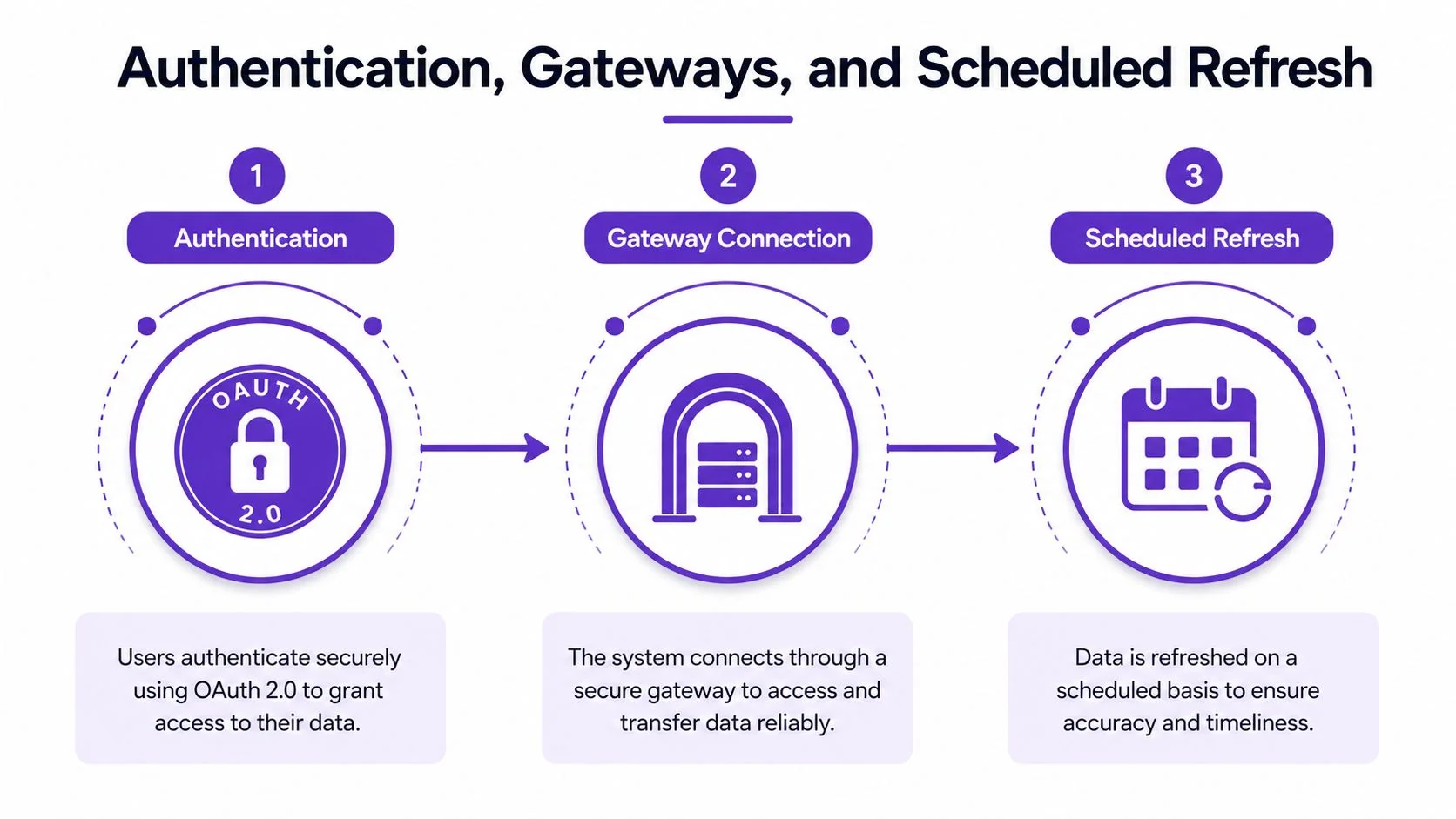
A report can look finished in Desktop and still fail the moment it moves into the Service. That gap usually comes from three places that work together but do not always share the same rules, authentication, gateway routing, and scheduled refresh. Visier’s connector documentation separates OAuth 2.0, non-SSO login, and direct username-password login, and it notes that direct username-password is needed when publishing to the Power BI Service and scheduling refreshes because it supports credential caching Visier Power BI connector docs.
Why Service refresh behaves differently
Desktop often succeeds because the author is working from an already authenticated machine with direct access to the source. The Service behaves differently, because it has to reuse stored credentials later, and some connectors only support that reuse through a specific login method. If a gateway is part of the path, it also needs to know which data source it is brokering and which credentials it should present.
That is the operational gap teams miss. A report can be correct in Desktop and still fail in production because the Service cannot cache the credential in the same way, or because the gateway is not configured to reach the source. The connector may be loaded, yet the refresh path still breaks when the environment moves from a developer’s machine to the Service.
How the pieces fit together
For SaaS sources, OAuth 2.0 is often the cleanest starting point because the connector can delegate login to the source system. For scheduled refresh in the Service, some connectors still rely on stored username-password credentials because the Service needs a reusable credential cache. For on-premises sources, the on-premises data gateway becomes the bridge, and that is the component that lets the Service reach into a network it cannot access directly Power BI connector architecture and modes.
A connector can be installed and still not be production-ready. Scheduled refresh is the operational test.
If the dataset will be used by many viewers, identity choice matters too. Microsoft’s guidance on desktop data sources shows that the connection path determines how the source is reached, which is why production readiness depends on more than clicking Load in Desktop Microsoft Desktop data sources.
Troubleshooting Connectors That Won’t Load or Refresh
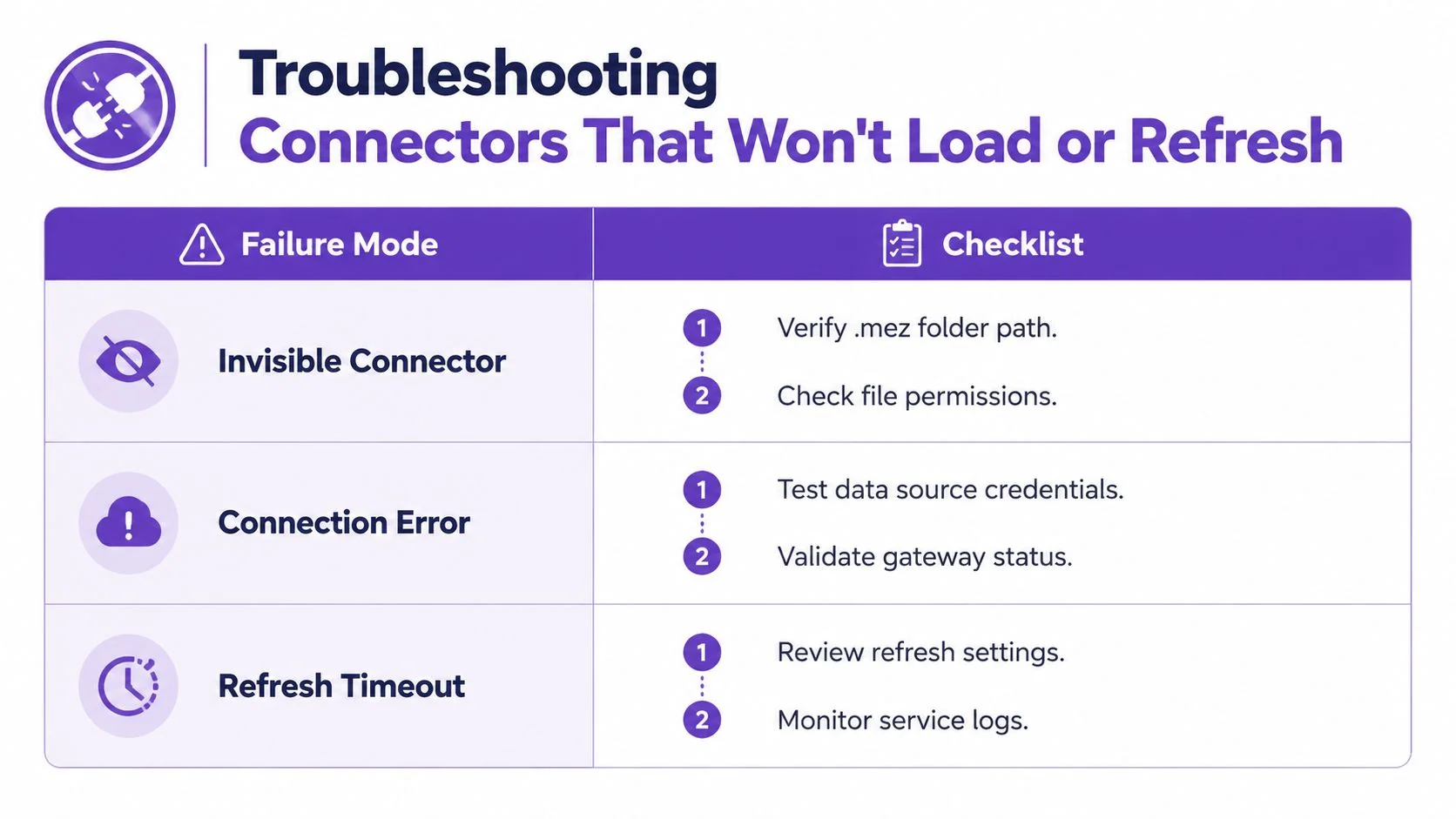
The hardest connector failure is the one that leaves no obvious trace. A .mez file can sit in the right folder and still fail to appear in Get Data if Power BI Desktop is blocking uncertified extensions, the folder path was created incorrectly, or the connector does not meet the trust rules the Desktop host expects. That quiet failure mode is common enough that it should be the first branch in any diagnostic flow.
Log entry, error code, likely cause, first check
- “Extension load blocked” or missing connector entry in logs: The file is present, but Power BI Desktop never loads it. First verify the
.mezfolder path, then confirm whether uncertified extensions are allowed, and check whether the connector requires a trusted certificate thumbprint. - Credential rejection or source access denied: The connector appears, but login or source access fails. First inspect the credential type that the connector expects, then validate whether the identity used in Desktop matches the one the source will accept in production.
- Gateway or refresh path failure in refresh logs: The report works in Desktop, but scheduled refresh stalls later. First check whether the dataset is mapped to the correct gateway, then review whether the Service can reuse the stored credentials and reach the source at refresh time.
- Timeout or intermittent refresh failure entries: The connector starts, then fails partway through refresh. First look for source availability during the refresh window, then compare the refresh log with the connector’s expected authentication flow and data path.
If the connector shows up in Desktop but fails after publication, the next check is the Service-side execution path. A local file can load correctly and still break later because the published dataset needs a Service-compatible identity, a usable credential cache, and a live gateway route. The install step proves the file can be found. Production refresh proves the stack can run end to end.
Some connectors also expose their own authentication split. Visier’s connector documentation separates OAuth, non-SSO, and direct username-password login, which means a method that works in Desktop can still fail when the Service tries to reuse it for scheduled refresh Visier Power BI connector docs. The clean way to diagnose that gap is to check the exact credential mode in the log, then compare it with the refresh path the Service is trying to execute.
Siteimprove connector setup guide