The ticket lands at 4:40 on a Friday. A customer has a new phone, the old one is in a drawer, and the authenticator app on it no longer works. The support analyst on shift knows the reset lives somewhere in the admin console, but the exact path sits in the head of a colleague who is offline until Monday.
So the analyst guesses. Sometimes the guess lands, the customer signs in, and the ticket closes in a minute. Other times the analyst picks the wrong control in the Security panel, the account locks for an hour, and a routine request turns into an incident thread.
Talent doesn’t separate those two outcomes. The written procedure does. A good SOP is a tested procedure with a visible done state, published where the person doing the work can open it mid-ticket. What follows covers the blocks a software SOP needs, a fill-in template, the method for writing steps someone can follow first time, a worked MFA reset example, the review and versioning rules that keep it current, and how to record the same walkthrough so it doubles as training.
The Parts of a Good Software SOP
A support agent opens an account record and sees three similar controls: reset MFA, remove a device, and revoke all sessions. A good SOP makes the correct action clear, then shows what success looks like. It gives the person enough direction to finish the task without guessing, not a history of the authentication vendor or a diagram of the identity system.
Build each procedure around the questions that arise while someone is doing the work. Who can perform it? Which screen should they open? What should they do, and what visible result confirms completion? Each block should answer one of those questions or help prevent an error.
Start with the procedure’s owner, scope, effective date, and current location. Without an owner, nobody is clearly responsible for keeping the instructions current. If the owner or scope is unclear, settle that before documenting the steps.
| Block | Question it answers | Include it when |
|---|---|---|
| Title and ID | Which process is this? | Always, with a stable identifier such as SOP-SUP-014 |
| Purpose | Why does this run? | Always, in one sentence |
| Audience and limits | Who may run it, and when must they stop? | When roles differ or the task has limits |
| Prerequisites and access | What access, data, and start screen are required? | Before the first action |
| Tools and start screen | Which screen opens first? | When the task spans more than one screen |
| Numbered actions | What does the person do next? | Always, one action per step |
| Decision points | Which path applies? | When the task branches or needs approval |
| Completion check and recovery | How do they know it worked, and what if it didn’t? | Always, especially when an error could lock a user out, change billing, or lose data |
Depth should follow risk, not habit. A view-only lookup may need only a short procedure. A password reset or billing change may need warnings, an approval checkpoint, and a named escalation path. Include detail that changes what the reader does or helps them recognize a mistake; leave background outside the action list.
A software SOP can cover a process with several related tasks, while a work instruction focuses on a specific task. Use the difference between standard operating procedures and work instructions to decide how broad the document should be. Keep its steps tied to a clear, observable result, so the person doing the work can tell when the procedure is complete.
Copy-Ready SOP Template
Paste this into a document and fill it in for a single task. Each line exists because a reader needed it at some point mid-ticket.
Header lines. SOP ID (SOP-SUP-014, for example), title, owner, audience, scope and do-not-use cases, revision number, revision date, effective date, approver, next review date, and the one location of the current copy.
Purpose. One sentence on why this procedure runs at all.
Prerequisites. The role or permission required, the ticket or record the agent needs, and the exact start screen.
Actions. Numbered, one action per line, written as actor plus verb, with the visible control label in bold.
Decision points. Written as: if the condition is true, take this action; otherwise stop and escalate to a named contact.
Expected result. The banner, status, or field value the person should see when it worked.
Recovery. What to do when the result is wrong, and who to tell.
Quick test. A second person completes the steps on a test record without help.
Keep the whole thing to one page for a single task. If it runs longer, the procedure is really two SOPs, and splitting them gives each one a clear owner and a clear done state.
Write Steps People Can Follow on the First Try
Procedure writing is a design task, not a prose task. NASA’s human-factors research treats a procedure as something you build, test, and then watch people perform, moving from understanding the operational issues through writing the procedure and evaluating how it holds up in real use, as set out in the NASA procedure checklist design guidance. Writing from memory and calling it finished skips every stage that catches errors.
The order to work in
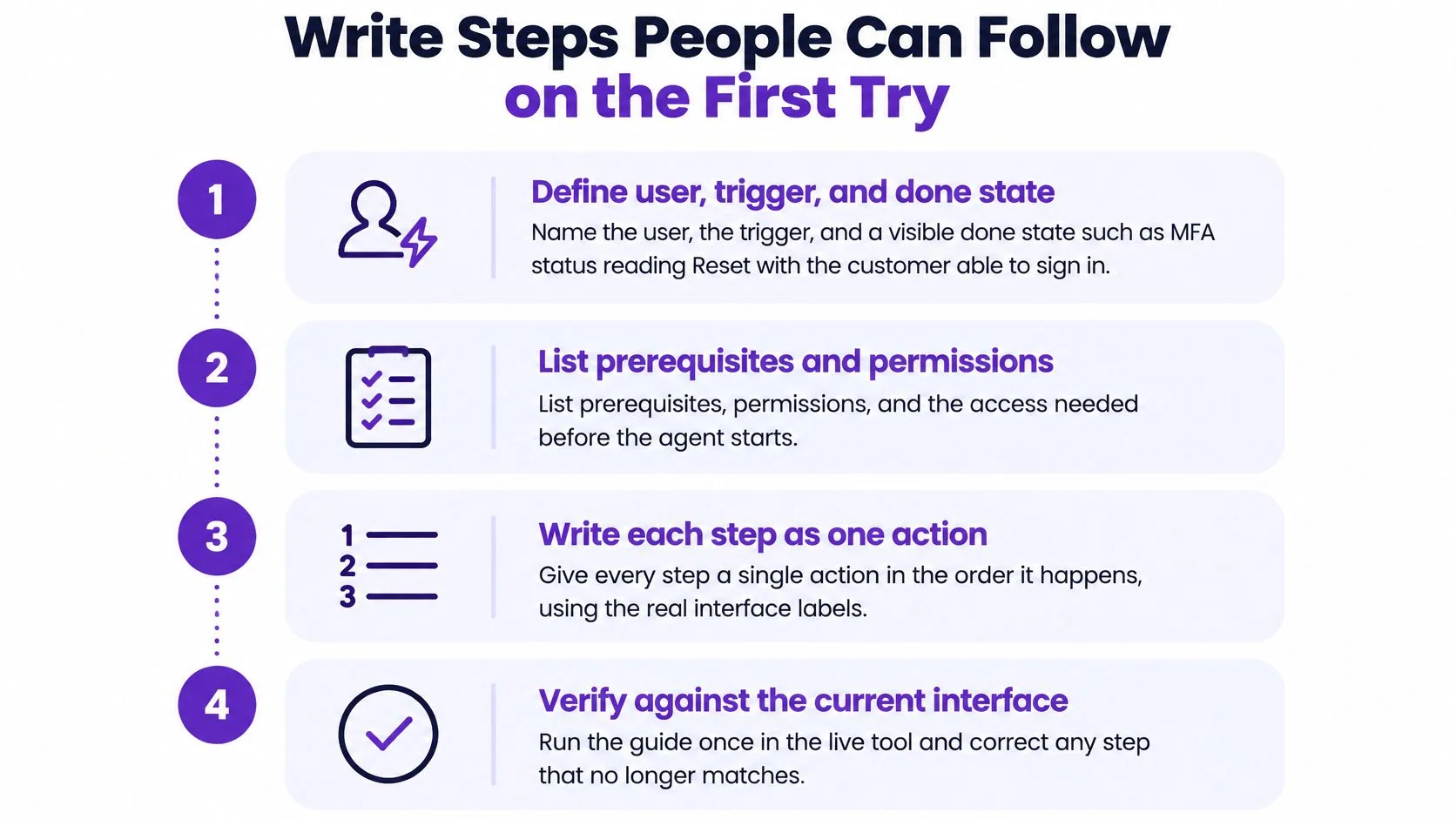
- Name the user, the trigger, and a visible done state. For the MFA case: tier-1 support agent, triggered by a customer who lost their device, done when the status reads Reset and the customer signs in successfully.
- List prerequisites, permissions, and the exact start screen. “Agent role with Reset MFA permission, ticket open, user record visible” is a prerequisite. “Access to the admin tool” is a wish.
- Walk the happy path once, noting every click, field, and system message. Do it in the live tool with a test account, not from memory.
- Split the branches. Separate the normal path, the approval path, and the stop conditions into distinct blocks.
- Rewrite each action as actor plus one measurable verb. “Support analyst selects Reset MFA” beats “Handle the MFA issue” because two people can’t read it differently.
- Add inputs, expected feedback, and recovery lines only where a wrong result is possible. Recovery text on every line buries the three lines that matter.
- Move rationale and long troubleshooting below the action list. The person mid-task scans the steps; the person learning the process reads the notes afterward.
- Have someone who has never done the task follow the draft. Record hesitation, backtracking, wrong clicks, unanswered questions, and time to completion. Fix the specific line that caused each failure.
- Re-test after any material interface change and log owner, version, review date, scope, and escalation contact alongside the document.
The sentence test
Read every numbered line and ask whether two trained people could click different controls after reading it. If yes, rewrite with the visible label, the screen name, and one verb.
Before: Process the request.
After: Support analyst selects Approve on ticket T-1842 and checks that Status shows Approved.
Three habits keep lines executable. Put the warning before the risky click, not after it. Use a screenshot only for a screen where the target control is easy to miss, and crop it to that control. Name the screen in the step itself, so the reader knows where they are.
What breaks a first attempt
Five failures account for most unusable drafts. Steps copied from memory skip a confirmation dialog that appears every time. Screenshots show a menu that was renamed two releases ago. The purpose paragraph restates the steps instead of explaining the trigger. Troubleshooting sits inside the happy path, so the reader can’t tell where the normal flow resumes. And no named owner means nobody notices when any of it goes stale.
Close with a self-check on three points. Labels match the product exactly as spelled on screen, every branch ends in either a completion check or a stop, and the done state is something the agent can see rather than assume.
Example SOP for Resetting User MFA
The example below is illustrative, not a universal admin console. Treat the labels as placeholders to verify against your own tool before publishing.
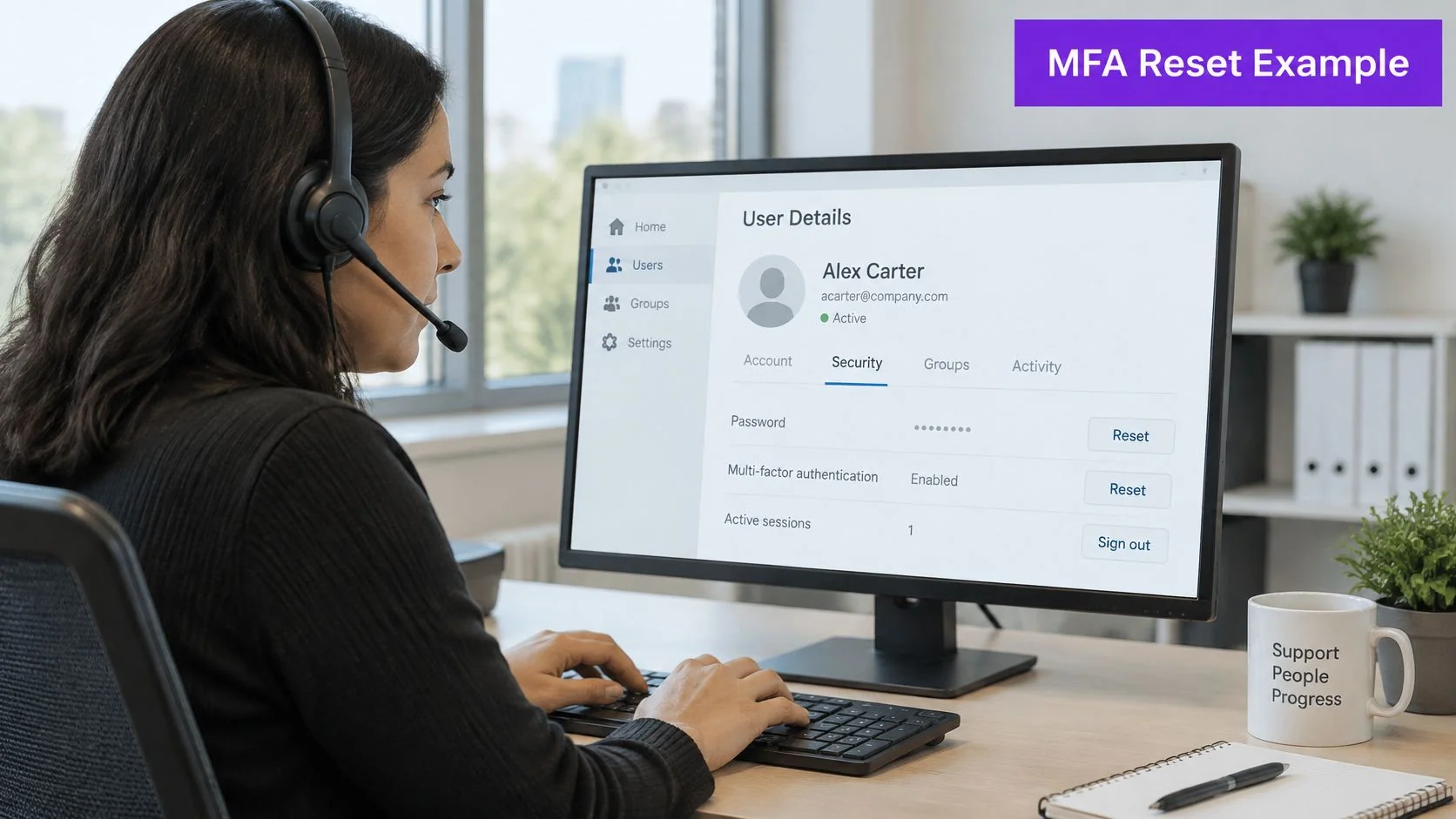
A customer success agent picks up a ticket where the customer has a new phone and can’t generate a code. The agent has the reset permission. The customer’s email is already confirmed on the ticket. What follows is the finished artifact.
Header. SOP-SUP-014, owner Support Operations, audience tier-1 agents, revision 3, effective 12 May, next review in 12 months. Do not use this for an admin account lockout; those route to the identity team.
Prerequisites. Agent role carrying the Reset MFA permission. Ticket number open. User email confirmed against the ticket. User record open in the admin tool.
Steps.
- Open the user record from the link in the ticket.
- Confirm the email address and account status match the ticket details.
- Select Security, then select Reset MFA.
- Type the ticket ID into the reason field.
- Select Submit.
Expected result. A banner reads MFA reset, and the status changes from Active to Reset pending.
Recovery. If the Reset MFA button is missing, stop and escalate, because the signed-in role lacks the permission and no amount of retrying will fix it. If the email on the record does not match the ticket, do not reset. Reply on the ticket and ask the requester to confirm the address.
That structure does the work four ways. The prerequisite line prevents the most common failure before step 1. The reason field ties the action to an auditable record. The expected result gives the agent a visible finish line rather than a feeling. The recovery line names the condition and the exit, so the agent doesn’t improvise a workaround on a customer account.
One quality check settles whether the document is ready. A second agent follows only these lines on a test user and reaches the banner without asking where Security lives or which field takes the ticket number. Any question they ask becomes a line in the SOP.
Button names must be rechecked against the live interface before this goes anywhere near a help center, because product labels change between releases and a stale label is worse than no label. The step count stays at five deliberately. Adding a sixth step for something the agent does once a quarter belongs in a separate procedure.
How to Review and Version an SOP
A button moves, a role changes, or an approval rule shifts. Any of these can make an SOP unsafe to follow, so review timing should match the risk of the task. Record the next review date in the document header, and review sooner when a change could alter the steps or their outcome.
The header should identify the SOP ID, title, owner, revision number, revision date, approver, effective date, next review date, and location of the current copy. These details help a reader identify which procedure applied when a particular ticket was handled.
Approval checks whether the procedure is suitable for use. The approver confirms that the steps match the current interface and that the task’s risk controls still make sense. A clear document that describes the wrong process is still a bad SOP.
Protect the current copy
After approval, keep the live copy easy to find in the help center, wiki, or team workspace, and protect it from unintended edits. A well-meaning change to one word can alter what an agent is expected to do.
Retire old copies so they cannot be mistaken for current instructions. Someone following an outdated screenshot may confidently choose a menu that no longer exists. Document control should make the current version identifiable, available where the work happens, and protected from casual changes. It does not require one particular template.
Adoptable update triggers
| Trigger | Update | Approver |
|---|---|---|
| Scheduled review based on task risk | Confirm steps still match the live product and record the next review date | Process owner |
| Interface or label change | Replace affected steps and screenshots and bump the revision | Process owner |
| Permission or role change | Rewrite prerequisites and stop conditions | Process owner plus the role admin |
| Incident or failed first-time test | Fix the step that caused the miss and re-test | Process owner |
| Policy or approval rule change | Add or remove the checkpoint and re-approve | Process owner and policy approver |
The same process documentation best practices apply to an SOP and to an article or help center page built from it. Keep the revision number on retired copies too. When someone needs to establish which instructions were in force for an earlier ticket, the archived version provides the record.
Record the Walkthrough and Share Both Formats
The person who knows the reset best is also the person least likely to have time to script a video and write a guide as two separate projects. Recording the walkthrough once and generating both outputs from that same recording removes the duplicate work without removing the review step.
The recording can start from Tutorial AI’s screen recorder for software training, where the workflow runs in three moves:
- Record a short workflow live in the admin console, or upload a recording that already exists, with or without spoken narration.
- Check the AI-generated script, correct any wrong label, and choose a narration voice that fits the team.
- Generate the video, then open the Document tab to produce the written guide with screenshots from the same recording.
What the steps don’t do is approve the output. A person still compares both versions against the live product, line by line. Step order has to match. Button names have to match. The ticket-ID reason field has to appear in the written guide, not just in the narration. The success banner and the escalate-if-no-permission line both need to survive the conversion. Edit before sharing, every time.
A generated tutorial is a draft of a procedure. The reviewer is what makes it a standard.
Audio is worth one decision up front. Narrate with a microphone if the viewer needs to hear the thinking behind a step, and leave system audio off unless the software itself plays a cue the viewer must hear, such as a confirmation chime or an error tone. Recording both at once usually produces a narration track competing with interface noise.
This pairing fits internal process documentation, support training, and help center articles, and it works especially well when the person who owns the task can demonstrate it in two minutes but won’t write prose from memory. The recording captures the actual screens and sequence, which is exactly the evidence a written SOP needs. Tutorial AI works from that demonstration and the knowledge of the person giving it, so the reviewer remains the source of truth about how the admin console behaves.
The useful next step is small. Pick one live task, record it, review the script and the written steps against the product, and only then hand either format to a colleague. A guide that survives that loop is worth more than a polished library nobody tested.
Tutorial AI turns a short screen recording into both a narrated tutorial video and a written, step-by-step guide with screenshots, so the same walkthrough that documents a procedure also trains the next person who has to run it. The workflow keeps a human in the loop: record the task, edit the generated script and steps, compare them against the live software, then share what’s correct. To document your first real procedure this way, visit Tutorial AI and record the task you keep explaining to new hires.