A support lead finishes a customer call with a clean recording. The demo shows the whole task, the narration sounds clear, and the file gets saved with a note to turn it into help content later. A week passes, a new admin asks the same question, and nobody can find the exact click inside a long video. Learning How to Turn a Narrated Software Demo Into a Help Article solves that gap. The recording stays as evidence, but the article becomes the repeatable task: a goal, prerequisites, numbered steps, a visible result, and a recovery note a reader can search, skim, and test without replaying the call.
Record One Task the Article Can Repeat
A meeting recording and a help article source are different things. A meeting can wander through context, questions, and side paths. A usable demo recording shows one task from a known starting point to a visible ending point, with every required control on screen long enough to become a step or a screenshot.
Use the invite task as the recording test
Example: A customer success manager records how to invite a teammate in an admin console. The viewer must see the menu path, the role picker, the email field, and the Pending row after the invite is sent. If the role picker opens below the visible window, the later article can’t prove which role was chosen. If the recording ends before the Pending row appears, the article has no success check.
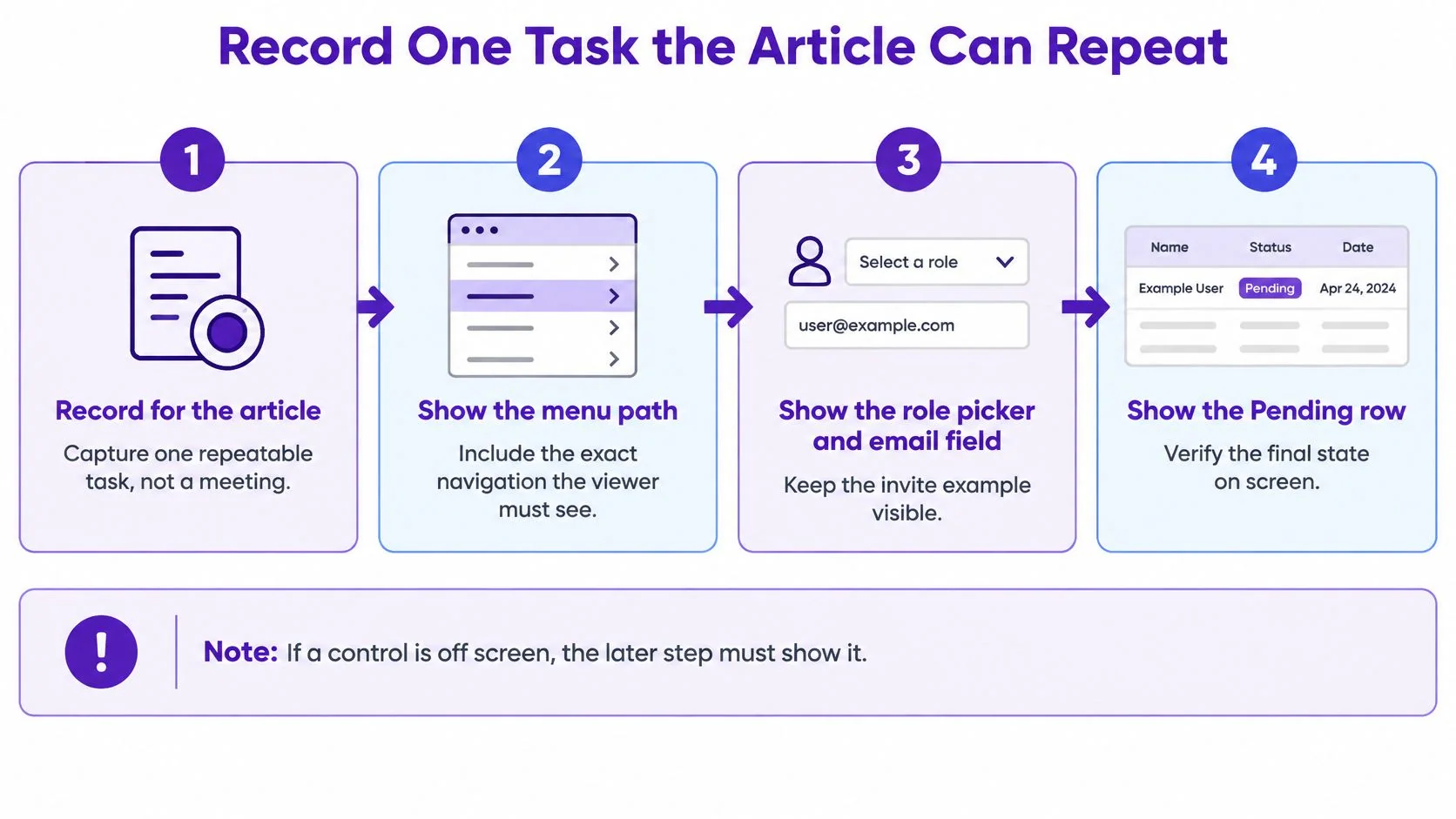
Seven recording actions that prevent article gaps
- Name the goal and success screen in the filename. Include the task, product version, and locale, such as invite-teammate, plus the expected final state. A vague filename forces the writer to guess whether resending an invite belongs in the same article.
- Close unrelated material before recording. Shut chat, email, and customer records, and replace real names with a fake test user. Anything visible can end up in a screenshot, even when the narration never mentions it.
- Separate microphone audio from system audio. Use the microphone for narration and mute system audio unless the task depends on a product sound. Notification pings and hold music become garbage words in a transcript. On Windows, pick the mic in the recorder input list. On Mac, check the input under Sound so a virtual device isn’t captured by mistake.
- Say each visible label while using it. Speak Settings, Members, Invite, and the role name at the moment of selection. Silent clicks are the most common reason a transcript reads smoothly but can’t be executed.
- Pause on each result. Hold the screen after a panel opens, a role is chosen, and the Pending row appears. The pause gives the writer a clean still and gives the reader a state to compare against.
- Keep one task in one recording. Sending the first invite is one task. Resending an expired invite is a branch or a separate take, with its own starting state and result.
- Keep secrets out of the narration. Don’t read passwords, API keys, recovery codes, or live customer data aloud. Spoken secrets are harder to clean because they can survive in audio, captions, and transcript files.
Recording rule: A colleague who missed the call should be able to name every required click from the picture alone, then use the narration to confirm the order.
The take is ready for writing when the starting screen, each decision, and the final state are visible without scrubbing back and forth. The recording doesn’t need polish at this stage. It needs completeness, because the article can only document controls the recording shows.
Sort the Narration Before You Write
Example: A customer success manager has a narrated demo of inviting a teammate in an admin console. The finished help article must let an admin complete that invite without opening the video. Sorting comes first, because the spoken demo contains useful instructions mixed with explanation, reassurance, sales language, and clicks the presenter made without comment.
Research on multimodal software documentation cautions against treating one format as enough for every reader. In a 2025 study of 56 respondents on multimodal software documentation, text was most useful for conceptual tasks, while code examples supported deeper understanding, and participants had conflicting modality preferences. That finding supports a task article with searchable text, exact steps, and examples where relevant, rather than a polished transcript with screenshots added afterward.
What to keep from a narrated demo
| Spoken line | Put it in the article as | Invite demo example |
|---|---|---|
| Instruction | One numbered step with the UI label | Select Members, then Invite |
| Rationale | One sentence under the step, only if it changes a choice | A Billing role cannot send invites |
| Warning | A short callout after the rule is confirmed in the product | Confirm any invite expiry in the UI before writing it |
| Outcome | The result the reader should see | Members shows a Pending row |
| Promotional commentary | Omit | Cut lines such as customers love this |
| Implicit action | Its own step, checked on the current screen | Open Settings before Members |
An instruction earns a numbered step only when it changes the screen or commits data. Cursor travel, repeated clicks, and phrases such as “over here” don’t survive sorting unless they identify a control. The step names the control exactly as the interface labels it.
A rationale stays when it changes a decision. The Billing role detail matters because a reader with that role can’t finish the task. A general comment about teamwork doesn’t change the next click, so it leaves the procedure.
A warning needs product confirmation, not a cautious tone from the presenter. Invite expiry, seat limits, or domain restrictions belong in a callout only after the live interface or product rules confirm them. Guessed warnings create support tickets of a different kind.
An outcome tells the reader what success looks like. A Pending row in Members is stronger than “the invite is sent” because the reader can find that row and stop. Without an outcome, readers repeat the final click or ask support whether the invite worked.
Promotional commentary gets deleted. Lines about popularity or ease don’t help an admin choose a role, enter an email, or recover from an error. Removing those lines also keeps headings and search text focused on the task.
An implicit action is the silent step the presenter performed from memory. Opening Settings before Members must become its own numbered step and must be checked against the current interface. A speech to text transcription tool can surface spoken words, but it can’t invent the click nobody said aloud. The sorted transcript should also expose the prerequisite the demo skipped, usually a permission, plus one recovery case such as an email that already belongs to the workspace.
Rewrite the Transcript Into Executable Steps
The sorted buckets become a procedure by keeping instruction, rationale, warning, and outcome, then rewriting each item in task order. Automatic speech to text stays a draft until product names, menu labels, keyboard shortcuts, and punctuation match the recording and the live screen. Headings come after that cleanup, not before it.
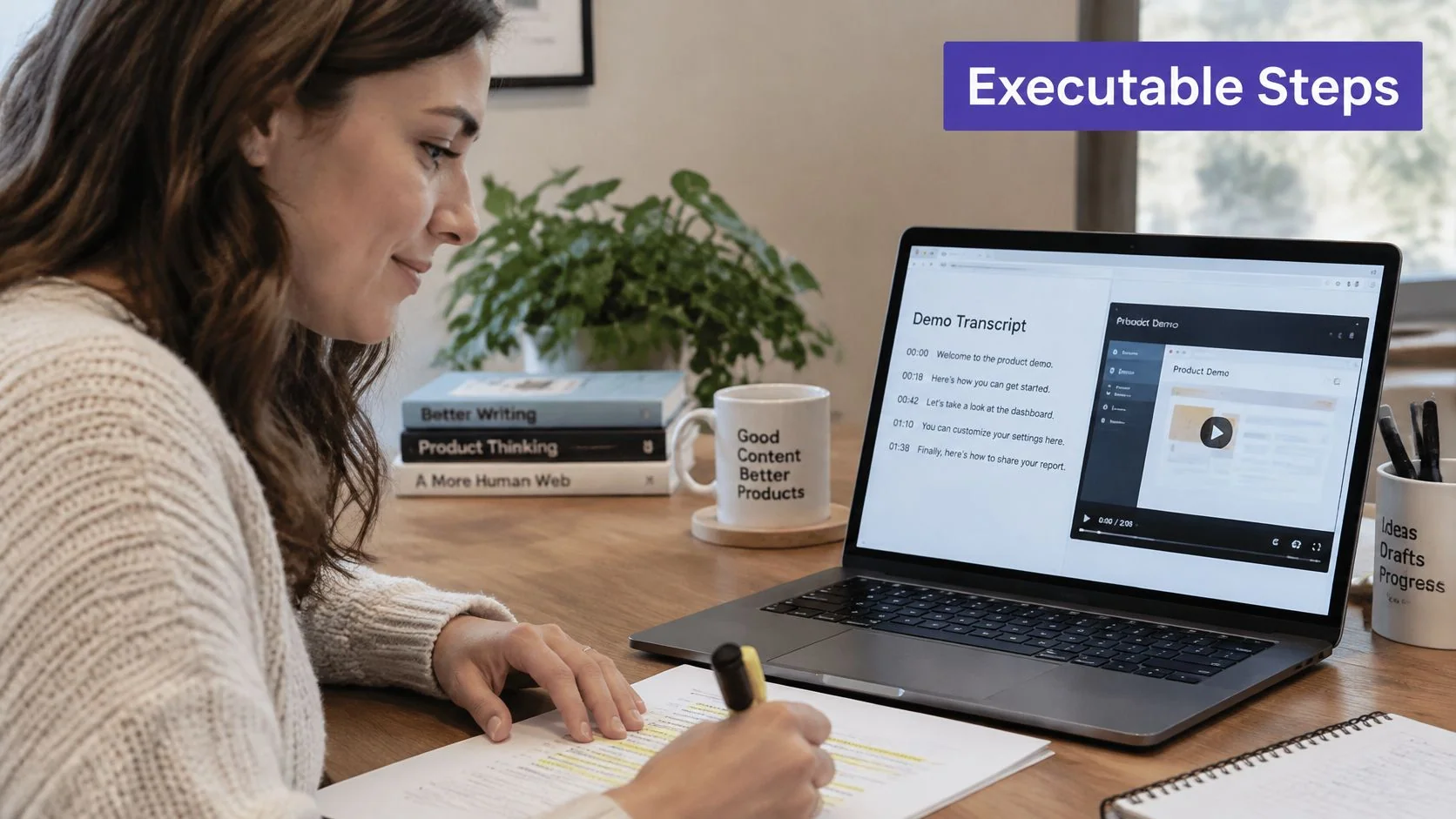
Microsoft procedure guidance gives a useful shape for this rewrite. The Microsoft support guidance on procedures recommends a one-sentence purpose statement followed by a short step list, with procedures preferably limited to five steps and no more than eight, each instruction as a separate step, and an introductory location step when the interface could cause confusion. That limit forces a writer to split a second task into another article instead of hiding it inside step nine.
Build the invite article in task order
Purpose sentence: Invite a teammate with the Admin role. The Admin role here is a labelled example, so the live product must be checked before the same wording is used for a real workspace.
Prerequisites: The signed in account needs Admin permission, and the invitee needs a work email that doesn’t already belong to the workspace. Those two checks prevent the most common dead end, where the Invite control is missing or the form rejects the address.
- Open Settings > Members.
- Select Members, then select Invite.
- Enter the teammate’s work email in the email field.
- Choose Admin in the role picker.
- Select the final invite action shown on the live screen, using the exact label displayed there.
Each step contains one action and one named control. Consistent verbs matter. Select fits a listed item or button, choose fits an option, and enter fits typed text. A menu path such as Settings > Members replaces vague directions such as “go to the members area.”
Place screenshots only where a reader can go wrong
One screenshot belongs at a decision point, such as the role picker, or at the result, such as the Pending row. A screenshot for every click slows scanning and creates more images to replace after a redesign. Test data stays visible, customer data stays out, and the caption names the result instead of repeating the step.
The visible success check closes the procedure: Members shows a Pending row for the invitee. That line tells the reader when to stop. The recovery note follows it. When the email already belongs to the workspace, the article states the exact message or screen state confirmed in the product and gives the next safe action, such as checking the existing member record instead of sending a second invite.
Close the video and replay the task from the article alone. Any step that requires memory of the presenter’s screen has failed the rewrite.
Narration changes the starting point, not the editorial standard. When a presenter narrates during recording, Tutorial AI transcribes the voice and enhances it into polished narration, and AI Transcribe converts recordings into editable narration. When a presenter stays silent, screen actions can be watched and turned into a clean script draft. Either draft still needs label checks, prerequisite checks, and the article only replay.
A chronological dump fails that replay because it preserves the presenter’s path without stating why a role matters, what Pending looks like, or what changes when the interface differs. Alternative input methods also belong in the draft when the product supports them, including keyboard, voice, or touch controls. The finished procedure should stand on its own after the presenter leaves, the video host changes, or the interface receives a small label update.
Export Captions Without Replacing the Article
Captions and a help article share source words, but they do different jobs. The article is the searchable task with prerequisites, steps, results, and recovery. A caption file is timed text for a video player. Treating a caption export as the article leaves readers with sentence fragments, speaker turns, and no reliable place to check the final state.
The review step matters because automatic captions aren’t finished text. The VideoText transcription statistics summary reported that only 14% of organizations considered automatic captions fully accessible, while 47% used them as a first draft before human review. A raw pass can supply headings, search terms, and procedure wording, but names, shortcuts, and product labels still need correction.
Transcript and caption outputs
| Output | Use it for | Fix before you ship |
|---|---|---|
| Raw speech-to-text | A draft only | Names, shortcuts, punctuation, filler |
| Reviewed transcript | Source text for the procedure | Intent, skipped clicks, wrong labels |
| SRT | A timed caption file for most players | Cue length and sync to each click |
| VTT | Web captions and extra language tracks | Cue times after any new voiceover |
| Help article | The searchable task in the help center | Goal, prerequisites, steps, result, recovery |
Export from reviewed text, then time the cues
- Correct the shared terminology list first. Product names, menu labels, role names, and shortcuts should match the steps exactly. A caption that says Member while the screen says Members teaches the wrong search term.
- Export SRT for broad player support. SRT is the simple timed format most editors accept, which makes it practical for a standard caption track.
- Export VTT when the web player needs language tracks. VTT fits web delivery where more than one caption language may be attached to the same video.
- Keep cues short and break at action boundaries. A cue should end at a sentence break or click, not in the middle of a menu path.
- Start each cue when the control changes. The cue for the role picker belongs at the moment the picker opens, not during the presenter’s warm up sentence.
- Label speakers only when two people talk. A label such as a name followed by a colon can help in a two person demo, but speaker labels don’t belong in the help article body.
- Link the article under the video. The video page points to the task article instead of embedding the full transcript as though timed fragments were documentation.
Timing is the detail readers notice first. A caption that names Invite after the invite panel has closed sends attention to the wrong part of the screen. A cue that begins when the control changes lets a viewer connect word, label, and result in the same moment.
Speaker labels need the same restraint. One narrator needs no label on every cue. Two speakers need labels when the voice change affects meaning, such as when a support agent asks a question and a product specialist answers with a different instruction. The article removes that exchange structure and keeps only the confirmed action.
A detailed guide on how to add captions to videos can help with player level mechanics, but the editorial rule stays fixed. Captions ship from the reviewed transcript, the article ships from sorted task content, and neither output substitutes for the other.
Check Accuracy Privacy and Translations
This pass runs after the steps exist. It doesn’t replace writing, sorting, or replaying the procedure. Its job is to prove that the article still matches the live product, exposes no private data, and remains usable after translation or screen reader access.
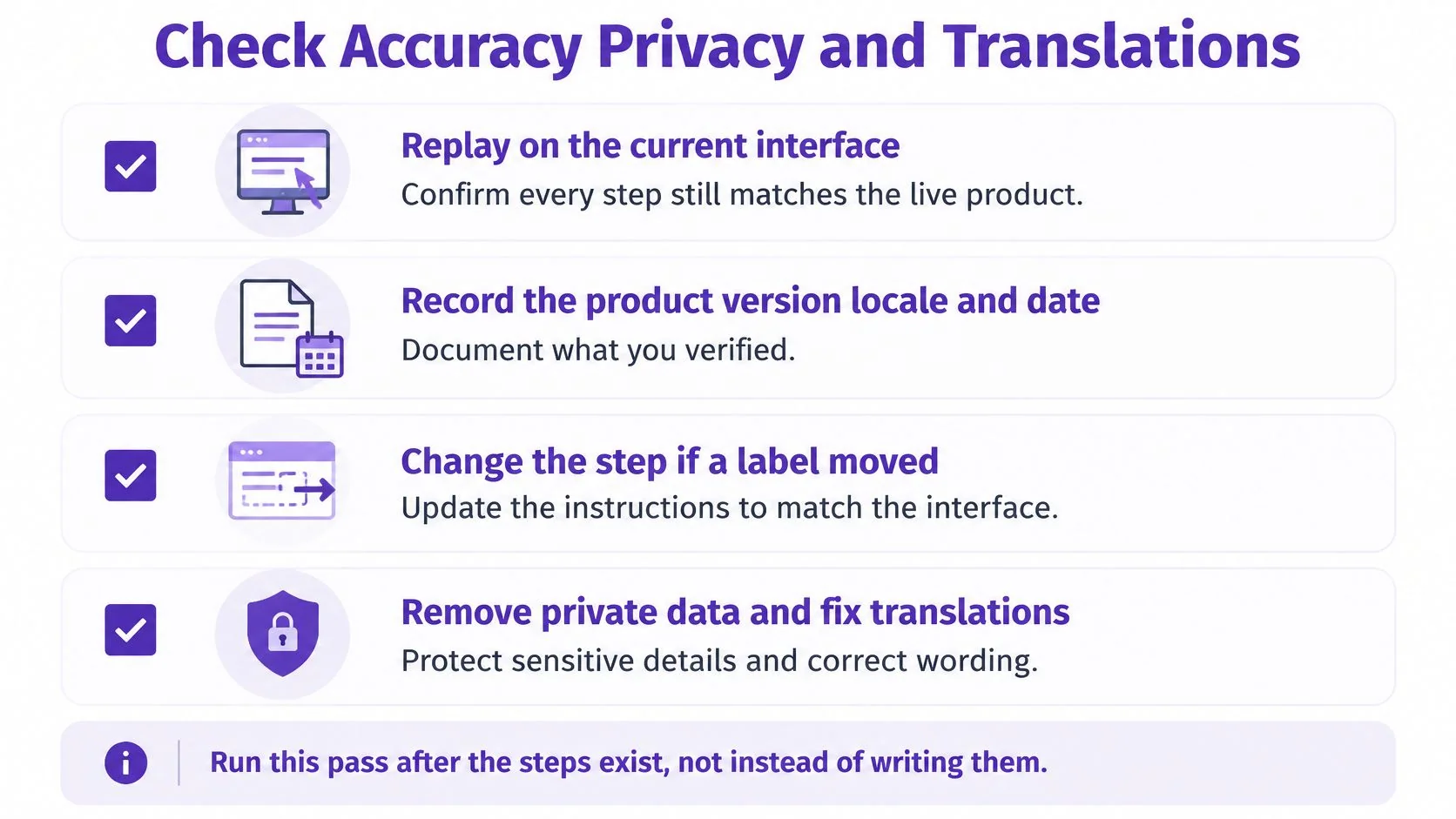
Replay against the live interface
Start on the current product screen, not on the recording. Record the product version, locale, and date tested with the article draft. When a label has moved, the step changes. Keeping the demo path because the video still shows an old menu turns the article into a record of a past release.
Privacy cleanup covers text and images together. Customer names, email addresses, invoice amounts, internal URLs, and account identifiers come out of steps, captions, filenames, and screenshots. A still image needs blurring or replacement when it shows data the script no longer mentions. Internal SOP material also needs a clear audience limit, so a public help page doesn’t inherit an internal procedure by accident.
Treat translation as a second usable article
Translated audio can be correct while the article still fails. Screenshot text may remain in English, error messages may match a different locale, and longer translated strings may make a control hard to read at article width. Caption cues also need retiming after a new voiceover, because a cue shouldn’t end before its speech ends.
The 2025 study on multilingual accessible video production describes AI accessibility workflows as a way to reduce linguistic and cognitive barriers, which supports checking more than translated sentences. Heading order, alt text, reading order, keyboard wording, localized UI labels, and screenshot legibility all need review against the localized screen. Guidance on localization best practices is useful only when those checks end on the live localized interface.
Localization QA checklist
| Check | What to verify | Pass condition |
|---|---|---|
| Translated UI labels | Each label matches the localized product screen | Same wording as the live interface |
| Screenshot text | Text stays legible after translation expands it | Readable at article width |
| Heading order | Headings follow the task order | Outline reads as the procedure |
| Alt text | Describes the result visible in the image | Matches the step outcome |
| Keyboard wording | Shortcuts match the locale keys | Confirmed on the live screen |
| Reading order | Screen reader order matches the numbered steps | Confirmed in a screen reader pass |
| Caption cues | Cue times updated after a new voiceover | No cue ends before its speech |
| Version record | Product version, locale, and date tested | Recorded on the page |
Multilingual video doesn’t automatically create multilingual documentation. Interface text, navigation meaning, and error messages can remain wrong after the voice track changes.
A small review group adds the final practical check. Five testers from different roles, such as support, customer success, training, product, and an admin user role, can attempt the task from the article and report each break in plain terms. That check is a review practice, not a measured result, and findings shouldn’t be generalized beyond the tested task.
Publication is justified only when a tester finishes from the article, screenshots contain no private data, and each localized page matches the interface for that locale. A failed label, unreadable image, or mismatched shortcut sends the draft back to the step list.
Publish the Article With the Walkthrough
Publish the invite instructions where readers already go for task help. The help center article should state the purpose, list prerequisites, and give numbered steps, with the short walkthrough embedded or linked near the top. A new course is unnecessary for one admin task. An LMS suits tasks already assigned in a required course, while a help center or knowledge base serves everyday product help.
The article gives readers a reference they can scan while completing the task, both during and after the walkthrough. In a University of Twente study of instructional video with 73 participants, demonstration videos had a 93% completion rate, while review segments had a 32% completion rate. The study also found significantly better performance during and after training for the review condition than for the control condition. A concise written guide makes the procedure easy to revisit.
Keep the page structure tied to the task
- Title: Name the task directly, such as inviting a teammate, rather than the meeting or release.
- Opening: Put the purpose and prerequisites first so readers see the permission requirement before background.
- Procedure: Place steps before explanation, and make the Pending row the visible stopping point.
- Recovery: Put the existing email case after the success check, where readers can find it if an attempt fails.
Teams choosing where to publish can consider help center software for organizing searchable help content. Keep the article title and steps consistent with the video. Search depends on recognizable product labels, a clear goal, and a result line readers can find.
Tutorial AI can turn the same recording into a draft guide rather than requiring manual transcript pasting. Documentation auto-generates help articles with screenshots from any recording. Record or upload the walkthrough, review the generated script, generate the video, then open the Document tab to create a written guide with screenshots. Check the video and guide for accuracy, make final edits, then export or share.
Treat generated text as a draft. Remove promotional lines, replay the task to catch moved labels, and check screenshots for private data. Use the invite recording in Tutorial AI only after those checks are complete, then edit the video and article before either one reaches readers.
Record the invite task once, sort the narration, and turn the recording into a reviewed tutorial video and written guide. Check the script, steps, and visuals against the live interface before sharing with support, training, or customers. Start with Tutorial AI to create a help article readers can follow.